Kabuto — Modular Samurai Helmet Generator
 Anvil Studio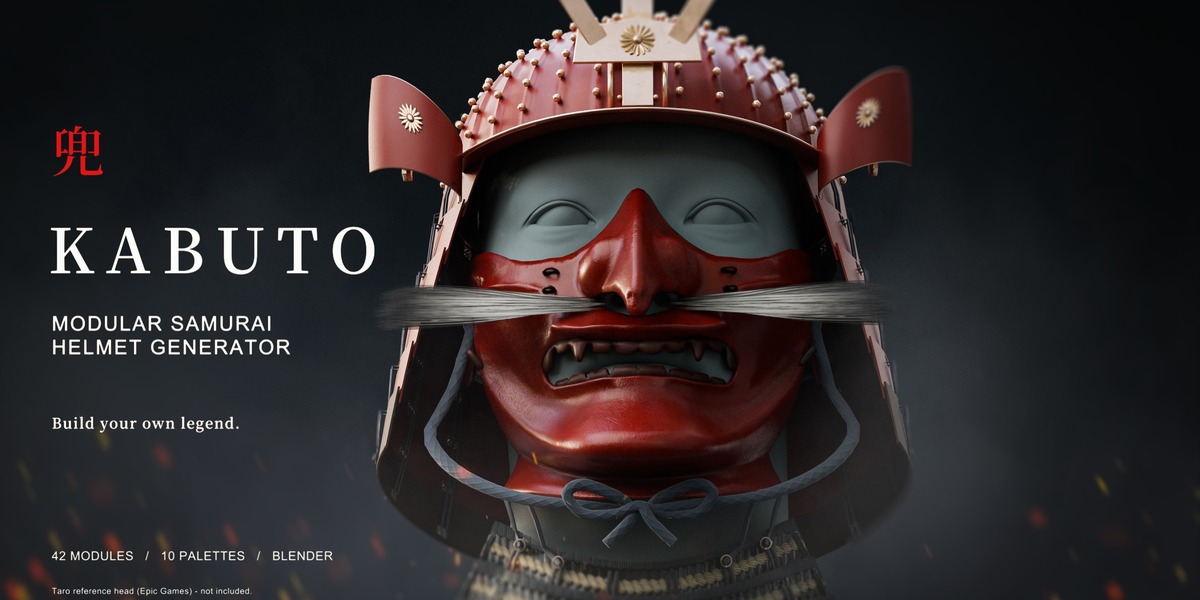
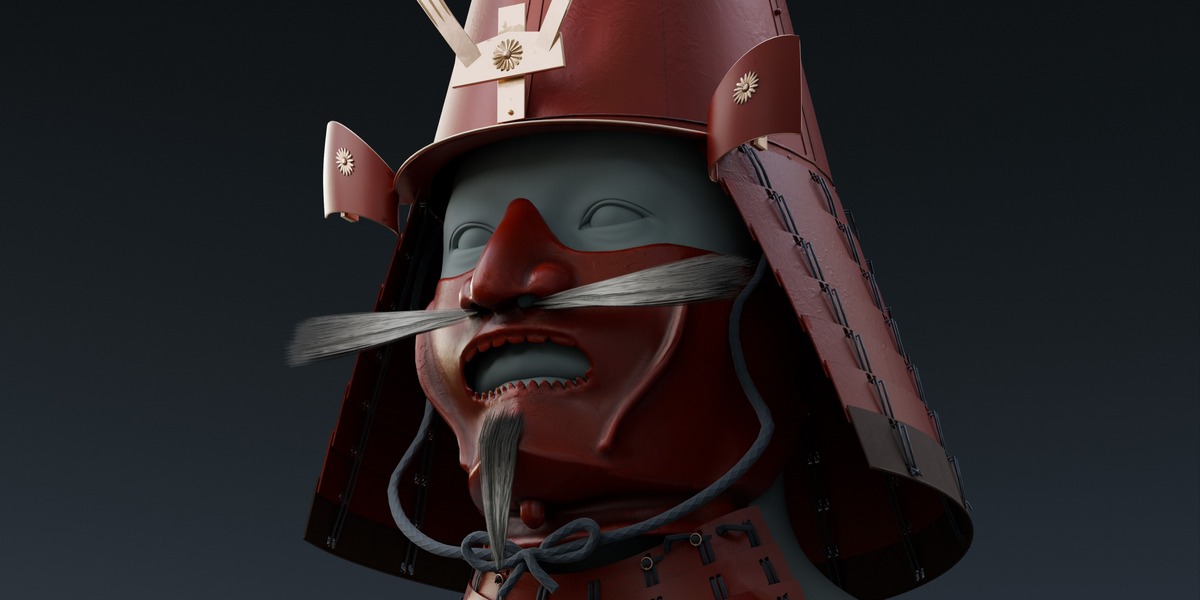
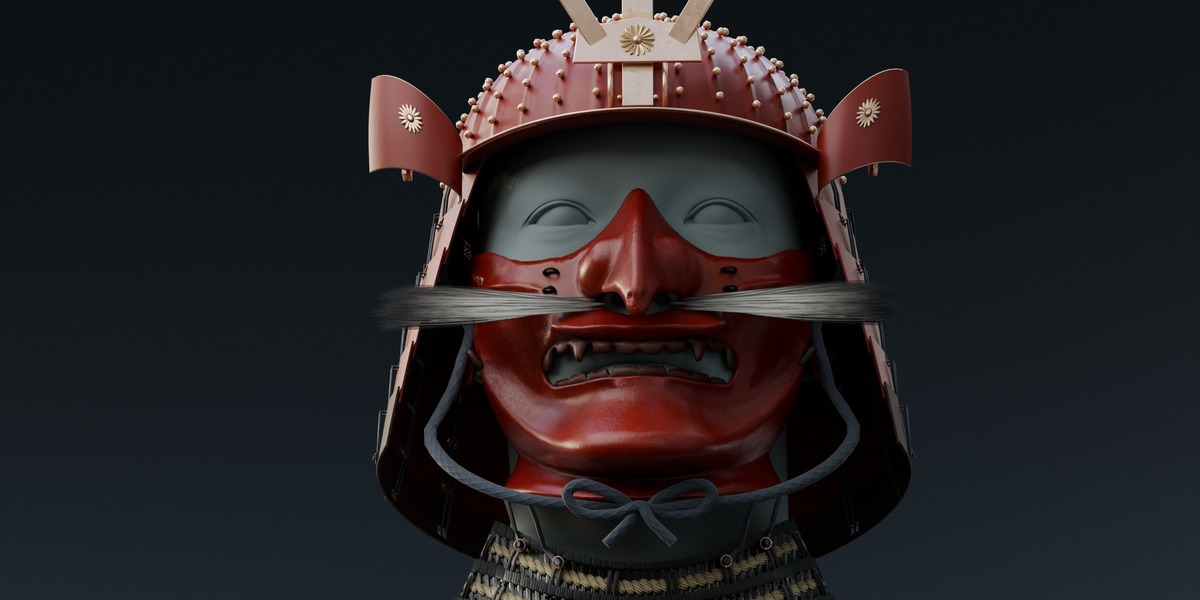
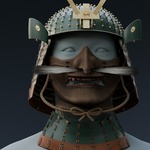
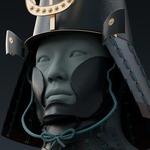
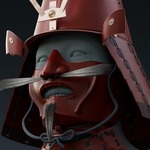
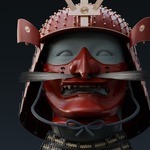
ANVIL STUDIO / USER DOCUMENTATION
KABUTO
Modular Samurai Helmet Generator
Install, assemble, customise, fit and render.
Product version 0.9.8 / Blender 5.2.2 LTS / Cycles
New to KABUTO? Start with chapters 1 and 2, then choose an example configuration. Use the contents below to find a particular feature.
The downloadable documentation contains an illustrated PDF and an offline HTML guide. Purchasers can find it alongside the product downloads. This page contains the complete written instructions; screenshots and supplementary geometry CSV files remain in the documentation download.
Contents
- Start here
- Install, enable and update
- Choose a scene and save your work
- The KABUTO sidebar
- Choose parts and accessories
- Randomisation and repeatable seeds
- Example configurations
- Colour, regions and palettes
- Iron, carved wood and odoshi
- Fit the assembly to a character
- Reference heads: source and setup
- Studio lighting and still renders
- Turntable animation
- Create MP4 and GIF files
- Export the current mask textures
- Editable Substance Painter projects
- Replace textures and keep the controls
- Geometry, export and game workflows
- Practical workflows
- Troubleshooting
- Glossary, files and licences
CHAPTER 01
Start here
Build, colour, fit and render a modular samurai helmet from one Blender sidebar.
KABUTO combines authored mesh parts, textured materials and fitting controls in a reusable Blender assembly. You can choose each component, explore repeatable random arrangements, or begin with a complete example. The included studio provides lighting, cameras and a camera-orbit turntable.
| At a glance | Included |
|---|---|
| Product version | KABUTO 0.9.8; manual edition 01, 19 October 2026. |
| Verified environment | Blender 5.2.2 LTS with Cycles. The add-on declares Blender 5.2 as its minimum. Other releases and render engines have not been certified. |
| Assembly library | 42 mesh modules, five example configurations and ten colour palettes. |
| Surface options | Lacquered iron or carved-wood masks; lacquer or odoshi texture on the two rear guards and throat guard. |
| Optional authoring | Six Substance 3D Painter projects, checked in Painter 10.1.2, and a PBR export script. Painter is not needed to use the Blender pack. |
| Reference heads | Not included. See Reference heads for the source of the promotional examples and how to import your own. |
Your first result
- Install and enable the KABUTO add-on ZIP in Blender Preferences.
- Press N over the 3D View and open the KABUTO tab. Choose Open studio template.
- Use File > Save As to save your own project outside the installed add-on folder.
- Open Example configurations and choose a starting look.
- Choose a Palette in Colour and surface. Select a part to change its finish or colour.
- Open Studio renders, choose Frame assembly - Hero, then press F12.
Work in Object Mode for the generator workflow. Keep one live KABUTO assembly per Blender file. Save a separate .blend for every design you want to retain.
CHAPTER 02
Install, enable and update
Install the product once; the KABUTO sidebar remains available across Blender restarts.
Which download do I install?
| Download | What to do |
|---|---|
| KABUTO_Blender_Addon_0_9_8.zip | Keep this ZIP intact and install it through Blender. It contains the generator, studio template and packed textures. About 1.59 GB compressed. |
| KABUTO_Substance_Sources_0_9_8.zip | Optional. Extract it to a normal working folder. Keep Painter and Authoring together as sibling folders. About 2.50 GB compressed. Do not install this ZIP as a Blender add-on. |
| Documentation ZIP | Extract it and open START_HERE.html or the PDF. This is a companion guide, not a Blender add-on. |
- Save your current Blender work. Open Edit > Preferences > Add-ons.
- Open the menu at the top right of the Add-ons page and choose Install from Disk.
- Select KABUTO_Blender_Addon_0_9_8.zip and complete the installation. Let the large asset file finish extracting.
- Search for KABUTO and enable KABUTO - Modular Samurai Helmet Generator.
- If preference auto-save is disabled, use Save Preferences.
- Close Preferences. Move the pointer over a 3D View, press N, and select the vertical KABUTO tab.
The installed add-on registers its controls for you. You do not need to run a Text Editor script or enable automatic execution of embedded scripts. The Quick start button opens the shorter guide shipped with version 0.9.8.
If the panel does not appear
- Confirm you installed the add-on ZIP, not the source-material or documentation ZIP.
- Check that KABUTO is enabled and that your pointer is over the 3D View when pressing N.
- Scroll the vertical sidebar tabs if KABUTO is out of view. Widen the sidebar if names are truncated.
- Restart Blender after saving Preferences if the enabled add-on does not appear.
Updating or reinstalling
Save your custom projects and back up any changes made inside the installed add-on folder. Disable the old KABUTO version, use Blender's remove/uninstall option for that add-on, install the replacement ZIP and enable it again. Open a copy of an existing project and check its controls before replacing your working file. Installing a new template does not automatically replace assemblies already saved in old projects.
Keep custom .blend files outside the installation folder. Reinstalling can replace bundled files. Hardware-specific render speed and memory requirements vary; no minimum GPU-memory figure has been certified for this release.
CHAPTER 03
Choose a scene and save your work
Use the studio for presentation, or append the assembly to an existing character scene.
| Command | Behaviour |
|---|---|
| Open studio template / New studio | Opens a fresh complete studio as an unsaved project. Blender offers to save the current file first. This replaces the current working scene view; it is not an append operation. |
| Add assembly to this scene | Appends KABUTO Assembly and its fitting rig while retaining your scene objects and lighting. Available in Object Mode when a KABUTO fit rig is not already present in the file. |
| Quick start | Opens the installed quick-start HTML guide. |
Starting in the supplied studio
Choose Open studio template, then immediately use Save As. The saved template uses metric units with a 0.01 unit scale, a 1600 x 1800 render at 100%, Cycles with 256 samples, exposure -0.25 and 85 mm studio cameras. These are starting settings, not mandatory values.
Adding to your own scene
Choose Add assembly to this scene. KABUTO creates and selects an empty named KABUTO Assembly placement. Move, rotate or scale this object to position the whole helmet. The append operation converts the centimetre-based assembly to your scene unit scale. For ordinary metre-scale scenes, do not apply another 100-times conversion.
Appending the assembly does not append the render studio. Studio renders needs the supplied studio objects. For the quickest render workflow, open the studio first and import your character into it.
Preserve a working generator
- Keep the KABUTO Assembly collection, Kabuto_Fit_Rig and original object names intact while using the controls.
- Use the sidebar to switch alternatives. Hidden parts are the library used by the generator, not redundant objects to delete.
- Do not rename, duplicate or remove the fit rig to try to create a second live generator. Version 0.9.8 supports one live assembly per file, including files with multiple scenes.
- Save designs with File > Save As. A seed records a generated starting arrangement, not the whole project.
When appending is disabled and the panel says an assembly exists in another scene, switch to that scene or start a separate Blender file. For a scene containing several finished helmets, use separately prepared static exports or copies after baking/realising their appearance; those copies are no longer independent live generators.
CHAPTER 04
The KABUTO sidebar
Each section handles a distinct part of the workflow.
| Panel | Use it for |
|---|---|
| Assembly | Random seeds, main component selection and accessory visibility. |
| Colour and surface | The selected part's finish, tint, wear and detail; global palettes; mask texture baking. |
| Fit to your character | Head proportions, facial clearance, neck fit and available mask profile correction. |
| Example configurations | Five complete authored starting looks. |
| Studio renders | Camera framing, render quality and a 360-degree image sequence. This panel appears when the supplied studio is present. |
Click the small arrow beside a panel title to expand it. Some controls appear only when the selected part supports them. For example, a mask exposes wood options, while a supported guard exposes odoshi options.
The Part selector in Colour and surface is an editing target, not a visibility selector. It can point to a hidden alternative. Use selected part after selecting a visible mesh when you want to be certain which object you are editing.
CHAPTER 05
Choose parts and accessories
Component selectors control one compatible assembly, rather than adding loose objects.
| Selector | Options |
|---|---|
| Kabuto (Helmet) | Suji-bachi kabuto (Ridged helmet); Hoshi-bachi kabuto (Riveted helmet); Eboshi-nari kabuto (Court-cap helmet); Kawari kabuto (Tall conical helmet); Kawari kabuto (Folded-crown helmet); None. |
| Shikoro (Rear guard) | Close rear guard; Wide rear guard; None. |
| Mengu (Face armour) | Menpō (Half Mask 01), Menpō (Half Mask 02), Menpō (Half Mask 03), Hanbō (Chin Mask 04), None. |
| Maedate (Front crest) | Kuwagata (Antler crest); Kuwagata (Leaf-shaped crest); Mikazuki maedate (Crescent crest); Kiku maedate (Chrysanthemum crest); Kuwagata (Long-swept crest); Kuwagata (Broad-flared crest); Mon maedate (Emblem frame); None. |
| Mon (Emblem) | Five-petal pinwheel; Three roundels; Split-petal flower; Ringed blossom; Five-petal blossom; Diamond; None. Emblems appear in the emblem-frame crest. |
| Toggle | Result |
|---|---|
| Kuchihige (Moustache) | Shows the matching moustache for Half Mask 01, 02 or 03. |
| Agohige (Goatee) | Shows the matching goatee for Half Mask 01, 02 or 03. |
| Yodarekake (Throat guard) | Shows the neck/throat armour and the suspension lacing for the selected mask. |
| Mabisashi (Visor) | Shows the visor when a helmet is selected. |
| Fukigaeshi (Turnbacks) | Shows the turnbacks and their matching fittings when a helmet is selected. |
| Shinobi-no-o (Tying cord) | Shows the tying cord when a helmet is selected. |
Why a checked option may not be visible
- Chin Mask 04 and None do not display facial hair, even if the hair boxes remain checked.
- An emblem requires Mon maedate (Emblem frame), an emblem choice other than None, and a visible helmet.
- Helmet = None also hides the rear guard, crest, emblem, visor, turnbacks, turnback fittings and tying cord. A mask or throat guard can remain visible independently.
- Throat-guard suspension is matched to the selected mask. It is hidden when no mask is selected. The throat guard itself can still be enabled manually.
Use these relationships when building a mask-only render or troubleshooting a missing part. The general Japanese names identify the armour components; the parenthetical English text identifies the option in this kit. Artistic combinations are not a guarantee of a specific historical reconstruction.
CHAPTER 06
Randomisation and repeatable seeds
Explore quickly, then keep the result by saving the Blender file.
- Open Assembly and decide whether to enable Include colours.
- Press Randomise assembly. It selects a different integer seed from 0 to 999999 and immediately applies it.
- Type a seed to return to its generated arrangement, or use the left/right arrows to step by one. Arrows wrap at the ends of the range.
- Make manual changes to the components, materials or fit. Save the .blend to retain your final design.
| Control or message | Meaning |
|---|---|
| Include colours off | Seed changes replace the component arrangement while preserving your existing part colours. |
| Include colours on | Seed changes also apply a coordinated palette. The palette index is seed modulo 10: the last decimal digit selects one of the ten palette families. |
| Custom / example arrangement | The current component settings differ from the arrangement generated by the displayed seed. This is normal after manual selection or an example button. |
| Typing an unchanged seed | If Blender does not register a value change, step away and back to force regeneration. |
| Seed repeatability | Repeatable for this version's generator and the same Include colours setting. Different seeds can produce identical visible combinations. |
What gets randomised?
The generator chooses a helmet, one of the two rear guards, a mask or no mask, a crest or no crest, eligible facial hair, turnbacks and (when appropriate) an emblem. It keeps the visor on. When the generated mask choice is None, it turns the throat guard and tying cord off. Fitting is preserved.
Seed changes do not reset every material setting. Wood/iron choices, guard surface choices, ageing and manually edited wood stains are not a full saved state inside the seed. Save a .blend when you want to return to all of those settings together.
The advertised 3,640 compatible part arrangements count the curated generator's visible combinations before colour/material variants. One million possible seed values does not mean one million unique helmets, and the figure is not a count of every manual toggle permutation.
CHAPTER 07
Example configurations
Five buttons restore complete looks and provide dependable starting points.
| Example | Main character |
|---|---|
| Hoshi-bachi kabuto (Red riveted helmet) | Riveted bowl, Half Mask 01, leaf-shaped crest and moustache. Red lacquer; lacquered rear guard and odoshi throat guard. |
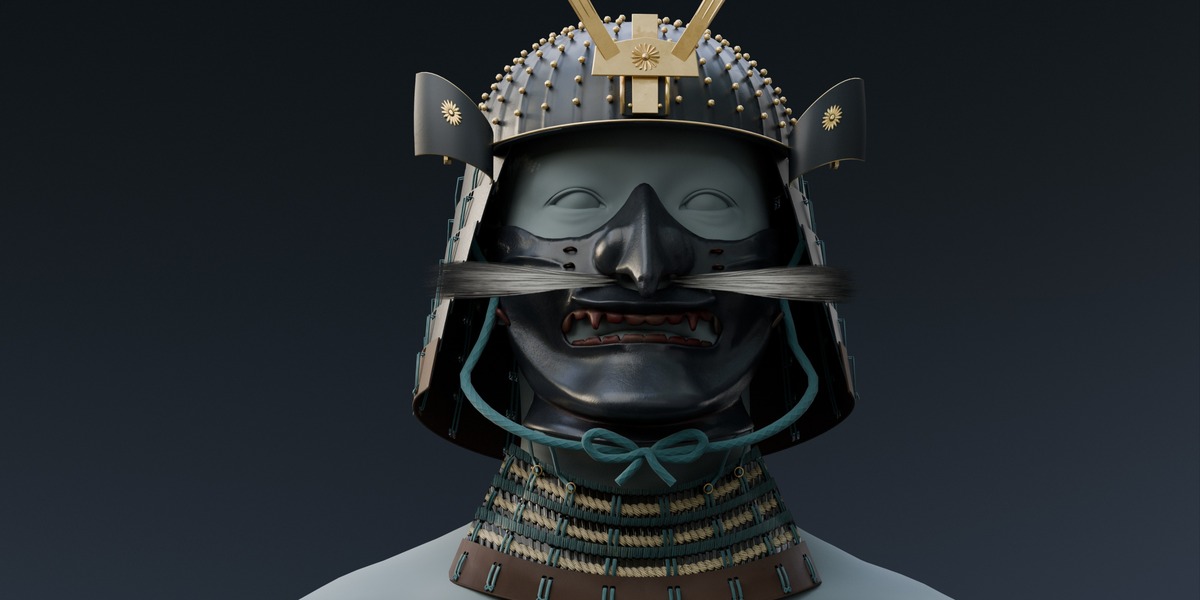
| Suji-bachi kabuto (Black and gold) | Ridged bowl, Half Mask 02 and crescent crest. Black paint, gold ornament and dark cord. |
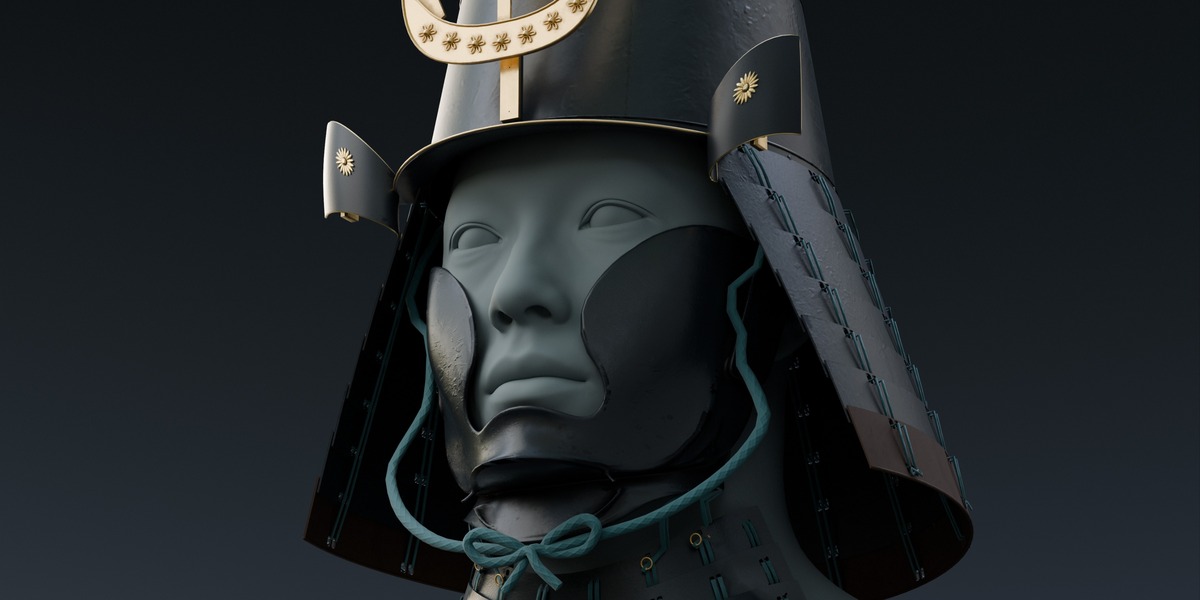
| Kawari kabuto (Indigo folded crown) | Folded crown, Chin Mask 04 and emblem frame with three roundels. Indigo appearance; tying cord off. |
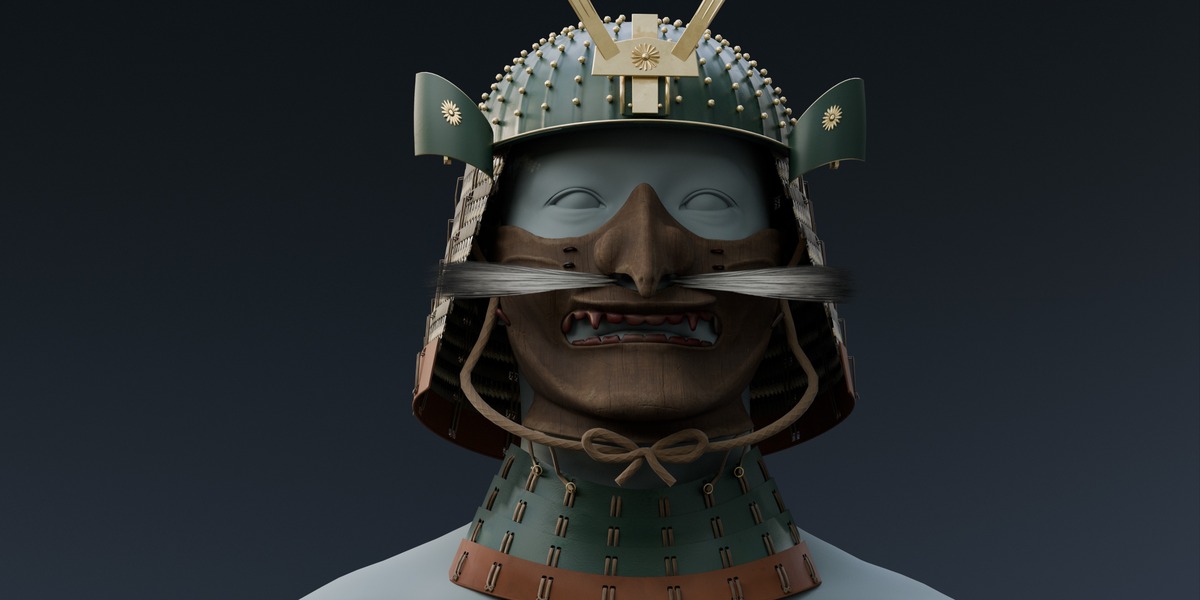
| Eboshi-nari kabuto (Green chrysanthemum) | Court-cap bowl, Half Mask 03, chrysanthemum crest and moustache. Green appearance with odoshi rear and throat guards. |
| Kawari kabuto (Bronze tall cone) | Tall conical bowl, no mask and antler crest. Bronze-toned appearance; odoshi guards. The throat guard remains part of this authored example. |
Click a button in Example configurations. It restores the example's parts, colours, surface styles and maintained condition. Mask surfaces return to iron. Previous manual appearance edits are replaced, including edits on currently hidden alternatives.
Examples preserve your character-fitting controls and the replay seed number. The seed can therefore show Custom / example arrangement after applying an example. Save your current look before using an example if you want to return to it.
CHAPTER 08
Colour, regions and palettes
Tint individual parts while retaining the texture detail beneath them.
- Select a visible KABUTO mesh in the 3D View.
- Open Colour and surface and press Use selected part. Alternatively, choose the named object in Part.
- Change Colour and adjust Tint strength. The colour picker enables its strength if it was at zero.
- Use any region-specific colour controls shown for that object. Check the result in Material Preview or Rendered shading.
- Save the file after making a custom look.
| Control | How it behaves |
|---|---|
| Colour / Tint strength | Tint for the main finish. Strength 0 retains the authored colour; 1 applies the full tint blend. The textured surface and lighting still affect the visible result. |
| Fabric colour / strength | Tint for the fabric/cord region, when that material region exists. In odoshi mode this is labelled Cord colour. |
| Braid colour / strength | Separate horizontal braid tint on odoshi guards. |
| Leather colour / strength | Leather trim tint where supported. |
| Metal colour / strength | Decorative hardware tint where supported. This changes colour, not the definition of a part into a different physical material. |
| Reset this part | Restores the part's original appearance defaults and maintained condition, including tint strengths and detail levels. It preserves the selected surface style and does not reset character fitting. |
Ten coordinated palettes
| Index | Palette |
|---|---|
| 0 | Charcoal / teal |
| 1 | Vermilion / midnight |
| 2 | Forest / flax |
| 3 | Indigo / crimson |
| 4 | Bronze / pine |
| 5 | Black / gold / ivory |
| 6 | Black / silver / scarlet |
| 7 | Ivory / indigo |
| 8 | Plum / flax / teal |
| 9 | Olive / ochre |
The Palette dropdown applies a coordinated appearance to supported parts across the whole library, including hidden alternatives. Main finishes, ornaments, cords, braids and leather receive their corresponding colours. Existing tint strengths are replaced by the palette's blend values.
Randomise colours cycles forward through this fixed palette list; it does not pick unrestricted random RGB values. It preserves assembly selection, fitting, wood stain and facial-hair colour. It also leaves the current surface selections and ageing settings in place. Choose your palette before making fine per-part edits.
A hex value describes a colour input, not a guaranteed pixel colour in the render. Texture variation, tint strength, exposure and colour management all affect the rendered appearance.
CHAPTER 09
Iron, carved wood and odoshi
Surface alternatives change the material treatment, while the existing mesh remains the same.
Mask surfaces
- Choose a mask in the Colour and surface Part selector.
- Set Surface to Lacquered iron or Aged carved wood.
- For wood, adjust Wood stain, Stain strength and Wood grain relief.
- Use Use this surface on all masks if you want all four mask alternatives to use the same surface type.
Use this surface on all masks copies only the iron/wood choice. It does not copy the selected mask's stain colour, ageing amount or relief settings. Each mask keeps its own appearance controls.
| Wood control | Range and meaning |
|---|---|
| Wood stain | The default stain picker is sRGB #594D41FF. It is independent of the armour palette. |
| Stain strength | 0 to 1. At 0, the authored wood texture colour is used. Changing the stain picker while strength is 0 automatically enables the tint at strength 1. |
| Wood grain relief | 0 to 2; default 1. Controls the baked wood-normal contribution. This is shading relief, not a change to mesh silhouette. |
Odoshi lacing on guards
Odoshi is available on Shikoro (Close rear guard), Shikoro (Wide rear guard) and Yodarekake (Throat guard). Select one of these parts and choose Surface > Odoshi (Lacing texture). Helmets, masks and turnbacks do not gain an odoshi surface through this control.
Use Cord colour for the vertical cord regions, Braid colour for the horizontal braid, and Leather or Metal colour where shown. Odoshi relief ranges from 0 to 1.5, with the shipped value at 1. The option uses textures and normal-map relief; it does not generate individual raised cord strands or a new silhouette.
Surface detail and condition
| Control | Use |
|---|---|
| Maintained / aged | 0 is the maintained endpoint; 1 is the aged endpoint. Intermediate values blend the supplied surface treatments. Dirt, staining, scuffs, scratches and wear vary by material. |
| All maintained / All aged | Sets the condition of every supported assembly part, including hidden alternatives, to 0 or 1. Colours and fitting remain unchanged. |
| Normal detail strength | 0 to 1 where shown. Controls the baked normal detail for non-wood materials. Wood has its own grain-relief control. |
| Aged carved wood with ageing at 0 | The surface name describes the wood style. The maintained-to-aged slider still provides a separate condition blend within that style. |
No material-detail slider adds mesh geometry. Judge subtle relief under grazing light and at a useful close-up distance; increasing normal strength cannot add real thickness to an edge.
CHAPTER 10
Fit the assembly to a character
Align the whole assembly first, then adjust its proportions and clearances.
- Import or append your character and keep it in a neutral, upright pose. Use a separate reference collection.
- Align the assembly's centre, eye line and facing direction to the head. In an appended scene, use KABUTO Assembly placement for whole-assembly movement.
- Set the main component choices. Start from the saved template's fit values or your saved character fit.
- Adjust Head scale, then Head width and Face depth.
- Check nose, cheeks, lips and chin from front and both sides. Refine Jaw clearance and Mask depth.
- Check the throat guard around the neck and refine Neck width / Neck depth. Use Hair clearance for space around the facial-hair area.
- Switch through the masks and helmet choices you intend to use. Check the back and sides, then save this character-specific .blend.
| Control | Range / purpose |
|---|---|
| Head scale | 0.75 to 1.25; shipped value 1. Uniform assembly scale. It does not measure or scan the imported head. |
| Head width | 0 to 1; shipped value 0. Authored width fitting deformation. |
| Face depth | 0 to 1; shipped value 0. Authored face-depth adjustment across supported parts. |
| Jaw clearance | 0 to 1; shipped value 0. Authored adjustment around the lower face. |
| Hair clearance | 0 to 1; shipped value 0. Authored clearance adjustment for supported components and facial-hair fit. It is not a scalp-hair simulation. |
| Mask depth | 0 to 1; shipped value 0. Additional mask depth, with its matching facial hair and suspension. |
| Neck width / Neck depth | -0.5 to 1. These independently adjust the shared throat guard. Both ship at -0.5 in this studio; 0 is not the shipped neck fit. |
| Profile correction | 0 to 1, available for Half Masks 01 and 03 and Chin Mask 04. The supplied correction is enabled at 1. Half Mask 02 does not expose this slider. |
Fit slider numbers are blend amounts, not centimetres. KABUTO does not automatically detect anatomy or bind itself to a character skeleton. Extreme proportions and animation may need additional fitting work.
Examples and randomisation preserve the global fit controls. Profile correction belongs to the particular mask, so inspect it when changing masks. To restore the shipped fit exactly, reopen a fresh studio or enter the shipped values above; Reset this part is an appearance reset.
CHAPTER 11
Reference heads: source and setup
Use a head for scale and fit checks; the reference character is separate from KABUTO.
Where Taro and Ada come from
The example heads shown in some promotional renders are Taro and Ada samples from Epic Games' MetaHuman DNA Calibration repository. The sample files are data/dna_files/Taro.dna and data/dna_files/Ada.dna. They are not .blend or OBJ downloads, and KABUTO does not import DNA directly.
The repository notes that its older tools target MetaHumans from Unreal Engine 5.5 or earlier. Do not assume they support newer MetaHuman DNA. Follow the compatibility notes for the particular sample/tool version you obtain.
Heads and third-party character tools are not supplied or licensed by KABUTO. Review the sample repository licence before use. It contains source-specific character-use restrictions; do not assume a free download or KABUTO purchase gives unrestricted redistribution or rendering rights.
Obtain the sample data
- Open Epic's repository and its official setup documentation. Download or clone the repository with its data.
- The DNA files use Git LFS. If cloning, install/configure Git LFS and fetch the large files. If downloading individually, use GitHub's download control for the actual file.
- Check that you have the binary DNA data, not a small text pointer beginning with version https://git-lfs.github.com/spec/v1. Keep the repository folder structure intact.
See Epic's setup and dependency guide. Its distributed binaries target particular Python/Maya versions; that setup is separate from Blender and is not bundled with KABUTO.
Official conversion route to FBX
- Set up Epic's DNA tools in a compatible licensed Maya installation using its environment guide. This is an advanced optional workflow.
- Open the repository example examples/dna_viewer_export_fbx.py in Maya's Python Script Editor. Set ROOT_DIR to the repository's absolute folder path, using forward slashes.
- For Ada, retain CHARACTER_NAME = "Ada" and the feminine skeleton. For Taro, set CHARACTER_NAME = "Taro" and change BODY_FILE to the masculine skeleton specified by the example. Use the desired UP_AXIS setting, normally "z" for this workflow.
- Run the official example in Maya or its configured mayapy environment, not Blender's Python console. It creates per-LOD exports in OUTPUT_DIR.
- Import a suitable exported FBX into Blender using File > Import > FBX. Inspect scale, orientation and the imported mesh list; keep the head and any eye/neck meshes needed for your fitting reference.
Use the current instructions in Epic's FBX example for exact dependency and skeleton settings. This manual links the supported route; it does not bundle or certify a new DNA converter.
The simpler alternative
Any head mesh you already have permission to use can serve as a fitting reference. A .blend head can be brought in with File > Append; an FBX or OBJ uses its matching File > Import command. You do not need a MetaHuman facial rig, skin textures or animation just to judge helmet fit.
Organise and toggle an imported head
- Place the head and its needed eye/neck objects in a collection named Reference heads. Keep it separate from KABUTO Assembly.
- Align the head and helmet in a neutral pose using front and side views. If the import is 100 times too large or small, correct its unit conversion once before fine fitting.
- Use the Outliner eye/monitor visibility controls to show or hide the reference in the viewport. Use the camera icon to control whether it appears in renders. Enable those restriction columns from the Outliner filter menu if they are hidden.
- For a neutral display head, assign a simple non-metallic charcoal material with high roughness. It can help the armour stand out without requiring skin textures.
- Keep the reference collection separate from asset exports, and save your project.
The standard customer studio has no Taro/Ada dropdown because it contains no heads. Importing a head does not create that dropdown automatically. Use the Outliner visibility controls above. A separately prepared studio that already has reference-head wiring may show Head and Include head in renders; those are not promised customer assets.
Camera auto-framing follows KABUTO modules, plus visible mesh objects whose names begin REF_. It does not automatically include arbitrary imported character names. Frame the helmet first and adjust the camera manually if you also want a full bust or body in the image.
CHAPTER 12
Studio lighting and still renders
Use the included scene to produce consistent hero, front and detail views.
| Control | Result |
|---|---|
| Frame assembly - Hero | Selects the hero camera and reframes the visible assembly from a three-quarter angle. |
| Frame assembly - Front | Selects a frontal camera and reframes the visible assembly. |
| Frame mask - Close-up | Frames the currently render-visible mask. Select a mask first; other visible pieces are not automatically hidden. |
| Render size | Percentage of the resolution in Blender's Output Properties. In the shipped 1600 x 1800 studio, 50% produces 800 x 900 pixels. |
| Samples | Cycles render samples. More samples can reduce noise at the cost of render time. |
| Exposure | Overall colour-management exposure. Changes the image brightness, not the actual colour-picker values. |
- Open your saved studio, choose the assembly and finish, and save.
- Open Studio renders and click the framing button for the desired view.
- For a quick test, use 25-50% Render size and 24-48 Samples. Inspect the light, silhouette and fit.
- For final output, return to 100% and increase Samples as needed; 128-256 is a useful starting range. Set a different aspect ratio in Output Properties if required, then reframe.
- Press F12 to render. In the render window, use Image > Save As to save the still; a regular F12 render is not automatically written to disk like an animation frame sequence.
Get the expected lighting
Use Rendered shading to assess the Cycles scene. Material Preview can use its own environment when Scene World or Scene Lights are disabled, so it may differ from the final render. In the Outliner, make sure the STUDIO collection and intended lights are enabled for rendering, not only visible in the viewport.
The supplied studio contains soft key/fill lighting, rim/edge lighting and a gradient backdrop. You can change lights, world settings or camera positions in your saved project. Camera framing buttons recalculate the framing, so perform your manual camera adjustments after the last automatic frame command.
GPU rendering is optional and uses your Blender configuration. This guide does not change your device preferences. Reduce resolution and close other GPU-heavy work if memory is limited.
CHAPTER 13
Turntable animation
The camera makes one full orbit while the helmet and fitting rig remain stationary.
- Save your .blend before rendering. Choose the final parts, materials and fit.
- Set Frames and FPS in Studio renders. Defaults: 120 frames at 24 FPS, a five-second loop. A smaller web loop can use 72 frames at 12 FPS, giving six seconds.
- Press Build / reframe turntable. KABUTO creates or updates the orbit camera and camera-following backdrop. Preview with Space over the Timeline.
- Inspect the view at several frames. Check tall crests and wide guards for clipping.
- Set Render size and Samples, then check Output. Build creates a timestamped Renders/Turntable_.../frame_ path relative to the saved .blend.
- Press Render PNG sequence. It reframes the loop and renders RGB PNG files. Progress appears in Blender's render window; Esc cancels.
- Use Frame assembly - Hero or Front when returning to stills. Rebuild after changing parts, fit or render aspect ratio.
| Setting | Details |
|---|---|
| Frames | 24 to 720. The render range starts at frame 1. |
| FPS | 6 to 60. Duration is Frames divided by FPS. |
| Seamless endpoint | The full 360-degree key is on Frames + 1. That duplicate endpoint is excluded from the rendered range. |
| Lights and backdrop | Studio lights remain fixed. The gradient backdrop follows the orbit so the background remains present around the full rotation. |
| Output format | 8-bit RGB PNG. Convert the image sequence to MP4 or GIF afterwards. |
Build / reframe regenerates the turntable animation and a new timestamped output path. Set a custom Output path after building. Render PNG sequence retains that displayed path when the turntable camera is active; if you switched back to a still camera, build again and recheck Output.
Resuming an interrupted sequence
Keep the frames already rendered. To resume only the missing range, set the frame start/end manually in Blender's Output Properties and use Render > Render Animation. The KABUTO Render PNG sequence button rebuilds the full loop and range, so do not use it for a manually restricted resume range. Use the existing output folder and avoid overwriting good frames unintentionally.
A turntable rotates the view, not the world lighting. Palette cycling, light-sweep demonstrations and world-rotation clips shown in marketing were separately animated render projects; there is no one-click generator command for those animations in version 0.9.8.
CHAPTER 14
Create MP4 and GIF files
Keep the PNG sequence as your master, then encode a web-friendly copy.
FFmpeg is optional external software. Obtain it from FFmpeg's download page and make the ffmpeg command available on your system. Run the following commands from the folder containing frame_0001.png. Match the input frame rate to your Blender render; the examples use 24 FPS.
MP4 for product pages
ffmpeg -framerate 24 -start_number 1 -i frame_%04d.png -vf "scale=trunc(iw/2)*2:trunc(ih/2)*2" -c:v libx264 -crf 18 -pix_fmt yuv420p -movflags +faststart KABUTO_Turntable.mp4Copy each command as one complete line. Blank lines separate commands.
This writes H.264 video with a widely supported pixel format and puts playback metadata at the beginning of the file. The scale expression keeps dimensions even for H.264 compatibility. A lower CRF gives higher quality and a larger file; a higher value reduces file size.
GIF when the page requires it
ffmpeg -framerate 24 -start_number 1 -i frame_%04d.png -vf "fps=12,scale=720:-1:flags=lanczos,palettegen=stats_mode=diff" -frames:v 1 palette.png

ffmpeg -framerate 24 -start_number 1 -i frame_%04d.png -i palette.png -filter_complex "[0:v]fps=12,scale=720:-1:flags=lanczos[x];[x][1:v]paletteuse=dither=sierra2_4a" -loop 0 KABUTO_Turntable.gif
Copy each command as one complete line. Blank lines separate commands.
The GIF uses 12 FPS and a 720-pixel width. Generate the palette and GIF with the same filtering. If the file is too large for your upload destination, reduce width, frame rate or duration and check the result. MP4 usually retains gradients and surface detail more efficiently.
These commands are for a terminal, not the Blender Python Console. In a Windows .bat file, double the percent sign in frame_%%04d.png. For an interactive PowerShell or terminal command, use frame_%04d.png as shown.
Image sequences render each frame separately and do not contain audio. See FFmpeg's command reference and filter reference for encoder options. Site upload limits are separate from KABUTO's render settings.
CHAPTER 15
Export the current mask textures
Bake edited mask appearances into portable PBR maps without replacing the live materials.
- Save your Blender file and switch to Object Mode.
- Set the surface, colour, stain and ageing settings for each of the four masks you want to bake. Hidden masks are included too.
- Open Colour and surface and press Export mask textures.
- Choose an output folder. In the file browser's operator options, choose Texture size: 1K, 2K or 4K. The default is 4K.
- Confirm the export and let Blender complete all four masks. Baking can take several minutes and the interface may be busy.
- Inspect the generated subfolders and BAKE_SETTINGS.json, then test the maps in your target material.
The default destination is a dated subfolder under KABUTO_Mask_Textures beside your saved .blend. It contains SM_Menpo_01, SM_Menpo_02, SM_Menpo_03 and SM_Hanbo_04 folders. A fresh output folder keeps previous bakes available; choosing an existing folder can overwrite matching files.
| Map | Interpretation |
|---|---|
| BaseColor.png | The current mask base colour, including tint and selected surface. Use sRGB. |
| Roughness.png | Roughness, as non-colour data. |
| Metallic.png | Metalness, as non-colour data. |
| CoatWeight.png | The current coat contribution, as non-colour data. Connect only if the target shader provides a suitable coat input. |
| Normal_GL.png | Tangent-space OpenGL normal map. Use non-colour data and a normal-map node in Blender. |
| Normal_DX.png | DirectX convention; the green channel is inverted relative to Normal_GL. Choose one convention for the target engine. |
| AO.png | Ambient occlusion. It is not intended as a replacement for base colour. |
| ORM.png | Packed channels: red = AO, green = roughness, blue = metallic. Use non-colour data. |
This button bakes all four masks only. It does not export mesh files, facial hair, the complete armour assembly or a height/displacement map. The Painter export workflow supplies additional authoring maps.
The exporter temporarily uses Cycles, 24 bake samples and a 16-pixel margin. Its cleanup restores the original materials, visibility and the render settings it changed. It records the baked appearance settings in BAKE_SETTINGS.json. After an error or interruption, check the result folders and return to your saved project if needed.
Baking captures the visible shader treatment at export time. Changing the generator afterwards does not update already exported PNGs; bake again into a new folder when the design changes.
CHAPTER 16
Editable Substance Painter projects
Use Painter for deeper material authoring; use Blender for assembly and final presentation.
| Project in Painter/ | Content |
|---|---|
| KABUTO_Mask_01_Iron.spp | Half Mask 01, iron finish. |
| KABUTO_Masks_02_04_Iron.spp | Half Masks 02 and 03, and Chin Mask 04, iron finish. |
| KABUTO_Masks_Wood.spp | All four masks, carved-wood finish. |
| KABUTO_Armour.spp | Helmet bowls and armour components. |
| KABUTO_Cords.spp | Tying cord and mask suspension lacing. |
| KABUTO_Ornaments.spp | Crests, decorative fittings and hardware. |
Keep a working source folder
Extract the optional source archive. Keep Painter/ and Authoring/ beside each other. Work in a copied source folder so you can return to the supplied material. Keep the expected project filenames when using the export script; it uses those names, texture-set IDs and Authoring/Surface_Plan.json to map textures.
The supplied projects retain editable layers, masks, generators and baked mesh maps. Optional aged root groups provide the maintained/aged variants. Open a project, select its texture set and edit the intended layer. Keep the supplied texture-set IDs and export bindings. The legacy texture-set ID D_Hanbo_05 corresponds to Blender's Hanbō (Chin Mask 04), object SM_Hanbo_04.
Export both material conditions
- Open one of the supplied-named projects in Painter. Save your edits in the copied source folder.
- Open Painter's Python Console. Run the exporter using its actual absolute path, as shown below.
- The script exports Maintained and Aged versions for the project's texture sets, then restores the original aged-layer visibility.
- Read the console result and inspect the output before replacing any Blender images.
exec(open(r"C:\KABUTO_Sources\Authoring\Export_Current_PBR.py", encoding="utf-8").read())Copy each command as one complete line. Blank lines separate commands.
Replace that example path with your own extracted folder. Iron and armour exports go under Textures/Maintained and Textures/Aged, organised by Blender object name. Wood uses Textures/Wood/Maintained and Textures/Wood/Aged. Matching output filenames are overwritten.
The export includes BaseColor, Roughness, Metallic, Normal_GL, Normal_DX, AO and Height. Non-wood sets also request Wear, Dirt and Coating channels used by the supplied material plan; their content depends on the texture set. Wood exports at 4K; other sets follow their planned resolution. Height is an authoring map and does not automatically become mesh displacement in Blender.
The Painter script runs in Painter, not Blender. Painter software is not included. There is no live synchronisation: exporting does not replace the packed images in an installed or saved Blender project.
CHAPTER 17
Replace textures and keep the controls
The template contains packed image data; editing a PNG on disk alone may not change that packed image.
- Save a separate copy of your Blender project before replacing textures.
- Select the intended KABUTO part and open the Shader Editor. Inspect its existing image nodes and maintained/aged branches. Keep the object-property-driven tint, age and surface-switch nodes.
- If you want a loose texture workspace, use File > External Data > Unpack Resources and choose a suitable location. Blender then uses paths for the unpacked resources.
- Replace the matching image datablocks with your exported maps, or reload them if the current datablock already references the edited loose file. Check both maintained and aged images and the correct iron/wood branch.
- Use sRGB for base colour. Use Non-Color for normal, roughness, metallic, AO, height and masks. In Blender, connect an OpenGL normal image through its existing Normal Map path.
- Render a close-up and move Maintained / aged between 0 and 1. Test tint and surface controls before accepting the change.
- Use File > External Data > Pack Resources and save when you want the project to be self-contained again.
Keep the existing material structure
Replacing the whole material with a simple Principled BSDF can remove the links used by the sidebar. Replace the relevant images while preserving the original control network whenever you want the generator controls to keep working. The same caution applies to joining material slots or deleting node groups.
Packed maps are the authored source textures. Unpacking them does not flatten current tint, condition or surface blending into a new finished texture. For the four masks, use Export mask textures to bake the current appearance. Other parts need a suitable manual baking/export workflow when moving to a different shader system.
Moving a project
Pack resources for a self-contained .blend, or keep all referenced textures in a project folder using relative paths. If a render turns magenta, check for missing or unavailable image paths. Use Blender's external-data tools to find missing files, then save. Keep backup copies before reorganising texture folders.
CHAPTER 18
Geometry, export and game workflows
KABUTO is a Blender generator and a source asset library. Prepare the chosen result for its destination.
| Example configuration | Faces | Triangles |
|---|---|---|
| Red riveted helmet | 72,440 | 89,216 |
| Black and gold | 63,498 | 80,250 |
| Indigo folded crown | 66,354 | 83,140 |
| Green chrysanthemum | 68,342 | 86,534 |
| Bronze tall cone | 56,038 | 73,774 |
Counts include the visible armour modules in each supplied example. They exclude reference heads, studio objects and wireframe overlays. Faces are stored polygons; triangles are the triangulated total. Other combinations have different totals. Masks alone range from 8,078 to 10,156 triangles, before hair and other accessories.
Prepare an export copy
- Save your live generator project. Create a separate export copy and decide which parts belong in the final asset.
- Select only the intended visible geometry. Exclude hidden alternatives, studio lights/cameras/backdrop and any reference heads. Do not assume exporting the whole KABUTO collection exports only the chosen look.
- Capture the fitted shape and required material appearance in the export workflow. Check your exporter's modifier, shape-key, armature and selected-object settings. Work on copies when applying or converting geometry.
- Bake shader-dependent appearances where necessary. Export mask textures handles the four masks; prepare remaining parts separately.
- Export to a format supported by the destination, such as FBX or glTF, with verified axis, scale, normals and triangulation settings.
- Build the destination materials, connect the appropriate normal-map convention, and test transparency for facial-hair cards.
- Add LODs, collision and character attachment or skinning as needed. Profile the complete result in the target game.
Blender drivers, shader graphs, the KABUTO sidebar and the character-fitting controls do not automatically become engine features. A fitted helmet is not automatically rigged for every character. The current release is not certified as a ready-to-drop Unreal or Unity package.
These are detailed assets rather than a blanket low-poly solution for every platform. Triangle count is only part of the cost: texture resolution, material count, transparency, shadows and the number of characters on screen also matter. Keep the live Blender source so you can revise the fit and rebake later.
CHAPTER 19
Practical workflows
Short recipes for common tasks.
A black helmet with contrasting cord
- Apply Suji-bachi kabuto (Black and gold) in Example configurations.
- Choose Black / silver / scarlet in the Palette dropdown if you want silver accents and a red cord starting point.
- Select the tying cord and press Use selected part to refine its Colour. Select a guard to refine fabric, braid or trim separately.
- Adjust Maintained / aged per part, reframe the hero camera and render.
Carved wood on all four masks
- Choose a mask in Part, set Surface to Aged carved wood, and press Use this surface on all masks.
- Set its Wood stain and Stain strength. The default picker is #594D41FF.
- Repeat per mask if you want matching stain, relief and ageing values; the surface-copy button only copies the surface type.
- Switch the visible mask in Assembly and inspect its nose, eye openings and chin at close range.
A close-up of a mask only
- Choose the desired mask, then set Helmet to None. Turn the throat guard off and choose whether to keep facial hair.
- Set the mask finish and condition.
- Click Frame mask - Close-up. Inspect the image; the framing command does not hide other render-visible objects in your scene.
- Render with F12 and save the still.
Revisit a generated starting point
- Record the seed and Include colours setting, or save the .blend for the full design.
- Enter the seed again to restore the generated components.
- Use a saved .blend to restore later custom colours, surface choices, ageing, camera work and fit exactly. A seed alone cannot recover those edits.
Fit to a new head without losing the original
- Save As a new character-specific project. Import the new head into a separate reference collection.
- Align globally, adjust the fitting controls in small steps, and check front/side/rear views.
- Try each mask you plan to use; inspect the throat armour and facial hair as well.
- Keep the reference head out of exports unless you separately have the rights and intend to include it.
CHAPTER 20
Troubleshooting
Check the relevant panel and saved state before changing the underlying meshes or materials.
| Symptom | Check or remedy |
|---|---|
| No KABUTO tab | Enable the installed add-on; press N in the 3D View; scroll the vertical tabs. See Install, enable and update. |
| Only launcher buttons appear | This scene has no KABUTO fit rig. Open the studio or add an assembly. |
| Add assembly is disabled | Use Object Mode. A KABUTO rig elsewhere in the file also prevents another live assembly; use its scene or a new file. |
| A part will not show | Check the component dependencies: helmet required for its attachments; emblem frame required for an emblem; half mask required for facial hair. |
| Colour does not change what I see | Verify the Part target and its current surface, increase the relevant tint/stain strength, and use Material Preview or Rendered shading. A hidden alternative can be the edit target. |
| Palette does not recolour wood or hair | Expected behaviour: wood stain and facial hair are preserved. Edit their part controls separately. |
| An example replaced my custom look | Examples restore parts, colours, surfaces and maintained condition. Use Undo promptly where available, or reopen your saved custom project. |
| The same seed looks different | Match Include colours and this generator version. Surface, condition and manual edits are not all encoded in the seed. Restore a saved .blend for the full look. |
| No reference-head dropdown | Expected in the customer studio. Import a licensed head and use its separate collection's viewport/render visibility. |
| Parts intersect the head | Align globally, inspect from multiple angles and refine width/depth/jaw/mask/neck controls. Check after each part change; arbitrary characters may need further adjustment. |
| Hair cards have dark or black blocks | Use Cycles and check transparency depth in Render Properties > Light Paths. KABUTO initialises at least 64 transparent bounces. Confirm the original alpha material and packed images are intact. |
| Textures are pink/magenta | Check missing image paths after unpacking or moving the project. Relink or reopen the packed original. |
| Final lighting differs from viewport | Use Rendered shading, confirm the active camera and Scene World/Scene Lights settings, and check render visibility of the studio collection and lights. |
| Close-up command does nothing | Choose a render-visible mask and ensure the studio cameras exist in this scene. |
| Studio panel is missing | Add assembly to this scene does not add the studio. Open the supplied studio for the camera and turntable tools. |
| Turntable crops a new crest | Rebuild after changing parts, fit or aspect ratio. Check the full orbit before rendering. |
| Custom turntable path changed | Build / reframe assigns a new timestamped path. Set Output after building, with the turntable camera active. |
| Texture export seems busy | All four masks are baked, including hidden ones. Start at 1K, allow time and inspect Blender's progress/console. Check Object Mode, saved file and a writable output folder. |
| Painter export cannot find its plan | Keep Painter and Authoring as sibling folders, use the supplied project names, and run the script inside Painter's Python Console. |
| Normals look inverted in another engine | Check GL versus DX convention and non-colour interpretation. Flip the green channel only when required, not both in the file and again in the shader. |
| Render is slow or out of memory | Reduce render percentage, samples or preview quality; close other heavy GPU work. Packed textures retain their original resolution. |
| MP4/GIF rejected by a website | Verify that destination's codec, pixel dimensions, duration and file-size limits. Try H.264/yuv420p MP4 or a smaller GIF. |
Ask for help
Use Contact the creator on the KABUTO Superhive page. Include your KABUTO version, Blender version, operating system, the command you used, a screenshot and concise reproduction steps. Add the seed and Include colours setting if it concerns randomisation. Share a minimal reproduction file only when you have permission to share its contents.
CHAPTER 21
Glossary, files and licences
A short reference for the terms used in the interface.
| Term | Meaning in this kit |
|---|---|
| Kabuto | Helmet; the selector chooses the helmet bowl. |
| Shikoro | Rear/neck guard attached to the helmet. |
| Mengu | General category of face armour. |
| Menpō | Half-mask options 01-03 in this kit. |
| Hanbō | Chin-mask option 04. |
| Maedate | Front helmet ornament or crest. |
| Kuwagata | The paired crest forms offered by the kit. |
| Mon | Emblem insert used with the emblem-frame crest. |
| Mabisashi | Visor. |
| Fukigaeshi | Turnbacks beside the helmet. |
| Yodarekake | Throat guard. |
| Shinobi-no-o | Tying cord. |
| Kuchihige / Agohige | Moustache / goatee. |
| Odoshi | Armour lacing; here also the name of a texture-based surface option. |
| PBR | Physically based rendering: colour, roughness, metallic and normal data describe different surface properties. |
| Normal map | Shading information that suggests fine relief without changing the silhouette. |
| LOD | A level of detail, often a reduced mesh/material setup for greater viewing distance. |
Useful internal names
| Name | Purpose |
|---|---|
| KABUTO Assembly | Collection containing the live modular asset. |
| Kabuto_Fit_Rig | Assembly controls and fitting dependencies. Keep its name while using the generator. |
| KABUTO Assembly placement | Whole-assembly placement empty created by Add assembly to this scene. |
| SM_Menpo_01 / 02 / 03 | Half-mask mesh objects. |
| SM_Hanbo_04 | Chin Mask 04. Painter's legacy texture-set identifier may still say D_Hanbo_05. |
| STUDIO Camera - Hero / Front / Mask close-up | Supplied still cameras. |
| STUDIO Turntable orbit | Animated parent controlling the turntable camera. |
Licences and scope
The Python add-on and export scripts use GPL-3.0-or-later. Models, textures and Painter sources use the separate supplied asset licence, which permits personal and commercial finished projects, including games and renders, and restricts standalone redistribution of source assets. Read the included licence texts for the complete terms. Third-party heads retain their own source terms.
The kit provides Japanese-inspired artistic combinations, including carved wood. It is not a certified reconstruction of every historical helmet type or a guarantee that any combination will fit every character.
Documentation sources
This guide was checked against the delivered KABUTO 0.9.8 assembly, studio and mask-baking code, the packed studio's actual control values, the supplied Painter exporter and the existing validation records. External references were consulted for this manual on 19 October 2026; external software and download paths can change.
- Epic Games: sample repository and compatibility notice
- Epic Games: DNA tooling, dependencies and Git LFS
- Epic Games: sample FBX export workflow
- Epic Games: sample-source licence
- Blender manual: add-on installation
- Blender manual: packed resources
- FFmpeg: commands and filters
Anvil Studio / KABUTO. Documentation edition 01 for product version 0.9.8.

Discover more products like this
PBR samurai modular character accessories helmet japanese kabuto Substance painter historical armour kitbash Generator