Libro • Asset Library Studio for Blender
 Marcø
Marcø


LIBRO Documentation
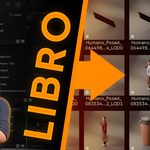
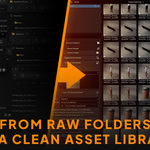
LIBRO is an Asset Library Studio for Blender. It helps you collect existing .blend files, build a clean Blender Asset Browser library, generate consistent previews, organize catalogs, and maintain the library over time.
LIBRO does not replace Blender's Asset Browser. It prepares, structures, updates and maintains the library used by the Asset Browser.
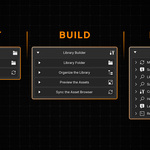
The LIBRO interface is available directly inside Blender, in the left panel of the Asset Browser window. Open the Asset Browser workspace or an Asset Browser area, then use the LIBRO panel to access the Source Collector, Library Builder and Library Manager.
Quick Overview
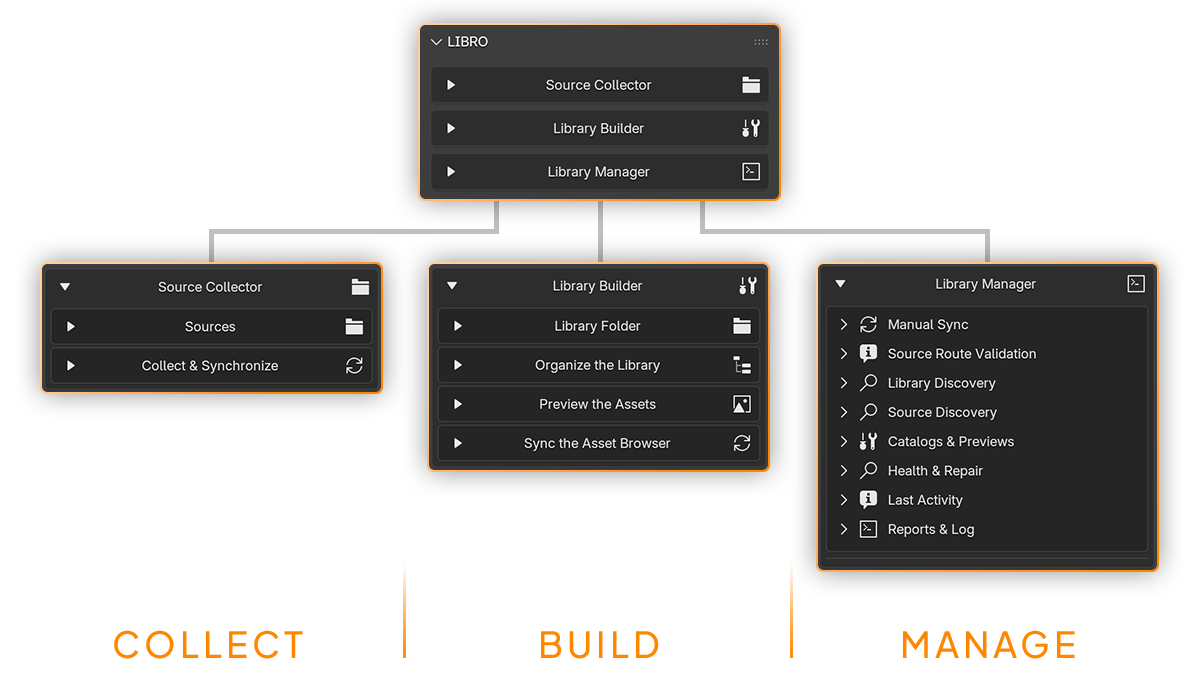
LIBRO is organized around three main areas:
- Source Collector: collect .blend files from one or multiple source folders into a cleaner managed destination.
- Library Builder: build and update the Blender Asset Browser library from the collected files.
- Library Manager: audit, resync, repair, rebuild previews, refresh catalogs and export reports.

The standard workflow is:
- Add one or multiple source folders in the Source Collector.
- Choose which sources are enabled or disabled.
- Let LIBRO scan enabled sources and their subfolders automatically.
- Enable Source Watcher when you want LIBRO to keep verifying and reconciling the active source set.
- Use the Library Builder to create or update the Blender Asset Browser library.
- Choose catalog, preview and Drag Import settings.
- Use Blender's Asset Browser to drag and drop assets into your scenes.
- Use the Library Manager later to resync, repair, rebuild previews, refresh catalogs or export reports.
Supported in LIBRO V1
LIBRO V1 is intentionally focused on reliable .blend-based library creation.
Supported source format
- .blend files
Supported asset types
- Objects
- Collections
- Materials
Main V1 features
- Multiple source folders
- Automatic recursive scanning of subfolders for enabled sources
- Individual source include and exclude controls
- Source collection into a managed Destination Library Folder
- Source Watcher for continuous source-set verification while enabled
- Library Watcher for Asset Browser-facing synchronization while enabled
- Autopack for external dependencies when needed
- Smart Incremental synchronization
- Force Full Refresh for complete Asset Browser rebuilds
- Speed Multiplier controls
- Resource-governed effective speed cap when the requested multiplier is too high for the current machine state
- Non-blocking Source Collector and Library Builder operations
- Asset Browser library creation and update
- Automatic catalog creation and refresh
- Catalog strategies: By Asset Type, Mirror Source, Root + Source and Single Root
- Studio preview generation
- Preview modes: Auto and Strict
- Drag Import modes: Append, Link, Append Reuse and Pack
- Delete policies: Signal Only and Strict Mirror
- Library health audit and repair tools
- Reports, logs and exportable run reports
Not included in V1
- Cloud asset hosting
- Subscription-based content library
- Automated FBX/OBJ import
- Automatic texture-folder to material conversion
- Asset packs or ready-made content libraries
Installation
Install the add-on
- Download the LIBRO add-on package from your Superhive account.
- Open Blender.
- Go to Edit > Preferences > Add-ons.
- Click Install.
- Select the LIBRO add-on ZIP file.
- Enable the add-on by checking the box next to LIBRO.
- Save your Blender preferences if needed.
Open LIBRO
Open an Asset Browser area in Blender. LIBRO is available from the left panel of the Asset Browser window.
From there, open the Source Collector, Library Builder or Library Manager depending on what you want to do.
Before You Start
Source integrity
LIBRO is designed to preserve the integrity of your original source folders. Your sources remain the reference material, while LIBRO works with a managed Destination Library Folder and a generated Asset Browser library workflow.
Recommended setup
- Keep your original source folders available and readable.
- Use a dedicated Destination Library Folder for LIBRO-managed collected files.
- Avoid placing unrelated manual files inside the LIBRO-managed destination, especially when using Strict Mirror.
- Keep backups of important production assets before large synchronization operations.
- Use Smart Incremental sync for normal updates.
- Use Force Full Refresh only when you intentionally want to rebuild the full Asset Browser library.
Source Collector
What Source Collector does
The Source Collector gathers reusable .blend files from one or multiple external source folders into a cleaner managed Destination Library Folder used by the Library Builder.
It is made for real asset folders, not perfect demo folders. Your assets can be spread across old projects, archived work, kitbash packs, client files or personal libraries.
Adding source folders
- Open Source Collector in the LIBRO panel.
- Add one or multiple folders containing .blend files.
- Enable the sources that should be part of the current collection workflow.
- Choose or confirm the Destination Library Folder.
- Enable Source Watcher when you want LIBRO to continuously verify and reconcile the active source set while it is running.
Recursive scanning
Source Collector always scans subfolders of enabled source folders. There is no separate recursive scan option to enable.
If a source is enabled, LIBRO can inspect the source folder and its subfolders for supported .blend files.
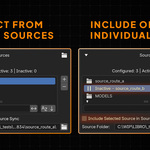
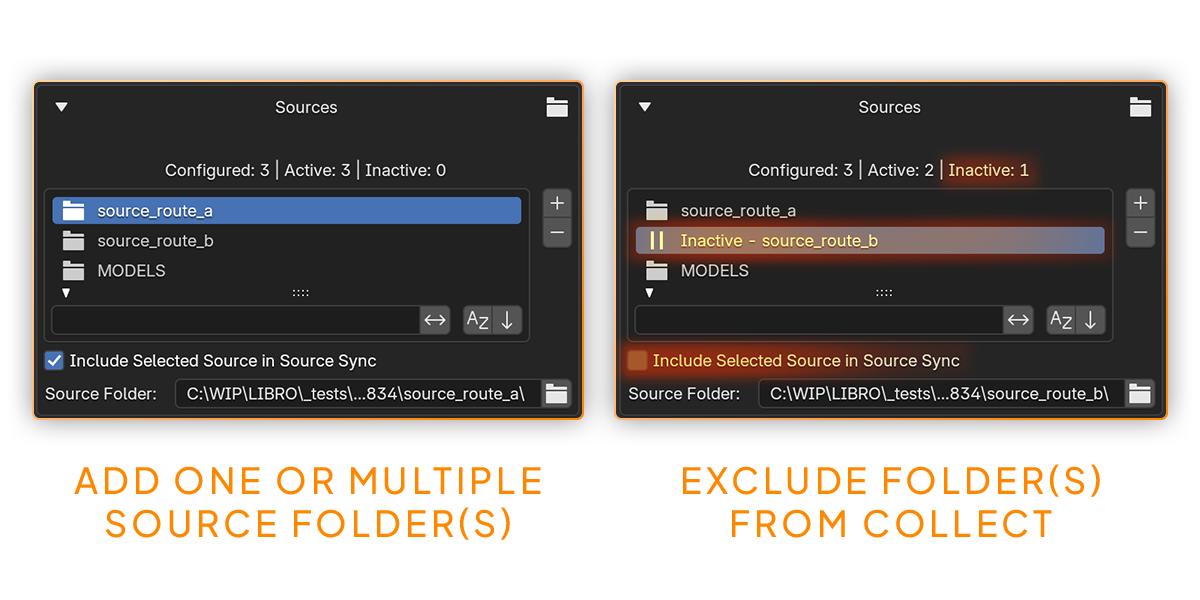
Including or excluding sources
Each source route can be individually enabled or disabled.
Disabled sources are ignored by Source Sync, Source Watcher, audit and repair operations.
This lets you keep several source folders registered in LIBRO while deciding which ones should feed the current Destination Library Folder.
When sources change
When Source Watcher is enabled, changing source settings can trigger a reconciliation of managed files. For example, enabling or disabling sources can update the Destination Library Folder so it follows the active source list.
This makes the Destination Library Folder easier to maintain as your source set evolves.
Destination Library Folder
The Destination Library Folder is the managed folder used by Source Collector as the default destination for collected external source folders.
In the standard workflow, Library Builder can inherit this folder by default and use it as the Library Folder for Asset Browser-facing synchronization.
Source Watcher and Delete Policies
Source Watcher
Source Watcher keeps track of the configured source set while it is enabled.
It watches enabled source routes, tracks supported .blend files, and can reconcile managed files when sources, delete policy or packaging settings change.
Signal Only
Signal Only keeps library-side copies untouched when a managed file disappears from a source or from the Destination Library Folder.
In this mode, LIBRO surfaces the broken mirror as diagnostics instead of removing or restoring files automatically.
Use Signal Only when you want visibility and warnings while keeping manual control.
Strict Mirror
Strict Mirror treats the source side as authoritative for managed files.
If a managed file disappears from the sources, LIBRO can remove the library-side copy. If a library-side managed copy is deleted, LIBRO can restore it from source during the next Source Sync reconciliation.
Strict Mirror is useful when you want the managed destination to closely follow the selected source logic.
Strict Mirror is designed to preserve the integrity of your original source folders. It acts on LIBRO-managed copies, not as a destructive cleanup tool for your original sources.
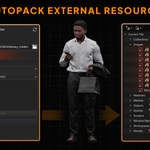
Autopack

What Autopack does
Some .blend files rely on external resources such as textures, linked data or other reachable dependencies. If those files are collected without their required resources, references may break later.
LIBRO's Auto Pack .blend Files When Needed option inspects each collected .blend file and packs reachable external resources into that .blend only when unpacked resources are found.
What Autopack does not do
Autopack does not collect loose texture folders as standalone asset sources, and it does not convert texture folders into materials.
It is specifically designed to make collected .blend files safer when they already depend on reachable external resources.
When to use Autopack
- Your .blend files rely on external textures.
- You are collecting assets from old projects with scattered dependencies.
- You want safer collected .blend files before building the Asset Browser library.
- You want to reduce missing-resource issues later in the workflow.
Speed Multiplier and Resource Budget

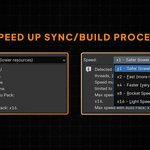
Available speed levels
LIBRO includes separate Speed Multiplier controls for Source Collector and Library Builder.
- x1: safer, lower resources
- x2: fast, balanced mode
- x4: faster, heavier and less comfortable
- x8: very fast, risky on modest machines
- x16: experimental high-speed mode, use only when you understand the tradeoff
Source Collector speed
In Source Collector, lower values are more comfortable when you want collection to run quietly in the background. Higher values can update the Destination Library Folder faster, but they can be noticeably heavier, especially when Autopack is enabled.
Library Builder speed
In Library Builder, lower values are useful when you want the Asset Browser library to build quietly in the background. Higher values can be used for urgent library builds, but they can make Blender less comfortable while sync is running.
Requested speed and effective speed cap
The multiplier you choose is the requested speed. LIBRO can cap the effective speed if the available resources do not allow the requested multiplier safely.
Run summaries can show both the requested speed and the effective speed cap used by the latest Source Collector or Library Builder run.
This resource-governed cap helps reduce unnecessary overload and lower the risk of instability during heavy operations.
Non-Blocking Operations
Keep working while LIBRO handles heavy tasks
Source Collector and Library Builder operations are designed to avoid freezing Blender's interface.
This means you can keep working in Blender while LIBRO handles heavier operations such as collecting files, synchronizing the library, rebuilding previews or refreshing catalogs.
Progress and cancellation
LIBRO displays progress information for scan, inspection, processing, maintenance, catalog and health operations when relevant.
When cancellation is available, LIBRO cancels active operations at the next safe checkpoint rather than interrupting work in a way that could damage the current process.
Smart Incremental Sync and Force Full Refresh
Smart Incremental
Smart Incremental synchronization helps avoid full rebuilds when only part of the library has changed.
It uses the watcher baseline to process changed Library Folder files and refresh removals whenever possible.
In Source Collector, this behavior is the default collection behavior.
In Library Builder, Smart Incremental is also the default Asset Browser Refresh Mode.
Force Full Refresh
Force Full Refresh runs a complete Asset Browser sync whenever the watcher needs to reconcile the Library Folder.
Use it when you intentionally want to rebuild the entire LIBRO-managed Asset Browser library.
This can be useful after a major restructuring, a large source cleanup or when you want to regenerate the full library state from scratch.
Library Builder

What Library Builder does
Library Builder creates and updates the Blender Asset Browser library from the LIBRO-managed Library Folder.
Its role is to detect supported assets, mark them for Blender's Asset Browser, create or refresh catalogs, generate previews and register the library for Asset Browser use.
Library Folder
The Library Folder used by Library Builder inherits the Source Collector Destination Library Folder by default.
It can also be overridden if you want Library Builder to use a different Asset Browser-facing folder.
Building the Asset Browser library
- Open Library Builder in the LIBRO panel.
- Confirm the Library Folder.
- Choose the Asset Import Method.
- Choose the Asset Browser Refresh Mode.
- Choose the catalog strategy.
- Choose preview generation options.
- Enable Library Watcher when you want the Library Folder watched for Asset Browser synchronization.
LIBRO reduces the need to manually jump between Blender preferences, file paths, catalog files and Asset Browser setup steps for the workflow it supports.
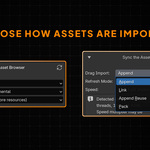
Asset Import Method

Append
Append imports copied data from the LIBRO library without linking or reusing older local nested data.
This is a strong default when you want assets to become local to the current Blender file.
Link
Link imports linked data-blocks from the LIBRO library.
Use Link when you want assets to remain connected to their source library data. This can be useful for synchronized production workflows where assets remain editable through their library files.
Append Reuse
Append Reuse reuses existing nested local data when importing from the LIBRO library.
This can be faster, but it can preserve stale nested data during iteration. Use it when you understand the tradeoff.
Pack
Pack imports linked data and packs it into the current file.
This is useful for snapshotting or portability, but it is less transparent for a frequently refreshed LIBRO workflow.
Catalog Strategies
By Asset Type
By Asset Type groups assets in flat top-level catalogs by asset type.
This is useful when you want a simple and predictable structure for objects, collections and materials.
Mirror Source
Mirror Source mirrors the source folder structure.
This is useful when your source folders already have a meaningful hierarchy and you want the Asset Browser catalogs to follow it.
Root + Source
Root + Source prefixes the source structure with a manual root catalog.
This is useful when you want to keep the source hierarchy but place it under a clean top-level catalog such as LIBRO.
Single Root
Single Root places everything in one manual root catalog.
This is useful when you want a very simple catalog structure.
Root Catalog and name sanitizing
Root-based strategies use the Root Catalog field.
LIBRO can also sanitize generated catalog names to keep them valid and predictable.
Preview Studio

Generate Previews
When Generate Previews is enabled, LIBRO asks Blender to generate previews for marked assets in processed target files.
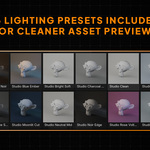
Consistent previews make a library easier to browse and more pleasant to use. They also make the perceived quality of your asset library much higher than random thumbnails or empty previews.
Preview Mode: Auto
Auto lets Blender generate previews automatically for marked assets and keeps preview submission issues as log-only diagnostics.
Preview Mode: Strict
Strict uses the same automatic preview generation path, but surfaces preview submission issues as run warnings.
Use Strict when you want preview-related issues to be more visible in run summaries and reports.
Preview rebuild scope
The Preview Rebuild Scope can target an optional Library Folder subfolder or a specific .blend file.
Leave the scope empty to rebuild previews for the whole Library Folder.
Library Watcher
What Library Watcher does
Library Watcher monitors the Library Folder used by Library Builder for Asset Browser-facing synchronization.
When enabled, it can detect changes and queue Asset Browser sync reconciliation when needed.
Settings reconciliation
When Library Builder settings change, such as Drag Import, Refresh Mode, catalog strategy or preview options, LIBRO can request a reconciliation so the Asset Browser library follows the selected settings.
Bootstrap behavior
When Library Watcher starts, LIBRO can perform an initial synchronization pass so the watched Library Folder and the Asset Browser-facing library state are aligned.
Library Manager

What Library Manager does
Library Manager is used to inspect, resynchronize, repair and document the state of your library after it has been built.
It is especially useful when source folders evolve, assets are moved, previews need to be rebuilt, catalogs need to be refreshed or you need to diagnose library issues.
Manual Sync
Manual Sync gives you direct access to common synchronization operations.
Available operations may include:
- Sync Sources Now: synchronize selected sources into the managed destination.
- Sync Library Now: synchronize the Asset Browser-facing library.
- Refresh Catalogs: update catalog structure according to the selected strategy.
- Rebuild Previews: rebuild previews when needed.
Route Validation
Route Validation helps inspect configured source routes and identify setup issues before or during synchronization.
This is useful when sources are missing, disabled, invalid or not properly connected to the Destination Library Folder.
Library Discovery
Library Discovery helps scan the Library Folder and report how many files are found and how many supported .blend files are available for the library workflow.
Source Discovery
Source Discovery helps inspect source folders and report how many files were found and how many supported .blend files are available for collection.
Catalog and Preview Maintenance
Catalog and Preview Maintenance lets you refresh catalogs and rebuild previews after changes.
This is useful after reorganizing folders, changing catalog strategies, editing assets or updating visual presentation.
Health and Repair
Health and Repair tools help inspect and fix common library issues.
Available health counters can include:
- Healthy Targets: source files whose matching target file is present and up to date.
- Missing Targets: source files missing a matching generated target file.
- Outdated Targets: generated target files older than their source files.
- Orphan Targets: generated target files that no longer match any current source file.
Repair tools may include missing, outdated and orphan repair operations when possible.
Reports and Logs

Last Activity
Last Activity summarizes the most recent operation, including its status and key diagnostic information.
This helps you quickly understand whether an operation succeeded, failed, found warnings or requires attention.
Reports and Log
Reports and Log provides more detailed operation information when available.
Use this area when troubleshooting synchronization issues, reviewing per-file results or checking what happened during a larger operation.
Export Run Report
Export Run Report lets you export a clean report of an operation.
This is useful for:
- Troubleshooting large libraries
- Keeping a record of sync operations
- Sharing diagnostic information with support
- Reviewing what changed during a library update
Per-file process logs
LIBRO can record per-file processing details, including file name, source path, target path, status, message, warnings, failures, preview issues, catalog issues and packaging actions.
Log search fields can help filter by file name, path, status, message, preview issue, catalog issue or packaging action.
Run summary counters
Run summaries can include useful counters such as processed files, skipped files, assets marked, object candidates, collection assets marked, material assets marked, previews generated, warnings and failures.
Typical Use Cases
Cleaning years of old Blender projects
Add folders containing older .blend files, let LIBRO scan enabled sources and subfolders, collect them with Source Watcher, build the Asset Browser library with Library Builder, generate previews and browse the results in Blender's Asset Browser.
Building a personal kitbash library
Use LIBRO to collect kitbash assets from multiple folders, organize catalogs by type or source structure, generate previews and make the assets easier to drag into new scenes.
Preparing a small studio library
Use a shared asset organization strategy, choose consistent catalog rules, generate clean previews, use Link or Append depending on production needs, and export reports for larger synchronization operations.
Keeping a library alive over time
Use Source Watcher, Library Watcher, Smart Incremental sync, Library Manager audits, preview rebuilding, catalog refresh and report exports to keep the library maintainable as your source folders evolve.
Best Practices
Folder setup
- Use a dedicated Destination Library Folder for LIBRO-managed collected files.
- Do not mix unrelated manual files inside the managed destination folder.
- Keep original source folders available and readable.
- Use source include and exclude controls to keep the active source list intentional.
Synchronization
- Use Smart Incremental sync for routine updates.
- Use Force Full Refresh only when you intentionally want a complete rebuild.
- Use Signal Only if you want warnings without automatic destination cleanup.
- Use Strict Mirror when you want the managed destination to closely follow the selected source logic.
Performance
- Use lower Speed Multiplier values when you want maximum comfort while working.
- Use higher Speed Multiplier values when synchronization speed is more important.
- Remember that LIBRO can cap the effective speed if resources do not allow the requested multiplier.
- Be careful with x8 and x16 on modest machines or very large libraries.
- Be extra careful with high speed values when Autopack is enabled.
Maintenance
- Refresh catalogs after changing catalog strategies.
- Rebuild previews after visual or asset updates.
- Run health audits when files have moved, changed or disappeared.
- Export reports when troubleshooting or working with larger libraries.
Troubleshooting
No assets appear in the Asset Browser
- Make sure the source folders contain supported .blend files.
- Make sure the relevant sources are enabled in Source Collector.
- Make sure the Library Folder is correctly set in Library Builder.
- Make sure the correct Asset Browser library is selected in Blender.
- Enable Library Watcher or use Sync Library Now to reconcile the Asset Browser-facing library.
- Run a Library Manager health audit.
Some files are missing from the destination
- Check whether the source is enabled.
- Remember that Source Collector scans subfolders automatically for enabled sources.
- Check the Destination Library Folder.
- Check Source Watcher status.
- Review the selected delete policy.
- Open Last Activity and Reports and Log for warnings.
Previews are missing or outdated
- Make sure Generate Previews is enabled.
- Use Preview Maintenance to rebuild previews.
- Check the preview rebuild scope. Leave it empty to rebuild the whole Library Folder.
- Use Strict Preview Mode if you want preview submission issues surfaced as run warnings.
- Review Last Activity and Reports and Log for preview issues.
Catalogs do not look as expected
- Check the selected catalog strategy.
- Use By Asset Type for a simple type-based structure.
- Use Mirror Source if you want catalogs to follow your folder hierarchy.
- Use Root + Source if you want the source hierarchy under a manual root catalog.
- Use Single Root if you want everything inside one root catalog.
- Run Refresh Catalogs from Library Manager.
A sync operation failed
- Open Last Activity to review the operation status.
- Open Reports and Log for detailed information.
- Check that source folders are still available.
- Check that the Destination Library Folder or Library Folder is valid.
- Lower the Speed Multiplier if the machine is under heavy load.
- Export a run report if you need support.
Blender feels slower during a large operation
- Lower the Speed Multiplier.
- Wait for the current operation to finish before launching another heavy task.
- Use Smart Incremental instead of Force Full Refresh when possible.
- Process fewer active source folders at once if your library is very large.
- Disable Autopack when you do not need dependency packing.
The requested speed was not fully used
- LIBRO may cap the effective speed when the current resource budget does not allow the requested multiplier safely.
- Check the run summary for requested speed, effective speed cap and resource budget messages.
- Close other heavy applications or lower the multiplier for a more comfortable run.
Known V1 Limitations
Current focus
LIBRO V1 is focused on .blend libraries and Blender Asset Browser workflows.
Not part of V1
- FBX and OBJ automated import are not part of V1.
- Automatic texture-folder to material conversion is not part of V1.
- Cloud asset hosting is not part of V1.
- Subscription-based asset content is not included.
- LIBRO does not sell or provide asset packs.
These limitations keep the V1 focused, reliable and clear: collecting existing .blend files, building a clean Asset Browser library, generating previews, organizing catalogs and maintaining the result over time.
Support
What to include when contacting support
If you need help, please include as much useful information as possible.
- Your Blender version
- Your LIBRO version
- Your operating system
- A short description of the issue
- The operation that failed or produced unexpected results
- Relevant screenshots if available
- An exported run report if available
Why reports matter
Exported reports are especially useful for diagnosing synchronization, catalog, preview, route validation or repair issues.
Version Notes
Supported Blender target
LIBRO is maintained for the supported Blender LTS target listed on the product page.
Production recommendation
Before updating Blender or LIBRO in a production environment, keep a backup of important libraries and verify compatibility with your current workflow.
-
$29
For individual Blender artists, freelancers and solo creators who want to turn their own .blend files into a cleaner, reusable Asset Browser library. LIBRO add-on. Commercial use for one user. Standard support. Access to updates according to the product update policy.
-
$99
For small teams and studios that want to standardize their Blender asset workflow across multiple users. Up to 5 users. Commercial studio use. Priority support. Workflow guidance for small teams. Designed for shared, repeatable Blender asset workflows.
-
$199
For larger teams that need more seats, faster support and setup guidance for shared production libraries. Up to 10 users. Commercial studio use. Priority support. Setup guidance for team workflows. Designed for teams maintaining larger Blender asset libraries over time.
Have questions about this product?
Login to message
Discover more products like this
asset catalog sync asset-browser Asset Preview batch asset marker asset organizer Library catalogs 3D Assets Library Assets Batch collector synchronize organized folders previews