 Zyblen


WHAT'S NEW IN LIGHT-X PRO 2.6.4
=============================
Light-X Pro 2.6.4 brings a refreshed lighting and camera workflow to Blender,
with interactive light placement, detailed light controls, new gobo patterns,
light linking, real camera settings, redesigned presets and effects, and
organized camera bookmarks. Build your lighting, refine your framing, and
explore different looks with the controls close at hand.
1. REDESIGNED ADD LIGHT
-----------------------
The Add Light feature introduces an interactive viewport workflow with visual
guides, on-screen values, and shortcut hints. Adjust the light while keeping
your attention on the scene and the subject you are lighting.
- Switch between Point, Spot, and rectangular Area lights during placement.
- Adjust intensity, size, and color directly with mouse-driven controls.
- Shape a spotlight using its angle and blend, or adjust an area light's spread.
- Resize rectangular Area lights uniformly or along the X and Y axes separately.
- Change the light's distance from the pivot, with optional brightness
compensation as you move it closer or farther away.
- Rotate the light around the pivot using azimuth and elevation controls.
- Move the pivot onto a surface under the cursor to aim your setup at a subject.
This makes it easier to experiment with key, fill, and accent lighting while
refining placement and light properties in the same workflow.
2. NEW ADVANCED PROPERTIES
--------------------------
The Advanced Properties panel brings detailed settings together for the
selected light. Its controls adapt to the light type, render engine, and
supported Blender features so you can refine the way each light behaves.
- Adjust Point and Spot light radius to control the light source size.
- Refine Spot Size and Spot Blend to shape the beam and soften its edges.
- Choose an Area light's shape, dimensions, and spread.
- Adjust the Sun light's angle to refine shadow softness.
- Use exposure and color temperature controls where supported.
- Access diffuse, specular, and volume contribution controls in supported
non-Cycles engines.
- Work with gobo settings for Spot lights and IES profiles for Point lights
in Cycles.
These controls help you move from a rough lighting setup to more deliberate
results, whether you need a soft studio source, a focused beam, or a particular
light distribution.
3. NEW GOBOS
-------------
Add patterned light and shadow to your scenes with the gobo library. Browse
visual previews in categories covering ivy, shrubs, tree branches, and windows
to find a pattern that suits the environment or mood.
- Apply gobo textures to Spot lights in Cycles.
- Browse patterns by category with thumbnail previews.
- Adjust the pattern's strength and size.
- Move the projection along the X and Y axes and rotate it around Z.
- Enable or disable gobos from the selected light's properties.
Use foliage patterns to suggest sunlight passing through leaves, or window
patterns to introduce architectural shadows. These details can add visual
interest to walls, floors, product backgrounds, and interior scenes.
4. NEW LIGHT LINKING
--------------------
Control which objects receive light from a selected emitter through a dedicated
receiver list. Light linking gives you more control over how individual lights
contribute to a scene.
- Add selected objects as receivers for the active emitter.
- Include or exclude individual receivers from the light's influence.
- Toggle the inclusion state of all listed receivers together.
- Remove individual receivers or clear the full receiver list.
- See receiver states synchronized with Blender's actual linking settings,
including changes made outside the Light-X Pro panel.
For example, use a dedicated accent light to emphasize a product while excluding
the backdrop, or adjust a character's lighting independently of nearby props.
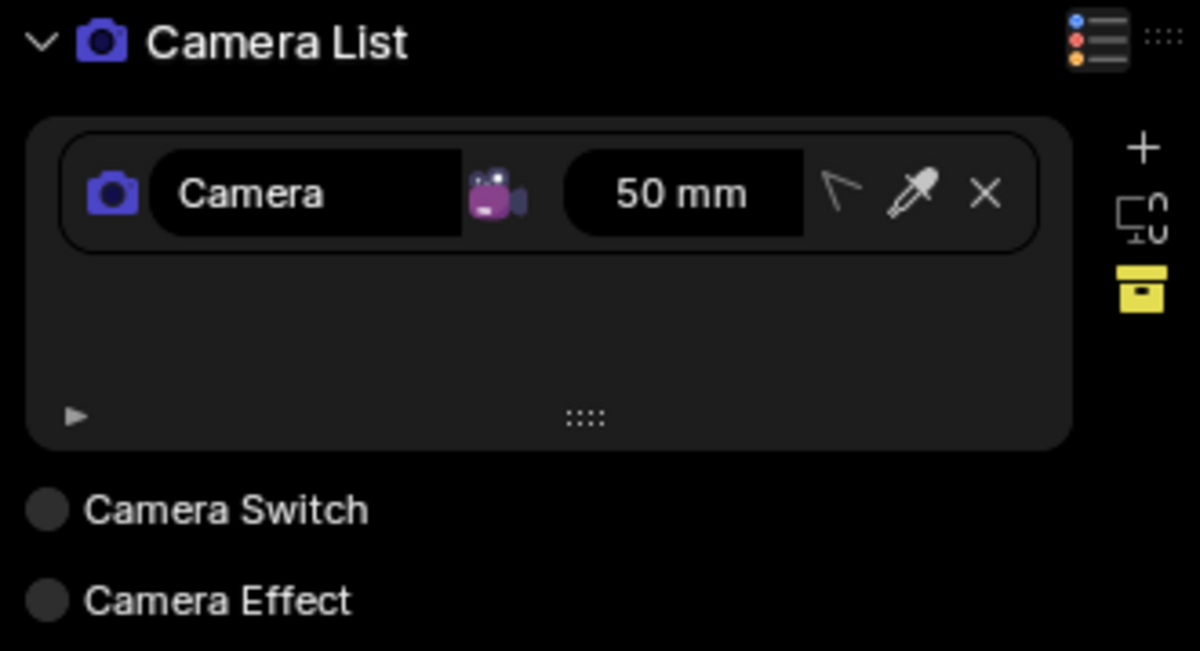
5. NEW CAMERA PROPERTIES - REAL CAMERA
--------------------------------------
The camera properties now offer Custom and Real camera settings. Real mode lets
you choose a camera from the built-in database and apply its available sensor
and output resolution options to your Blender scene.
- Select a camera brand and model.
- Choose from the sensor formats available for that model.
- Select a corresponding resolution format.
- Apply the selected sensor width and height to the active scene camera.
- Update the scene's render resolution from the selected camera configuration.
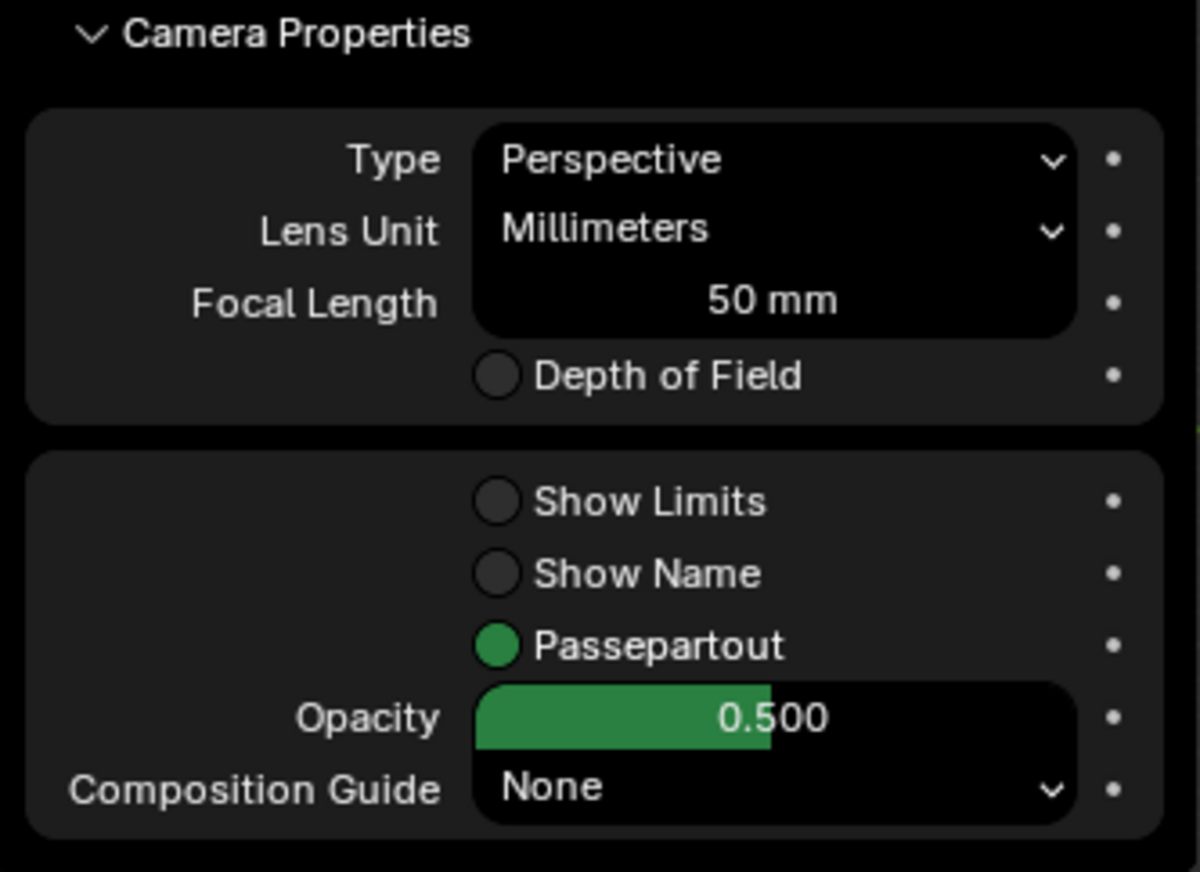
The camera panel also provides focal length or field-of-view controls, sensor
fit, and depth of field settings. Adjust focus distance or a focus object,
F-stop, aperture blades, rotation, and ratio to refine your shot. Composition
guides and passepartout controls help you assess framing.
Real Camera provides a practical starting point for matching sensor dimensions
and output framing to a chosen camera model; Custom mode supports manual setup.
6. REDESIGNED LENS AND SENSOR PRESETS
------------------------------------
Lens and sensor presets have a refreshed interface for applying and saving
frequently used camera configurations. Separate preset controls let you choose
a lens setup and sensor size independently.
- Choose built-in lens presets ranging from 16 mm ultra-wide to 200 mm telephoto,
including 24 mm, 35 mm, 50 mm, 85 mm, 105 mm, and 135 mm options.
- Apply lens presets containing focal length, F-stop, and clipping distances.
- Choose sensor presets covering formats such as Super 35, full frame, medium
format, and IMAX.
- Save custom lens and sensor presets for settings you use regularly.
Use presets to compare framing options or reuse a familiar camera configuration
without entering each value again.
7. REDESIGNED CAMERA EFFECTS
----------------------------
The Camera Effects panel provides a visual effect picker, an Added Effects list,
and settings for the selected effect. Build and adjust a look through the panel
while the add-on connects the effects in the scene's compositor.
Available effects include:
- Vignette
- Brightness/Contrast
- Color Balance
- Color Correction
- Hue/Saturation/Value
- Hue Correct
- RGB Curves
- Blur
- Glare
- Lens Distortion
Add multiple effects, rename entries, select an effect to edit its settings,
and hide or show individual effects to compare their contribution. Remove
effects you no longer need, and use the dedicated curve controls for Hue
Correct and RGB Curves when refining color and tonal response.
This workflow supports both subtle finishing adjustments and more stylized
looks, from softening an image to shaping contrast or adding glare.
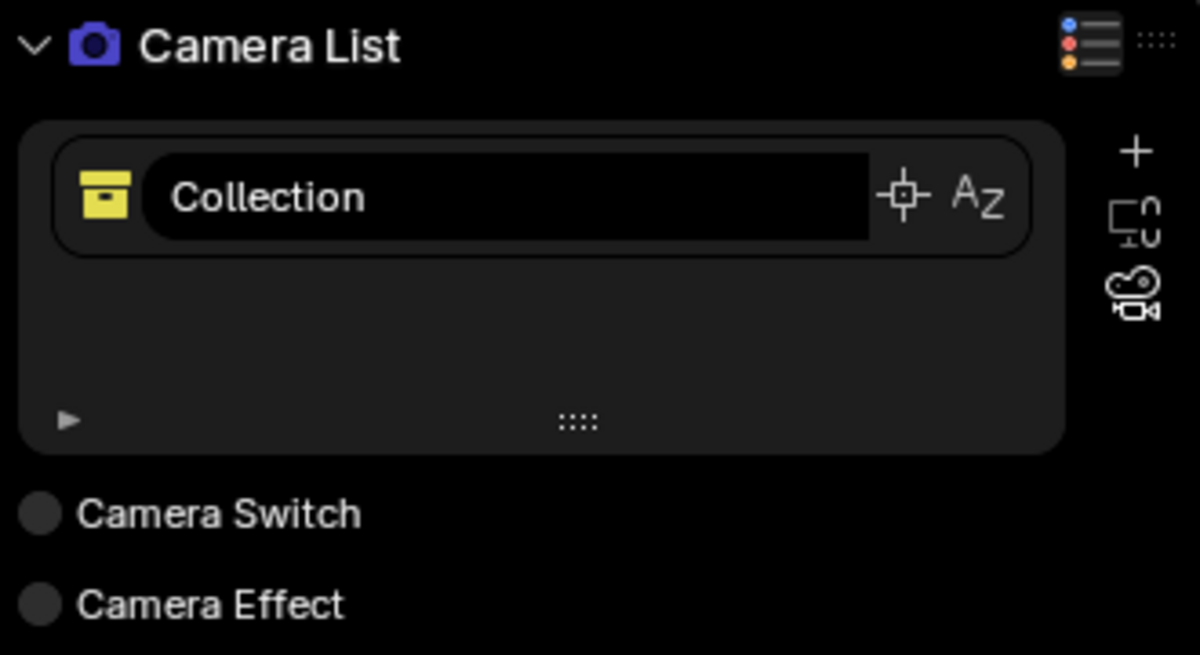
8. NEW BOOKMARKS
----------------
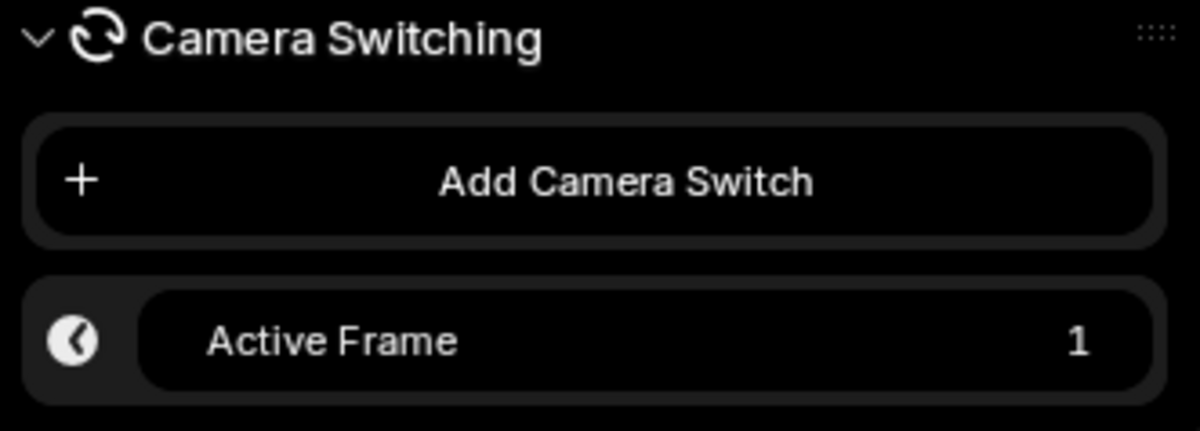
Save camera setups as bookmarks and organize them into named groups. Explore
alternate compositions, compare shots, and return to a saved setup without
manually rebuilding its camera settings.
- Store camera position, rotation, focal length, sensor dimensions, sensor fit,
depth of field state, focus distance, and F-stop.
- Apply a bookmark to restore its saved camera setup.
- Update a bookmark after refining the shot.
- Rename bookmarks and groups to identify views clearly.
- Expand or collapse groups and reorder groups to organize your shot list.
- Copy and paste bookmarks between groups, including groups on the same camera
or on another camera.
- Use the Delta Widget to see distance and angle differences between the
current camera transform and the selected bookmark.
Organize product angles, interior viewpoints, or alternate compositions into
groups so your preferred shots remain easy to find and revisit.
Have questions about this product?
Login to message
| Published | over 2 years ago |
| Blender Version | 4.0 - 4.3 |
| Extension Type | N/A |
| Render Engine Used | Blender-Internal, Cycles, Eevee |
| License | GPL |

Discover more products like this
light group light Emission Lighting Studio camera camera addon Render light-addon