LightSwitch
 Gentlemen Directors
LightSwitch — User Guide
Overview
LightSwitch saves complete lighting setups as named states and switches between them in one click. A state is a snapshot, not a blend: applying it restores every stored value at once, so moving from "Warm Interior" to "Emergency Red" turns some lights off, others on, and puts back every color, power and position.
Version 1.0. Everything lives in the 3D Viewport sidebar (press N) under the LightSwitch tab, in seven panels:
A state records the lights, the world and its sky, object and collection visibility, object positions, material assignments and values, the color grade, and any cameras you choose to include. The full list is under Reference at the end.
Installing and updating
The add-on needs Blender 4.2 or later and has been tested on 4.5 and 5.0. One file works on every supported version.
In Blender, open Edit > Preferences > Add-ons.
Click the arrow at the top right and choose Install from Disk....
Pick lightswitch_1_0_0.zip, then tick the checkbox to enable it.
In the 3D Viewport, press N and open the LightSwitch tab.
To update, install the new zip the same way; it replaces the old version. If you used a pre-release build, called Lighting State Manager or installed as a single .py file, uninstall it first: in Edit > Preferences > Add-ons, expand its entry and click Uninstall. Then install this zip. Your states are stored in your .blend files, so they come across untouched, and states saved by older versions are converted automatically the first time you open the file. Extra HDRI folders added in the old version's preferences need adding again.
Don't go back to an older version once you've saved files with this one. Newer states use a format older versions can't fully read, so anyone you share .blend files with should be on version 1.0 or later.
Quick start
Two states and a switch between them take about a minute.
Set up your lights, sky and grade the way you want the first look.
In Lighting States, click Save New State, type a name such as "Day", and click OK.
Change the scene for the second look: switch lights off or on, change powers and colors, pick a different sky.
Click Save New State again and name it "Night".
Click the checkmark next to "Day" in the list. The scene snaps back to the first look.
Click the checkmark next to "Night" to switch again.
The checkmark beside a state applies it straight away. You can also select a state in the list and click the large Apply button below, which names the selected state. To change a state later, see Updating a state in the next section.
Lighting States panel
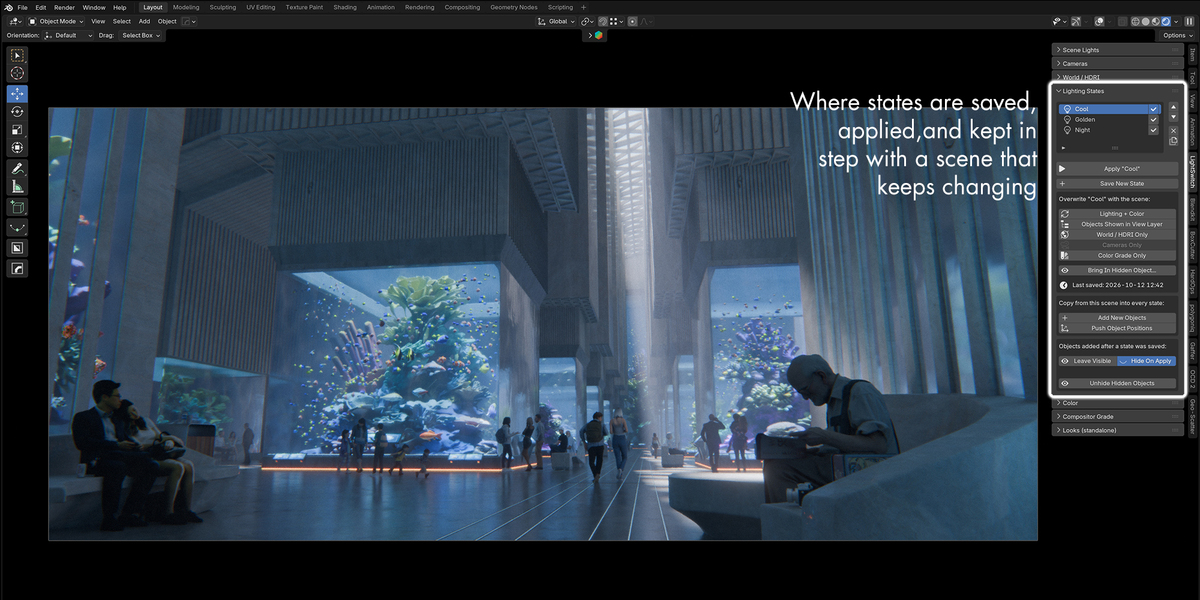
This is where states are saved, applied and kept up to date. The list shows every state in the scene; the selected row is the one the buttons below act on.
The state list
Checkmark on a row applies that state immediately.
Double-click a name to rename it.
Arrows move the selected state up or down.
X deletes the selected state.
Duplicate copies the selected state, placing the copy just below it.
Checkmark on a row applies that state immediately.
Double-click a name to rename it.
Arrows move the selected state up or down.
X deletes the selected state.
Duplicate copies the selected state, placing the copy just below it.
Saving and applying
Save New State opens a small box for the name, then records the whole scene as a new state. Apply restores the selected state. If anything couldn't be restored, for example a light that has since been deleted, Blender shows a short warning and the details are printed to the system console.
Starting from a clean slate
Clean Slate, next to Save New State, clears the scene's lighting so you can build a new state from nothing. It switches every light off, swaps in an empty black world called "LightSwitch Clean Slate", and resets the color grade to neutral. Objects and cameras stay as they are, glowing materials keep glowing, and saved states don't change. It asks before it acts, and Ctrl+Z undoes it.
Updating a state
The box under Save New State overwrites the selected state with the current scene. Its heading names the state it will change. Pick the button that covers what you changed; everything else in the state stays as it was.
Update All records the whole scene. Apply the state before using it, or settings from whatever is showing will be saved into it. The other buttons change only their own part of the state, so everything else in it stays safe. The "Last saved" time under the box confirms an update worked.
Example: to change the sky in "Day" while looking at "Night", get the sky you want on screen, select "Day" in the list, and click Update World / HDRI. "Day" gets the new sky and keeps its own lights.
Bringing back one hidden object
Bring In Hidden Object..., under the overwrite buttons, makes one hidden object part of the selected state. An object switched off with "Disable in Viewports" can't be selected in Blender, so you pick it by name from a searchable list instead.
Select the state in the list.
Click Bring In Hidden Object....
Pick the object from the list.
The object reappears in the viewport and in renders, and the state records it as visible, so the next Apply won't hide it again. Nothing else in that state changes, and other states aren't touched. It works for lights too, and for objects the state has never seen.
If the object's whole collection is switched off in that state, the button records the object but can't show it without turning the collection on. A warning names the collection. Switch that collection on, then click Update Objects.
Updating every state at once
The Copy from this scene into every state box fixes all states in one go.
Add New Objects adds objects, lights and collections created since the states were saved. Each state gets them at their current position and visibility. New lights are added switched on only in the selected state and switched off in the others. To add objects only, untick Include New Lights in the Adjust Last Operation panel at the bottom left of the viewport.
Push Object Positions copies where every object sits into every state, so props stop jumping between states. Only position, rotation and scale are copied, and lights and cameras are skipped unless you tick Include Lights or Include Cameras. Tick Selected Objects Only in the Adjust Last Operation panel to push just the selected objects.
Objects added later
An object added after a state was saved isn't in that state, so the state can't say whether it belongs. The Leave Visible / Hide On Apply switch decides what happens to it when you apply the state. Hide On Apply is the default: new objects and lights are hidden, which keeps one state's props out of another. Choose Leave Visible to keep new things showing in every state, or use Add New Objects to record them properly.
Unhiding objects
States can switch objects off with Blender's "Disable in Viewports" toggle. That column is hidden in the Outliner by default, so a switched-off object can seem impossible to bring back. Unhide Hidden Objects brings back everything that's hidden, across the whole scene. In the Adjust Last Operation panel you can limit it to the active collection, and choose whether to re-enable collections too. Unhiding changes the scene, not your states, so applying a state can hide the object again. To keep one object visible in a particular state, use Bring In Hidden Object... instead.
Scene Lights panel
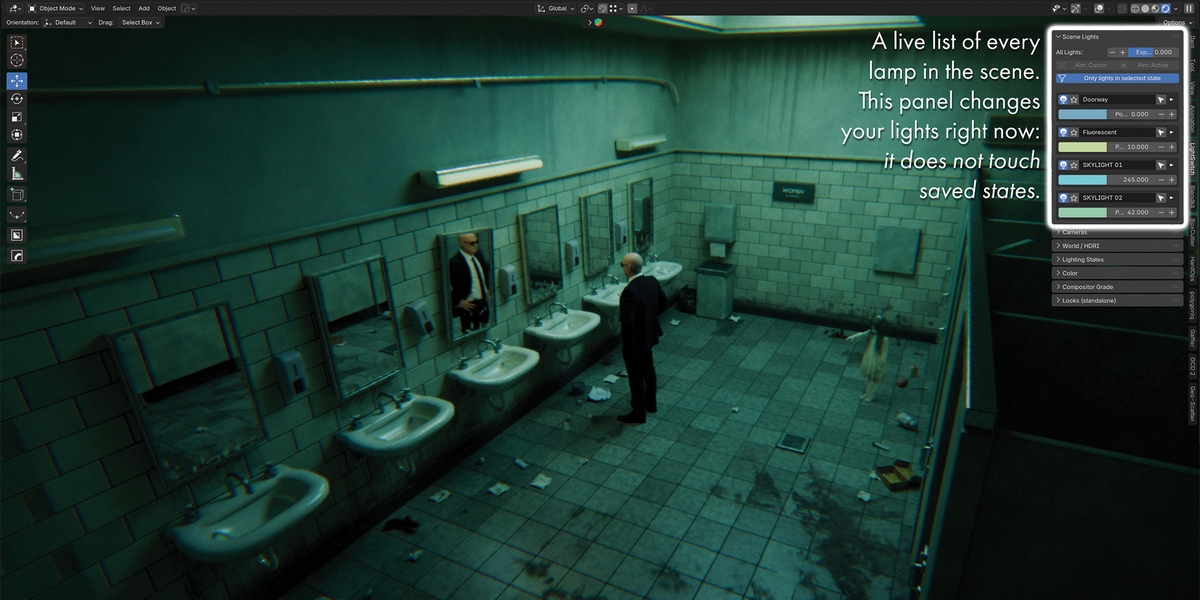
Scene Lights is a live list of every light in the scene, for adjusting them before you save a state. Changes here affect the scene straight away; they only reach a state when you save or update it.
Each light
The top row of each light has, from left to right:
Bulb turns the light on or off, for both the viewport and renders.
Solo shows only this light and hides the rest. Click it again, or Exit in the Solo banner at the top of the panel, to put every light back as it was.
Name can be edited in place. Renaming is safe: saved states still find the light.
Arrow selects the light and makes it active.
Disclosure triangle shows advanced settings: shape and size, spot cone and blend, radius, color temperature, diffuse, specular and volume contribution, and shadows.
Below the name are the light's color, its power, and minus and plus buttons that halve or double the power. Hold Shift while clicking for a finer step: ×1.25 or ÷1.25.
All lights
All Lights minus and plus scale every light's power at once, with the same Shift step.
Exposure next to them is the scene's color-management exposure, for brightening or darkening everything without touching the lights.
Aim: Cursor points every selected light at the 3D cursor.
Aim: Active points every other selected light at the active object.
All Lights minus and plus scale every light's power at once, with the same Shift step.
Exposure next to them is the scene's color-management exposure, for brightening or darkening everything without touching the lights.
Aim: Cursor points every selected light at the 3D cursor.
Aim: Active points every other selected light at the active object.
Filtering
Only lights in selected state shows just the lights that are switched on in the state selected in the Lighting States list. It's a quick way to see what a state uses before applying it.
Cameras panel
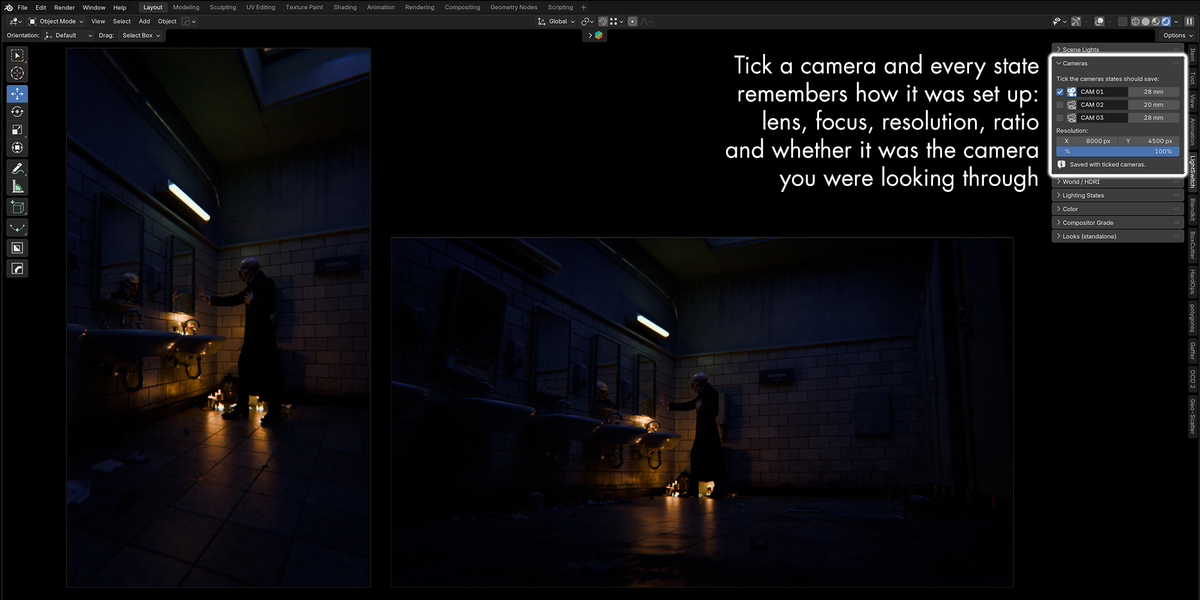
Tick a camera to have states save its settings. Every camera's position and visibility is saved in states regardless; the tick adds the camera itself. Nothing camera-related changes when you apply a state until at least one camera is ticked.
For each ticked camera, a state saves:
lens type (perspective, orthographic or panoramic), focal length, orthographic scale, sensor size and fit, shift
clip start and end
depth of field: on/off, focus object or distance, f-stop, aperture blades, rotation and ratio
A state also saves which camera is active, as long as the active camera is ticked, and the render resolution: width, height, percentage and pixel aspect. Resolution comes with the cameras because it decides the framing, so it is only saved when at least one camera is ticked.
The panel
Each camera in the scene has its own row:
Checkbox includes the camera in states.
Camera button makes it the active camera; it shows pressed on the active one.
Name can be edited in place. Renaming is safe.
Arrow selects the camera and makes it the active object, as on the light rows.
Focal length, for quick changes.
Resolution X, Y and percentage sit below the list. The note underneath says whether they're being saved.
Reframing a state
To change a state's camera work without touching its lighting, set up the shot, select the state in the Lighting States list, and click Update Camera. It saves the ticked cameras' settings and positions, the active camera and the resolution, and nothing else.
Push Object Positions skips cameras by default, so states can keep different camera angles. Tick Include Cameras in its Adjust Last Operation panel to push camera positions too.
World and HDRI
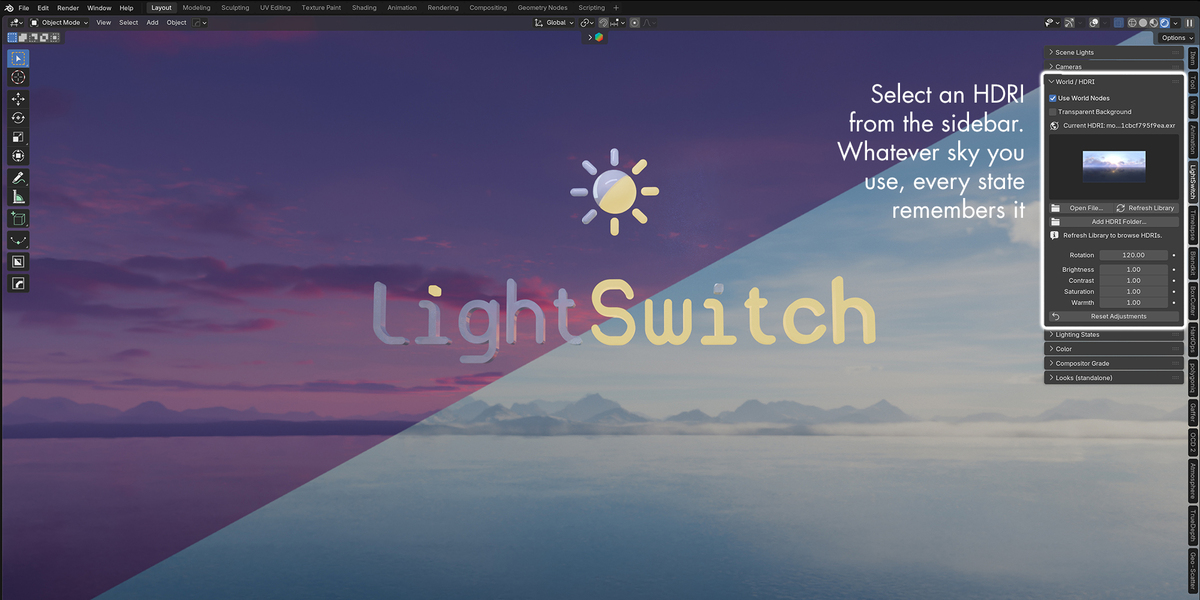
Every state records the world's sky, however it was built: this add-on's own HDRI controls, Pro-Lighting: Skies, or a world node setup of your own.
Built-in HDRI controls
On a new world, click Set Up HDRI Controls. This builds a small node chain in the world and unlocks five sliders:
Reset Adjustments returns all five to neutral and turns Clamp Sun off. The sliders are saved in each state with the sky.
Clamping the sun
An HDRI's sun is often far brighter than the rest of the sky, so it casts hard light and sharp shadows. Clamp Sun, under the sliders, limits how bright the HDRI can be when it lights the scene. That takes the sun out of the lighting while the rest of the sky still lights it. The camera, and anything looking at the background, still sees the full HDRI.
Limit sets the cap: lower values remove more of the sun. A good starting point is 1.0, then raise it if the scene goes too flat. The clamp is saved in each state with the other sliders. It's tested with Cycles; EEVEE handles world lighting its own way, so check the result in the viewport there.
Choosing an HDRI
Open File... loads an .hdr or .exr from disk.
Current HDRI thumbnails switch between HDRIs already loaded in the file.
Refresh Library scans your HDRI folders and fills the library picker below it. Type in the search box to filter, pick a thumbnail, then click Load Selected HDRI.
Open File... loads an .hdr or .exr from disk.
Current HDRI thumbnails switch between HDRIs already loaded in the file.
Refresh Library scans your HDRI folders and fills the library picker below it. Type in the search box to filter, pick a thumbnail, then click Load Selected HDRI.
The library looks in the folders listed under Edit > Preferences > File Paths > Asset Libraries, plus any you add with Add HDRI Folder.... Those extra folders are listed, and can be removed, in the add-on's own preferences. Only .hdr and .exr files are shown; .exr texture maps such as normal or roughness maps are skipped.
Pro-Lighting: Skies
States work with Blender Guru's Pro-Lighting: Skies add-on with no setup. Pick skies in Pro-Lighting's own panel as usual, then save or update states. Each state records:
both sky images, the background and the lighting HDR, so they always come from the same sky
Rotation, Sun and Sky strength
whether a built-in or a custom sky is active
Pro-Lighting's own panel settings, so its panel shows the restored sky
After switching states, Pro-Lighting's panel keeps working normally. On a Pro-Lighting world, this add-on's World / HDRI panel shows a note instead of its setup button. Replace with These HDRI Controls is still offered, but it disconnects Pro-Lighting's sky.
Switching reloads each sky from Pro-Lighting's install folder. If those files move, or you open the .blend on a computer without Pro-Lighting, applying a state keeps the current sky and reports which file is missing.
Separate worlds
A state also remembers which world it used. If you keep several worlds, for example a Pro-Lighting exterior and a studio HDRI, applying a state switches to the right one.
Transparent Background, at the top of the World / HDRI panel, is Blender's Film > Transparent setting, and each state remembers it. One state can show the sky while another renders with a transparent background, ready for compositing. Update World / HDRI updates this setting too; Looks and Update Color Grade never change it.
Color
Three panels handle the color grade. All of it is saved in each state, and Update Color Grade updates just this part of a state.
Color
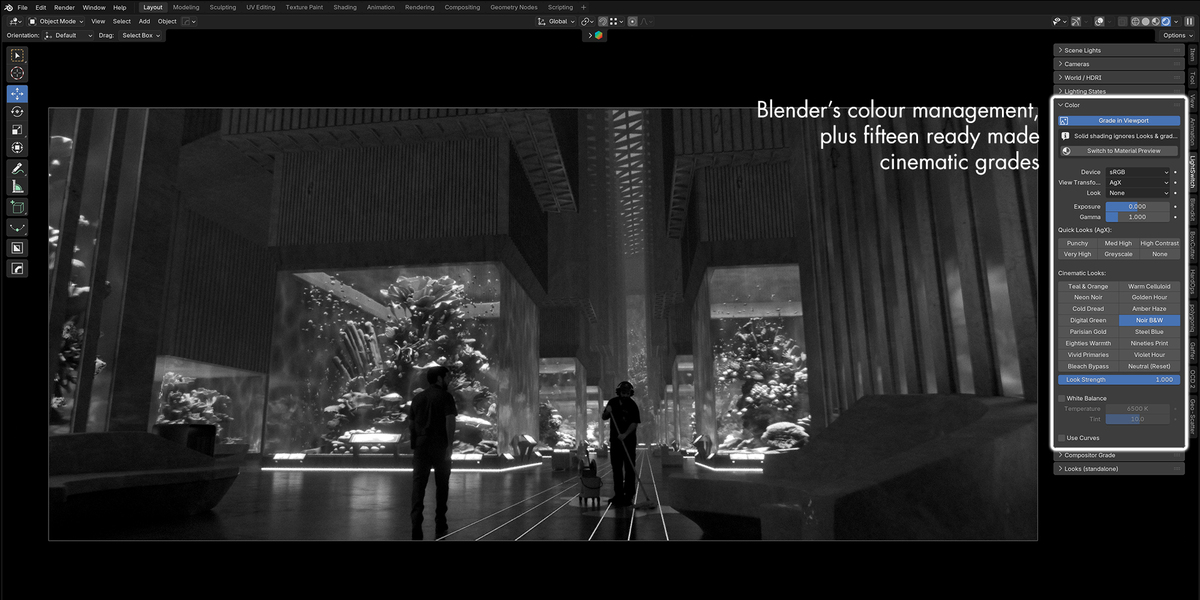
The top of the panel holds Blender's color-management settings: display device, view transform, Look, exposure and gamma. Below them:
Quick Looks (AgX) set one of AgX's built-in Looks in one click: Punchy, Med High, High Contrast, Very High, Greyscale, or None.
Cinematic Looks apply a finished grade in one click. Each sets the view transform and dials in the look, setting the compositor up first if needed. Hover a button for a description.
Look Strength blends a cinematic look against the ungraded image, from 0 (no grade) to 1 (full grade). It appears once the compositor grade exists.
White Balance (Blender 4.3 and later) and Use Curves expose Blender's own view-transform controls.
The cinematic presets are Teal & Orange, Warm Celluloid, Neon Noir, Golden Hour, Cold Dread, Amber Haze, Digital Green, Noir B&W, Parisian Gold, Steel Blue, Eighties Warmth, Nineties Print, Vivid Primaries, Violet Hour and Bleach Bypass. Neutral (Reset) returns to plain AgX with no grade.
The looks are built for restraint. Each one keeps detail in the shadows and highlights, leaves true black black, and, apart from the deliberately stylised looks, keeps skin warm and natural. They work in a log colour space, as a colourist's grade does, in a stage of their own after the Compositor Grade controls, so you can still adjust exposure, contrast and saturation on top of a look. Grades saved with pre-release builds are unaffected and look exactly as they did.
Compositor Grade
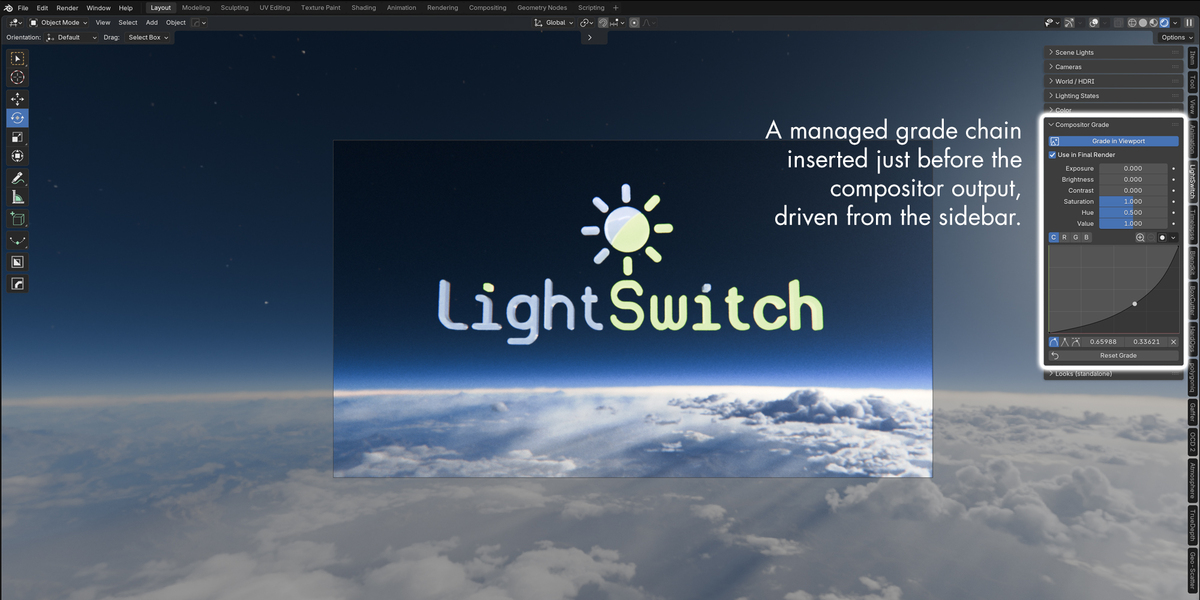
Set Up Compositor Grade adds a managed chain to the compositor: Exposure, then Brightness/Contrast, then Hue/Saturation/Value, then RGB Curves, then the Look Strength mix. Any compositor nodes you already have stay in front of it. The panel then shows those controls directly, plus Use in Final Render and Reset Grade.
Seeing the grade in the viewport
Solid shading ignores both Looks and the compositor, so a grade can't be seen there. Grade in Viewport turns on the viewport compositor, switching Solid viewports to Material Preview at the same time. If a viewport is still in Solid, the panel offers Switch to Material Preview.
Looks (standalone)
A Look is a saved color grade with no lighting attached, for reusing a grade across states. Looks are saved in the scene, so each .blend file has its own. Save Current Grade as Look stores the current color-management settings and compositor grade. Apply Selected Look, or the checkmark on a row, applies one without touching lights, world, objects or the render engine. Update Selected Look overwrites the selected Look with the current grade.
How states keep track of things
States follow lights, objects, materials, collections and worlds by an ID, not by name, so renaming anything is safe. The first time a state records something, the add-on gives it an ID stored as a custom property called lsm_id. It's visible under Object Properties > Custom Properties; leave it in place.
Renaming a light, object, material, collection or world doesn't affect any state.
Duplicating (Shift+D, or copying a material) copies the ID, so the add-on settles it: the original keeps the ID and the copy counts as new. That also happens before every save, so a saved file never has two things sharing one ID.
Deleting something removes it from what states can restore. If you later create something with the same name, a state treats it as the old one only if it has no ID of its own.
Linked data from a library file can't be given a new ID. States use the ID it was saved with in its source file, if any, and otherwise find it by name. Renaming linked data in its source file disconnects it from states.
States saved by early pre-release builds recorded names only. They are given IDs automatically when the file is opened, matching by the names they stored, and are rename-safe from then on.
Troubleshooting and FAQ
An object disappears whenever I apply a state. It was added after the state was saved, and Hide On Apply is on. Click Add New Objects to record it in every state, or switch to Leave Visible.
A prop jumps to a different spot in each state. Each state stores its own object positions. Place it where you want, then click Push Object Positions.
I switched a collection back on, but the next Apply turns it off again. The state still has it switched off. Apply the state, re-enable the collection, then click Update Objects.
An object is hidden and I can't select or unhide it. A state switched off its "Disable in Viewports" toggle, which the Outliner hides by default. Click Unhide Hidden Objects to show it now. To keep it visible in one state, select that state and use Bring In Hidden Object....
I updated a state and it picked up lights from another state. Update All records the whole scene. Apply the state first, then make your change and update. To change only one part, use its own button, such as Update World / HDRI or Update Color Grade; those don't need the state applied.
Applying says "Applied with notes. See console." Some settings couldn't be restored, usually because something was deleted or a sky file has moved. Open Window > Toggle System Console on Windows, or start Blender from a terminal on macOS and Linux, to read each note.
The grade or Look doesn't show in the viewport. The viewport is in Solid shading, which ignores both. Click Switch to Material Preview, or turn on Grade in Viewport.
The HDRI library is empty. Click Refresh Library. If it's still empty, add your HDRI folder with Add HDRI Folder... or under Preferences > File Paths > Asset Libraries.
A Pro-Lighting sky doesn't change when I apply a state. The sky's files are missing from Pro-Lighting's install folder; the console note names the file. Reinstall or relink Pro-Lighting's library, then apply again.
Can I undo applying a state? Yes. Applying, saving, updating and deleting states can all be undone with Ctrl+Z.
Reference
What a state stores
Object geometry is never stored or changed.
Not stored
Compositor nodes of your own, outside the managed grade.
Materials not used by any object in the scene.
Compositor nodes of your own, outside the managed grade.
Materials not used by any object in the scene.
Known limits
Animated values win. If a stored value is keyframed or driven, Blender sets it back from the animation on the next frame change.
Timeline markers can switch cameras. If cameras are bound to timeline markers, Blender changes the active camera again when the frame changes, overriding the one a state set.
Sky files must stay put. Pro-Lighting skies are reloaded from their files when a state is applied. Moved or missing files are reported, and the current sky is kept.
Solo and renaming. Renaming the soloed light while solo is on stops its Solo button looking pressed. Exiting solo still restores every light correctly.
Tested versions. Blender 4.5 and 5.0 are covered by automated tests, and Pro-Lighting switching has been checked by hand in Blender 5.1.
Animated values win. If a stored value is keyframed or driven, Blender sets it back from the animation on the next frame change.
Timeline markers can switch cameras. If cameras are bound to timeline markers, Blender changes the active camera again when the frame changes, overriding the one a state set.
Sky files must stay put. Pro-Lighting skies are reloaded from their files when a state is applied. Moved or missing files are reported, and the current sky is kept.
Solo and renaming. Renaming the soloed light while solo is on stops its Solo button looking pressed. Exiting solo still restores every light correctly.
Tested versions. Blender 4.5 and 5.0 are covered by automated tests, and Pro-Lighting switching has been checked by hand in Blender 5.1.
