Linkflow
 Gihan-Maddumage



LinkFlow
Production Link Library Management Toolkit for Blender
Key Features
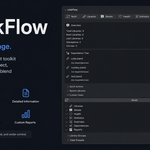
LinkFlow is a production-focused Blender add-on for managing linked libraries. It provides a centralized dashboard to monitor, organize, repair, and analyze every external .blend reference in your scene — from health diagnostics and override management to batch path repairs and dependency tracking.
Whether you are a solo artist managing a handful of linked assets or a studio coordinating hundreds of library references across a team, LinkFlow keeps your pipeline clean and your files connected.
Key Features
| Feature | Description |
|---|---|
| Library Dashboard | Browse, search, sort, filter, and organize every linked library in one panel. |
| Health Monitoring | Project health score with issue detection for missing paths, broken overrides, and duplicates. |
| Override Management | Create, compare, select, highlight, and remove library overrides with full undo support. |
| Dependency Graph | See exactly which objects, collections, and instances depend on each library. |
| Batch Operations | Relink, refresh, open, and diagnose all libraries in a single operation. |
| Statistics and Reporting | Scene-wide counts, per-library breakdowns, and exportable CSV reports. |
| Custom Views and Presets | Reorder, hide, or show dashboard sections. Save and load layouts for different workflow stages. |
| Library Groups | Organize libraries into named groups for faster filtering and team coordination. |
| Ownership and Badges | Assign owners and custom status badges to libraries. Filter by badge across the entire list. |
| Snapshots | Save and restore the complete library state of your scene at any point. |
System Requirements
| Requirement | Details |
|---|---|
| Blender Version | 4.5 through 5.2 LTS |
| Operating System | Windows, macOS, Linux |
| Dependencies | None — pure Python add-on |
| File Format Support | Any format Blender can link (.blend, .abc, .usd, .vdb) |
Installation
- Download the LinkFlow ZIP file.
- Open Blender.
- Go to Edit → Preferences → Add-ons.
- Click Install.
- Select the downloaded ZIP file.
- Enable LinkFlow from the add-ons list.
- Open the Scene Properties panel to access the dashboard.
Interface Overview
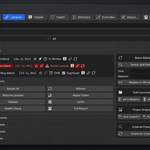
LinkFlow lives in the Scene Properties panel as a tabbed dashboard. The dashboard is divided into seven sections that can be reordered, hidden, or shown all at once.
| Section | Icon | Purpose |
|---|---|---|
| Libraries | Link Blend | Browse, search, sort, and filter all linked libraries. |
| Details | Info | Full information view for a single selected library. |
| Health | Heart | Project health score, issues list, and diagnostic tools. |
| Statistics | Node | Scene-wide counts for objects, collections, overrides, and paths. |
| Overrides | Override | Create, inspect, compare, and remove library overrides. |
| Dependencies | Graph | Dependency graph showing what uses each library. |
| Reports | Text | Generate and export text or CSV reports. |
Libraries Section
The Libraries section lists every linked library in the current scene. Each entry shows its health status badge, name, path, and path type. Select a library to open its full details view.
Searching
Use the search bar to filter libraries by name, file path, or any object or collection they contain. Results update instantly as you type.
Sorting
Libraries can be sorted by Name, Status, Path, Users, or Override count. Toggle ascending or descending order at any time.
Filtering
Favorites and Pins
Mark important libraries as Favorites for quick access. Pin libraries to keep them at the top of the list regardless of sort order.
Ownership Tags
Assign an owner name to any library so team members know who is responsible for that file. Ownership is displayed in the library list and details view.
Library Badges
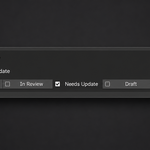
Tag libraries with custom status badges such as In Progress, Needs Update, or Review. Filter the entire library list by badge to focus on what matters.
Details Section
Select a library from the list to open its full details view. Everything about that library is displayed in one place.
Information Displayed
- Health status (Healthy, Missing, Broken)
- Resolved file path
- Absolute path
- File size on disk
- Path type (Relative or Absolute)
- Object, collection, override, and user counts
- Full dependency graph (objects, collections, instances, overrides)
- Ownership tag
Available Actions
- Favorite — Toggle favorite status.
- Pin — Toggle pin to top of list.
- Copy Path — Copy the library path to clipboard.
- Reload — Reload the library from disk.
- Open Linked — Open the linked file in a new Blender instance.
- Edit Linked — Open the linked file for editing.
- Return to Original — Switch back to the original file.
Health Section
The Health dashboard displays a project health score out of 100% with a visual progress bar. Below the score, summary cards show the count of Healthy, Missing, and Broken libraries plus total overrides.
Issues
The issues list automatically surfaces:
- Missing file paths
- Broken overrides
- Unused libraries (linked but not referenced by any object or collection)
- Duplicate path references
- Absolute paths that could be relative
Running a Health Check
- Click Run Health Check for a quick scan with a popup report.
- Click Full Report for a detailed text report with per-library breakdowns.
- Click Generate Health Report to save the report as a text file.
Statistics Section
View scene-wide totals at a glance:
- Total libraries
- Total objects and linked objects
- Total collections and linked collections
- Total overrides and instances
- Path type distribution (relative vs absolute)
- Missing libraries
Per-library breakdowns show individual object counts, collection counts, override counts, and user counts. All data is cached for instant display and only recalculates when the scene data changes.
Override Management
Creating Overrides
Select a library and click Create Override to override all of its collections at once. Individual collection overrides can be created from the override list.
Viewing Overrides
The override list shows every override in the scene grouped by library, with the reference collection name and override status.
Inspecting Overrides
Use Compare Override to see which properties differ between the override and its reference. This makes it easy to audit exactly what has been changed locally.
Selecting and Highlighting
Click Select Overrides to select all overridden objects in the viewport. Highlight Overrides outlines them for quick visual identification.
Dependencies Section
For each library, the Dependencies section shows:
This makes it easy to understand what will be affected before removing or replacing a library.
Reports Section
Available Report Types
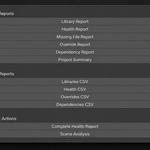
| Report | Contents |
|---|---|
| Health Report | Full health scan with per-library status and issues. |
| Library Report | Detailed information for the currently selected library. |
| Missing Report | List of all libraries with missing file paths. |
| Override Report | All overrides in the scene with their properties. |
| Dependency Report | Dependency graph for every library. |
| Scene Summary | Complete scene overview with all statistics. |
Exporting
Any report can be displayed as a popup text report or exported as a CSV file for use in spreadsheets, pipeline tracking, or automated CI checks.
Batch Operations
Batch Relink
Search for a path string and replace it across all libraries at once. Useful when project files move to a new drive or directory structure.
Batch Refresh
Reload all linked libraries from disk in a single operation, ensuring your scene reflects the latest saved state of every file.
Batch Open
Open all linked files in separate Blender instances for simultaneous editing.
Batch Diagnostics
Run a diagnostic scan on every library and view a consolidated issues list in a popup report.
Path Management
Convert to Relative
Convert all library paths to relative paths. Requires the .blend file to be saved first so Blender can calculate relative offsets.
Convert to Absolute
Convert all library paths to absolute paths. Useful for rendering farms or systems where relative paths may not resolve correctly.
Locate Missing
Search for missing libraries by scanning a specified folder recursively for matching filenames. Found paths are automatically updated.
Library Groups
Organize libraries into named groups for easier management. Groups appear as filter options in the Libraries section.
- Create Group — Define a new group name.
- Assign to Group — Add the selected library to a group.
- Remove from Group — Remove the selected library from a group.
- Rename Group — Change a group's name.
- Delete Group — Remove a group (libraries are not deleted).
Custom Views and Presets
Custom View
Reorder dashboard sections by moving them up or down. Hide sections you do not need. Toggle Show All to display every non-hidden section in a single scrollable view.
View Presets
Save your current custom view layout as a named preset. Switch between presets instantly for different workflow stages:
- Production — All sections visible for full pipeline oversight.
- Review — Health and Dependencies only for QA checks.
- Cleanup — Overrides and Reports for end-of-project tidy-up.
Project Snapshots
Save a snapshot of the complete library state of your scene including paths, favorites, pins, ownership tags, and badges.
Restore a snapshot later to undo bulk changes, recover from mistakes, or return a scene to a known good state.
External Change Detection
Detect when linked files have been modified on disk since they were last loaded. The detection scan lists every changed file with its modification time so you can decide which libraries to reload.
Tips
- All destructive operations register with Blender's undo system — press Ctrl+Z to undo any action.
- Use the search bar to find libraries by name, path, or the objects they contain.
- Pin libraries you reference frequently so they stay at the top of the list.
- Assign ownership tags early so team members always know who to contact about a library.
- Run a health check before rendering to catch missing or broken references.
- Export CSV reports regularly to track pipeline health over time.
Version History
| Version | Highlights |
|---|---|
| 3.0.0 | Major overhaul with cached statistics, optimized index maps, production error handling, and full undo support on all operators. |
| 2.x | Library dashboard, health monitoring, override management, batch operations, custom views, presets, snapshots, and CSV export. |
| 1.x | Initial release with library list, search, sort, filter, path management, and basic reporting. |
Support
When reporting an issue, please include:
- Blender version
- LinkFlow version
- Operating system
- Steps to reproduce the issue
- Console error messages (if any)
Thank you for using LinkFlow.
Have questions about this product?
Login to message
| Published | 2 months ago |
| Blender Version | 4.5 - 5.2 |
| Extension Type | N/A |
| Render Engine Used | Cycles, Eevee, Luxrender, Vray |
| License | GPL |
Discover more products like this
production tools Scene Management batch operations pipeline linked libraries productivity library management diagnostics file management Workflow blender addons override management