Lithic Loom
 SARASURRANO

LITHIC LOOM — Documentation
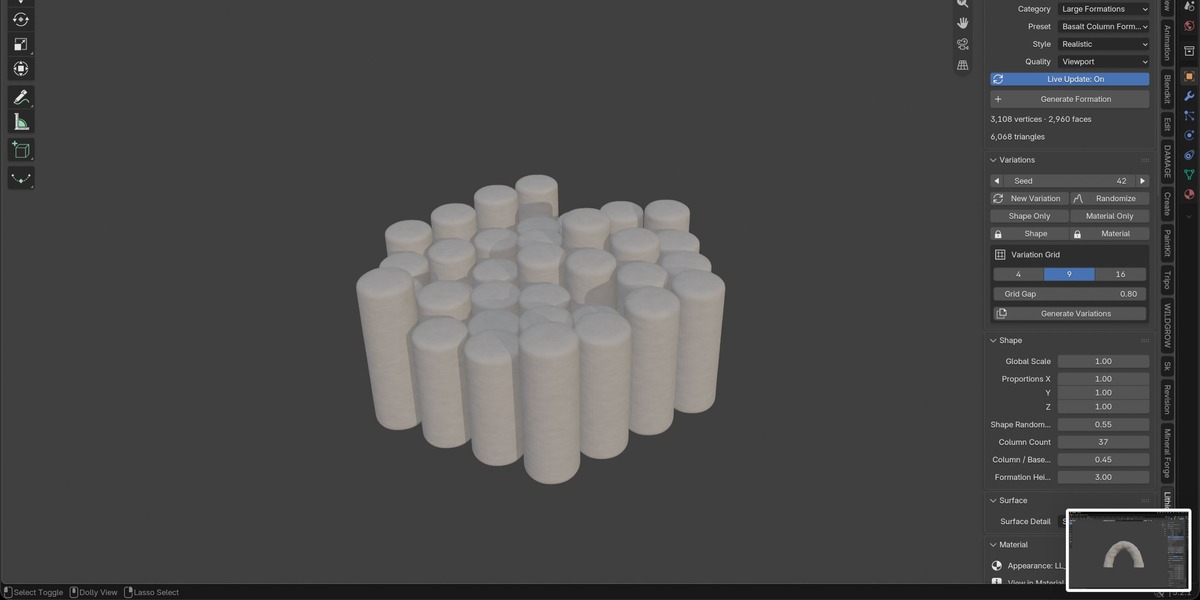
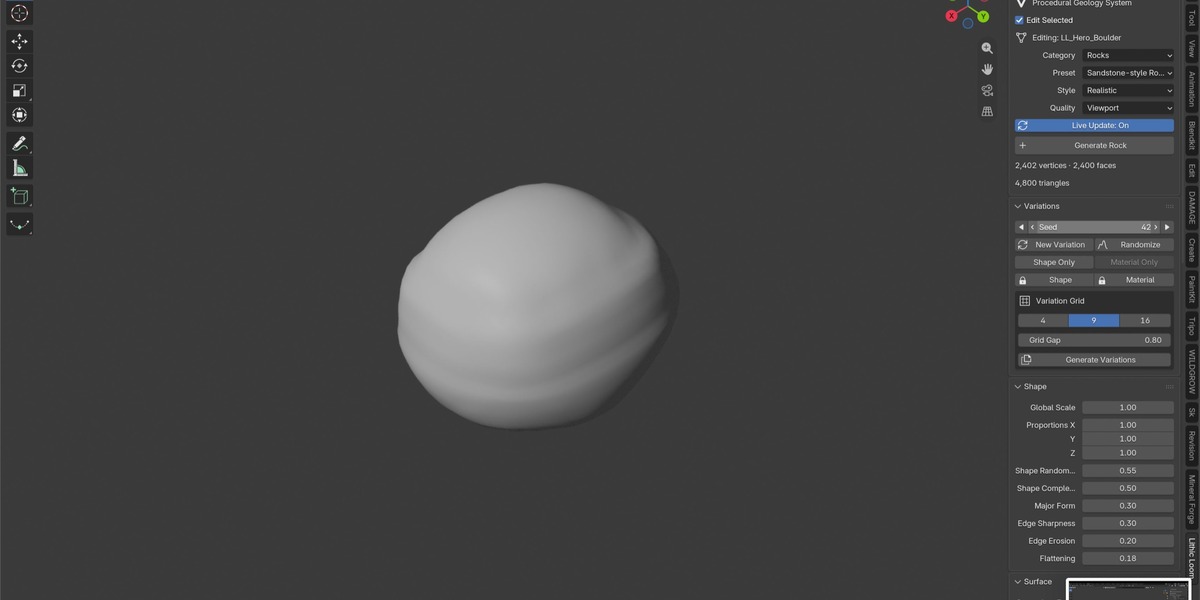
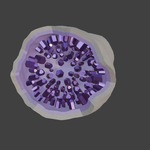
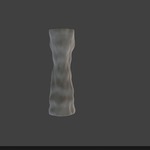
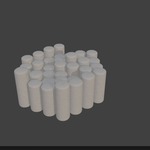
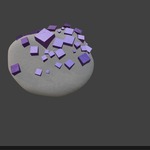
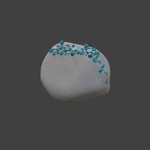
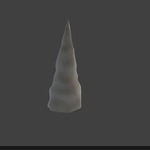
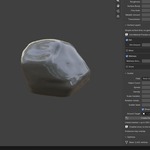
LITHIC LOOM is a procedural geology add-on for Blender. Create editable rocks, terrain sections, crystals, mineral formations and geodes, then adjust their shape, proportions, surface detail and appearance.
Version 1.1.6 includes 39 presets across four categories, seeded variations, contextual controls, optional materials, directional surface layers, scatter and optimization tools.
Installation
Download
Lithic_Loom_1.1.6.zip. Keep the ZIP compressed.In Blender, open Edit → Preferences → Get Extensions.
Open the menu in the upper-right corner and choose Install from Disk.
Select the ZIP and install the extension. Enable Lithic Loom if prompted.
In the 3D Viewport, press N to open the sidebar, then select Lithic Loom.
When updating an existing installation, save your work and restart Blender after installing the new version.
Requirements and tested compatibility
Minimum Blender version: 4.2.0.
Create your first asset
Switch to Object Mode.
Choose a Category and Preset.
Select a Style and Quality, where available.
Click the Generate button.
Enable Edit Selected to adjust the generated asset.
Change its seed or use New Variation to explore another shape.
Newly generated assets start with Material = None. This lets you choose whether to use your own materials or apply an optional Lithic Loom material.
Included presets
Rocks — 9 presets
Hero Boulder, Angular Rock, Rounded Rock, Pebble, Granite-style Rock, Basalt-style Rock, Sandstone-style Rock, Volcanic Rock and Porous Rock.
Large Formations — 7 presets
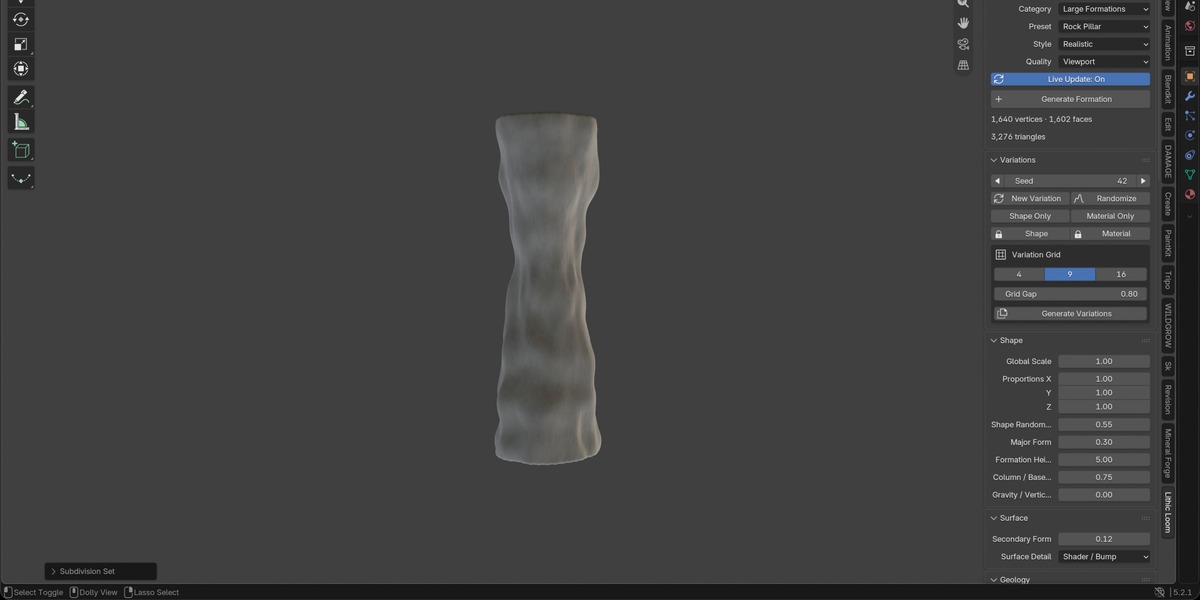
Rock Pillar, Arch Formation, Basalt Column Formation, Canyon Reach, Mountain Ridge, Rocky Escarpment and Open Cave.
Crystals & Minerals — 15 presets
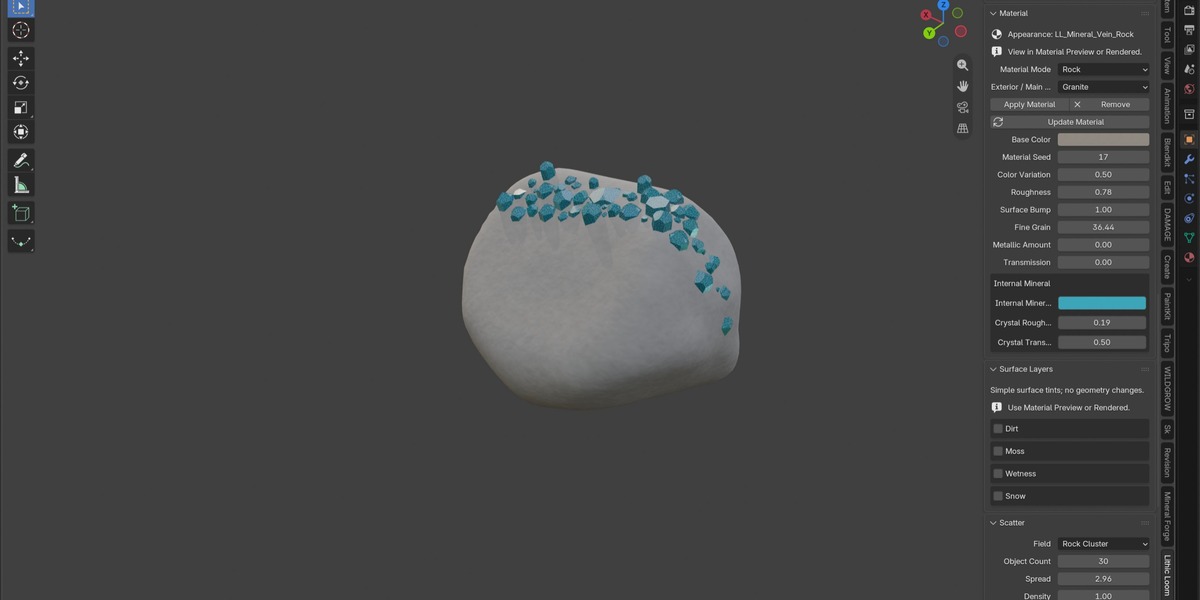
Quartz, Amethyst-style Crystal, Emerald-style Crystal, Ruby-style Crystal, Sapphire-style Crystal, Diamond-like Crystal, Salt Crystal, Ice Crystal, Obsidian-style Formation, Pyrite-style Cluster, Generic Metallic Ore, Crystal Cluster, Crystal Point, Crystal Bed and Mineral Vein.
Special Geology — 8 presets
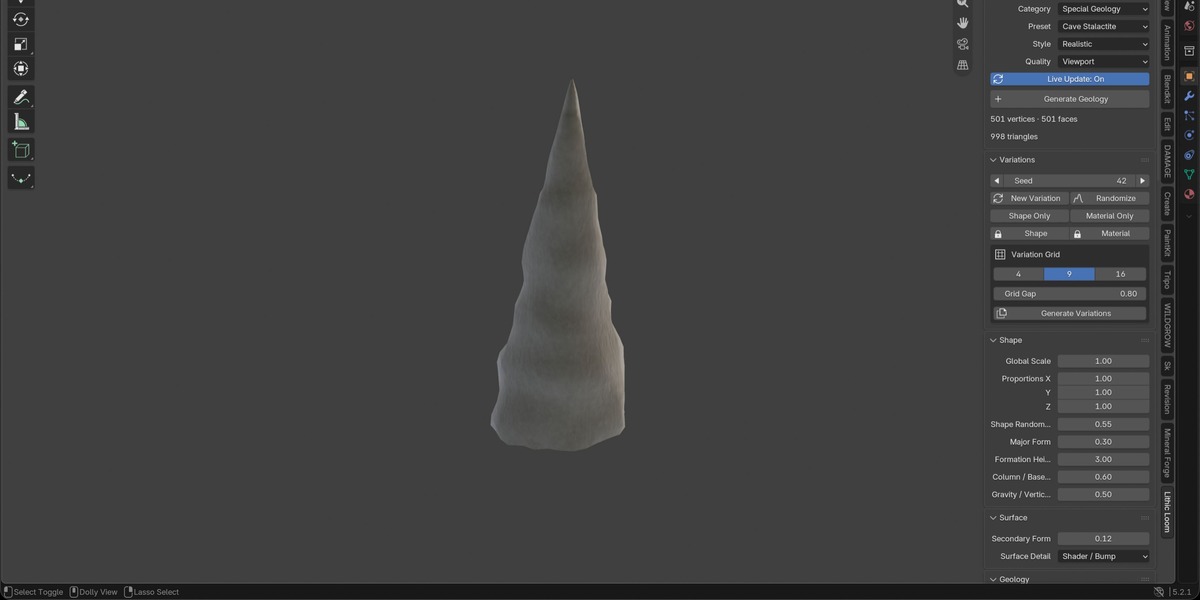
Geode, Broken Geode, Ore Rock, Crystal Embedded Rock, Mineral Vein Rock, Cracked Stone, Cave Stalagmite and Cave Stalactite.
Older recipes remain readable for existing saved assets but are not included in the current creation menus.
Editing shapes
With Edit Selected enabled, geometry controls target the selected editable Lithic Loom asset. Disable it to prepare settings for a new asset.
Controls adapt to the current preset and host. Depending on the asset, you can adjust proportions, major and secondary form, fractures, erosion, layering, crystal growth, cavity dimensions and other relevant settings.
Some controls require another setting to be enabled. For example, Strata requires a nonzero Layering value.
Live Update applies changes after a short pause. When it is disabled, use:
Update Selected for geometry changes.
Update Material for appearance changes.
Regenerating an asset replaces its generated mesh. Keep an editable original and finalize a copy before making manual mesh edits.
Large Formations
Canyon Reach creates a recessed channel between two rock banks. Adjust Terrain Footprint, Formation Height and Channel Width, then refine the surface with geological controls.
Mountain Ridge creates connected peaks with secondary spurs. Adjust the footprint, height, peak count and ridge width.
Rocky Escarpment creates a rising slope with an upper shelf. Use Upper Shelf Width, height and erosion to change its profile.
Open Cave creates a rock chamber with an actual entrance, interior floor, surrounding walls and a closed rear wall. Adjust Cave Depth, Entrance Width, Entrance Height and Rock Wall Thickness. The entrance faces local −Y; rotate the object to orient it.
The terrain presets are bounded sections with deliberate cut sides and undersides. They are designed for placement and scene assembly. Open Cave is a single chamber rather than a branching tunnel network.
Styles and quality
The available styles are Realistic, Stylized and Low Poly. These provide artistic variations in the generated form.
Quality levels control the geometry budget:
Draft: quick shape exploration.
Viewport: everyday interactive work.
Medium: a more detailed preview.
High: increased surface sampling.
Final: the highest intended sampling level.
Polygon counts depend on the preset and its settings. Some faceted mineral forms use fixed resolution or gain little from higher quality because their shape is already defined by a small number of deliberate faces.
Subdivision changes the silhouette and rounds facets. Use it selectively, especially on crystals. Shade Smooth changes shading rather than repairing or adding geometry.
Crystal hosts
Where supported, crystals can use these host modes:
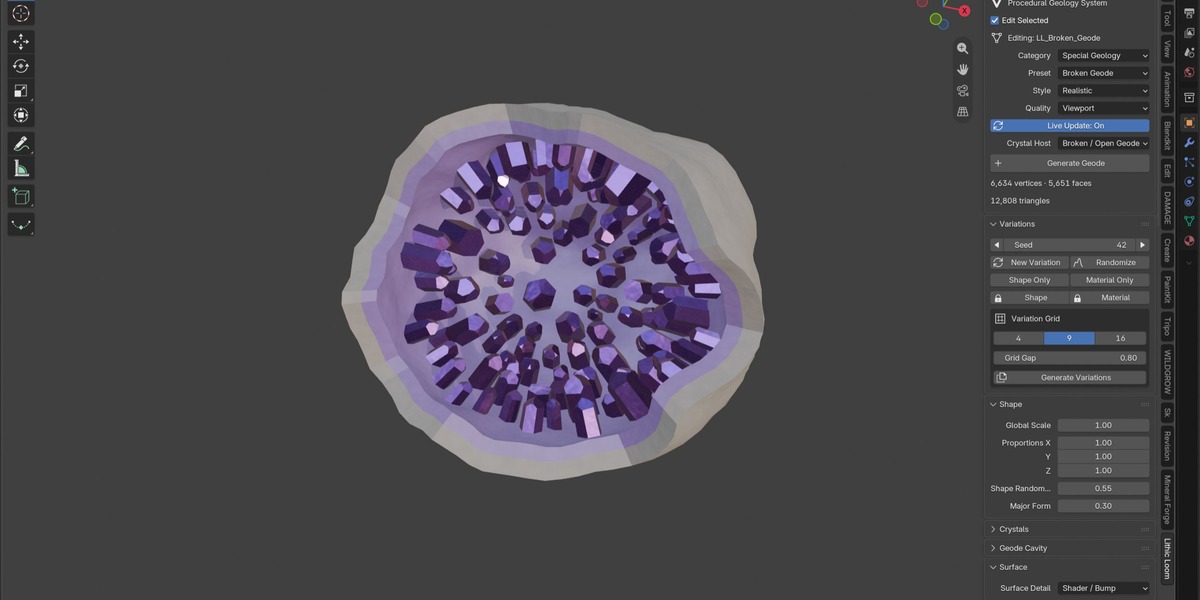
Standalone / None, Natural Rock, Mineral Shell, Geode, Broken / Open Geode, Crystal Bed and Embedded Rock.
Host selection reveals the relevant settings. Shells expose shell controls, while geodes expose cavity and opening controls.
Standalone crystals have no added pedestal. Hosted growth may place fewer crystals than requested when spacing and contact constraints limit placement.
Crystal and host surfaces can intersect within one mesh. They are not automatically fused into a single solid for 3D printing.
Materials
To apply an optional Lithic Loom material:
Select the mesh.
Open Material.
Choose a material mode and family.
Click Apply Material.
Switch the viewport to Material Preview or Rendered.
The materials provide adjustable color, roughness, metallic or transmission settings, with procedural grain and bump where applicable. They work with Cycles and Eevee.
Choose Custom / Existing to assign one of your own Blender materials.
Appearance controls target the selected mesh even when Edit Selected is off, and remain available on finalized meshes. Custom or manually edited shaders are preserved during ordinary updates; explicitly applying a Lithic Loom material replaces the existing assignment.
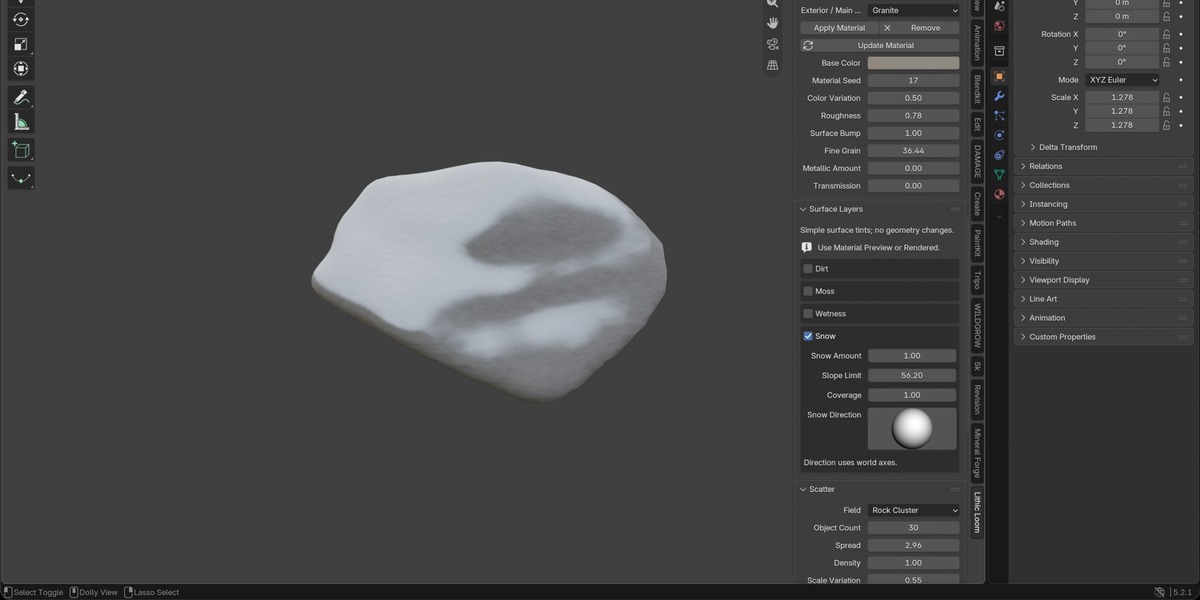
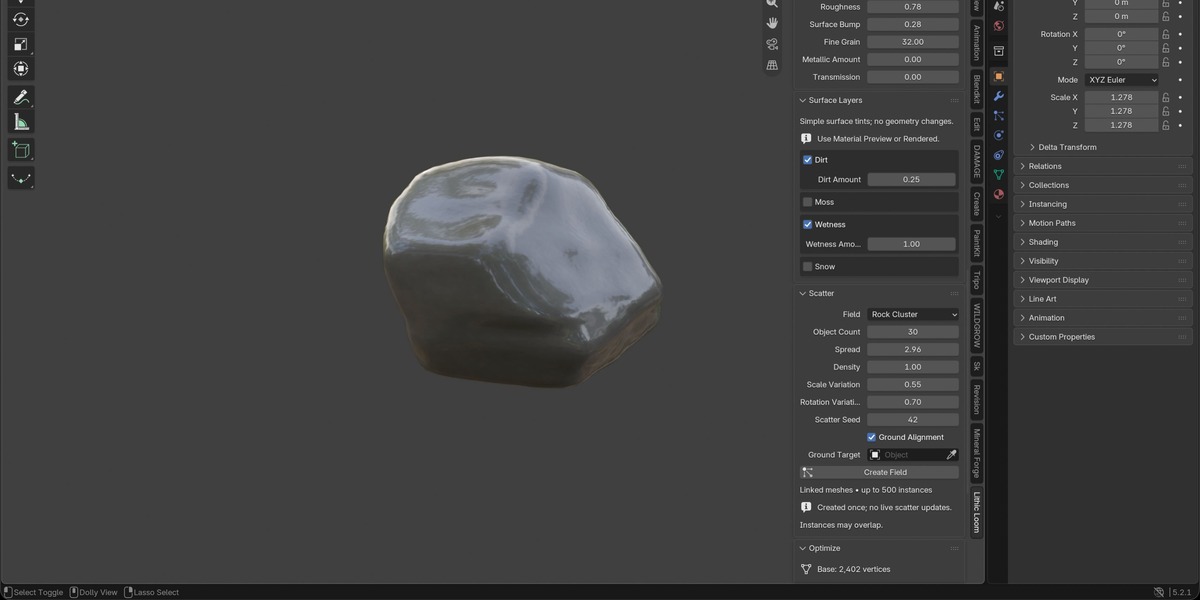
Dirt, Moss, Wetness and Snow
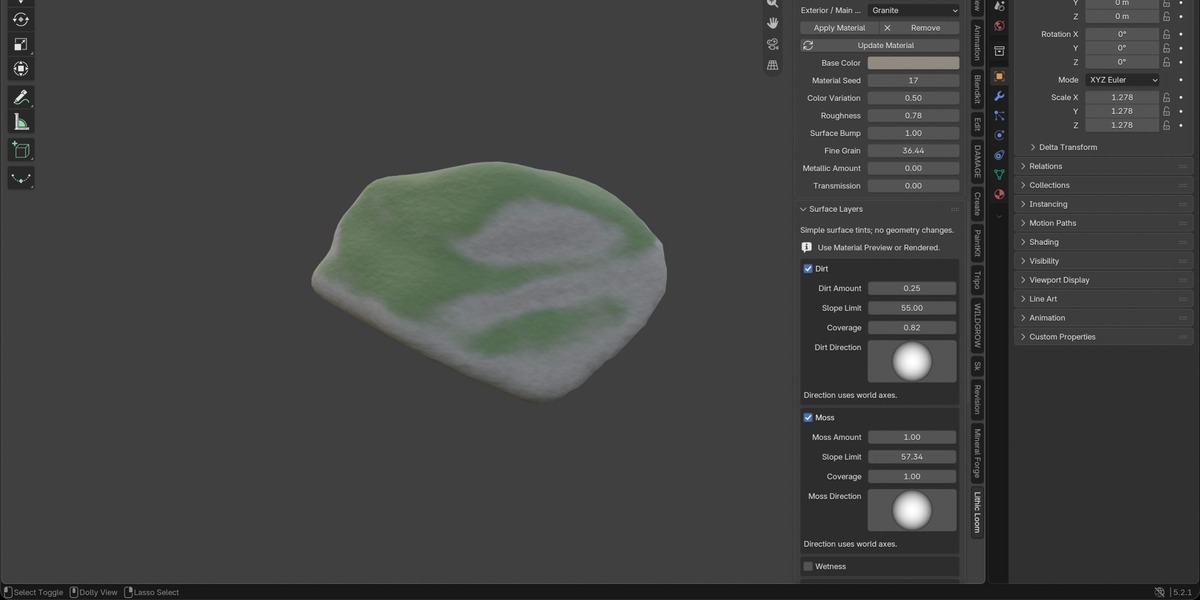
Surface Layers require an applied Lithic Loom material. Enable a layer to reveal its controls.
Dirt: adds an earthy surface tint.
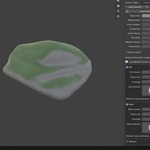
Moss: adds a green surface tint.
Wetness: darkens covered areas and lowers their roughness.
Snow: adds softly masked white coverage.
Each layer has independent controls:
Amount: controls the strength of the effect.
Slope Limit: controls which surface angles are eligible relative to the chosen direction.
Coverage: expands or reduces coverage across eligible surfaces.
Direction: controls the direction the layer faces, using world axes.
Use +Z for upward-facing surfaces or a horizontal direction to target one side. Setting Amount or Coverage to zero removes that layer’s effect.
For a quick snow preview, start with Amount 1, Coverage 1, a Slope Limit around 55–65° and Direction +Z, then refine the result.
Important: Solid viewport shading does not display these material effects. Use Material Preview or Rendered mode. With Live Update disabled, click Update Material after changing a setting.
Layers combine in this order: Dirt, Moss, Wetness, Snow. Strong Snow coverage can hide the layers beneath it.
These are shader effects; they do not add thickness or simulate physical accumulation. Open Cave specifically keeps Snow off its sheltered interior. Other objects do not perform general shelter or occlusion detection.
Variations and custom presets
Use the seed controls, New Variation or Randomize to explore alternatives. Shape, Material and Growth locks preserve the corresponding groups where available.
Material variation requires an applied Lithic Loom material. Variation grids create 4, 9 or 16 new assets for comparison; newly generated assets remain material-free.
Save reusable settings through Custom Presets. Presets can be loaded, renamed and deleted. They are stored in Blender’s user configuration, so back them up before clearing that configuration.
Scatter
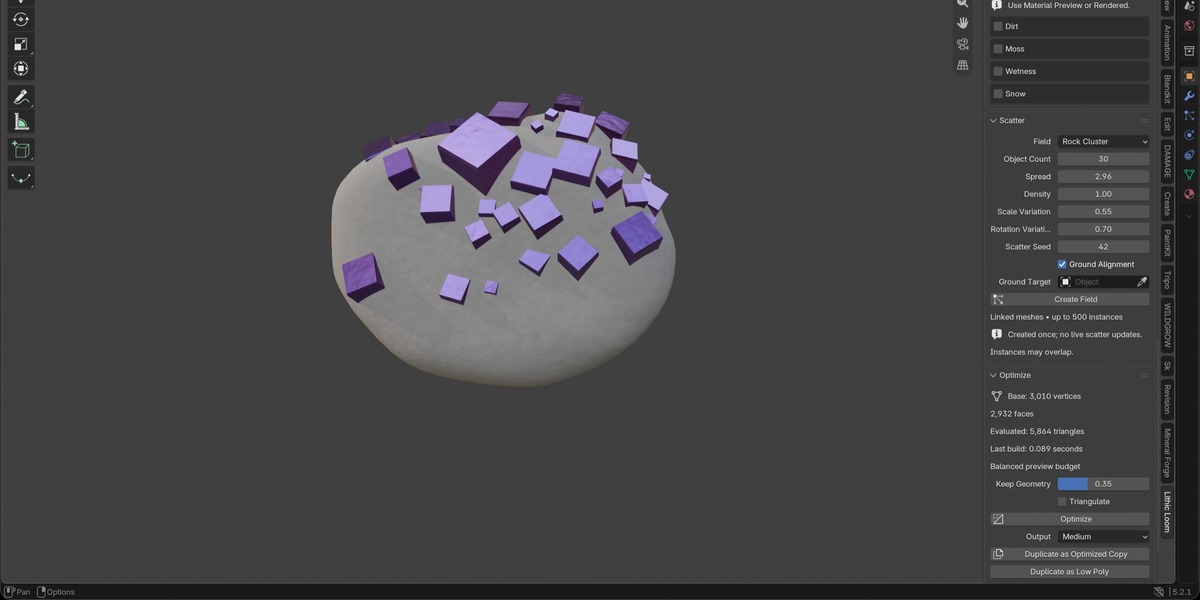
Rock, Pebble, Crystal and Debris scatter can create fields of linked mesh instances.
Adjust count, density, spread, seed, scale variation, rotation variation and ground alignment. A mesh can be assigned as the ground target.
Scatter is created once. It does not update live after creation, and instances may overlap.
Optimization and utilities
Use Optimize to reduce geometry and optionally triangulate the result. Duplicate as Optimized Copy preserves the original editable asset.
Finalize converts the evaluated result into a mesh without further procedural geometry editing. Keep an editable original when you may need to change the recipe later.
Utilities include Ground Object, Set Origin to Base, Apply Scale, Rename Asset, Create Collection and Mark as Asset. Their availability depends on the selection and editing context.
Strong polygon reduction can remove silhouette detail and important crystal facets. Inspect the result before finalizing.
Saving and troubleshooting
Save your scene normally as a .blend file. Editable asset recipes remain stored with their objects.
A material or layer is not visible: apply a Lithic Loom material, switch to Material Preview or Rendered, and use Update Material if Live Update is off.
A geometry setting has no effect: select an editable Lithic Loom asset, enable Edit Selected and check any prerequisites. Use Update Selected when Live Update is off.
A control is missing: controls are shown only when relevant to the current preset, host and settings.
New presets are missing after an update: restart Blender and confirm that version 1.1.6 is enabled.
Manual mesh edits disappear: regeneration replaces generated topology. Make manual edits on a finalized copy.
Lithic Loom produces adjustable, artist-oriented geological forms. Presets are not scientific mineral or erosion simulations, and large relief settings or aggressive optimization should always be checked against the intended result.
Have questions about this product?
Login to message
| Blender Extension Compatible | Yes |
| Published | 3 days ago |
| Blender Version | 4.2 - 5.2 |
| Extension Type | Add-on |
| Render Engine Used | Cycles, Eevee |
| License | GPL |
Discover more products like this
modeling geode procedural modeling rock-generator geology terrain procedural environment blender addon crystals rocks minerals