Lod Builder – Blender Addon for Game Asset LOD Generation
 3D Skill Up
Lod Builder — User Guide
Generate, inspect and manage Level of Detail meshes for static props and environment assets.
Version 1.0.1 Static Mesh Workflow LOD0–LOD51. Overview
Lod Builder creates separate Level of Detail mesh sets inside Blender. Your original object remains the editable source, while generated meshes are placed in dedicated collections.
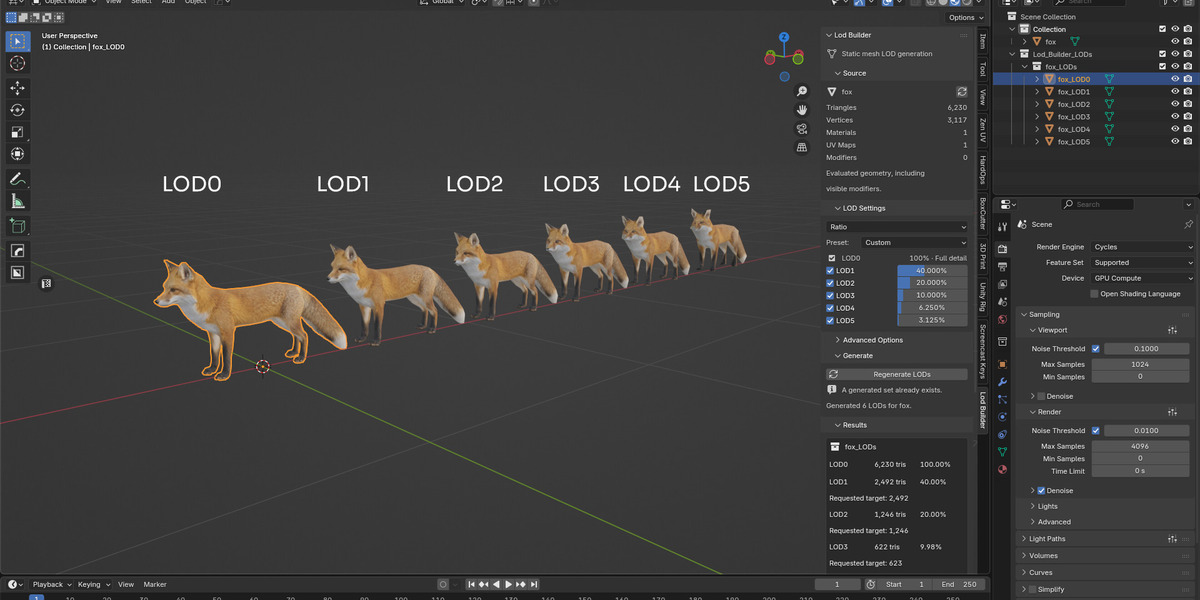
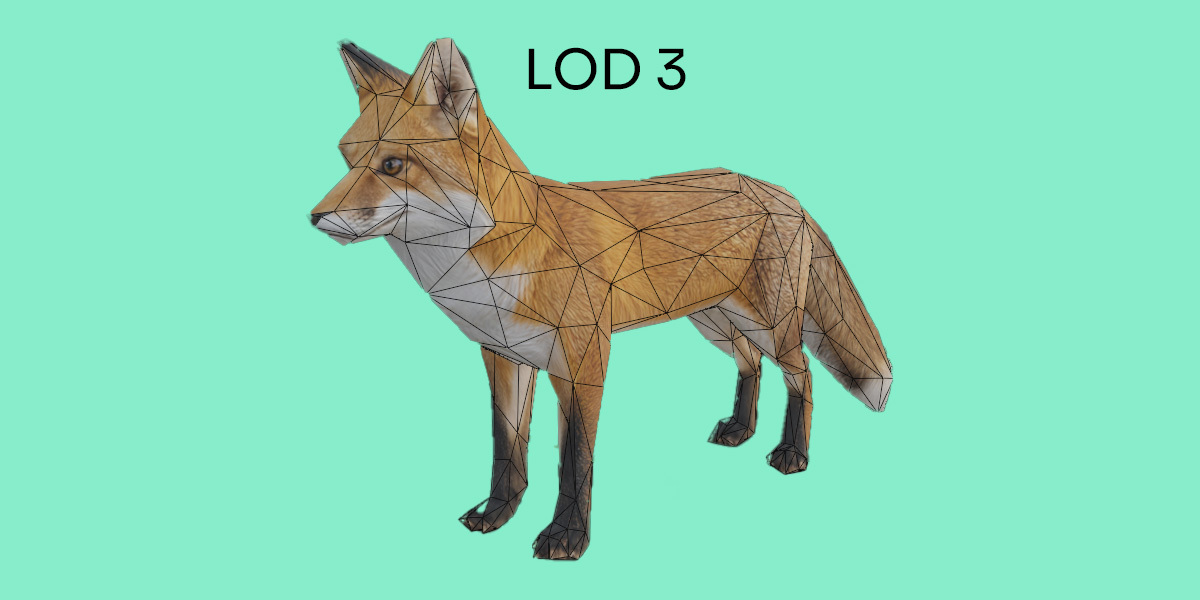
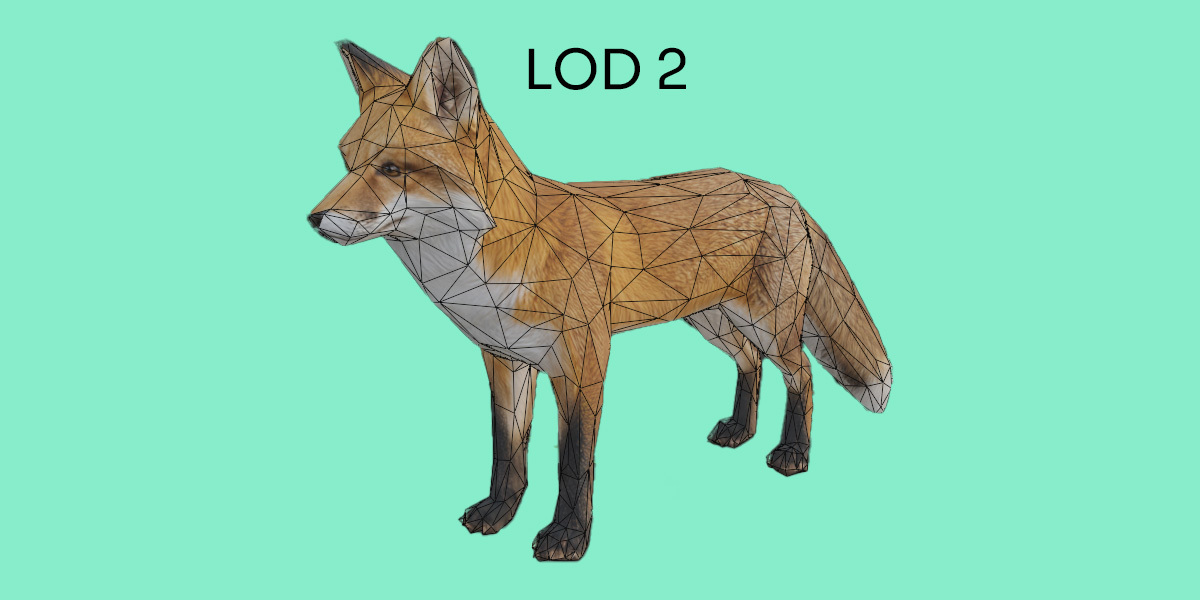
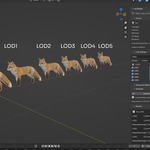
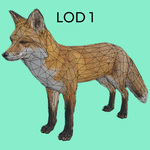
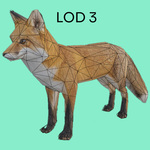
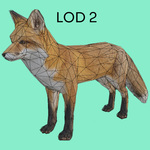
LOD0 is a full-detail snapshot of the source’s evaluated geometry. LOD1–LOD5 are reduced versions created using Blender’s native Collapse Decimate modifier. Each reduced level starts independently from the same full-detail snapshot.
Your source remains editable. Generating LODs does not apply modifiers to, rename or replace your original mesh. Generated objects contain static geometry rather than copies of the source’s editable modifier stack.
2. Requirements & Downloads
- Minimum Blender version: 4.5.0, as declared by the extension.
- Supported input: static mesh objects with usable evaluated geometry.
- Working mode: Object Mode.
- Processing: local to Blender, with no external dependencies or licensing server.
Download Files
lod_builder-1.0.1.zip
The installable Blender extension. Install this ZIP directly, without extracting it.
Lod_Builder-1.0.1-User_Guide.pdf
The separate English user guide for offline reference. This document does not need to be installed in Blender.
The addon ZIP also includes its README, license, credits and additional documentation. The minimum Blender version does not imply that every later release and operating system combination has been tested.
3. Installation & Updates
- Download lod_builder-1.0.1.zip from your Superhive product downloads.
- Open Blender and go to Edit → Preferences.
- In the Extensions area, open the menu and choose Install from Disk.
- Select lod_builder-1.0.1.zip, install it and enable Lod Builder.
- Return to the 3D Viewport, press N and open the Lod Builder tab.
Keep the addon ZIP compressed. There is no outer package to extract with these separate downloads. If your browser automatically unzips downloaded files, retain or download the original ZIP for installation.
Updating from Version 1.0.0
Install version 1.0.1 over the previous package. The internal extension identifier is unchanged, so Blender can recognize it as the same addon. Existing settings and generated-set associations remain compatible. Older collection names may remain in previously saved scenes.
4. Quick Start
- Save a working copy of your scene, then select your original static mesh in Object Mode.
- Open Lod Builder and review the source information. Use Refresh if statistics are marked stale.
- Start with Ratio mode and the Balanced preset.
- Click Generate LODs.
- Review actual triangle counts in Results.
- Preview each level and inspect silhouette, shading and textures.
- Click End Preview to restore the previous viewport state.
5. LOD Levels & Reduction Modes
LOD0 contains the full evaluated snapshot. Enable or disable LOD1–LOD5 individually to control how many reduced meshes are generated.
Ratio Mode
Set the percentage of detail to retain for each reduced level. For example, 50% requests approximately half the evaluated source triangle count. Percentages describe detail retained, not detail removed.
Values must be greater than 0% and no higher than 100%. A warning appears if a later enabled level requests more detail than the preceding level. Your values are not silently rewritten. Extremely low ratios can produce unusable geometry or no faces.
Triangle Target Mode
Enter a positive whole-number triangle target for each reduced level. Every target must be lower than the evaluated source triangle count. Lod Builder converts the target into a Decimate ratio.
Triangle targets are approximate. Native decimation cannot guarantee an exact count. Review the measured output in Results. Reported percentages reflect actual output relative to the captured source count.
6. Presets
| Preset | LOD0 | LOD1 | LOD2 | LOD3 |
|---|---|---|---|---|
| Light | 100% | 75% | 50% | 30% |
| Balanced | 100% | 50% | 25% | 12.5% |
| Aggressive | 100% | 40% | 20% | 10% |
A built-in preset switches to Ratio mode, enables LOD1–LOD3 and disables LOD4–LOD5. Their stored values remain available if you enable them again. Changing level values or enabled levels changes the preset label to Custom.
7. Advanced Options
Maintain Symmetry
Requests native Decimate symmetry around the chosen local X, Y or Z axis. It does not create missing symmetry in an asymmetric source mesh.
Triangulate Result
Enables Decimate’s triangulated output for reduced levels. It does not additionally triangulate the LOD0 snapshot.
8. Batch Generation
Select several source meshes and click Generate LODs for Selected. The same settings are applied to each source, with progress and per-source reporting.
- Triangle Target values must be valid for each selected mesh.
- Non-mesh selections, invalid inputs and sources with existing generated sets are reported.
- A failure for one source does not discard successfully generated sets for other sources.
- Cancellation takes effect between assets. Blender can pause while a single native Decimate calculation is running.
9. Previewing & Inspecting Results
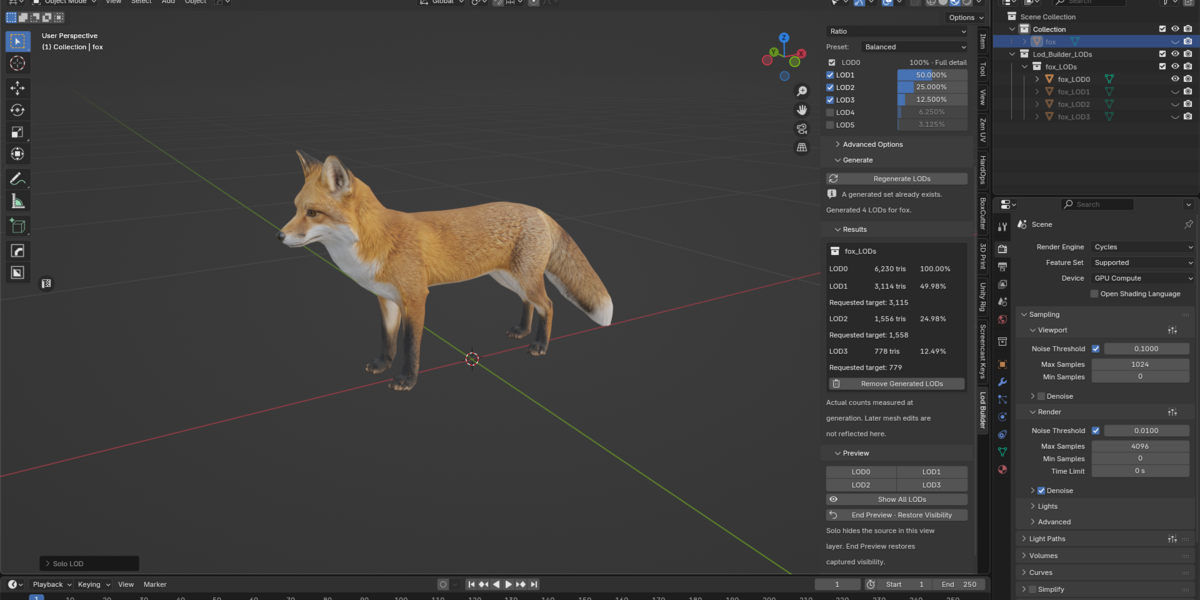
Click a generated level’s preview button to isolate it in the active view layer. The source is temporarily hidden to prevent overlapping geometry. Generated levels retain the captured source placement.
Show All LODs displays the generated levels together. They share the same placement and may overlap. Use individual previews for clearer visual inspection.
End Preview restores the captured per-object viewport visibility and selection. Render visibility is not changed. End the preview before deliberately changing visibility for the same set.
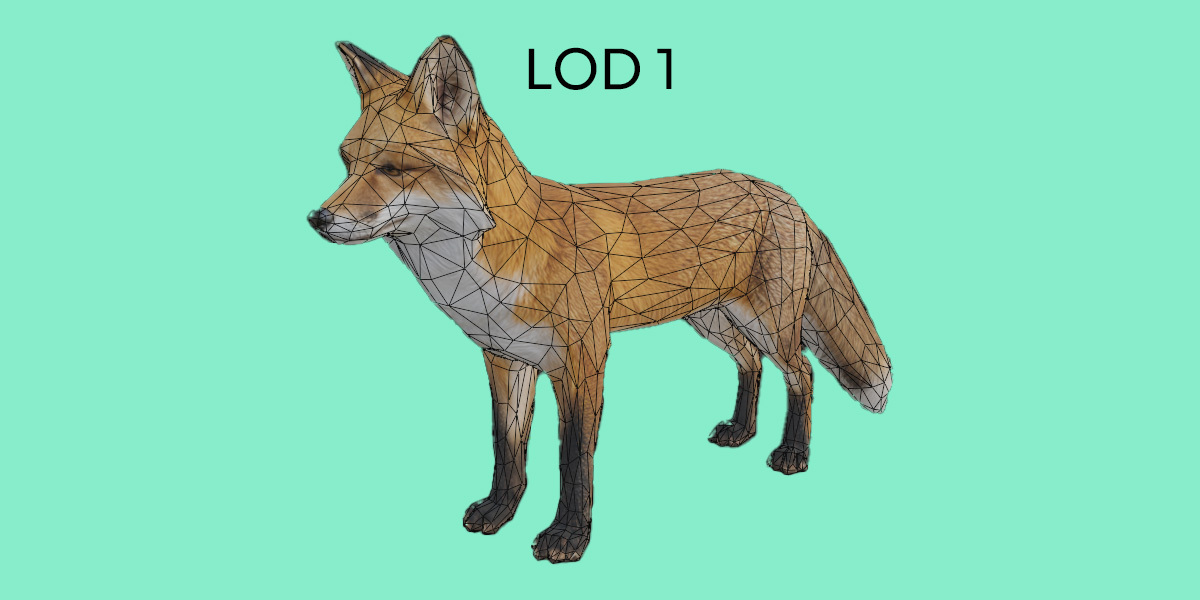
Inspect more than triangle counts. Check silhouettes, thin parts, UV seams, material boundaries and shading. Compare levels at the approximate viewing size expected in your final project.
10. Collections, Regeneration & Cleanup
New output is organized under Lod_Builder_LODs, with a dedicated collection for each source. For example, a source named Crate produces a Crate_LODs collection containing meshes such as Crate_LOD0, Crate_LOD1 and Crate_LOD2.
Regenerate LODs
Use Regenerate LODs when the source already has a generated set. The replacement geometry is built before the previous owned set is removed.
Regeneration replaces manual edits to generated meshes. Preserve edits you want to keep in independent duplicates outside the generated set.
Remove Generated LODs
Removes positively identified generated members of the current set. The source and unrelated objects are preserved. Collections containing unrelated content may remain. Generated objects linked outside their generated set are preserved to protect those external uses.
Sets use stored source associations rather than names alone. Collections shared across multiple scenes are guarded against unintended deletion. Make the generated set local to the intended scene before replacing it.
11. Modifiers, UVs & Materials
LOD0 captures the currently evaluated mesh and world transform. Viewport modifier settings, the current frame, constraints and simulations can affect this snapshot. Animation is not copied into the generated objects.
UV layers and material assignments are retained where Blender’s evaluation and Decimate support them. Existing material datablocks are shared rather than duplicated.
Decimation changes topology. Strong reductions can degrade UV seams, material boundaries, custom normals and small details. If the result looks incorrect, use a less aggressive ratio or a higher triangle target and inspect it again.
12. Using LODs in Game Engines
After inspecting the generated meshes, end the preview and export the required levels using your preferred Blender export workflow. Check object selection, transforms and material handling in your export settings.
Configure LOD groups and switching distances in your target engine. Lod Builder does not provide automatic export, engine-specific LOD setup or distance-based switching.
13. Scope & Limitations
- Intended for static props and environment meshes. Armature-deformed meshes and meshes with shape keys are blocked.
- Uses geometric decimation, not automatic retopology.
- Does not generate or pack UVs, bake textures or guarantee distortion-free results.
- Does not guarantee exact triangle targets or unchanged silhouettes.
- Does not convert instances or particles into mesh objects. Realize intended Geometry Nodes instances or prepare a separate static source first.
- Sheared world transforms are rejected. Prepare a separate static working copy with shear baked into its mesh.
- Preview cannot override excluded collections or global viewport restrictions.
- Dense meshes can require significant processing time and memory. Batch cancellation occurs between assets.
14. Troubleshooting
Installation does not work
Confirm that you selected lod_builder-1.0.1.zip directly using Install from Disk. Keep it compressed and check that your Blender version meets the declared minimum. Do not select the PDF or a source-code archive.
The Lod Builder tab is missing
Check that the addon is enabled in Preferences. Move your cursor over the 3D Viewport and press N to display its sidebar.
Active mesh required
Select your original mesh and switch to Object Mode.
Source geometry is empty
Verify that the evaluated source contains polygons and that its modifiers produce usable geometry.
Target must be lower than source
Enter a smaller triangle target or switch to Ratio mode. For batch generation, check that the target is valid for every selected source.
A generated set already exists
Use Regenerate LODs to replace it, or Remove Generated LODs before creating a new set.
A LOD produced no triangles
Increase its retained ratio or triangle target. Generation cancels and rolls back the new set if a reduced level has no faces.
Source statistics are stale
Click Refresh after changing source geometry or modifier settings.
The preview is invisible
Check the Outliner. Make sure the generated collections are enabled in the active view layer and are not restricted in the viewport.
UVs, shading or thin details look incorrect
Use a higher retained ratio or triangle target and compare against LOD0. Some meshes require manual cleanup or a different reduction strategy.
Blender pauses during generation
Dense meshes can take time to decimate. Cancellation operates between assets, not inside an active native Decimate calculation. Try a smaller selection or a lighter static source.
15. Requesting Support
Contact the creator through Superhive and include:
- Lod Builder version and exact Blender version.
- Your operating system.
- Generation mode, enabled levels and ratio or target values.
- Steps needed to reproduce the issue.
- The complete error message and a relevant screenshot.
- A minimal, non-confidential example scene, if possible.
A small reproducible example makes it easier to identify whether an issue comes from source geometry, scene setup or addon behavior.
Credits & License
Lod Builder is created and maintained by 3DSkillUp. Geometry evaluation and reduction use Blender’s native APIs and Decimate modifier.
Addon license: GPL-3.0-or-later. See the LICENSE and CREDITS.md files included in the addon ZIP.
Visit 3DSkillUp →
 Included
Includes 12 months of
- Support from 3D Skill Up
- Product updates
Extend this product’s Support Period +12 months: 50% of product price
Have questions before purchasing?
Login to message
| Blender Extension Compatible | Yes |
| Dev Fund Contributor | |
| Published | 8 days ago |
| Blender Version | 4.5 - 5.2 |
| Extension Type | Add-on |
| License | GPL |