 Sonneblom Digitaal
What it does
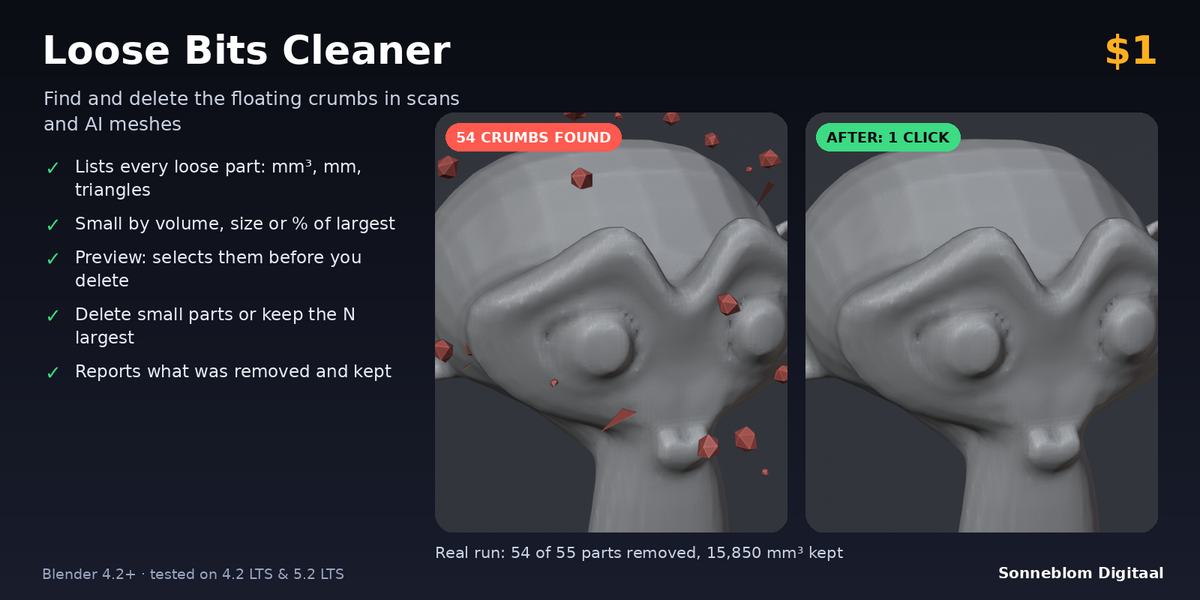
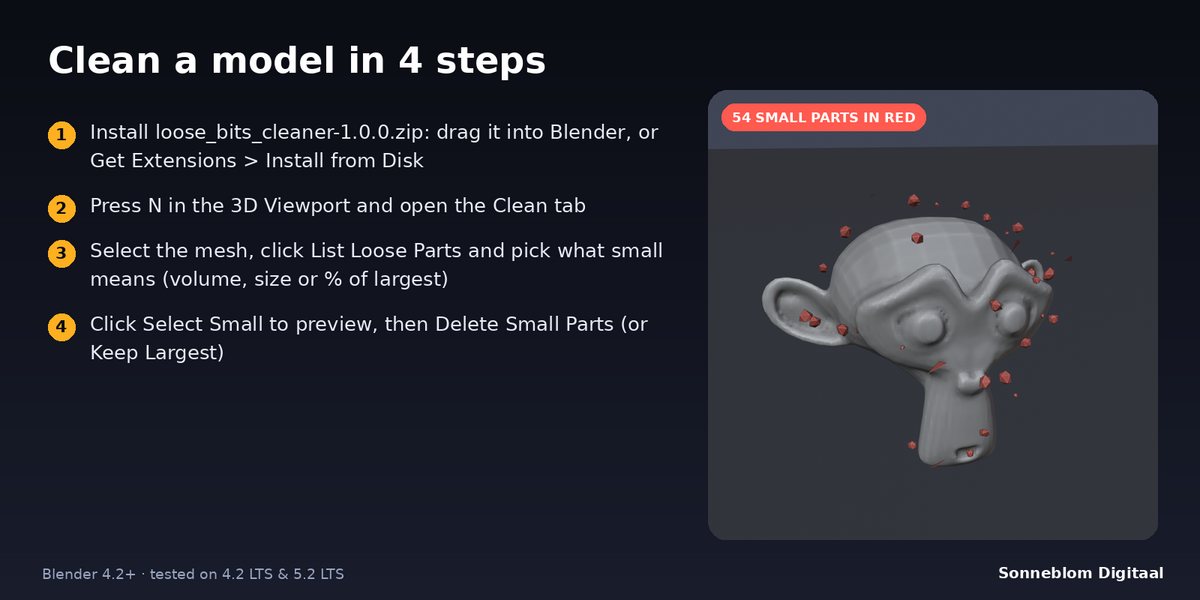
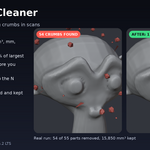
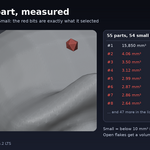
Loose Bits Cleaner finds the floating crumbs in your mesh and removes them. Scans and AI-generated models (Meshy, Tripo, Rodin and the like) often come with tiny islands of geometry that float next to the model. You can hardly see them in the viewport, but the slicer prints every one of them as a stray blob or a failed first-layer spot. The add-on lists every loose part of the selected mesh, largest first, with its volume in mm³, its size in mm and its triangle count. It marks the parts below your threshold in red, lets you preview them by selecting them in Edit Mode, and then deletes them, or keeps only the N largest parts. The report says how many parts were removed and how much volume was kept.
Who it's for
3D printing hobbyists and makers who print scans or AI-generated models, and anyone who cleans up imported meshes before export. No settings to learn: the default (remove parts smaller than 1 mm³) works for most models in millimetres.
Key features
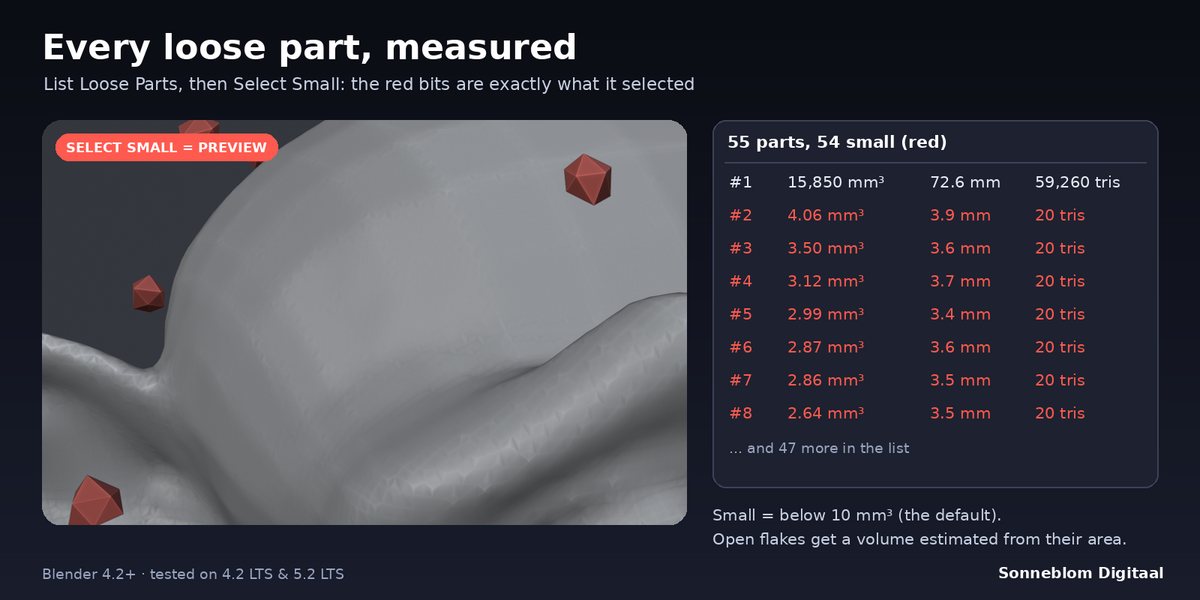
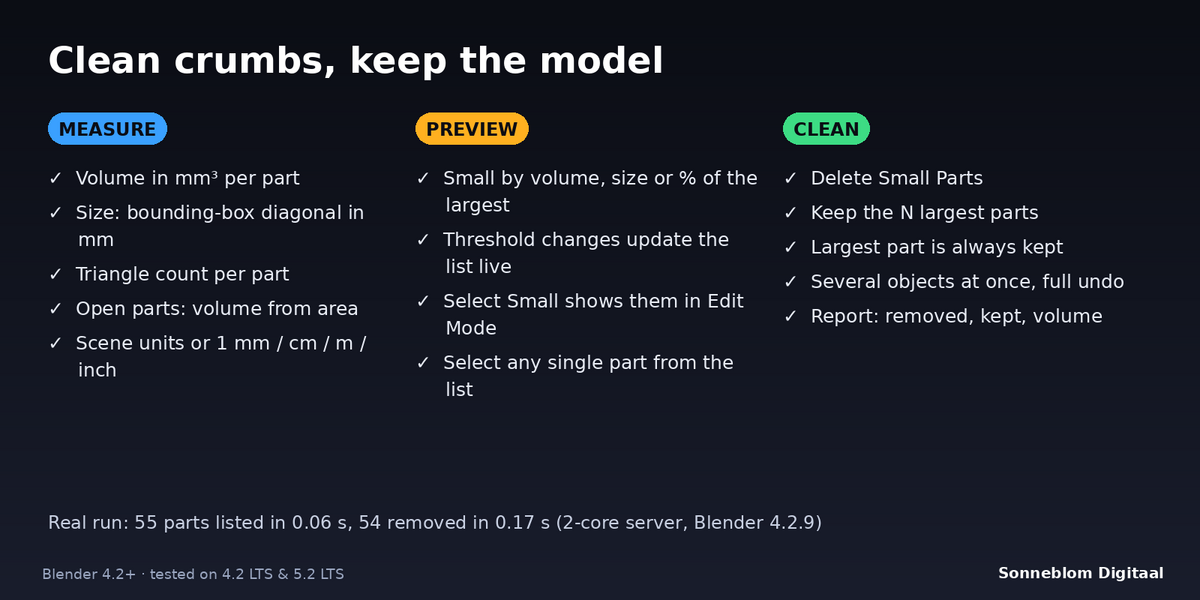
- Parts list: every loose part with volume (mm³), bounding-box diagonal (mm) and triangle count, largest first. Small parts are shown in red.
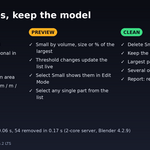
- Three ways to say "small": by volume (mm³), by size (bounding-box diagonal in mm) or by % of the largest part's volume. Changing the threshold updates the red marks in the list right away.
- Open parts measured too: flakes and open shells have no inside, so their volume is estimated from their surface area (shown with a ~). Size works without any volume.
- Preview first: Select Small selects exactly the parts that would be deleted, in Edit Mode. A button on every list row selects that one part.
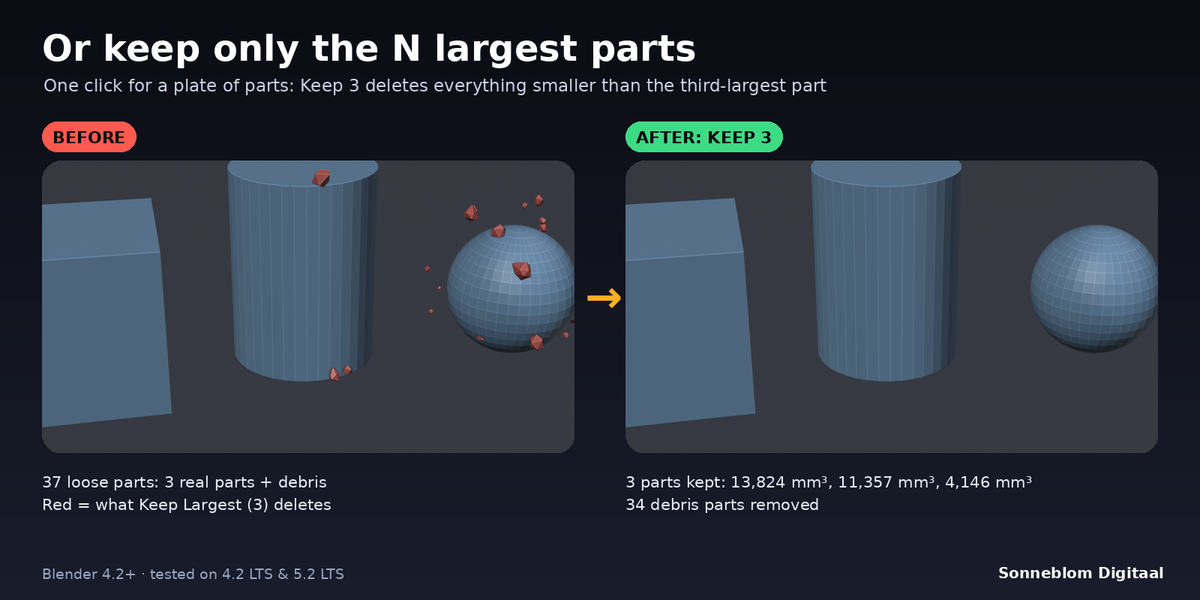
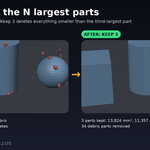
- Delete Small Parts or Keep Largest (N). The largest part of each object is always kept, so a too-high threshold can never delete your model.
- Clear report: "removed 47 of 51 parts (1,040 triangles), kept 4 parts, 22,431 mm³".
- Real millimetres: scene units or 1 mm / 1 cm / 1 m / 1 inch; unapplied scale and rotation are taken into account.
- Several objects at once, works from Object Mode and Edit Mode, full undo (Ctrl+Z). Loose verts and edges count as parts too.
How to use
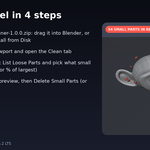
- Install the zip, press N in the 3D Viewport and open the Clean tab.
- For STL files, set 1 Blender unit = to 1 mm.
- Select the mesh and click List Loose Parts. Choose what Small means (volume, size or % of largest) and the threshold.
- Click Select Small to see the red parts in Edit Mode.
- Click Delete Small Parts, or set Keep and click Keep Largest.
Compatibility
Blender 4.2 LTS or newer, tested on 4.2 LTS and 5.2 LTS. It installs as a Blender extension (Get Extensions > Install from Disk), and a legacy add-on zip is included.
Good to know
- It only removes loose parts. It does not fill holes, remesh or repair the parts it keeps.
- A "part" is geometry connected by edges. Two parts that overlap but share no edges are two parts, so a model built from overlapping pieces may show more parts than you expect: check the list before deleting.
- Volumes of open parts are estimates (marked with ~). Use the Size measure if you want a rule that does not depend on volume.
- It works on the mesh itself, not on modifier results.
Support
Questions or a bug? Use the Superhive product page messages and we reply within a day.
More tools from Sonneblom Digitaal
Holes or messy AI topology after cleaning? AI Mesh Fixer is our separate, paid add-on that repairs AI-generated meshes for printing. AI Mesh Fixer