Loose Bits Cleaner
 Sonneblom Digitaal
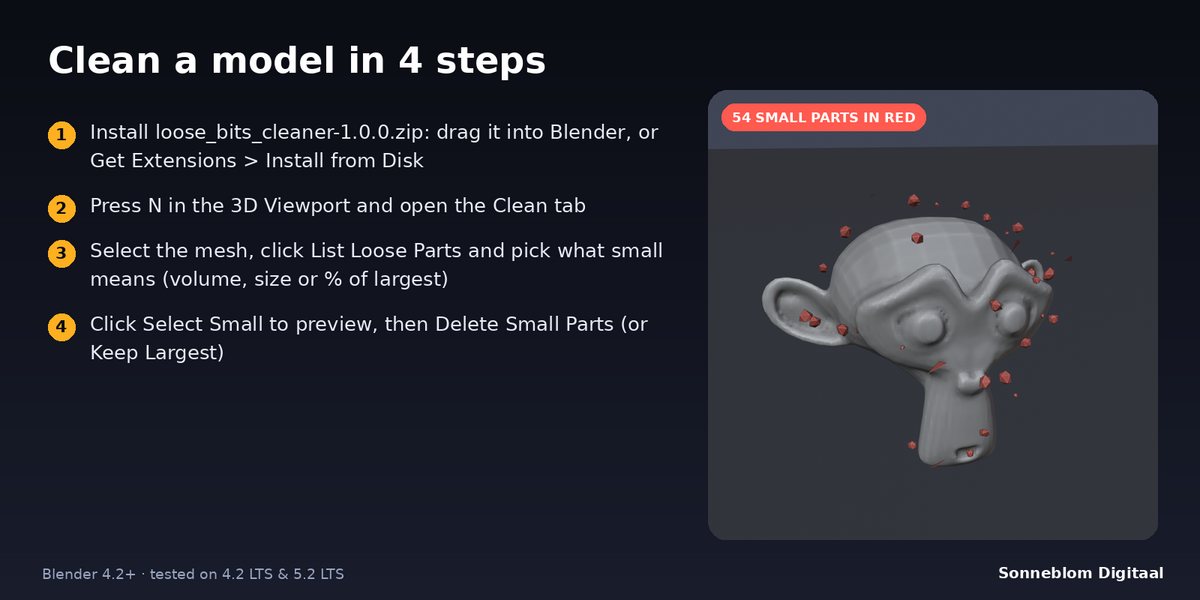
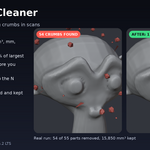
Loose Bits Cleaner 1.0.0
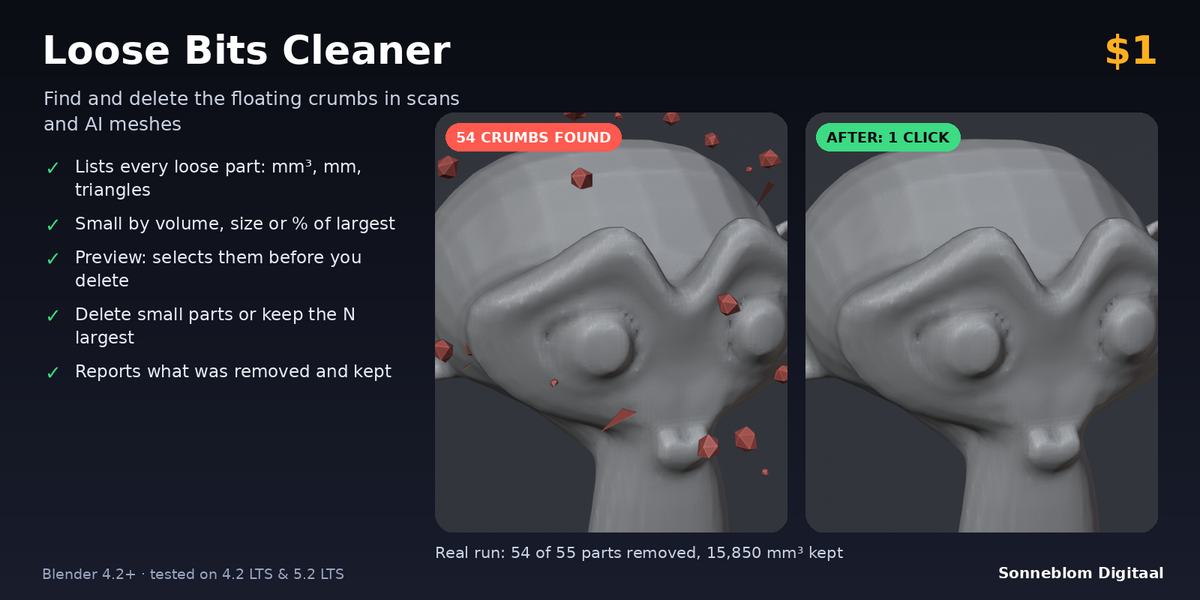
Lists the loose parts of a mesh with volume (mm³), size (mm) and triangle count, previews the small ones by selecting them, and deletes them or keeps only the N largest parts. Blender 4.2 LTS or newer, tested on 4.2 LTS and 5.2 LTS.
Install
-
Extension zip (recommended):
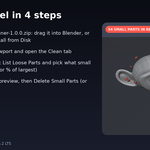
loose_bits_cleaner-1.0.0.zip. Drag it into Blender, or go to Edit > Preferences > Get Extensions, open the drop-down at the top right and choose Install from Disk. -
Legacy zip:
loose_bits_cleaner-1.0.0-legacy.zip. Go to Edit > Preferences > Add-ons > Install from Disk, then tick Loose Bits Cleaner.
The panel is in the 3D Viewport sidebar. Press N and open the Clean tab.
Clean a model, step by step
- Import or open your model (File > Import > STL, OBJ, glTF or 3MF).
- Set 1 Blender unit =. STL files are almost always in millimetres, so choose 1 mm. The line under it shows how many millimetres one unit is now.
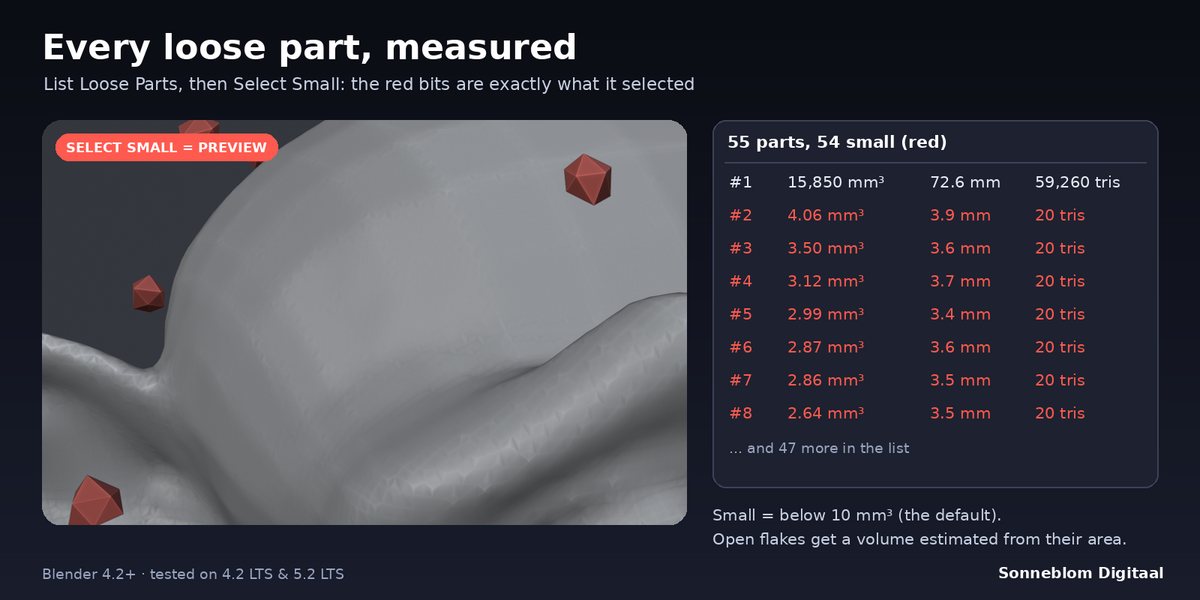
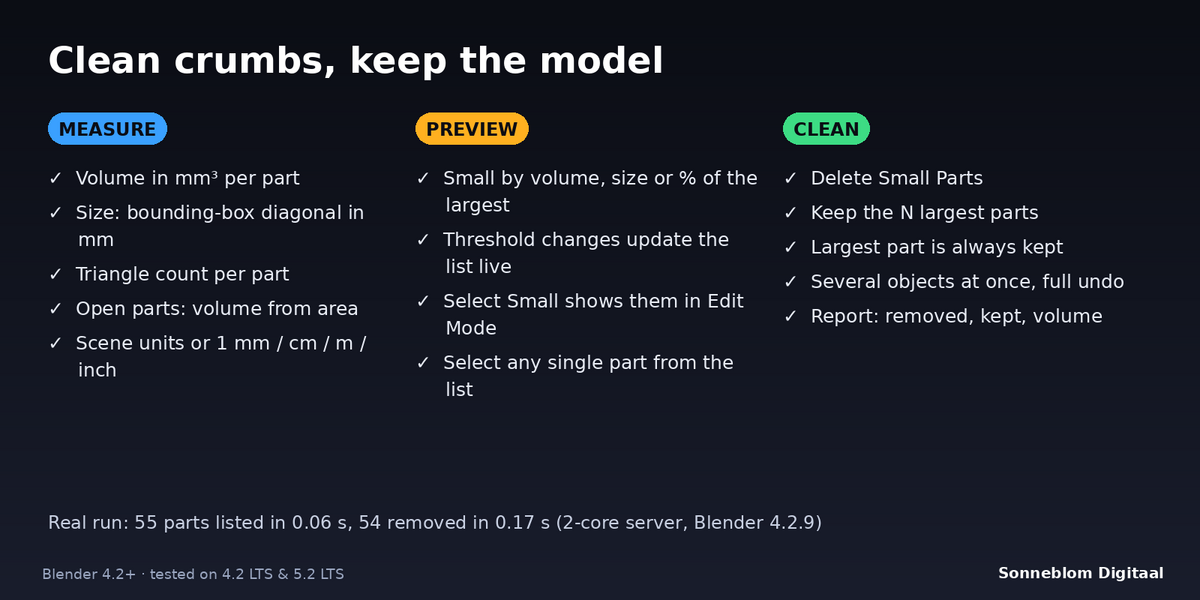
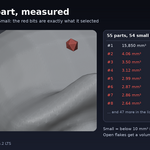
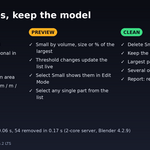
- Select one or more mesh objects and click List Loose Parts. The list shows every loose part, largest first: number, volume, size (bounding-box diagonal) and triangles. A cube icon means a closed part; a ~ before the volume means the part is open and its volume is estimated. Parts below the threshold are red with a bin icon. Nothing is changed yet.
- Choose what Small means: Volume (below a number of mm³), Size (bounding-box diagonal below a number of mm) or % of largest (below a percentage of the largest part's volume). Set the threshold; the red marks in the list follow right away.
- Click Select Small. Blender switches to Edit Mode (vertex select) with exactly the small parts selected, so you can see them. The arrow button on a list row selects just that part.
- Click Delete Small Parts. The report says, per object, how many parts and triangles were removed and the volume that is kept. Ctrl+Z undoes it.
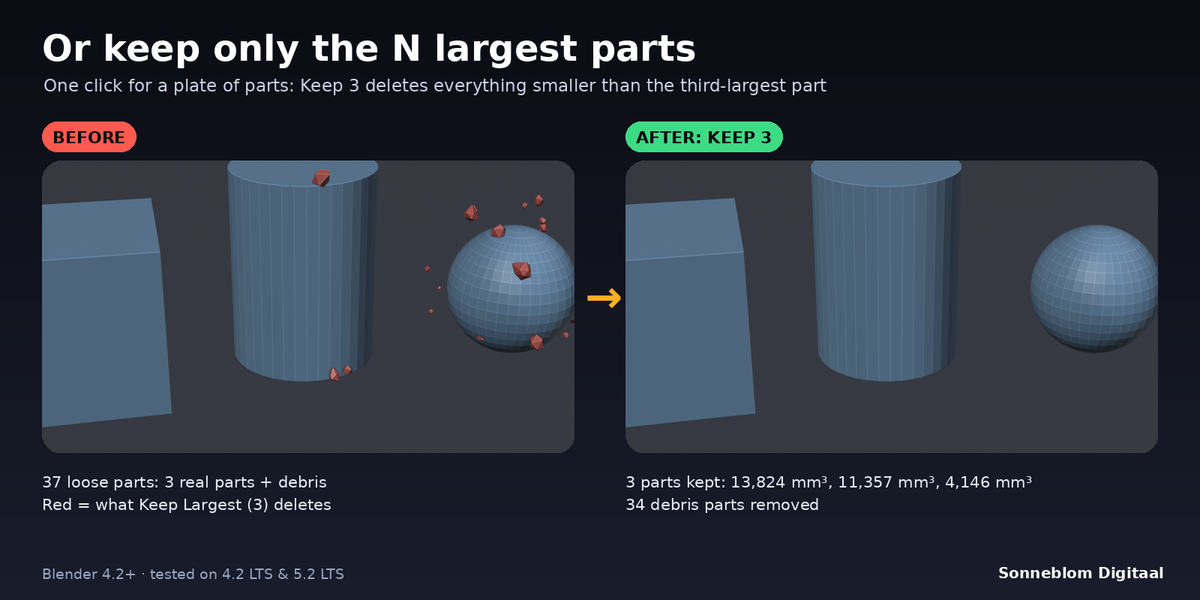
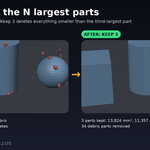
- Or set Keep (for example 3 for a plate with three real parts) and click Keep Largest: every part smaller than the N largest is deleted.
Settings
| Setting | Default | What it does |
|---|---|---|
| 1 Blender unit = | Auto (scene units) | Auto reads Scene > Units: Blender's default scene counts 1 unit as 1 m, and unit scale 0.001 means 1 unit = 1 mm. You can also choose 1 mm, 1 cm, 1 m or 1 inch. Changing it empties the list (click List Loose Parts again). |
| Small means | Volume | Volume, Size or % of largest: the rule that decides which parts are small. |
| Below volume (mm³) | 1.0 | With Volume: parts with less volume than this are small. |
| Below size (mm) | 2.0 | With Size: parts whose bounding-box diagonal is shorter than this are small. |
| Below % of largest | 1.0 | With % of largest: parts with less than this percentage of the largest part's volume are small. |
| Keep | 1 | How many of the largest parts Keep Largest keeps. |
A threshold of 0 never marks anything as small. The largest part of each object is never removed by Delete Small Parts.
How parts are measured
- Part: vertices connected by edges, the same as Blender's Separate > By Loose Parts. Loose vertices and edges without faces are parts too ("wire", 0 triangles).
- Volume: for a closed part, the exact enclosed volume in world space (scale and rotation applied, inside-out parts still positive). For an open part, the volume of a ball with the same surface area (marked ~).
- Size: the diagonal of the part's bounding box in mm.
- Order: largest volume first; ties by size, then triangle count.
Tips
- Not sure about the threshold? Use % of largest at 1 %: it works the same for a 20 mm and a 200 mm model.
- Flat flakes and open surfaces: the Size rule does not depend on volume at all.
- Always click Select Small first on a new model and look before you delete.
- Several objects selected? Each one is cleaned on its own and keeps its own largest part.
Limits
- Only loose-part removal: no hole filling, remeshing or repair.
- Parts that overlap without sharing edges count as separate parts.
- Works on the base mesh, not on modifier results (modifiers stay on the object).
- Linked duplicates share one mesh, so cleaning one cleans all of them.
More tools from Sonneblom Digitaal
At the bottom of the panel there is a small More tools from Sonneblom Digitaal box. AI Mesh Fixer opens the Superhive page of our separate, paid repair add-on in your browser; All our add-ons opens our shop page. Nothing is opened unless you click, and the add-on makes no network calls.
Licence
GPL-3.0-or-later. Made by Sonneblom Digitaal.
Have questions about this product?
Login to message
| Blender Extension Compatible | Yes |
| Published | 1 day ago |
| Blender Version | 4.2 - 5.2 |
| Extension Type | Add-on |
| License | GPL |
Discover more products like this
mesh cleanup STL AI mesh 3d printing print prep loose parts scan cleanup