Loose Bits Cleaner
 Sonneblom Digitaal
Will it delete parts of my model by accident?
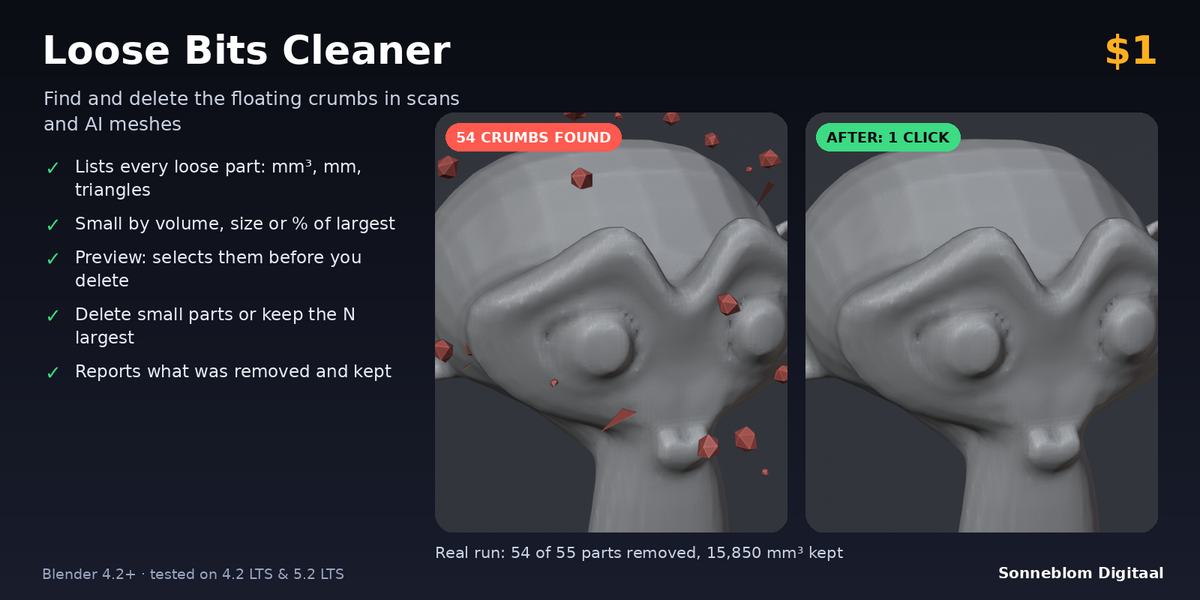
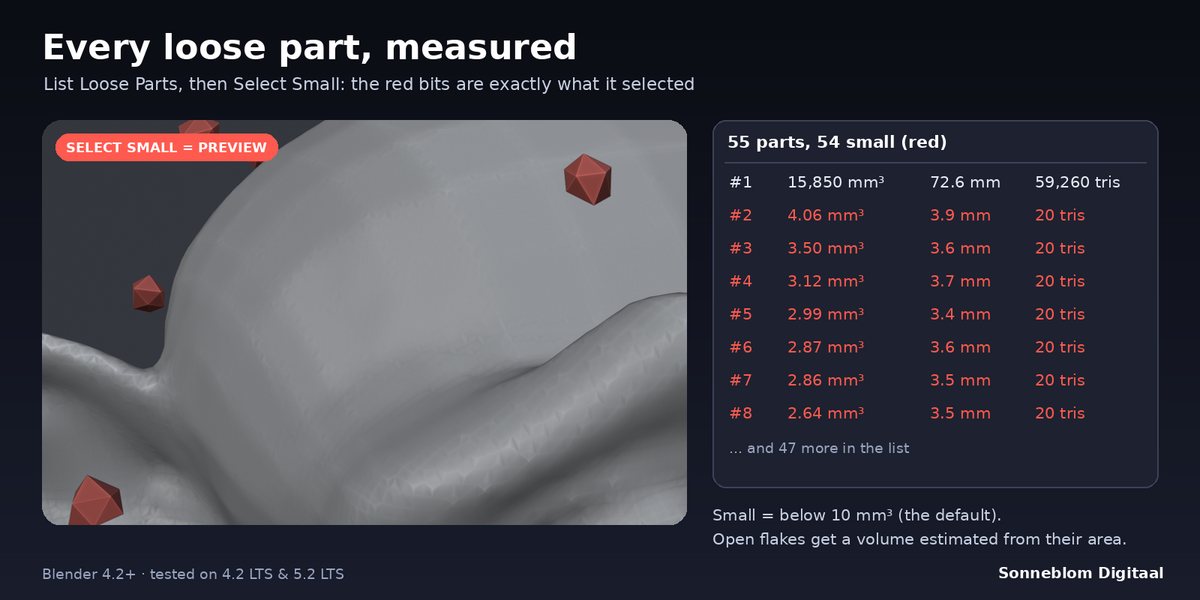
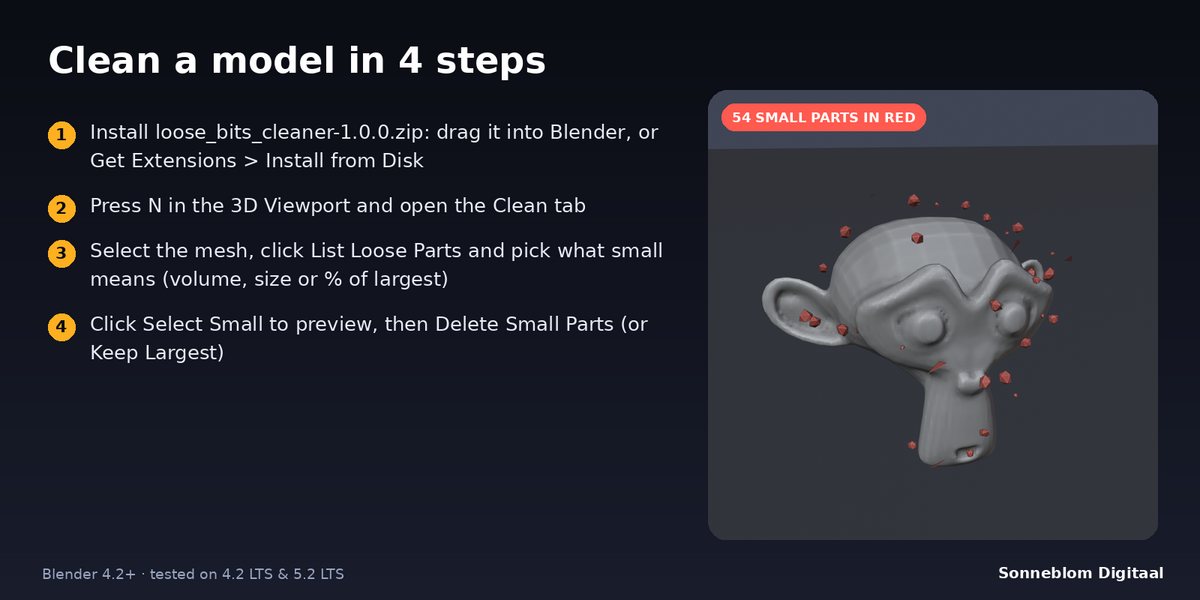
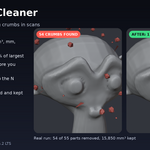
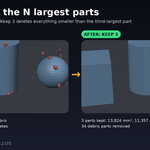
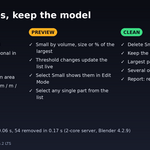
Not without you seeing it first: List Loose Parts and Select Small change nothing, they only show which parts are small. The largest part of each object is never deleted by Delete Small Parts, even with a very high threshold, and Ctrl+Z undoes every delete.
Which threshold should I use?
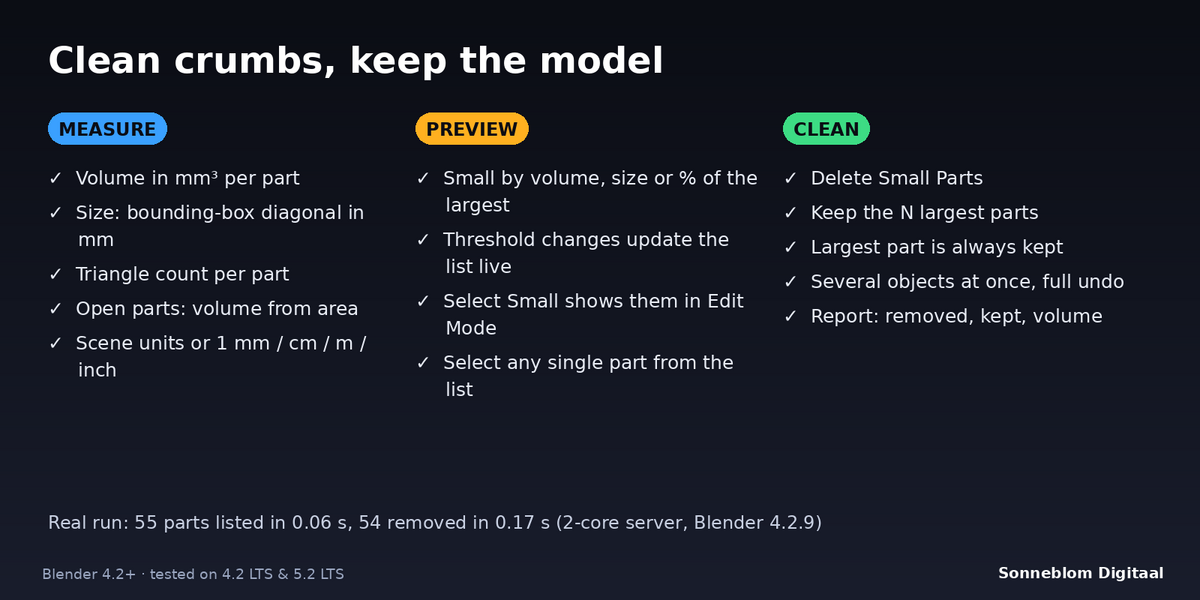
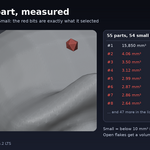
The default, 1 mm³, removes crumbs that would print as a dot or a blob. If your model is very large or very small, switch Small means to % of largest and use 1 %: it scales with the model. For flat flakes, Size (bounding-box diagonal in mm) works without a volume.
The sizes look 1000 times too big. Why?
Blender's default scene counts 1 unit as 1 metre, and STL files have no units. Set 1 Blender unit = to 1 mm in the panel and click List Loose Parts again. Your model itself is not changed by this setting.
Why do some volumes have a ~ in front?
Those parts are open (they have holes), so they have no real inside. Their volume is estimated from their surface area, as the volume of a ball with the same area. Closed parts get the exact volume.
Does it also fix holes or bad topology?
No. It only removes loose parts and never changes the parts it keeps. For holes and messy AI topology we make AI Mesh Fixer, a separate paid add-on.
What do I get for $1?
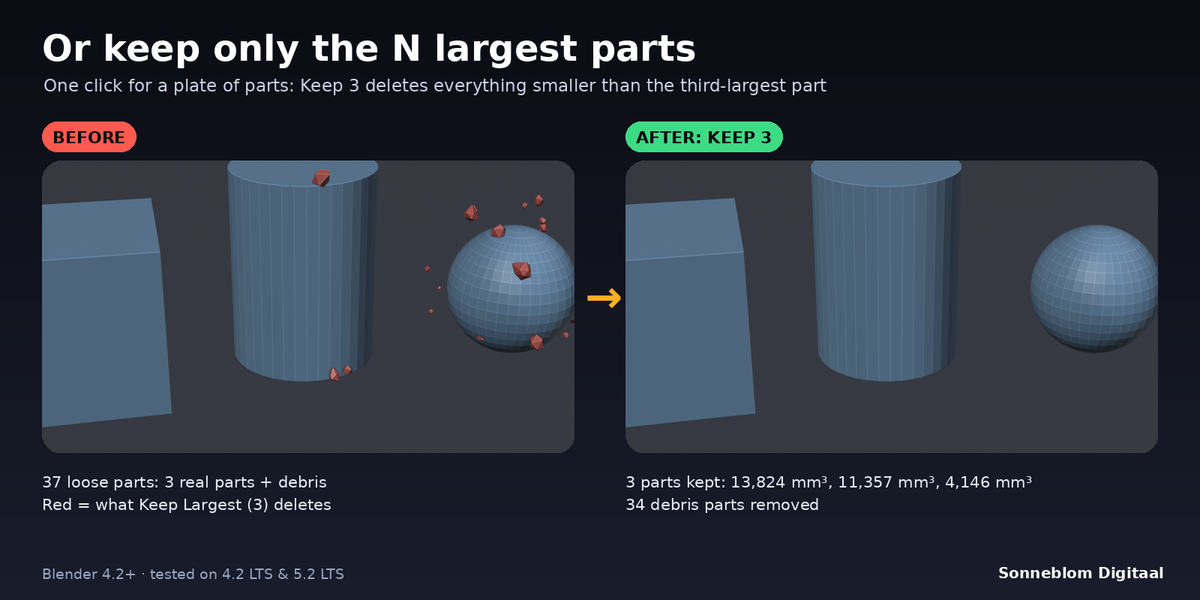
The full add-on: the parts list, all three thresholds, Select Small, Delete Small Parts and Keep Largest, both zips (Blender extension and legacy add-on), the documentation and free updates for 1.x. It is licensed GPL-3.0-or-later, with no account, no trial and no nag screens.
Have questions about this product?
Login to message
| Blender Extension Compatible | Yes |
| Published | 1 day ago |
| Blender Version | 4.2 - 5.2 |
| Extension Type | Add-on |
| License | GPL |
Discover more products like this
loose parts scan cleanup 3d printing print prep mesh cleanup AI mesh STL