LumiBrush
 Egret Studios LLC


LumiBrush Documentation
Version 1.0.0
By Egret
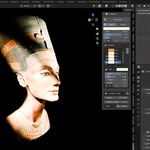
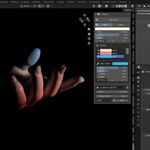
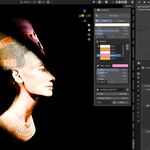
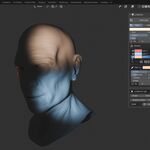
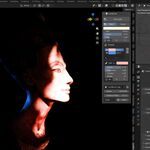
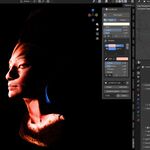
LumiBrush lets you paint real light directly into your scene. Drag the brush over your objects and light appears exactly where you paint, complete with real shadows, natural falloff, and bounce lighting in both Cycles and EEVEE. Every stroke remains fully editable, allowing you to re-tint, soften, brighten, rotate, mirror, hide, or delete it at any time.
Requirements
- Blender 4.2 or newer
- Windows, Linux, or macOS
- Cycles or EEVEE
Installation
- Open Edit → Preferences → Add-ons
- Click the menu button in the upper-right corner and choose Install from Disk...
- Select
lumibrush-1.0.0.zip - Enable LumiBrush if it is not enabled automatically.
The LumiBrush panel appears in the 3D Viewport sidebar. Press N and open the LumiBrush tab.
If you are updating from a previous version, restart Blender after installation to ensure the latest version loads correctly.
Quick Start
- Switch the viewport to Rendered mode using Cycles or EEVEE.
- Open the LumiBrush tab.
- Choose a brush Color and Size.
- Click Paint Light and drag across your model.
- Press Esc or right-click to finish.
Your first stroke automatically creates a Paint Light positioned from your current viewport.
Painting
| Action | Control |
|---|---|
| Paint Light | Left Mouse Drag |
| Erase Light | Hold Ctrl while dragging or use the Erase tool. |
| Undo Last Stroke | Ctrl + Z during the current painting session. |
| Navigate View | Middle Mouse Button and Mouse Wheel. |
| Finish Painting | Esc or Right Mouse Button. |
Brush Settings
- Color – Sets the color of the painted light.
- Size – Controls brush size in screen pixels while remaining visually consistent regardless of distance.
- Soften – Adjusts edge softness from crisp lighting to a soft glow.
- Flow – Controls how quickly light builds up. Values above 1 create HDR intensity for brighter highlights.
- Mirror X / Mirror Y – Paint symmetrical strokes in real time. Mirror X reflects left/right, Mirror Y reflects up/down, and enabling both creates four-way symmetry. Mirroring also works while erasing.
The mirror planes follow the Paint Light's local axes, which match your viewport when the light is created.
Surface Awareness
LumiBrush detects the surface beneath your cursor, including objects with modifiers, and paints directly onto it.
If the cursor briefly leaves the mesh while dragging, painting continues on a temporary plane through the last detected surface point so strokes remain uninterrupted.
Automatic Paint Lights
A single Paint Light can only illuminate surfaces within its view.
When you rotate around your model and paint somewhere the current Paint Light cannot reach, LumiBrush automatically switches to another Paint Light that can illuminate the area. If none exists, a new Paint Light is created from your current view.
Simply orbit and continue painting. Previously created Paint Lights are reused automatically, allowing you to build complete lighting setups without managing lights yourself.
Editing Strokes
Every stroke is stored in a single global Strokes list regardless of which Paint Light created it.
The list always represents the lighting currently visible in your scene.
- Eye – Show or hide a stroke.
- Color Swatch – Change a stroke's color directly.
- Duplicate – Create a copy of the selected stroke.
- Trash – Delete the selected stroke.
Selecting a stroke opens additional editing controls.
- Color – Change the stroke color.
- Soften – Adjust edge softness.
- Brightness – Increase or decrease intensity.
- Thicken – Scale the stroke width.
- Rotate – Rotate the stroke around its center.
- Mirror X / Mirror Y – Add or remove symmetry after painting.
Erase strokes are also stored. Deleting an erase stroke restores the light it previously removed, making the workflow completely non-destructive.
Tip: Duplicate a stroke and enable Mirror X to create an independently editable fill light from an existing key light.
Paint Lights
Painted strokes are projected by real Blender Spot Lights. Area Lights are also supported.
All Paint Lights are stored inside the LumiBrush collection and behave like standard Blender lights.
- Move or rotate a Paint Light while keeping its painted lighting attached.
- Adjust Power to control overall brightness.
- Change Shadow Soften to modify shadow softness.
- Select Detail (512, 1024, or 2048) to control paint resolution.
- Click + New Paint Light to manually create another Paint Light from the current view.
- Click Clear to remove every stroke assigned to the selected Paint Light.
Although Paint Lights are created automatically when needed, you can add them manually whenever desired.
EEVEE Mask Object
When using EEVEE, LumiBrush creates a hidden LumiBrush Mask object for each Paint Light.
This helper object shapes the projected light because EEVEE does not natively support shaped spotlights.
The mask is hidden from rendering and selection, managed automatically by LumiBrush, and removed automatically when switching to Cycles.
Cycles and EEVEE
LumiBrush works seamlessly in both render engines and automatically adapts whenever you switch between them.
| Feature | Cycles | EEVEE |
|---|---|---|
| Painted light with real shadows | ✔ | ✔ |
| Individual stroke colors | ✔ | Combined per Paint Light |
| Live painting feedback | ✔ | ✔ |
EEVEE Tip: For multiple independent light colors, such as a warm key light and a cool rim light, use separate Paint Lights. LumiBrush creates them automatically when needed, or you can add one manually using + New Paint Light.
Troubleshooting
I can paint, but no light appears.
The viewport must be in Rendered mode. Painted lighting is real scene lighting and is only visible while rendering.
A light is affecting my scene but does not appear in the Strokes list.
Toggle any stroke's visibility or begin painting again. LumiBrush automatically synchronizes every Paint Light with the global stroke list.
Cycles does not immediately refresh after editing.
Cycles occasionally caches lighting updates. Orbit the viewport slightly or toggle viewport shading to refresh the display.
Painting becomes slower at Detail 2048.
Use 1024 while painting, then increase to 2048 for the final result. Strokes rebuild cleanly at higher resolutions.
I deleted the LumiBrush Mask object in EEVEE.
Click Paint Light once. LumiBrush automatically recreates any required helper objects.
Version History
Version 1.0.0
- Paint real light directly onto scene geometry.
- Surface-aware painting with live feedback.
- Automatic multi-light painting with seamless light creation and reuse.
- Fully editable, non-destructive stroke system.
- Color, brightness, softness, thickness, rotation, mirroring, duplication, visibility, and erase editing.
- Mirror X and Mirror Y symmetry painting with four-way symmetry support.
- Automatic Cycles and EEVEE compatibility.
- One-click clearing of Paint Lights.
- Organized LumiBrush collection.
Support
Found a bug or have a feature request? Contact me through the product page.
When reporting an issue, include:
- Your Blender version.
- Your render engine (Cycles or EEVEE).
- A small
.blendfile that reproduces the problem, if possible.
 Included
Includes 12 months of
- Support from Egret Studios LLC
- Product updates
Extend this product’s Support Period +12 months: 25% of product price
Have questions before purchasing?
Login to message
| Blender Extension Compatible | Yes |
| Sales | 10+ |
| Published | 3 months ago |
| Blender Version | 4.2 - 5.2 |
| Extension Type | Add-on |
| Render Engine Used | Cycles, Eevee |
| License | GPL |

Discover more products like this
Lighting 3d cinematic lights Lighting-addon Interactive-light