 Skava
LuxForge documentation
Requirements
Blender 4.2 or newer. Unity 6 with the Universal Render Pipeline (URP) in Linear color space. No Python packages, no cloud, no account, no AI model.
Install
- Keep the archive zipped. In Blender open Edit > Preferences > Add-ons.
- Press the arrow in the top right corner and choose Install from Disk, pick the archive, tick LuxForge.
- Press N in the 3D Viewport: a LuxForge tab appears in the sidebar.
In Blender
- Open your scene. LuxForge reads every light the render sees: lights hidden from the render (also by a parent collection) and lights in excluded collections do not count, lights inside collection instances count once per instance, and a light switched on or off by keyframes is switched on the same frames in Unity. A light the render sees but the viewport hides is named by Scan: show it, Blender only evaluates what the viewport shows. Geometry Blender renders but its viewport hides (an eye, a monitor, a hidden collection, a hidden collection instance or an object hidden inside one, a modifier that moves the surface turned off in the viewport, particles shown in part) is named too and keeps Check from OK. To be sure nothing slips through, Export also counts what Blender's render draws (a tiny render pass of its own on frames across the range, for the active view layer only; your render settings come back exactly, other add-ons' render handlers are held back for it, and your last render stays in its slot: the pass uses one Render Result slot of its own, named LuxForge count) and names every light the render draws more or fewer times than LuxForge carries, or elsewhere, aimed otherwise, brighter, in another color or with another cone or size (a particle system or Geometry Nodes on in only one of them, a different child count, an Is Viewport switch, a parent on render-only subdivision) (such as lights scattered by particles at the viewport's Display Amount) and any part of the render that reaches beyond what the viewport shows, or a background scene; extra copies inside the scene (grass from child particles) are only noted, as they do not change the light. On a heavy scene this pass takes as long as Blender needs to prepare a render (Scan once, Export on 8 frames); Subdivision rendered finer than the viewport is noted, since the light is proved on the viewport's surface: show it before exporting, as LuxForge reaches and proves the light on what the viewport shows. A light with negative power (it darkens in Cycles; a Unity light cannot take light away) is not carried and keeps Check from OK. Cycles portals light nothing and lights with Diffuse visibility off (on the light, or from Blender 4.5 on the object that instances it: a collection instance, a particle emitter, a Geometry Nodes object) light no diffuse surface (only glossy reflections); both are left out. The original light under a Vertices or Faces instancer is not drawn by the render and is not carried; its copies are.
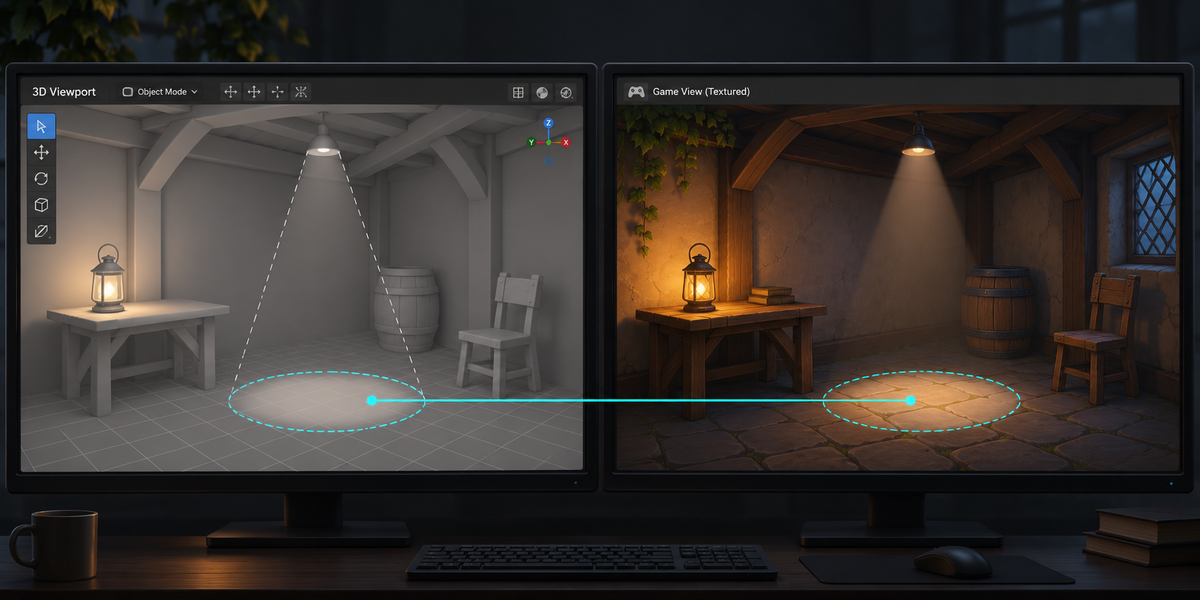
- Press Scan. The panel lists each light, what it becomes in Unity (Point, Spot, Directional; an area light becomes a wide spot) and notes on anything that does not come along.
- Choose a folder (inside your Unity project's Assets is easiest) and press Export for Unity. It writes name.luxforge.json (every light on every frame where it changes, and the light Blender puts on up to 24 proof points per light on your surfaces), name.fbx (four markers one metre apart that tie Blender's space to Unity's) and the LuxForge folder with the Unity scripts. Your scene is not changed.
Export your scene's models as usual with Blender's FBX defaults, but untick Light (and Camera) in Object Types: Unity would otherwise import Blender's own lights, in watts, next to LuxForge's. The lights then stand where they stood in Blender. LuxForge exports its markers with the same defaults; if your models arrive at another scale, the lights follow what the markers measured, and Set Up says so.
In Unity
- Let Unity import the files. In the Project window click the .luxforge.json (or its .fbx).
- Tools > LuxForge > Set Up Lights makes name.prefab next to it: one URP light per Blender light under the LuxForge Rig, with the intensity, range, cone and cookie set. Drag the prefab into your scene at the origin, where your models are. Set Up warns you if your URP asset turns additional lights off, lights them per vertex, or lights fewer per object than you have.
- Tools > LuxForge > Check Lights renders a grey card at every proof point, using your project's own URP (shadows aside), and compares it with the light Blender puts there: first with each light alone, then with every light on together. URP's per-object light limit in Forward is judged on your own objects in the open scene: an object reached by more lights than the limit, on any frame and for any quality level's URP asset with a Forward renderer in its list, fails Check, since URP chooses its lights for the whole object. It measures the prefab as you placed it in your open scene (its position, rotation, scale and Exposure; with the LuxForge Rig switched off, the lights as they stand there, your own edits to them included; a light you switched off there, or one under a parent object that is switched off, that Blender renders on your surfaces fails Check), and confirms every proof point lies on your model of the same name (or with the same mesh), so the lights stand where your models are. Any other light in your open scene (for example Blender's lights imported with your models' FBX) is named and keeps Check from OK. The report name.luxforge-check.txt is written next to the passport, with the warnings about your URP assets (every quality level). A light passes when every point is within 3% (for dim points: within 3% of 5% of that light's brightest point). Area lights and spots with a radius are measured, not judged (Unity can only approximate them), and the report says why; lights whose light nodes or light linking change them in Cycles are NOT CARRIED and keep Check from OK. Check is OK only when every judged light passes, alone and together, no rendered light was left unexported, and the proof points were found on your models: without your scene open it says placement NOT CONFIRMED. Placement is compared on surfaces that stand still; models that move or deform stand in Unity as their FBX was exported. Points within 8 radii of a lamp with a radius are measured, not judged (Blender softens the light there; a Unity light is a point).
The LuxForge Rig
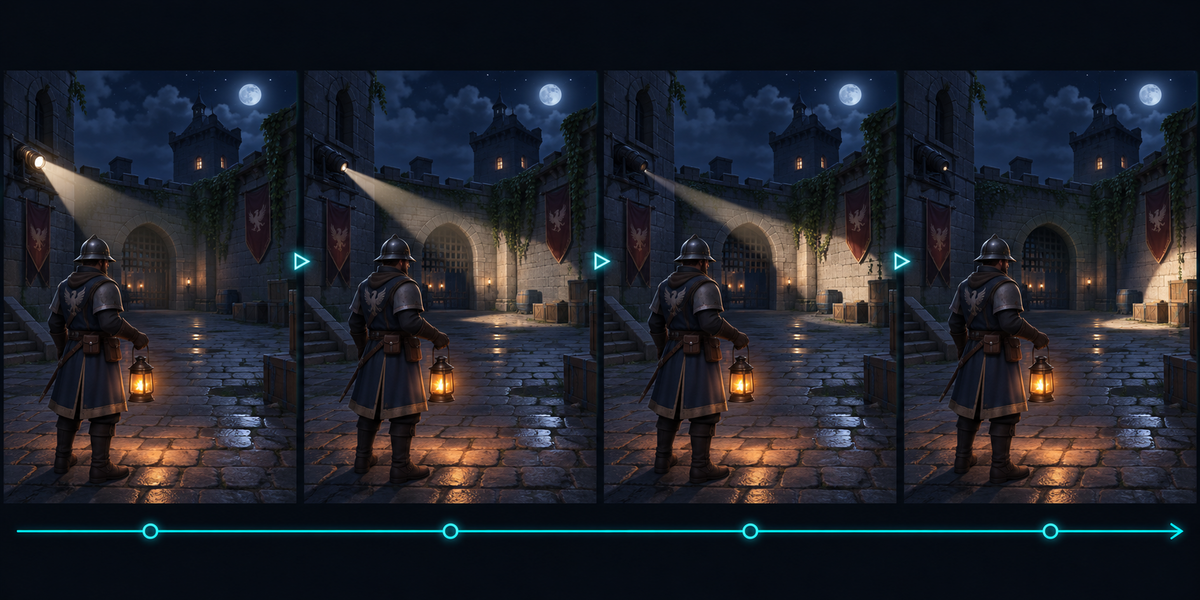
- Time Source: Clock plays the lights' animation from the moment the scene starts (Loop starts again at the end); Director follows a Playable Director (Timeline) from the second you set in Director Start; Manual follows the Time field, for your own script.
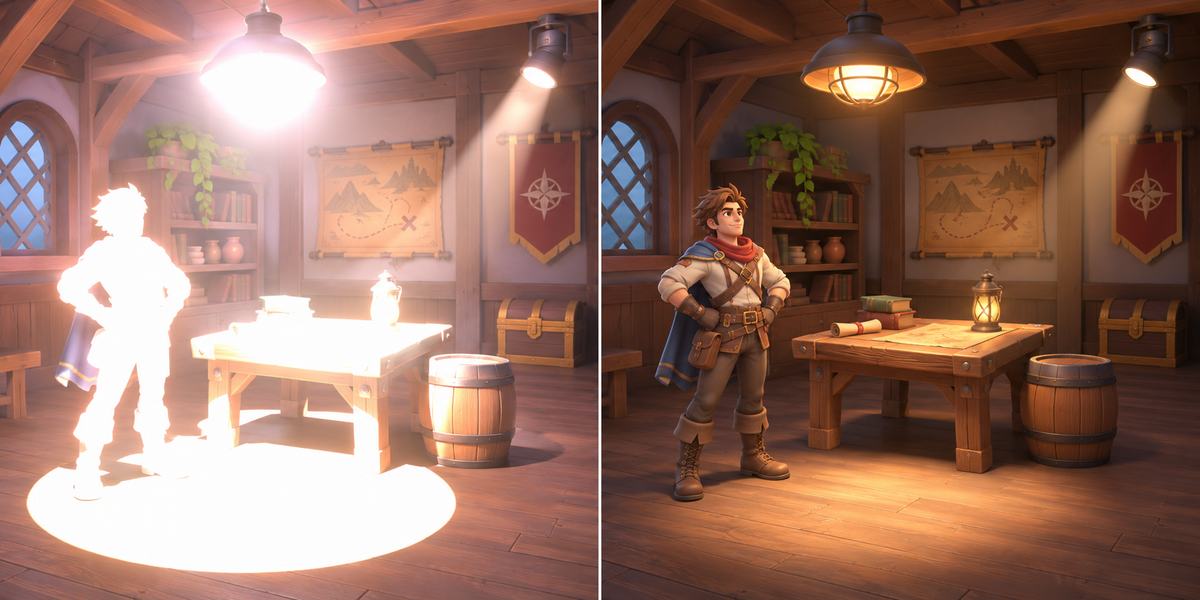
- Exposure scales every light (1 = as Blender renders it).
- Each light's intensity is set by the rig while it plays; to change one light, change it in Blender and export again, then Set Up again (Check Lights does it for you when the passport is newer than the prefab, and Check fails while the prefab's lights and the passport's differ; it keeps what you added to the prefab and replaces only its own lights: what you put under a light Blender no longer has moves to the rig's root, a light object carrying your components stays, its light removed (or switched off when one of your components requires a Light), and a Hard or Soft shadow type you chose is kept; a lamp you add is light Blender does not have, so Check names it, as it names a second copy of the prefab or another LuxForge prefab in the scene).
How the light is carried
- Point and spot: Blender's watts become URP intensity so that a surface receives the same light (with your scene's unit scale). The spot's cone does not concentrate its power in Blender, and not in Unity either.
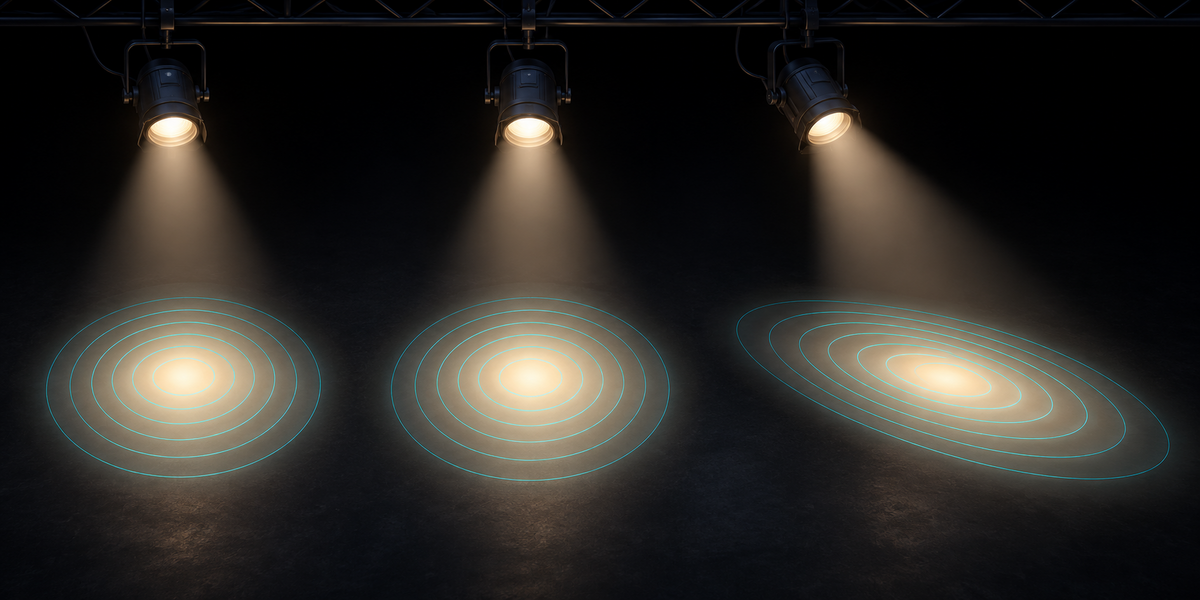
- The spot's soft edge (Spot Blend) and its stretch (the object's X and Y scale) are drawn into a cookie in the projection URP uses; URP's own inner angle is not used.
- Sun: W/m² is the light on a surface facing it. With an Angle, part of Cycles' sun disk sinks below a surface turned almost away from it, and that surface gets a different light than Unity's sun gives; LuxForge models it and Check judges it, so a low sunset sun with a wide Angle can fail on grazed surfaces.
- Range: far enough to keep at least 99% of the light out to the farthest corner your scene reaches over its frame range.
- Color and color temperature (Blender 5), exposure (Blender 5) and Normalize (Blender 5) are applied before export.
- Area light: URP has no realtime area light, so it becomes a 178° spot whose cookie glows like the panel: close to Blender a few panel sizes away, different close to the panel.
Limits
- Unity lights are points. A Blender light's radius makes the light softer near the lamp (Unity is brighter within a few radii) and softens a spot's edge by an amount that depends on distance: LuxForge matches that edge where it falls on your surfaces. A radius of 0 gives an exact edge.
- Shadows are carried on or off, not their softness. Light nodes, IES profiles, light linking and Eevee-only settings (Custom Distance, Square spot, Diffuse factor) are named by Scan and not carried: LuxForge follows Cycles, which ignores the last two. A light whose nodes plainly give no light in Cycles (no Light Output, nothing or a muted link into it, a muted Emission node feeding it, Emission strength 0 or black) is left out and named. Any other light nodes (anything but a plain white Emission of strength 1, keyed, NLA or driven values and muted Mix or Add Shaders included) and light linking keep Check from OK: the game lights such a light as a plain one. Bake the nodes into Power and Color first.
- Position, direction, power and color play frame by frame. A spot or area light that a parent scaled unevenly shears (a rotated light under a parent with uneven scale) is not carried and keeps Check from OK: a Unity light cannot be sheared. Unity keeps the first frame's cone, blend, stretch and radius of a spot and the size of an area light: animating them keeps Check from OK.
- Direct light only: the light bounced around a room in Cycles is not carried; bake global illumination in Unity for it, with LuxForge's lights set to Mixed (Baked Indirect) first: as Set Up makes them they are Realtime, which a lightmap bake ignores (Enlighten Realtime GI, when on, bounces them live), and a baked bounce keeps the intensity of bake time, not the animation (Mode Baked, or Mixed under Lighting Mode Subtractive, bakes their direct light too and fails Check). Check names baked lightmaps, light probes, Adaptive Probe Volumes and Enlighten Realtime GI, and fails a LuxForge light that the last bake moved to Baked (Shadowmask does it to overlapping lights) or baked under Subtractive (bake again or Clear Baked Data); lightmaps, light probes and Adaptive Probe Volumes keep what was baked (the sky included) until you bake again. Check compares the direct light. Cycles' Clamp Direct clips bright direct light, which LuxForge does not: set it to 0 (the default), or Check does not reach OK.
- Only Blender's light objects are carried. The World (sky, HDRI) and glowing materials light your surfaces in Cycles too; Scan, Export and Check name them, and Check compares the light objects' light only. Set up the sky, ambient light and emissive materials in Unity yourself. Unity's environment is not carried either: Check names the ambient light, environment reflections and fog of the active scene (and of the lights' own scene when that differs) and the reflection probes of every open scene (new scenes take ambient and reflections from the default sky), and its OK then reads "OK for LuxForge's lights", as it does when Blender's World or glowing materials light the scene (Check names them; LuxForge does not carry them). Match them to Blender's World, or set them black (Environment Lighting black, Reflections Intensity Multiplier 0) when Blender's scene has none. Particle systems whose Lights module makes lights add lights Blender does not have and fail Check.
- URP only, Linear color space. The Built-in pipeline and HDRP are not supported.
- Check compares light, not your materials: your own materials, post-processing and exposure in Unity decide the final picture. The brightness is matched for URP's Lit shader; Simple Lit, your own shaders or the Specular workflow can differ by a few percent.
- The world (HDRI, sky) and glowing materials are not lights and do not come along.
- Geometry Nodes that build different geometry or lights for the viewport and the render (an Is Viewport switch) are not detected unless the render pass on Export's frames sees the difference: LuxForge reads the viewport's lights and proves the light on the viewport's geometry.
- Range reaches your whole scene, so in Forward every point and spot light counts against URP's per-object limit for every object: Check fails an object reached by more lights than the limit; Forward+ and Deferred have no such limit. Check renders at the current quality level: another level's URP asset with a different Cookie Atlas resolution or format fails Check when the scene has spot or area lights. With a sun in the scene, Main Light set to anything but Per Pixel in any quality level's URP asset fails Check (URP then draws the sun as an additional light, or not at all). With URP Rendering Layers on, Check fails when a light and one of your objects share no rendering layer (lights and objects on any shared layer pass). With a Forward renderer, a light whose Culling Mask leaves out one of your objects' layers fails Check too (Forward+ and Deferred ignore the Culling Mask). Under a Deferred renderer Check measures its own card's small bias against a light of known strength and takes it out. Screen Space Ambient Occlusion (on in Unity 6's template renderer) darkens direct light in the game where surfaces meet, by up to about 20% at its Direct Lighting Strength of 0.25; Check's card does not show it, so Check warns: set that strength to 0 for the light Blender gives. Over 256 point, spot and area lights fail Check (URP draws at most 256 in view). On mobile, OpenGL and WebGPU targets URP draws at most 32 additional lights in view at once (fewer on older OpenGL ES devices); Check cannot judge that and warns when the scene has more. In counting the lights that reach an object, Check takes each light's whole range, cone or not, so it may fail an object a spot only points away from. With point, spot or area lights in the scene, additional lights set to Disabled (or Per Vertex outside Forward+) in any quality level's URP asset also fail Check, and so does Light Cookies off when the scene has spot or area lights.
- Between frames the rig blends the values (a light switched on or off switches); a light's own constant-interpolated keys become a one-frame blend.
Licenses
The Blender add-on is GPL. The Unity scripts (LuxForgeRig.cs and Editor/LuxForgeSetup.cs) are MIT: you may ship them in your games, closed source or not. They contain no Blender source code.
Have questions about this product?
Login to message
| Published | 1 day ago |
| Blender Version | 4.2 - 5.2 |
| Extension Type | N/A |
| License | GPL |