 Miks3d


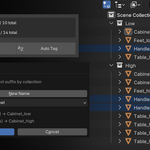
M3D Prep Tools — Documentation
Version 1.0.0 | Blender 2.80+
Author: Mik Santos
Compare, Tag, Simplified.
Overview
M3D Prep Tools is a full bake-prep workflow addon for 3D game artists working in Blender. It streamlines the entire pipeline from organizing and naming meshes, through visibility management and visual QA, all the way to export — from one sidebar panel.

Modules
| Tab Order | Module | Icon | Purpose |
|---|---|---|---|
| 1 | Name Tagger | Font | Batch rename and organize meshes into bake groups |
| 2 | Visibility Toggler | Eye | Toggle visibility between low and high poly mesh groups |
| 3 | Color Tagger | Brush | Apply color tags for visual QA of bake groups |
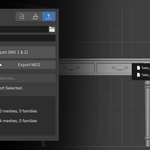
| 4 | Export Manager | Export | Export mesh groups as FBX with live preview |
Installation
- Download the
.zipfile. - In Blender, go to Edit → Preferences → Add-ons → Install.
- Select the
.zipfile and enable "M3D Prep Tools". - The panel appears in the 3D Viewport sidebar (N key) under the M3D Prep Tools tab.
Panel Layout
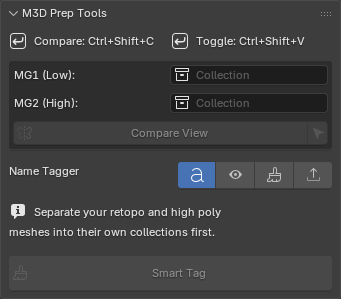
The panel has two sections:
Global Header (always visible):
- MG1 (Low) and MG2 (High) collection pickers — shared by all modules
- Compare View button with Select All icon
- Keyboard shortcut reminders
Module Tabs (below the header):
- Active module name on the left, four icon buttons on the right
- Click any icon to switch tabs.
Global Features
Collection Pickers
The MG1 (Low) and MG2 (High) collection pickers at the top of the panel are global — set them once and every module uses them. Name Tagger uses them for Smart Tag, Compare View uses them for the offset, Visibility Toggler uses them in Collections mode (by default), and Export Manager reads suffixes from objects in these collections.
Compare View
Compare View shifts the MG1 (low poly) collection to the left of MG2, creating a side-by-side comparison. The offset is calculated automatically from the combined bounding box of all objects in both collections.
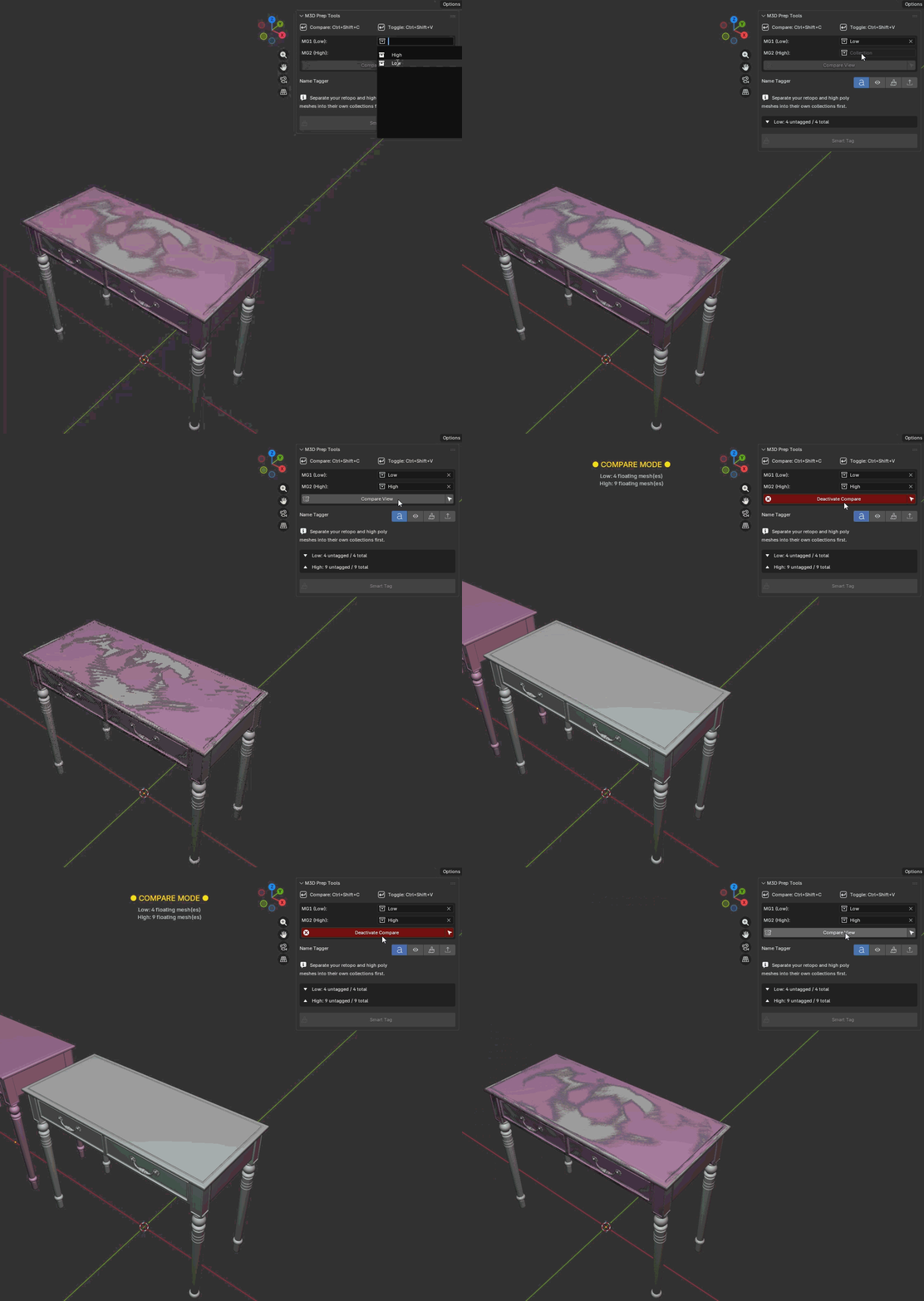
Activate: Click the Compare View button or press Ctrl+Shift+C (configurable).
Deactivate: Click "Deactivate Compare" or press the hotkey again. Deactivating performs a full session reset — all MG1 objects return to their original positions, all tagged meshes are unhidden, and the session log is cleared.
Mesh separation support: If you enter Edit Mode and separate a mesh while Compare View is active, the newly created pieces stay at the correct offset position. When you deactivate, all objects in the MG1 collection are restored — including pieces that were separated during the session.
Viewport Overlay: While Compare Mode is active, a yellow "● COMPARE MODE ●" banner appears at the top-center of every 3D viewport. Below it, a live count of floating meshes (meshes without a suffix) per collection is displayed — e.g., Low: 4 floating mesh(es) / High: 3 floating mesh(es). This tells you at a glance how many meshes still need naming. If you've tagged meshes during the session, a running log of recent renames appears on the left side.
Select All from Collections
The icon button (⊕) next to Compare View selects all visible mesh objects from both MG1 and MG2 collections in one click. Useful before exporting.
Keyboard Shortcuts
| Shortcut | Action | Configurable? |
|---|---|---|
| Ctrl+Shift+C | Toggle Compare View | Yes |
| Ctrl+Shift+V | Quick Toggle Visibility | Yes |
| Ctrl+Shift+T | Open Quick-Action Menu | Yes |
All shortcuts are displayed at the top of the panel and update automatically when you change them in preferences. Configure via Edit → Preferences → Add-ons → M3D Prep Tools.
Name Tagger
The Name Tagger handles batch renaming and organizing meshes into bake-ready groups. It follows the Marmoset Toolbag naming convention: a base family name followed by a suffix (e.g., table_low, table_high).
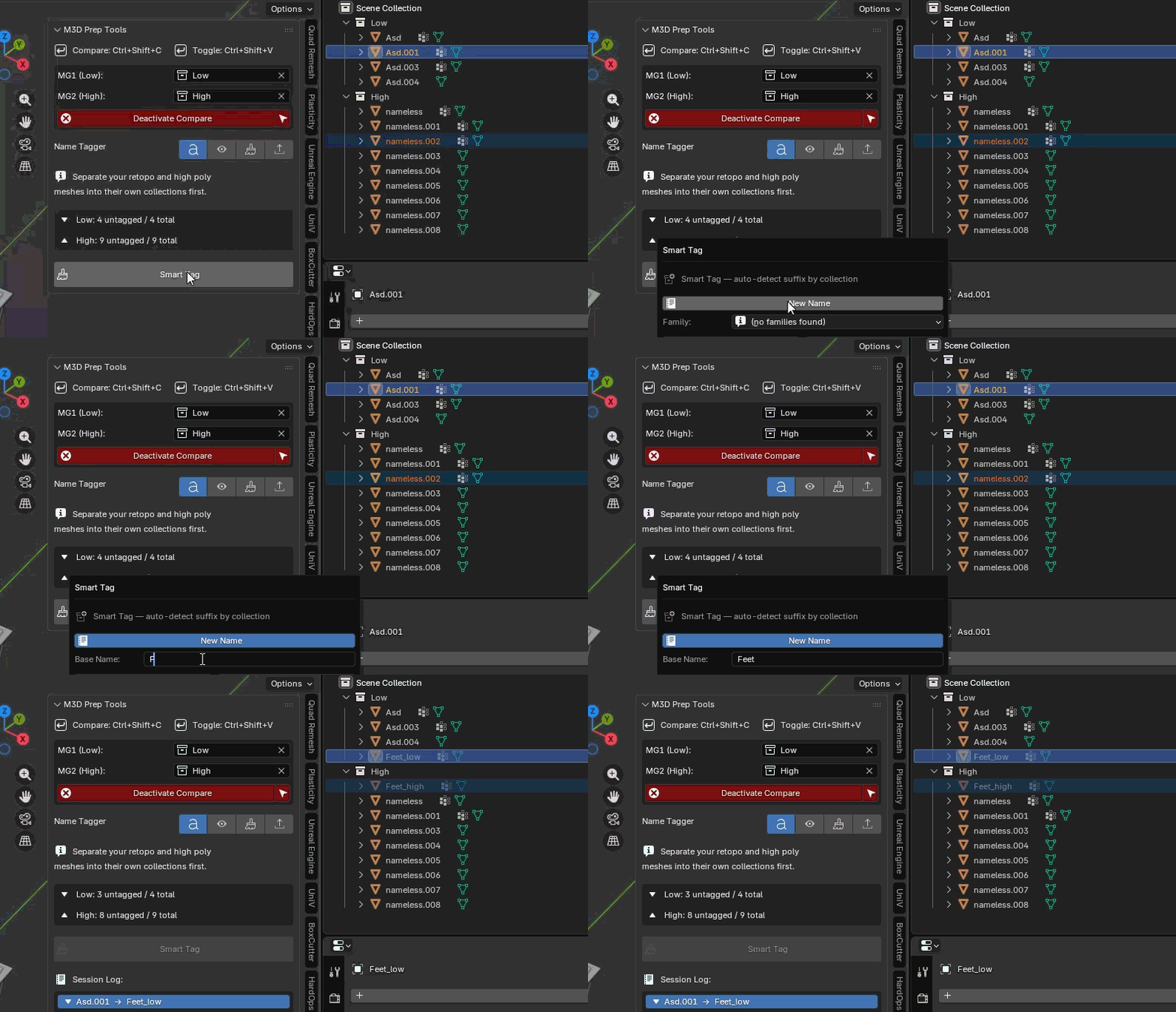
Setup
- Create two collections in your scene — one for low poly meshes, one for high poly.
- Assign them using the global MG1 (Low) and MG2 (High) pickers at the top of the panel.
Untagged Mesh Counts
The Name Tagger tab shows live counts for each collection:
Low: 3 untagged / 8 totalHigh: 4 untagged / 12 total
This tells you at a glance how many meshes still need naming.
Smart Tag
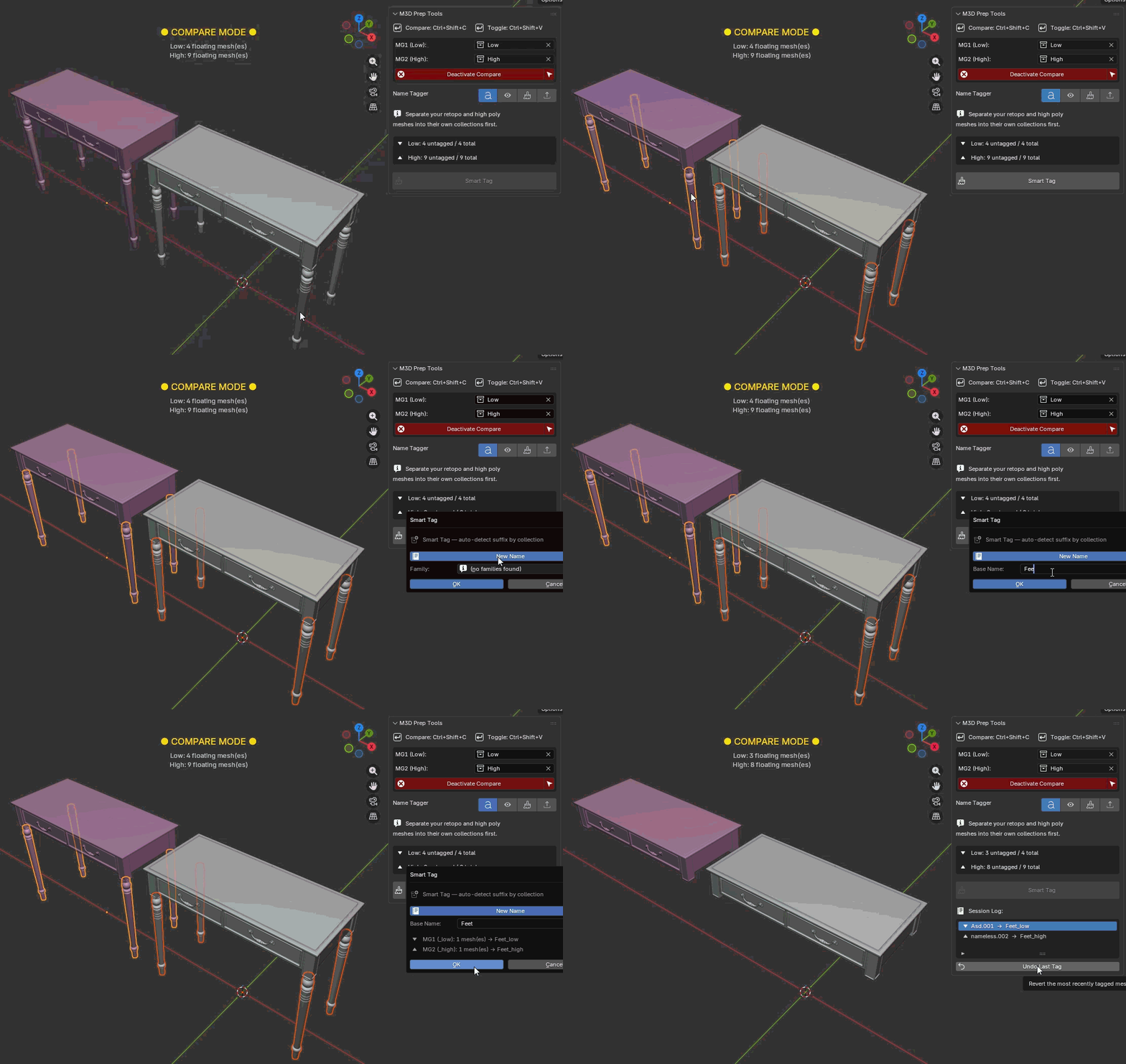
Smart Tag is the primary tagging tool. It automatically detects which collection each selected mesh belongs to and applies the correct suffix.
Workflow:
- Activate Compare View (optional but recommended).
- Select meshes from both the MG1 and MG2 collections.
- Click Smart Tag.
- Either select an existing family from the dropdown, or click New Name to type a custom base name.
- The dialog shows a live preview of the final names.
- Confirm — each mesh is renamed and hidden from the viewport.
Multi-object support: Multiple meshes from the same collection are numbered automatically (e.g., statue_high, statue_high2, statue_high3).
Visibility Toggler
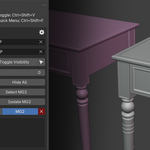
The Visibility Toggler lets you quickly flip between viewing low poly and high poly mesh groups.
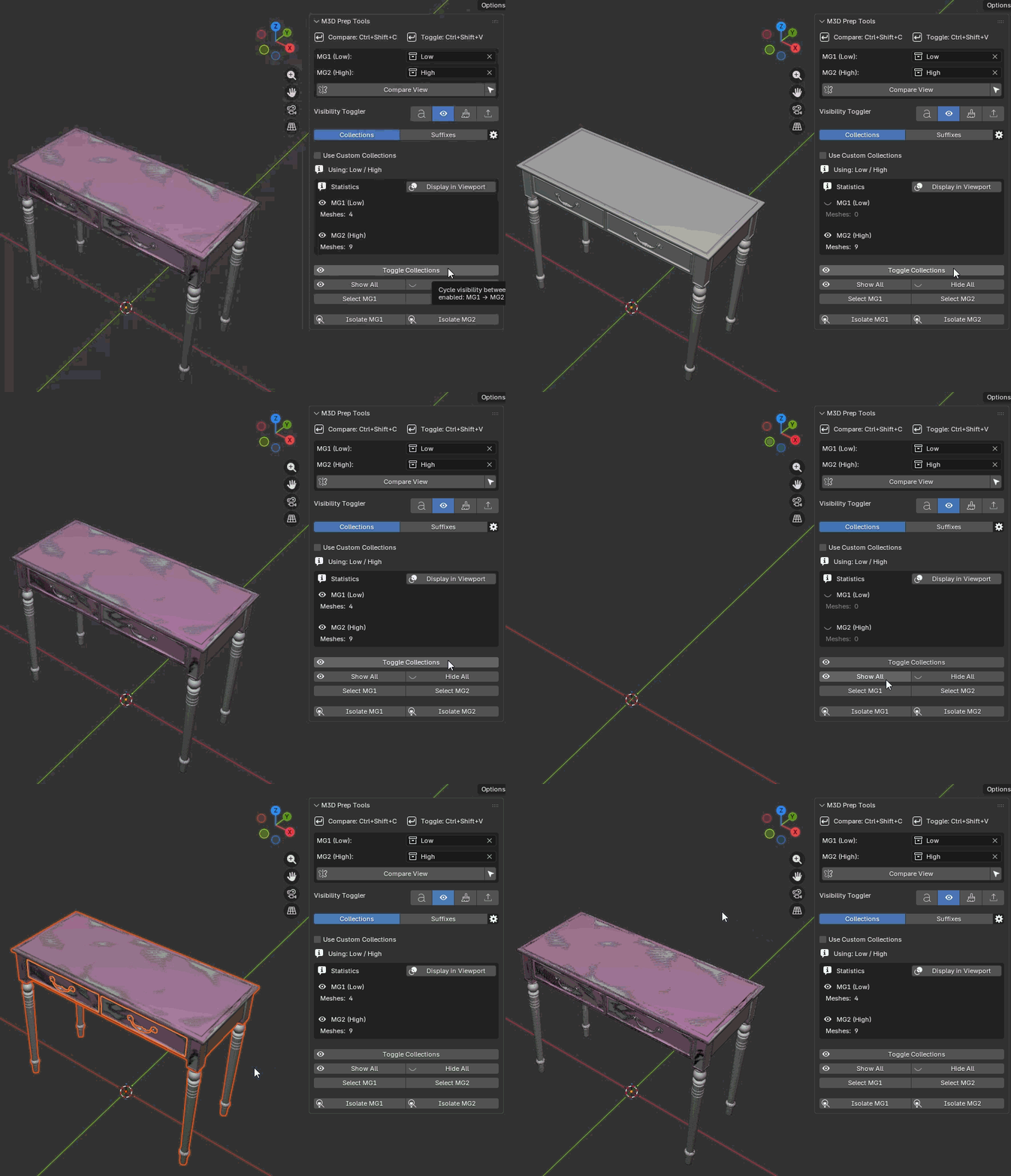
Modes
Collections Mode (Default)
By default, uses the global MG1/MG2 collections from the top pickers — no setup needed. Check "Use Custom Collections" to use separate collection pickers for visibility-specific overrides.
Suffixes Mode
Define two suffixes (default: _low and _high). The addon scans the scene for objects whose names contain these suffixes. Suffix matching uses substring containment — _high matches table_high, table_high1, table_high-top, etc.
Controls
| Button | Action |
|---|---|
| Toggle Visibility | Cycle: MG1 → MG2 → Both → MG1 (both-visible step on by default) |
| Show All / Hide All | Show or hide all matched objects |
| Select MG1 / Select MG2 | Select all objects in the chosen mesh group |
| Isolate Focus | Enter Local View focused on the active object's family |
Toggle Cycle
By default, the toggle cycles: MG1 → MG2 → Both → MG1 → …
Disable "Toggle Cycle Includes Both Visible" in Global Settings (gear icon) to simplify to MG1 → MG2 → MG1 → …
Filters & Match Check (Suffixes Mode)
- Scope — limit search to specific collection
- Filter by Family — restrict operations to specific base name families
- Match Check — scan for bake group mismatches (families with a low poly but no high poly, or vice versa)
Color Tagger
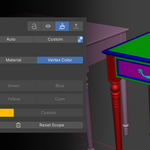
The Color Tagger applies visual color tags to meshes for QA — making it easy to see which objects belong to which bake group at a glance.
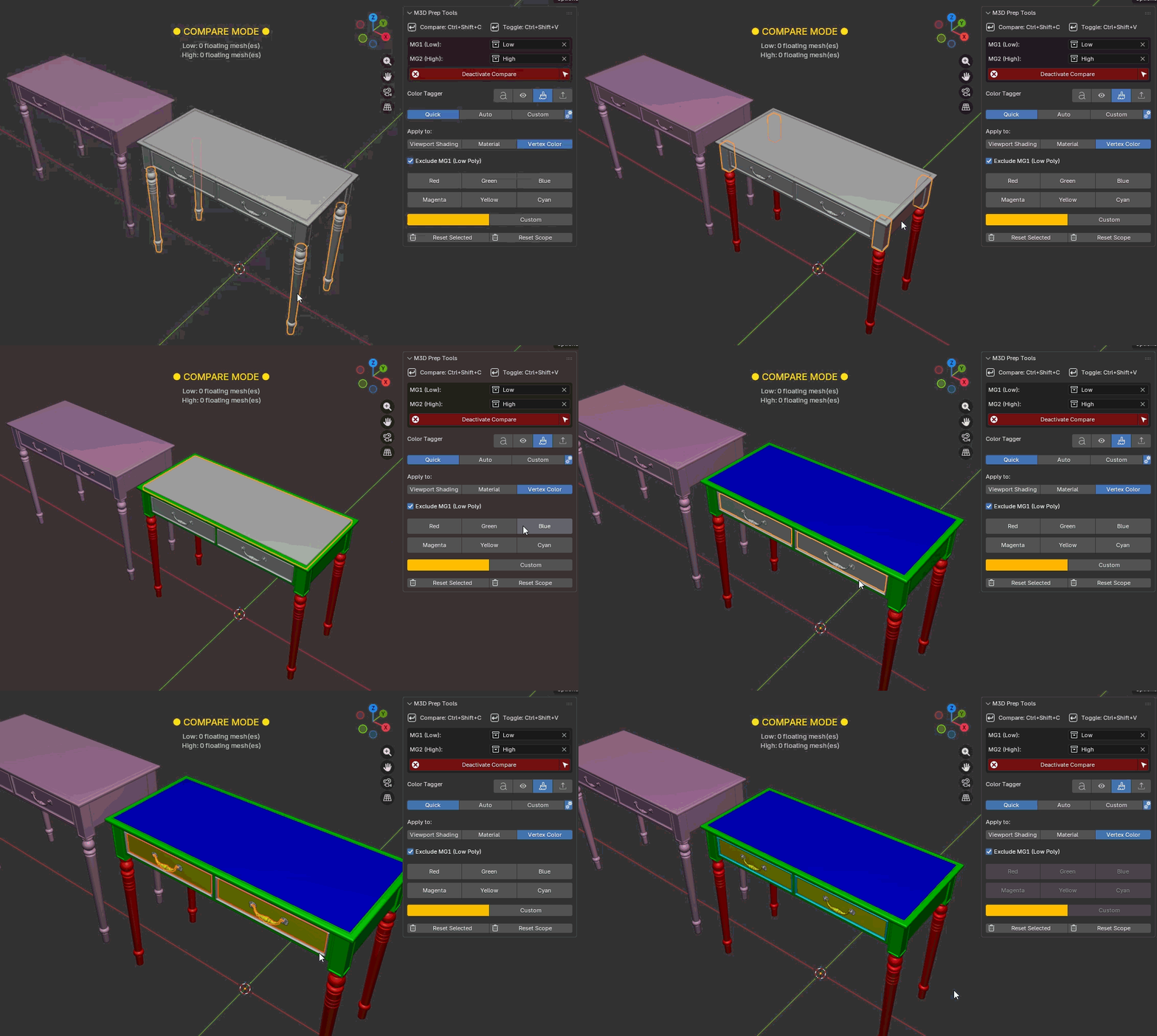
Apply To Modes
All tabs share a common "Apply to" selector:
| Mode | Description | Exports? |
|---|---|---|
| Vertex Color (default) | Writes to the "Col" vertex color attribute | Yes |
| Material | Creates/updates a VT_ prefixed material | Yes |
| Viewport Shading | Sets the object's viewport display color | No — preview only |
The gear icon (⚙) toggles Auto Switch Viewport Shading Color — automatically switches the viewport shading to match after tagging.
Quick Tab
Instantly apply a color to selected meshes with one click.
Color buttons: Red, Green, Blue | Magenta, Yellow, Cyan. Plus a Custom row with a color picker for any color.
Exclude MG1 (Low Poly) — on by default. Prevents accidentally coloring _low meshes when they're in your selection.
Auto Tab
Auto-assigns unique colors from a fixed palette, then generates random distinct colors for additional groups. Each mesh or family group gets a different color automatically.
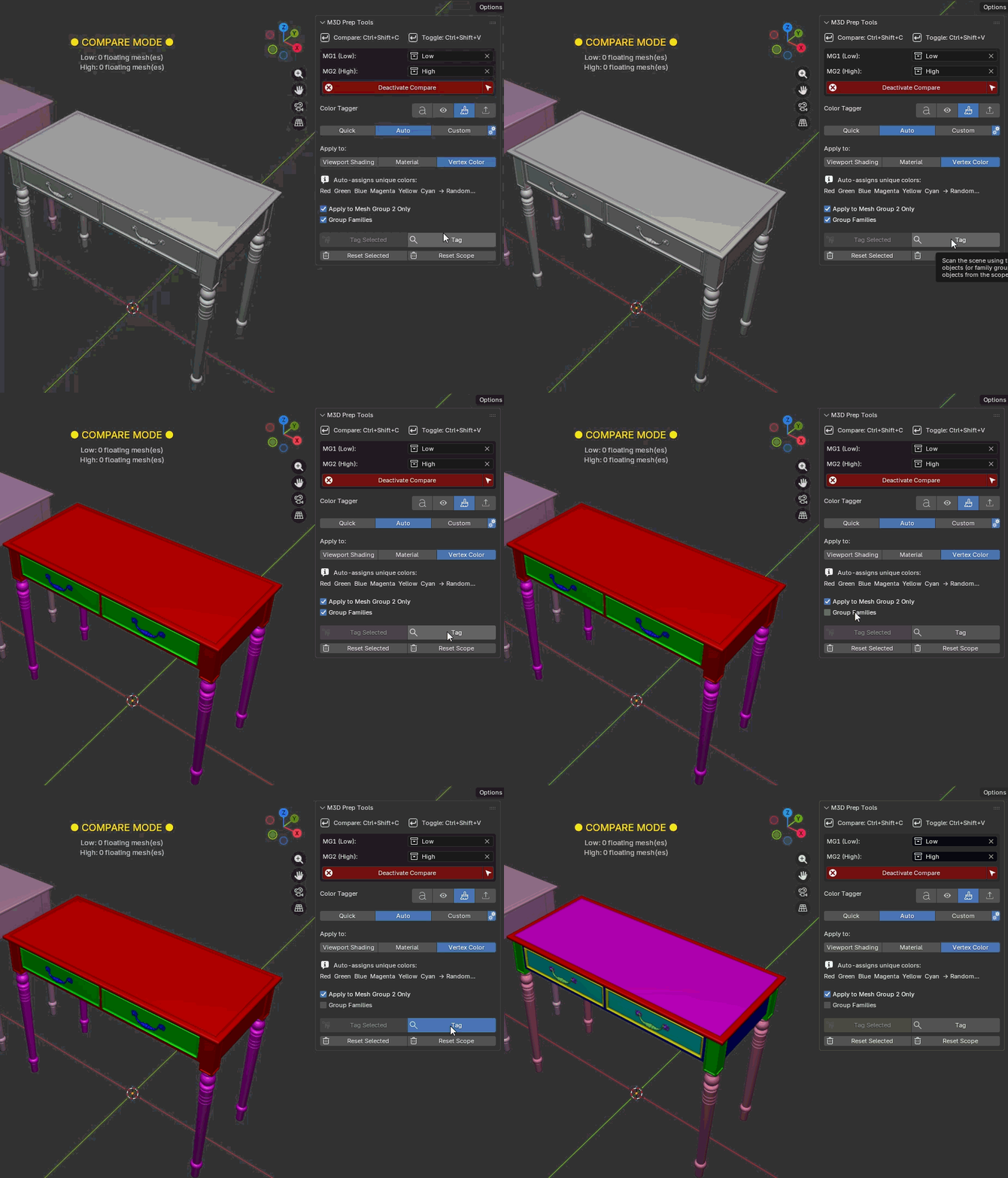
Options: Apply to Mesh Group 2 Only, Group Families.
Custom Tab
Manually assign colors to specific objects using a layer system.
- Collapsible layers with object counts in the header
- Selection highlighting — selected objects glow orange in the list
- Conflict handling — transfer prompt when objects are already in another layer
- Auto-clean — renamed/deleted objects are silently removed from layers
Export Manager
The Export Manager handles FBX export with a selection-based workflow.
Selection-Based Export
You must select meshes before exporting. Buttons are greyed out when nothing is selected. This prevents accidental exports.
Smart Batch (Default)
Splits your selection by suffix into separate FBX files:
-
BaseName_low.fbx— all selected meshes with the MG1 suffix -
BaseName_high.fbx— all selected meshes with the MG2 suffix
Export Preview
Live preview showing:
- Mesh count and family count per suffix group
- Broken families count — families missing a pair (red alert if any, green checkmark if all matched)
Export Settings
| Setting | Value |
|---|---|
| Object Types | Mesh only |
| Apply Modifiers | Yes |
| Smoothing | Face |
| Forward / Up Axis | -Z / Y |
| Scale | 1.0 |
| Animation | Disabled |
Naming Convention
M3D Prep Tools follows the Marmoset Toolbag bake group naming convention:
basename + suffix + optional_variant
| Object Name | Base Name | Suffix | Variant |
|---|---|---|---|
table_low |
table |
_low |
— |
table_high |
table |
_high |
— |
table_high1 |
table |
_high |
1 |
table_high-top |
table |
_high |
-top |
statue_low02 |
statue |
_low |
02 |
All variants with the same base name belong to the same bake family.
Global Settings
Accessible via the gear icon (⚙) in the Visibility Toggler tab header.
| Setting | Description | Default |
|---|---|---|
| Also Affect Render Visibility | Toggle render visibility alongside viewport | Off |
| Toggle Cycle Includes Both Visible | Add a "both visible" step to the toggle cycle | On |
Addon Preferences
Accessible via Edit → Preferences → Add-ons → M3D Prep Tools.
| Hotkey | Default | Purpose |
|---|---|---|
| Quick-Action Menu | Ctrl+Shift+T | Open popup menu with visibility actions |
| Quick Toggle | Ctrl+Shift+V | Instantly toggle between MG1/MG2 |
| Compare View | Ctrl+Shift+C | Activate/deactivate Compare View |
All three hotkeys can be individually enabled/disabled and reconfigured to any key combination. Disable and re-enable the addon to apply changes.
Tips & Best Practices
- Set your collections first — assign MG1 and MG2 in the global pickers before doing anything else.
- Use Compare View when batch tagging — the side-by-side layout makes identification easy.
- Smart Tag handles everything — select from both collections, one base name, both sides renamed.
- Separate meshes freely — if you split a mesh during Compare View, all pieces restore correctly.
- Color tag your high polys with Quick mode before baking — one click per bake group.
- Run Match Check before exporting to catch missing pairs.
- Check the Export Preview — broken families count catches mismatches instantly.
- Select intentionally — Smart Batch only exports what you select.
- Ctrl+Shift+C is your best friend — toggle Compare View without touching the panel.
- Ctrl+Shift+V for rapid toggling — cycle visibility while modeling or checking alignment.
Compatibility
- Blender: 2.80 and above
- Platform: Windows, macOS, Linux
- License: See LICENSE file
M3D Prep Tools v1.0.0 — Built for 3D game artists who bake.
Have questions about this product?
Login to message

Discover more products like this
ai Blender color tags bake asset-preparation blender--marmoset-toolbag quality-of-life toggle asset prep cycle Vertex Painting Fast retopo