 Miks3d


Changelog:
Version 1.1.0
Sub-collection support
All operations (Toggle Visibility, Compare View, Select, Isolate, Bake Family Check, export, floating-mesh counter, Name Tagger untagged counts) now recurse into sub-collections at every depth. A mesh inside Low → Low-chains → Low-chains-detail is treated as part of MG1 everywhere.
Compare View — sub-collection awareness
Compare View now shifts and restores all MG1 meshes regardless of which sub-collection they live in. The bounding box used to compute the offset also spans all sub-collection meshes, so the gap is accurate for the full group extent.
Modifier dependency handling
When Tag, Auto Tag, or Tag to Active moves a mesh into a Hub collection, any objects referenced by its modifiers (Mirror object, Boolean cutter, Data Transfer source, etc.) that live outside the Hub are automatically moved into the same target collection. This prevents broken modifier links when tagging meshes that depend on helper objects.
Toggle Visibility scope checkboxes
MG1 and MG2 checkboxes beside Toggle Visibility let you toggle only one group at a time.
Retopology Helper — MG1/MG2 rows redesigned
Two per-collection rows, each with cursor icon (selectability), eye icon (viewport visibility), Select, and Isolate. Both icons cascade through sub-collections. Buttons are text-only.
Retopology Helper — Select Family / Isolate Family
Operate on the active object's bake family across both collections.
Name Tagger — Tag to Active
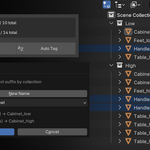
New button below Tag / Auto Tag. Tags all selected meshes into the same bake family as the active object. The active mesh must already belong to a family; if it is floating a warning is shown. Suffix is determined by which Hub collection each mesh belongs to. Modifier dependencies are moved automatically. Bake Family Check opens and refreshes on completion.
Name Tagger — Untag
New button next to Tag to Active. Renames selected tagged meshes to floating / floating.001 etc., removing them from their bake family. Meshes already floating are left untouched. Bake Family Check opens and refreshes on completion.
Tag and Auto Tag — outside-mesh handling
Both operators handle meshes outside the designated MG collections: suffixed meshes are auto-routed or kept as-is, suffixless meshes prompt for a target, mixed selections are handled per-bucket.
Bake Family Check — renamed from Match Check
All UI text updated throughout.
Bake Family Check — default open, collapsible icon
The panel now defaults to open (previously collapsed). The header shows a ▼/▶ arrow to indicate it is collapsible. Clicking the header collapses or expands it.
Bake Family Check — auto-show and auto-refresh after tagging
Tag, Auto Tag, Tag to Active, and Untag all open the panel and trigger a refresh on completion, unconditionally. Previously the refresh was skipped if the panel was closed.
Bake Family Check — Hub-collection scope with sub-collection support
Scans only MG1/MG2 Hub collections including all sub-collections. Floating meshes elsewhere in the scene are excluded.
Bake Family Check — bulk action buttons
Three buttons above the family list: ▣ With Family (select tagged), 👁 With Family (toggle visibility of tagged), ▣ Floating (select untagged). The visibility button reflects state via its icon.
Bake Family Check — 3-line list layout
Header row (full size) + LP sub-row (smaller) + HP sub-row (smaller). Sub-rows collapsed by default; expand arrow on header. Eye icon on header row toggles whole-family visibility.
Bake Family Check — Rename, additive Select, Iso toggle, family name tooltip
All previously documented. Iso toggle persists across multiple families simultaneously; button is highlighted when active.
Bake Family Check — "No Family" button renamed to "Floating"
The bulk select button for untagged meshes is now labelled "Floating" for clarity.
Compare View — all object types shift together
Previously only MESH-type objects in MG1 were stashed and offset during Compare View. Empties, Lattices, Lights, Cameras, and any other object type inside MG1 (including sub-collections) were silently ignored and stayed in place. The type filter has been removed — every object in MG1 is now stashed, shifted, and restored together. This means a Mirror modifier's Empty pivot, a Lattice deformer, or any other helper object placed inside MG1 will correctly move with the low-poly group when Compare View is activated.
Modifier dependency detection — full RNA introspection
The previous implementation checked a hardcoded list of four modifier property names, which missed Mirror's mirror_object, Lattice's object, and most other modifier types. The helper now uses Blender's RNA property introspection: it iterates every pointer-type property on every modifier and collects any referenced object that lives outside the Hub collections. This is exhaustive and future-proof — Mirror empties, Lattice deformers, Boolean cutters, Shrinkwrap targets, Data Transfer sources, and any modifier type added in future Blender versions are all handled automatically.
Compare View — modifier dependency objects move with the group
Because all object types are now stashed (see above), Empties and Lattices that are inside MG1 — whether at the top level or in a sub-collection — are offset and restored as part of the group. Combined with the improved modifier dependency detection, this means even modifier helper objects that live outside MG1 are moved into the collection when tagging, and then shift correctly during Compare View.
Name Tagger — Tag to Active hides the active mesh
When Hide Tagged Meshes is enabled, Tag to Active now also hides the active object itself after tagging the other selected meshes. Previously only the non-active selected meshes were hidden.
Name Tagger — Hide Tagged Meshes checkbox
A new checkbox placed above the Tag and Auto Tag buttons controls whether meshes are hidden in the viewport immediately after being tagged. Defaults to on (preserving the original behaviour). When unchecked, meshes stay visible after Tag, Auto Tag, and Tag to Active — useful when you want to review the rename result before hiding.
Isolation — no camera movement
All Isolate buttons (Isolate MG1, Isolate MG2, Isolate Family, LP/HP Isolate in Bake Family Check, and the Bake Family Check persistent Iso toggle) no longer use Blender's Local View. Instead a custom hide-based system is used: everything outside the target set is hidden in the viewport, the camera is left completely untouched. An Exit Isolation button (shown in red at the top of the Retopology Helper when active) restores all objects that were hidden. The persistent Bake Family Check Iso toggle works the same as before — click to isolate a family, click again to remove it, multiple families can be isolated simultaneously — but without the camera jump.
Isolation — works in Edit Mode
Previously, triggering any Isolate button while in Edit Mode would fail silently or throw a Blender runtime error because hide_viewport cannot be changed while an object is being edited. Both _m3d_isolate and _m3d_unisolate now detect the current mode, temporarily switch to Object Mode to apply the visibility changes, then restore the original mode (Edit, Sculpt, Weight Paint, etc.) before returning. This means you can isolate a family or collection while actively editing a mesh and the viewport will update correctly without disrupting your editing session.
Have questions about this product?
Login to message

Discover more products like this
toggle ai Fast quality-of-life asset-preparation cycle asset prep bake Blender color tags retopo Vertex Painting blender--marmoset-toolbag