Machete Toolkit
 rfarencibia






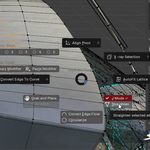
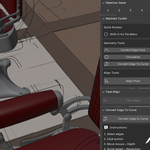
Machete Toolkit
A comprehensive mesh editing toolkit for Blender that enhances modeling workflows with smart geometry tools, interactive placement systems, and streamlined selection management.
Table of Contents
1. Features
2. Installation
3. Quick Start
4. Tools Overview
5. Usage Guide
6. Configuration
7. Compatibility
8. Support
1. Features
Smart Geometry Tools
- Edge Flow Correction – Automatically adjusts edge loops to flow with surrounding geometry
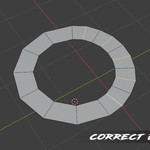
- Circularize – Transforms selections into perfect circles while preserving 3D orientation
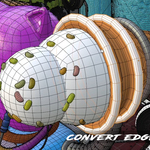
- Edge to Curve Converter – Interactive conversion with real-time bevel control
- Straighten Edge Loops – Two modes: topology-changing J-method or position-based axis alignment
Intelligent Placement System
- AutoFit Lattice – Creates minimum-volume lattices aligned to selection geometry
- Grab & Place Tool – Interactive object placement with automatic ground offset
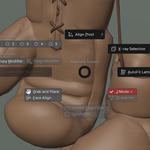
- Face Align – Visual tool for precise face-to-face alignment between objects
- Align Pivot – Smart cursor positioning based on selected geometry
Selection Management
- Selection Saver – Store/recall up to 20 selections across edit and object modes
- Quick Access Slots – One-click save/restore with visual indicators
- Cross-Mode Support – Handles vertices, edges, faces, and objects seamlessly
Workflow Enhancers
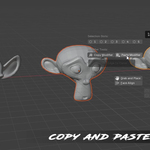
- Modifier Copy/Paste – Selective modifier copying with dialog interface
- X-Ray Toggle – Instant transparency for better selection visibility
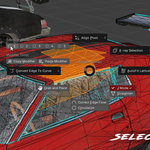
- Customizable Pie Menu – Quick access to all tools (default: Shift+E)
2. Installation
Method 1: Standard Installation
1. Download the `machete_toolkit.py` file
2. Open Blender → Edit → Preferences → Add-ons
3. Click "Install..." and select the downloaded file
4. Enable "Machete Toolkit" in the add-ons list
Method 2: Manual Installation
Copy `machete_toolkit.py` to your Blender `scripts/addons` folder:
- Windows: `%APPDATA%\Blender Foundation\Blender\[version]\scripts\addons\`
- macOS: `~/Library/Application Support/Blender/[version]/scripts/addons/`
- Linux: `~/.config/blender/[version]/scripts/addons/`
Restart Blender and enable the add-on in Preferences → Add-ons
3. Quick Start
- Access the Pie Menu: Press Shift+E (customizable) for instant access to all tools
- Use Sidebar Panels: Find organized tool panels in the 3D Viewport's N-panel under "Machete Toolkit"
- Try Grab & Place: Select an object and press Shift+E → "Grab and Place" for interactive positioning
First Steps
- Selection Management: Select geometry, press Shift+E, click a numbered slot to save
- Edge Flow: Select edge loops in edit mode, press Shift+E → "Correct Edge Flow"
- Quick Lattice: Select geometry, press Shift+E → "AutoFit Lattice" for instant deformation setup
4. Tools Overview
Geometry Tools
**Edge Flow Correction** (Edit Mode → Pie Menu or Sidebar)
- Automatically adjusts selected edge loops to flow naturally with surrounding geometry
- Uses 16 iterations with configurable tension
- Works on multiple edge loops simultaneously
**Circularize** (Edit Mode → Pie Menu or Sidebar)
- Transforms selected vertices into perfect circles
- Preserves 3D orientation and handles multiple loops
- Calculates best-fit plane for optimal results
**Convert Edge To Curve** (Edit Mode → Pie Menu or Sidebar)
- Usage: Select edges → Run tool → Move mouse for depth → Scroll for resolution
- Creates bezier curves from edge selections
- Interactive bevel control with real-time preview
- Handles complex edge networks and junctions
**Straighten Edge Loop** (Edit Mode → Pie Menu or Sidebar)
- J-Method: Uses Blender's Connect Vertex Path for topology changes
- Axis Method: Linear interpolation along selected axes (X/Y/Z)
- Handles both open and closed loops with automatic endpoint detection
Placement Tools
**AutoFit Lattice** (Object/Edit Mode → Pie Menu or Add Menu)
- Creates minimum-volume lattice around selection
- Aligns to longest edge direction for optimal orientation
- Configurable resolution (2–64 points per axis)
- Automatic vertex group creation for edit mode selections
Options:
- Resolution X/Y/Z: Lattice point density
- Margin: Safety buffer percentage
- Enforce Alignment: Use longest edge for orientation
- Use Edge Centers: Calculate direction from edge centers vs vertices
**Grab & Place Tool** (Object Mode → Pie Menu or Workspace Tool)
- Interactive Mode: Click-select → Drag-place with automatic ground offset
- Direct Mode: Select object → Use "Grab and Place" button
- Automatic lowest-vertex detection for ground alignment
- Face snapping with rotation alignment
Workflow:
1. Activate tool from pie menu or workspace
2. Click object to select
3. Drag to reposition with automatic snapping
4. Left-click to confirm, Right-click/ESC to cancel
**Face Align** (Object Mode → Pie Menu or Sidebar)
- Visual face-to-face alignment between objects
- Real-time highlight system for face selection
- Automatic rotation and position matching
- Interactive selection with visual feedback
Usage:
1. Run Face Align tool
2. Click first face (object to move)
3. Click second face (target orientation)
4. Objects automatically align
**Align Pivot** (Edit/Object Mode → Pie Menu or Sidebar)
- Edit Mode: Aligns cursor to selected vertex/edge/face with proper orientation
- Object Mode: Centers cursor on selected objects
- Automatically sets transform orientation to cursor
- Smart normal calculation for faces and edges
5. Usage Guide
Working with Edge Loops
**Straightening Edge Loops:**
1. Enter Edit Mode
2. Select edge loop (Alt+Click or manual selection)
3. Access via Pie Menu (Shift+E) → Configure straighten options
4. Choose method:
- J-Method: Topology changes, connects endpoints
- Axis Method: Position only, choose X/Y/Z axes
5. Click "Straighten"
**Correcting Edge Flow:**
1. Select problematic edge loops
2. Pie Menu → "Correct Edge Flow"
3. Tool automatically adjusts flow to match surrounding geometry
Selection Workflow
**Managing Complex Selections:**
1. Create complex selection (vertices, edges, faces)
2. Pie Menu → Click empty slot number
3. Continue modeling
4. Restore selection: Pie Menu → Click filled slot number
5. Clear slot: Right-click or use clear button
**Cross-Mode Selection:**
1. Edit Mode: Select geometry → Save to slot
2. Switch to Object Mode → Slot remembers edit selection
3. Return to Edit Mode → Restore slot → Original edit selection returns
Placement Workflow
**Interactive Object Placement:**
1. Activate Grab & Place tool (Pie Menu or Workspace)
2. Click object to select
3. Drag to new position (automatic face snapping)
4. Object lifts to clear ground automatically
5. Left-click confirm, Right-click cancel
**Lattice-Based Deformation:**
1. Select geometry or objects
2. Pie Menu → "AutoFit Lattice"
3. Configure resolution and options
4. Lattice creates with automatic modifiers
5. Edit lattice points for deformation
6. Configuration
Preferences (Edit → Preferences → Add-ons → Machete Toolkit):
- Pie Menu Shortcut: Key (default: E) + modifiers (default: Shift)
- Selection Slots: Count (1–20, default: 5)
Scene Properties:
- Grab & Place Additional Offset
- Straighten Tool J-Mode toggle and axis constraints
7. Compatibility
- Blender Versions: 3.0+
- Operating Systems: Windows, macOS, Linux
- Dependencies: Blender Python modules, NumPy (included), GPU extras (optional)
Known Limitations:
- Face Align requires GPU modules
- Some features may be limited in Blender <3.5
8. Support
- Bug Reports: GitHub issues with Blender version and steps
- Feature Requests: Describe use case
- Community: Blender forums, Discord
- Documentation: README and in-tool tooltips
Contributing:
- Follow Blender’s Python coding standards
- Submit PRs on GitHub
License:
Released under GPL-3.0 or later, compatible with Blender’s license.
Made for the Blender community to streamline and enhance your modeling workflows.
-
$9.99
For individuals, artist and indies developers
-
$49.99
For Studios with unlimited amount of PCs
Have questions about this product?
Login to message
| Sales | 10+ |
| Published | about 1 year ago |
| Blender Version | 3.6 - 5.0 |
| Extension Type | N/A |
| Render Engine Used | Cycles, Eevee |
| License | GPL |

Discover more products like this
auto lattice addon extension machete circularize tool x-ray toolkit face alignment save selection copy modifier striaghten