Make It Unreal – Blender to Unreal One-Click Production Pipeline
 La Caverne



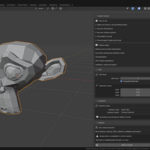
Value proposition
Make It Unreal helps artists:
reduce repetitive export preparation
standardize asset preparation across projects
avoid common Unreal export mistakes
configure technical options once and reuse them consistently
move faster from modeling to engine-ready assets
Target users
Environment artists
Prop artists
Technical artists
Indie teams
Marketplace sellers
Blender artists building Unreal-ready asset packs
Supported workflow
Installation instructions
Open Blender.
Go to Edit > Preferences > Add-ons.
Click the small dropdown in the top-right area or use the install option depending on your Blender version.
Select the ZIP package for Make It Unreal.
Enable the add-on.
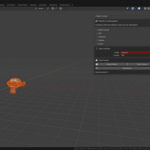
Open the Make It Unreal tab in the 3D View sidebar.
Quick start
Select the asset you want to process.
In the Pipeline section, choose Selected Mesh if you want to process only the active mesh, or Whole Scene if you want to batch process the scene.
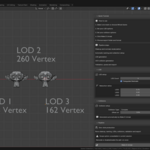
In LOD, define the number of LODs and reduction ratios.
In Collisions, choose the collision type and center behavior.
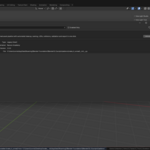
In Export, choose the export folder and export format.
Click Make It Unreal.
Import the exported FBX into Unreal Engine.
Have questions about this product?
Login to message
| Dev Fund Contributor | |
| Published | 4 months ago |
| Blender Version | 5.1 |
| Extension Type | N/A |
| Render Engine Used | Arnold, Blender-Internal, Blender-Game-Engine, Cycles, Eevee, Freestyle, Luxrender, Mental-Ray, Octane, Vray, Yafaray |
| License | GPL |
Discover more products like this
Unreal Engine FBX Export technical-art blender addon LOD Generator unreal workflow Asset Pipeline game-art collision generator pipeline-tool