 Al-Dezel



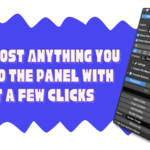
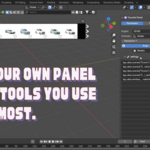
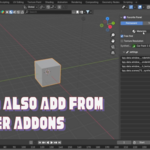
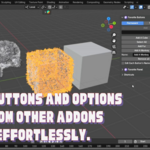
Installation & Usage Guide
How to Install the Addon:
1. Go to Blender's "Edit" menu, then "Preferences."
2. Select "Add-ons" and click "Install."
3. Choose the downloaded .zip file and click "Install Add-on."
Or
Alternatively: Simply drag and drop the .zip file into the Blender window and click "OK."
Adding Items to Your Favorite Panel:
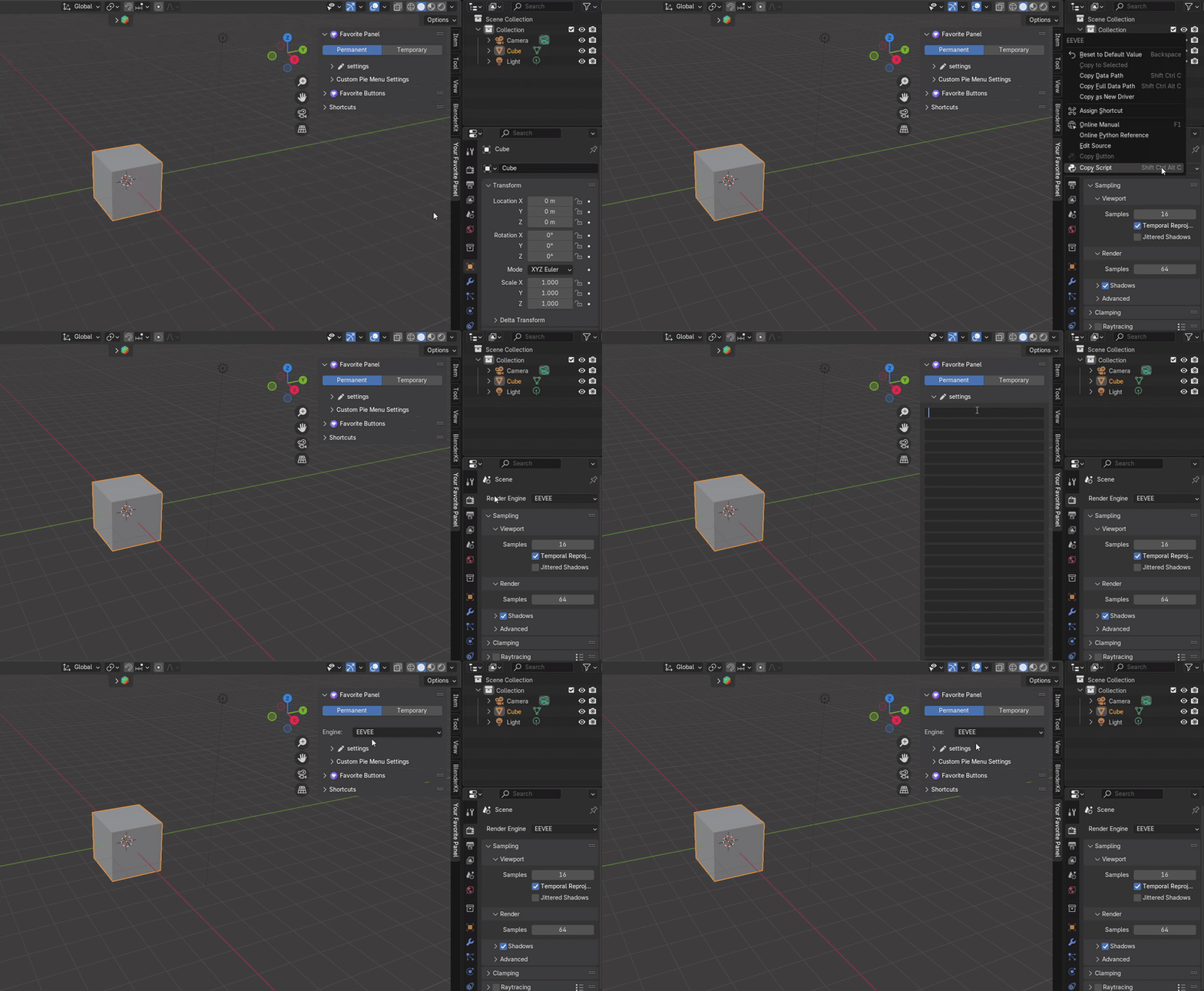
1. Find the Blender setting or option you want to add (e.g., "Render Engine").
2. Right-click on it and select "Copy Script."
3. In the "Make Your Favorite Panel" settings, paste the copied script into the input bar as shown in this video:
Generating Buttons Panel:
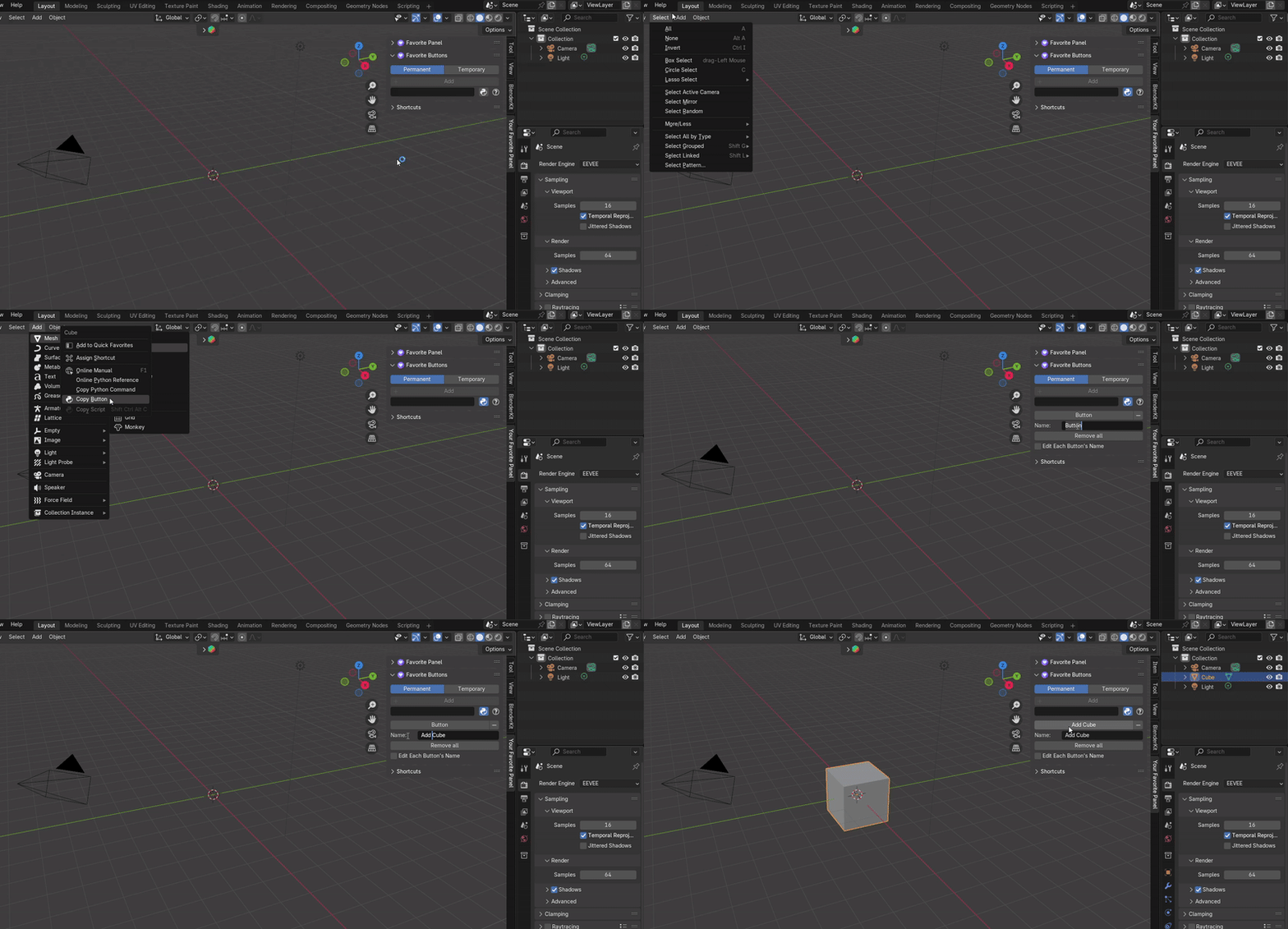
Make sure the Python icon in the panel is activated to enable the "Copy Button" feature.
Steps:
1- Right click on any button you want to add from the top menu.
2- Paste the code in the empty bar of the "Favorite Buttons" panel then click add.
3- Name the button and that is it.
Temporary vs. Permanent Items:
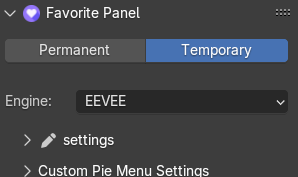
Temporary: Items added in this mode are only available in the current Blender project.
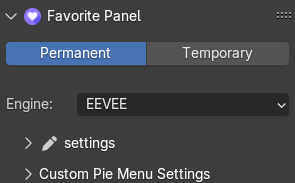
Permanent: Items added in this mode will be available in all Blender projects.
Custom Pie Menu:
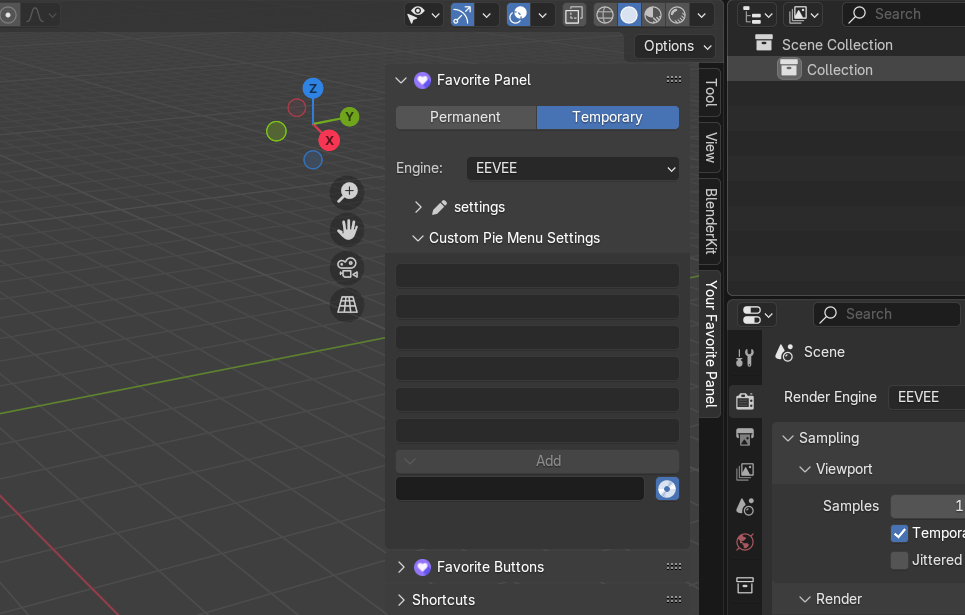
Combine your favorite items into a custom pie menu for quick access.
(We made this just in case you wanted these features as a pie menu)
(This is a mix between the "Favorite Panel" features and the "Favorite Buttons" features)
If you have any questions or suggestions, please join our Discord server.
Early Access:
"Make Your Favorite Panel" is in early access, meaning we're still adding support for more tools. Currently, around 80% of tools in Blender can be integrated, and we're working hard to increase that number. Join us on this journey and help shape the future of the addon!
-
$14
Single-User license.
-
$28
For studios with 2-5 licenses
-
$56
For studios with 6-10 licenses
Have questions about this product?
Login to message
| Sales | 10+ |
| Dev Fund Contributor | |
| Published | over 1 year ago |
| Blender Version | 4.3, 4.2, 4.1, 4.0 |
| Extension Type | N/A |
| License | GPL |
Discover more products like this
User-Friendly Interface user friendly UserFriendly Launch sals al-dezel 3d-user-interface quick-favorites User-friendly plugin quick-favorite Blender Favorites Tool interface ui easy favorite few clicks