Makra MVN Exporter
 Makrakanta Görsel iletişim inşaat san. ve Tic. Ltd. Şti.
in Rigging
Makrakanta Görsel iletişim inşaat san. ve Tic. Ltd. Şti.
in Rigging
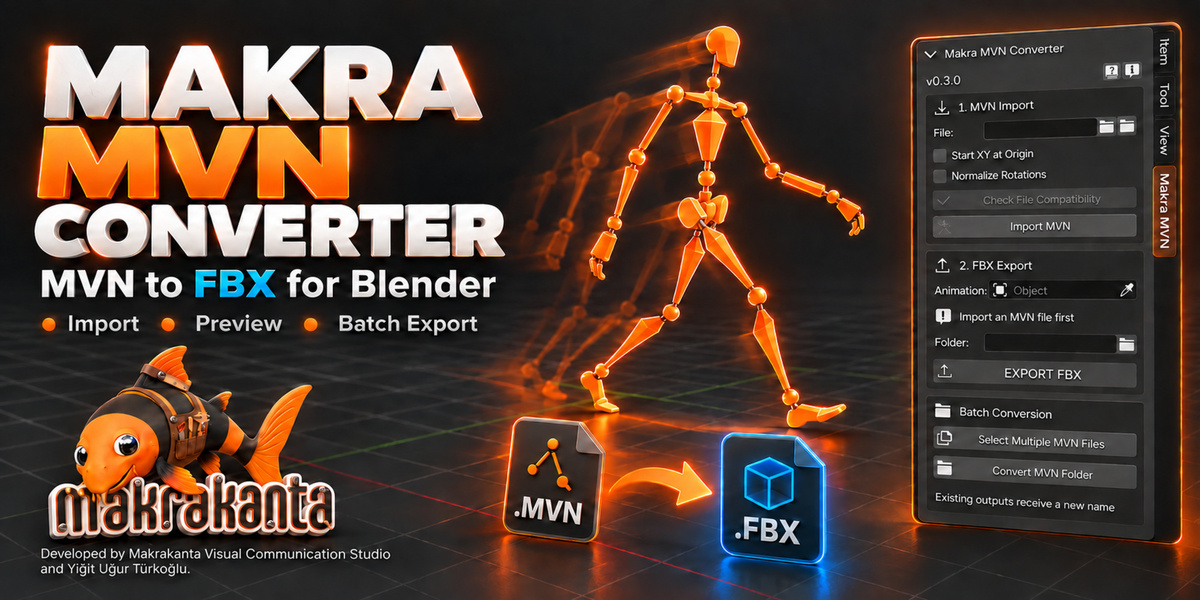
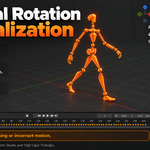
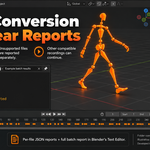
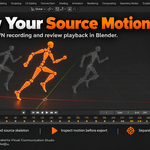
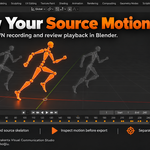
Makra MVN Converter — User Documentation
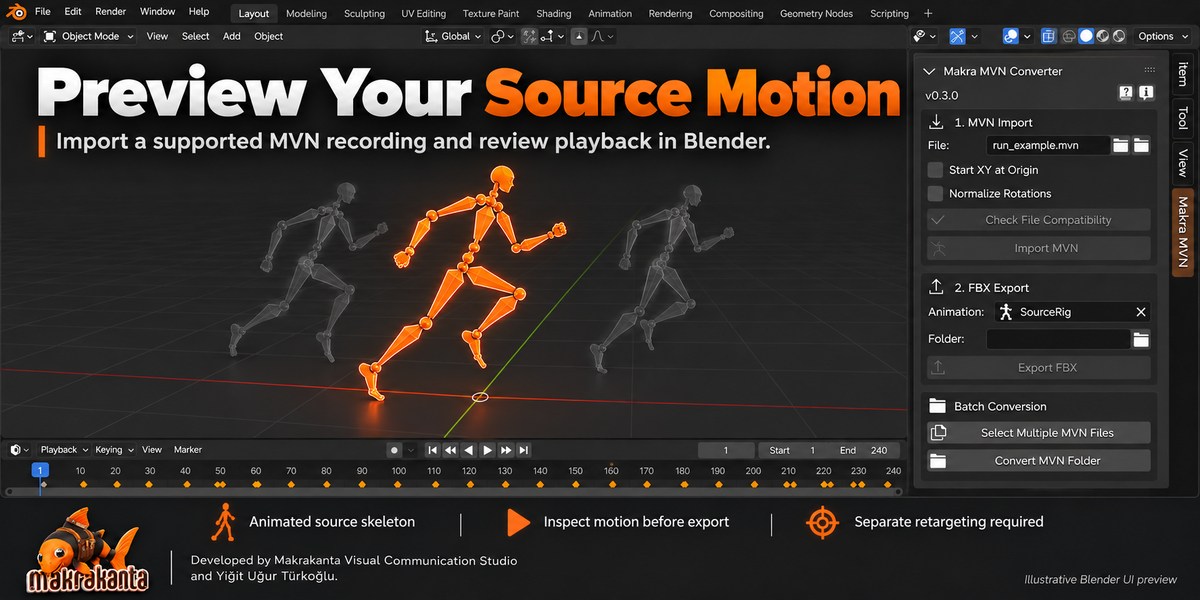
Makra MVN Converter imports supported solved .mvn recordings into Blender and exports the resulting animated source skeleton as FBX. It supports individual recordings and batch conversion.
Developed by Makrakanta Visual Communication Studio and Yiğit Uğur Türkoğlu.
1. Requirements and Compatibility
Requires Blender 4.5 or newer.
This release has been tested on Blender 4.5.3 LTS and 5.1.2 on Linux. Windows, macOS, Unreal Engine, and Maya runtime compatibility has not yet been verified for this release.
The reader supports a specific solved MVN binary layout:
23 body segments
0x00420042file signature128-byte header
Fixed 8,808-byte frames
19 little-endian double values per segment
Supported integer nominal frame rates are 24, 25, 30, 48, 50, 60, 90, 100, 120, and 240 FPS.
This is not a universal MVN reader. Other MVN layouts, MVNS sessions, and fractional frame rates such as 29.97 or 59.94 FPS are not supported.
Run Check File Compatibility before importing a recording.
2. Installation
If an older version is installed, disable and remove it, then restart Blender.
Open Edit → Preferences → Add-ons.
Open the add-on menu and select Install from Disk.
Select the installable add-on ZIP. Do not extract it first.
Enable Makra MVN Converter.
In the 3D Viewport, press N to open the sidebar.
Open the Makra MVN tab.
Click Start Converting on the welcome screen.
If your download contains a sales package, use the installable add-on ZIP inside it.
The Help button opens the included offline user guide with English and Turkish instructions.
3. Import a Recording
Select your
.mvnrecording in the File field.Click Check File Compatibility.
Review the result and any reported errors.
Set the import options if needed.
Click Import MVN.
Play the animation in Blender and inspect the motion.
The import creates an animated source skeleton. Frame 0 contains the inferred neutral reference; the captured animation begins at frame 1.
The neutral reference is inferred from the captured motion. Original calibration metadata is not decoded.
4. Export FBX
Select the imported recording in the Animation field.
Choose a writable output folder.
Click Export FBX.
The exporter uses the imported skeleton and its active Action, preserving the recording’s nominal FPS and capture frame range. Frame 0 is excluded from the exported animation.
Export remains available if the original MVN file is moved after import. Existing output filenames receive numbered suffixes to avoid overwriting them.
MVN coordinates are exported in metres independently of Blender’s scene unit settings. Scene selection, mode, frame, FPS, units, and frame range are restored after export.
Ensure the animation collection is enabled in the active view layer before exporting.
5. Batch Conversion
Use either:
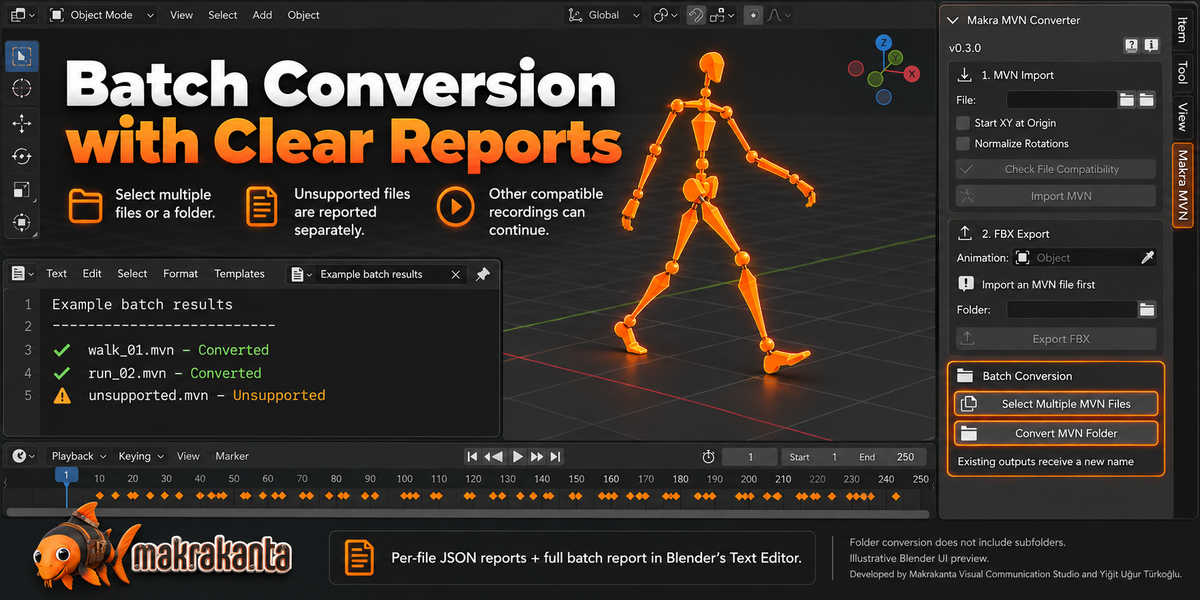
Select Multiple MVN Files to process selected recordings.
Convert MVN Folder to process recordings directly inside a selected folder.
Review the output folder and options in the file browser before starting.
If the batch output folder is left empty, the converter creates a Makra_FBX folder beside the input recordings. Folder conversion does not search subfolders.
Unsupported files are reported separately so other compatible recordings can continue converting. Original MVN files are not modified.
Successful conversions produce an FBX file and a per-file JSON report. The complete batch report is available in Blender’s Text Editor as Makra_MVN_Batch_Report.json.
If an FBX export succeeds but its accompanying report cannot be written, the report failure is shown as a warning.
6. Import Options
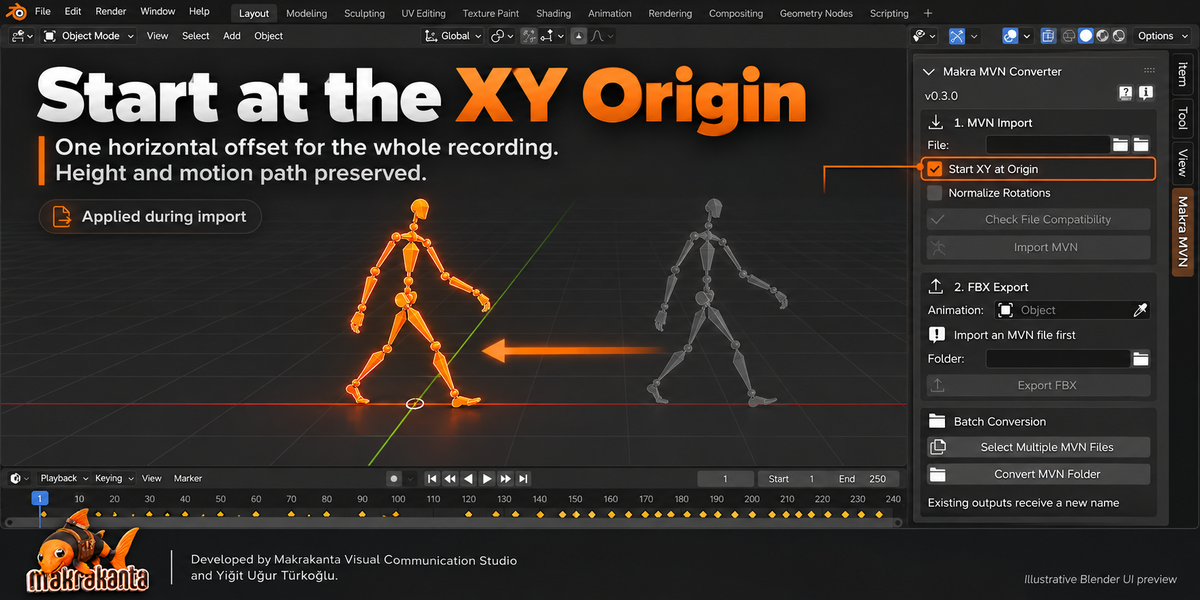
Start XY at Origin
Applies one horizontal offset to the entire recording so its starting position is at the XY origin. Height and the relative motion trajectory are preserved.
This option is applied during import. Exporting the imported animation does not apply the offset again.
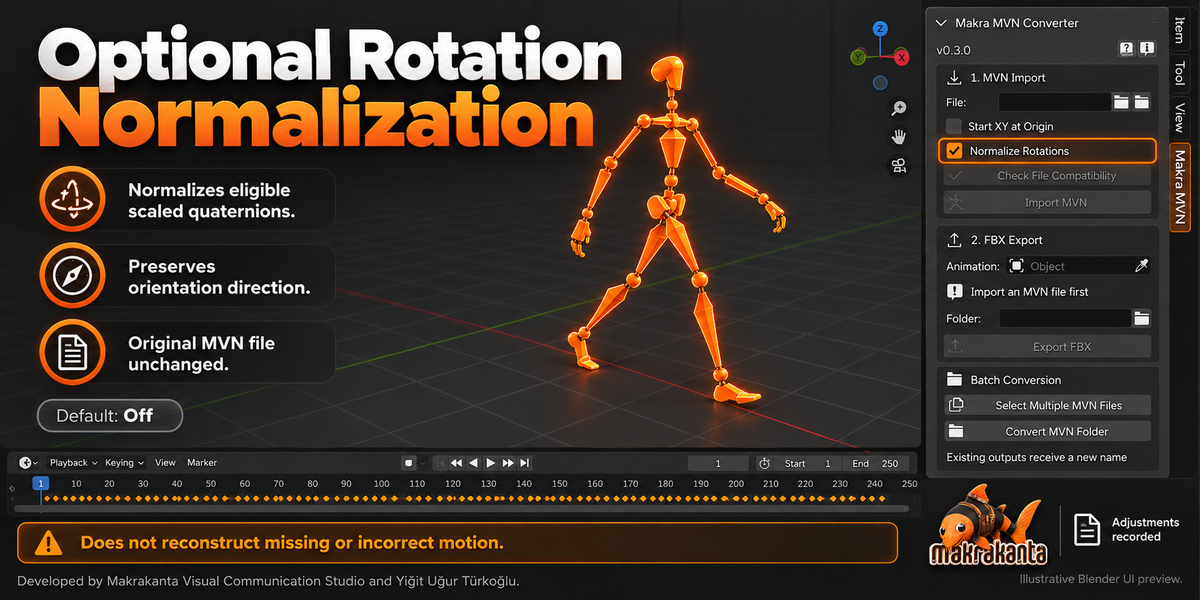
Normalize Rotations
Disabled by default.
Normalizes nonzero quaternion values whose lengths fall within the accepted range of 0.75–1.25. It preserves orientation direction and records the adjustments in the import report.
It does not remove jitter, reconstruct missing motion, or determine the correct motion from incorrect data. Zero, nonfinite, and severely malformed values remain unsupported.
Inspect the animation after using this option. The original MVN file is not modified.
7. Troubleshooting
| Issue | What to check |
|---|---|
| File compatibility check fails | Review the reported error and compare the recording with the supported layout and FPS requirements. |
| “Non-unit rotation” error | Inspect the reported frame and segment. If appropriate, enable Normalize Rotations and run the compatibility check again. |
| Export button is unavailable | Select an imported MVN armature with an active Action and choose an output folder. |
| Animation collection is hidden | Enable the collection in the active view layer before exporting. |
| Permission denied | Choose an output folder where you have write permission. |
| Blender temporarily stops responding | Large recordings create dense animation. Processing time and memory use increase with recording length. Allow the operation to finish. |
| Motion does not animate your character | The output is a source skeleton. Transfer the motion to your character through a separate retargeting step. |
8. Scope and Limitations
Makra MVN Converter produces an animated source skeleton.
The following are not included:
Character meshes
Finger or facial animation
Automatic retargeting
Rigify or GameRig conversion
Jitter removal or motion smoothing
FPS conversion
Raw sensor reprocessing
Video, props, or multi-actor session support
Compatibility with a supported file layout does not establish that the captured motion is accurate. Preview the imported animation before using it in production.
9. Package Contents and License
The package includes:
Installable Blender add-on ZIP
Python source code under GPL-3.0-or-later
Offline English and Turkish user guide
Release notes and validation report
Makrakanta welcome screen and studio links
Commercial production use is permitted. Makrakanta does not claim ownership of your production outputs. Customer motion recordings are not included.
See the included license and commercial terms for details. Support and update commitments are those stated by the sales channel at the time of purchase.
Makra MVN Converter is an independent product and is not affiliated with or endorsed by Movella/Xsens. No proprietary SDK is bundled.
10. Contact
Email: [email protected]
Website: www.makrakanta.com
When reporting an issue, include your add-on version, Blender version, operating system, exact error message, and compatibility or batch report where available.
Have questions about this product?
Login to message
| Published | 3 days ago |
| Blender Version | 4.5 - 5.2 |
| Extension Type | N/A |
| License | GPL |

Makrakanta Görsel iletişim inşaat san. ve Tic. Ltd. Şti.
Visit Website See all items by this creatorDiscover more products like this
motion capture Blender Add-on MVN to FBX MVN motion import skeletal-animation FBX Export animation tools blender mocap batch conversion xsens