Makracab Cabinet, Design, Nesting
 Makrakanta Görsel iletişim inşaat san. ve Tic. Ltd. Şti.
in Presets
Makrakanta Görsel iletişim inşaat san. ve Tic. Ltd. Şti.
in Presets
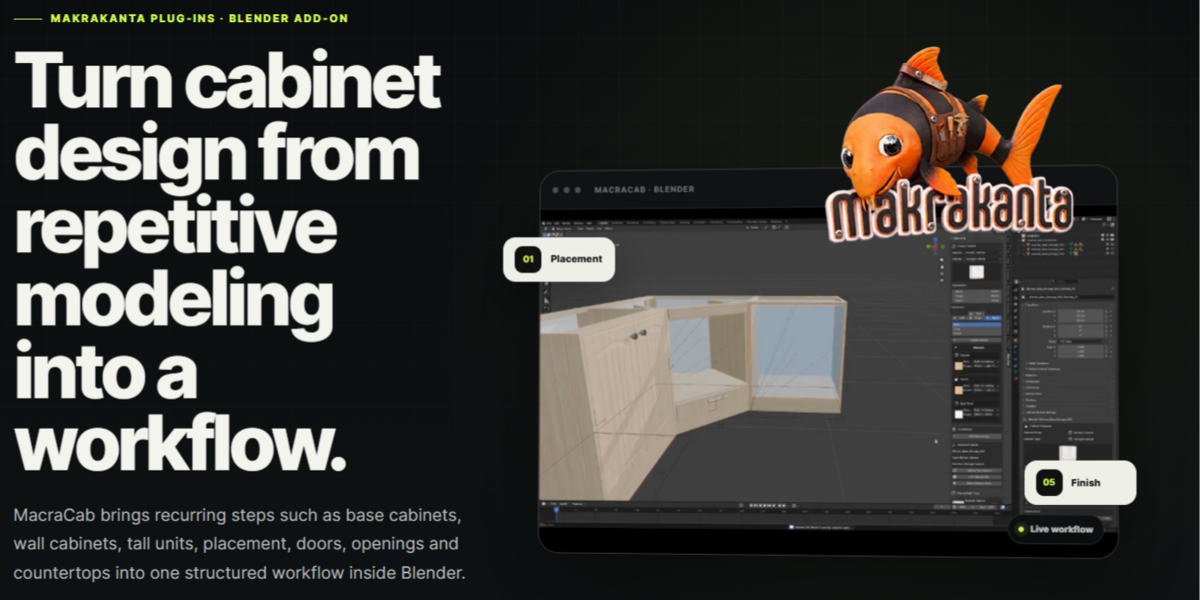
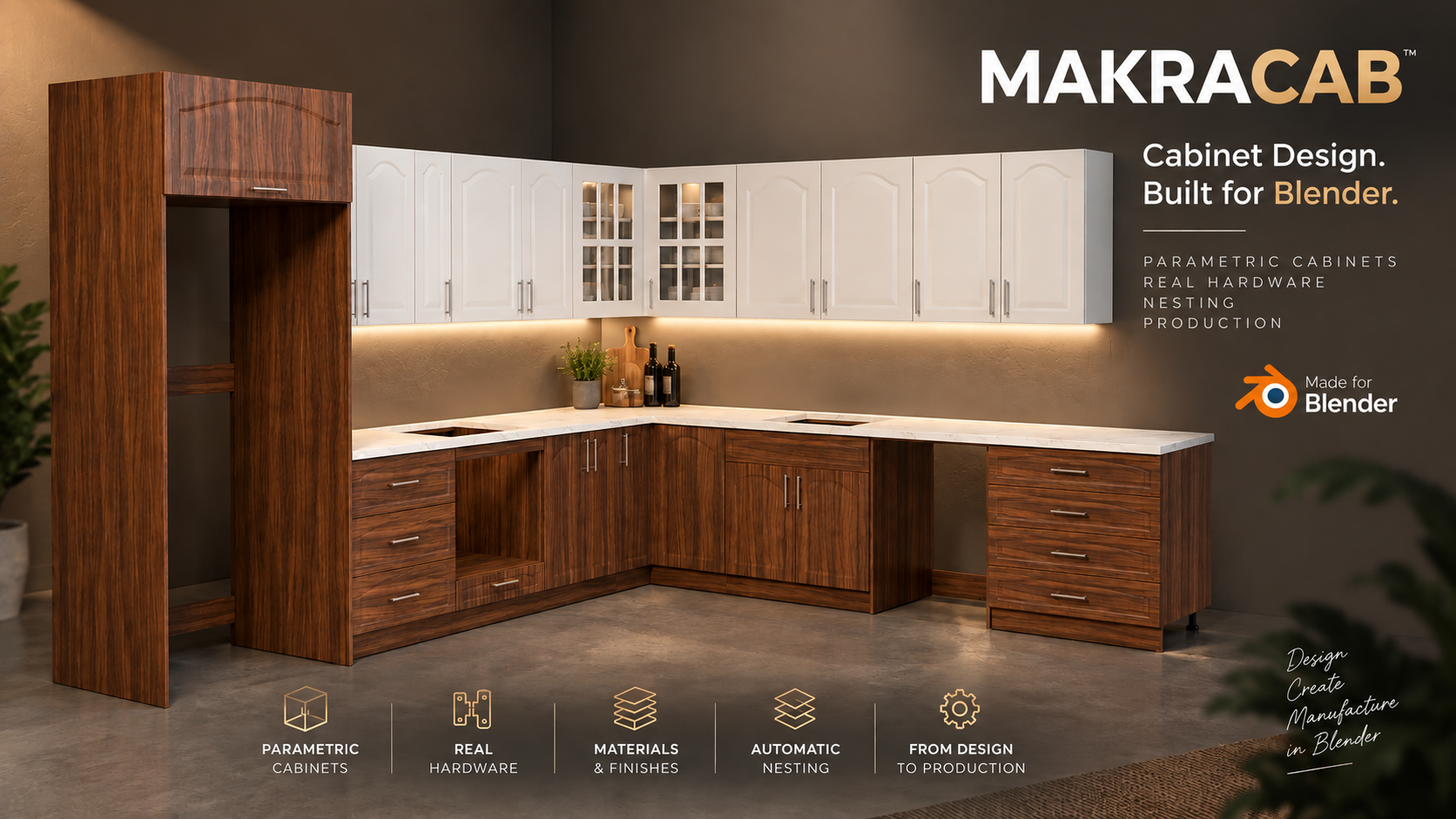
MakraCab Documentation
Requirements
Blender 5.1
Windows, macOS or Linux supported by Blender
Cycles and Eevee compatible
No separate application is required
Blender 5.1
Windows, macOS or Linux supported by Blender
Cycles and Eevee compatible
No separate application is required
Installation
Download the MakraCab ZIP file and keep it intact.
Open Blender.
Go to Edit > Preferences > Add-ons.
Click the menu button and choose Install from Disk.
Select the downloaded MakraCab ZIP file.
Enable MakraCab if it is not enabled automatically.
Open the 3D Viewport and press N to display the Sidebar.
Select the MakraCab tab.
Download the MakraCab ZIP file and keep it intact.
Open Blender.
Go to Edit > Preferences > Add-ons.
Click the menu button and choose Install from Disk.
Select the downloaded MakraCab ZIP file.
Enable MakraCab if it is not enabled automatically.
Open the 3D Viewport and press N to display the Sidebar.
Select the MakraCab tab.
If you are replacing an older MakraCab version, restart Blender after installation.
Quick Start
Open the MakraCab panel in the 3D Viewport Sidebar.
Select a cabinet type.
Enter the cabinet dimensions and construction settings.
Choose the required materials.
Create the cabinet.
Select the generated cabinet and open Edit Cabinet to modify it.
Add shelves, vertical dividers, doors, drawers, appliances or hardware as required.
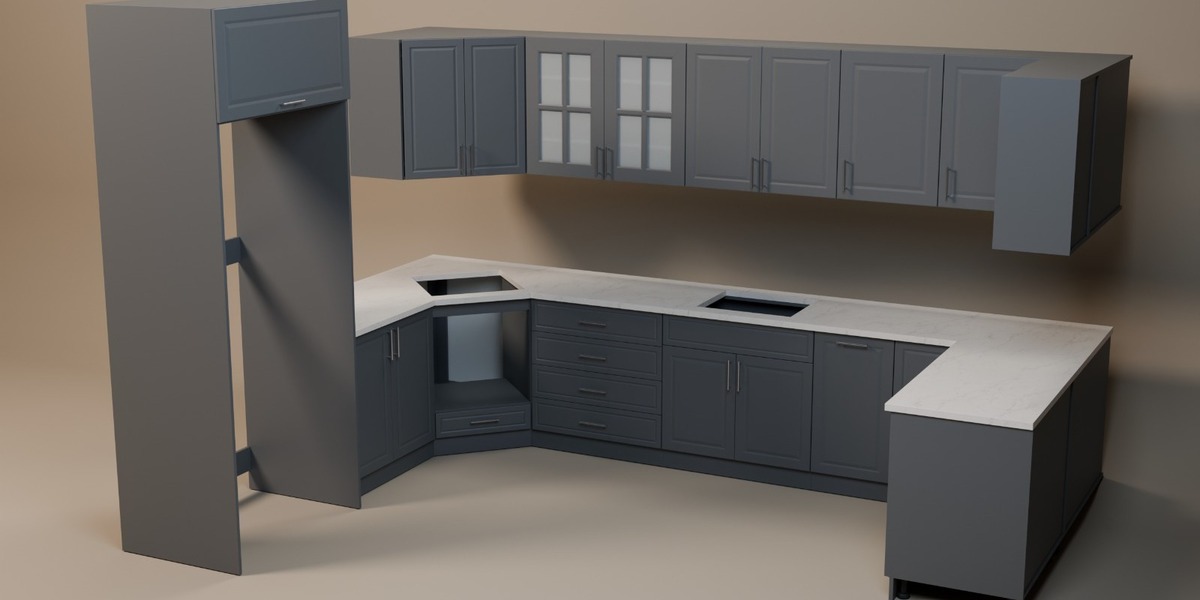
Use the placement tools to position additional cabinets.
Generate nesting and pricing results when the layout is ready.
Finalize the cabinet before standard mesh editing or export.
Open the MakraCab panel in the 3D Viewport Sidebar.
Select a cabinet type.
Enter the cabinet dimensions and construction settings.
Choose the required materials.
Create the cabinet.
Select the generated cabinet and open Edit Cabinet to modify it.
Add shelves, vertical dividers, doors, drawers, appliances or hardware as required.
Use the placement tools to position additional cabinets.
Generate nesting and pricing results when the layout is ready.
Finalize the cabinet before standard mesh editing or export.
Editing Cabinets
MakraCab cabinets remain parametric until they are finalized. Select a cabinet and use Edit Cabinet to modify its dimensions, construction, openings, shelves, dividers, fronts, materials and hardware.
When adding a component, use Confirm to apply the preview or Cancel to discard it.
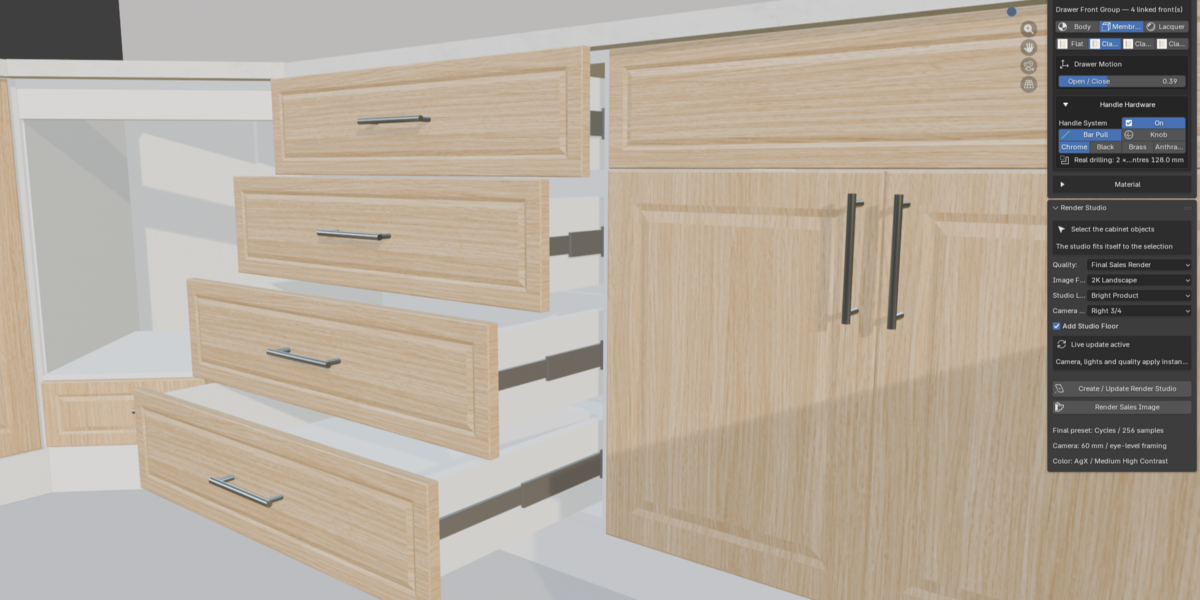
Doors, Drawers and Hardware
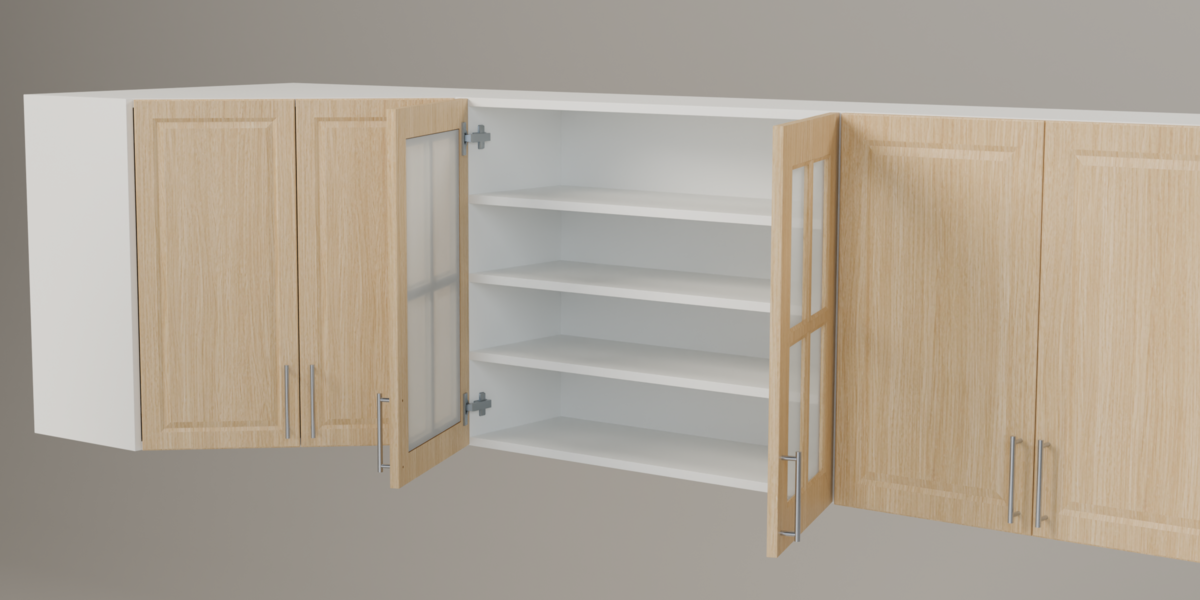
Doors and drawers can be created for available cabinet openings.
Depending on the cabinet and front configuration, MakraCab supports full overlay, half overlay, inset, 45-degree and bifold hinge systems.
Hinge quantity can be calculated automatically from the door dimensions or entered manually. Handles, knobs, mounting holes and supported hinge machining are generated according to the selected settings.
Doors and drawers can be previewed in open or closed positions.
Materials and Surface Appearance
Carcass, fronts and back panels can use independent material settings.
Available controls include:
Surface finish
Roughness
Texture scale
Grain direction
Surface detail
Bump strength
Edge softening
Built-in wood materials include matching height and roughness maps. Raw MDF machining surfaces, glass and hardware retain their appropriate materials.
Texture grain direction affects appearance. Nesting grain constraints are controlled separately in the Nesting panel.
Nesting and Pricing
Select one or more cabinet modules.
Open the Nesting panel.
Enter the physical sheet width and height.
Configure panel rotation and grain constraints.
Enter material, finish, CNC and hardware unit prices.
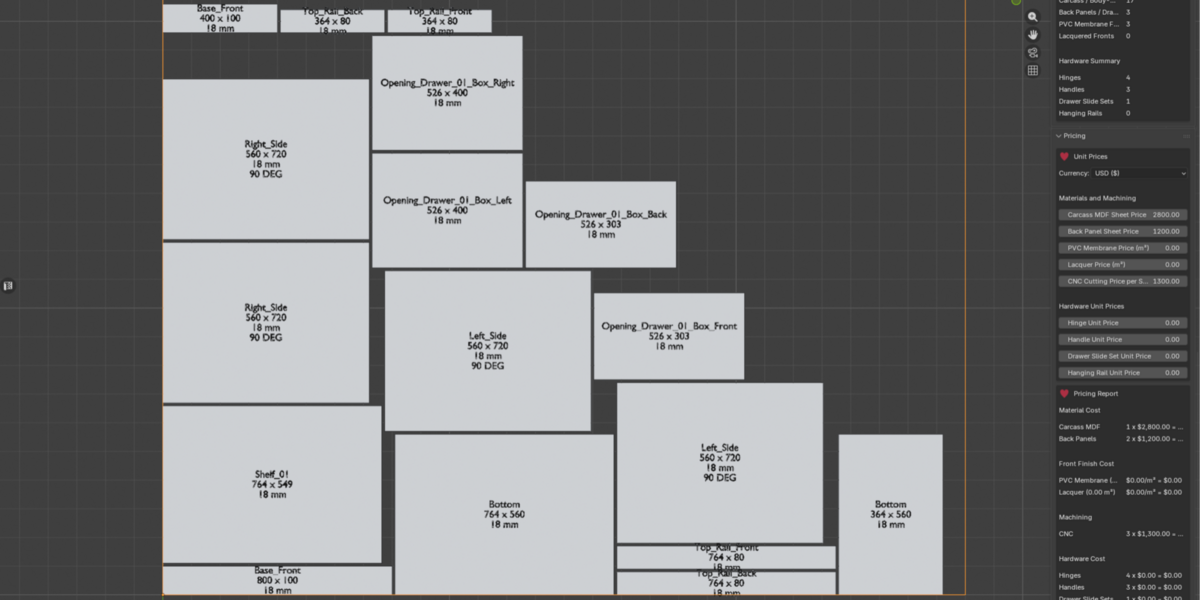
Generate the nesting result.
Review the sheet layouts and production pricing report.
Select one or more cabinet modules.
Open the Nesting panel.
Enter the physical sheet width and height.
Configure panel rotation and grain constraints.
Enter material, finish, CNC and hardware unit prices.
Generate the nesting result.
Review the sheet layouts and production pricing report.
The report can include sheet and panel quantities, material costs, finish costs, CNC cutting costs, hardware quantities and an estimated project total.
Always verify nesting layouts, dimensions and calculations before manufacturing.
Finalize Cabinet
Use Finalize Cabinet when the cabinet is ready for rendering, ordinary Blender mesh editing or export.
Finalization converts supported procedural geometry into standard Blender geometry while keeping cabinet parts logically separated.
Enable Keep Editable Original if you want to preserve a separate parametric source that can be restored later. The finalized copy is not intended for continued MakraCab parametric editing.
Save a backup copy of the Blender project before final production or export operations.
Export
After finalization, use Blender’s standard export tools for formats such as FBX, glTF or OBJ.
MakraCab does not generate machine-specific G-code or CNC toolpaths. Exported geometry and manufacturing information must be checked in the destination software before production.
Production Notice
MakraCab assists cabinet design, visualization and production preparation. Always verify dimensions, joinery, machining, hardware placement, materials, nesting, pricing and manufacturing outputs before fabrication or installation.
Support
Makrakanta
https://www.makrakanta.com/plug-ins/makracab/
[email protected]
 Included
Includes 12 months of
- Support from Makrakanta Görsel iletişim inşaat san. ve Tic. Ltd. Şti.
- Product updates
Extend this product’s Support Period +12 months: 25% of product price
Have questions before purchasing?
Login to message
| Published | 5 days ago |
| Blender Version | 5.1 - 5.2 |
| Extension Type | N/A |
| Render Engine Used | Cycles, Eevee |
| License | GPL |

Makrakanta Görsel iletişim inşaat san. ve Tic. Ltd. Şti.
Visit Website See all items by this creatorDiscover more products like this
cost estimation parametric modeling cabinetry hinges manufacturing woodworking furniture nesting cabinet Interior Design kitchen hardware