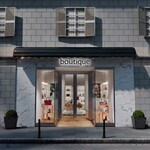
Luxury Marble Boutique Storefront Scene
 Media Brennt GmbH


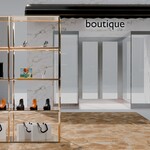
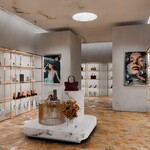
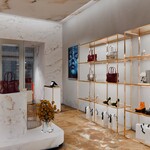
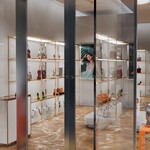
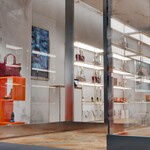
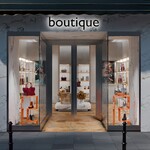
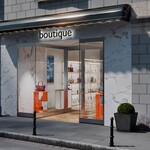
Luxury Marble Boutique Storefront Scene
Documentation for MB-Retail_Store-05-BLENDPACK.blend
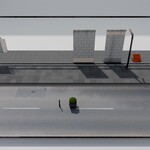
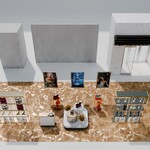
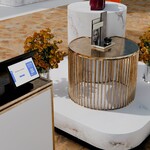
A complete Blender-native luxury boutique scene with marble storefront, glass entrance, gold shelving, handbags, shoes, retail props, street context, packed textures and ready-to-render cameras.
1. File Overview
This product is delivered as a Blender-native scene file:
| File Name | MB-Retail_Store-05-BLENDPACK.blend |
| Blender Version | Created in Blender 5.1.2 |
| Render Engine | Cycles |
| Cameras | 9 prepared cameras |
| Lights | 14 lights, including shelf lights, store spots and window spots |
| Scene Type | Luxury retail storefront and interior environment |
| Textures | Packed inside the Blender file |
The scene is built as a polished render environment rather than a single isolated prop. It includes the boutique storefront, interior layout, display shelves, products, props, lighting, cameras and street context.
2. Scene Navigation
The scene is organized into main collections so you can quickly find, hide, edit or reuse specific areas of the environment.
Main Collections
- 00-CINEMATICS — prepared cameras for storefront, side, detail and interior render angles.
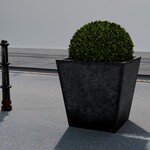
- 1-MB_BUILDING-STREET — main street, curb, bollards, front building windows and exterior context.
- 2-MB_AcrossStreet — across-street background elements used for reflections and exterior depth.
- 3-STOREFRONT — glass entrance, doors, windows and storefront tiles.
- 4-STORE-CONSTRUCTION — main shop construction and ceiling elements.
- 5-FURNITURE — gold shelf systems and retail display furniture.
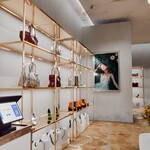
- 6-RETAIL-PRODUCTS — handbags, shoes, shopping bags, props and product details.
- x_LIGHTING — shelf lights, store spotlights and window lights.
For faster editing, use the visibility toggles in the Outliner. You can hide large areas such as the street, across-street reflection context, products, furniture or lighting while working on a specific section.
3. Cameras & Rendering
The scene includes multiple prepared cameras for quick rendering. They cover storefront hero shots, closer storefront details and interior wide angles.
Prepared Cameras
- Camera-1-24mm-STOREFRONT_Center — wide storefront hero camera.
- Camera-2-35mm-STOREFRONT_Center — centered storefront view with tighter perspective.
- Camera-3-35mm-STOREFRONT_Side — side angle for façade depth and glass reflections.
- Camera-4-35mm-STOREFRONT_Detail1 — storefront detail shot.
- Camera-4-35mm-STOREFRONT_Detail2 — additional storefront detail shot.
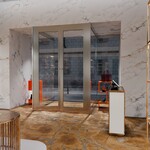
- Camera-5-20mm-INT-1 — interior wide angle.
- Camera-5-20mm-INT-2 — second interior perspective.
- Camera-6-20mm-INT-3 — interior display and shelf angle.
- Camera-8-20mm-INT-4 — additional interior view.
Most cameras use depth of field. If you want a sharper technical render, select the camera and reduce or disable Depth of Field in the camera settings.
4. Editing the Scene
The scene is designed to be editable directly inside Blender. You can move displays, replace products, adjust lighting, hide the street context or create a custom retail layout.
Recommended Editing Workflow
- Duplicate the original file before making major changes.
- Use the Outliner to hide collections you do not need while editing.
- Work on one major area at a time, such as storefront, furniture, products or lighting.
- Use prepared cameras as starting points for your own compositions.
- Adjust materials in the Shader Editor instead of replacing the full shader network unless needed.
- For product layout changes, duplicate existing product objects to keep the same material variation system.
5. Customizing the Store Layout
The boutique is structured so that large visual sections can be adjusted without rebuilding the entire environment.
- Storefront only: Hide interior furniture and retail products if you only need exterior shots.
- Interior only: Hide the street and across-street collections for lighter viewport navigation.
- Product showcase: Keep display tables, shelves, products and lighting visible, and hide exterior environment pieces.
- Custom boutique concept: Replace signage, posters, bag colors, material colors and product placement.
The scene can be used as a full environment or as a source file for individual boutique props, retail displays, street façade pieces or interior design elements.
6. Collection Instances
Several shelf systems are placed as Collection Instances. This keeps repeated structures more manageable and helps maintain a cleaner scene organization.
Instanced Shelf Collections
- GOLD_SHELF-01 — used multiple times through collection instances.
- GOLD_SHELF-02 — additional shelf system used as repeated instances.
- SHELF-1-Products and SHELF-2-Products — product collections inside shelf setups.
How to Edit Collection Instances
If you select a shelf instance and cannot directly edit individual product meshes, this is normal. The object is referencing a source collection.
- Find the source collection in the Outliner, for example GOLD_SHELF-01 or GOLD_SHELF-02.
- Edit objects inside the source collection if you want all instances to update.
- If you need a unique version, duplicate the source collection first and create a new instance from that duplicate.
- Use Object > Apply > Make Instances Real only if you want to convert an instance into regular editable objects.
7. Material System
The material setup combines image-based PBR textures with procedural shader networks. Many materials are clearly named with prefixes such as MB_PROC, MB_PBR, MB_MSK and MB_NODE.
Common Material Types
- Marble / Stone: PBR marble, travertine, concrete and stone materials.
- Metal: gold, brushed metal, chrome, worn metal and polished metal setups.
- Leather: PU leather materials for bags and shopping bags.
- Fabric: velvet, neoprene, felt, glitter PVC, perforated fabric and other textile-like shaders.
- Glass: storefront glass, dark glass, window glass and roughness imperfection overlays.
- Product Labels: label grid and logo textures for retail products and shopping bags.
- Visuals: poster, tray, display and wall image selection materials.
Some shader networks include procedural dust, edge wear, AO masks, drip streaks, random damage and ground dirt masks. These are used to add realistic imperfections to otherwise clean retail materials.
8. Shader-Based Variation
Selected objects and product materials use shader-based variation. This means that duplicated objects can automatically display slightly different colors, surface values or visual content.
Relevant Node Groups
- MB_TRUE-RANDOMNESS — used for randomized material variation.
- MB_Texture_Pick_10 — used for visual or image selection systems.
- MB_NODE-PROC_DUST-O1 — procedural dust layer used in selected materials.
- MB-Edge_Wear-O1 — edge wear effect for selected worn materials.
- MB_MSK-Random_Damage-O1 — random damage masking for surfaces.
- MB_MSK-Ground-Dirt and MB_MSK-Ground-Dirt02 — dirt and grime masks.
- MB_MSK-Dripstreeks-01 — vertical drip and weathering effects.
This variation system is useful for retail scenes because it reduces the repeated look of products, shelves, props and surface details while keeping everything editable inside Blender.
9. Replacing Posters, Logos & Screens
Several materials include image textures for posters, labels, product displays, screens and visual placeholders. You can replace these with your own graphics.
General Replacement Workflow
- Select the object that contains the image or logo.
- Open the Shader Editor.
- Find the connected Image Texture node.
- Click the folder icon and load your custom image.
- Keep the same aspect ratio if possible to avoid stretching.
- Adjust mapping, scale or crop settings if needed.
Common Replaceable Visual Materials
- Visual — uses a texture selection setup with multiple visual images.
- MB-Tray2-Visual — product tray or display visual material.
- MB_RETAIL-CHECKOUT-SCREEN — checkout screen image texture.
- MB_RETAIL-READER-SCREEN — card reader screen image texture.
- MB_PROC-LEATHER-White_With_Logo — shopping bag logo material.
- MB_PROC-METAL_BRUSHEDlabel — small metal label texture setup.
10. Glass & Reflection Materials
The storefront uses several glass and reflective materials. These are important for the look of the boutique because they create depth, reflections and a premium retail feel.
Glass Materials
- MB_PROC-WINDOW-GLASS-SMU-1 — main window glass material with roughness imperfections.
- MB_CLEAR-Glass-Dark — darker glass material for selected panels.
- MB-Saphir-Glass0 / MB-Saphir-Glass01 — glass materials with imperfection textures and logo texture support.
If your viewport appears slow, glass-heavy scenes can be more demanding. Switch to material preview, hide the across-street reflection collection or reduce viewport samples while working.
11. Lighting Setup
The lighting is organized in the x_LIGHTING collection and includes shelf lights, store spotlights and window spotlights.
- Shelflight objects are area lights used to illuminate product shelves.
- Storesport objects are spotlights used for retail display lighting.
- WINDOWSPOT objects are spotlights supporting the storefront and window area.
To make the store brighter, increase the strength of the shelf or store lights gradually. To reduce overexposure on marble and gold materials, lower light energy or adjust exposure in color management.
12. Performance Tips
This scene contains detailed retail props, flowers, glass, street elements, high-resolution textures and heavy decorative objects. For smoother editing, use the collection structure actively.
Recommended Performance Workflow
- Hide 1-MB_BUILDING-STREET when working only on the interior.
- Hide 2-MB_AcrossStreet if you do not need exterior reflections during editing.
- Hide 6-RETAIL-PRODUCTS when adjusting architecture or lighting.
- Temporarily hide bouquet and plant elements if viewport performance becomes slow.
- Use Solid View or Material Preview while editing layout.
- Keep collection instances as instances instead of making all objects real.
- Reduce render samples for test renders and increase them only for final output.
13. Troubleshooting
The scene feels slow in the viewport
Hide large collections you do not currently need. Start with the street, across-street elements, flowers, bushes and retail product collections. Use Solid View for layout edits and switch back to rendered view only for look development.
Some objects cannot be edited directly
They may be collection instances. Edit the source collection if you want all instances to update, or use Object > Apply > Make Instances Real if you need a unique editable copy.
Duplicated products change color
This is intentional. Selected materials use shader-based variation and Object Info randomness. If you want a fixed look, duplicate the material and remove or reduce the randomness/color variation part of the shader.
Posters or logos look stretched after replacement
Use an image with the same aspect ratio as the original texture. If the replacement still appears stretched, adjust the Mapping node or UV layout.
Glass appears too dark or too reflective
Select the glass material and adjust roughness, transmission, alpha or color values. Also check the lighting and the reflection environment, because the across-street elements strongly influence the glass appearance.
Textures appear missing after moving the file
The textures are packed into the Blender file. If you unpack or externalize them manually, make sure to keep the texture folder structure together with the blend file and relink missing files through File > External Data > Find Missing Files.
Render is noisy
Increase Cycles samples, enable denoising and check reflective or glass-heavy areas. Interior scenes with glass, metals and indirect lighting may need more samples than simple prop renders.
 Included
Includes 12 months of
- Support from Media Brennt GmbH
- Product updates
Extend this product’s Support Period +12 months: 50% of product price
Have questions before purchasing?
Login to message
| Published | 3 months ago |
| Blender Version | 5.1 |
| Render Engine Used | Cycles |
| Misc Data | Uvs-Unwrapped, Low-High-Resolution, Normal-Mapped, Textured |
| License | Royalty Free |
Discover more products like this
fashion store shop interior Marble urban storefront handbag commercial interior store design retail store boutique retail design interior scene storefront