 Tachyon Studio

 Join Discord
TACHYON STUDIO
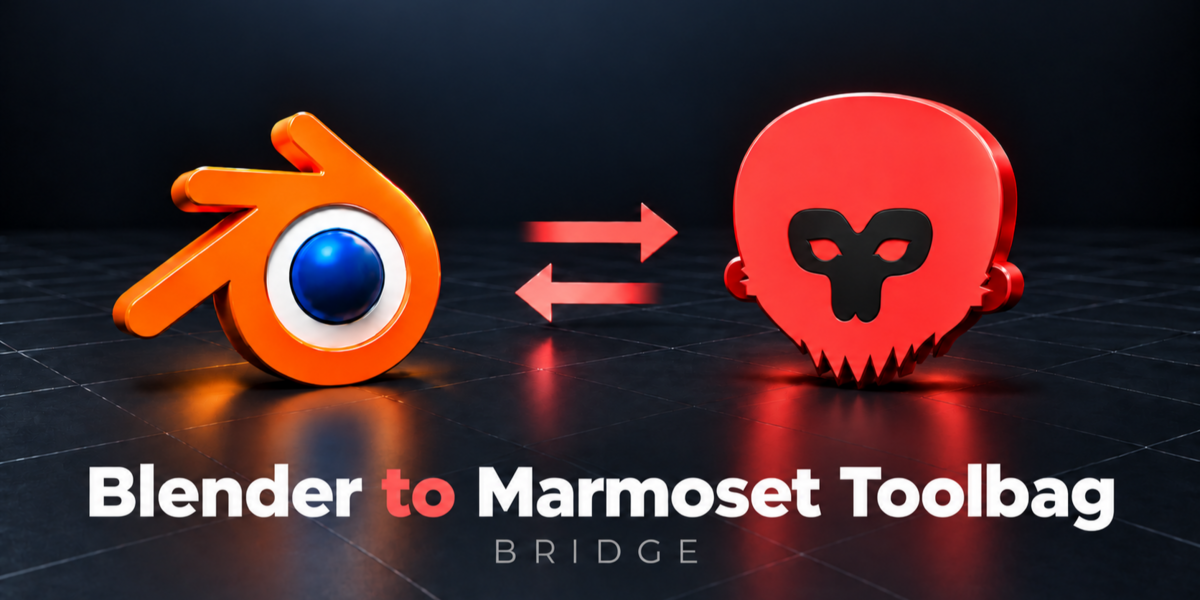
Marmoset Toolbag Bridge
Prepare your bake in Blender, send it to Toolbag, and bring the baked maps back into a material.
Keep high/low tagging, map selection and output settings together in the Universal Bridge sidebar. Build a Toolbag bake scene from marked meshes, or send selected objects for look development.
Windows only · Marmoset Toolbag required separately

Create Bake Scene: from prepared meshes to a Toolbag baker. Demonstrations are edited UI sequences, not real-time performance measurements.
Prepare your high and low meshes
Use Mark as High and Mark as Low to rename meshes with their baking roles. Matching base names form pairs. Create Bake Scene in Marmoset collects all role-marked meshes in the scene, rather than limiting the bake to your current selection. Review the marked objects before sending.

High/low tagging and name-based pairing.
Choose the maps and output you need
Choose Normals, Object Normals, Ambient Occlusion, Curvature, Thickness, Height, Position, Material ID, Object ID and Albedo. Set the output before sending the bake setup to Toolbag.

Choose the maps for your asset.
Output controls cover 512–8192 resolution, 8/16-bit output, 1×/4×/16× samples, padding, file naming and paths. Choose PSD, PNG, TGA or EXR for your workflow; available output behaviour also depends on Toolbag.

Set resolution, samples, file format and output location.
Send for look development, or reuse Toolbag
Send to Marmoset transfers selected meshes for look development without creating a baking setup. Use the detection controls to choose a Toolbag installation. The bridge can reuse an existing Toolbag session when its listener is available.

Send selected objects to Toolbag.

Detect an installation and reuse a listening session.
Bring your baked maps back
After Toolbag writes the maps, select the target mesh and make it active in Blender. Import Baked Maps builds a Principled material and replaces the active mesh’s first material slot. Import When Finished offers automatic import. Save your work and preserve any material you want to keep before importing.

Import the completed maps into Blender.
Keep the supporting tools close
Shared bridge tools bring preflight checks, naming, selection sets and send history into the same workflow. Use them to organise repeated transfers, then choose brand colours, one accent colour or Blender’s built-in icons for the interface.

Preflight, naming, selection sets and send history.

Choose the icon appearance that suits your workspace.
Your first bake
- Install and enable the bridge, open the 3D Viewport sidebar with N, and find Universal Bridge.
- Detect or set your Toolbag executable, prepare the meshes and assign high/low roles.
- Choose maps and output settings, then create the bake scene and complete the bake in Toolbag.
- Make the intended Blender mesh active and import its baked maps.
The Documentation tab covers installation, the exact controls, output paths, troubleshooting and the effects of each operation.
What's included
-
Version 3.0.6 installer:
universal_bridge_marmoset-3.0.6-blender3.3-5.2.zip— the standalone Blender add-on, source and required resources. -
Documentation:
marmoset-toolbag-bridge-3.0.6-documentation.zip— the full manual, FAQs, README and complete GNU GPL v2 text accompanying the source's GPL-2.0-or-later declaration.
Earlier installers remain available for existing users: universal_bridge_marmoset-2.0.3-blender3.3-4.1.zip and universal_bridge_marmoset-2.0.3-blender4.2-5.2.zip. Install one appropriate installer only; do not enable duplicate versions. Open the documentation ZIP separately.
All three purchase options receive the same complete bridge features and downloads. Marmoset Toolbag and other Universal Bridge products are sold separately.
Requirements and compatibility
Marmoset Toolbag is sold separately; its application and license are not included. The packaged manual specifies Toolbag 4 or newer. Exact tested Toolbag builds have not been supplied.
The supplied bridge declares Blender 3.3–5.2. Legacy metadata starts at 3.3; Extension metadata starts at 4.2. These are declared requirements, not a claim that every build in that range has been validated. Exact tested Blender builds are not listed. The package specifies Windows only; macOS and Linux are unsupported.
Read the Documentation tab for the installer details and setup instructions. Contact Tachyon Studio through Superhive or Discord if you need help choosing a configuration.
Choose your purchase option
- Individual: For 1 person (1 seat). Commercial use included.
- Team: For a team of up to 6 people (6 seats). Commercial use included.
- Studio: For a studio of up to 20 people (20 seats). Commercial use included. Need more than 20 seats? Contact us directly.
All three purchase options include the same complete bridge features and downloads. The software’s GPL-2.0-or-later license applies to the add-on.
Read the documentationMORE BY TACHYON STUDIO
Build out your workflow.
Explore these companion bridges. Optional products, sold separately.
RizomUV Bridge
Explore the RizomUV companion bridge.
ZBrush Bridge
Explore the ZBrush companion bridge.
See the full Tachyon collection ↗
Setup, compatibility and more: tachyonstudio.net/tools/marmoset-toolbag-bridge