Mass Exporter
 Dreamy Art World


📚 Mass Exporter Documentation
Version 1.0.0 - Complete User Guide
Professional Multi-Format Batch Exporter for Blender
📖 Introduction
Welcome to Mass Exporter, the ultimate multi-format export tool for Blender! This professional addon streamlines your workflow by enabling you to export your 3D models, scenes, and collections into multiple file formats simultaneously with just one click.
Fast, reliable, and user-friendly batch exporting with automatic texture handling, customizable file naming, and support for 8 popular 3D formats.
Key Highlights
|
🚀 One-Click Export
Export to multiple formats simultaneously with a single button press. |
🎨 8 Format Support
FBX, OBJ, GLTF/GLB, STL, PLY, USD, DAE, and ABC. |
|
🖼️ Automatic Textures
Textures are automatically copied to export folders. |
📝 Smart Naming
Customizable file naming with dynamic tokens. |
|
📊 Progress Tracking
Real-time progress bar with detailed feedback. |
⚙️ Format Presets
Quick presets for common use cases. |
Who is this for?
- Game Developers: Export models for Unity, Unreal Engine, Godot
- 3D Artists: Deliver client work in multiple formats
- Animators: Export animated models with proper settings
- Technical Artists: Batch process large asset libraries
- Hobbyists: Share your creations in various formats
💿 Installation
Requirements
- Blender Version: 3.0 or higher
- Operating System: Windows, macOS, Linux
- Python: Bundled with Blender (no separate installation needed)
Installation Steps
- Download the
MassExporter.zipfile (do not extract it) - Open Blender and go to Edit → Preferences
- Navigate to the Add-ons tab
- Click Install... button at the top
- Browse and select the downloaded
mass_export.zipfile - Click Install Add-on
- Enable the addon by checking the checkbox next to "Import-Export: Mass Exporter"
- The addon panel will appear in the 3D Viewport sidebar under "Mass Exporter" tab
Verification
To verify the addon is installed correctly:
- Open the 3D Viewport
- Press N to open the sidebar
- Look for the "Mass Exporter" tab
- You should see the Mass Exporter panel
🚀 Quick Start Guide
Get started with Mass Exporter in just a few simple steps!
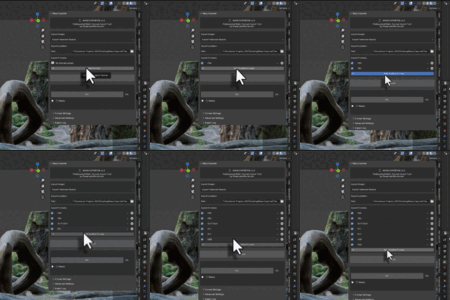
⚡ 30-Second Setup
- Select your objects in the viewport
- Open Mass Exporter panel (press N)
- Click the [+] button to add formats
- Enable formats you want (checkboxes)
- Click Export All Formats
- Done! All formats exported to your chosen folder
Basic Export (5 Steps)
- Select Objects: Select the object(s) you want to export in the 3D Viewport
- Open Panel: Press N and click the "Mass Exporter" tab
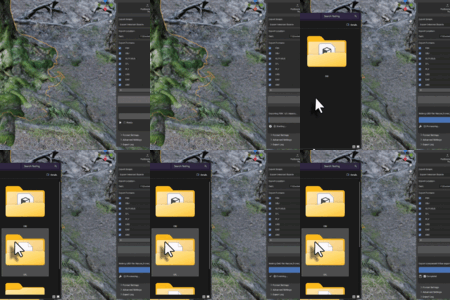
- Set Path: Choose where to save files in "Export Location"
- Add Format: Click "Add Format" and choose your desired format (e.g., FBX)
- Export: Click the large "Export" button
Your files are exported to the chosen location, organized by format in subfolders.
Example Workflows
Workflow 1: Export Single Object to Multiple Formats
- Select your object (e.g., a character model)
- Set export scope to "Export Selected Objects"
- Add FBX format (enable "Pack Textures to Folder")
- Add OBJ format
- Add GLTF format (choose GLB)
- Click Export
Result: You get three files: Character_FBX.fbx, Character_OBJ.obj, Character_GLTF.glb
Workflow 2: Batch Export Multiple Props
- Select all prop objects (Shift+Click)
- Set export scope to "Export Each Object Separately"
- Add FBX format
- Set file pattern to
{object}_{format} - Click Export
Result: Each prop gets its own FBX file: Prop1_FBX.fbx, Prop2_FBX.fbx, etc.
Workflow 3: Export Scene by Collections
- Organize your scene into collections (Environment, Characters, Props)
- Set export scope to "Export Each Collection Separately"
- Add your desired formats
- Set file pattern to
{collection}_{format} - Click Export
Result: Separate files for each collection: Environment_FBX.fbx, Characters_FBX.fbx, Props_FBX.fbx
✨ Core Features
1. Multi-Format Export
Export your models to multiple formats in a single operation.
| Feature | Description |
|---|---|
| Simultaneous Export | Export to all enabled formats at once |
| Format Toggle | Enable/disable formats per export run |
| Independent Settings | Each format has its own configuration |
| Format Presets | Quick presets for common scenarios |
2. Flexible Export Scopes
Choose what to export based on your workflow needs.
| Scope | Description | Use Case |
|---|---|---|
| Selected Objects | Export all selected objects as one file | Export a character with accessories |
| Each Object Separately | Export each selected object as separate file | Batch export multiple props |
| All Collections | Export all collections as one file | Export entire scene organization |
| Each Collection Separately | Export each collection as separate file | Export level sections individually |
| Entire Scene | Export everything in the scene | Complete scene export |
| Only Visible | Export only visible objects | Export specific layer/setup |
3. Customizable File Naming
Use powerful naming patterns with tokens for organized exports.
| Token | Description | Example |
|---|---|---|
{object} |
Object name | Cube, Sphere, Character |
{collection} |
Collection name | Props, Environment, Characters |
{parent} |
Parent object name | Armature, Root |
{index} |
Sequential number (000, 001...) | 000, 001, 002 |
{format} |
Export format | FBX, OBJ, GLTF |
{date} |
Current date | 2024-12-10 |
{time} |
Current time | 14-30-45 |
{object}_{format} produces files like Cube_FBX.fbx
4. Progress Tracking & Logging
Stay informed with real-time feedback during export.
- Progress Bar: Visual indicator showing export progress
- Log Panel: Detailed export information with timestamps
- Status Messages: Current operation being performed
- Export Statistics: Total files exported, time taken
- Error Reporting: Clear error messages if something goes wrong
- Save Logs: Export log to text file for debugging
5. Texture Management
Automatic texture handling for hassle-free exports.
- Auto-Copy Textures: Automatically copy textures to export folder
- Texture Subfolder: Organize textures in a dedicated subfolder
- Relative Paths: Use relative paths for portability
- Format Support: Works with OBJ, FBX, GLTF, DAE formats
- Smart Detection: Finds textures from material nodes
- Deduplication: Prevents duplicate texture files
6. Preset System
Save and load export configurations for quick workflow switching.
- Save Preset: Store current format configuration
- Load Preset: Quickly switch between saved configurations
- Preset Library: Manage multiple preset files
- Share Presets: Export/import presets between projects
- Default Presets: Comes with game engine optimized presets
📦 Supported Formats
Mass Exporter supports 8 industry-standard 3D file formats, each with its own optimized settings.
🎮 FBX (Filmbox)
Best For: Game engines (Unity, Unreal), 3D applications, animation
Extension: .fbx
Key Settings:
- FBX Version: Choose from 7.4 to latest versions
- Apply Scale: Automatic unit conversion
- Apply Modifiers: Bake modifier stack before export
- Mesh/Armature: Include bones and rigging
- Animation: Bake animations with custom frame ranges
- Axis Conversion: Correct coordinate systems
- Texture Export: Pack textures to folder automatically
🌐 glTF/GLB (GL Transmission Format)
Best For: Web 3D, AR/VR, real-time rendering, Three.js
Extension: .gltf (separate) or .glb (binary)
Key Settings:
- Format: glTF Separate (.gltf + textures) or GLB Binary (.glb)
- Compression: Draco compression for smaller file sizes
- Materials: Automatic PBR material conversion
- Textures: Embed or link external textures
- Animation: Export skeletal and morph target animations
- Optimization: Web-optimized output
📐 OBJ (Wavefront Object)
Best For: Universal compatibility, simple geometry, static models
Extension: .obj (+ .mtl for materials)
Key Settings:
- MTL Export: Include material library file
- UV Coordinates: Export texture coordinates
- Normals: Include vertex and face normals
- Vertex Colors: Export painted vertex colors
- Triangulate: Convert faces to triangles
- Texture Copy: Automatically copy texture files
🖨️ STL (Stereolithography)
Best For: 3D printing, CAD applications, CNC machining
Extension: .stl
Key Settings:
- Format: ASCII (text) or Binary (smaller files)
- Batch Mode: Optimized for multiple objects
- Scale: Unit conversion for proper dimensions
- Apply Modifiers: Bake all deformations
- Scene Unit: Respect scene unit settings
📊 PLY (Polygon File Format)
Best For: Point clouds, 3D scanning, mesh data, scientific visualization
Extension: .ply
Key Settings:
- Format: ASCII or Binary
- Vertex Colors: Export color data per vertex
- Normals: Include vertex normal data
- UV Coordinates: Export texture coordinates
🎬 USD (Universal Scene Description)
Best For: Pixar pipeline, VFX, film production, complex scenes
Extension: .usd, .usda (ASCII), .usdc (binary)
Key Settings:
- Format: USD/USDA/USDC variants
- Material Schema: Support for material definitions
- Hierarchy: Preserve object relationships
- Animation: Export animated properties
- Instancing: Optimize repeated geometry
🔄 Collada (DAE)
Best For: Cross-platform compatibility, open standard workflows
Extension: .dae
Key Settings:
- Apply Modifiers: Bake modifier stack
- Triangulate: Convert to triangles
- Materials: Export material definitions
- UV Maps: Include texture coordinates
- Texture Deduplication: Prevents duplicate texture files
💫 Alembic (ABC)
Best For: VFX interchange, animation caching, deformation data
Extension: .abc
Key Settings:
- Frame Range: Export specific animation frames
- Deformation: Cache mesh deformations
- Particle Systems: Export particle data
- Subdivision: Export subdivision surface data
- Transform: Bake transformations
🎯 Export Scopes Explained
Export scopes determine what objects get exported and how they're organized into files.
1. Export Selected Objects
What it does: Combines all selected objects into a single export file per format.
Use when: You want to export multiple objects together (e.g., character with accessories).
Export → One file: Character_FBX.fbx (contains all three)
2. Export Each Object Separately
What it does: Creates a separate export file for each selected object.
Use when: Batch exporting individual assets.
Export → Three files:
- Prop1_FBX.fbx
- Prop2_FBX.fbx
- Prop3_FBX.fbx
3. Export All Collections
What it does: Exports all collections in one file per format.
Use when: You want the entire scene hierarchy in one file.
4. Export Each Collection Separately
What it does: Creates a separate file for each collection.
Use when: Scene is organized into logical groups.
Export → Three files:
- Environment_FBX.fbx
- Characters_FBX.fbx
- Props_FBX.fbx
5. Export Entire Scene
What it does: Exports everything visible in the scene.
Use when: Full scene export is needed.
6. Export Only Visible
What it does: Exports only objects that are visible in viewport.
Use when: You've hidden unwanted objects and want to export what's shown.
📝 File Naming Patterns
Customize how exported files are named using powerful token-based patterns.
Default Pattern
Examples:
Cube_FBX.fbx
Sphere_OBJ.obj
Character_GLTF.glb
Available Tokens
| Token | Description | Example Output |
|---|---|---|
{object} |
Name of the exported object | Character, Sword, Tree |
{collection} |
Collection name (if exporting collections) | Props, Environment |
{parent} |
Parent object name | Armature, Root |
{index} |
Sequential number (000, 001, 002...) | 000, 001, 002 |
{format} |
Export format name | FBX, OBJ, GLTF |
{date} |
Current date (YYYY-MM-DD) | 2024-12-10 |
{time} |
Current time (HH-MM-SS) | 14-30-45 |
Example Patterns
Pattern: {object}_{format} (Default)
Character_FBX.fbx
Character_OBJ.obj
Pattern: {object}_{index}_{format}
Prop_000_FBX.fbx
Prop_001_FBX.fbx
Prop_002_FBX.fbx
Pattern: {date}_{object}_{format}
2024-12-10_Character_FBX.fbx
2024-12-10_Weapon_FBX.fbx
Pattern: {collection}_{object}_{format}
Props_Table_FBX.fbx
Props_Chair_FBX.fbx
Environment_Tree_FBX.fbx
🖼️ Texture Export Guide
Mass Exporter automatically handles texture export for all supported formats, ensuring your models always have their materials when imported elsewhere.
How Texture Export Works
FBX Texture Export
- Add FBX format to your export list
- Click on FBX in Format Settings panel
- Enable "Pack Textures to Folder" checkbox
- Export your model
Result: All textures are copied to the same folder as the FBX file.
OBJ Texture Export
Automatic! When "Write Material File" is enabled (default), textures are automatically copied and referenced in the .mtl file.
DAE (Collada) Texture Export
Automatic with smart deduplication! If you have materials with names like "Material" and "Material.001" pointing to the same texture, only one copy is created.
GLTF/GLB Texture Export
- GLB Format: Textures are embedded in the binary file
- GLTF Format: Textures are separate files in the same folder
Texture Types Supported
| Type | How It's Handled |
|---|---|
| External Images | Copied from their original location |
| Packed Images | Saved to export folder first, then copied |
| Generated Images | Saved to export folder with appropriate format |
Troubleshooting Texture Export
Problem: Textures not exporting with FBX
Solution: Make sure "Pack Textures to Folder" is enabled in FBX format settings.
Problem: Missing .mtl file for OBJ
Solution: Ensure "Write Material File" is enabled in OBJ settings (it's on by default).
Problem: Textures in wrong location
Solution: Textures are always exported to the same folder as the model file. This is by design for maximum compatibility.
🔧 Troubleshooting
Common issues and their solutions to help you get the most out of Mass Exporter.
Common Issues & Solutions
Issue: Export button does nothing
Cause: No formats enabled or no export path set
Solution:
- Add at least one export format
- Enable the format (checkbox must be checked)
- Set a valid export path
Issue: "No objects selected" error
Cause: Export scope is set to "Selected Objects" but nothing is selected
Solution:
- Select objects in 3D viewport before exporting, OR
- Change export scope to "Entire Scene" or "Only Visible"
Issue: Files exported to wrong location
Solution: Check the "Export Location" path in the main panel. Use the folder icon to browse to the correct location.
Issue: Textures missing after export
For FBX: Enable "Pack Textures to Folder" in format settings
For OBJ: Ensure "Write Material File" is enabled
For GLTF: Choose GLB format for embedded textures
Issue: Progress bar stuck
Solution:
- Check Blender's console (Window → Toggle System Console on Windows)
- Look for error messages
- If frozen, restart Blender and try with simpler settings
Issue: Exported file won't open in target application
Solution:
- Verify the target application supports the format
- Try different format settings (e.g., FBX with different axis conversion)
- Check file size - very large files may take time to load
- Ensure textures are in the same folder as the model file
Issue: Duplicate .001 files created (DAE)
Status: ✅ Fixed in v1.0! If you still see this, please report it.
Issue: Unwanted .fbm folders (FBX)
Status: ✅ Fixed in v1.0! The addon now prevents these folders from being created.
Getting Help
If you encounter issues not covered here:
- Check the Console: Window → Toggle System Console (Windows) or launch Blender from terminal (Mac/Linux)
- Enable Debug Logging: Open Advanced Settings panel and enable "Debug Logging"
- Contact Support: Check the marketplace listing for support options
• Note your Blender version
• Note which format was being exported
• Check the console for error messages
• Try with a simple test object first
⚙️ Technical Details
System Requirements
- Blender: 3.0 or higher
- Python: Bundled with Blender (no external installation needed)
- OS: Windows 10/11, macOS 10.13+, Linux (Ubuntu 18.04+)
- Disk Space: Minimal (addon ~500KB) + export space
Performance Considerations
| Operation | Performance | Notes |
|---|---|---|
| Single object export | Fast (<1s) | Depends on format and complexity |
| Batch export (10 objects) | Moderate (5-15s) | Sequential processing |
| Texture copying | Fast (per texture) | Depends on file size |
| Large scenes (>1000 objects) | Variable | Use collection-based export |
Changelog
Version 1.0.0 (2024)
Initial Release
- ✨ Multi-format export support (8 formats)
- ✨ Flexible export scopes
- ✨ Automatic texture export
- ✨ Customizable file naming
- ✨ Format-specific settings
- ✨ Progress tracking
- ✨ Format presets
- 🐛 Fixed: FBX .fbm folder creation
- 🐛 Fixed: DAE duplicate .001 textures
- 🔧 Disabled: Batch Processing (not ready)
- 🔧 Disabled: Parallel Export (not ready)
Future Roadmap
Version 1.1 (Planned)
- Bug fixes based on user feedback
- Performance optimizations
- Additional format presets
Version 2.0 (Planned)
- Batch Processing implementation
- Parallel Export implementation
- Enhanced animation export
- Custom export scripts
- Cloud export integration
License & Credits
License: GPL-3.0-or-later
Support: Available through marketplace support channels
We hope this tool makes your Blender workflow more efficient and enjoyable.
Mass Exporter v1.0 - Professional Multi-Format Export Tool
License: GPL-3.0-or-later | Blender 3.0+
Complete documentation for marketplace distribution.
-
$49.99
-
$149.99
 Included
Includes 12 months of
- Support from Dreamy Art World
- Product updates
Extend this product’s Support Period +12 months: 50% of product price
Have questions before purchasing?
Login to message
| Dev Fund Contributor | |
| Published | 9 months ago |
| Blender Version | 3.0 - 5.1 |
| Extension Type | N/A |
| Render Engine Used | Arnold, Cycles, Eevee, Freestyle, Mental-Ray, Vray |
| License | GPL |

Discover more products like this
fbx Blender Export Obj addon for blender asset export Add-on Exporter 3D Export Presets STL Dae 3d-workflow-automation gltf