Mass Exporter
 Dreamy Art World


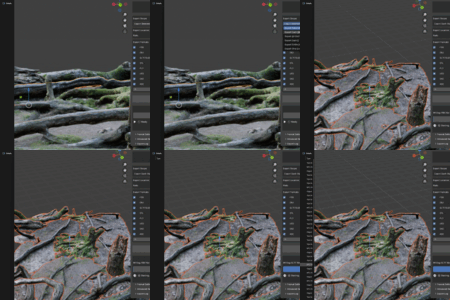
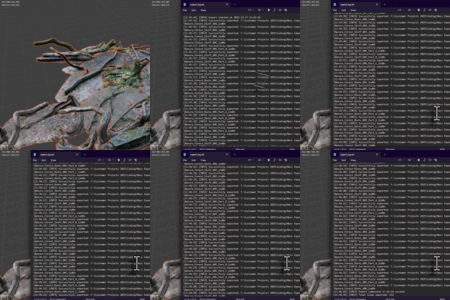
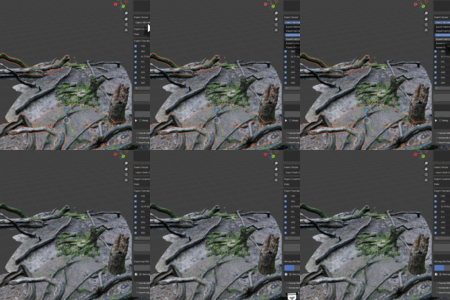
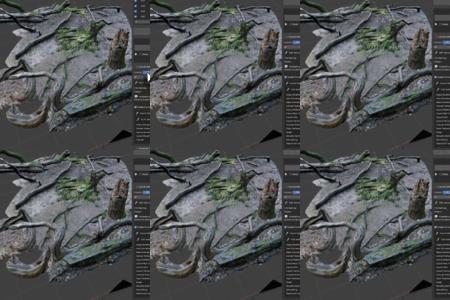
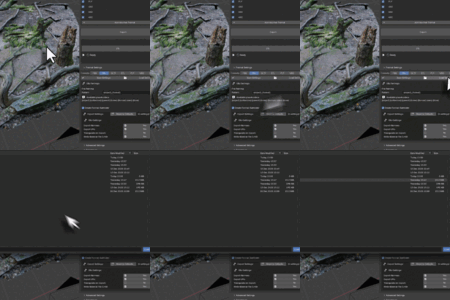
Q: What is Mass Exporter?
A: Mass Exporter is a Blender add-on that allows you to export your 3D models and scenes to multiple file formats (FBX, OBJ, GLTF/GLB, STL, PLY, USD, DAE, ABC) simultaneously with a single click. It's designed to streamline your workflow and save time.
Q: Who is this tool for?
A: It's perfect for game developers (Unity, Unreal, Godot), 3D artists delivering client work, animators, technical artists managing asset libraries, and hobbyists who need to share creations in various formats.
Q: How is this different from Blender's built-in exporters?
A: Blender's exporters require you to export each format separately. Mass Exporter lets you select multiple formats at once and exports them all in one operation, with automatic texture handling and customizable file naming.
Q: What versions of Blender are supported?
A: Mass Exporter requires Blender 3.0 or higher. It works on Windows, macOS, and Linux.
Q: How do I install Mass Exporter?
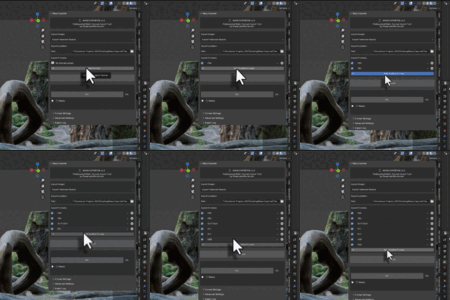
A: Download the mass_export.zip file, open Blender, go to Edit → Preferences → Add-ons, click Install, select the ZIP file, then enable the add-on by checking the checkbox next to "Import-Export: Mass Exporter".
Q: I installed it but can't see the panel. Where is it?
A: Press N in the 3D Viewport to open the sidebar, then click on the "Mass Exporter" tab. If you don't see it, make sure the add-on is enabled in Preferences.
Q: Can I install it on multiple computers?
A: Yes, you can install it on all computers where you use Blender.
Q: What does "multi-format export" mean?
A: It means you can export your model to several different file formats at the same time. For example, you could export to FBX, OBJ, and GLTF all with one button click.
Q: What are "export scopes"?
A: Export scopes determine what gets exported. You can choose to export selected objects together, each object separately, entire collections, or only visible objects. This gives you flexibility in how you organize your export
Q: Can I customize how exported files are named?
A: Yes! You can use tokens like {object}, {collection}, {format}, {date}, {index} in naming patterns. The default is {object}_{format} which creates files like MyModel_FBX.fbx.
Q: Can I export animations?
A: Yes, FBX, GLTF, DAE, and ABC formats support animation export. Enable animation options in each format's settings.
Q: How do I start exporting?
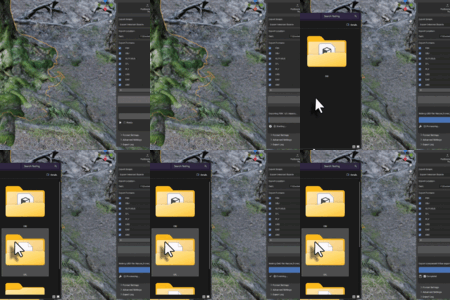
A: 1) Select your objects, 2) Open Mass Exporter panel (press N), 3) Set export location, 4) Add formats you want, 5) Click Export.
Q: Can I save my favorite format settings?
A: Yes! Use the preset system. Configure your formats exactly how you want them, then click "Save Preset". You can load it later for consistent exports.
Q: What if I only want to export certain formats sometimes?
A: Each format has a checkbox. Simply uncheck formats you don't want to export for that particular job.
Q: How do I handle complex scenes with many objects?
A: Organize your scene using Blender collections, then use "Export Each Collection Separately". This keeps your exports organized and manageable.
Q: Can I export materials with the models?
A: Yes, all supported formats can export materials. FBX, GLTF, and USD have the best material support, including PBR materials.
Q: What happens to my original Blender files?
A: Nothing! Mass Exporter never modifies your original Blender files. It only reads from them and creates new export files.
Q: Export is taking a very long time. Is this normal?
A: For complex scenes with many objects and textures, export can take time. Check the progress bar for status. If it seems stuck, check Blender's console for error messages.
Q: Can I automate exports with this tool?
A: While v1.0 doesn't have full batch processing, you can use Blender's scripting to trigger Mass Exporter operations. Full batch processing is planned for v2.0.
Q: Can I export from the command line?
A: Currently, Mass Exporter is designed for use within Blender's UI. Command line support may be added in future versions.
Q: How do I update to a new version?
A: Download the new version, go to Blender Preferences → Add-ons, find Mass Exporter, click "Remove", then install the new version following the same installation steps.
Q: How many formats can I export at once?
A: All 8 supported formats! However, exporting many formats for complex scenes will take more time and disk space.
Q: What are the current limitations?
A: v1.0 doesn't have batch processing or parallel export (coming in v2.0). Some advanced animation features are also planned for future updates.
Q: Is there a file size limit?
A: No specific limit, but very large exports may be limited by your available disk space and memory.
Q: Where can I get help if I have problems?
A: Check the complete documentation first. If you still need help, contact support through the marketplace where you purchased the add-on.
Q: Will there be more formats added?
A: Possibly! User feedback helps determine which formats to add. Popular requests will be considered for future updates.
Q: Can I request a feature?
A: Feature requests are welcome! They help guide the development of future versions.
-
$49.99
-
$149.99
 Included
Includes 12 months of
- Support from Dreamy Art World
- Product updates
Extend this product’s Support Period +12 months: 50% of product price
Have questions before purchasing?
Login to message
| Dev Fund Contributor | |
| Published | 9 months ago |
| Blender Version | 3.0 - 5.1 |
| Extension Type | N/A |
| Render Engine Used | Arnold, Cycles, Eevee, Freestyle, Mental-Ray, Vray |
| License | GPL |

Discover more products like this
fbx addon for blender gltf Dae asset export STL Obj 3d-workflow-automation Blender Export Add-on Exporter 3D Export Presets