 CSMX.eu
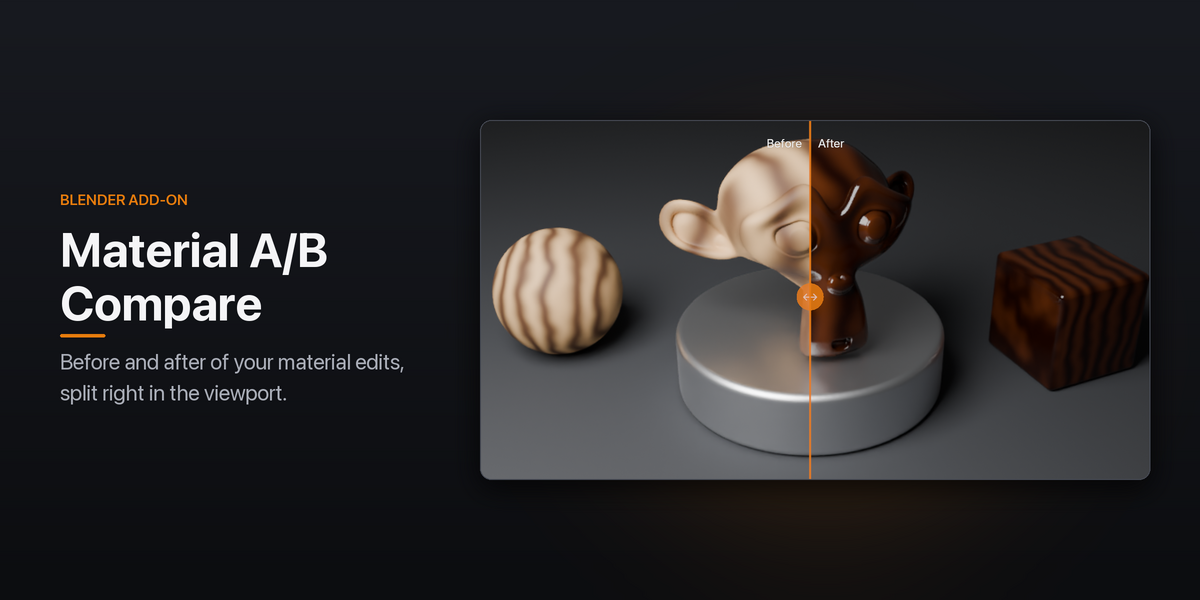
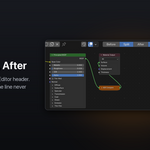
See your material edits next to the original.
Tweaking a material means guessing whether it got better: you change a value, forget what it looked like a minute ago, and end up duplicating the material or undoing back and forth to compare.
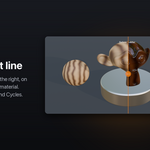
Material A/B Compare takes a snapshot of the material and splits the viewport like a before/after wipe in color grading: the original on the left of a line, your edits on the right, on every object that uses the material. Drag the line across your objects, flip to the whole before or after, then keep the edits, keep both versions, or go back.
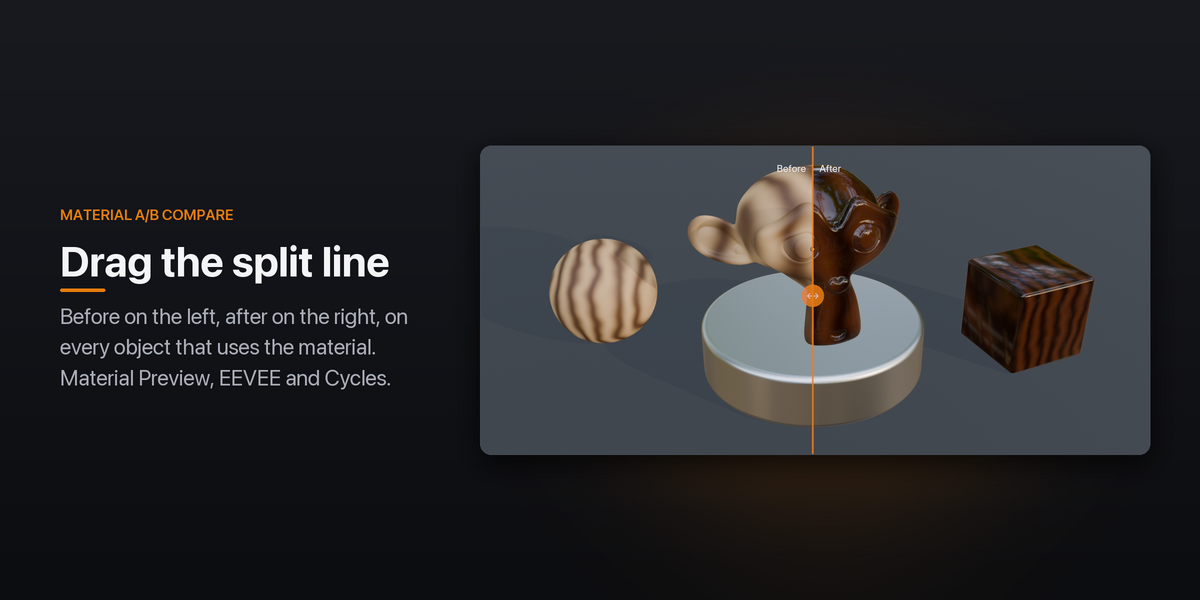
A split line you drag across your objects
Press A/B Compare in the Shader Editor header and keep editing as usual. Before is left of the line, after is right of it, on every object with that material. Grab the round handle to wipe the line across the scene. It works in Material Preview, EEVEE and Cycles, and in camera view the line follows the camera frame.
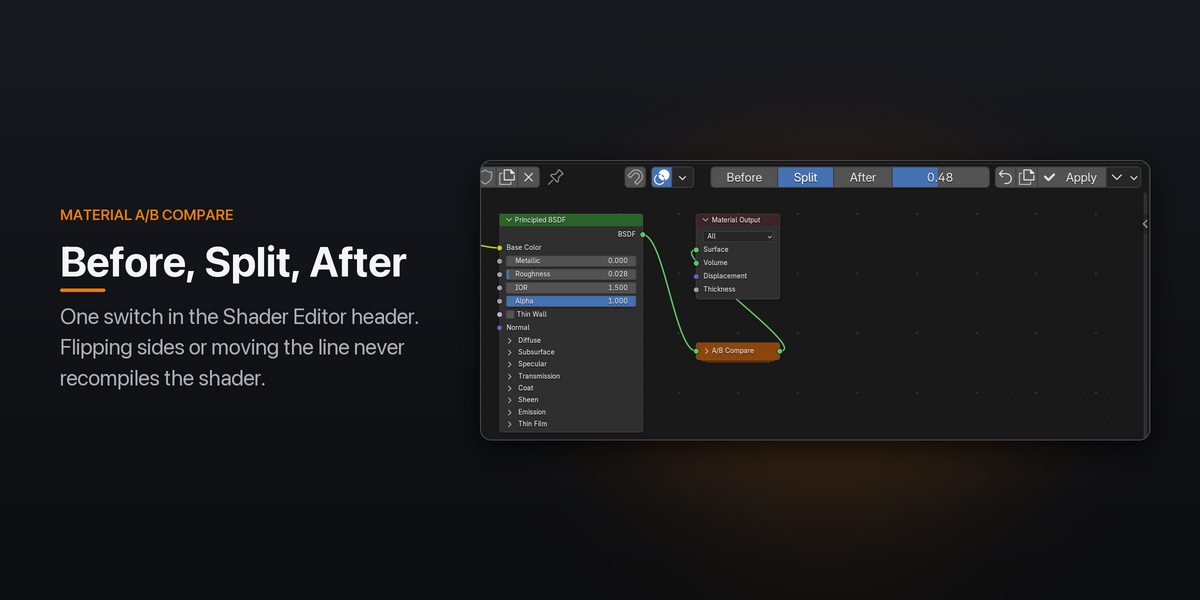
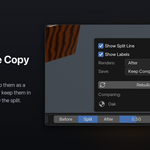
Before, Split, After
One switch in the Shader Editor header shows the whole object before, split, or after, with a slider for the line's position. Switching or moving the line only changes a value, so EEVEE never recompiles the shader.

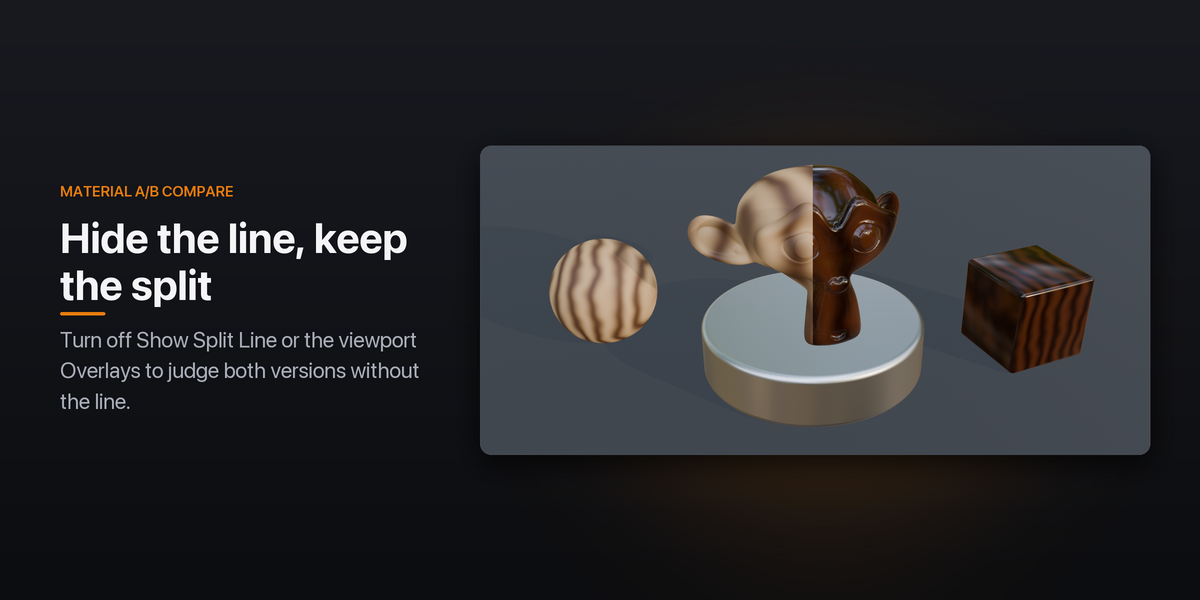
Hide the line, keep the split
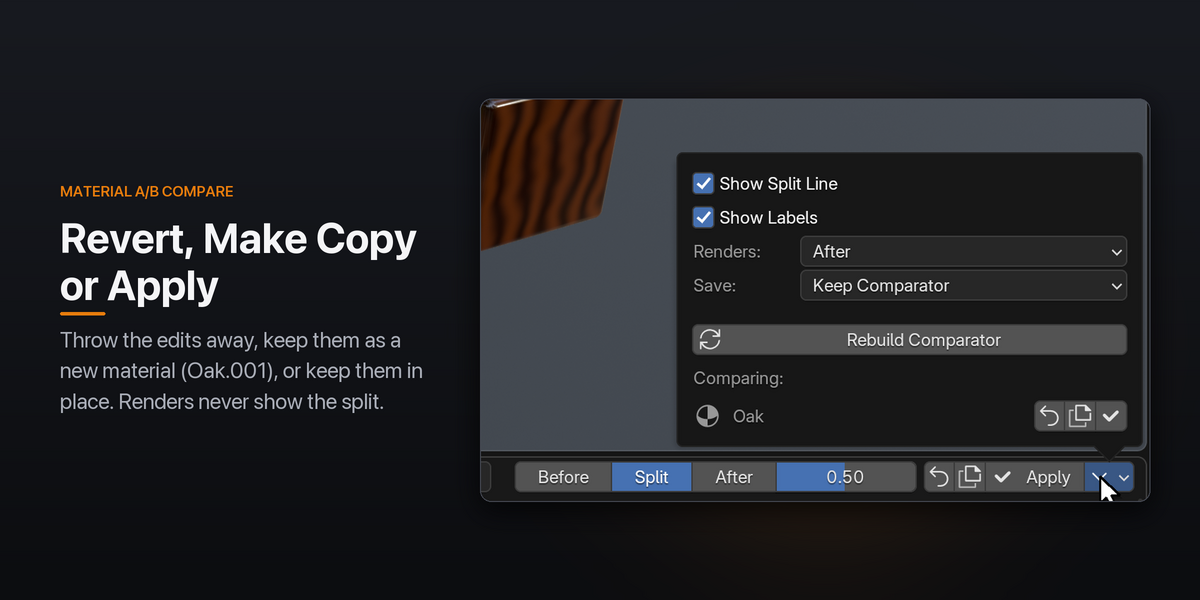
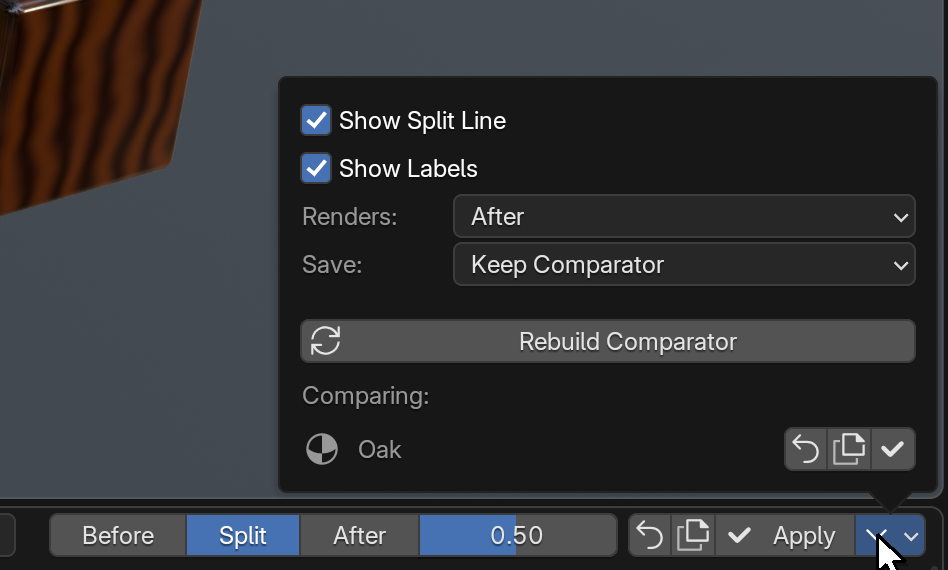
The line, its labels and the drag handle are only drawn on top of the viewport. Untick Show Split Line in the ⌄ menu, or turn off the viewport's Overlays, to judge the two versions without them. The split itself stays; switch to Before or After to see one side.
Works with any material
Node groups are snapshotted too, including groups inside groups, so edits inside a shared group show up on the after side only. Connect a new shader straight to the Material Output and it's picked up automatically. Compare several materials at once; they all follow the same split line.
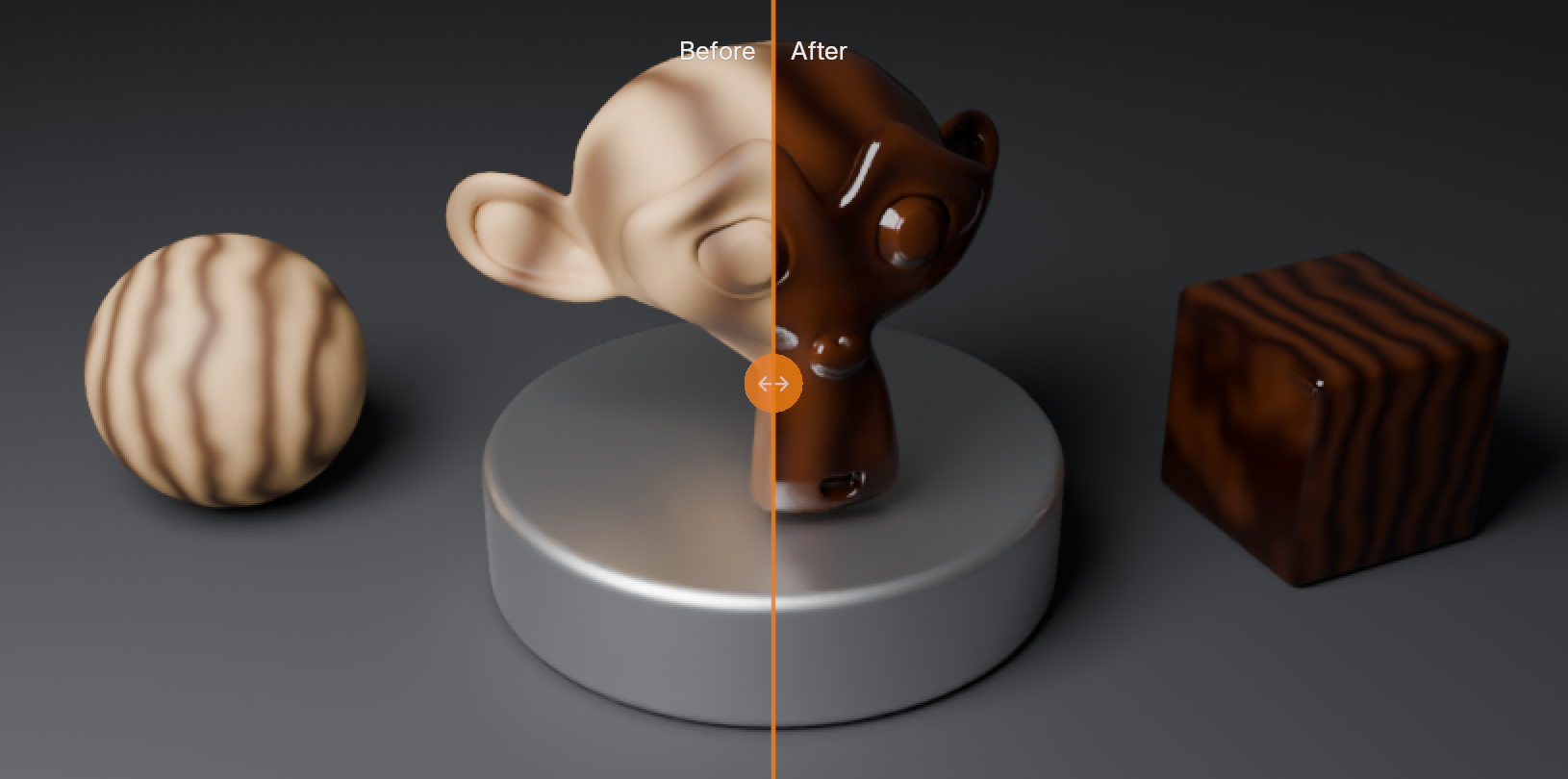
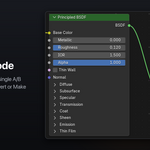
One clean node
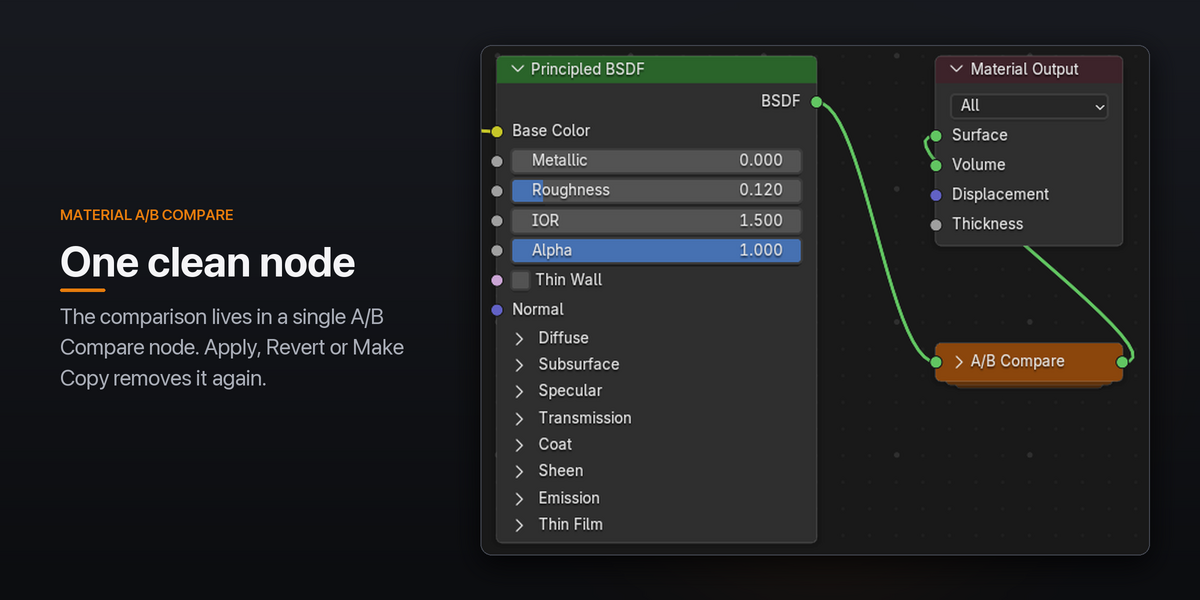
The comparison lives in a single A/B Compare node next to the Material Output. Delete it by accident and the header offers Repair A/B. When you Apply, Revert or Make Copy, the node removes itself.
Revert, Make Copy or Apply
- Revert throws the edits away and brings back the snapshot: nodes, material settings and any node groups you changed, for every material that shares them.
- Make Copy keeps your edits as a new material (Oak.001) and puts the original back, so you have both versions.
- Apply keeps the edits and removes the comparison. The material ends up exactly as you built it.
Built to stay out of your way
- Renders never show the split. F12, animation and command-line renders show the after version (or before, if you prefer), then the split comes back.
- Undo works. The comparison is stored in the material, so Ctrl Z, saving and reopening the file all keep it in step.
- Lives in the Shader Editor header. Nothing new to learn, no shortcuts taken.
- Saved with the file. Reopen the .blend and the comparison is still there. Or have it save a clean material that renders without the add-on.
Requirements
Blender 4.2 LTS or newer, tested on 4.2 and 5.2. Windows, macOS and Linux.
