Material a/B Compare
 CSMX.eu
Material A/B Compare: Documentation
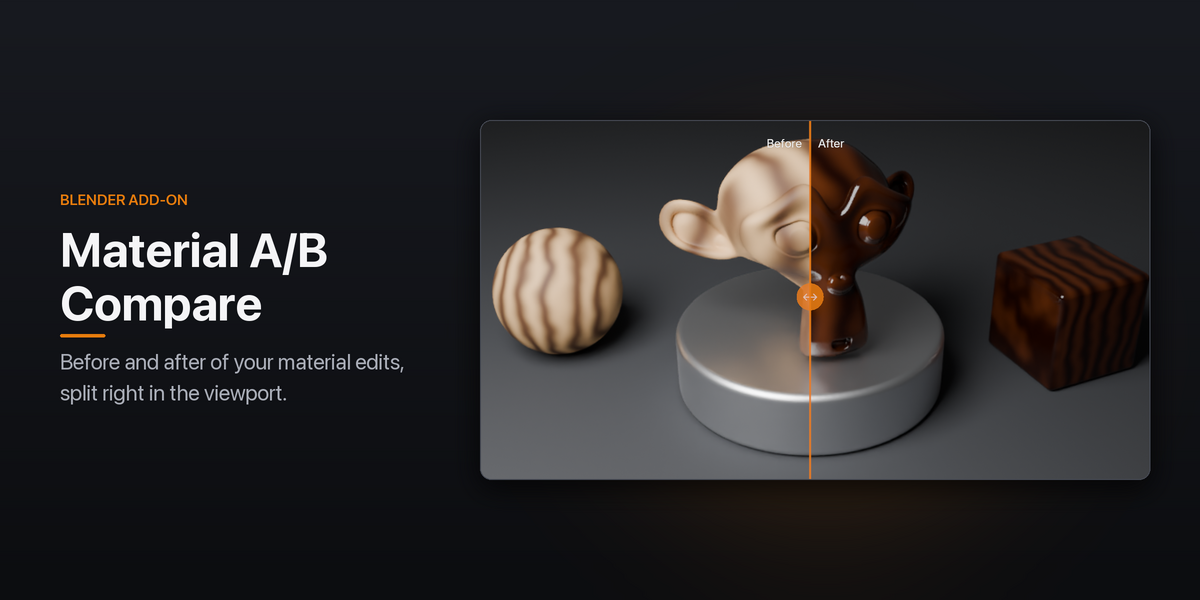
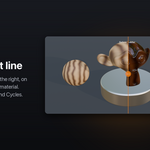
Material A/B Compare shows a material's current state next to a snapshot of it, split by a line in the 3D viewport, on every object that uses the material. Edit as usual, compare as you go, then keep the edits, keep both versions, or go back.
Requirements
- Blender 4.2 LTS or newer (tested on 4.2 and 5.2)
- Windows, macOS or Linux
- No internet connection or external tools needed
Installation
- Download the
.zipfile. Don't unzip it. - In Blender, open Edit › Preferences › Add-ons.
- Open the ⌄ menu in the top-right corner and choose Install from Disk….
- Select the
.zipfile. The add-on is enabled automatically.
To update, install the new .zip the same way. Blender replaces the old version.
Getting started
- Select an object and open its material in the Shader Editor.
- Set the 3D Viewport to Material Preview or Rendered (EEVEE or Cycles).
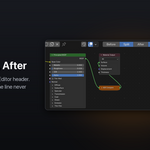
- Press A/B Compare in the Shader Editor header. This takes the snapshot.
- Edit the material. Your edits show right of the split line; the snapshot stays on the left.
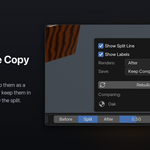
- When you're done, press Apply (keep the edits), Make Copy (keep both) or Revert (go back).
Features
The split line
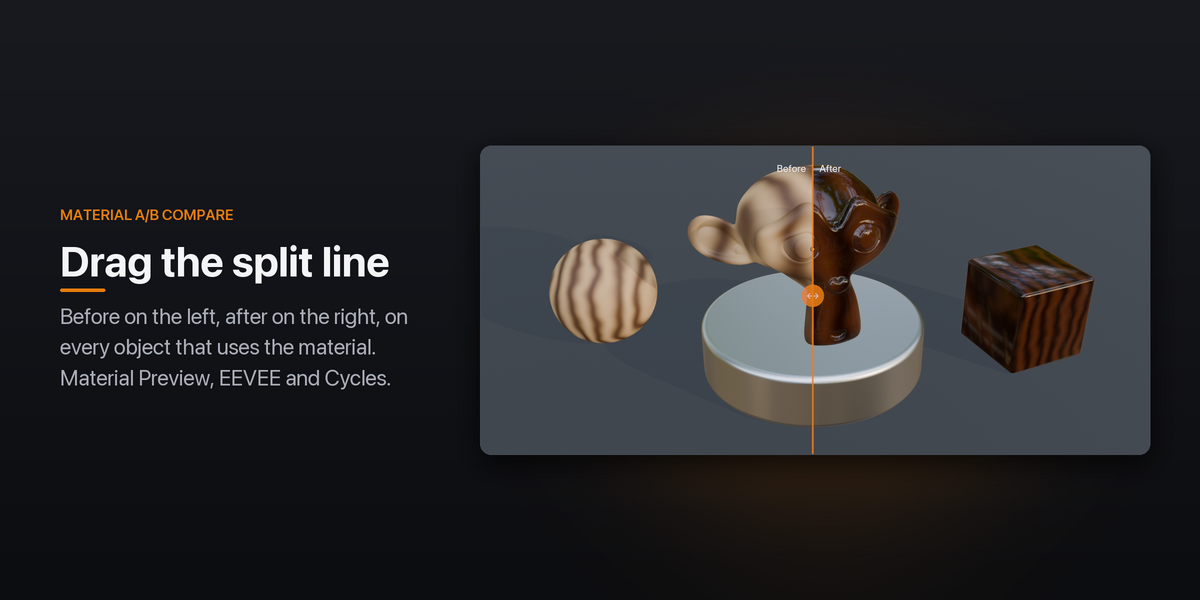
Before is left of the line, after is right of it, on every object that uses the material. Drag the round handle on the line to move it, or use the slider in the header. Esc or right-click while dragging puts it back.
- Viewport or camera: the position runs from the left to the right edge of the viewport, or of the camera frame in camera view.
- Labels: "Before" and "After" are drawn next to the line. Both can be turned off in the options.
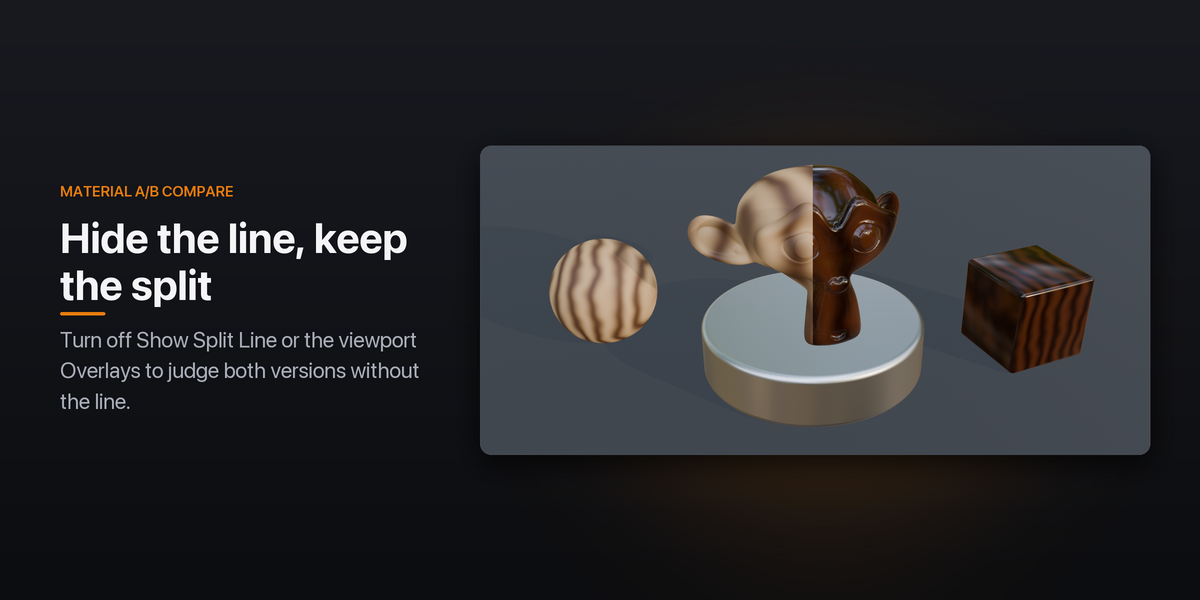
- Overlays: the line, labels and handle hide when the viewport's Overlays are off (the handle also follows the Gizmos toggle). The material still shows the split; use Before or After to see one side.
- Several materials: compare as many materials as you like. They all follow the same line.
Before, Split, After
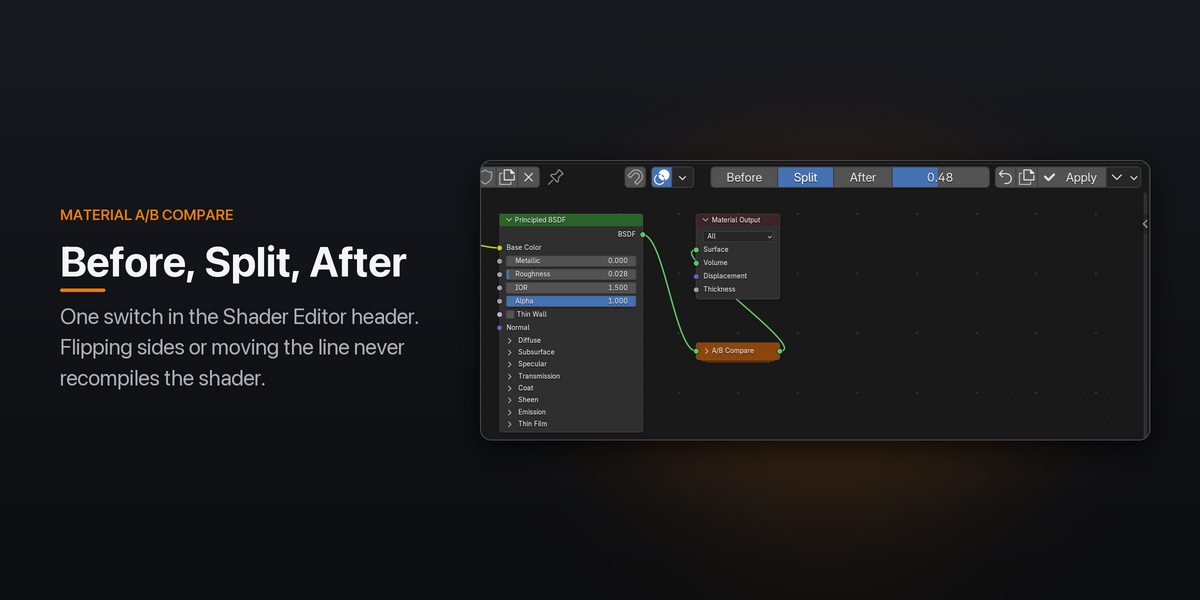
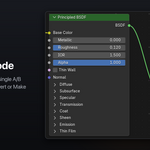
The switch in the header shows the whole object Before, Split, or After. Switching and moving the line change only a value, so EEVEE doesn't recompile the shader.
Finishing a comparison
| Button | What it does |
|---|---|
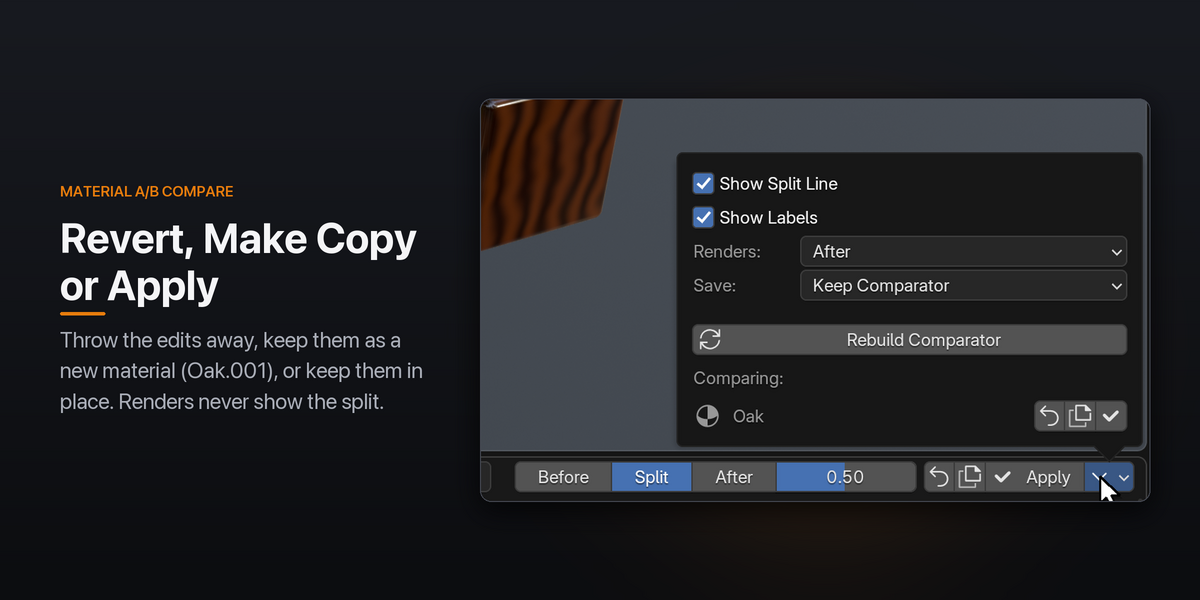
| Revert (⟲) | Throws the edits away: nodes, material settings (blend mode, shadows, backface, displacement method, viewport display, Cycles settings) and node groups you changed. Shared groups are restored for every material that uses them. Asks for confirmation. |
| Make Copy (⧉) | Saves the edits as a new material with the next free name (Oak.001, Oak.002 …) and reverts the original. Objects keep using the original; the copy gets a fake user so it's kept. Node groups you edited are copied for it too. |
| Apply (✓) | Keeps the edits and removes the comparison. The material ends up exactly as you built it. |
The ⌄ menu next to Apply has the options and lists every material being compared, each with its own Revert, Make Copy and Apply buttons.
Editing while comparing
- Node groups are snapshotted too, including groups inside groups. Edits inside a shared group show on the after side only, until you Apply.
- New connections straight to the Material Output are picked up automatically, so the split keeps working.
- Separate EEVEE and Cycles outputs are both compared.
The A/B Compare node
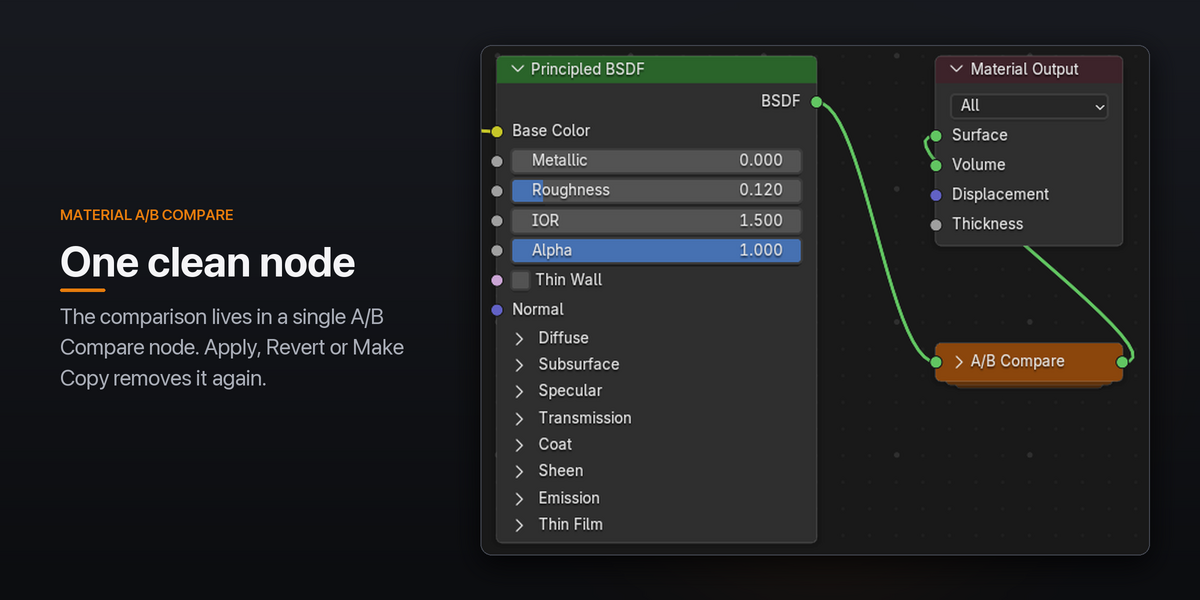
The comparison lives in one collapsed A/B Compare node next to the Material Output. Leave it alone; Apply and Revert remove it. If it gets deleted or broken, the header shows Repair A/B (rebuild it from the snapshot) and a trash button (Clean Up: end the comparison and keep the material as it is now). Rebuild Comparator in the ⌄ menu does the same repair at any time.
Options
Open the ⌄ menu next to Apply, or Edit › Preferences › Add-ons › Material A/B Compare.
| Option | Default | What it does |
|---|---|---|
| Show Split Line | On | Draw the line and its handle in the viewport. |
| Show Labels | On | Label the sides "Before" and "After". |
| Renders | After | What F12, animation and command-line renders show during a comparison: After or Before. Renders never contain the split. |
| Save | Keep Comparator | Keep Comparator saves the A/B Compare node in the file; renders with the add-on installed are still clean, but rendering the file without it (on a render farm, for example) shows the split. Save Clean Material saves the material without it; the comparison continues after saving and when you reopen the file. |
| Line Color, Line Width | Orange, 2 | Look of the line (Preferences only). |
Good to know
- Viewport Render (View › Viewport Render Image or Animation) captures the viewport as you see it, split included. Switch to After first.
- Blend mode, shadow mode, backface culling and displacement method apply to both sides; only the node tree differs.
- While comparing, the shader evaluates both versions, so it costs about twice as much until you Apply. Cycles restarts viewport sampling when the line moves.
- Starting a comparison and Revert use the node clipboard, so they replace what you had copied.
- Solid and Wireframe shading don't use materials and show no split.
- Undo, redo, saving and reopening the file keep the comparison in step. Disabling the add-on takes the A/B Compare node out; enabling it brings the comparison back.
Support
Questions or problems: send me a message on Superhive. Please include your Blender version and, if possible, a small .blend file that shows the problem.
Have questions about this product?
Login to message
| Blender Extension Compatible | Yes |
| Published | 5 days ago |
| Blender Version | 4.2 - 5.2 |
| Extension Type | Add-on |
| Render Engine Used | Cycles, Eevee |
| License | GPL |
