Material Cleaner Mini
 bashpacks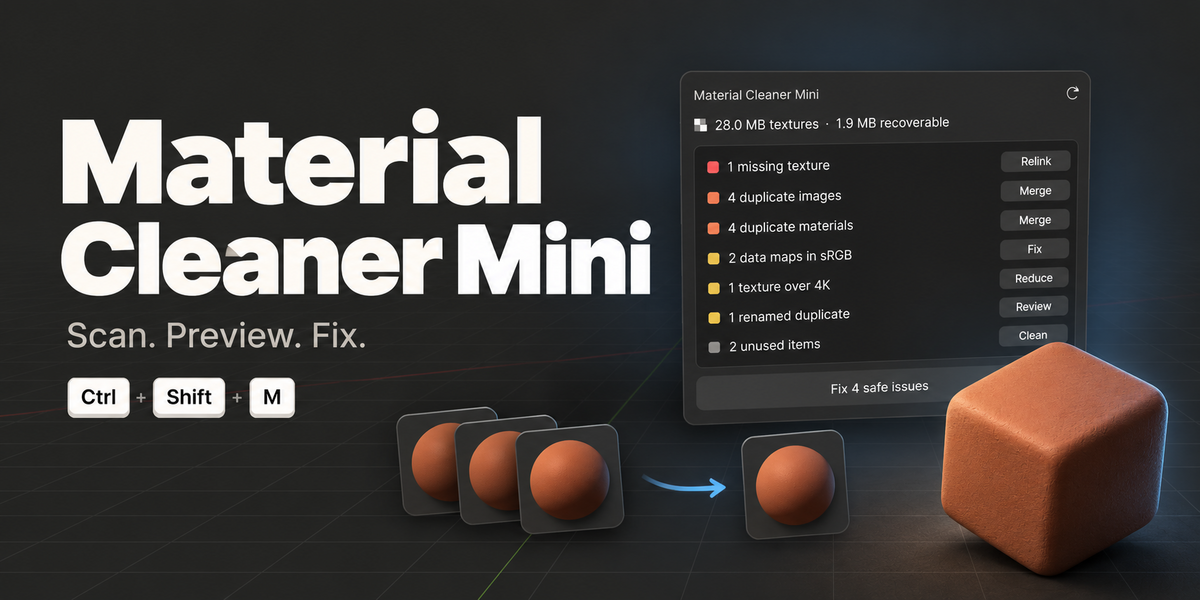
Material Cleaner Mini 0.1.1 · bashpacks (Rimas Albert) · GPL-3.0-or-later. Separate paid standalone product; Pro is not required or bundled. Support: Contact the creator on this product page.
Install
- Download material-cleaner-mini-0.1.1.zip. Don't unzip it.
- In Blender open Edit → Preferences → Add-ons.
- Open the ⌄ menu at the top right and choose Install from Disk…, then pick the ZIP.
- Tick Material Cleaner Mini to enable it.
Open it
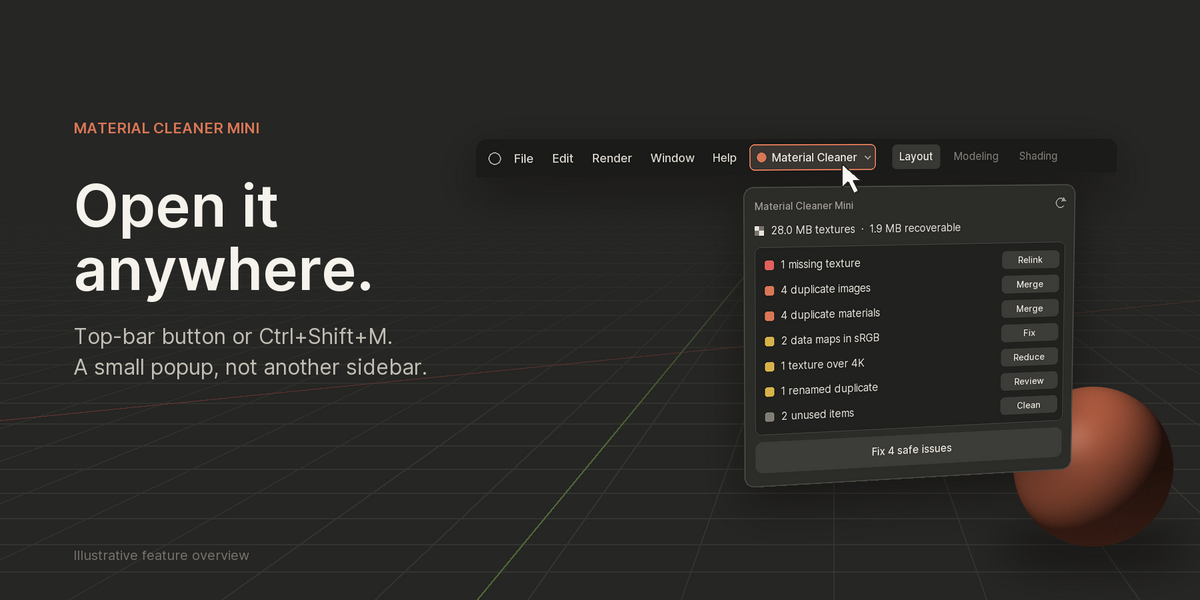
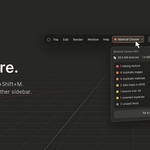
Click Material Cleaner in the top bar (right after Help), or press Ctrl+Shift+M in any editor. A small popup opens and scans the file straight away. Scanning never changes anything. If the file changed since the last scan, the popup rescans when it opens; the ⟳ button rescans any time.
Read the findings
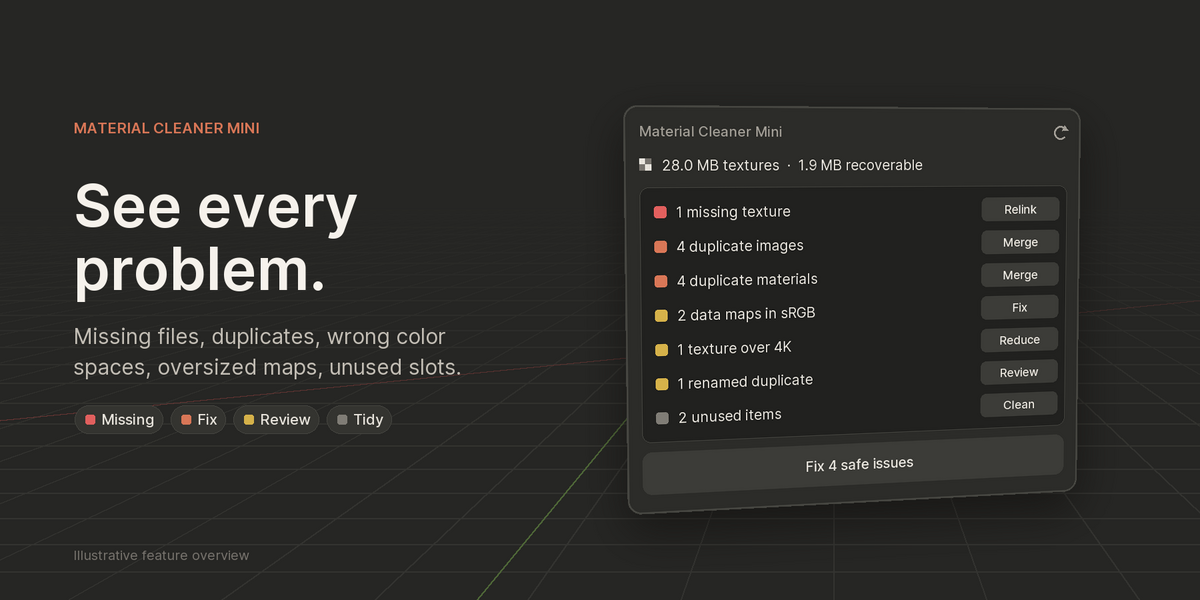
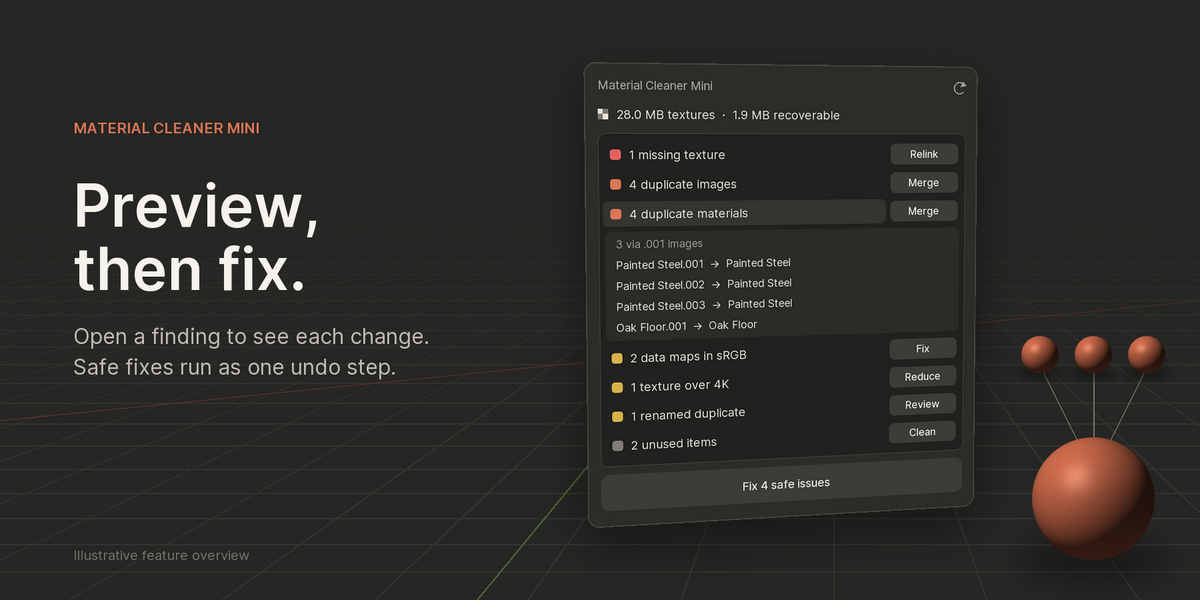
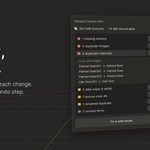
Each row is one kind of problem, with a button to fix it. Click a row's title to see every item it will change before you press anything.
- Red: missing texture files
- Orange: duplicate images and duplicate materials
- Yellow: data maps tagged sRGB, textures over 4K, renamed duplicates
- Grey: unused material slots and orphan materials/images
Fix the safe ones
Fix N safe issues runs, in this order: merge duplicate images (same file, color space and alpha) → merge identical materials → remove unused slots and orphans. It all happens as one undo step, so Ctrl+Z restores everything. Each fix touches only what its row listed.
The ones that need you
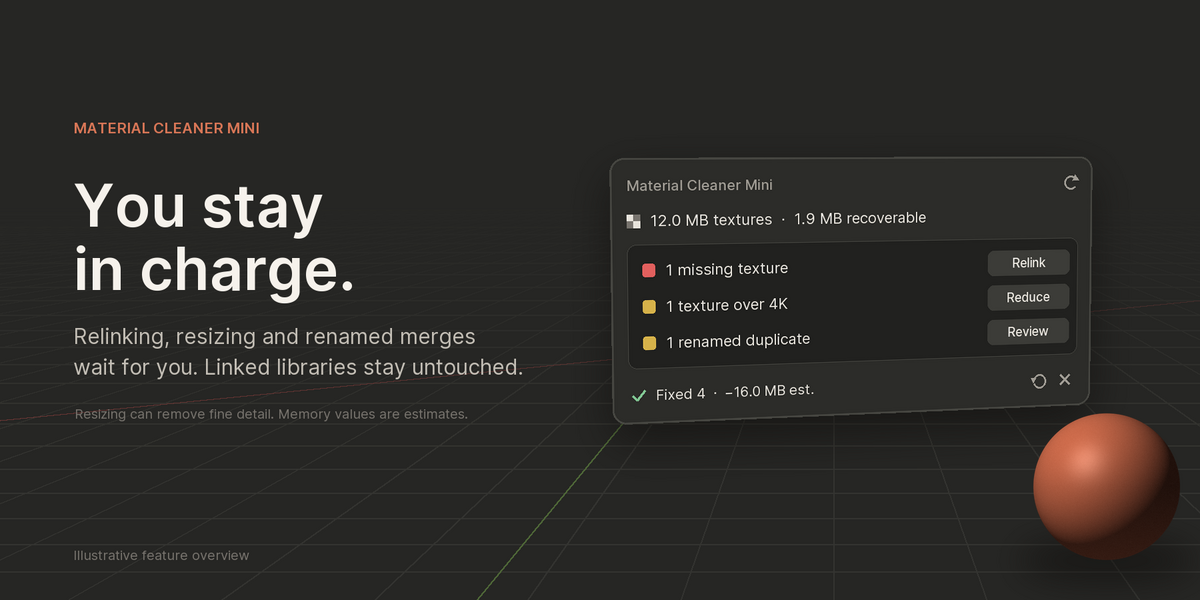
Color-space Fix: a separate confirmed action, excluded from the safe batch. Changing a shared image to Non-Color also changes uses in World, compositor and Geometry Nodes. Review those uses before confirming.
- Relink (missing textures): choose a folder. Mini searches it and its subfolders for the missing filenames and points the images at what it finds.
- Reduce (textures over 4K): pick 1K, 2K or 4K. Mini makes smaller packed copies and switches the material to them. This lowers detail; Ctrl+Z restores the originals before you save.
- Review (renamed duplicates): materials with identical content but different names. After you confirm, users are moved to the most-used one.
Good to know
- Materials and images linked from other .blend files are never merged or removed.
- Memory values are estimates of decoded texture size, not measured RAM or VRAM. PNG and JPEG sizes are read from the file header; EXR/HDR/TIFF sizes are counted once Blender has loaded them.
- Materials merge only when nodes, settings and textures are identical.
- Before a big cleanup on an important file, save a copy first.
Have questions about this product?
Login to message
| Published | 6 days ago |
| Blender Version | 5.1 |
| Extension Type | N/A |
| Render Engine Used | Cycles, Eevee |
| License | GPL |
Discover more products like this
optimization memory duplicates Workflow color-space missing textures Scene Management cleanup materials textures