Material Id & Texture Set Manager
 To The Grid Studio


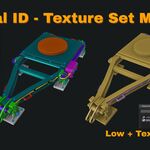

INSTALLATION
- Download material_id_texture_set.zip
- Open Blender
- Go to Edit > Preferences > Add-ons
- Click "Install" button at the top
- Select material_id_texture_set.zip
- Enable the checkbox next to "Material ID & Texture Set Manager"
- The panel appears in 3D Viewport sidebar (press N if hidden) under "MatManager" tab
GETTING STARTED
Finding the Panel:
- Open Blender's 3D Viewport
- Press N to toggle the sidebar
- Look for the "MatManager" tab
- Click to open the Material ID & Texture Set Manager panel
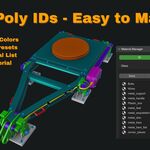
Interface Overview:- Mode Selector at top: Switch between "ID" (Material ID) and "TextureSet" modes
- Preset Section (ID mode only): Quick-assign materials
- Custom List: Your saved materials with color coding
- Management Buttons: Add, Edit, Remove, Select, Sync
- Assign Button: Apply selected material to objects
BASIC USAGE
Assigning Preset Materials (Material ID Mode):
- Select your mesh objects in the viewport
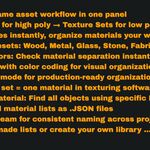
- Choose a preset from the dropdown (Wood, Metal, Glass, etc.)
- Click "Assign" next to the dropdown
- Material is applied with preset color
Using Random Colors:- Select all objects you want to color-code
- Click "Random" button (brush icon)
- Each object gets a unique random color
- Click again for different color combination (seed auto-increments)
Creating Custom Materials:- Click the + button to add a new material
- Enter a name (e.g., "Trim_Metal")
- Click the color swatch to choose a color
- The material appears in your list
- Select objects and click "Assign Selected" to apply
Switching Modes:- Click "ID" for Material ID mode (high poly phase)
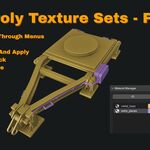
- Click "TextureSet" for Texture Set mode (low poly phase)
- Each mode has its own separate custom list
EXPORT & IMPORT MATERIAL LISTS
Why Export/Import: Share your material organization with team members, use the same setup across multiple projects, or backup your material lists before major changes.
Exporting Your Material List:
- Set up your materials in Material ID or Texture Set mode
- Create all your custom materials with names and colors
- Click the "Save" button in the panel
- A file browser opens
- Choose a location and filename (e.g., "environment_materials.json")
- Click "Save"
- Your material list is now saved as a JSON file
Importing a Material List:
- Click the "Load" button in the panel
- Browse to your saved .json file
- Select the file and click "Load"
- Your custom materials list is added to the current list
- All materials appear with their names and colors
Blender Version: 4.5 tested and supported Blender 5.0: Not yet tested (early alpha), compatibility update coming Platform: Windows, Mac, Linux (fully cross-platform) Category: Material Management Location: View3D > Sidebar > MatManager tab File Size: ~77KB License: GPL v3 (free software, open source) Export Format: JSON (human-readable, version-control friendly)
$9.50
Have questions about this product?
Login to message
| Published | 10 months ago |
| Blender Version | 3.0 - 5.0 |
| Extension Type | N/A |
| Render Engine Used | Cycles |
| License | GPL |
Discover more products like this
material-management Easy Workflow random-color-generator bake 3D game art addons for texturing ID-map texture set