Material Manager Addon
 Damian Mathew




📚 Material Manager Documentation
Understanding the Material List
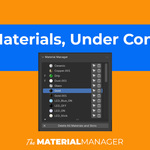
The Material Manager displays all materials in your Blender file with visual indicators to help you quickly identify their status:
| Indicator | Meaning | Action Needed |
|---|---|---|
0 |
Zero users - material is not used by any object | Safe to delete to clean up your file |
F |
Fake user enabled - material is protected from deletion | Will be saved even if unused |
0F |
Unused but has fake user enabled | Protected library material |
| (no indicator) | Material is actively used in the scene | In use - keep it |
Operations Guide
🎯 Select Objects with Material
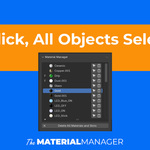
How: Click the select icon (cursor icon) next to any material name.
What it does: Instantly selects all objects in your scene that use this material.
Note: If some objects are hidden, you'll receive a warning message listing their names in the info bar.
Use case: Quickly find and modify all objects using a specific material.
🗑️ Delete Single Material
How: Click the trash icon next to any material name.
What it does: Removes the material from all objects using it AND deletes it from the Blender file completely.
⚠️ Warning: This action cannot be undone (except via Ctrl+Z immediately after).
Use case: Clean up unused or unwanted materials from your project.
🧹 Delete All Materials and Slots
How: Select objects in your scene, then click the "Delete All Materials and Slots" button at the bottom of the Material Manager.
What it does: Removes ALL material slots from the selected objects. Materials remain in the Blender file but are no longer assigned to those objects.
Use case: Quickly clean up imported models, prepare objects for new materials, or reset material assignments.
💡 Workflow Tips & Best Practices
Finding and Removing Orphaned Materials
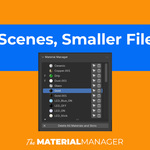
Look for materials marked with 0 - these are unused and safe to delete. Removing them can significantly reduce your .blend file size, especially in complex projects.
Organizing Material Libraries
Enable fake user (marked with F) on materials you want to keep in your library even if they're not currently used. This prevents Blender from removing them when you clean up unused data.
Bulk Operations
For maximum efficiency: Select multiple objects in the viewport first, then use "Delete All Materials and Slots" to clear them all at once. This is much faster than deleting material slots one by one.
Regular Scene Cleanup
Make it a habit to review materials with 0 indicator periodically. This keeps your projects organized and prevents file bloat over time.
Working with Hidden Objects
When you select objects using a material, pay attention to warnings about hidden objects. You may need to unhide collections or objects to fully manage material assignments.
🔍 Common Scenarios
Scenario: "I imported a model and it has 50+ materials I don't need"
Solution: Select the imported objects → Click "Delete All Materials and Slots" → Delete the now-unused materials (marked with 0)
Scenario: "I want to find all objects using a specific material"
Solution: Click the select icon next to that material name - all objects using it will be selected automatically
Scenario: "My file is getting too large"
Solution: Review all materials with 0 indicator and delete unused ones to reduce file size
Scenario: "I want to keep this material for later even though it's not used"
Solution: Enable fake user in Blender's material settings - it will show F indicator
Need help? Contact us at [email protected]
MOUVAL LLC | Austin, TX
Have questions about this product?
Login to message
| Sales | 10 |
| Dev Fund Contributor | |
| Published | 10 months ago |
| Blender Version | 2.8 - 5.0 |
| Extension Type | N/A |
| Render Engine Used | Blender-Internal, Cycles, Eevee |
| License | GPL |
Discover more products like this
asset management fake-user management cleanup Material unused materials material slots materials delete materials material manager file optimization