Material Spreader for Blender
 ztrztr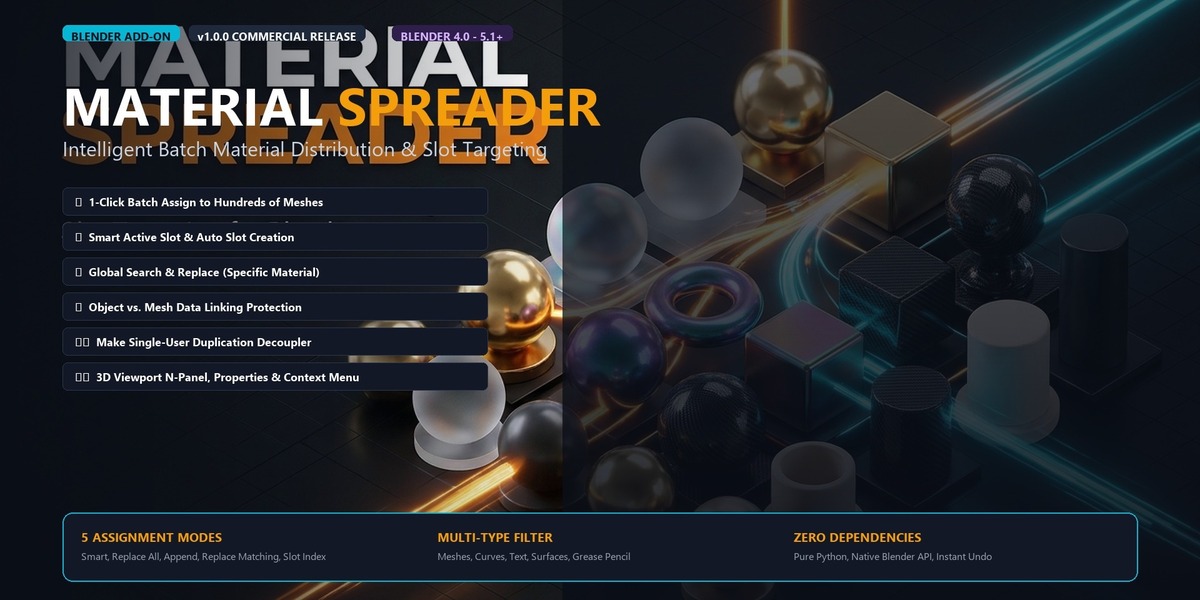






# Material Spreader — Official User Manual
Welcome to the official documentation for **Material Spreader**, an intuitive and powerful Blender add-on engineered to solve the limitations of Blender's native material linking workflow.
---
## Table of Contents
1. [Overview & Concept](#overview--concept)
2. [Why Not Just Use Native Ctrl + L?](#why-not-just-use-native-ctrl--l)
3. [User Interface Guide](#user-interface-guide)
- [Properties Panel](#1-properties-editor--material-tab)
- [Viewport N-Panel](#2-3d-viewport-sidebar-n-panel)
- [Object Context Menu](#3-object-context-menu-right-click)
- [Operator Redo Panel](#4-adjust-last-operation-f9--redo-panel)
4. [Source Material Selection](#source-material-selection)
5. [The 5 Assignment Modes Explained](#the-5-assignment-modes-explained)
6. [Link Type: Mesh Data vs. Object Container](#link-type-mesh-data-vs-object-container)
7. [Target Filtering & Safety Settings](#target-filtering--safety-settings)
8. [Real-World Workflow Examples](#real-world-workflow-examples)
9. [Troubleshooting & FAQs](#troubleshooting--faqs)
---
## Overview & Concept
In production 3D pipelines, scene assembly often requires assigning a single material to dozens or hundreds of individual modular props, environment assets, or kitbash parts.
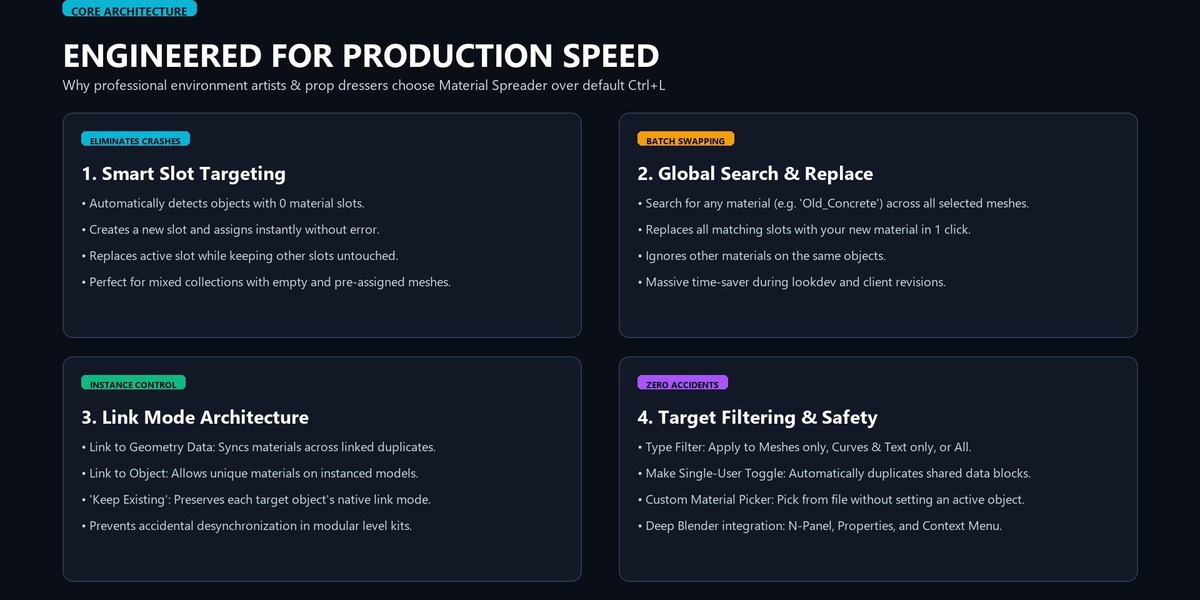
Blender provides `Ctrl + L -> Link Materials`, but it operates as an all-or-nothing wipe: it clones the active object's complete slot list across all targets, destroying any secondary slots or multi-material vertex setups.
**Material Spreader** decouples material assignment from slot destruction, allowing you to:
- Spread only the active slot or any selected material from your library.
- Target specific slots without touching other slots.
- Find and replace specific materials globally across selections.
- Switch between Object-level and Data-level material links effortlessly.
---
## Why Not Just Use Native Ctrl + L?
| Feature / Behavior | Native `Ctrl + L -> Link Materials` | **Material Spreader** |
| :--- | :--- | :--- |
| **Material Slot Count** | Overwrites and forces active object's slot count | Preserves existing slot structure |
| **Objects with 0 Slots** | Copies all active slots | Smartly creates slot 0 and assigns |
| **Secondary Material Slots** | Erased and overwritten | Untouched (or appended if desired) |
| **Source Material Picker** | Only active slot of active object | Active slot OR any material from picker |
| **Find & Replace Material** | Not supported | Full search & replace across selection |
| **Target by Slot Index** | Not supported | Custom index targeting (0, 1, 2...) |
| **Link Mode Override** | Clones active object's link mode | Choice of Data, Object, or Keep Existing |
| **Filter by Geometry Type** | Applies blindly to all selected objects | Filter Meshes only vs. Curves/Text |
| **Protect Linked Duplicates** | Modifies all linked geometry | Optional "Make Single User" safeguard |
---
## User Interface Guide
### 1. Properties Editor → Material Tab
Navigate to the **Material Properties** tab (the red sphere icon in the Properties window). The **Material Spreader** panel is docked right below the standard Material Slots list.
### 2. 3D Viewport Sidebar (N-Panel)
Open the 3D Viewport sidebar by pressing **`N`**, then click on the **Material** tab. This provides instant access while modeling and assembling scenes without needing to switch tabs.
### 3. Object Context Menu (Right-Click)
Select any number of objects in the 3D Viewport and **Right-Click**. Near the bottom of the context menu, click **Spread Material to Selected**.
### 4. Adjust Last Operation (F9 / Redo Panel)
After running the operator via shortcut, menu, or button, the **Adjust Last Operation** popup (or pressing `F9`) displays all settings. Changing any setting immediately recalculates the distribution non-destructively, with full **`Ctrl + Z` undo** support.
---
## Source Material Selection
You can select where the material is sourced from:
- **Active Object Slot**:
- Automatically identifies the material currently highlighted in the active object's material slot list.
- If the active object has no material, a clear notice is shown.
- **Custom Material Picker**:
- Activates an eyedropper / search field that lists every material present in the blend-file.
- Allows spreading materials without needing to assign them to an object first.
---
## The 5 Assignment Modes Explained
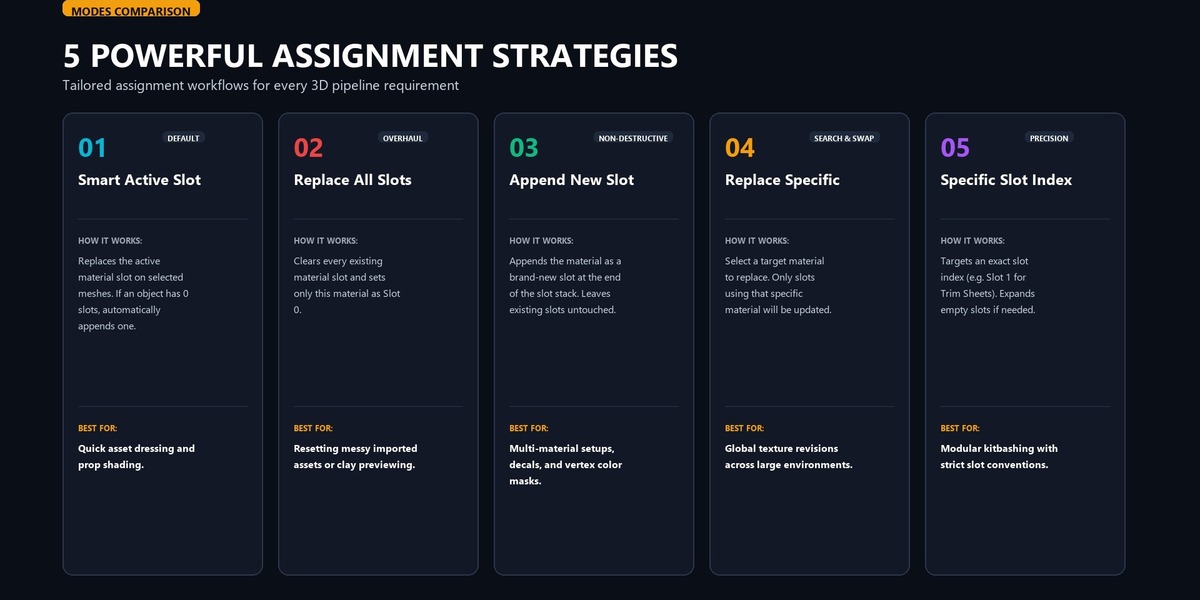
### 1. Smart Active Slot (Default & Recommended)
- **Target has slots:** Overwrites only the currently active material slot on each target object. All other slots on that object remain untouched.
- **Target has NO slots:** Automatically creates Slot 0 and assigns the material.
- *Best for:* Quick assignments across a mixed group of fresh models and multi-slot objects.
### 2. Replace All Slots
- Completely clears the slot list of each target object and leaves a single clean slot with the source material.
- *Best for:* Resetting complex kitbash assets or CAD imports with messy multi-slot configurations to a clean base material.
### 3. Append as New Slot
- Appends the source material as an additional slot at the bottom of each target object's slot stack.
- *Best for:* Prepping objects for geometry nodes, face-level assignment, or trim sheet shaders.
### 4. Replace Specific Material
- Activates a secondary **"Material to Replace"** picker.
- Scans every material slot of all selected objects. Wherever the designated target material is found, it is swapped for the new source material.
- *Best for:* Global lookdev tweaks, e.g. swapping a placeholder `"Grid_Gray"` shader to `"Polished_Concrete"` across a whole city block.
### 5. Specific Slot Index
- Allows you to set a numeric index (e.g. `0` for 1st slot, `1` for 2nd slot, etc.).
- If an object does not have enough slots to reach that index, empty slots are automatically created up to that index.
- *Best for:* Standardized asset pipelines (e.g., Slot 0 = Body, Slot 1 = Glass, Slot 2 = Decals).
---
## Link Type: Mesh Data vs. Object Container
Blender supports two ways of linking materials:
1. **Mesh / Data (`DATA`)**:
- The material is stored on the mesh data-block.
- Any linked duplicates (`Alt+D`) sharing this mesh data will also reflect the material.
2. **Object Container (`OBJECT`)**:
- The material is stored on the object container itself.
- Allows multiple linked duplicate objects (`Alt+D`) sharing identical geometry to have completely distinct materials (e.g. 5 identical cars with 5 different paint colors).
**Material Spreader** gives you three options:
- **Keep Existing:** Preserves whatever link type each individual object already uses.
- **Mesh / Data:** Forces the assigned slot to link to geometry data.
- **Object Container:** Forces the assigned slot to link to the Object container.
---
## Target Filtering & Safety Settings
- **Target Filter**:
- **All Supported:** Applies to Mesh, Curve, Text/Font, Surface, Grease Pencil, and Volume objects.
- **Meshes Only:** Ignores curves, text, and empty helpers.
- **Curves & Text Only:** Restricts the operator to curves, splines, and typography.
- **Include Active Object:** When unchecked (default for Active Slot mode), only other selected objects receive the material. When checked, the active object is also processed (ideal for *Replace Specific*).
- **Make Single User:** If any selected object shares its geometry data with other unselected objects in your blend-file, checking this automatically makes that object's data single-user before modification, protecting your unseen instances.
---
## Real-World Workflow Examples
### Example 1: Assigning Base Shader to 50 Imported Objects
1. Import an OBJ/FBX scene containing 50 parts with no materials.
2. Create your master material on one object (making it the active object).
3. Select all objects (`A`), ensuring your master object remains active.
4. In the **Material Spreader** panel, keep mode as **Smart Active Slot**.
5. Click **Spread Material to 50 Selected**. Done!
### Example 2: Swapping Rough Glass for Frosted Glass Across 20 Props
1. Select the props.
2. Under **Source Material**, switch to **Custom Material Picker** and select `Frosted_Glass`.
3. Set **Assignment Mode** to **Replace Specific Material**.
4. Set **Material to Replace** to `Rough_Glass`.
5. Check **Include Active Object**.
6. Click **Spread Material to Selected**. Every slot using `Rough_Glass` is instantly updated.
---
## System Requirements
- **Blender Version:** Blender 4.0, 4.1, 4.2 LTS, 4.3+, and 5.x.
- **Operating Systems:** Windows, macOS, Linux.
- **License:** GNU General Public License v3.0 (GPLv3).
Have questions about this product?
Login to message
| Blender Extension Compatible | Yes |
| Published | about 4 hours ago |
| Blender Version | 4.0 - 5.2 |
| Extension Type | Add-on |
| Render Engine Used | Cycles, Eevee |
| License | GPL |
