 Form Affinity



Maya Config Lite makes transitioning to Blender from Maya easy! It is a collection of addons, hotkeys, UI layout and Theme changes that give Blender a Maya-like feel in several key areas.
I created the original Maya Config as a set of hotkeys and very simple pie menus, to allow for an easy transition between the two applications; Alt + LMB for orbit, Alt + RMB for zoom, and F for focus for example. Over the course of 7+ years it has grown exponentially, to include layout changes (like a left side "outliner" and top shelf), additional hotkeys, additional pie menus (or "marking menus" as titled in Maya) and features, as well as a Pro version. I have personally used it in Professional Post Production work and have heard from many other artists successfully using it in their workflow. While not a full emulation of Maya, it provides a very good blend, leaving Blender's powerful assets in tact while giving just enough usability to have that "Maya-like" feel for most typical tasks. Whether you're making the long term jump to Blender, or needing to continue to jump back and forth between Maya and Blender in your workflow, Maya Config Lite is your go-to tool to get the job done!
The nuts and bolts:
Top Shelf Menu (UI addition)
Open Files and Save buttons
Asset Browser button
Standard Mesh buttons
Add "Empty" Dropdown button
Set Origin button
Freeze Transforms button
Join and Separate buttons
-
Add Background & Reference Image buttons

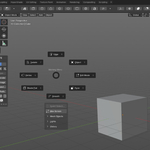
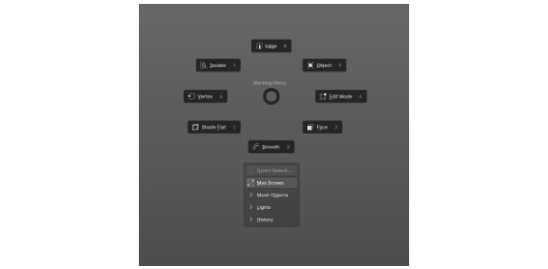
Maya Marking Menu styled pie menu:
Edge/Face/Vert selection modes that go directly into those particular Edit modes from within Object mode. Edit mode button that goes into last used.
Object mode toggle button
Isolate Select toggle button
Shade Flat and Shade Smooth buttons
Invert Selection button
Maximize Screen Area toggle button
A Create Mesh Drop down menu
A Create Lights Drop down menu
A History Drop down menu for freezing & resetting transforms
Special Tools Menu (Shift + Right Mouse Button Activated)
Special Tools Menu for Faces
Edges
-
and Vertices
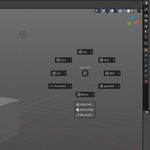
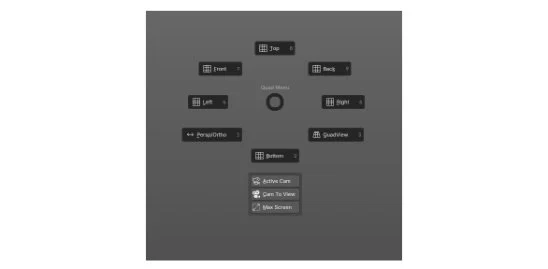
Quad View menu pie (a space bar activated pie menu):
Quad View toggle button
Active Camera toggle button
-
Orthographic view buttons
Maya Display Panel, left side panel:
3D Cursor ON/OFF button
Symmetry button
Render window button
Tutorials button linking to Form Affinity videos
Quadview toggle button
Active Camera toggle button
Keymap section, allowing you to quickly switch between Blender default or Maya hotkeys/keymaps:
Blender keymap button
Maya keymap button
Keymap:
Alt + Left Mouse Button Rotates (tumbles) the 3D View
Alt + Middle Mouse Button Pans the 3D View
QWER keys set to Selection Box, Move, Rotate & Scale widgets
F key set to Focus on object
Right Mouse button brings up Marking Menu
Ctrl + Space bar also activates Marking Menu
Alt + E hotkey for Isolate Select
Ctrl + E hotkey for Extrude on normal
G key set to Create Face
UV Section:
W for Transform
Q for Selection Box
E for UV Context Menu
F in 3D Viewport will Focus on Selection
F in Outliner will Focus on selected object (expand)
Themes and Configuration:
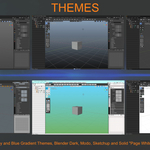
Two Maya styled 3D Viewport themes + a Modo , Sketchup, Blender Dark and a Solid White theme.
Layout configured to resemble Maya panel locations, look and feel.
Other Features:
Selecting/dragging outside of an object while in the Move/Rotate/Scale widgets deselects instead of transforming.
A version of MyAlt for Blender particular to this setup
Modeling Tab defaults to Object Mode instead of Edit Mode.
Add/Subtract/Difference selections using Shift, Ctrl, Ctrl + Shift, while in transform widgets (Move, Rotate, Scale)
Dedicated Discord Server Access!
Join other Maya Config Lite users on the Discord Server

Thank you for using Form Affinity Products!