Maya Config Lite
 Form Affinity



Installation Instructions:
(Warning: Installing this product on top of pre-existing addons will delete them. If you want to preserve your pre-existing addons, use an additional Blender install (for example off of the Blender Builds website), and/or install Maya Config Lite as a "Base" installation while being prepared to install any additional addons on top of it (see FAQs).
Steps Covered:
- Locate Blender main root folder
- Unpack the product Zip file.
- Place "portable" folder from the product Zip file into the main Blender root folder
- Start Blender and enjoy
Video Installation instructions:
Text Installation instructions:
To install, navigate to your Blender's location:
For Main Blender installation (off of the .org website), typically this is found at C:\Program Files\Blender Foundation\Blender 5.0 (or whichever Blender version number you're using)
For Blender Build installation, we recommend installing to your Documents or Desktop. For example: C:\Users\"your user name here"\Desktop\BB5.1.2_MCL_1.0
Side note: Folder naming structure: Version number indicated is for both Blender and Maya Config Lite. So in the above example BB5.1.2 is the Blender version number. MCL_1.0 is the Maya Config Lite version number.
Unzip the product zip file that you downloaded from your product download page: example - BB5.1.2_MCL_1.0PACK.zip
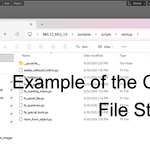
Contained inside the zip file is a folder titled "portable". Place the "portable" folder into your main Blender root folder (where you'll also see blender.exe application file, etc.) For example:
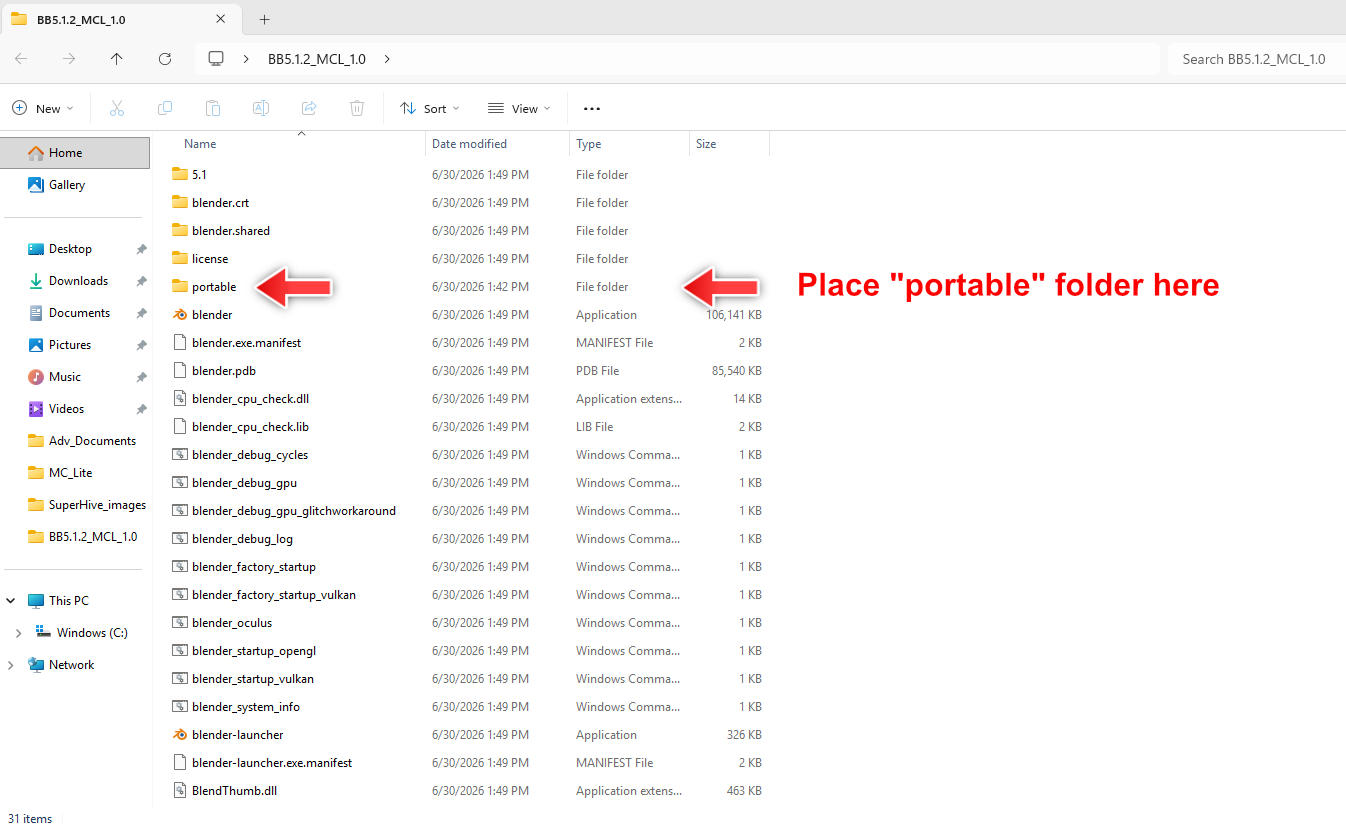
For Blender Builds, double click the blender.exe to start. For normal builds, start Blender per the usual method.
You should be up an running at this point. If for any reason your key config isn't working:
Right click the blender.exe and "Run as Administrator". Go to Preferences and install (import) via the Keymap tab. Note, the keymap is titled "fa_hotkeys.py" and is found in that portable folder, at:
\portable\scripts\startup
For any other similar "Permissions" error issues, follow the same procedure. Run as Administrator, make the necessary changes, then resort back to normal Blender startup moving forward (without having to Run as Admin every time).
 Included
Includes 12 months of
- Support from Form Affinity
- Product updates
Extend this product’s Support Period +12 months: 50% of product price
Have questions before purchasing?
Login to message
| Blender Extension Compatible | Yes |
| Sales | 30+ |
| Dev Fund Contributor | |
| Published | 3 months ago |
| Blender Version | 5.0 - 5.2 |
| Extension Type | Add-on |
| Render Engine Used | Cycles, Eevee |
| License | GPL |