Documentation includes Written and Video Installation guides, Bug Fixes and Updates/Version information, along with Product Fine Print
Installation Guide:
Installation:
Find your root Blender installation: example, C:\Program Files\Blender Foundation\Blender 5.2 for the full install, or C:\Users\"your username here"\Desktop\5.2 for Blender Build install.
Copy the "portable" folder from the downloaded Pack zip file, and paste it into this main root folder (alongside the blender.exe). Startup Blender and enjoy Maya Config Pro (see above for video installation instructions).
Note: For full install (at location such as C:\Program Files\Blender Foundation\Blender 5.2) a Permissions pop up will likely arise in Windows. This is fine. If you would like to have a full regular install of Blender but avoid all Permission issues, you can also install to something like C:\Blender\Blender 5.2\ instead of the default Program Files path. Functionally identical, but avoids any permissions issues.
Bug Fixes and Updates:
-
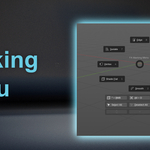
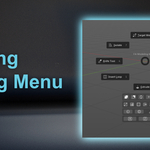
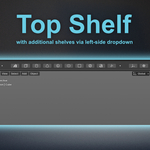
Version 2.5 - Set pivot snapping to Alt + G,V, and C. Instead of having to hit the D key to get out of it, these are now toggles. Alt + D brings up the pivot menu. You can now also use these in Edit mode with a double click of the same hotkeys. Made selection improvements to the Marking Menu, and took some of it's features and moved them over to the new Modeling Menu. Added a Target Weld custom tool to the Modeling Marking Menu, along with Live Symmetry buttons. Added a Set Normal Angles (Auto Smooth) to the Modeling Menu. Fixed the top shelf from not always retaining context for the left side dropdown menus. Created a Quad Draw Retopology tool on the right side N panel shelf. Fixed Live-Like Symmetry bugs for Blender 5.2, no longer giving any errors. Also, no warning needed when in Edit mode, because now it also works in Edit mode. Also no longer an error when no object is selected, rather a warning comes up telling user to select an object first. Marking Menu has more selection features, but also a Mode Toggle instead of an Object mode button (this same button works now in both Edit and Object modes). Fixed Keymap switching buttons in the left side Pro Panel
Version 2.4 - Pivot Snaps working again (D, D + V, D + G, D + C)
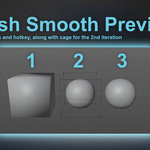
Version 2.3 - Ctrl G to group a collection of objects fixed. Fixed Outliner to allow for X or Delete to be used to delete items. Cage Projection added to Mesh Smooth Preview, on the 2nd iteration (Hotkey "2"). Transition to using the Portable folder. Fixed Blender and Industry Standard button errors on the left side Pro Panel, by adding them into the \keyconfig folder within the Portable folder. Created new install process video to update users on the new Portable folder methods. Fixed Preset Themes not loading via the Pro Panel (this also added to the Portable folder).
Version 2.2 - Added Snapping hotkeys for D+G, D+V and D+C for snapping to Grid, Vertex and Edge, respectively. These hotkeys also turn on the origin visibility and sets the current tool to the Move tool. "D" turns off snapping and hides the origin. A snapping menu icon has been added to the RMB activated Marking Menu for even more snapping tools. The top shelf and "n" activated right side shelf now have cylinders preset to contain face edges on their endcaps (Cap Fill Type - Triangle Fan, instead of the default N-Gon). The MMB activated Quad View now contains a Split 3D View button to split either horizontally or vertically.
Version 2.1 - Quickfavorites is back and set to Shift + Q.
New feature: Allows users to select another object while in Edit Mode of a first object. The newly selected object will also be in Edit Mode. This bypasses the need to go out to Object Mode so much. Alt + E for Isolate Select is now working in Pose Mode.
Version 2.0 - Added an "Active Mesh" section to the top of the Outliner, enhancing the ability to find objects within complex scenes. Included an Asset Browser button on the top shelf (which toggles and splits the 3D viewport), as well as the left side Pro Panel that creates an Asset Browser pop-up window. Added an "Add Asset" button to the left side Pro Panel. Added Asset Browser to the Hypershade tab. Added "Merge by Distance" to the Marking Menu pie.
Version 1.8 Updated to coincide with the new Blender 2.93 (various coding updates and changes made)Quad Vie Marking (pie) menu feature change. Now when clicking "Right, Left, Top, Front, etc", it automatically switches from Perspective view to Orthographic view. Use the same QuadView marking menu bottom to switch out of Ortho and back into Perspective Shift select now works in Outliner and will select all items in between the items clicked.
Version 1.7 - Added new features: This update has several exciting new features: The Top shelf has been updated to be dynamic. It's stretchy, and adjusts button size according to your screen resolution or the size that Blender has been minimized to. The buttons are also bigger, and a new drop down button has been added, allowing the user to quickly change from one shelf to another (Polygon modeling to Curves, for example).The left side Panel Pro has been updated with new features. A set to default button for the widget size has been added. 3D cursor icons have changed. Select and set different themes buttons have been added (including Alt + B as the hotkey).Camtools is now in Version 2.0, and is much more user friendly. "Lock Camera to View" can now be seen toggling on (Blue) and off. The user can also see the locked transforms within Camtools, and toggle them all, or by Location, Rotation, and Scale, or individually. New pivot features have been added. When in adjust pivot mode (hotkey "d"), the user can hit the V hotkey to quickly snap the pivot to vertices. The Alt + LMB hotkey to Tumble/Orbit around the object now works in Draw mode for Greasepencil. The Alt key in conjunction with LMB, MMB, RMB and Scroll wheel can now be held down the entire time instead of having to release (depress) it between them..
Version 1.6 - Added New Features:
CamTools 1.0, with a Camera View Lock for ease of use when animating the camera or doing animatic work. Camera Lock & Unlock transforms buttons. Various view buttons. The new Modeling Toolkit, with the brand new Extrude Along Axis button, activated by holding down Ctrl and Double Click (LMB). Other great modeling buttons are contained within the Toolkit as well, providing easily reachable and visible modeling buttons.
-
Known Bugs (Fixed or Pending Repair)
001 - (08/18/2026) Fixed TypeError for right side N panel Quad Tool's "Wire" button when object is deleted. Now no error, button simply greys out if no object exists.
*Additional Notes of Consideration*
Various Versions Tested to work with Blender 5.2 Full Version and 5.2.0 RC, all Primarily on Windows 11 Operating System.. Please Check back here or on the Discord for updates. Mac has been tested to work in Catalina Operating system with success, however it is not primarily supported.
Mesh Smooth Preview creates a Modifier during its operation. It has been tested in conjunction with other modifiers and has proven to work, but it is advised to use it with caution during heavy modifier usage.
Symmetry Addon:
This addon renames any object that it is applied to (mirrorX or mirrorZ) Please prepare for this accordingly. Objects can be renamed afterwards by the user.
Symmetry Addon Cont.:
There currently is no Y axis button for the Live-like Symmetry Addon. This is a work in progress. It is advised that all objects that are to undergo this operation are set to face in the Y direction (towards the default camera), so that they may be appropriately cut along the X axis. Objects are set as default in this appropriate direction upon creation anyways, just be careful with imported objects and objects that have been rotated. All objects should start out symmetrical before using this addon and should have their transforms set to zero. Not having an object will throw an error, be sure to select an object before running the addon. I've named it "Live-like" because it doesn't yet have hover over highlighting for vertices, faces and edges. This is a desired feature that I hope to implement at some point in the future. Symmetry addon should be used and the operation finalized before any other modifiers are applied to an object, as they may interfere with this addon if they're applied first.
If you have any questions, please see the Maya Config Pro Overview video.
The top and side shelves do not allow for customization as is the case in Maya. Only customize if you have experience with coding within Blender.
New Major features will at times be included and updated to the standard Pro edition, or, depending on the depth of scope, be added as a higher priced tier
Product File size varies, but is usually around 10 to 15 MB's, and is contained in Zip File format.
The Discord Channel/Server is rule based. Form Affinity reserves the right to remove/ban/limit anyone who does not follow the rules or who does not add to a positive & healthy social environment.
The Config is meant to be installed as a base, whereby any outside addons are added on top. Please note that by installing Maya Config Pro, any pre-existing Addons will be deleted. If you need a 2nd version of Blender in order to have the Config installed, we recommend utilizing the Blender Builds website.
Maya Config Pro is created and sold As-Is. That said, contact details are included if you have any questions or concerns.
 Form Affinity


 Included