Mechflow: Animated Mechanical Parts
 sharoleslam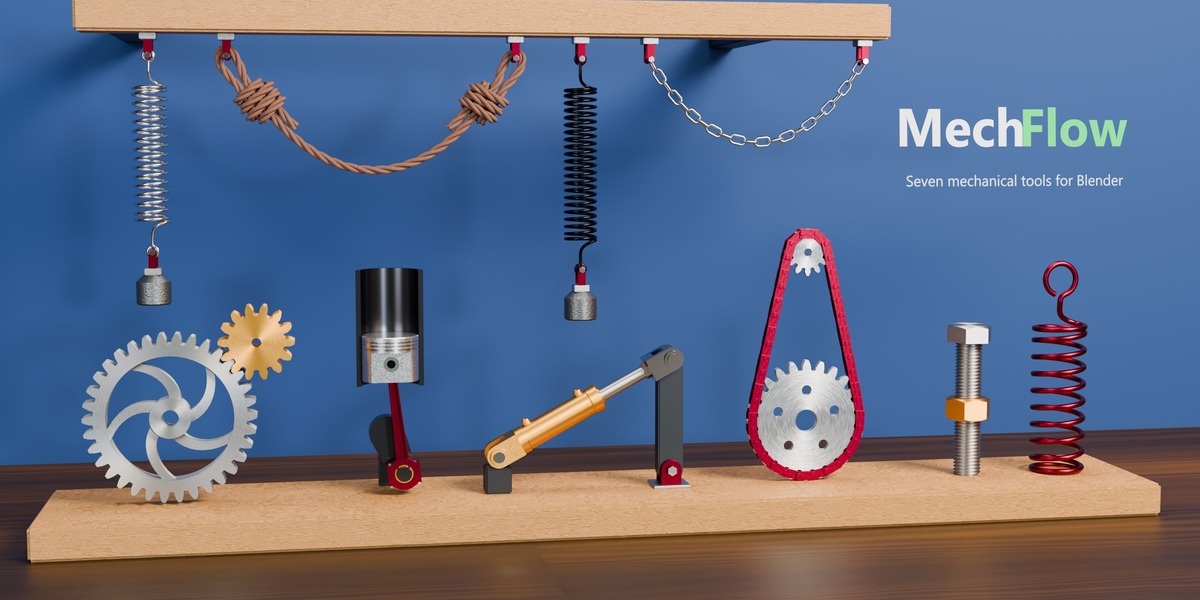
What it does
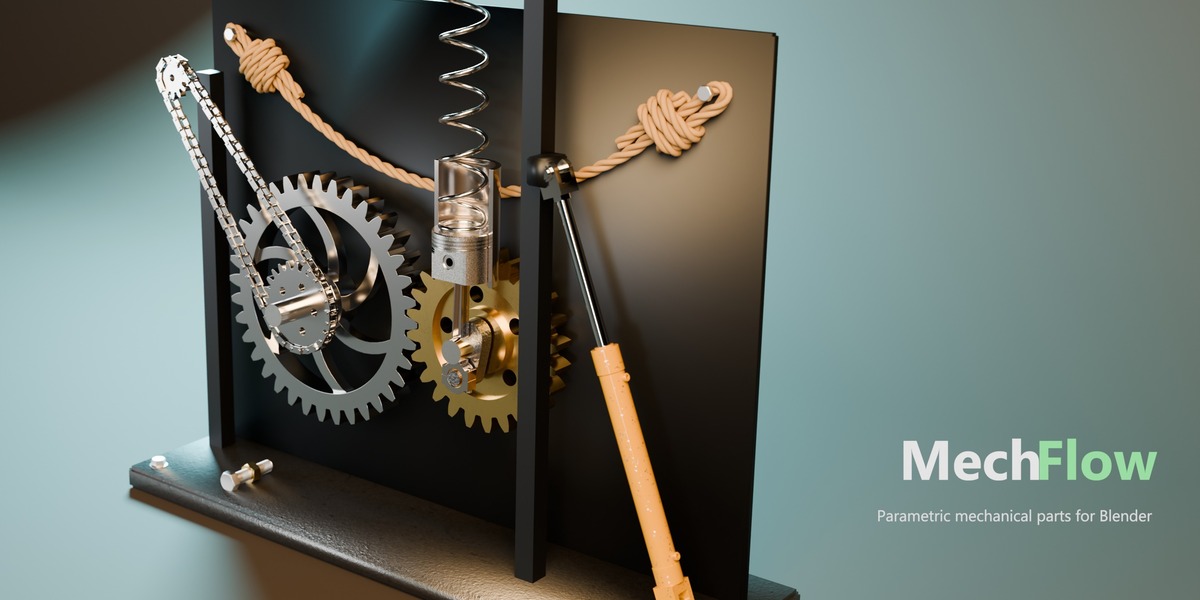
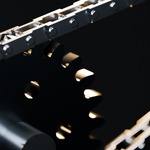
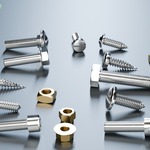
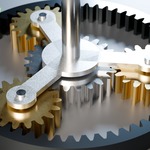
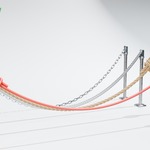
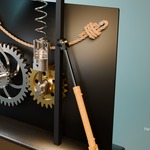
MechFlow adds seven mechanical parts to Blender from a panel in the sidebar: Spring, Cable, Gear, Piston, Hydraulic, Belt and Screw. Every part is parametric, so you change it with sliders instead of remodelling it, and every part moves: springs stretch, cables swing, gears mesh, belts run and nuts travel along their threads.
An illustrated Quick Start PDF ships in the download.
Install
- Drag mechflow-1.0.0.zip onto an open Blender window and confirm, or use Edit > Preferences > Get Extensions > Install from Disk.
- Open the sidebar in the 3D viewport with N and pick the MechFlow tab.
Blender 5.0 and newer. Works in Eevee and Cycles, on Windows, macOS and Linux.
Add a part in three steps
- Pick a tool in the picture gallery at the top of the panel.
- Set it up. The settings for the next part show under the picture before anything is added.
- Press Add. The part appears, and the panel now shows its own settings, live.
With nothing selected, a part is added at the 3D cursor. Select two objects first and a Spring, Cable, Hydraulic or Belt is added between them. Everything MechFlow adds goes into a MechFlow collection, with one child collection per tool.
Select any MechFlow part later and the panel switches to its tool and shows its settings. Selecting one of a spring's or cable's end objects keeps that part's settings on screen, so you can move an end and adjust it at the same time.
The seven tools
Spring
A helix between two objects. The coil count is fixed, so pulling an end away opens the pitch. Coils, Coil and Wire Diameter, closed ends, and hook ends with an eye (Hook Length, Eye Diameter, Hook Angle). Turn on Dynamics and it stretches, sags and bounces, settling within 0.6% of Hooke's law, with Stiffness, Damping, End Mass and Gravity.
Cable
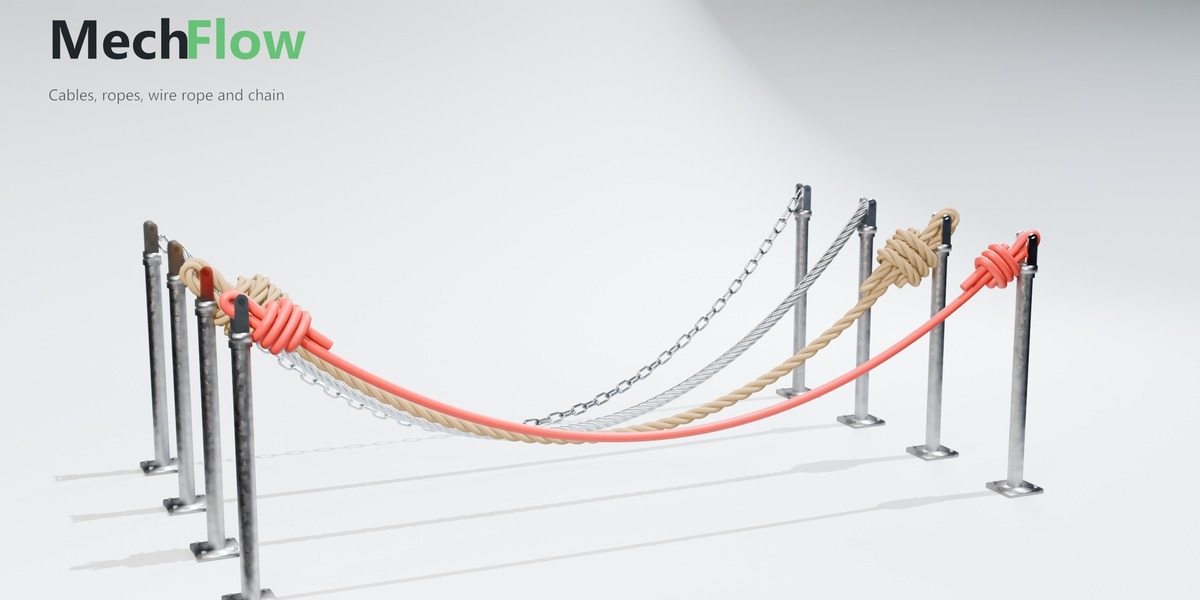
A cable between two objects that swings when the timeline plays. Slack and Length change live. It drapes over any closed mesh you pick as its Collision Object, with friction. Add an eye knot at either end, turn it into a laid rope or a wire rope (Strands, Twist, Wires), or into a Chain of oval links. With Simulate off it hangs as a still curve and needs no baking.
Gear
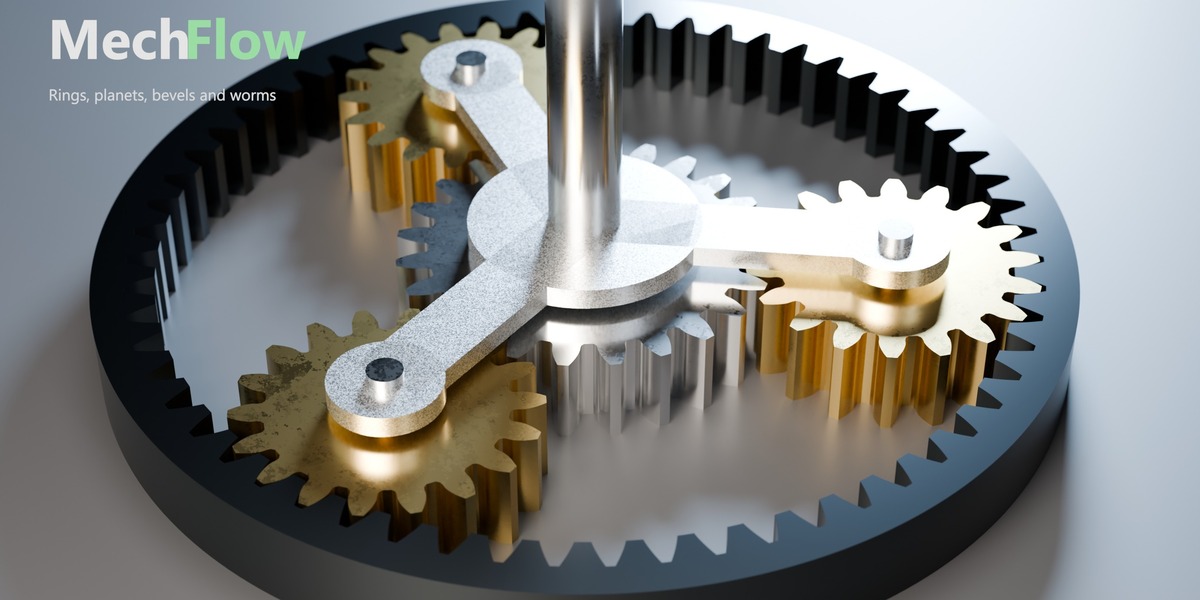
Involute teeth cut by a standard rack, sized by Pitch Diameter, so Teeth adds teeth without growing the gear. Web Type (Solid, Spokes, Curved Spokes, Holes), Hub, Helix Angle, Herringbone, Cone Angle for bevels, Tip and Root Shape. A Bore wider than the gear makes a ring gear. Select a gear and press Add Gear and the new one is placed beside it, meshing and driven. With a ring selected it goes inside, and with a bevel it goes at a right angle.
Link Gears and Motor
Select gears, including your own imported gear meshes, make the driving one active and press Link Gears. MechFlow reads each mesh for its axis, teeth and centre, finds which ones mesh and drives the whole train: spur, ring, bevel, worm, rack and planetary sets included. Type an rpm into Motor and a part turns at that speed. Its tooltip gives the frame count for a seamless loop.
Piston
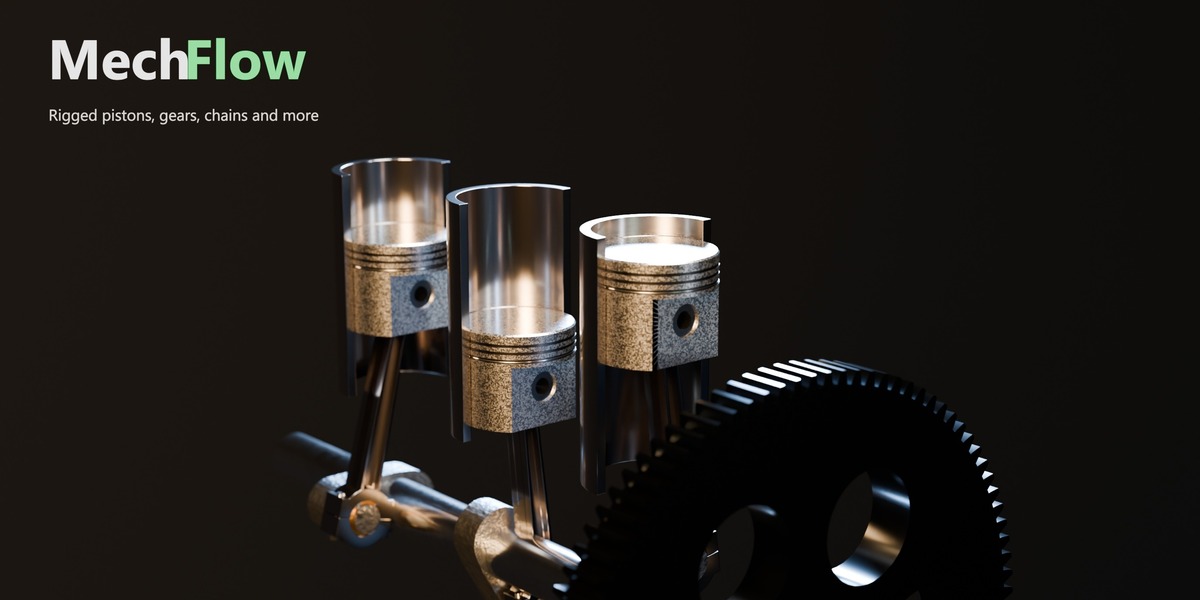
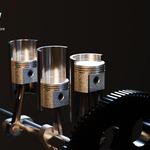
A crank, connecting rod and piston. Turn the crank any way you like (keyframes, a parent, a gear train or the Motor) and the piston follows. Crank Radius, Rod Length, Bore, Piston Height, and a cylinder you can show whole or cut away.
Hydraulic
A cylinder between two mounts. Move either mount and it extends or retracts. Hydraulic Type sets the ends: Basic, Welded Clevis, Spherical Eye, Eye Mount, or Clevis + Cross Tube.
Belt
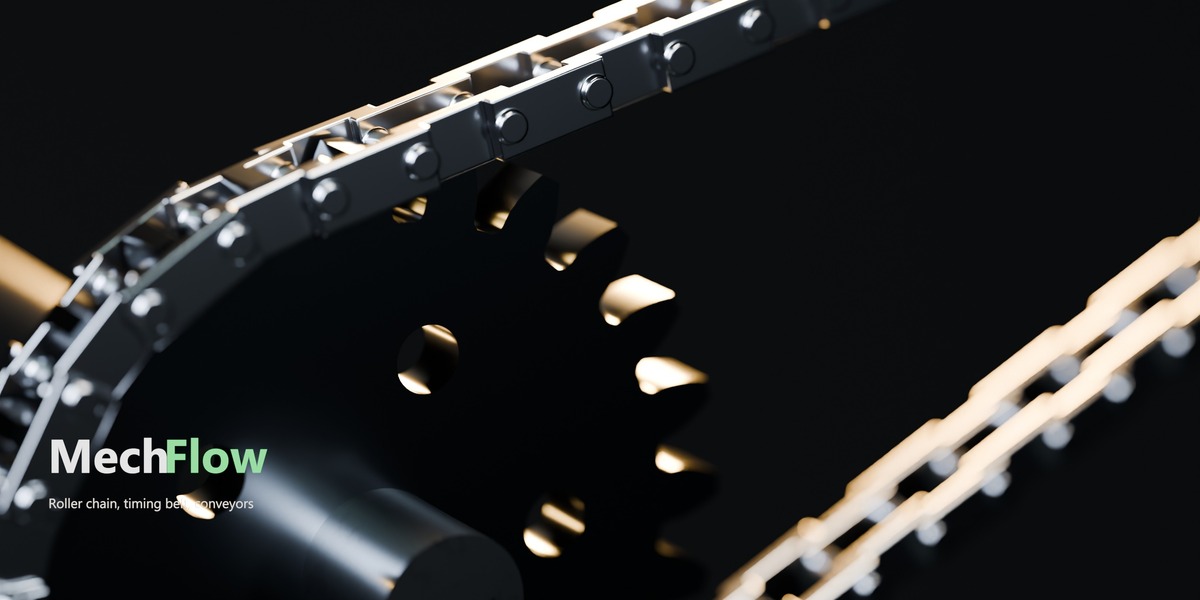
A belt round two pulleys, driven by pulley A, with B turning at the belt ratio. Belt Type: Roller Chain, Timing Belt, Flat, Chevron, Cleated, Modular, Slat Conveyor, Wire Mesh Belt or Roller Conveyor. Any object can be a pulley: an empty, a MechFlow gear or your own mesh. Scale a pulley and the belt follows.
Screw
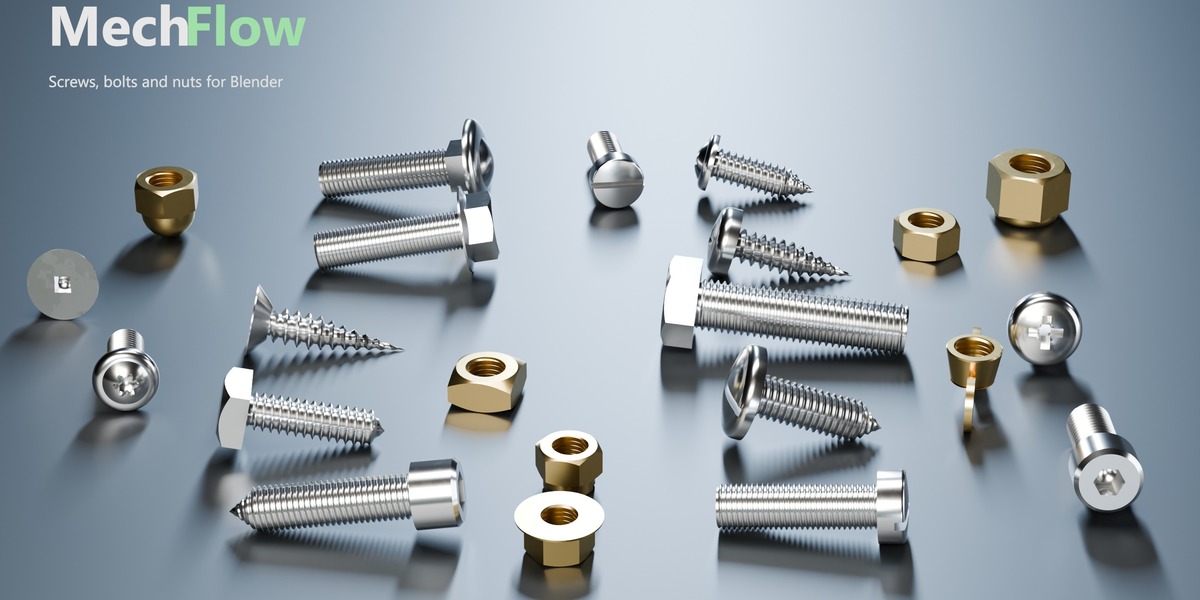
Bolts, threaded rods and lead screws: ISO, trapezoidal or square threads, any pitch, starts and hand. 10 head types, 6 drives, and a Point Length for pointed screws. Select a screw and press Add Nut to fit one of 7 nut types with the threads meshed. Turn screws the bolt in along its axis, or runs a nut along the thread.
Before you render
- Bake simulated parts. Cables and Spring Dynamics step one frame at a time when the timeline plays. Press Bake in the panel before rendering, or render the frames in order. Free throws the bake away.
- Keyframe rotation, not rpm. Motor rpm cannot be keyframed. For a changing speed, set Motor to 0 and keyframe the rotation itself. Everything linked to it follows.
- No scripts at render time. Linked gears, the Motor, nuts and the piston run on drivers and constraints, so they keep working with Python auto-run switched off and render farms need nothing extra.
Materials
Each part renders the material in its own object's material slot. Change it the way you would on any other object.
-
$29
For one artist. Personal and commercial work, all future updates.
-
$89
For a team of up to 5 artists. Same add-on and updates as Personal, licensed for studio use.
Have questions about this product?
Login to message
| Blender Extension Compatible | Yes |
| Dev Fund Contributor | |
| Published | 1 day ago |
| Blender Version | 5.0 - 5.2 |
| Extension Type | Add-on |
| Render Engine Used | Cycles, Eevee |
| License | GPL |

Discover more products like this
product-visualization Pistons gears springs Engineering Animation geometry nodes rigging mechanical screws belts cables hydraulics