Merger - Your Tool for Simplifying Complex Blender Scenes
 Andrew Luzhetskyi
Blender 4.5 and newer. Tested on 4.5, 5.0, 5.1 and 5.2.
Anything Blender can import or open: STEP and IGES (through an importer add-on), SketchUp, FBX, glTF, OBJ, and models downloaded from marketplaces. Merger works on the Blender objects, so the original file format does not matter.
In the 3D Viewport, press N and open the Merger tab. It is also in the Object menu, the Outliner right-click menu and F3 search.
Installed through Superhive in Blender? Open Edit > Preferences > Get Extensions and press Update next to Merger. Installed the ZIP yourself? Download the new version from your Superhive Orders page and drag it onto Blender. It replaces the old version in place.
Yes. Every change Merger makes is one undo step - one Ctrl+Z undoes a whole merge, link or cleanup.
No. Merging keeps every part exactly where it was in the world. Linking twins with Keep twins in place keeps each copy's position and rotation - on a 126-part CAD model, linking moved 0 objects.
Find Twins and Find All Twins only look - they change nothing. Link All Twins, Merge Twins and Merge All Twins show a dialog with exact counts first. Merges and Delete Childless Empties run at once (undo with Ctrl+Z); turn on Confirm Before Collection Merge / Cleanup in Preferences if you want Collection merges and cleanup to ask.
Materials and UV maps come along into the merged mesh. Modifiers are applied first, so the merged mesh looks exactly like the parts did.
No. An object with several materials stays whole. It is merged together with other objects that use the same combination of materials.
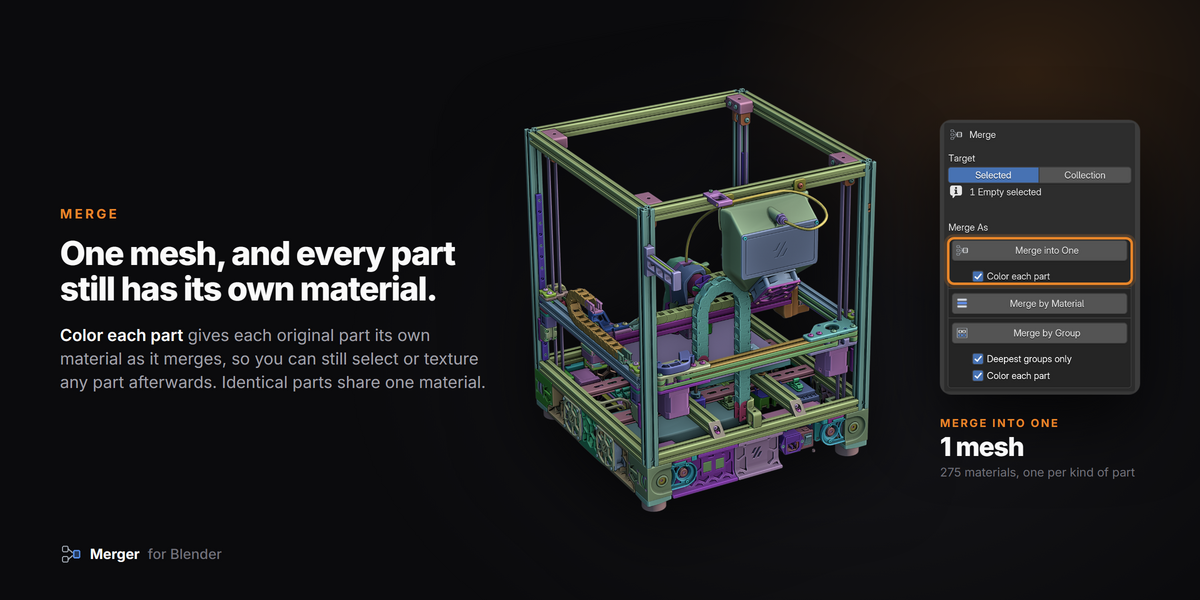
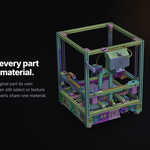
Yes - tick Color each part before merging. Each original part keeps its own material, so in Edit Mode you select the part by its material slot.
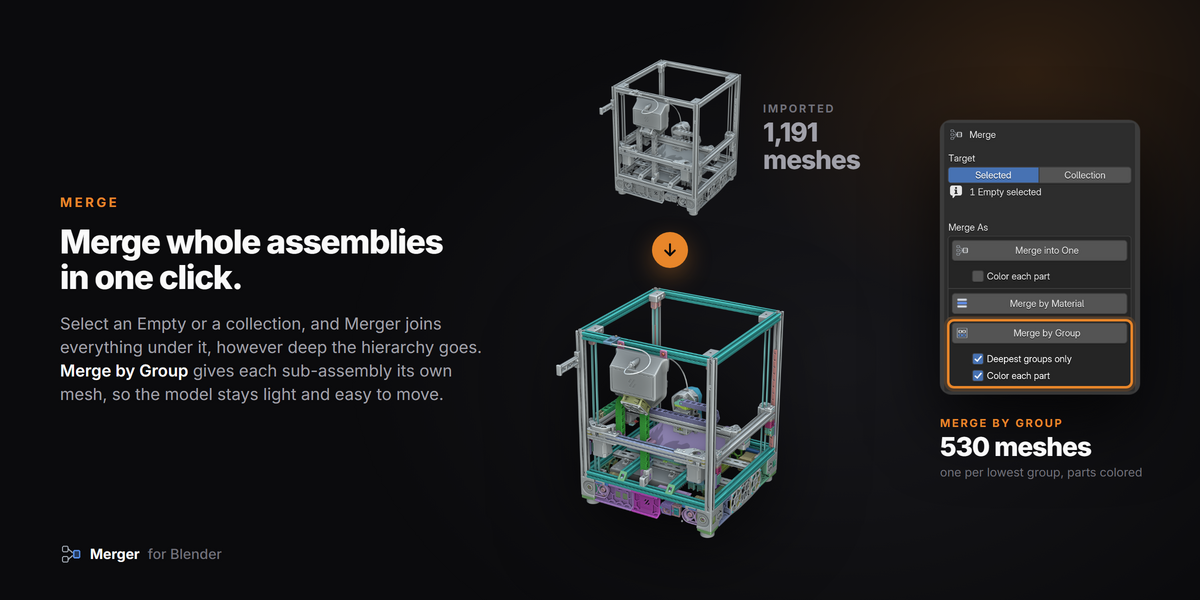
Only if you want it to. Merge by Group with Deepest groups only merges just the lowest groups and keeps every Empty above them.
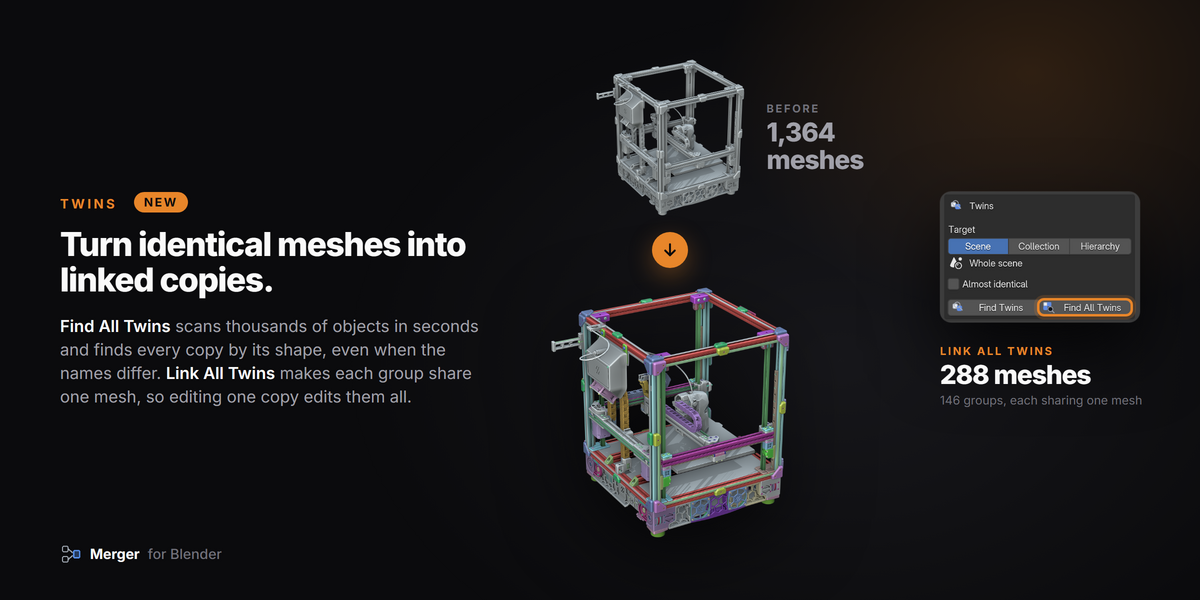
Link keeps every copy as its own object that shares one mesh: move copies freely, texture once. Merge joins the copies into one object: fewer objects, but they no longer move separately. For CAD work, linking is usually the better choice.
It never reads names. It compares the geometry itself, so "bolt.001" and "SB-14_copy" match if their shapes match, and two parts with similar names but different shapes never do.
The default scan is exact. Copies exported with a different tessellation, or with rotation baked into the mesh, are only nearly identical - tick Almost identical and raise the Tolerance if needed. Also check that the Twins Target covers them.
The exact scan never matches a part with its mirror image. Almost identical mode does (shape alone cannot tell left from right) - and with Keep twins in place, the mirrored copy still keeps its exact place.
On a 9,000-object test scene, Find All Twins takes 2–3 seconds. Scans show a progress bar and never freeze Blender - press Esc to cancel. Merges and Identify Parts show a progress counter on the cursor.
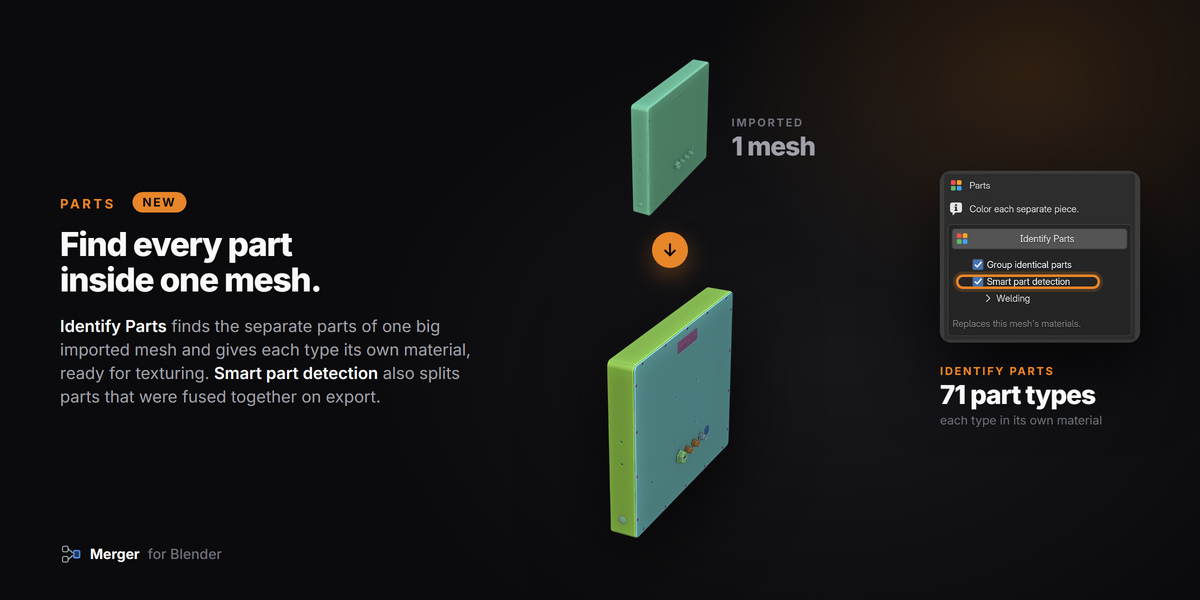
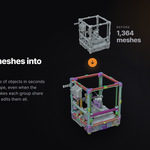
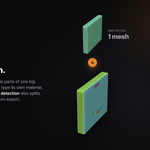
Identify Parts finds the parts inside it and gives each one a material, without splitting the object. In Edit Mode, select a material slot to grab a part - and use Blender's Separate > By Material if you want separate objects.
Merger is a one-person project. I test every release myself, but I'm not a professional developer, so I may have missed something. If you find a bug or there's a feature you'd like, please send me a message with the button on this page. For errors, include what Window > Toggle System Console shows. I have a full-time job, but I read every message and do my best to reply quickly and work on what you ask for.
- Andrew Luzhetskyi
Have questions about this product?
Login to message
| Blender Extension Compatible | Yes |
| Sales | 80+ |
| Rating | 11 ratings |
| Dev Fund Contributor | |
| Published | over 1 year ago |
| Blender Version | 4.5 - 5.2 |
| Extension Type | Add-on |
| License | GPL |

Discover more products like this
step cad instancing color-parts engineering optimize linked duplicates hierarchy scene cleanup Merge empties import