 Andrew Luzhetskyi
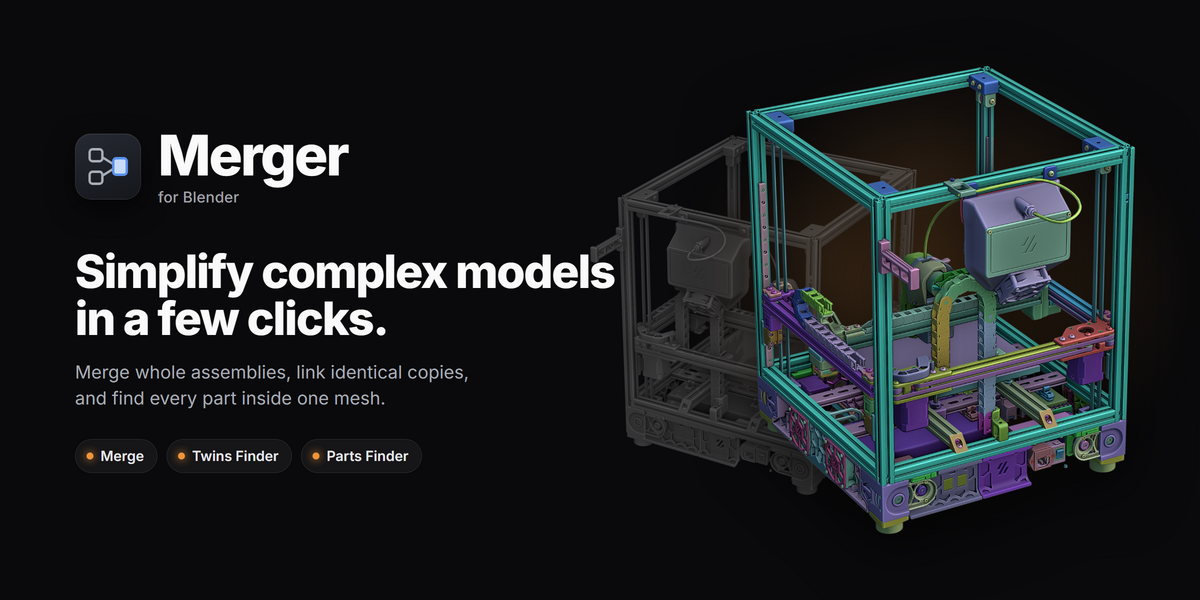
Simplify complex models
in a few clicks.
For models with hundreds or thousands of objects and deeply nested hierarchies. Merge whole assemblies into one mesh or one per group, link identical copies, and find the separate parts inside a single mesh.
Merge
Whole hierarchies into one mesh, or one mesh per group.
Twins Finder
Identical copies found by shape and linked to one mesh.
Parts Finder
The separate parts inside one mesh, found and colored.
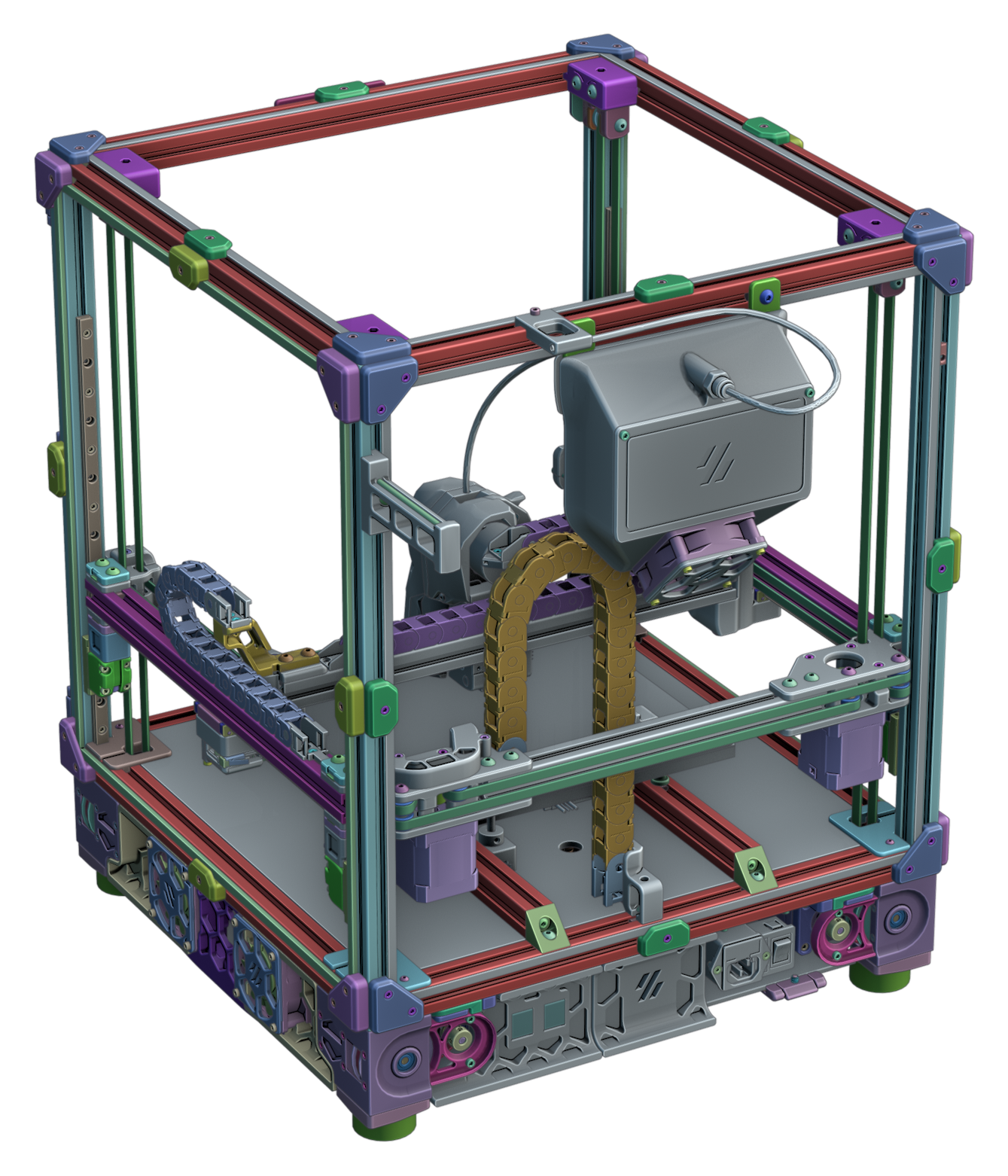
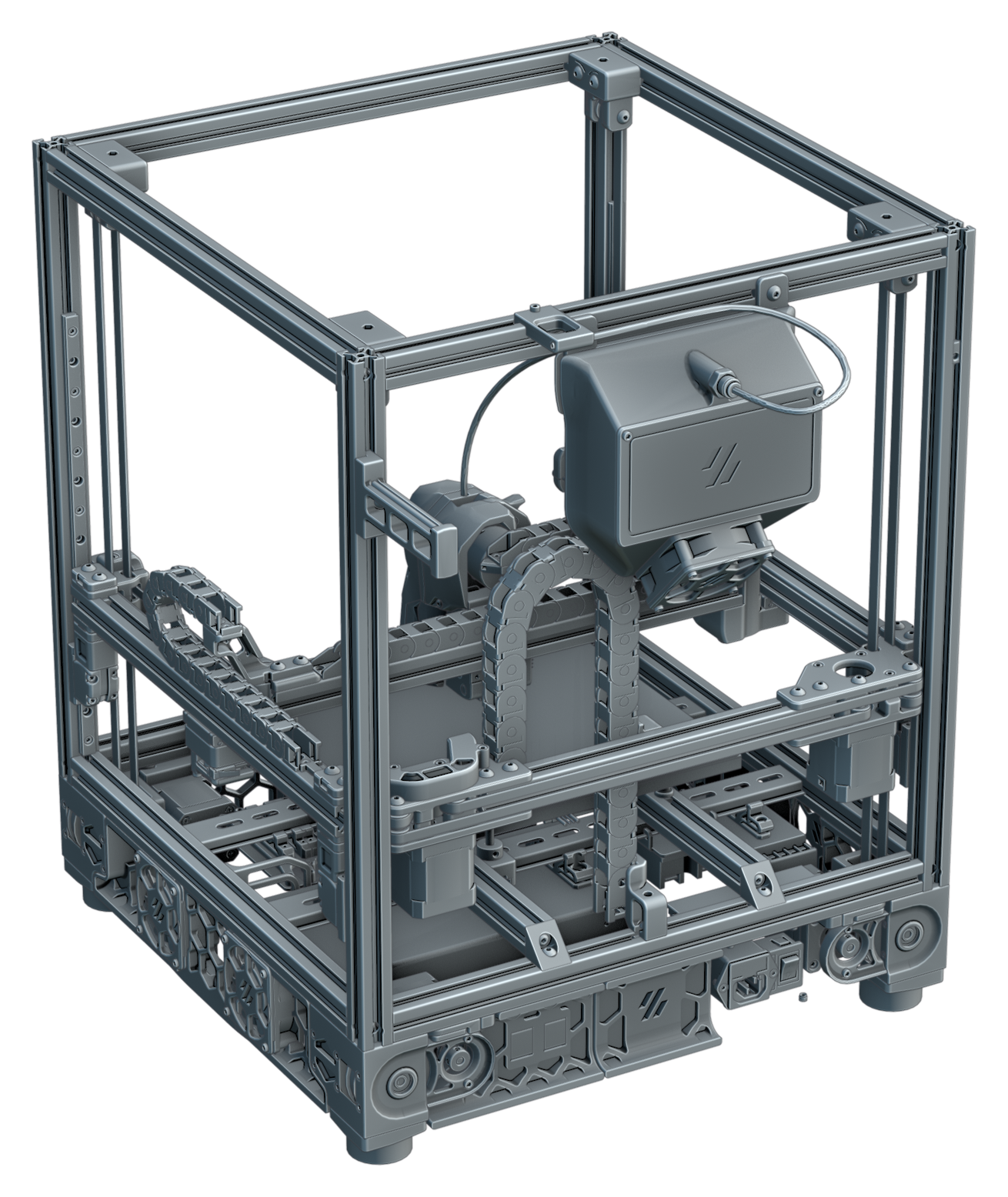
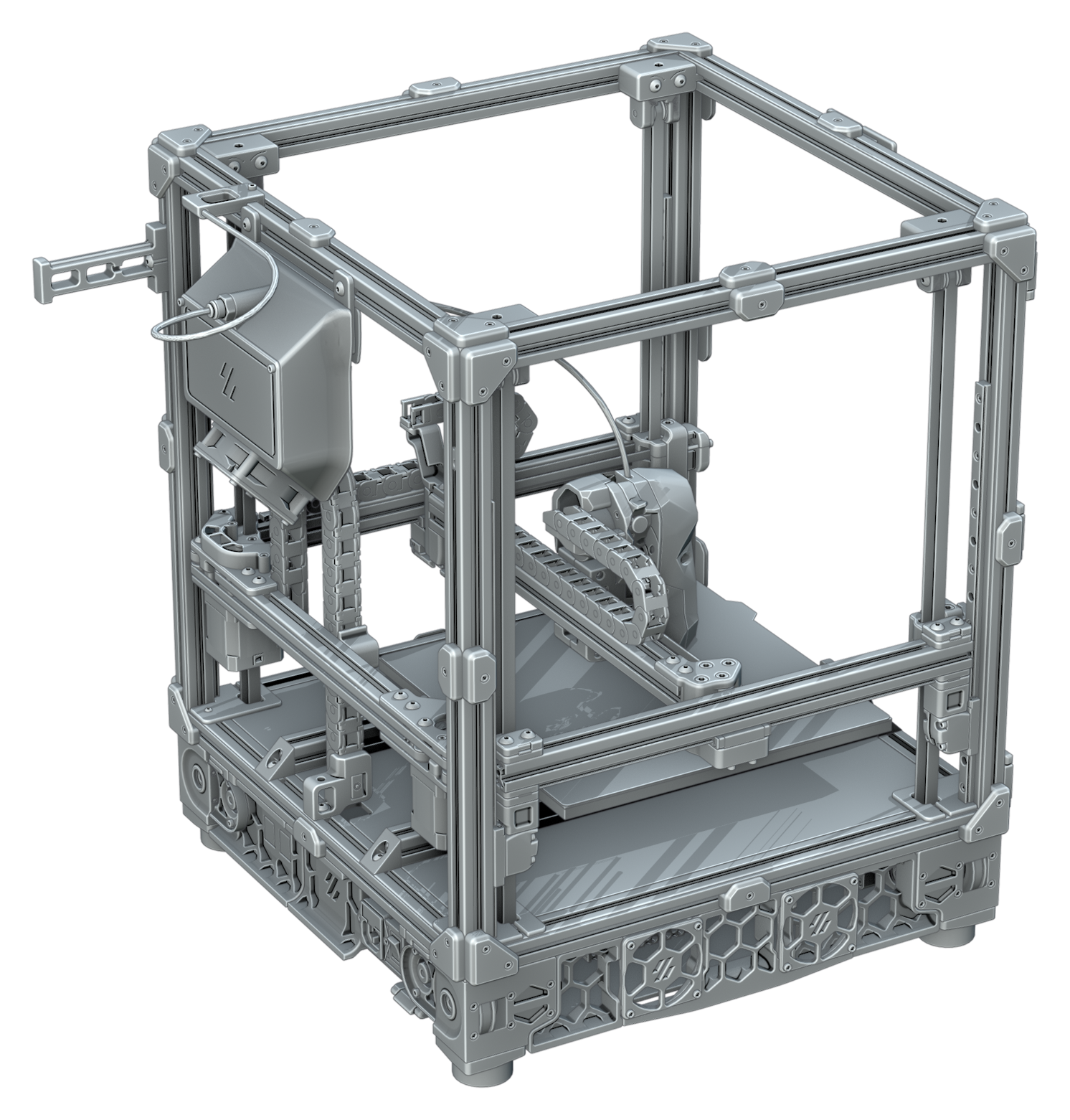
Pictured: the Voron 2.4 after Find All Twins and Link All Twins. Each group of copies shares one mesh and one color.
Merge
Merge whole assemblies
at once.
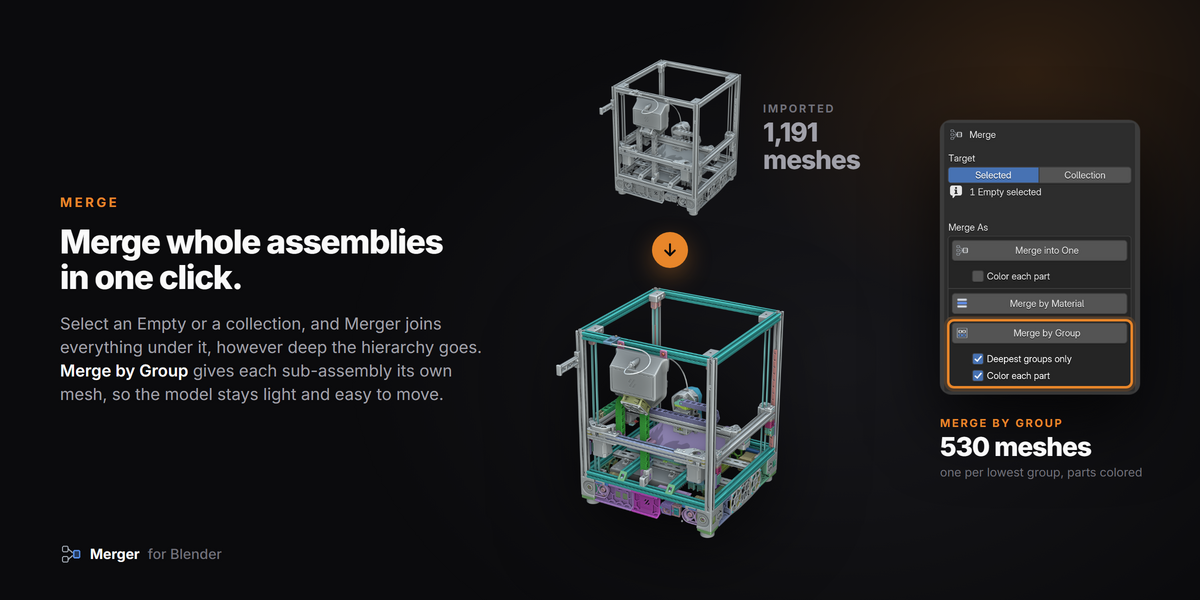
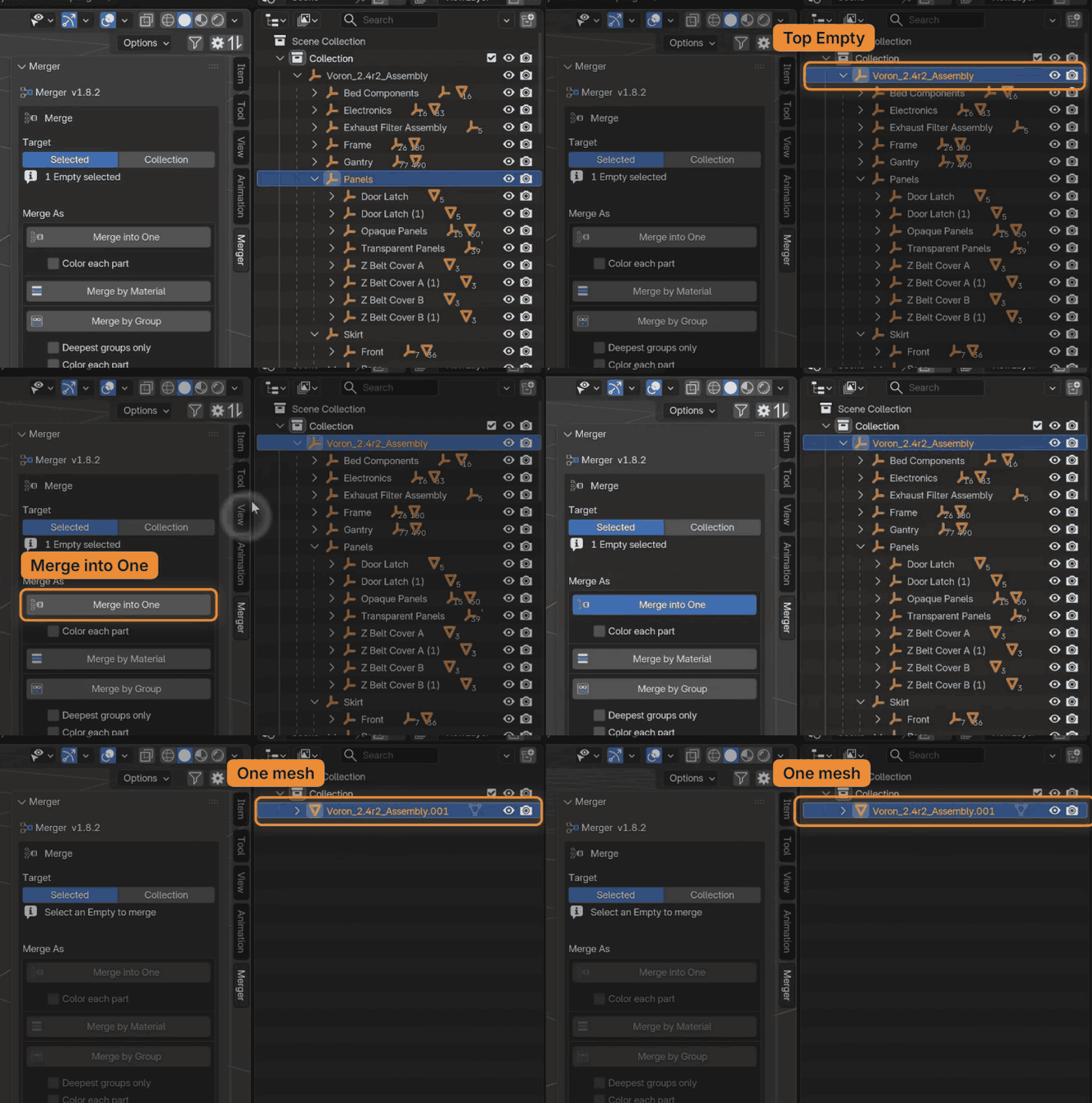
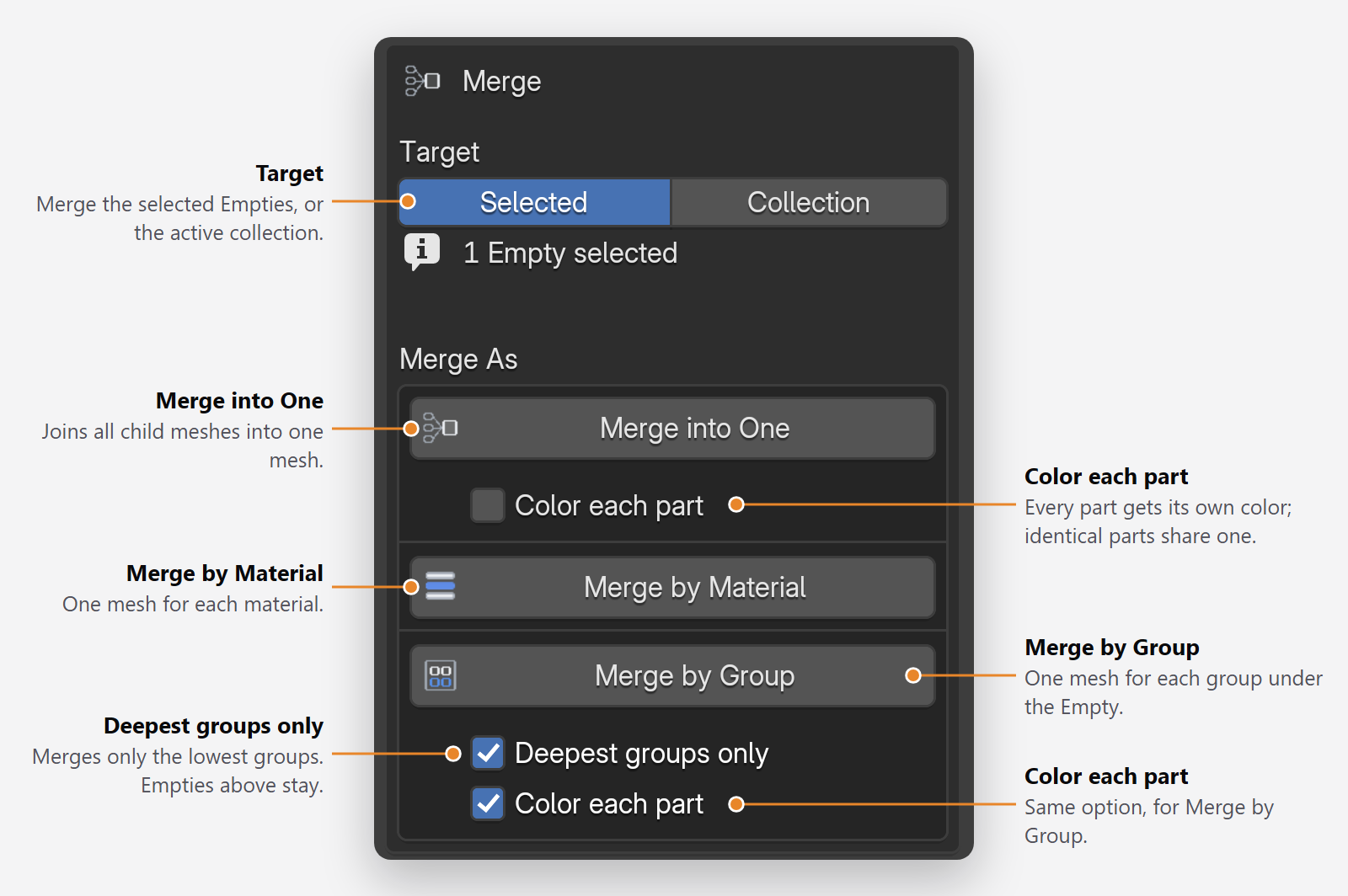
Select an Empty or a collection, and Merger joins the meshes under it, however deep the hierarchy goes.

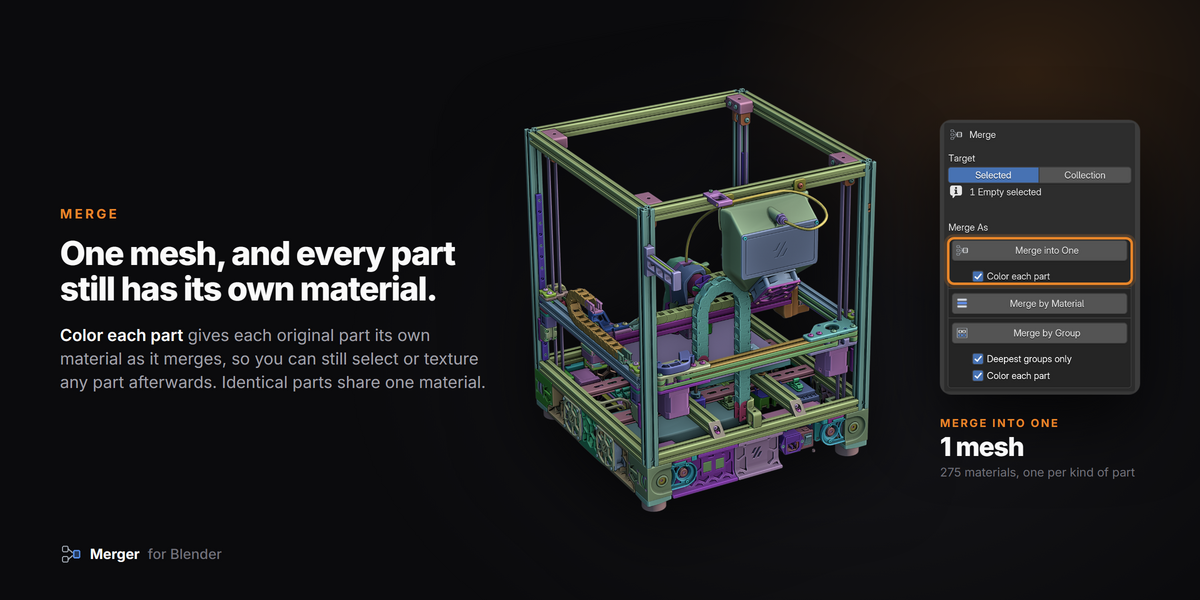
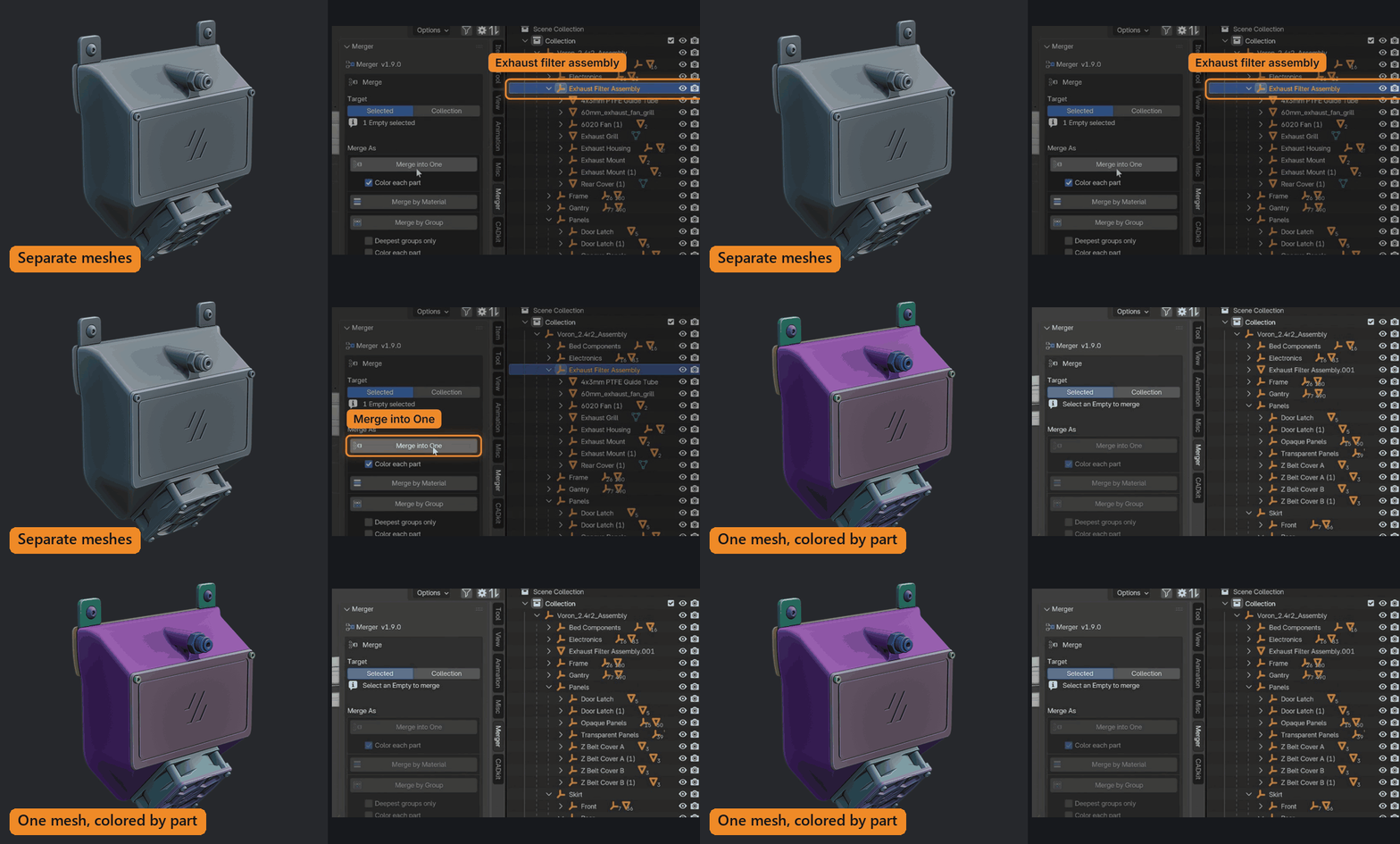
Merge into One
Everything under the selected Empty becomes one mesh, named after it and placed where it was.

Color each part
One mesh, and each original part keeps its own material, so you can still select or texture it. Identical and nearly identical parts share one.

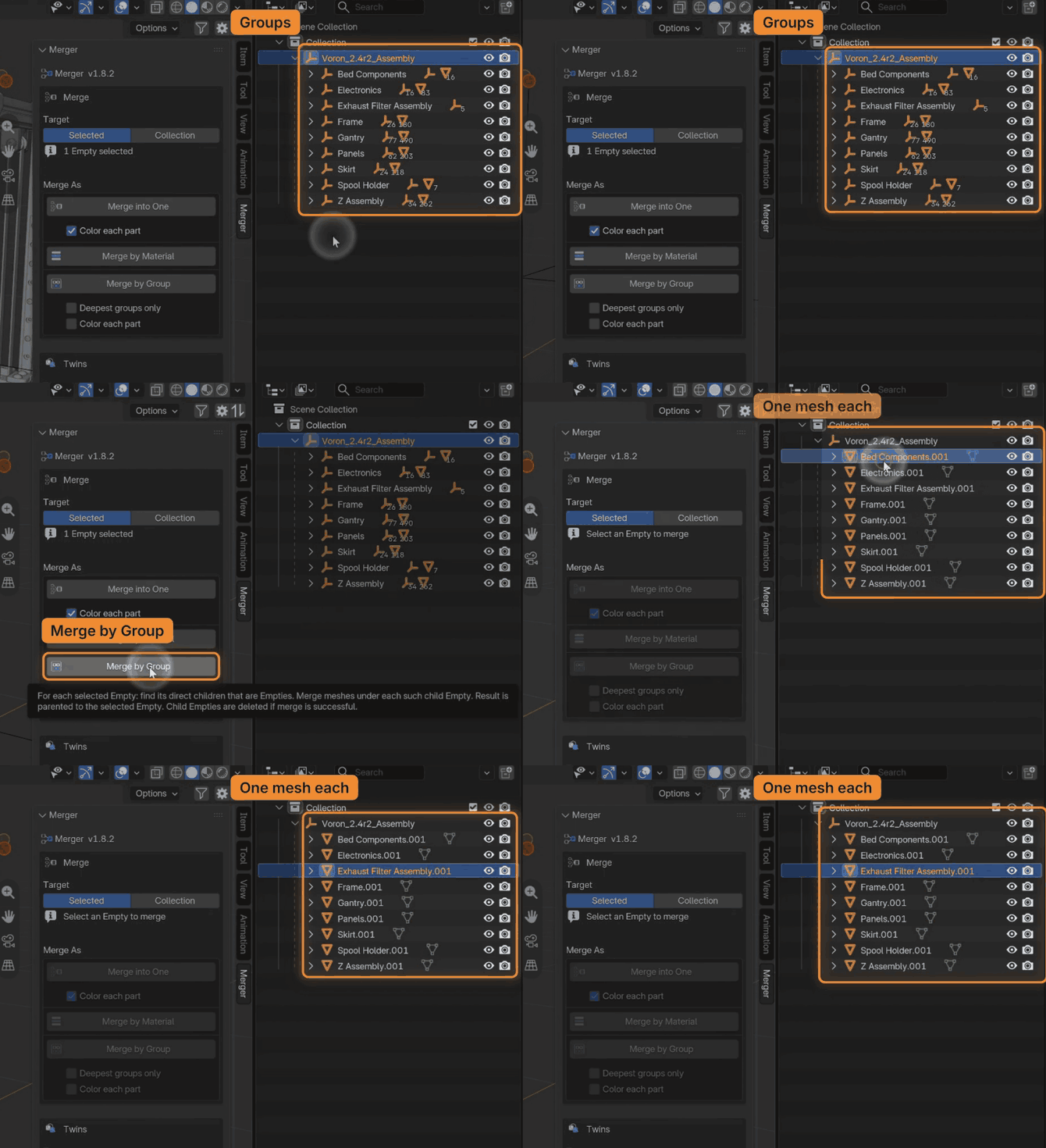
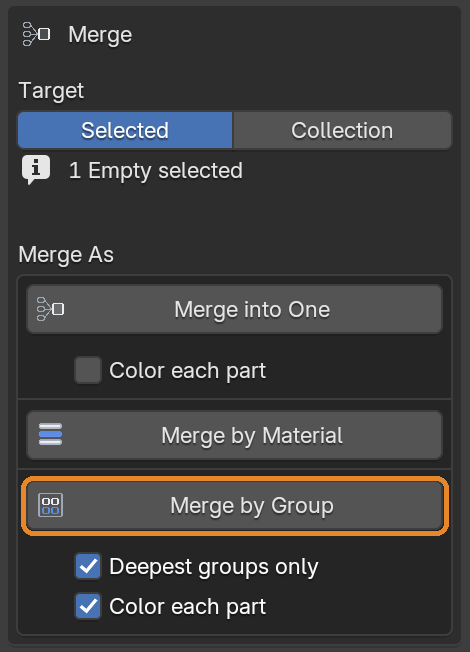
Merge by Group
Each sub-assembly becomes its own mesh, so the model stays easy to move and edit.

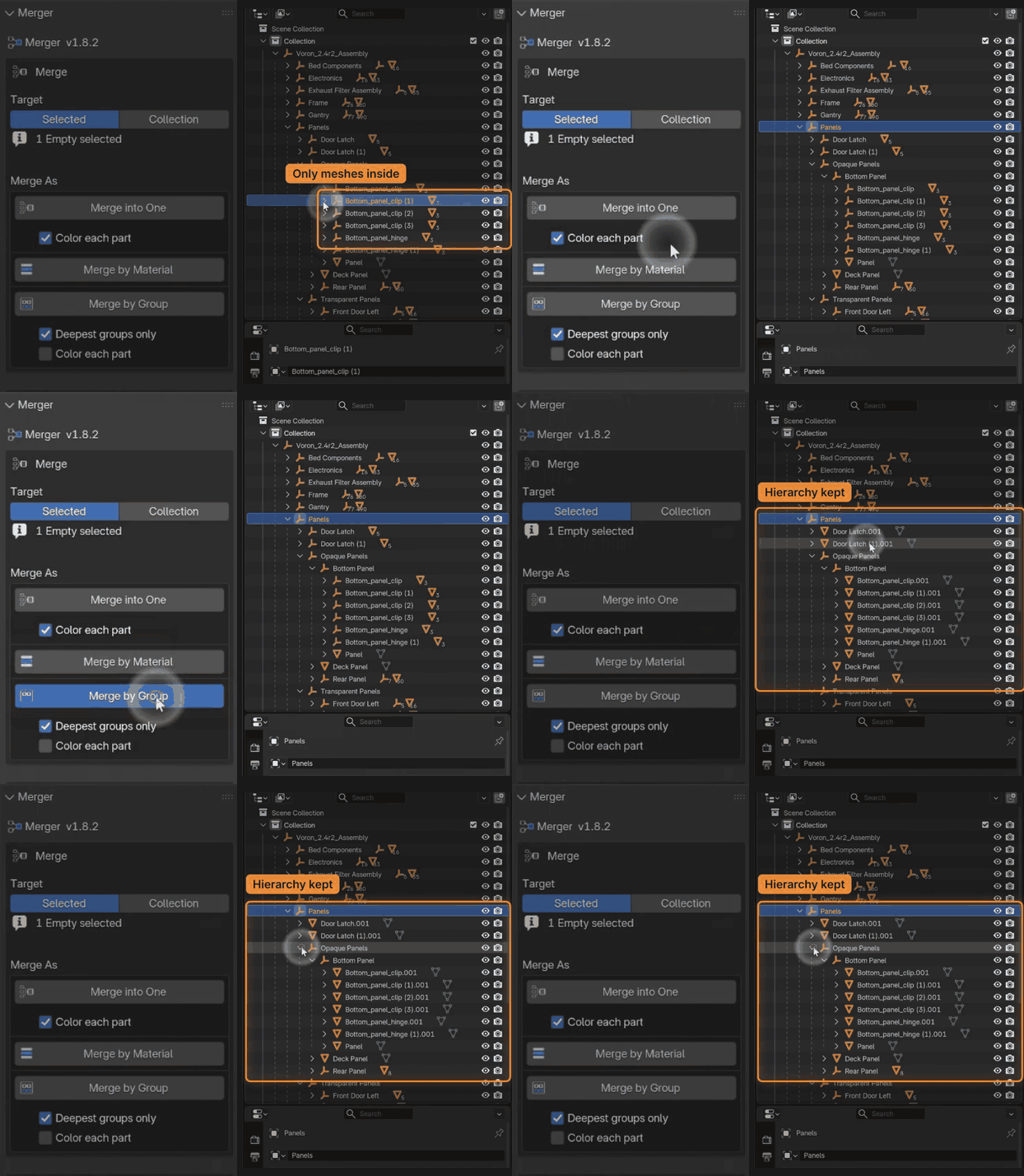
Deepest groups only
Only the lowest groups merge. The hierarchy above them stays, so every sub-assembly still moves on its own.
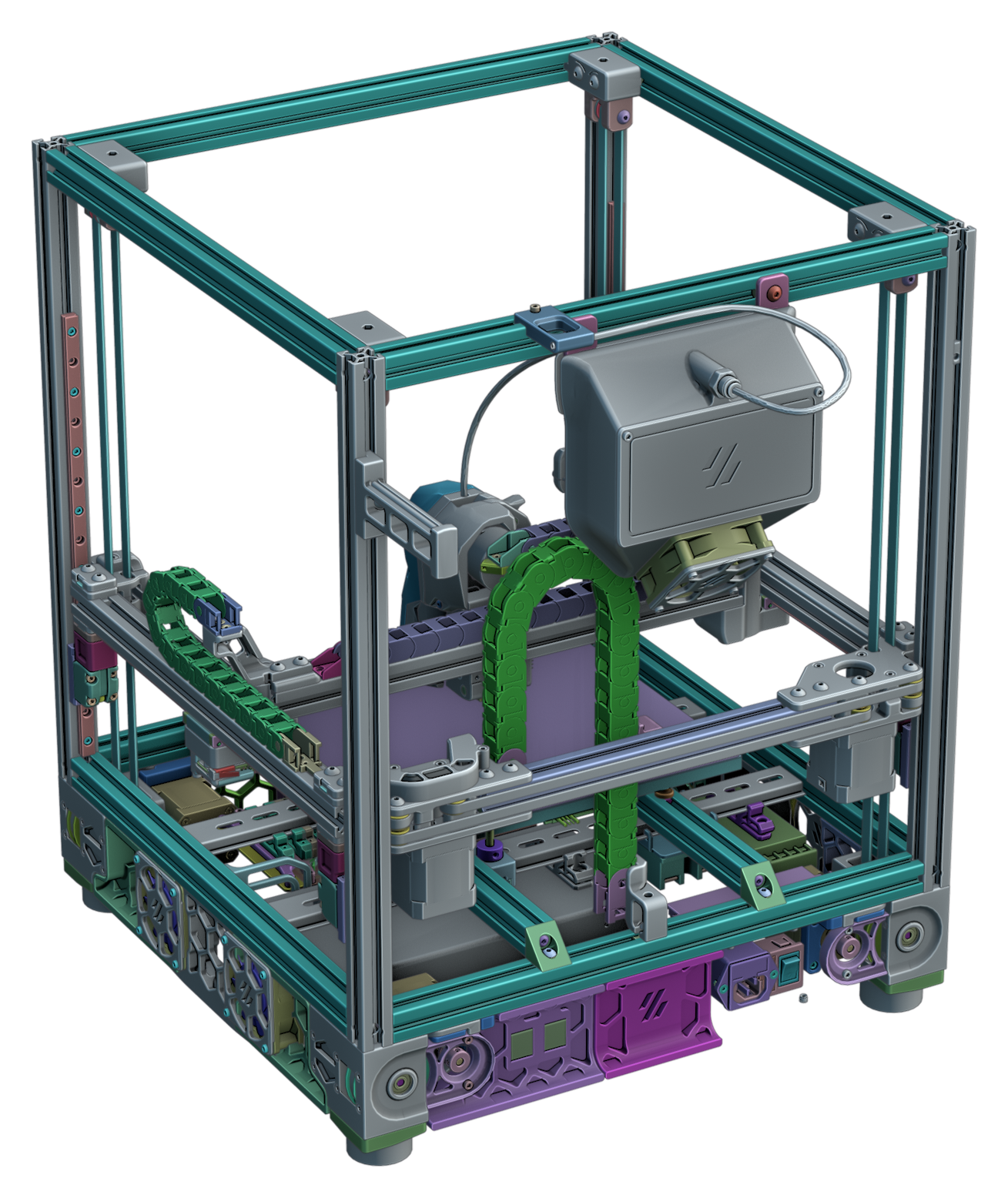
1,191 meshes
Merge by Group, Deepest groups only, Color each part
530 meshes, every part its own color
Voron 2.4 with its clear enclosure panels removed.
Every Merge option, in the panel
Twins Finder
Turn identical meshes
into linked copies.
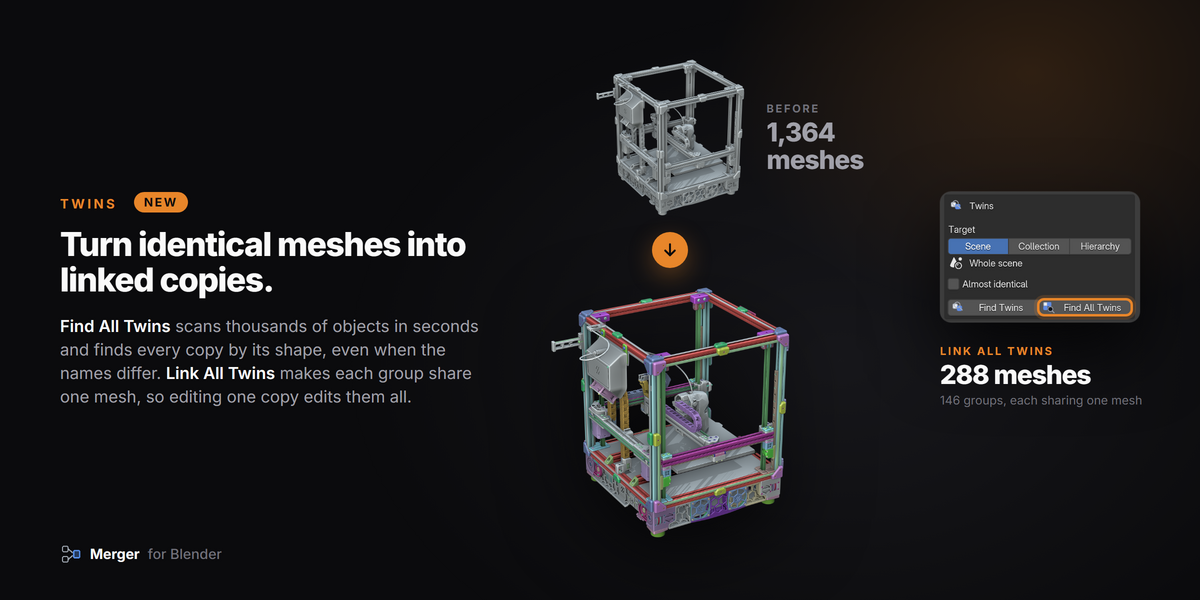
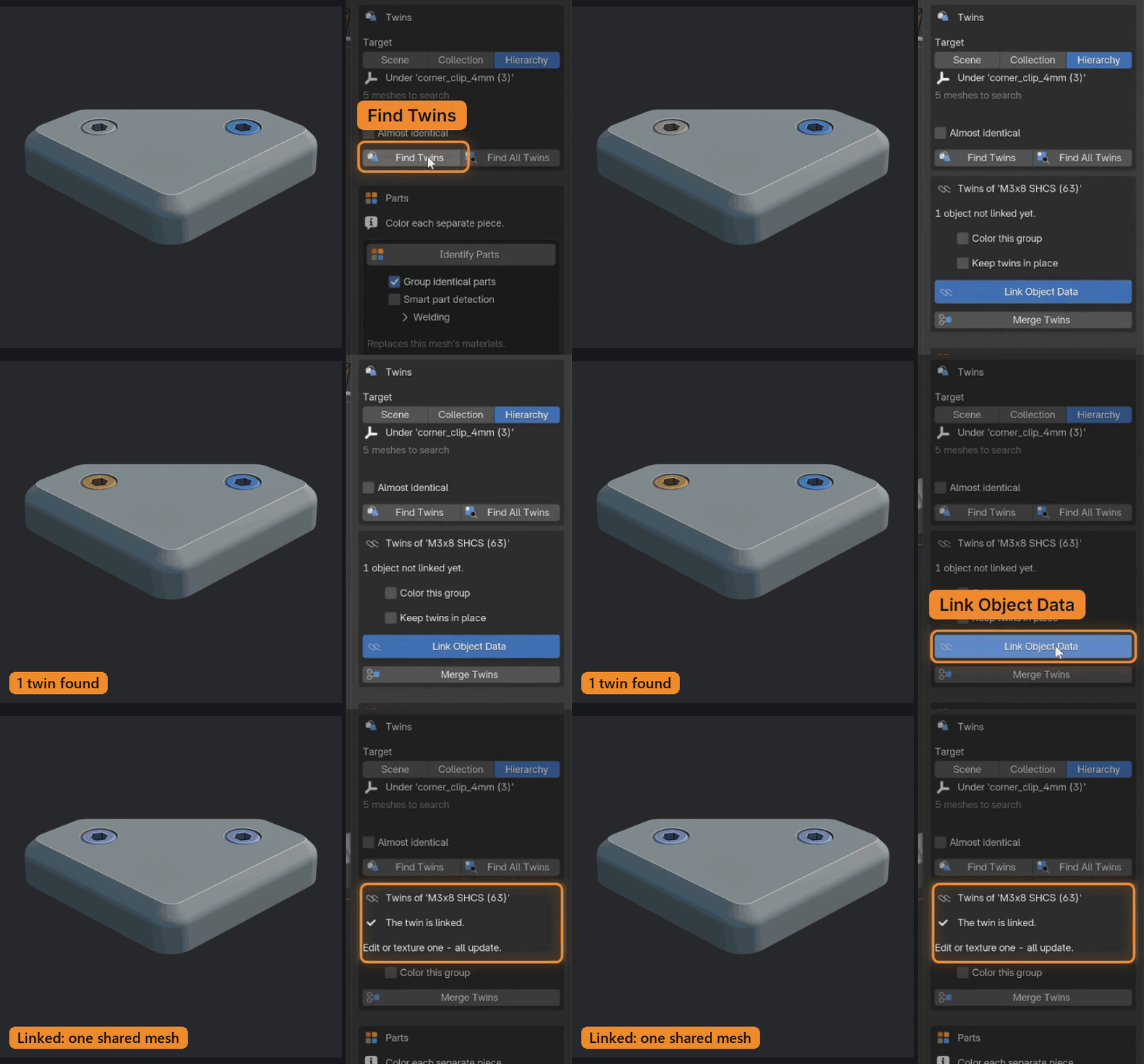
Merger finds copies by their shape, never by their names. Linked copies share one mesh, so you edit or texture one and every copy updates.

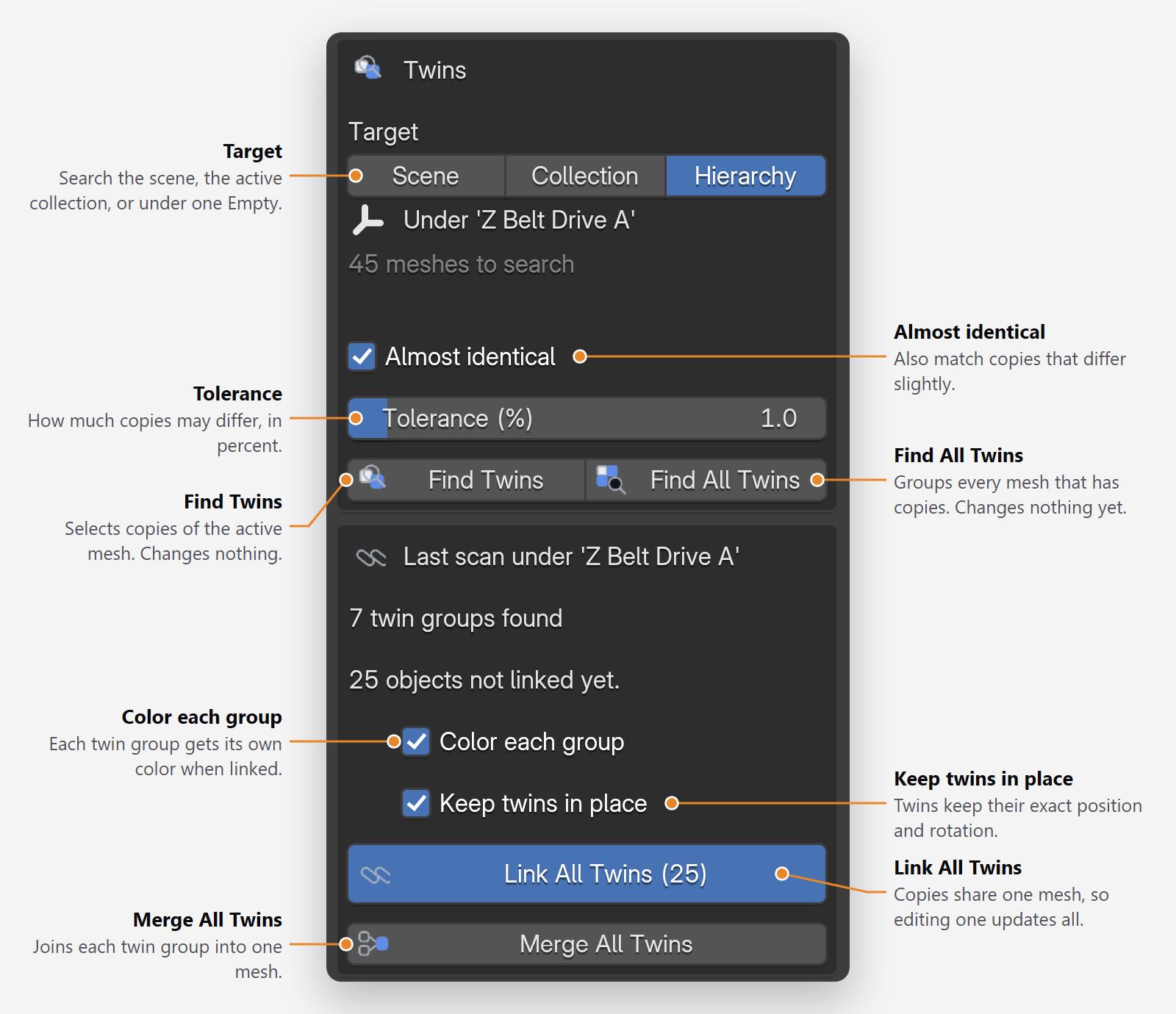
Find Twins
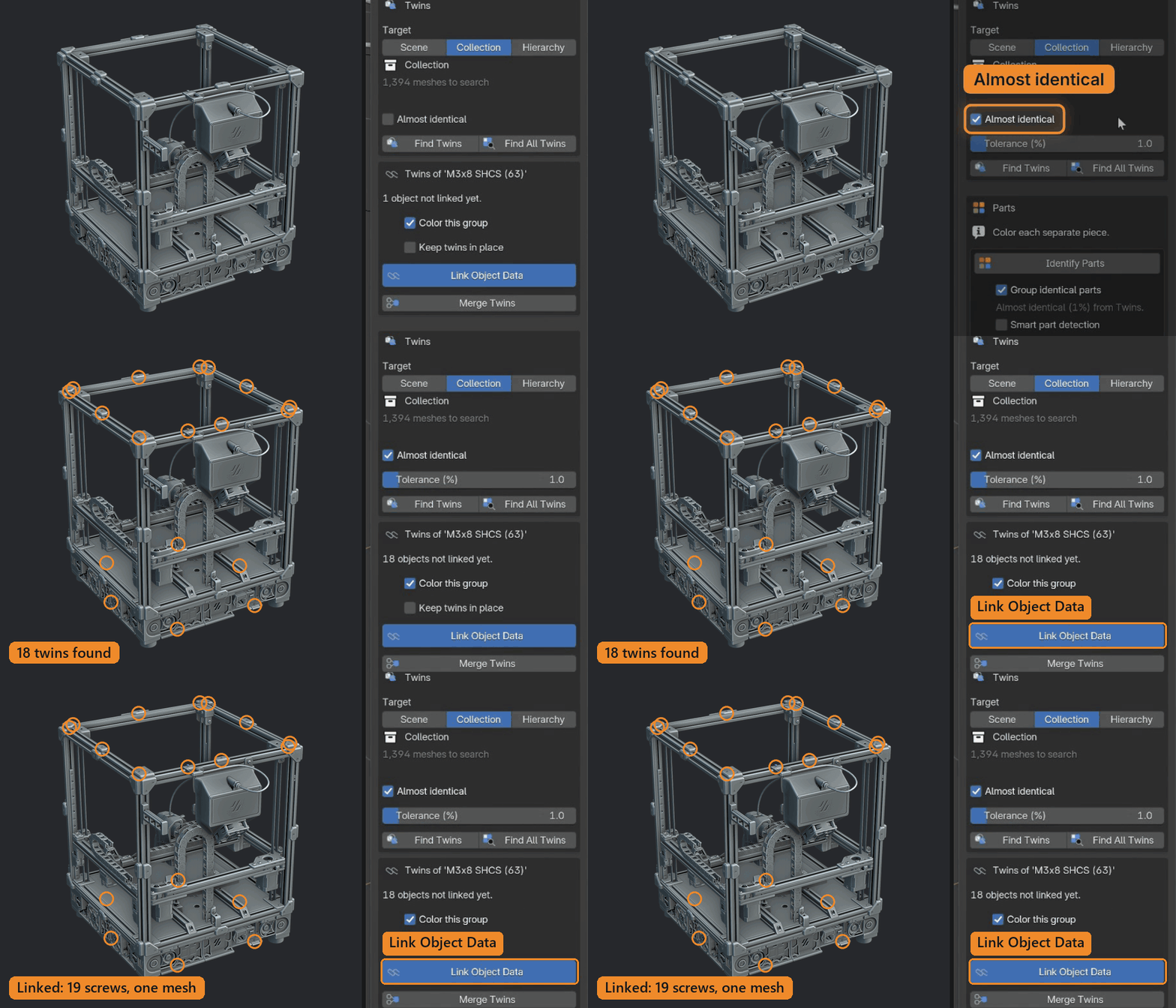
Select one mesh and click Find Twins. Its copies are selected, and Link Object Data makes them share its mesh.
Almost identical
Also finds copies that were exported at a different angle or with slightly different geometry. You set the tolerance.

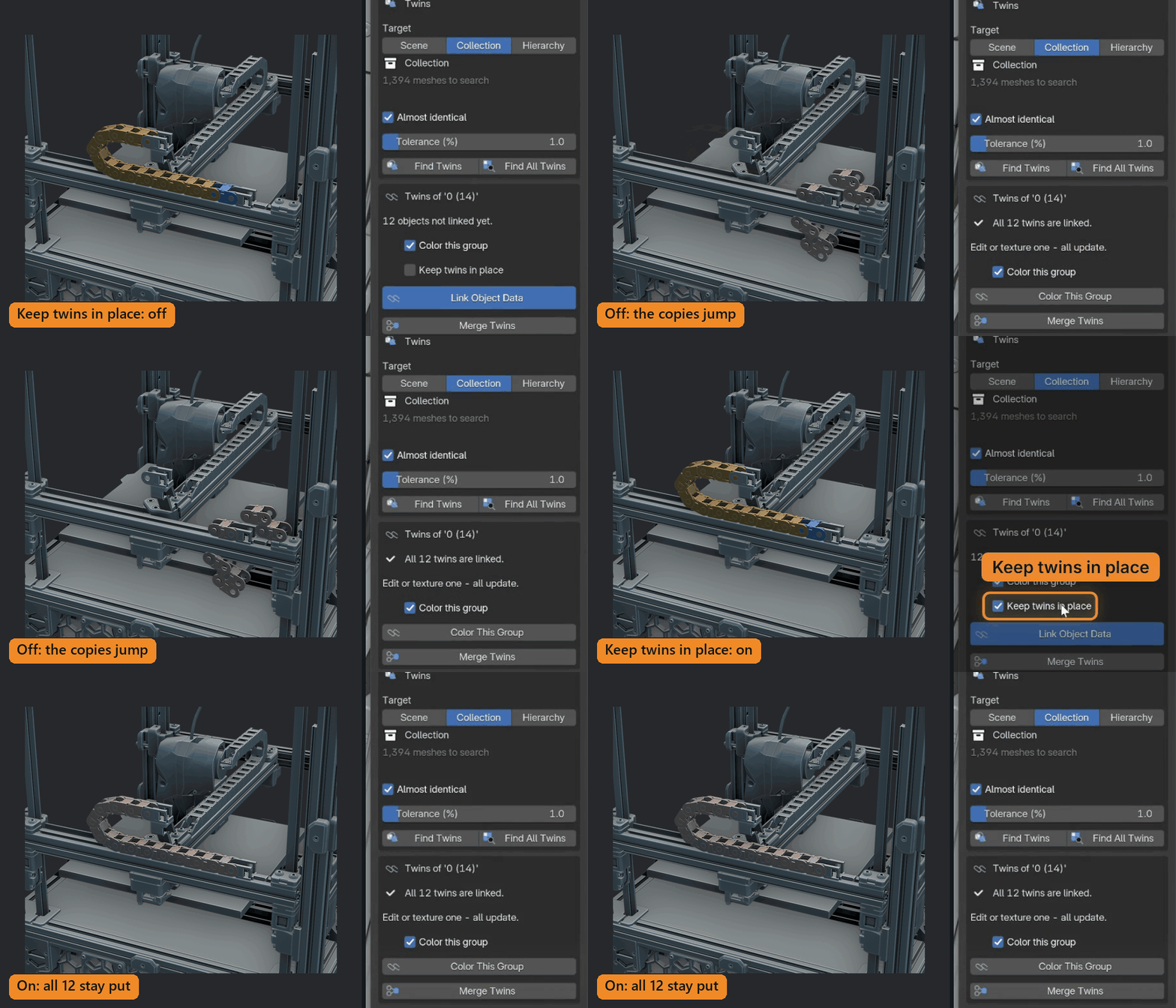
Keep twins in place
Copies modeled at another spot or angle would jump when linked. With this on, each keeps its position and rotation.

Find All Twins, then Link All Twins
Find All Twins groups every mesh that has copies, in the scene, a collection or under one Empty, and changes nothing. Link All Twins then links every group after one confirmation.
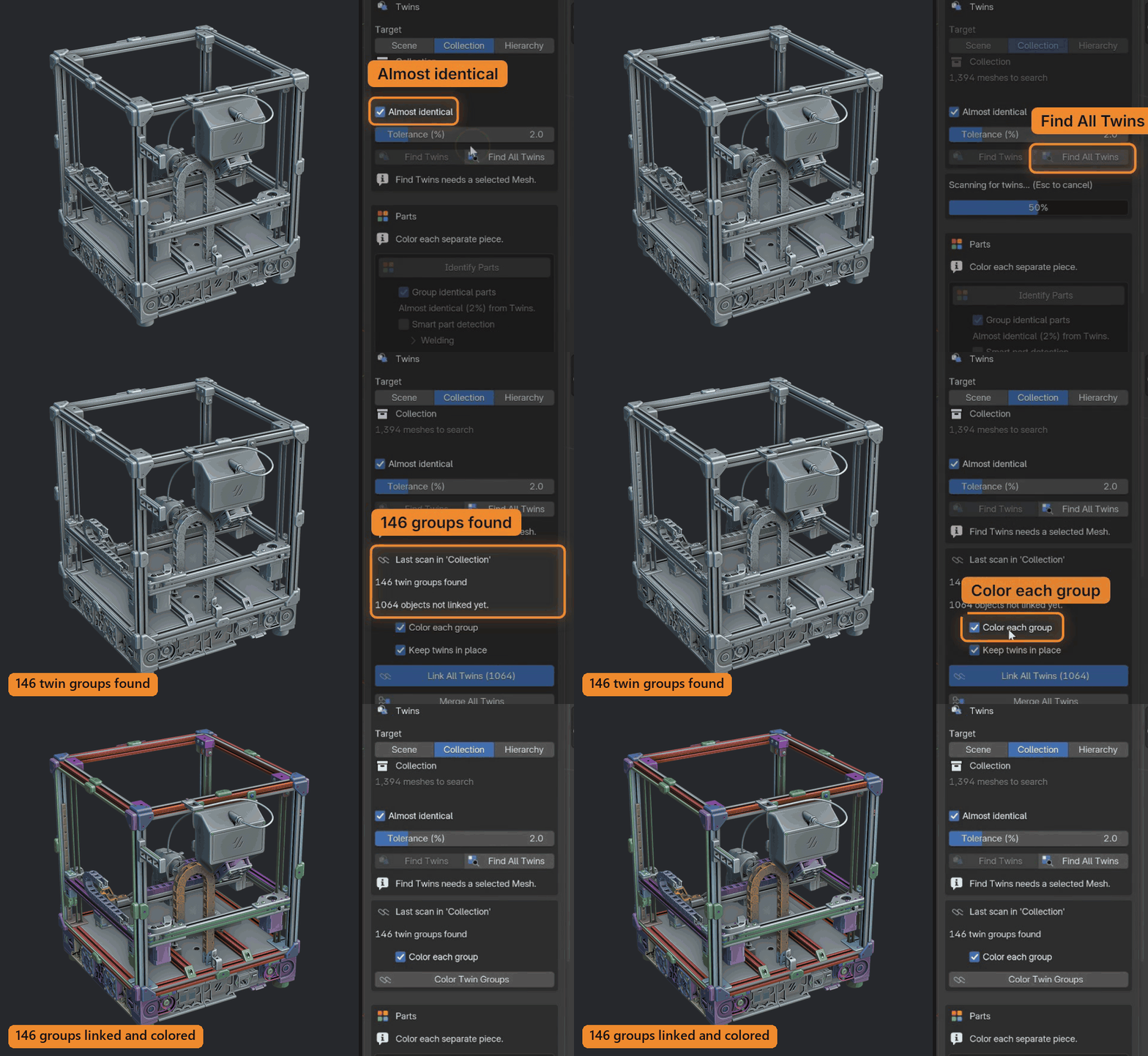
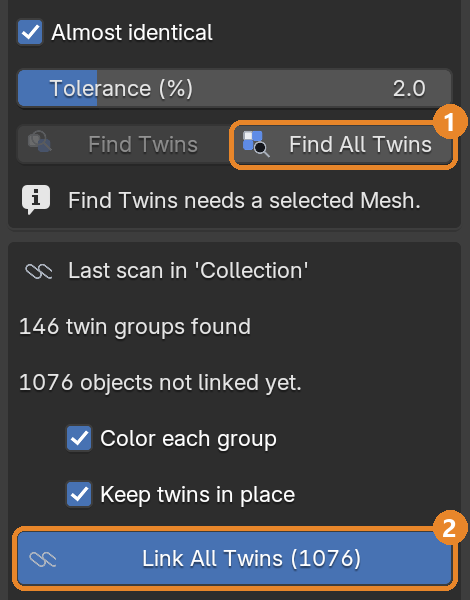
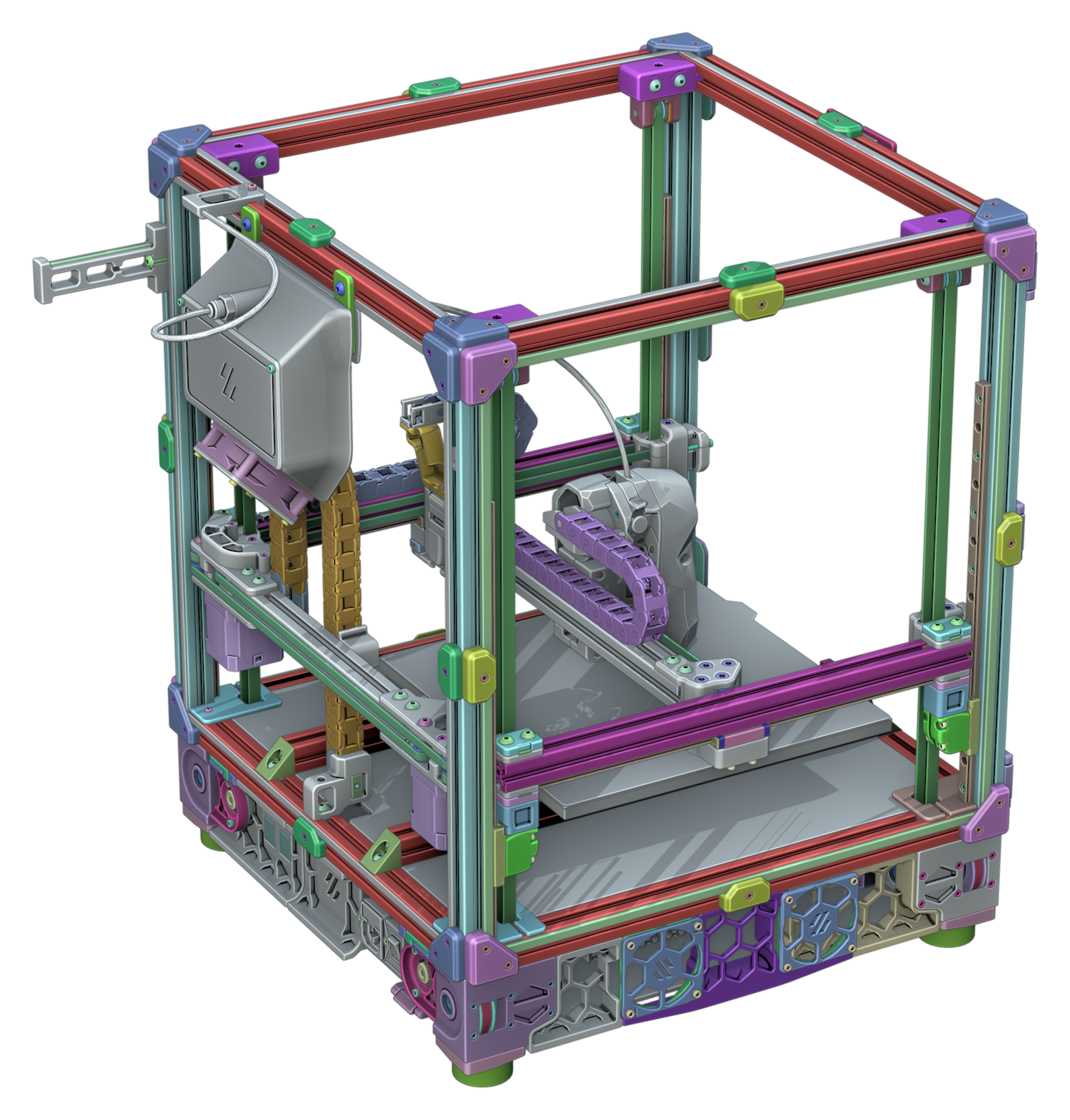
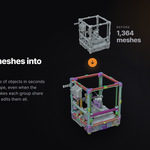
1,364 meshes
Find All Twins, then Link All Twins
288 meshes, 146 groups colored
The GIFs above had already linked 30 of the 1,394 meshes. Clear enclosure panels hidden.
Every Twins option, in the panel
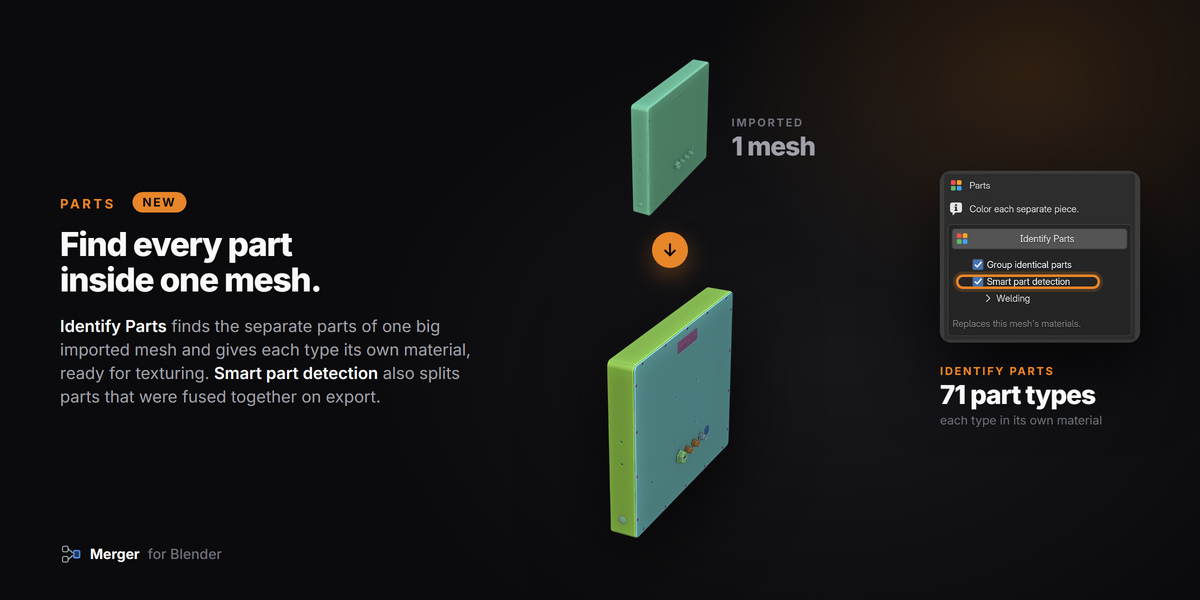
Parts Finder
Find the parts
inside a single mesh.
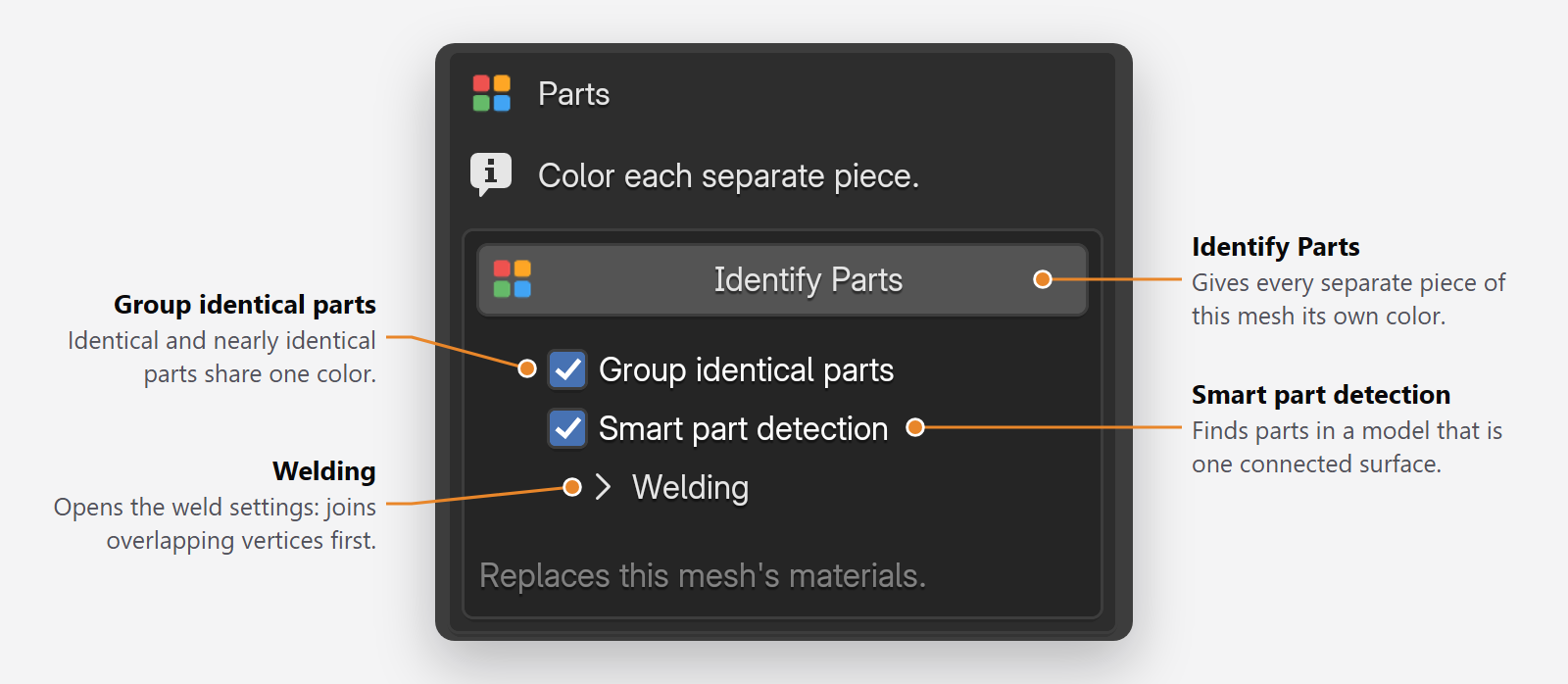
An import that arrives as one big mesh gets each part its own material, so you can select and texture parts again.

Identify Parts
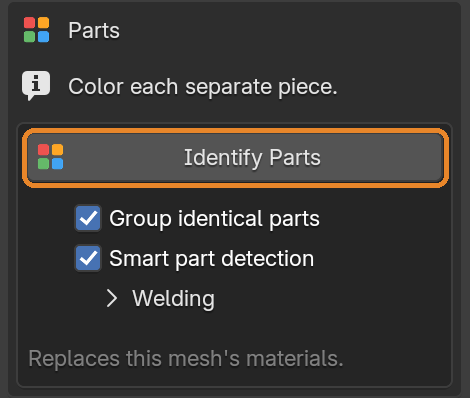
Each separate piece of the mesh gets its own material, replacing the old ones. Group identical parts is on by default, so copies share one.
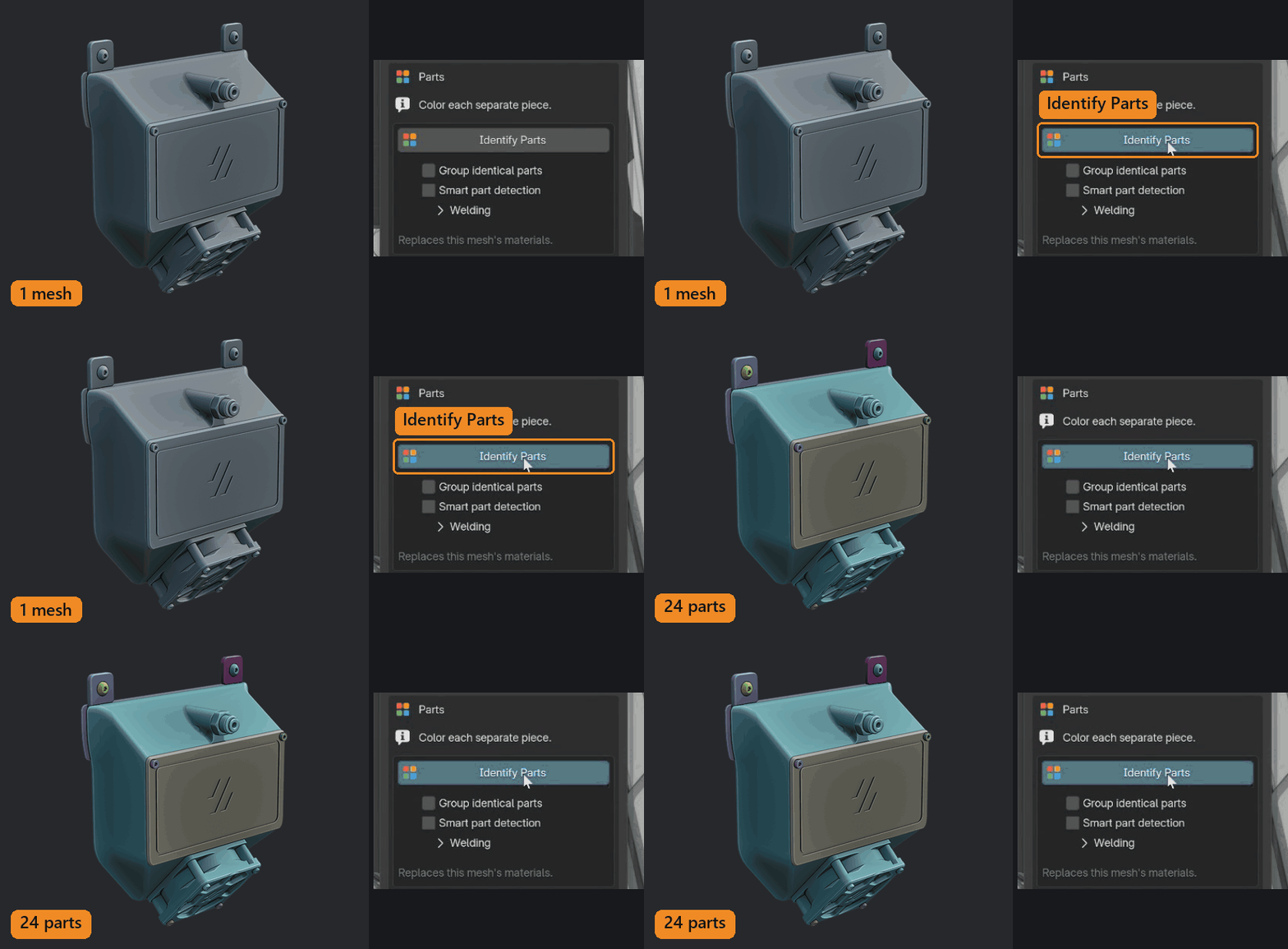
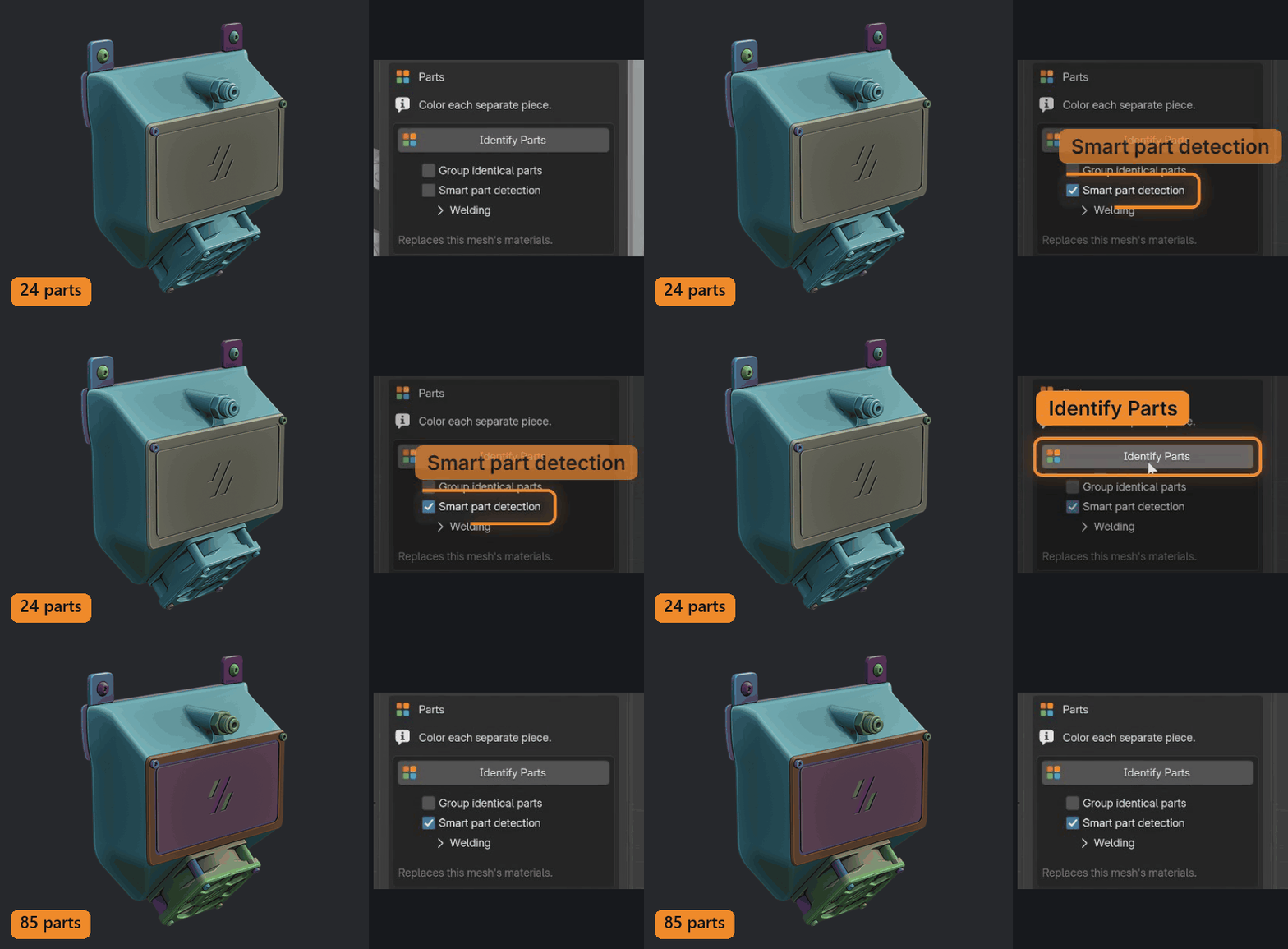
Smart part detection
Splits parts that were fused together on export, where they meet at a sharp inner edge. Here: 24 parts become 85.
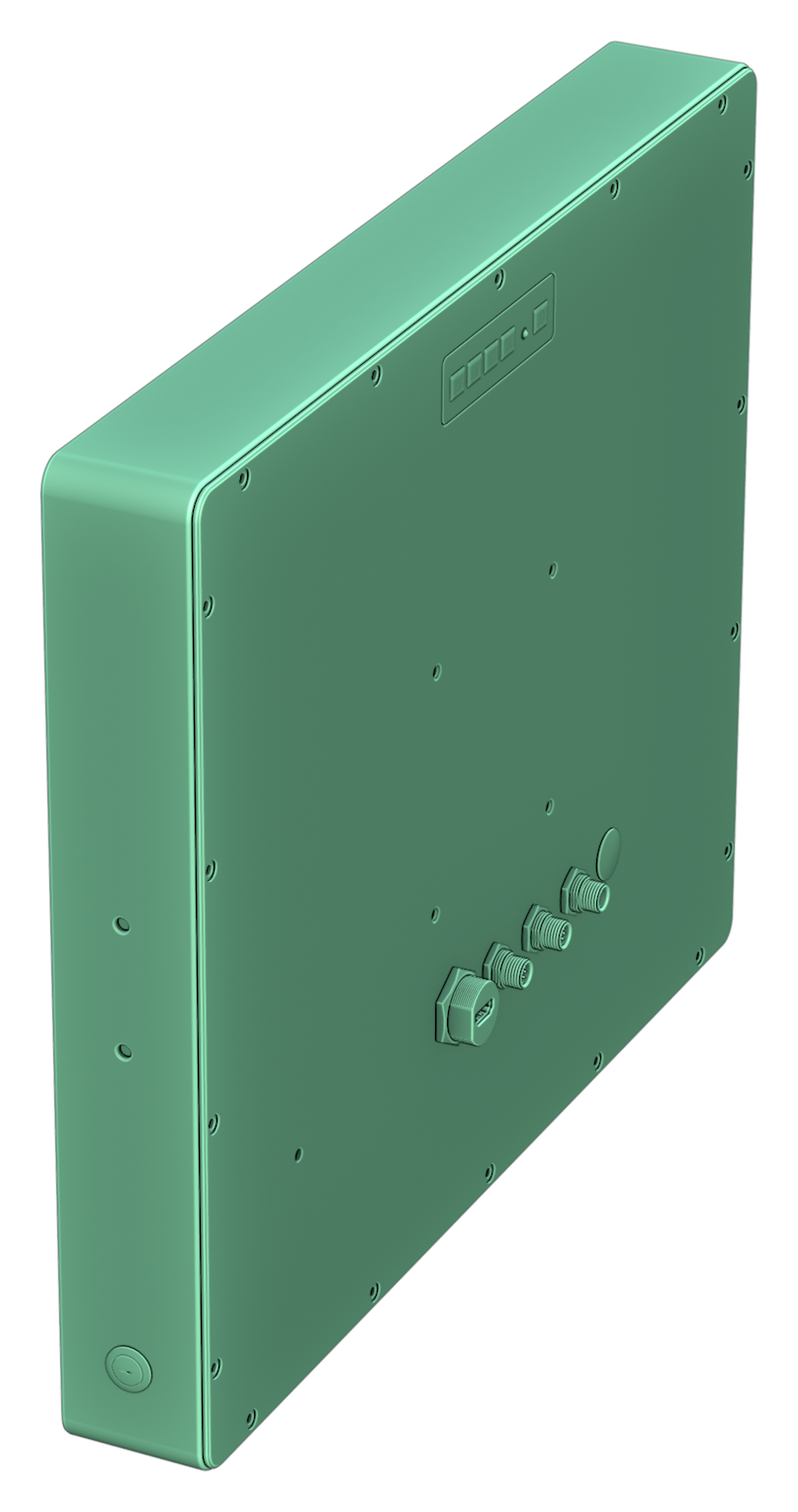
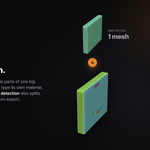
One mesh
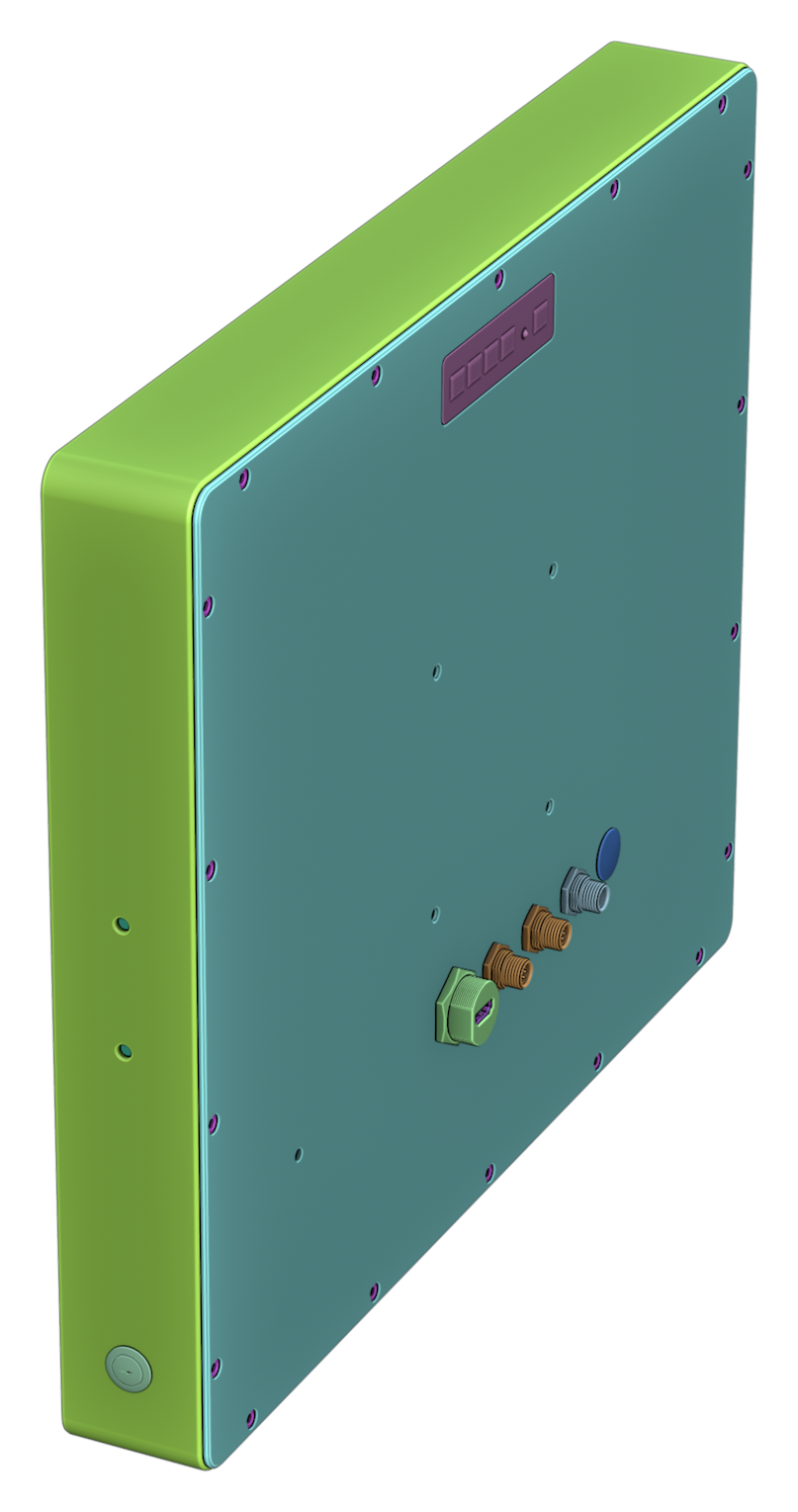
Identify Parts
71 part types
A different model from the GIFs above: a display imported as one connected mesh.
Every Parts option, in the panel
Cleanup
Delete Childless Empties
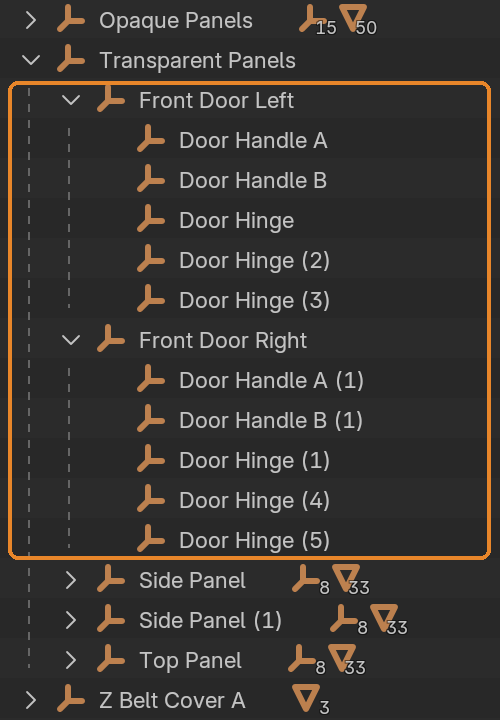
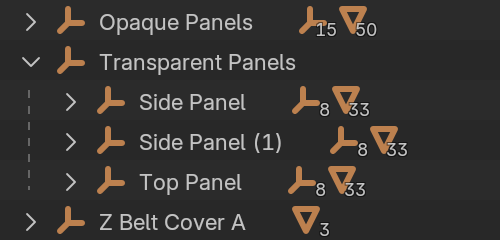
Delete the parts you don't need, and their Empties stay behind in the Outliner. One click deletes every Empty in the scene with nothing under it, including Empties that only held other empty ones. One Ctrl+Z brings them back.


12 Empties with no parts under them
Delete Childless Empties
12 Empties deleted
Made for CAD. Just as handy for any heavy model.
Hundreds of loose objects and nested Empties, cleaned up in a few clicks.
Merge a whole model into one mesh, then scatter or duplicate it.
Linked copies share one mesh instead of each storing its own.
"I import CAD models into Blender every day, and every project started with hours of organizing thousands of parts. Merger began as a small tool for my own work. Now that cleanup takes a few clicks, and I hope Merger saves you the same hours."
Andrew Luzhetskyi, author
A note from me. Merger is a one-person project. I test every release myself, but I'm not a professional developer, so I may have missed something. If you find a bug or there's a feature you'd like, please send me a message from this page. I have a full-time job, but I read every message and do my best to reply quickly and work on what you ask for.
Spend your time on the creative work, not the cleanup.
Every merge, link and color action is one Ctrl+Z. Full documentation and FAQ are in the tabs above.
Demo model: Voron 2.4 by the Voron Design team, GPL-3.0.
