 arsha 3D plant designer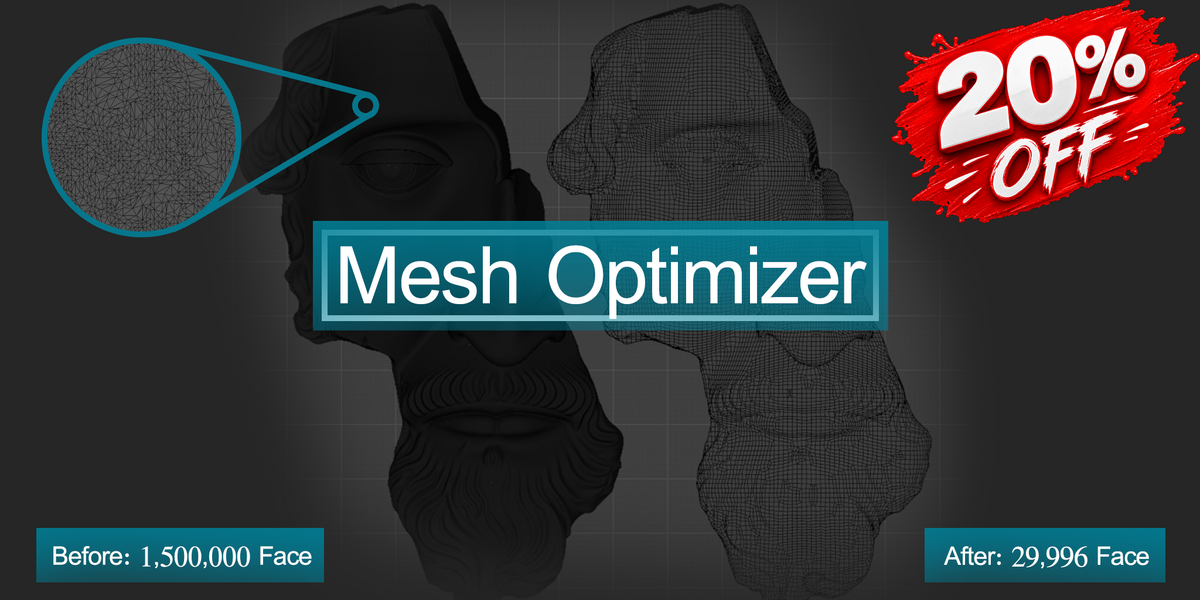






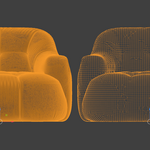
Mesh Optimizer
Smart Mesh Optimization & Retopology Toolkit for Blender
Analyze heavy geometry, choose the right optimization method, control the target topology and preview your result before applying the final mesh.
What is Mesh Optimizer?

SMART MESH OPTIMIZATIONMesh Optimizer is a mesh optimization and topology rebuilding add-on for Blender, designed to help you work with heavy, dense and difficult geometry more efficiently.
Instead of manually testing different optimization techniques, Mesh Optimizer can analyze your mesh and recommend a suitable optimization method based on its geometry.
You can let Smart Auto handle the analysis, or switch to manual methods when you need complete control over the optimization process.
Smart Auto
Let Mesh Optimizer analyze the mesh for you.


Simply press Analyze. Mesh Optimizer examines the selected mesh and evaluates its geometry to determine an appropriate optimization approach.
The add-on then provides a classification and recommendation, giving you a fast starting point before generating the optimized result.
Manual Optimization Methods
Take complete control over the way your mesh is reduced or rebuilt.

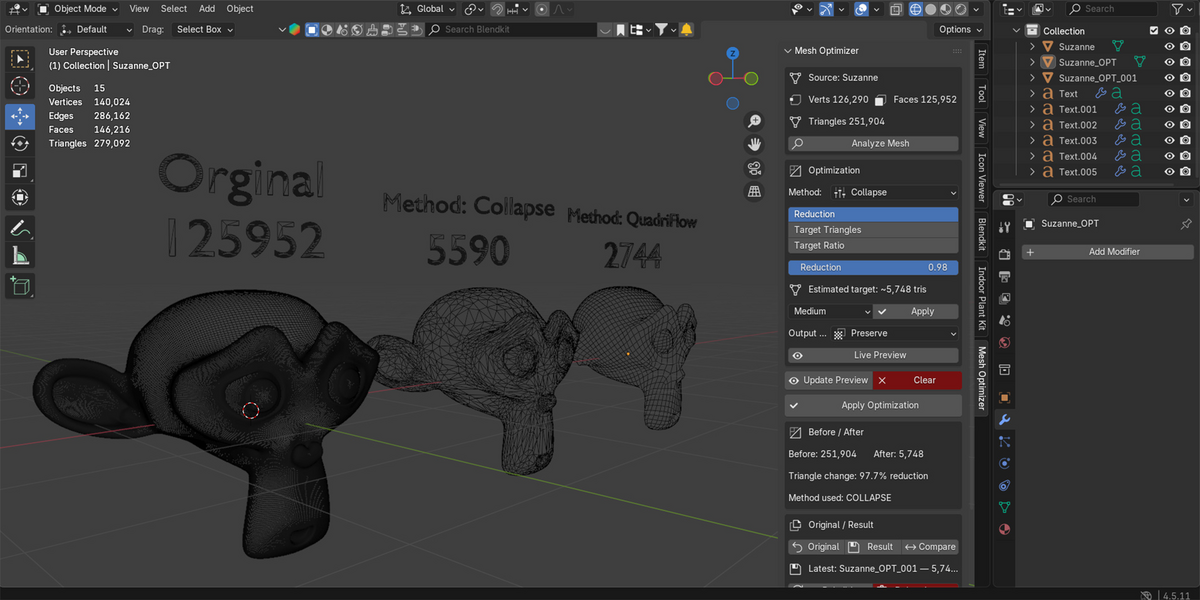
Collapse
Reduces mesh complexity by collapsing unnecessary edges while attempting to maintain the overall shape of the object.
Useful when you need to reduce polygon density while keeping the important surface features and overall silhouette.

Planar
Simplifies surfaces by identifying areas that are approximately planar and reducing unnecessary geometric complexity.
Particularly useful for objects containing relatively flat surfaces, hard-surface elements and areas where maintaining planar shapes is important.

Un-Subdivide
Attempts to reverse regular subdivision patterns and reconstruct a lower-density version of the underlying surface.
When a mesh contains topology generated through subdivision, this method can significantly reduce unnecessary geometry while preserving the underlying shape.


Voxel Remesh
Rebuilds the surface using a volumetric representation of the mesh.
This makes it particularly useful for messy, irregular, highly fragmented or problematic geometry where traditional polygon reduction methods may not provide the desired result.

QuadriFlow
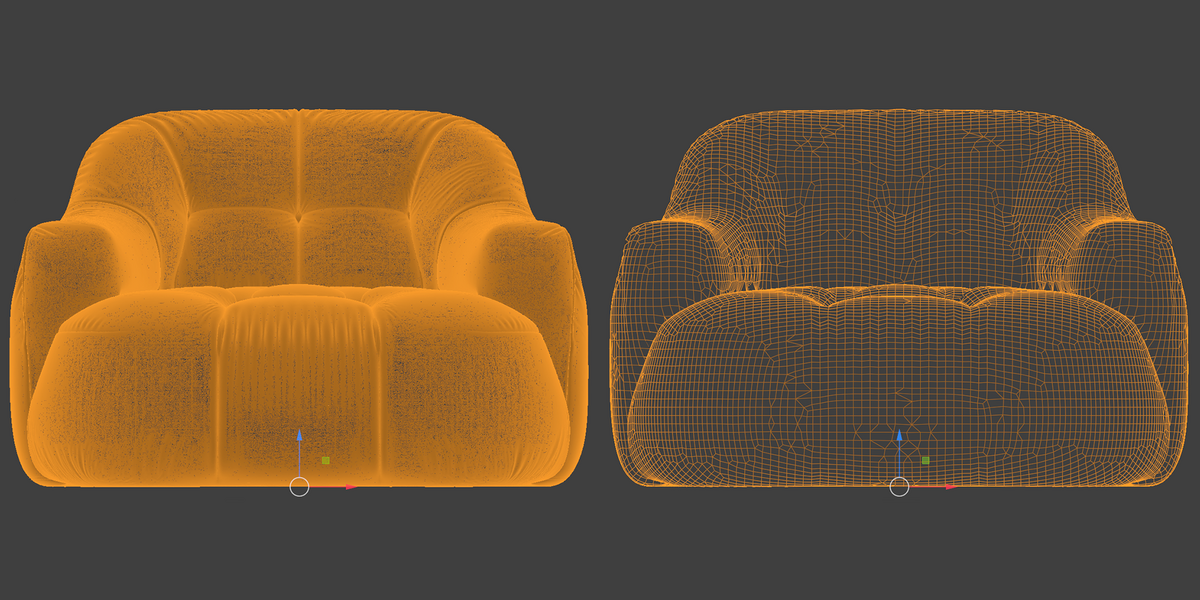
Generates a new quad-oriented topology based on the target polygon count and the overall shape of the object.
Useful when you need a cleaner and more structured surface instead of simply reducing the existing triangles.
Output Topology
Control the topology of the generated result directly from the Output Topology option.
Triangles
Generate the optimized surface using triangle-based topology.
Triangles + Quads
Allows supported rebuilding methods to generate a more quad-oriented result where appropriate.
Precise Output Control
Choose exactly how aggressively the mesh should be optimized.
Live Preview
See the optimization before committing to it.
Enable Live Preview and inspect the generated mesh while adjusting your optimization settings.
This gives you an interactive way to find the balance between polygon count and surface quality instead of applying an optimization blindly.
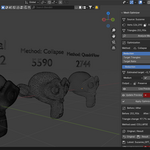
Original / Result
Keep your original mesh and generated results organized while comparing, hiding, rebuilding or deleting optimization results.
Original
Quickly return to the source mesh and inspect the original geometry.
Result
Inspect the latest optimized result and its polygon density.
Compare
Compare the original and optimized geometry during the workflow.
Advanced Controls
For users who need more control, the Advanced section exposes additional parameters for fine-tuning the optimization process.
Allow the optimization process to automatically determine relevant parameters.
Control how strictly the requested target should be followed.
Enable symmetry-based processing and select the desired axis.
Configure which mesh information should be preserved during optimization.
Preserve What Matters
Mesh Optimizer provides preservation controls for important mesh information during supported optimization workflows.
For supported optimization workflows, existing UV and texture-related information can be preserved while the mesh topology is optimized, helping you continue working with the optimized result without rebuilding the entire texturing workflow from scratch.
A Faster Mesh Optimization Workflow
From a heavy source mesh to a cleaner and more manageable result, Mesh Optimizer keeps the entire process inside one focused Blender workflow.
Optimize Smarter. Work Lighter.
A focused toolkit for reducing heavy geometry, rebuilding topology and managing optimized results directly inside Blender.
