Mesh Optimizer
 arsha 3D plant designer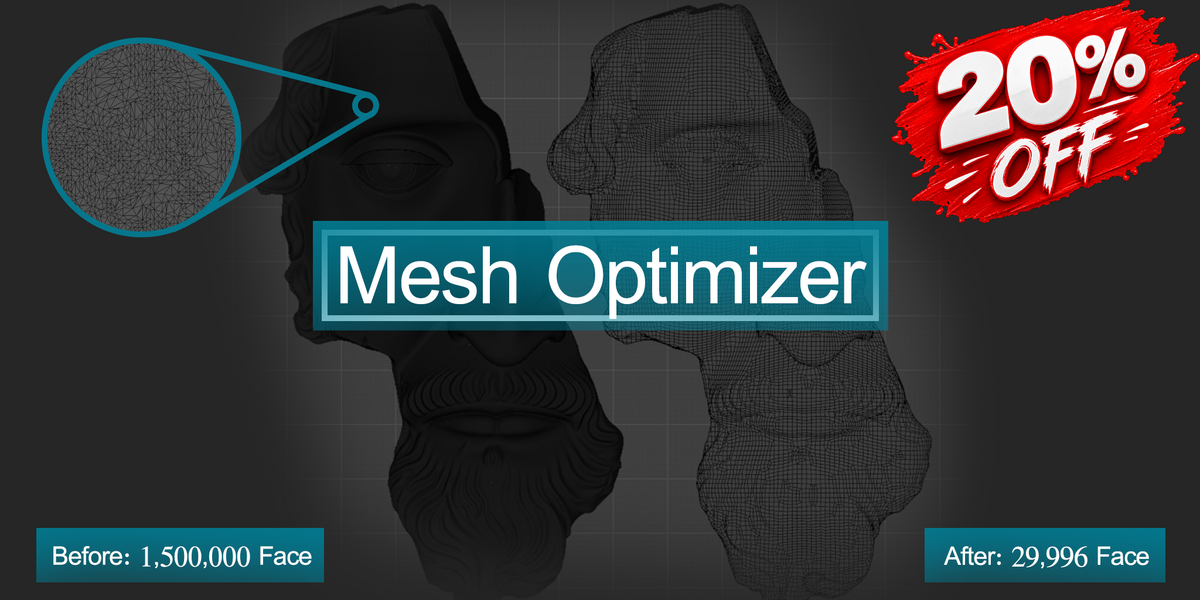






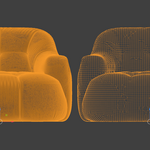
Install Mesh Optimizer
Install Mesh Optimizer as a standard Blender add-on and access it directly from the 3D Viewport Sidebar.
Install the Add-on
Install the Mesh Optimizer add-on ZIP through Blender's add-on installation system and enable the add-on after installation.
Open the 3D Viewport
In the 3D Viewport, press N to open the Sidebar.
Open Mesh Optimizer
Select a Mesh object and open the Mesh Optimizer tab from the Sidebar.
A Safe Optimization Workflow
Preview and Apply operate on separate copies. The source mesh remains unchanged and available in the scene.
1. Press N in the 3D Viewport and open the Mesh Optimizer tab.

2. Select a Mesh object and confirm the source vertex, face and triangle counts.
3. Start with Smart Auto and choose Reduction, Target Triangles or Target Ratio.
4. Use Update Preview to inspect a disposable optimized copy.
5. When the result is suitable, use Apply Optimization to create a permanent separate result.
Control Your Output
Reduction

The percentage of source triangles to remove. For example, 50% keeps approximately one half of the source triangles.
Target Triangles
Sets an approximate final triangle count. This is useful when you need to stay within a defined geometry budget.
Target Ratio
Defines the fraction of source triangles to keep. A ratio of 0.25 keeps approximately one quarter of the source.
Accuracy: Collapse generally follows a numeric target most closely. Structural methods such as Planar, Un-Subdivide, Voxel and QuadriFlow can finish above or below the requested target.
Choose the Right Algorithm
Smart Auto
Analyzes the source and selects a native optimization strategy. Recommended as a starting point, while the final result should always be inspected through Preview.
Collapse
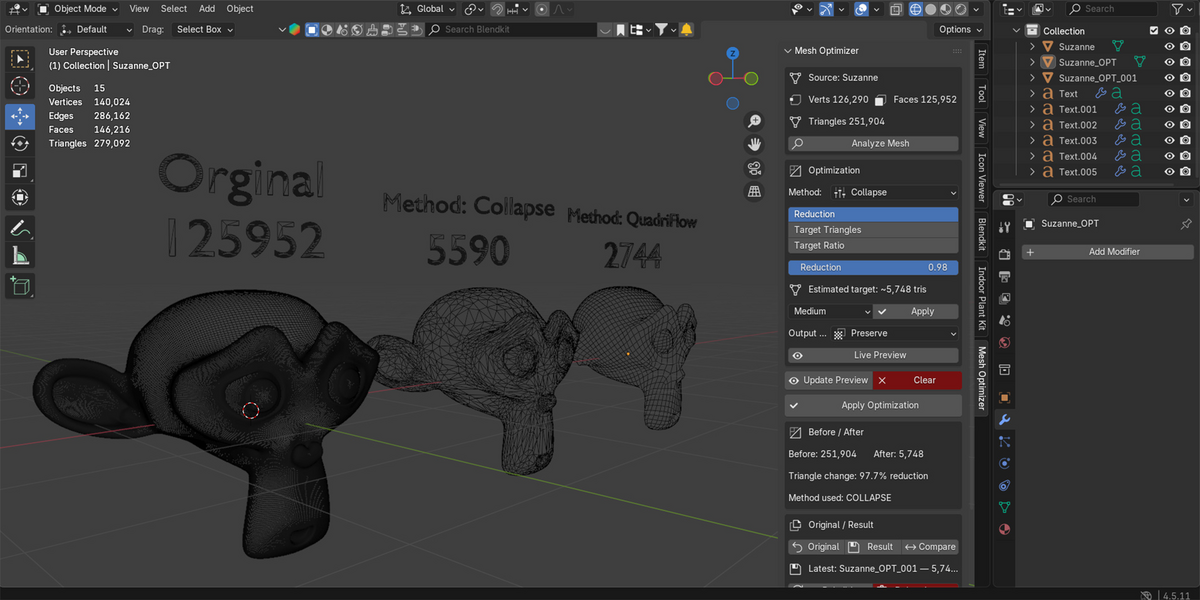
Uses edge-collapse reduction. It is generally the safest choice when you want to reduce geometry while retaining UVs, materials, weights and the overall silhouette.
Planar
Dissolves edges between nearly coplanar faces. It is particularly useful for hard-surface objects and large flat regions.
Un-Subdivide
Reverses regular subdivision levels and works best when the source topology follows a clear subdivision pattern.
Voxel Remesh
Rebuilds irregular or problematic geometry from a voxel volume. It creates new topology and topology-dependent data may require additional work afterward.
QuadriFlow
Builds new quad-oriented topology toward a face target. It can be slower than other methods and UVs, weights or Shape Keys may require rebuilding.
Every Action Explained
Analyze Mesh
Inspects topology, classifies the mesh, records warnings and recommends a method. It does not alter geometry.
Update Preview
Deletes the previous preview and generates a disposable optimized copy using the current settings.
Clear
Deletes the temporary preview, reveals the source and selects it.
Apply Optimization
Creates a permanent optimized result as a separate object while preserving the original.
Original / Result
Quickly switch between the preserved source and the newest optimized result.
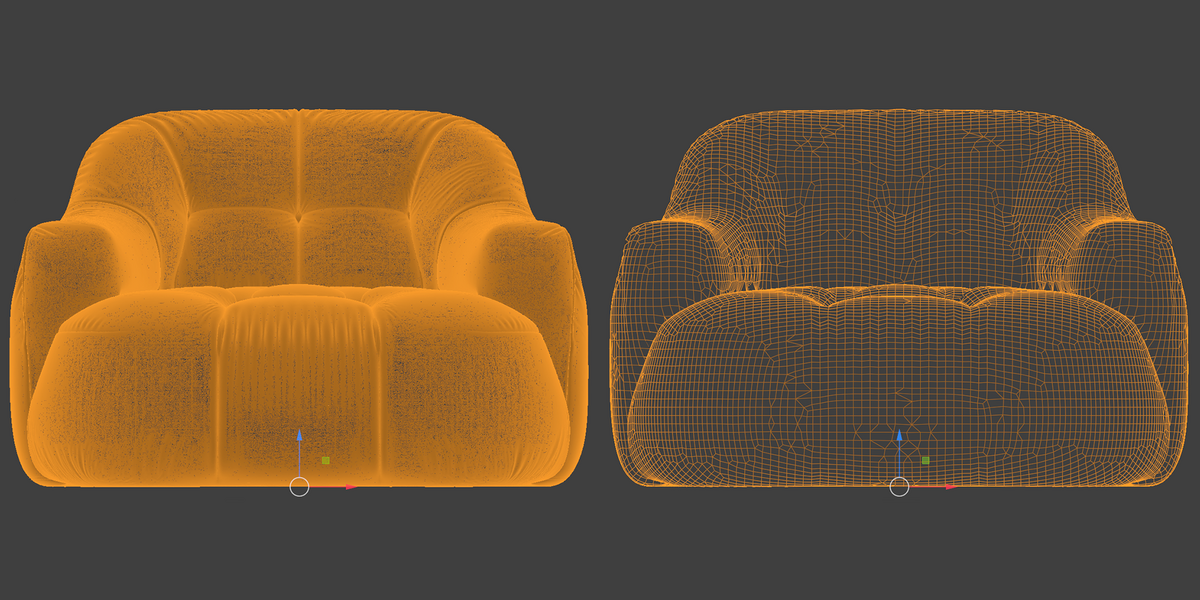
Compare
Shows the original as a wireframe over the newest solid result for direct visual comparison.
Rebuild
Rebuilds the newest result from the original using the current settings.
Delete All Generated
Deletes all generated previews and results linked to the selected source.
Advanced Controls
Live Preview
Automatically rebuilds the disposable preview after a method or target change.
Auto Parameters
Derives method-specific values such as voxel size and iteration count from the source and target.
Enforce Target / Tolerance
Can run a final Collapse pass when a non-Collapse result exceeds the target beyond the allowed tolerance.
UVs / Materials / Sharp Edges / Boundaries
Protects supported delimiters during compatible decimation operations.
Planar Angle
Controls the maximum adjacent normal angle that Planar may dissolve.
Voxel Size / Adaptivity
Voxel Size controls retained detail and memory usage, while Adaptivity simplifies flatter areas.
Quad Target Faces
Defines the requested QuadriFlow face count.
Data Safety: Voxel and QuadriFlow build new topology. Keep the original available for validation and any required data-transfer workflow.
 Included
Includes 12 months of
- Support from arsha 3D plant designer
- Product updates
Extend this product’s Support Period +12 months: 25% of product price
Have questions before purchasing?
Login to message
| Blender Extension Compatible | Yes |
| Published | about 16 hours ago |
| Blender Version | 4.5 - 5.2 |
| Extension Type | Add-on |
| License | GPL |
Discover more products like this
mesh cleanup remesh remesher polycount quad remesh retopology low poly topology optimization Game asset quads hard surface