MeshyLib - Your Private Asset Browser
 Blenderujemy



MeshyLib – Documentation
What's New in version 2.1.0
- Added the ability to adjust the light intensity for thumbnail previews.- Improved file compatibility and integrity for version 4.5.x.
Requirements
- Blender 4.5+ (also works on Blender 5.0 – minor fixes coming soon)
- Windows / macOS / Linux
- No external dependencies required
Installation
- Download the .zip file from your Superhive purchases
- In Blender go to Edit → Preferences → Add‑ons → Install
- Select the downloaded .zip and click Install Add‑on
- Enable MeshyLib by checking the checkbox next to its name
- The panel is available in View3D → Sidebar (N) → Mlib tab
First Setup
- Open Edit → Preferences → Add‑ons → MeshyLib
- Set the Library Storage Path – this is the root folder where MeshyLib will create and manage your entire folder hierarchy
- After setting the path, click the Refresh button (top‑right corner of the MeshyLib panel) to scan and load existing assets
Saving Assets
- Select one or more mesh objects in the scene
- Go to the Store tab in the MeshyLib panel
- Enter an asset name or leave it blank to use the object name
- Choose the target category/folder
- Click Save Asset (single object) or Batch Save Assets (multiple objects at once)
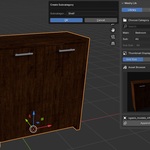
- A thumbnail, metadata and compressed .blend file will be created automatically
Browsing & Importing Assets
- Go to the Library tab in the MeshyLib panel
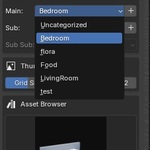
- Browse categories using the Main / Sub / Sub‑Sub folder dropdowns
- Use the search bar to filter assets by name
- Click on a thumbnail to select an asset
- Click Append Asset to place it at the 3D Cursor position in the active collection
Thumbnail Customization
- Thumbnails are rendered automatically in a built‑in Studio_Setup scene using Cycles
- If the framing is not correct, adjust it using:
- Vertical Offset – move the asset up/down in the frame
- Horizontal Offset – move the asset left/right
- Zoom – zoom the camera in or out
- You can also change the thumbnail background color to visually group assets by category or purpose
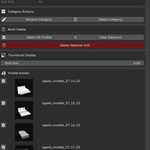
Managing the Library (Edit Mode)
- Toggle Edit Mode in the Library tab (pencil icon, top‑right)
- Available actions:
- Rename Asset – rename the selected asset
- Move Asset – move asset to a different category folder
- Delete Asset – permanently remove asset (blend + thumbnail + metadata)
- Rename Category – rename any folder in the hierarchy
- Delete Category – remove a folder (must be empty before deleting)
- Multi Delete / Multi Move – select multiple assets and delete or move them at once
Folder Structure
- MeshyLib supports up to 3 levels of folder hierarchy: Main → Sub → Sub‑Sub
- Create new folders directly from the panel using the + buttons next to category dropdowns
- Additional visual grouping is available via thumbnail background colors
Meshy Tools
A built‑in utility panel for quick mesh cleanup:
- Snap Pivot – snaps the object pivot to the bottom of the mesh
- Merge Duplicates – merges duplicated materials (e.g. .001, .002) into one base material
- Merge Slots – consolidates and cleans up redundant material slots
- Merge UV Join – joins selected objects and consolidates their UV maps into a single unified UV map
Storage & Performance
- Each asset is stored as compressed data with lightweight metadata
- Minimizes disk usage even for large libraries
- Fast to browse, easy to back up, compatible with network drives and cloud storage
Known Issues & Notes
- MeshyLib works on Blender 5.0 but minor bugs may occur – a compatibility update is planned for the near future
- A category must be empty before it can be deleted
- On first launch after setting the library path, always click Refresh to load existing assets
Have questions about this product?
Login to message
| Published | 5 months ago |
| Blender Version | 4.5 |
| Extension Type | N/A |
| Render Engine Used | Cycles |
| License | GPL |
Discover more products like this
3D File Browser 3d studio setup 3d assets Library 3D asset management asset blender 3d library