MeshyLib - Your Private Asset Browser
 Blenderujemy


I pointed MeshyLib to my asset folder but nothing shows up in the panel. Why?
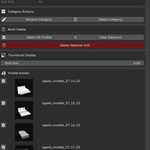
When you set the library path for the first time, you need to manually refresh the view so MeshyLib can scan and index the existing data. Click the “Refresh” button (the icon with the refresh label in the top‑right corner of the MeshyLib panel) and the add‑on will rebuild its cache and display all available assets.
How do I connect my library? The add‑on is installed but I don’t see any assets.
To connect MeshyLib you first need to set the root folder for your library. In the add‑on preferences, choose a main directory where MeshyLib will create and manage the full folder hierarchy, and assign this path in Library Storage Path. Once this is set and you start saving assets (e.g. with “Save Asset” or “Batch Save Assets”), your library will appear in the MeshyLib panel.
Can I create as many folders, subfolders and sub‑subfolders as I want, and rearrange them on the fly?
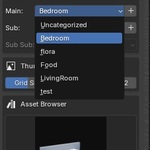
Yes. You can freely build a multi‑level folder structure and maintain it directly from MeshyLib. There are dedicated tools such as Rename Category and Delete Category that let you rename or remove folders as your library evolves. The only requirement is that a category must be empty (no assets inside) before it can be deleted, which helps prevent accidental data loss.
Is MeshyLib up to date for Blender 4.5 and newer versions?
Yes. The add‑on is built for Blender 4.5+ and uses the current API and best practices for working with larger libraries. The goal is stable behavior in modern production pipelines, from freelancers to small studios. At the moment MeshyLib also works in Blender 5.0, but there are a few minor issues that will be addressed in upcoming updates.
Does MeshyLib work with both Cycles and Eevee?
Yes. MeshyLib is independent of the render engine – it focuses on organizing and inserting models. You can use it in scenes rendered with both Cycles and Eevee without extra configuration. Thumbnails themselves are rendered in a dedicated Studio_Setup scene, where the rendering is configured to use Cycles for consistent preview quality.
Does MeshyLib take up a lot of disk space or inflate my project size?
No. Each asset is stored as lightweight metadata, and the data is compressed to minimize disk usage. As a result, the library stays fast to browse, easy to back up, and friendly to network drives or cloud storage, even as it grows.
Is MeshyLib suitable for large libraries with hundreds or thousands of models?
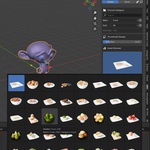
Yes. MeshyLib is designed with larger libraries in mind. You get categories and subfolders, name‑based search and the option to visually group assets using different thumbnail background colors. This significantly simplifies working with big collections and helps you find the right asset much faster.
How are asset thumbnails generated, and can I adjust them?
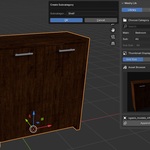
Thumbnails are rendered automatically in a dedicated studio scene. If the framing is not what you want, you can manually fine‑tune it using vertical offset, horizontal offset and zoom controls. This makes it easy to fix tricky assets, for example very tall, very wide or unusually shaped models, so their thumbnails clearly show the important parts.
How does MeshyLib insert a model into my scene?
You select an asset from the list and add it to the current scene with a single click as an Append operation. The object is placed at the position of your 3D Cursor and inside the active collection, so you can very quickly build up scenes from your prepared elements.
How is MeshyLib different from Blender’s built‑in Asset Browser?
The Asset Browser is great as a display shelf for finished assets, while MeshyLib is your warehouse and production workshop. You can be in any scene and still manage the library (thumbnails, names, folders) without jumping into a dedicated “asset scene” or separate .blend. The Asset Browser can complement MeshyLib as a native viewer, but MeshyLib is what gives you full control over creating, organizing and maintaining assets behind the scenes.
Does MeshyLib work with my existing model library, or do I need to rebuild everything?
Yes. You need to save your existing models through the “Save Asset” or “Batch Save Assets” buttons so that MeshyLib can properly register and store them in its own library structure. After that, your assets become part of the MeshyLib database and are available with thumbnails, search and categories inside the add‑on.
Have questions about this product?
Login to message
| Published | 5 months ago |
| Blender Version | 4.5 |
| Extension Type | N/A |
| Render Engine Used | Cycles |
| License | GPL |
Discover more products like this
3D File Browser 3d studio setup 3d assets 3D asset management asset blender 3d library Library