 Migopos


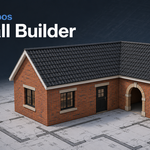
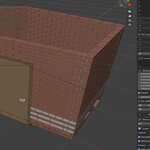
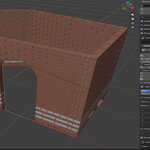
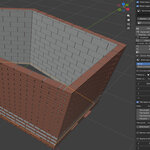
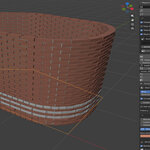
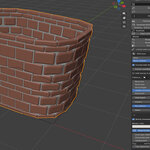
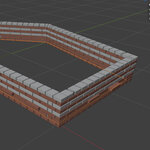
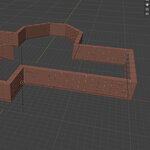
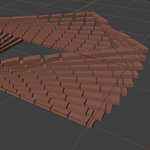
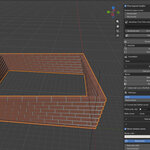
Migopos Wall Builder turns any curve into genuine masonry (no texture map, real geometry). It is highly customizable (even up to adjustment of individual bricks). it creates real mortar, adjustable joints and proper corners.
Sketch your plan in the top view, hit Generate, and you have a wall. Add a roof, floors, windows, doors and much more.
What you get
- Real masonry, not a texture. Individual bricks in a running bond, with mortar between them and mitred corners.
- Floor plans that just work. T, Y, + and H junctions are detected automatically: through-walls stay unbroken, branches butt against them with a mortar joint.
- Multiple storeys in one click. Give each floor its own curve, height and settings — outer wall in brick, inner walls in blocks, partitions in something lighter. One button rebuilds the lot.
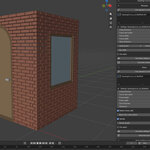
- Openings and joinery. Doors, windows, round and pointed arches, cut cleanly out of the brickwork. Leftover curves let you generate real windows and doors inside them.
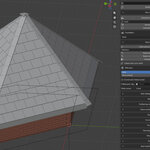
- Roofs and roof cladding. Pitched or flat roofs from the same plan, plus shingle cladding — including a tapering mode for towers and spires.
- Dormers, skylights and chimneys, auto-fitted and clamped to the roof surface you pick.
- Rock mode. Irregular stones with varied heights and tight joints, for castles, ruins and dry-stone work.
- Your own bricks. Swap the procedural stone for any mesh you like, with random texture variation across a texture atlas.
- Editable when you want it. Bake the result to plain meshes and take over by hand at any point.
Made for
Archviz, environment art, medieval and fantasy builds, game assets, matte painting and anything else where walls need to hold up under a close camera.
How it works
First, name your building plan. Then click Building plan and create custom shape for your house by defining a curve that follows the shape of the walls. Additional settings for creating the curve are under Plan sttings. Next, you configure the wall settings (Wall settings), like the ammount of brick layers and stone settings. Here you have many settings to choose from and also can set custom properties for each layer. You can also swicth out the simple brick objects for custom objects form a differend blender file. A simple textured brick is available in brick1.blend (one advantage of this file is that if you link the brick object, you can use the Random texture option and set a different pattern for each layer. This creates layers with different textures. 5 patterns are available). Then, when you are satisfied with your settings, you can click the Generate or Apply Wall button to generate the wall; after a brief moment, the wall will appear.If the construction plan isn't quite right, you can always adjust it and hit the Generate button again.
You can also use the building plan to generate a roof. You can use the generated DakVorm to generate roof cladding (roof tiles and so on). It works like this: first finish your wall generation. Then click Generate roof. It will ask you if you like the shape (and gives you the opportunity to add extra's to the roof and change settings). If everything is OK, you can hit the Approve button and two objects will be generated. The DakVorm and DakConstructie. With DakVorm selectedm you can go to Roof cladding for options for your roof. Here you also can swap the boxes for your own custom objects.
Go a step further. Create windows and doors. When the wall is generated, go to Openings. Enable them. Then set the settings for your door or window and then hit Create cutter object. This only creates an object. You then need to place it wherever you want in the wall (needs to intersect the wall). Then add an item to Custom cutter (using the +) with the object selected. Then when you generate the wall again a cut will be made. But before you do so, with the positioned cutter object, click Add shape. Now a curve has been generated at the wall. This curve stays and you can use it under Doors or Windows to generate your door or window.
28-8-2026: added extra zip file containing the newest addon. Now supporting multiple floors.