 one99addons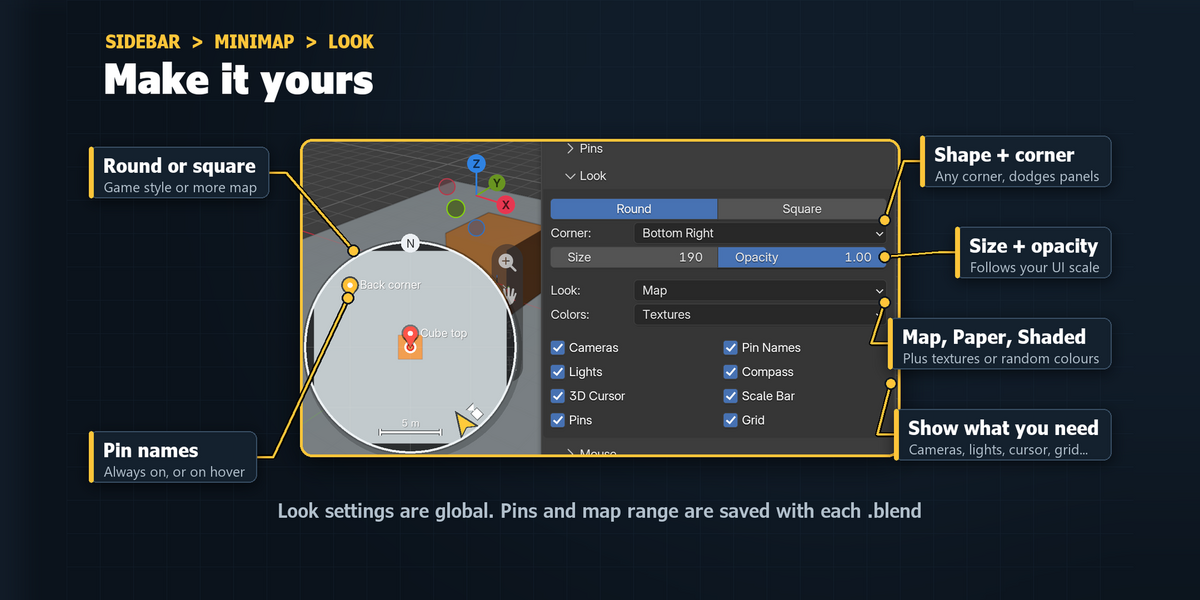
🗺️ Minimap
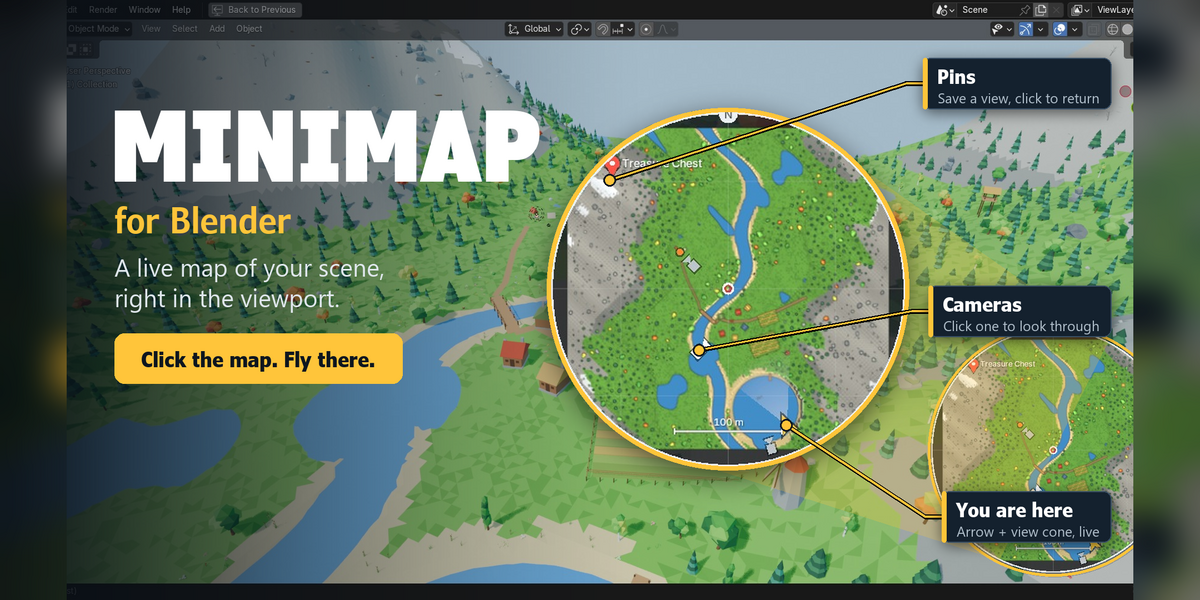
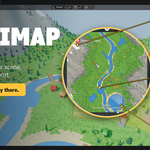
A game-style minimap for Blender's viewport. Click it to fly there.
Minimap puts a live top-down map of your scene in the corner of the 3D viewport. See where you are and where you are looking, click the map to fly there, drop pins to save views, and click a camera to look through it.
The problem
Big scenes are easy to get lost in. You orbit, pan, zoom out, squint, zoom back in, and still can't find the prop or the camera you placed an hour ago. Top view (Numpad 7) throws away your angle, and the Outliner gives you names, not places.
What it does
- A live map in the corner. A top-down picture of your scene that updates by itself when you move, add or delete things.
- You are the arrow. A gold arrow and a soft view cone show where your view is and which way it faces.
- Click to fly. The view glides to that spot and lands at the right height: it finds the roof, the hill or the ground under your click. Long trips pull back a little mid-flight, like a map app.
- Drag to glide. Hold the mouse on the map and drag: the view follows your cursor across the scene.
- Hover to see what's there. A name tag shows the object under the cursor and its X / Y position.
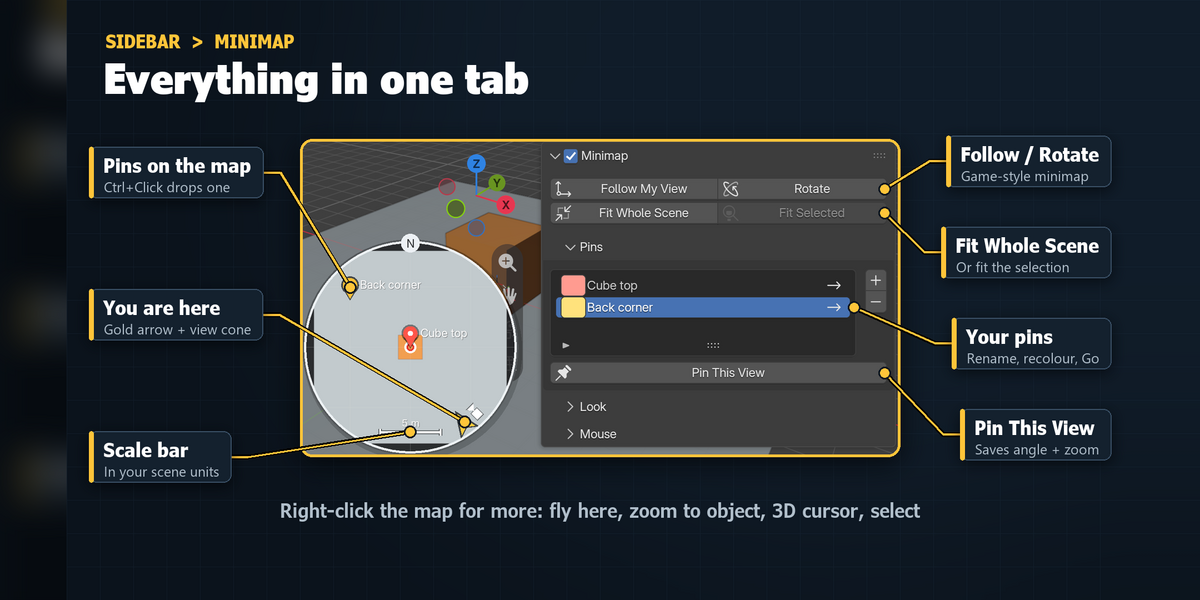
- Pins. Ctrl+Click drops a pin that remembers the view, angle and zoom included. Click it later to go right back. Pins are saved in the .blend.
- Cameras on the map. Every camera shows up as an icon. Click one to look through it.
- Follow and Rotate. Turn on Follow My View and Rotate With View and the map follows you and turns with you, like a game minimap.
On the map (mouse)
- Click: fly there. Drag: glide. Scroll: zoom the map around your cursor. Middle drag: slide the map.
- Double-click: fly to the object and fill the view with it.
- Ctrl+Click: drop a pin. Alt+Click: move the 3D cursor there. Shift+Click: select the object.
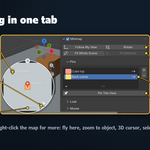
- Right-click: Fly Here, Zoom to Object Here, Select Object Here, Drop Pin Here, Place 3D Cursor Here, Follow My View, Rotate With View, Fit Whole Scene, Hide Minimap.
Settings
Settings are in 3D Viewport > Sidebar (N) > Minimap tab (Look settings also in Preferences > Add-ons > Minimap). Show or hide it with Ctrl+Alt+M, the View menu or the Viewport Overlays popover.
- Follow / Rotate: centre the map on your view, and turn it so your heading is up.
- Follow Range / Map Range: how much ground the map covers. Fit Whole Scene / Fit Selected reset it.
- Pins: a list with colour, name and a Go button. Pin This View saves the current view.
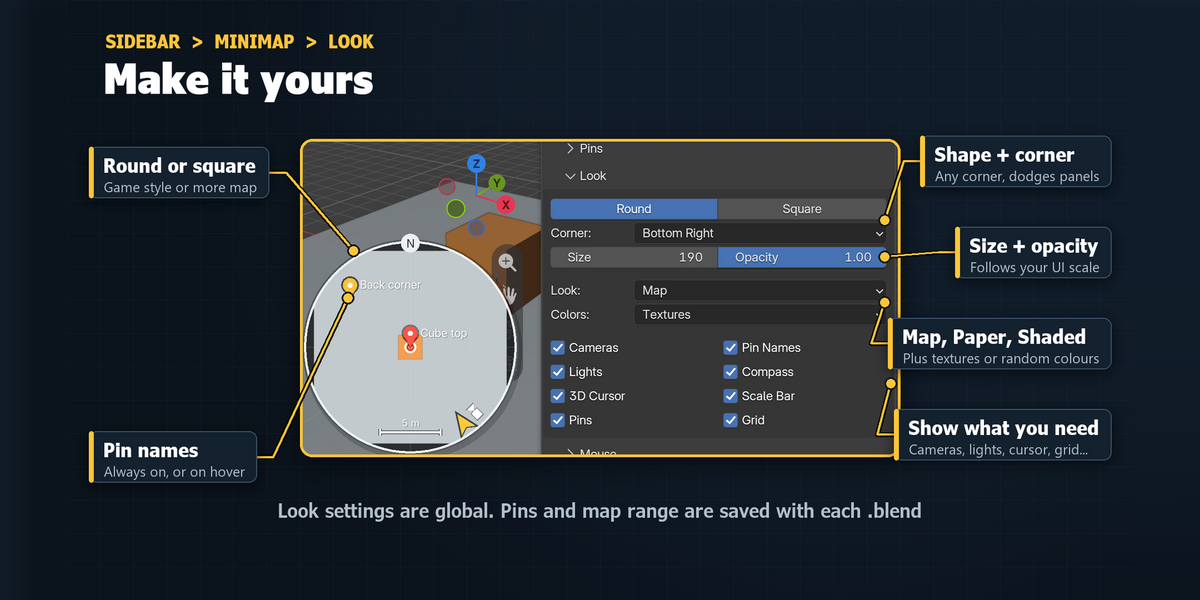
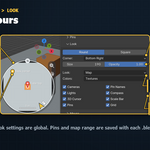
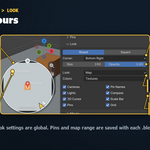
- Shape / Corner / Size / Opacity: Round or Square, any corner, 110 to 640 px (default 230, follows your UI scale).
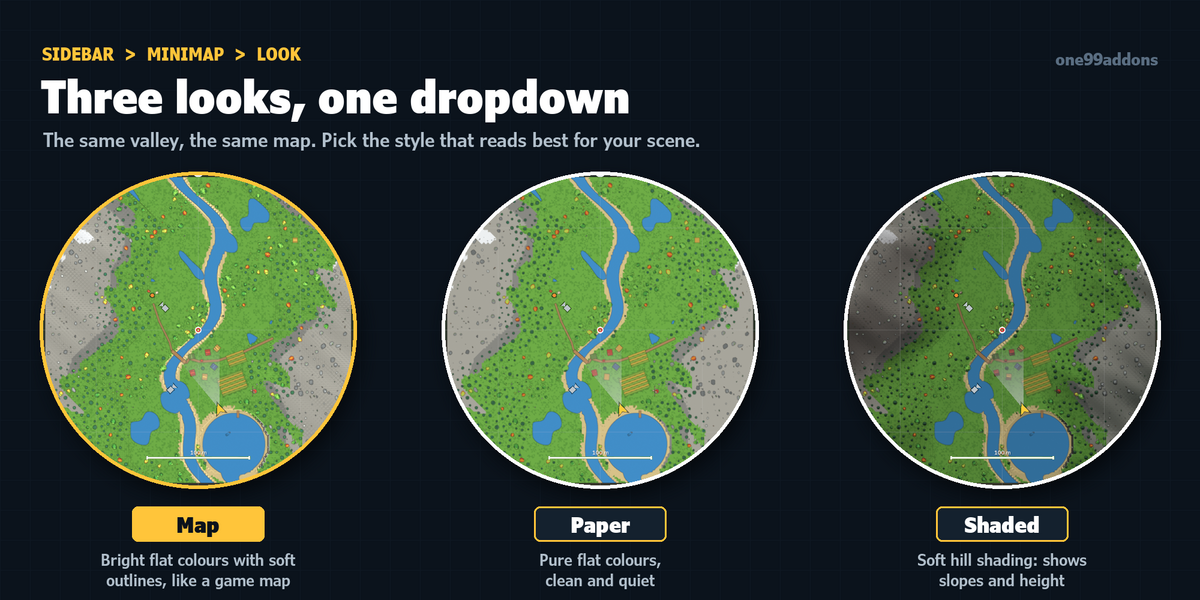
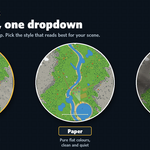
- Look / Colors: Map, Paper or Shaded (hill shading). Textures, Materials, Object, Random or Single colours.
- Show: cameras, lights, 3D cursor, pins, pin names, compass, scale bar, grid.
- Fly Time / Map Refresh (in Preferences): seconds per flight (default 0.55, 0 = jump) and the most map redraws per second (default 10).
Good to know
- The map moves out of the way of the toolbar, sidebar, header and navigation gizmo by itself.
- Heavy scenes get fewer map refreshes on their own, so the viewport doesn't slow down because of the map. In our 300 x 300 m demo valley (1,996 objects), a refresh took about 4 ms.
- Pins, cameras and your arrow stay on the rim when they are off the map, on the side where they are.
- Clicking a camera on the map also makes it the scene's active camera.
- Look settings are saved in your preferences. Pins and map range are saved per scene.
Tips
- Everything is green? Set Colors to Random to tell objects apart.
- Pins keep the angle too, so they work like camera bookmarks you can click.
- A huge ground or ocean plane makes the map tiny: scroll on the map or use Fit Selected.
Requirements and install
Blender 5.2 or newer (tested on 5.2, Windows). No internet, no external libraries.
- Download minimap_v1.0.0.zip (do not unzip it).
- In Blender: Edit > Preferences > Add-ons, open the drop-down arrow at the top right, choose Install from Disk... and pick the zip.
- Tick Minimap. That's it.
Limits
It is a top-down view, so for buildings you see the roofs, not the rooms. In Rendered view with Cycles or EEVEE the map picture pauses (redrawing it would restart your render); your arrow, pins and cameras stay live. Names and click heights come from the top surface, so a tree canopy wins over what is under it. In Quad View the map shows in the perspective view only, and in a very small viewport it hides itself. While Minimap is enabled, Blender's timed auto-save does not run, so save with Ctrl+S.
Made by one99addons.