 Sonneblom Digitaal
What it does
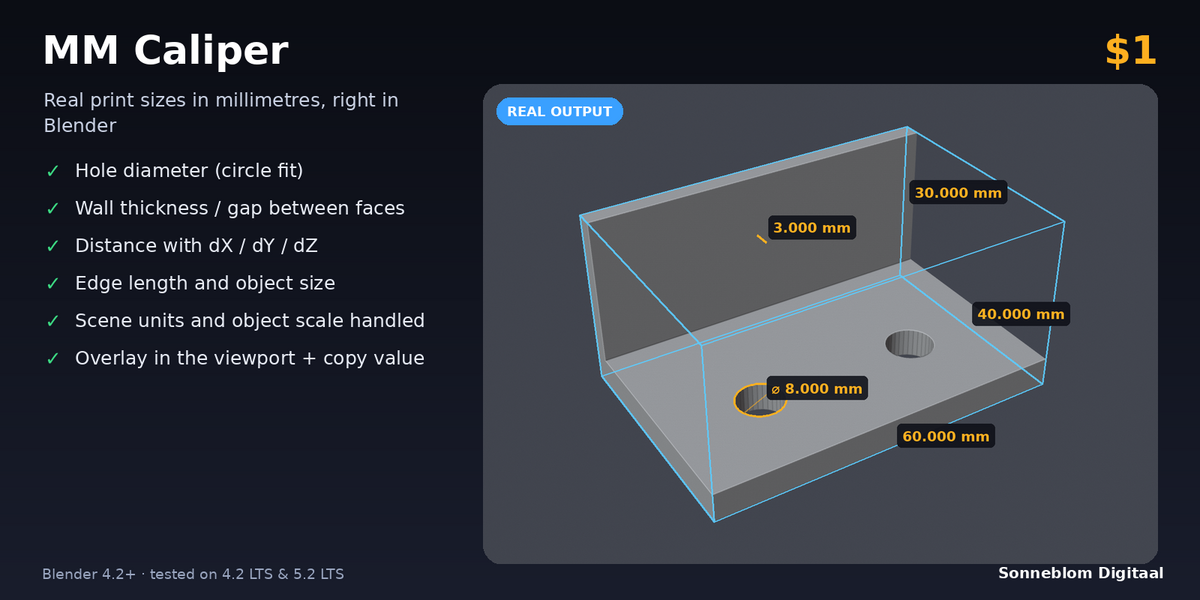
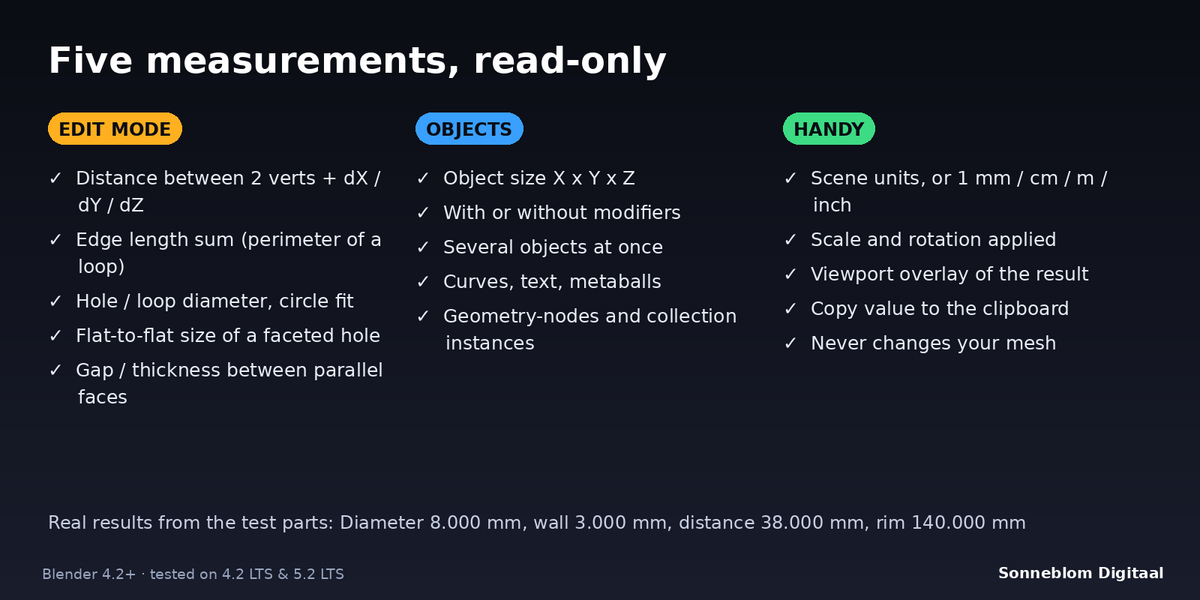
MM Caliper reads the real size of your model in millimetres, the way a slicer and a real caliper will see it. Select two verts, a hole's rim, two parallel faces or whole objects, click one button in the sidebar, and you get the number in mm (and inches), with the object's scale and rotation applied and your scene units taken into account. The last measurement is drawn in the 3D Viewport (lines plus a value tag), and one click copies the value to the clipboard. It only measures: your mesh is never changed.
Who it's for
Anyone who models parts for 3D printing in Blender and needs to check a size before slicing: does the 8 mm hole really measure 8 mm, is that wall 2 mm thick, how big is the gap between the lid and the box, will the part fit the printer? No more switching units, applying scale or turning on edge-length overlays and adding up numbers.
Key features
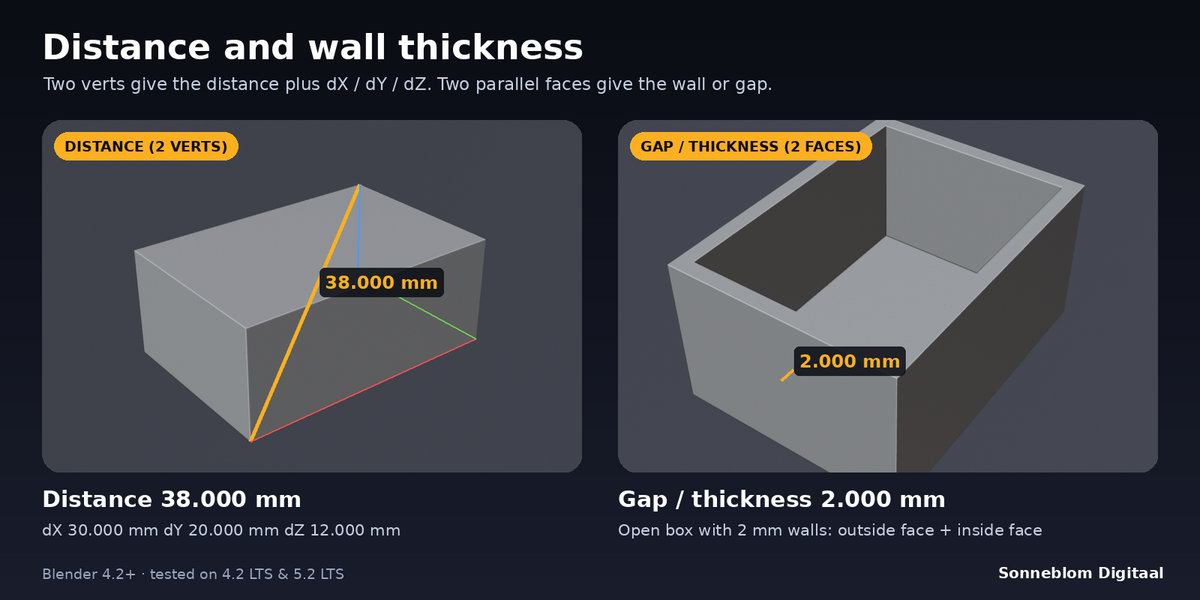
- Distance: straight distance between exactly 2 selected verts, plus the size along X, Y and Z (dX / dY / dZ). Works across two objects in multi-object Edit Mode.
- Edge length: total length of the selected edges, with count, shortest and longest. A selected loop gives its perimeter.
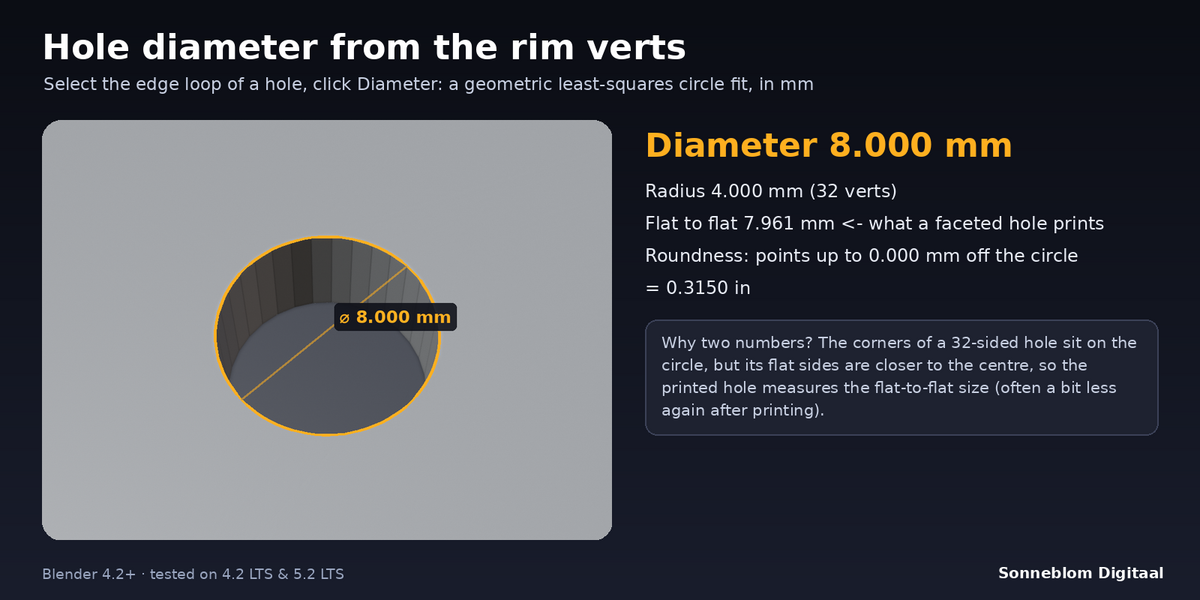
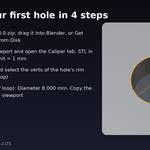
- Diameter: select the verts of a hole, rim or edge loop (3 or more, any orientation): a geometric least-squares circle fit gives the diameter and radius. For a closed edge loop it also shows the flat-to-flat size of the faceted hole, which is what really prints (a 32-sided 8 mm hole is 7.961 mm across the flats), plus a roundness value and a warning when the points are not on one circle. Partial arcs work too. Verts on a straight line are refused, not turned into a giant circle.
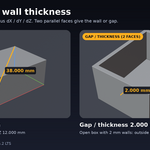
- Gap / thickness: perpendicular distance between selected parallel faces: wall thickness (outside face + inside face) or the gap between two parts. One or more faces per side, with a parallel limit in degrees; when the sides are slightly tilted it also shows the smallest and largest gap.
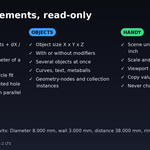
- Object size: size along the world X, Y and Z axes of the selected objects together, with or without modifiers. Meshes, curves, text, surfaces, metaballs, geometry-nodes instances and collection instances (linked assets) count; cameras, lights and plain empties are skipped with a note.
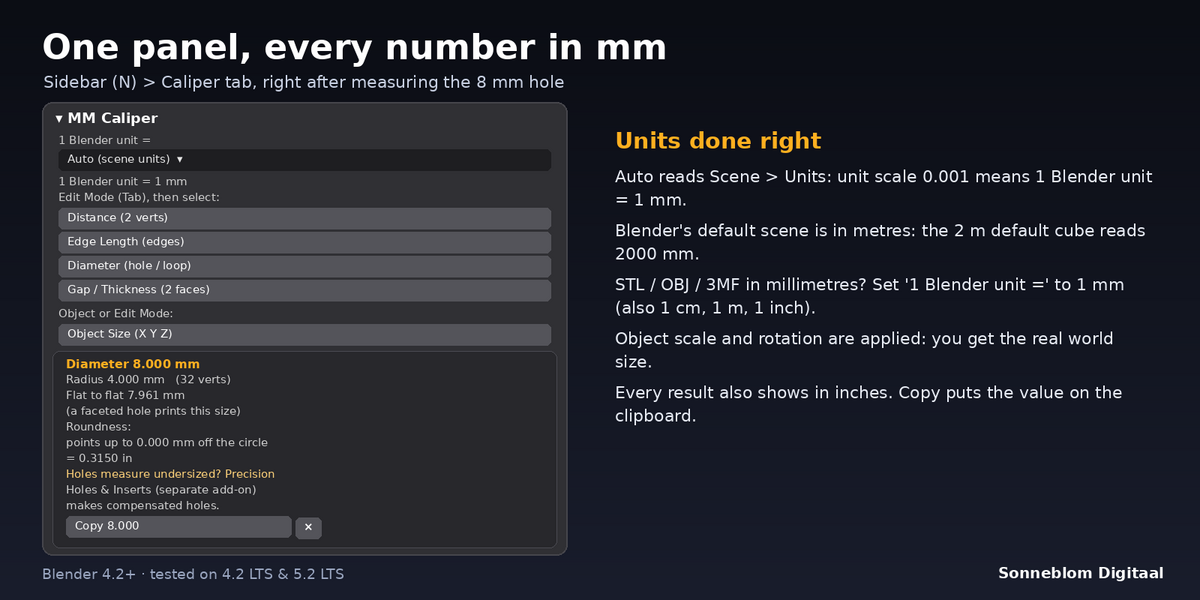
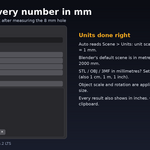
- Units done right: Auto follows Scene > Units (unit scale 0.001 = 1 unit is 1 mm, Blender's default scene = metres), or set 1 Blender unit to 1 mm, 1 cm, 1 m or 1 inch. Every result is also shown in inches.
- Viewport overlay of the last measurement and a Copy button (value only, or with " mm"). Decimals are a setting (default 3).
- Clear messages when the selection does not fit, shown in the panel as well as the status bar. Edit Mode changes are included right away. Precise far from the origin (double-precision maths).
How to use
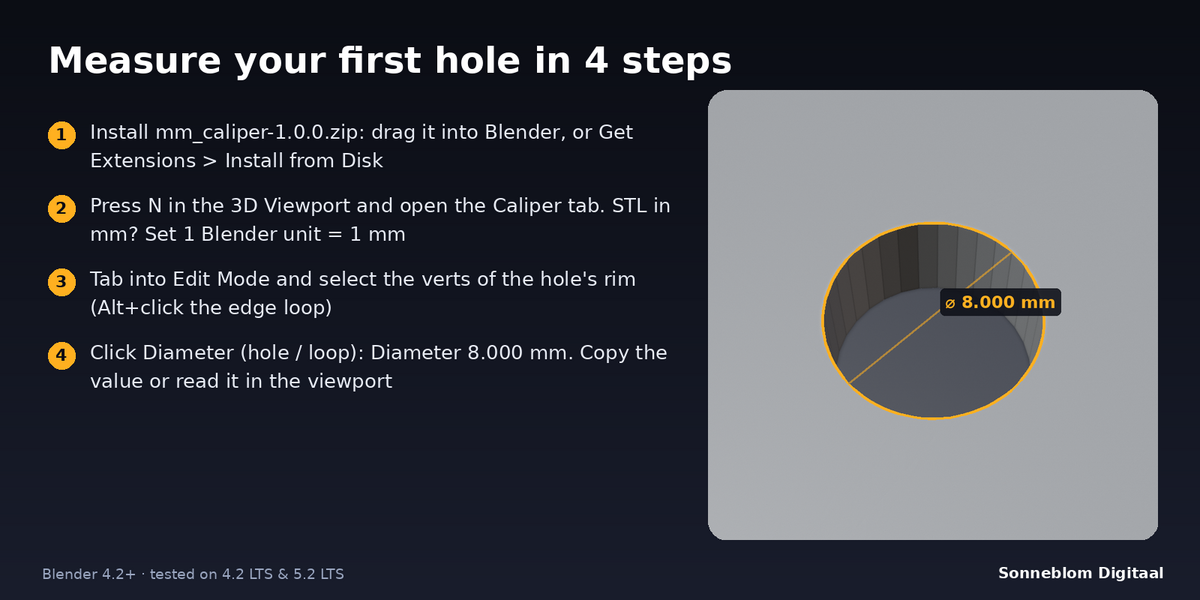
- Install the zip, press N in the 3D Viewport and open the Caliper tab.
- For an STL, OBJ or 3MF in millimetres, set 1 Blender unit = to 1 mm (the line under it shows what one unit is now).
- Press Tab for Edit Mode and select: 2 verts for Distance, edges for Edge Length, the rim of a hole for Diameter, or a face on each side for Gap / Thickness. For Object Size just select the objects.
- Click the button. Read the result in the panel and in the viewport, and click Copy to paste it anywhere.
Compatibility
Blender 4.2 LTS or newer, tested on 4.2 LTS and 5.2 LTS. It installs as a Blender extension (Get Extensions > Install from Disk), and a legacy add-on zip is included.
Good to know
- It measures only: no scaling, no fixing, no modelling.
- Distance, Edge Length, Diameter and Gap work on the mesh in Edit Mode (the base mesh, without modifiers). Object Size can include modifiers (on by default).
- Object Size is the box along the world axes. A rotated part gives a bigger box than its own sides; rotate it flat first if you need its own length and width.
- Gap / Thickness needs flat, parallel faces. Curved walls (a tube) are better measured with Diameter on the inside and outside rim.
- The overlay shows the last measurement where it was taken; it does not follow the object if you move it afterwards. Measure again to update it.
- The diameter is fitted to the selected verts. The flat-to-flat size is shown only when the selection is one closed edge loop (not for arcs or a few loose verts).
- Linked duplicates (Alt+D) share one mesh and Blender edits only one of them: the result then says which object was measured.
- Every measurement is one undo step (it stores the result), so Ctrl+Z first steps back through your measurements.
Support
Questions or a bug? Use the Superhive product page messages and we reply within a day.
More tools from Sonneblom Digitaal
Holes measure undersized? Precision Holes & Inserts is our separate, paid add-on that makes compensated holes, heat-set insert pockets and nut traps for printing. Precision Holes & Inserts