MM Caliper
 Sonneblom Digitaal
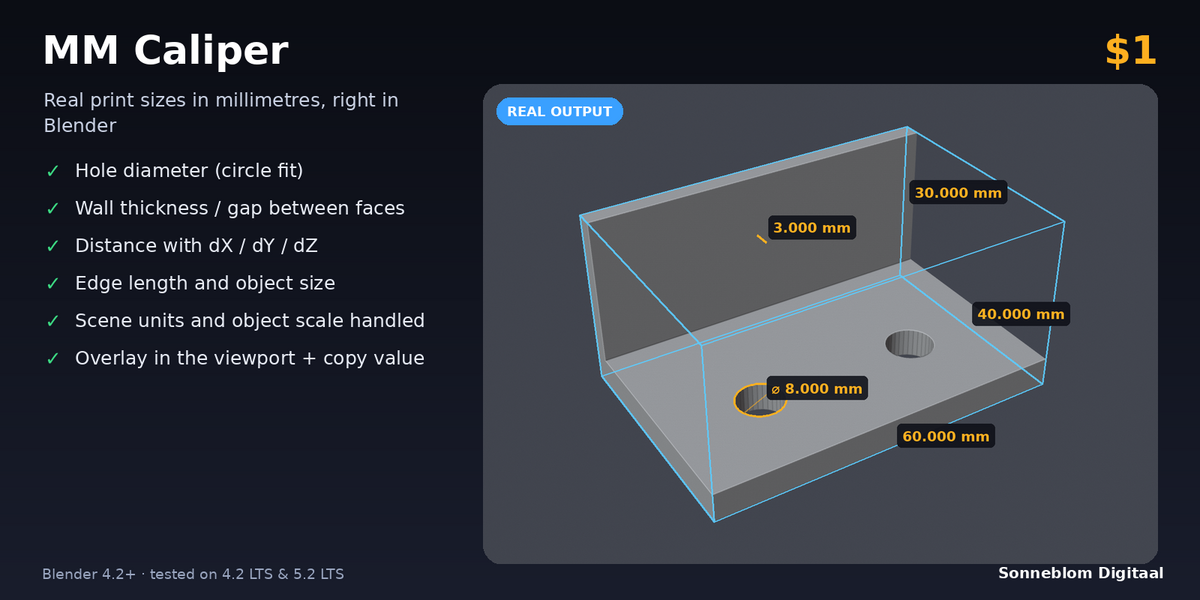
MM Caliper 1.0.0
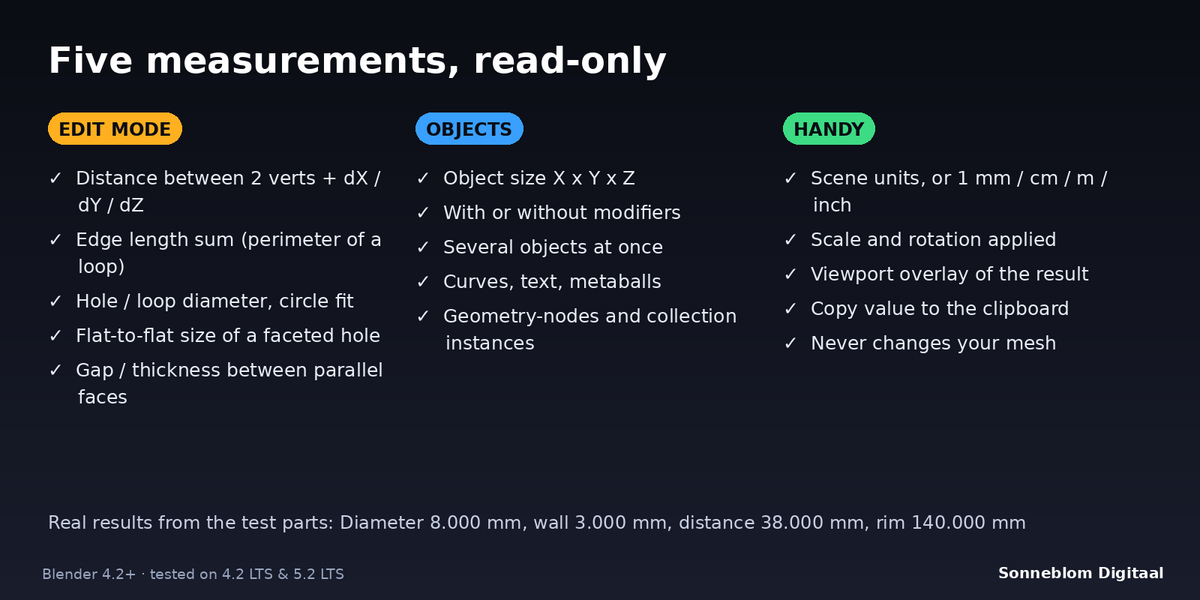
Measure in millimetres for 3D printing: distance between 2 verts with dX / dY / dZ, edge length, hole / loop diameter (circle fit, with the flat-to-flat size), gap or wall thickness between parallel faces and object size. Scene-unit aware, object scale and rotation applied. Blender 4.2 LTS or newer, tested on 4.2 LTS and 5.2 LTS.
Install
-
Extension zip (recommended):
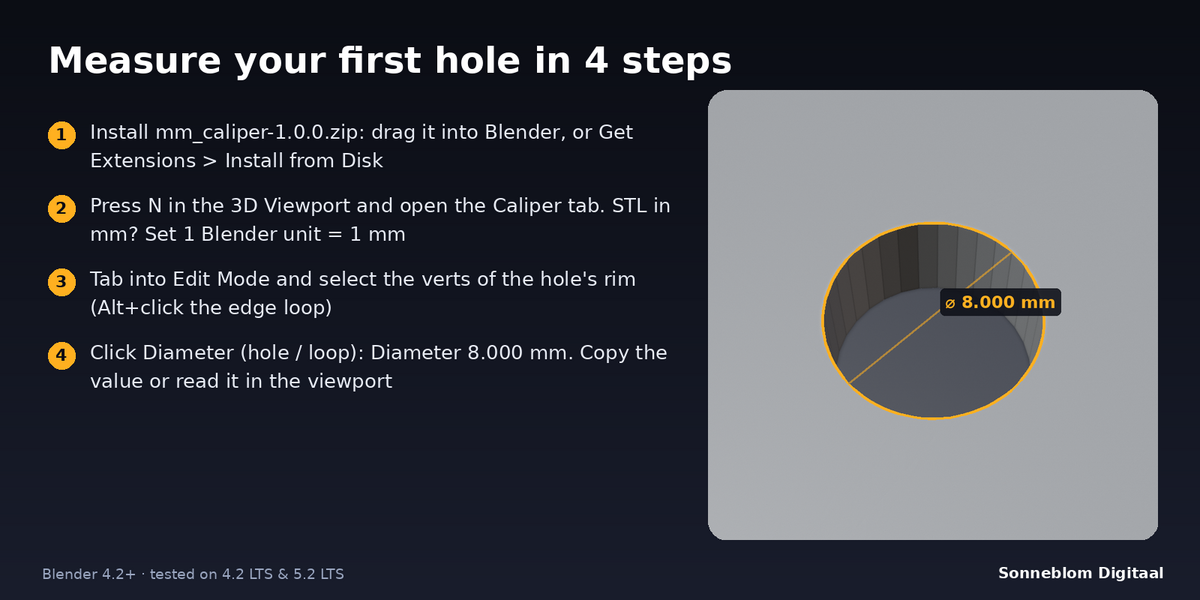
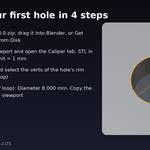
mm_caliper-1.0.0.zip. Drag it into Blender, or go to Edit > Preferences > Get Extensions, open the drop-down at the top right and choose Install from Disk. -
Legacy zip:
mm_caliper-1.0.0-legacy.zip. Go to Edit > Preferences > Add-ons > Install from Disk, then tick MM Caliper.
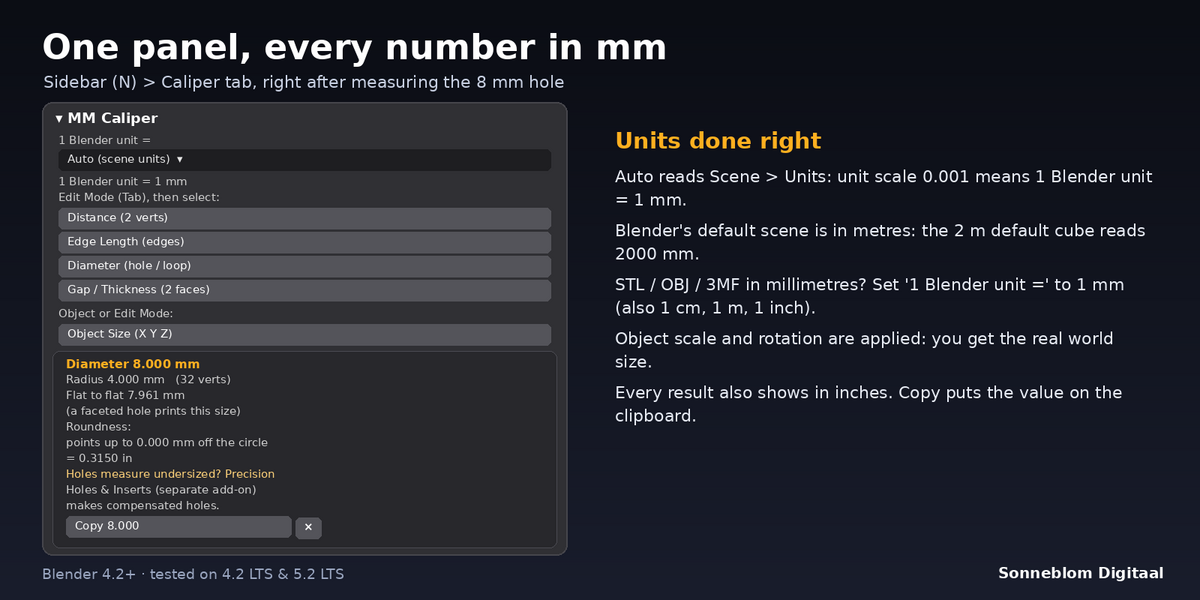
The panel is in the 3D Viewport sidebar: press N and open the Caliper tab. Two sub-panels, Settings and More tools from Sonneblom Digitaal, are folded closed at the bottom.
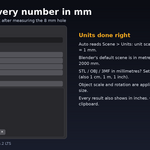
Set the units first
- 1 Blender unit = Auto (scene units) reads Scene > Units. With unit system Metric and unit scale 0.001, one unit is 1 mm. Blender's default scene counts one unit as one metre, so the default 2 m cube reads 2000 mm and the panel warns "1 unit is 1 m here (Blender's default). STL in mm? Choose 1 mm above."
- STL, OBJ and 3MF files have no units and are almost always in millimetres: choose 1 mm. 1 cm, 1 m and 1 inch are there too.
- The line under the setting shows what one unit is now, for example "1 Blender unit = 1 mm".
Measure, step by step
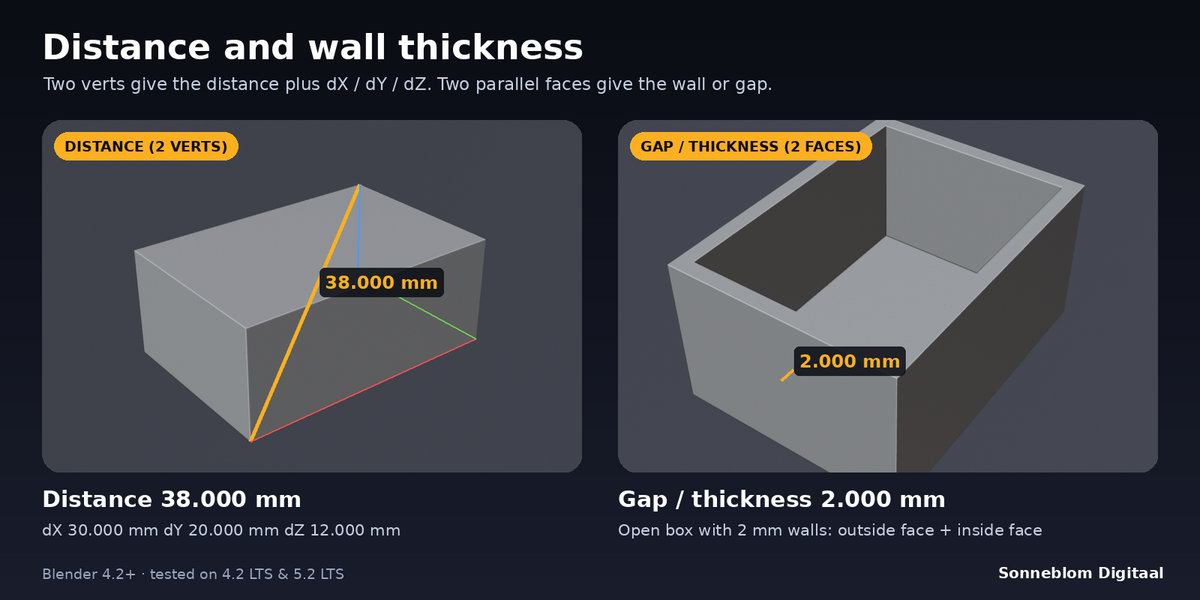
- Distance (2 verts): Edit Mode, select exactly 2 verts (they can be in two different objects in multi-object Edit Mode), click the button. You get the straight distance and dX / dY / dZ along the world axes. The overlay draws the line in amber and its X / Y / Z steps in red, green and blue.
- Edge Length (edges): select one or more edges. You get the total length, the number of edges and the shortest and longest. Alt+click an edge loop to get its perimeter.
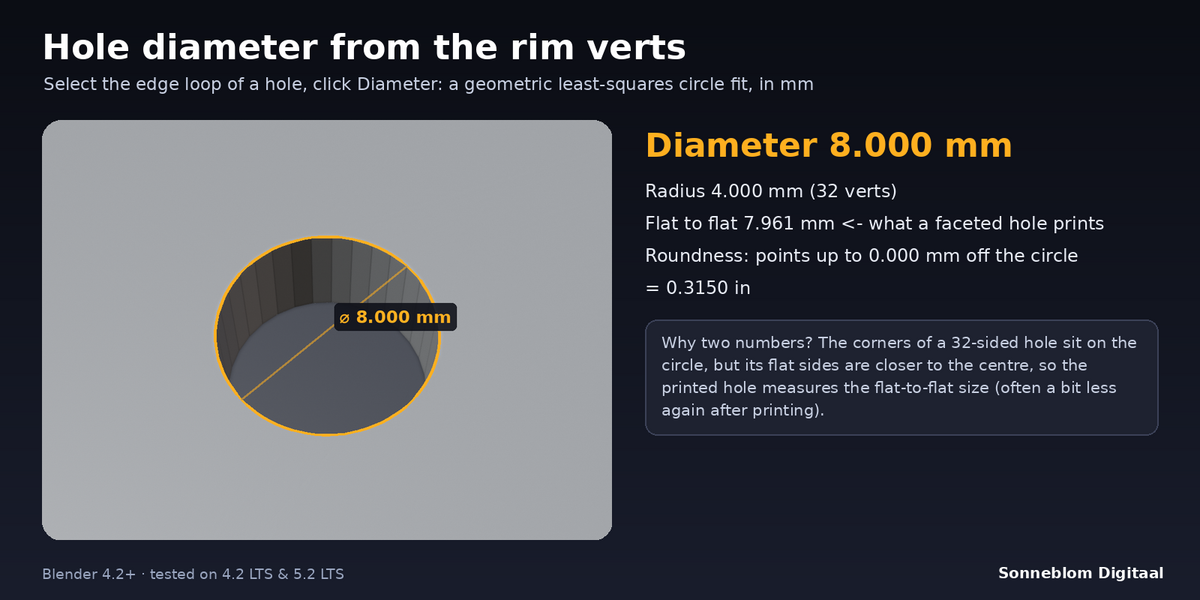
- Diameter (hole / loop): select the verts of one rim: Alt+click the edge loop of a hole (in edge select mode exactly the selected edges count), or select a round face (its verts count; a triangulated round cap from an STL works too). 3 or more verts, any orientation. You get the diameter and radius of the best-fitting circle (geometric least squares) and, when the selection is one closed edge loop, the flat-to-flat size: a faceted hole prints at that size, not at the corner circle. Arcs and a few loose verts on the rim also give the diameter; the result then says "not a closed loop" and leaves out flat-to-flat. Verts on one straight line are refused. The roundness line says how far the verts are from the circle; if a vert is more than 1% of the radius off the circle (an oval, or a centre vert selected too) the result says "Not round". Two rims at once are refused: rims in different planes ("not in one plane") and separate loops in one plane, such as the inner and outer rim of a tube top ("2 separate loops selected"). Verts on one straight line, or on an arc too short to measure at this precision, are refused too.
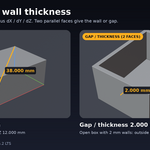
- Gap / Thickness (2 faces): select a face on each side: the outside and the inside face of a wall, or the facing faces of two parts. More faces per side are fine (a subdivided side). The faces must be flat and parallel within the parallel limit. You get the perpendicular distance between the two sides at the centre; The value is taken at the centre of the area where the two sides overlap (seen square to the faces); if they are slightly tilted, an extra line gives the smallest and largest gap there. If the sides do not overlap at all, the result says so and gives the distance between their centres. Very thin sliver faces (common in STL files) get extra room in the parallel check, so they do not cause a refusal. With very many selected faces (over 200,000 triangles on one side or over 100,000 overlapping triangle pairs) the overlap is not checked and the result says so.
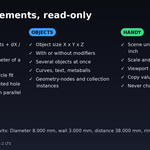
- Object Size (X Y Z): works in Object Mode and Edit Mode. Select one or more objects; you get the size of all of them together along the world X, Y and Z axes, with modifiers (default) or without. Geometry-nodes instances, collection instances (linked assets) and metaballs are included.
- Every result appears in the panel with extra lines (inches, details) and in the viewport. Click Copy to put the value on the clipboard (Object Size copies "X x Y x Z"). The X button clears the result and the overlay.
- If the selection does not fit (for example 3 verts for Distance), nothing changes and the panel says what to select instead.
Settings
| Setting | Default | What it does |
|---|---|---|
| 1 Blender unit = | Auto (scene units) | How long one Blender unit is: Auto (Scene > Units), 1 mm, 1 cm, 1 m or 1 inch. |
| Decimals | 3 | Digits after the decimal point in results and in the copied value (0 to 6). |
| Parallel limit (degrees) | 1.00 | Gap / Thickness: how far the selected faces may be out of parallel (0.01 to 10 degrees). |
| Object size with modifiers | On | Object Size measures the final shape with modifiers. Off = the base mesh only for mesh objects: no modifiers, no geometry-nodes or particle instances, no shape keys (the result then notes that modifiers are not included). Curves, text and metaballs always use their final shape. |
| Show overlay | On | Draw the last measurement in the 3D Viewport. |
| Copy with ' mm' | Off | Copy "8.000 mm" instead of "8.000". |
Tips
- Check a hole before printing: if the flat-to-flat size is too small for your screw or pin, use more segments or make the hole bigger. Precision Holes & Inserts (our separate, paid add-on) can make compensated holes for you.
- Unapplied scale is no problem: all results use the object's scale and rotation, so you see the size that will be exported.
- Object Size on a whole plate of parts gives the footprint you need on the printer bed.
- Paste a copied value straight into a Blender number field, a slicer or a notes file.
Limits
- Measuring only: it does not scale, repair or model anything.
- Edit Mode measurements use the mesh without modifiers.
- Object Size is the world-axis bounding box, not the smallest box around a rotated part.
- Gap / Thickness needs flat, parallel faces; it does not measure curved walls or the shortest distance between arbitrary shapes.
- The overlay is a snapshot of the last measurement and does not move with the object. The overlay is not part of renders. Edge Length draws at most 20,000 edges in the overlay (the length always counts all of them).
- In Edit Mode, Object Size leaves out modifiers that are switched off for Edit Mode (the 'Edit Mode' toggle of a modifier); measure in Object Mode for the final shape.
- Linked duplicates: Blender edits one of them; the result names the object that was measured.
- With 'Object size with modifiers' off, a mesh is measured as its base mesh: without modifiers, instances and shape keys.
- Very small values automatically get more decimals (0.0000400 mm), never scientific notation.
Licence
GPL-3.0-or-later. Copyright Sonneblom Digitaal. The LICENSE file is in the zip.
Have questions about this product?
Login to message
| Blender Extension Compatible | Yes |
| Published | 1 day ago |
| Blender Version | 4.2 - 5.2 |
| Extension Type | Add-on |
| License | GPL |
Discover more products like this
units dimensions millimetres print prep 3d printing measure measurement caliper