 Dynos
Dynos


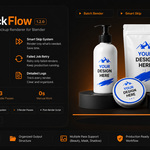
Installation
- Go to Edit → Preferences → Add-ons → Install and select the ZIP file.
- Enable MockFlow from the list.
- Open the N-Panel in the 3D Viewport → MockFlow tab.
Quick Start
- Add a Design Slot and point it to your design images folder.
- Set Texture Target to your Image Texture node name (e.g.
DESIGN_MAIN). - Set Camera Prefix (default:
CAM_) and click Scan Cameras. - Set Output Folder and File Format.
- Click Dry Run to preview — then Run Batch Render.
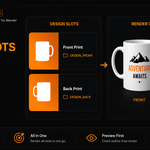
Design Slots
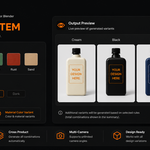
Target multiple Image Texture nodes at once — front, back, label, sticker — each with its own folder.
- Match by Filename — slots are matched by filename across folders.
- All Combinations — every combination across all slot folders (3 designs × 4 backgrounds = 12 jobs).
Node matching: exact name → label → partial match → fallback to Principled BSDF Base Color.
Cameras
-
All Prefix Cameras — all cameras starting with the prefix (default:
CAM_). - Active Camera Only — current scene camera.
- Selected Cameras — cameras selected in the viewport.
Variants
- None — no variants.
-
Collection Variant — uses collections with a prefix (default:
VAR_). Each collection = one variant. - Material Color Variant — swap material colors per job. Generates cross-product combinations automatically. Example: Frame (Black, White) × BG (Light, Dark) = 4 jobs per design per camera.
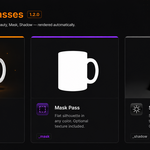
Render Passes
- Beauty — standard full render.
- Mask — flat solid-color silhouette. Enable Include Texture to keep Base Color texture while stripping metallic, roughness, normals, and specular.
- Shadow — shadow only on transparent background (RGBA PNG, Cycles only). Add your floor/ground plane to the Shadow Catcher Objects list.
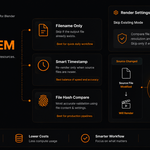
Smart Skip
- Filename Only — skip if output file exists.
- Smart Timestamp — skip if output is newer than source images.
- File Hash Compare — skip if source content + settings are unchanged. Most accurate.
Note: Overwrite Existing only bypasses Filename mode. Hash and Timestamp still check content.
Output & Naming
Default naming template: {design}_{variant}_{camera}_{pass}
Subfolder modes: None / By Camera / By Variant / By Pass / Variant+Camera / Full.
Tools
- Dry Run — simulate the batch without writing files. Shows what would render vs skip.
- Estimate Render Count — shows total job count before starting.
- Retry Failed Jobs — re-render only failed jobs from the last session.
- Render History — log of every batch session (date, counts, duration).
- Manifest CSV — exports a CSV of all output files with design, camera, variant, pass, resolution, size.
Advanced
-
Multi-Resolution Export — render once, auto-export at multiple sizes (requires Pillow:
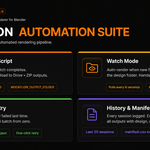
pip install pillow). - Post-Render Script — run a .py script after batch completes (send notifications, upload files, etc.).
- Watch Mode — auto-render when new files appear in the design folder.
- Render Queue — schedule a batch to start at a specific time.
- Presets — built-in: Marketplace 2000 PNG, Shopify 3000 JPG, Transparent 2500 PNG, Web WEBP, HD 4000 PNG. Save/load custom presets.
-
$0.90 $1
✓ Multi Design Slots ✓ Batch Rendering ✓ Smart Skip System ✓ Live Preview ✗ Watermark Removal ✗ Unlimited Resolution
-
$20.70 $23
✓ Everything in FREE ✓ No Watermark ✓ Unlimited Resolution ✓ Commercial Use ✓ Priority Updates ✓ All features are included
Have questions about this product?
Login to message
| Blender Extension Compatible | Yes |
| Published | 4 months ago |
| Blender Version | 4.4 - 5.1 |
| Extension Type | Add-on |
| Render Engine Used | Cycles, Eevee |
| License | GPL |
Discover more products like this
pod workflow Render Automation Texture Automation product mockup batch render Batch rendering smart rendering E-commerce Production Pipeline blender addon print on demand mockup renderer