Modular Snapfit Assist
 Ritual Studio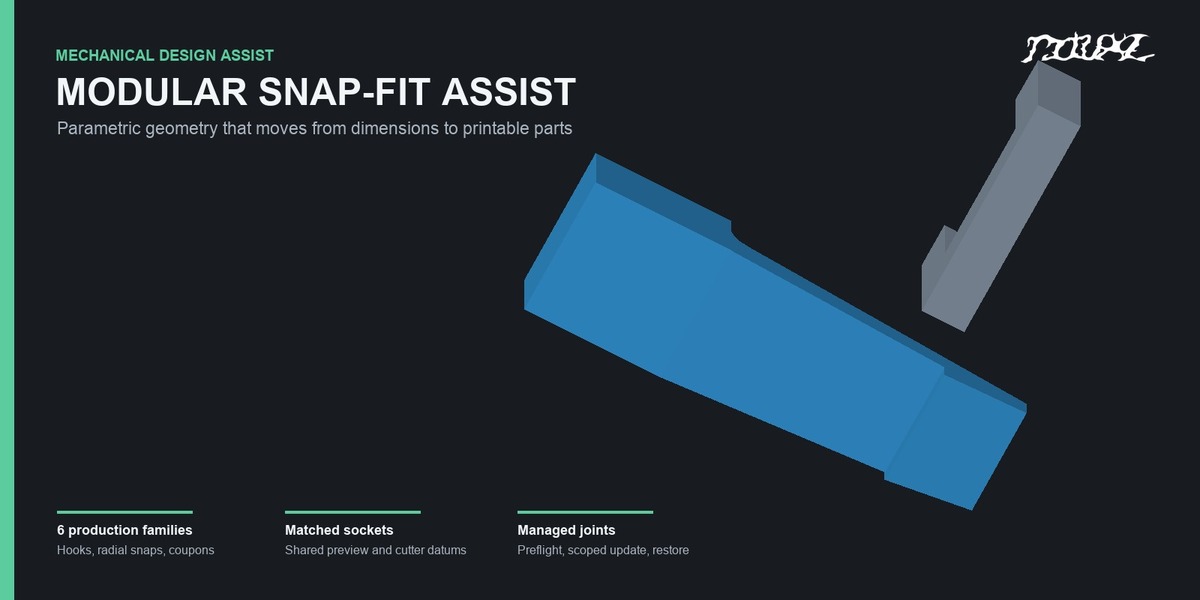


Modular Snap-Fit Assist v0.9.0
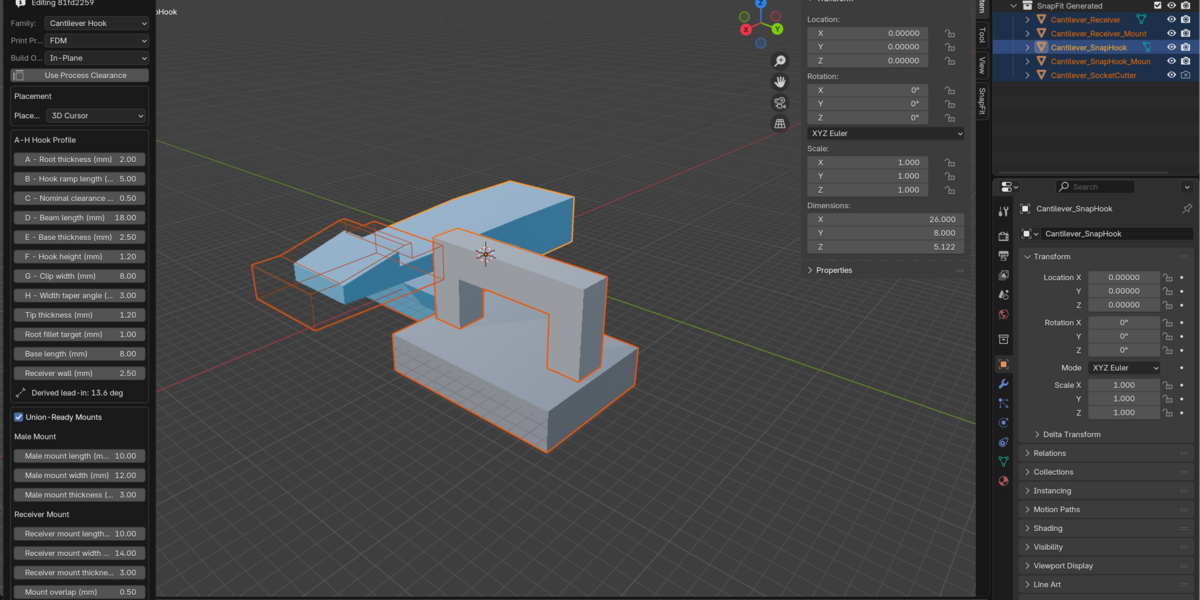
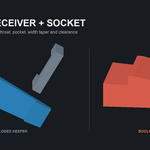
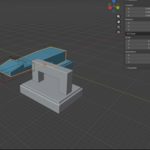
Design and revise matched snap-fit joints inside Blender. The extension generates a male snap, an optional exploded receiver, and a clearance-aware negative cutout from the same family-specific dimensions. Generated parts are editable Blender meshes.
Compatibility and installation
- Use Blender 4.2 through 5.1 with the currently uploaded extension ZIP. Keep it zipped for installation.
- In Blender, open Edit > Preferences > Get Extensions. Open the menu in the upper-right and choose Install from Disk.
- Select modular_snapfit_assist-0.9.0.zip and enable Modular Snap-Fit Assist.
- In the 3D Viewport, press N to open the sidebar and select the SnapFit tab.
The extension uses Blender Python only, with no external runtime or network requirement. The uploaded package is intended for Windows, macOS, and Linux on Blender 4.2-5.1. It was runtime-tested on Apple-silicon macOS in Blender 4.2.1, 4.3.0, 4.4.1, 4.5.1 LTS, 5.0.1, and 5.1.2; hands-on Windows validation remains pending. Blender 4.1 needs a separate legacy add-on ZIP, which is not yet attached to this draft.
First joint
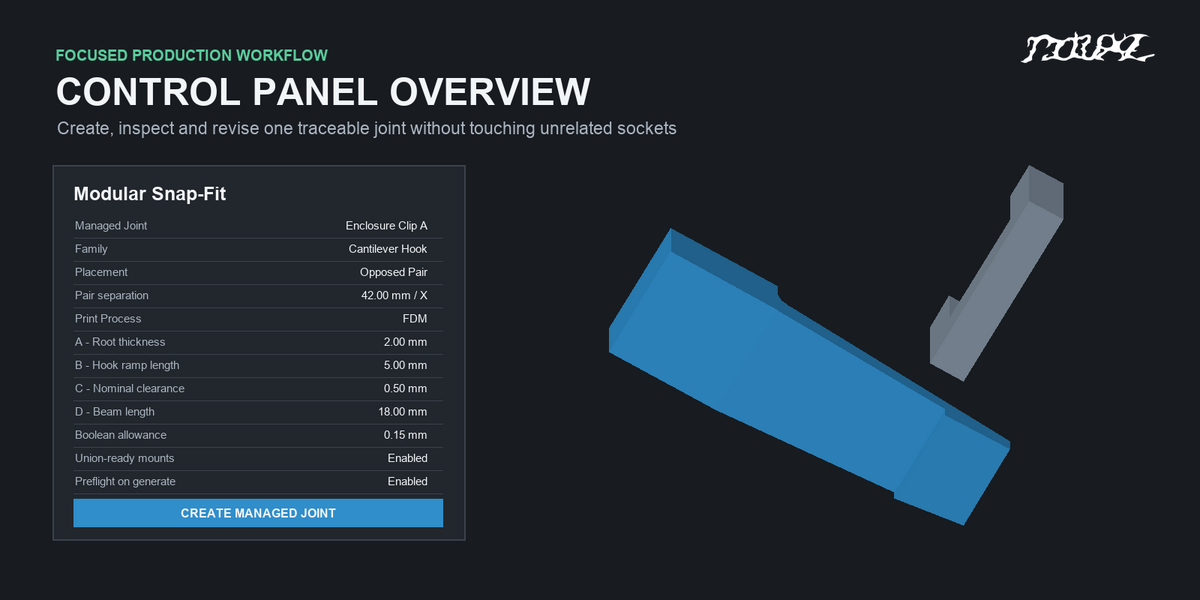
- Choose a snap family and print process in the SnapFit panel.
- Set placement to 3D Cursor, or choose Project Cursor to Surface, select a Surface Target mesh, and aim the cursor local negative Z axis at the desired point.
- Enter dimensions in millimetres and review any validation messages.
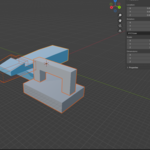
- Choose an exploded receiver or negative-cutout preview. To attach and cut in one joint, enable mounting solids, choose a closed Male Host and separate closed Boolean Target, then enable Attach to Host and Cut Socket in Target.
- Press Create Managed Joint. The generated objects appear in
SnapFit Generated. - Inspect the fit and print a Fit Coupon in the final material and orientation before relying on the dimensions in a product.
In Blender's default unitless scene, 1 Blender unit represents 1 mm. In a scene with physical units, the extension converts millimetres using the scene Unit Scale.
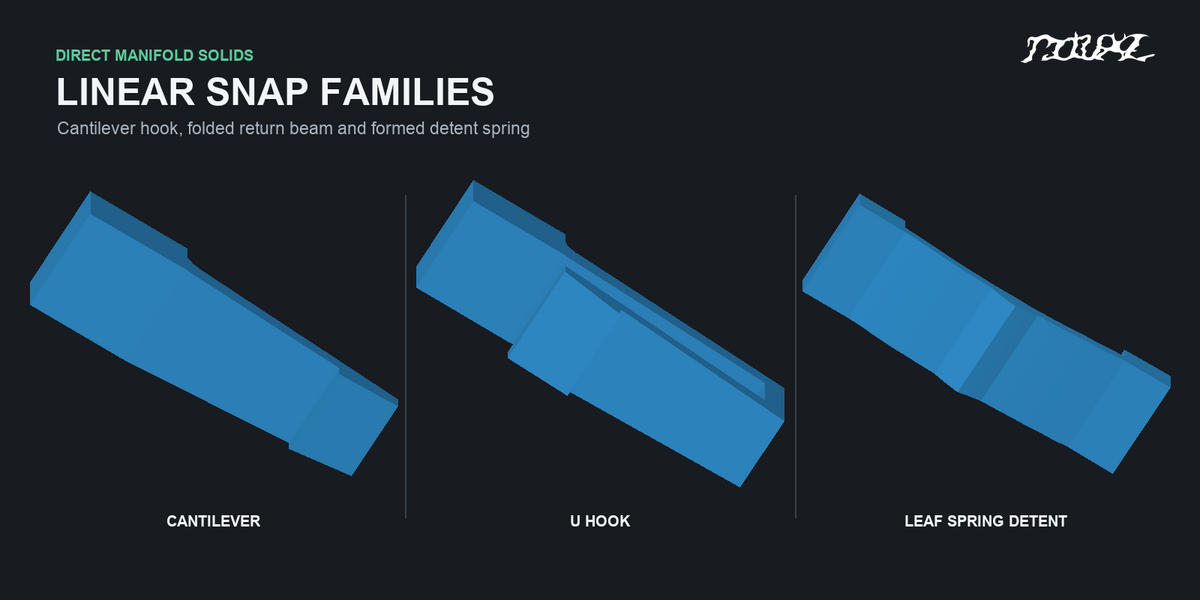
Available families
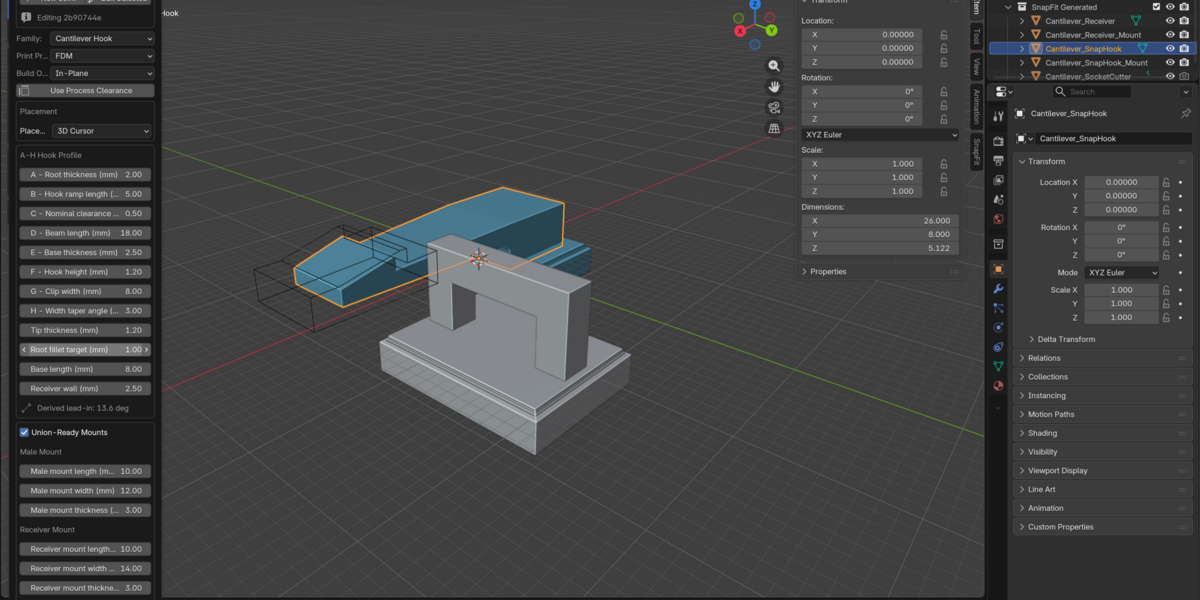
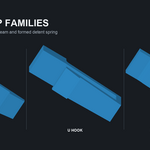
- Cantilever Hook: tapered beam, modeled root radius, lead-in ramp, retention shoulder, and matched keeper.
- U Hook: a folded compliant beam with an open return gap and a hook at the returning free end.
- Leaf Spring Detent: a two-ended formed strip with mounting pads, an open underside, central detent, and matching groove.
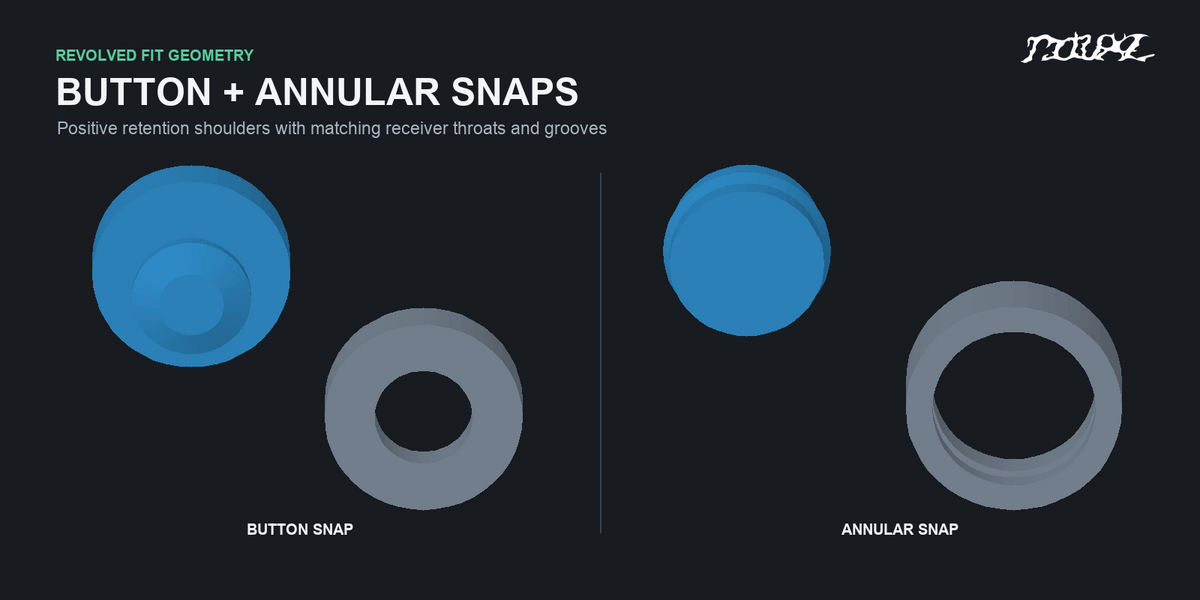
- Button Snap: a revolved stud with base, stem, head, and matching throat ring.
- Annular Snap: a beaded plug and receiver ring with a matching groove.
- Fit Coupon: a row of sample fits with stepped clearances and one matching negative cutter per sample for printer and material calibration.
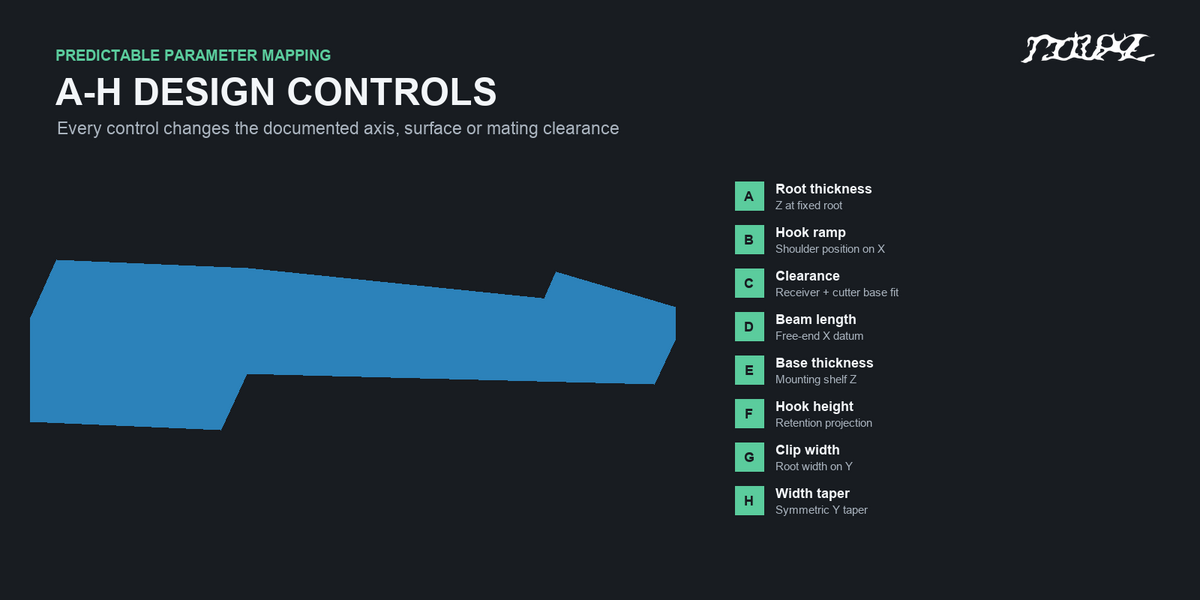
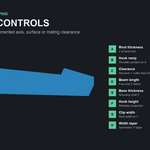
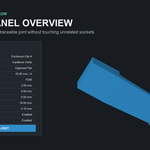
For hook families, the A-H controls map to: A root thickness, B ramp length, C nominal clearance, D flexible beam length, E base thickness, F hook height, G clip width, and H lateral width taper. C changes the mating receiver and cutter fit; it does not resize the male hook. Invalid combinations are reported rather than silently clamped.
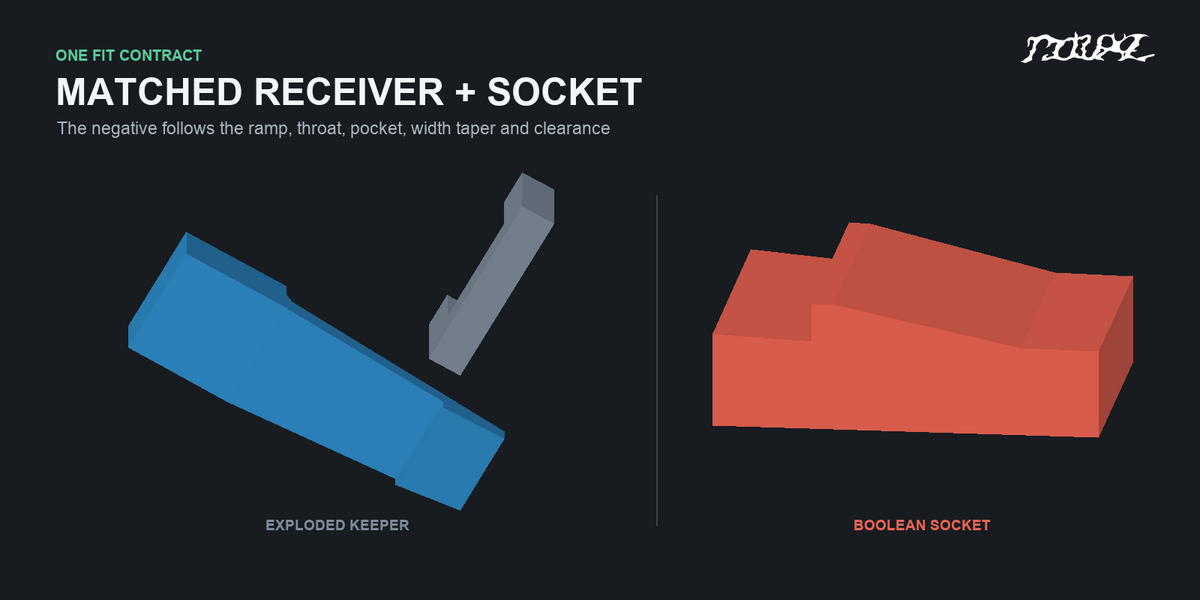
Matched receiver and Boolean socket
Exploded Receiver Preview shows the mating part away from the snap for inspection. Negative Cutout Preview shows the actual subtraction volume without changing a target. To cut an enclosure or mating part, select a closed mesh target, enable Cut Socket in Target, and run Preflight before creating the joint. The extension adds a managed Exact Boolean Difference modifier and cutter to the selected target.
Nominal Clearance defines the designed fit. Boolean Allowance adds extra room to the cutter only; it does not change the male snap or exploded receiver. Easy Fit starts at an additional 0.15 mm for FDM or 0.10 mm for SLA, SLS, and MJF. Exact uses 0.00 mm additional allowance. A separate socket overcut extends the cutter through the target wall without changing the mating clearance. These values are starting points, not guaranteed printer tolerances.
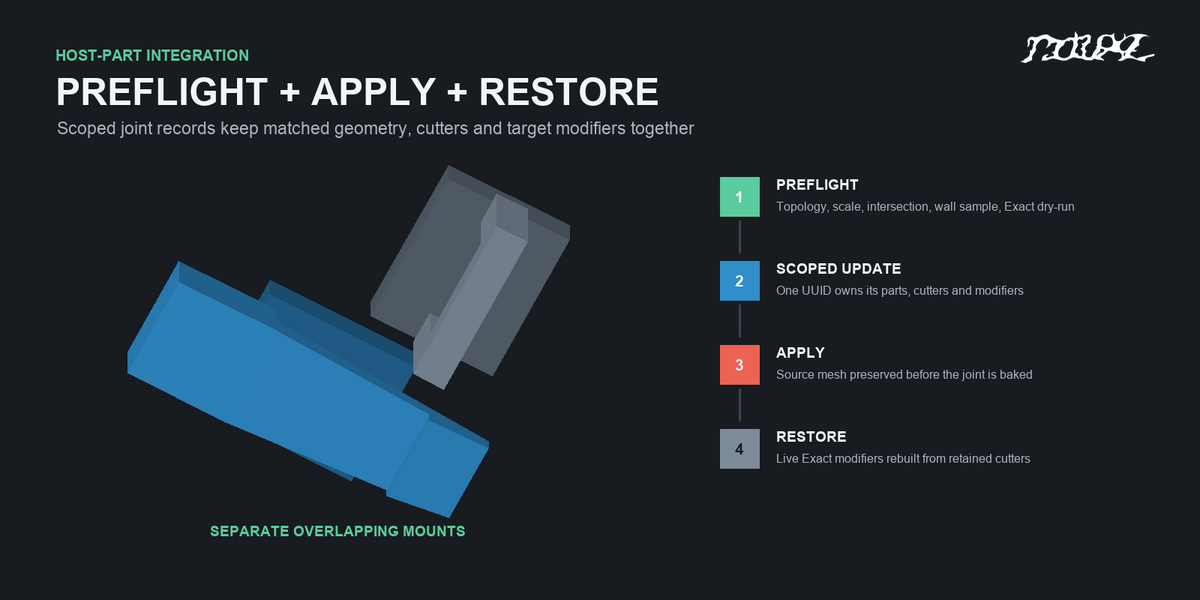
The target must be closed and outward-wound. Preflight checks topology, degenerate faces, scale, cutter intersection, sampled wall thickness and travel, and an Exact Boolean dry run. Blocking failures leave the original target and previous joint unchanged. The live cutter may be shown as wire geometry for inspection or hidden with Show Live Cutter.
Placement and revision
Circular Array places complete snap, receiver, and cutter sets around the cursor with count, radius, axis, start angle, sweep, and radial or tangent alignment. Map To Surface ray-casts that pattern to an evaluated mesh and aligns each rigid snap to the surface normal and circular tangent. Project Cursor to Surface places one oriented joint at a cursor-ray hit on a chosen mesh. Neither mode bends the rigid snap to follow curvature. Opposed Pair creates two facing placements with positive scale.
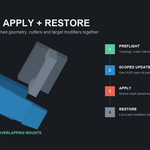
Each managed joint has its own identifier. Select one of its parts and choose Edit Selected to load its parameters. Use Update Active Joint to build and test a replacement before its previous geometry and modifiers are swapped. Other joints on the same target remain separate. Rounded mounting pads can be unioned with the male snap to a closed Male Host using managed Exact Booleans. Each mount and the resulting host are preflight-checked for a connected, manifold result; a floating mount is rejected. A separate receiver target gets the matched Exact Difference cut.
Apply Active Joint preserves source meshes before baking the joint's managed host Union and receiver Difference. Restore Active Joint restores both sources and recreates the live Exact modifiers. Restore is blocked after untracked target topology edits, and Apply is guarded against unsafe modifier order. Keep a project backup before final destructive editing.
Engineering Assist and print checks
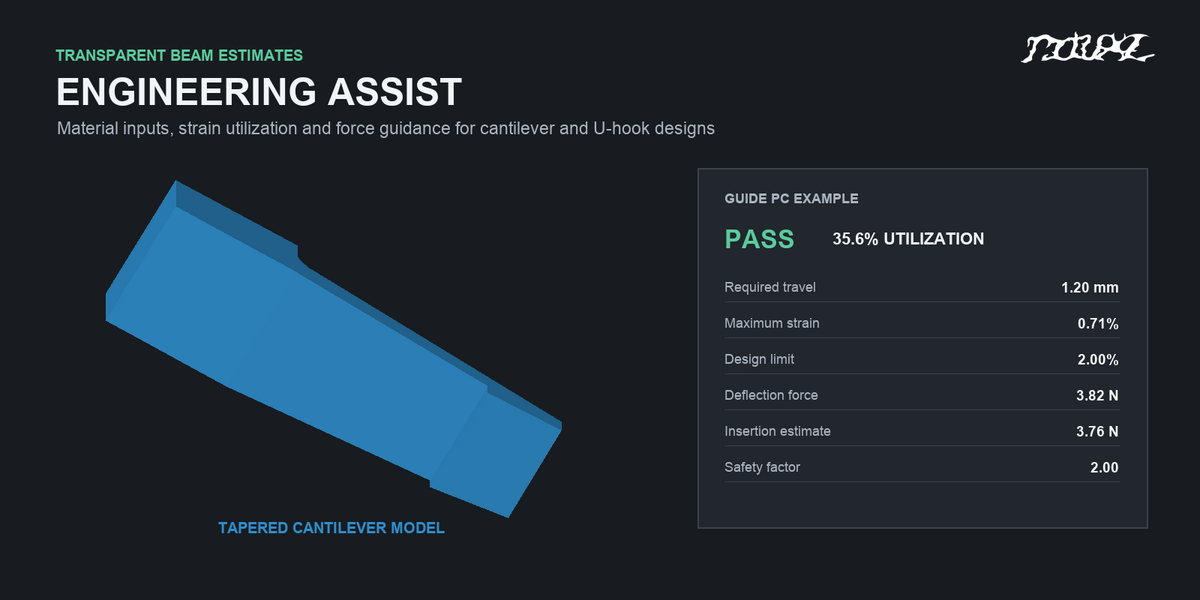
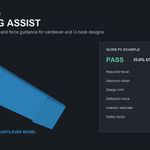
The optional Engineering Assist supports Cantilever Hook and U Hook. Enter material modulus in MPa, allowable strain, friction, safety factor, duty, and required travel for the intended print material and orientation. It reports estimated maximum strain, utilization, deflection force, insertion force, and critical beam location. The U Hook uses a folded two-arm model. Other families show an unavailable state rather than a generic beam result.
These are transparent small-deflection beam estimates, not FEA, fatigue certification, or a guarantee of printed fit. Root stress concentration, nonlinear contact, layer anisotropy, creep, temperature, and manufacturing variation are outside the model. The included polycarbonate guide example is an injection-molded reference, not a certified 3D-print material preset.
For FDM, orient flexible arms so the primary bending load acts in the print plane where practical. Confirm dimensions and retention with the included Fit Coupon and cycle-test the final joint in its intended material, orientation, and environment.
Troubleshooting and support
- No socket appears: confirm Cut Socket in Target is enabled, the correct closed mesh is selected, and the cutter intersects the target. Run Preflight and inspect its message.
- Joint will not update: select a managed part, choose Edit Selected, then Update Active Joint. Review any invalid-dimension or target warnings.
- Fit is too tight or loose: print the Fit Coupon, then adjust nominal clearance or cutter-only Boolean allowance for the actual printer and material.
- Restore is blocked: the target topology changed after Apply. Preserve your later edits and use an earlier saved project state rather than overwriting them.
Contact Ritual Studio through the Superhive inbox. Include the add-on version, Blender version, operating system, snap family, parameter values, the relevant Preflight message, and a screenshot or small sample .blend file. Our target response time is within 72 hours.
 Included
Includes 12 months of
- Support from Ritual Studio
- Product updates
Extend this product’s Support Period +12 months: 50% of product price
Have questions before purchasing?
Login to message
| Blender Extension Compatible | Yes |
| Published | 9 days ago |
| Blender Version | 4.2 - 5.1 |
| Extension Type | Add-on |
| Render Engine Used | Cycles, Eevee |
| License | GPL |
Discover more products like this
3D Print Connectors blender parametric modeling assist snap fit connector addon blender 3dmodular Auto-Connect