MotionBridge — Character Animation Retargeting
 Obssidian Art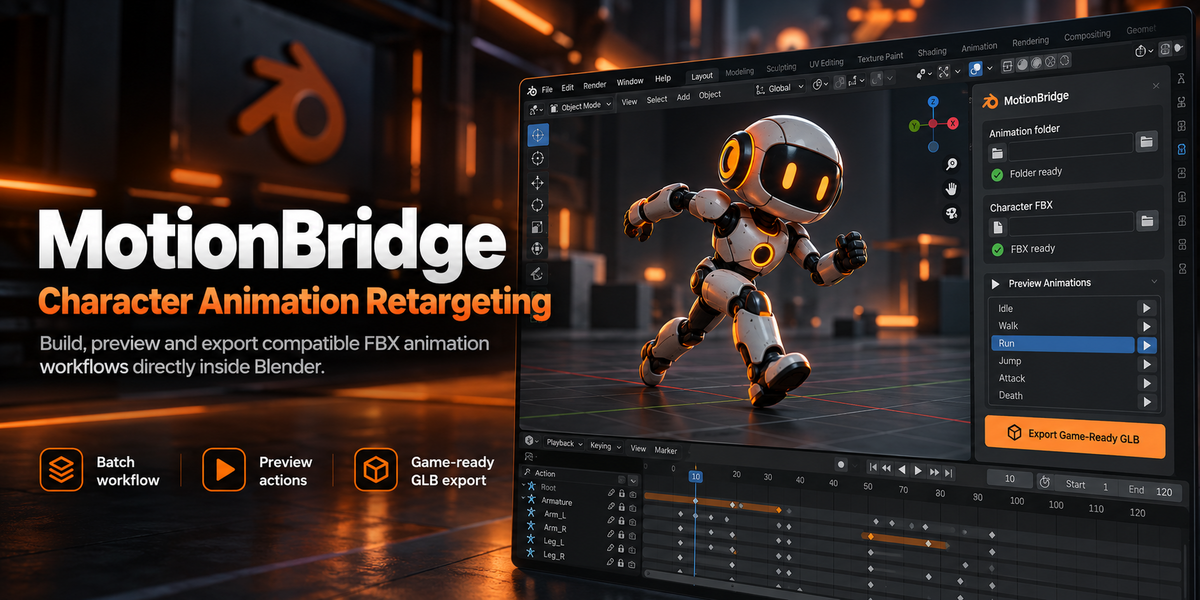
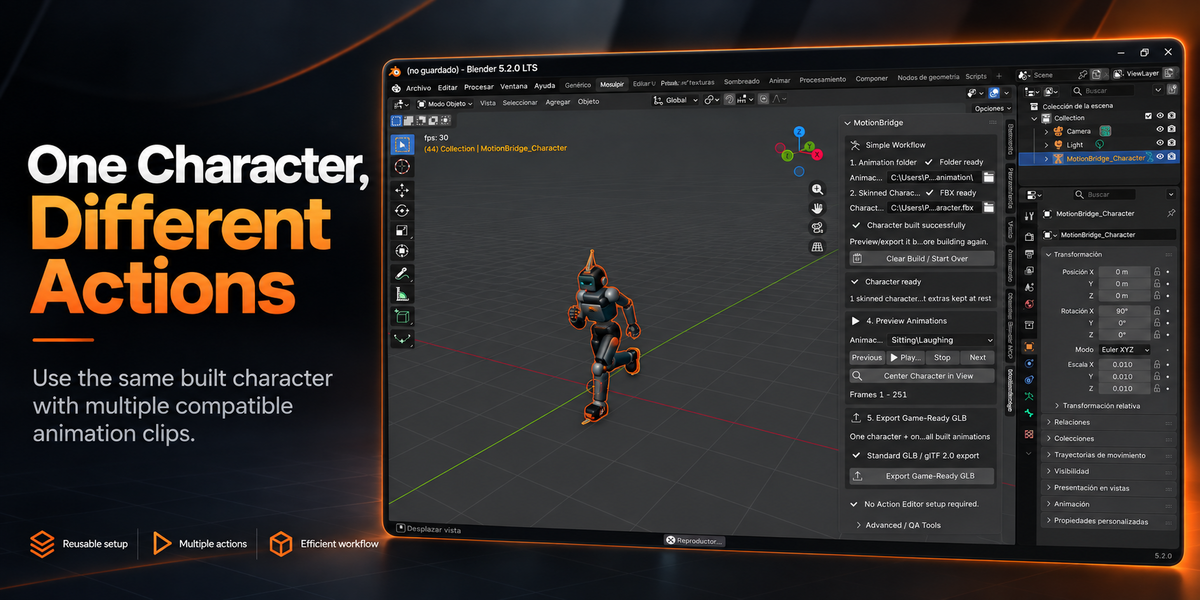
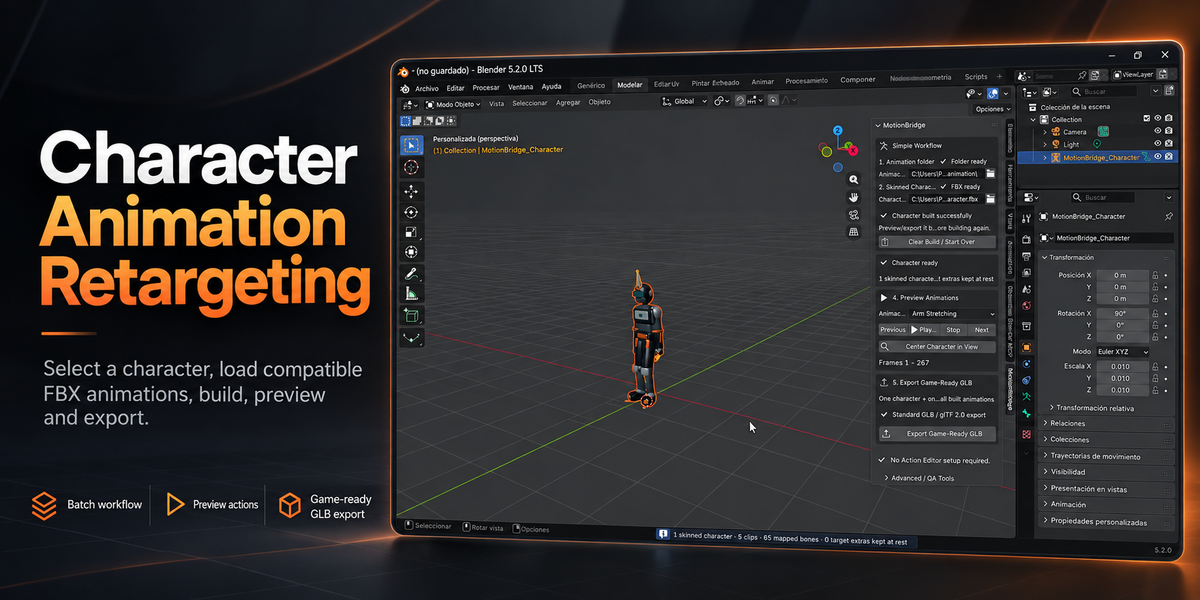
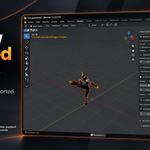
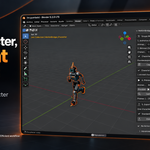
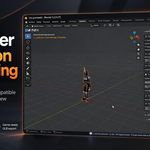
MOTIONBRIDGE 1.0 — QUICK START & DOCUMENTATION
MotionBridge is a Blender add-on for preparing a rigged FBX character with multiple compatible FBX animation clips through one focused workflow.
COMPATIBILITY
• Blender 5.2 LTS
• Windows and Linux tested
• FBX character with a skinned mesh and armature
• FBX animation files using a compatible bone structure
• GLB / glTF 2.0 export
IMPORTANT
MotionBridge 1.0 is not a universal retargeter between arbitrary skeletons.
The character and animation files must use compatible bone names and hierarchy. This is intentional: MotionBridge focuses on simplifying repetitive animation preparation when the source files already share a compatible skeleton structure.
INSTALLATION
1. Download the MotionBridge ZIP file.
2. Open Blender.
3. Go to Edit > Preferences.
4. Open Get Extensions.
5. Choose Install from Disk.
6. Select the MotionBridge ZIP file.
7. Enable MotionBridge if required.
8. Open the 3D View.
9. Press N to open the sidebar.
10. Open the MotionBridge tab.
Do not extract or modify the extension ZIP before installation unless you specifically need to inspect the GPL source code.
WORKFLOW
STEP 1 — SELECT THE ANIMATION FOLDER
Choose a folder containing the FBX animation files you want to prepare.
MotionBridge reads the compatible FBX files from this folder.
Your original FBX files are never modified.
STEP 2 — SELECT THE CHARACTER FBX
Select the rigged FBX character that will receive the animations.
The character file must contain:
• An armature
• At least one mesh
• A mesh skinned/bound to the armature
Animation-only FBX files cannot be used as the Character file.
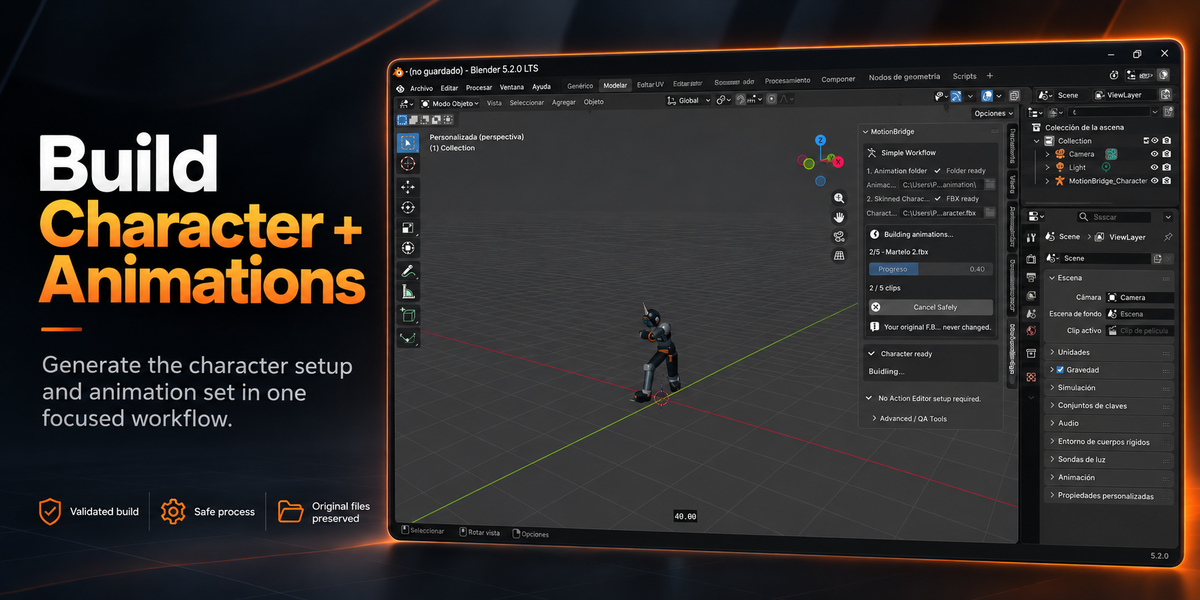
STEP 3 — BUILD CHARACTER + ANIMATIONS
Click:
Build Character + Animations
MotionBridge validates the selected files and builds the animation setup.
During the build process MotionBridge:
• Imports the character
• Checks the skinned character structure
• Reads compatible animation FBXs
• Validates skeleton compatibility
• Creates the animation actions
• Keeps the workflow organized inside Blender
• Preserves the original source files
If the character or animations are incompatible, MotionBridge stops safely and displays an error instead of continuing with an invalid build.
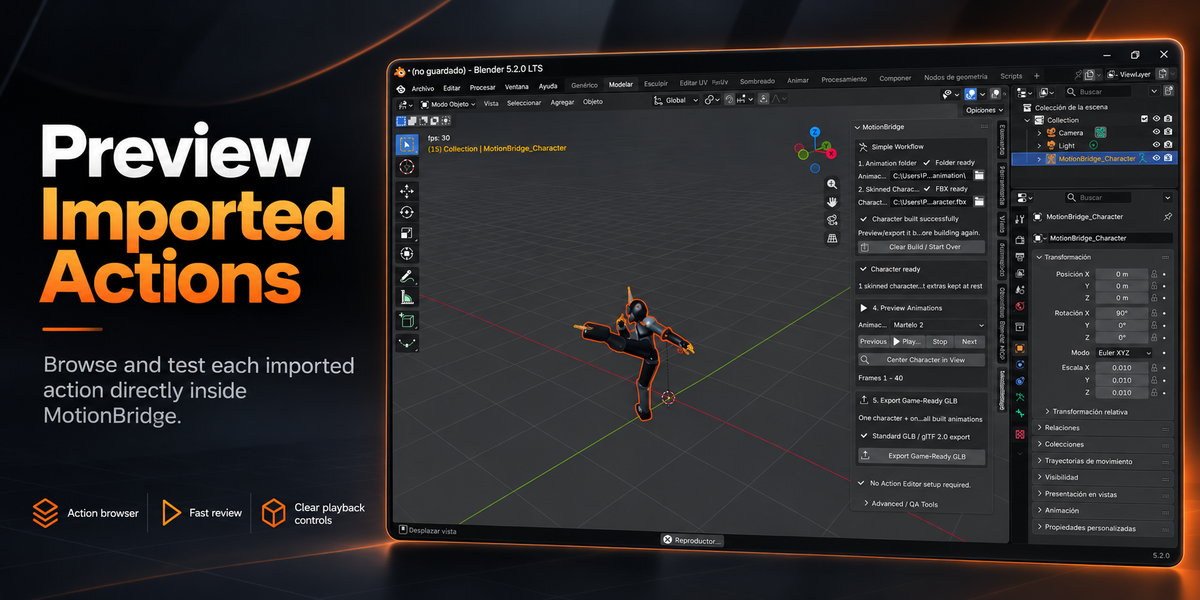
STEP 4 — PREVIEW ANIMATIONS
After a successful build, open Preview Animations.
You can:
• Browse the imported actions
• Move to the previous or next animation
• Play and stop animations
• Center the character in the viewport
• Review frame ranges directly from the MotionBridge panel
Normal use does not require manual Action Editor setup.
STEP 5 — EXPORT GAME-READY GLB
When the animation set is ready, click:
Export Game-Ready GLB
MotionBridge exports the prepared character and built animations using the standard GLB / glTF 2.0 workflow.
The resulting file can be used in game-development pipelines and other applications that support animated GLB files.
STARTING OVER
Use:
Clear Build / Start Over
to clear the current MotionBridge build and prepare another character or animation set.
FILE SAFETY
MotionBridge does not overwrite or edit the original FBX source files.
The character and animation FBXs remain unchanged on disk.
KNOWN LIMITATIONS
• MotionBridge 1.0 requires compatible skeleton structures.
• It does not perform arbitrary humanoid-to-humanoid bone remapping.
• Different bone names or incompatible hierarchies may be rejected.
• The Character FBX must contain a skinned mesh.
• Animation-only FBXs cannot be selected as the Character.
• Results depend on the quality and compatibility of the source rigs and animations.
• Demo characters and animation files shown in promotional material are not included.
TROUBLESHOOTING
“Character FBX contains no mesh skinned to its armature”
The selected Character file does not contain a mesh correctly bound to the armature.
Choose the rigged character FBX instead of an animation-only FBX.
“Skeleton is incompatible”
The character and animation use different bone names, hierarchy, or skeleton structure.
Use animations created for the same compatible skeleton structure.
THE BUILD BUTTON IS DISABLED
Confirm that:
• A valid animation folder is selected
• A valid skinned Character FBX is selected
• Both fields show that they are ready
AN ANIMATION DOES NOT APPEAR
Check that:
• The file is an FBX
• It contains animation data
• Its skeleton is compatible with the selected character
SUPPORT
When reporting an issue, please include:
• Blender version
• Operating system
• MotionBridge version
• The exact error message shown by MotionBridge
• Whether the problem occurs during character validation, building, previewing, or exporting
Please do not send third-party copyrighted character or animation files unless you have permission to share them.
Have questions about this product?
Login to message
| Blender Extension Compatible | Yes |
| Published | about 10 hours ago |
| Blender Version | 5.2 |
| Extension Type | Add-on |
| Render Engine Used | Cycles |
| License | GPL |
Discover more products like this
character rig glb Game animation game development Animation Workflow character animation animation retargeting gltf batch animation fbx animation rigging