Multi Layer Exporter + Importer — Batch Export & Import For Blender 5.1
 Shift4cube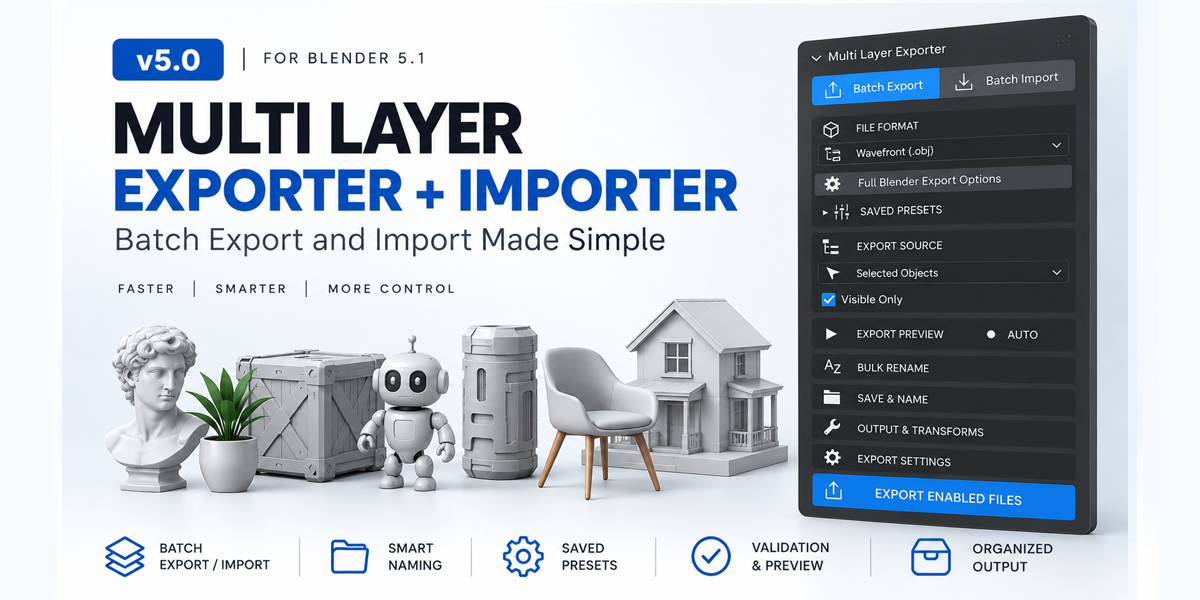
Documentation
Multi Layer Exporter + Importer
Version 5.0 • Blender 5.1
A preview-first batch export and import workflow for managing multiple 3D assets with better naming, validation, presets, textures, transforms, folder organization, and result tracking.
🚀 Quick Start
Installation
Open Edit → Preferences → Add-ons in Blender.
Disable or remove any previous version of Multi Layer Exporter + Importer.
Click Install from Disk.
Select the addon ZIP file.
Enable Import-Export: Multi Layer Exporter + Importer.
Open the 3D Viewport Sidebar with N.
Select the Multi Export tab.
Important: Only one version of the addon should be enabled at a time.
📤 Batch Export
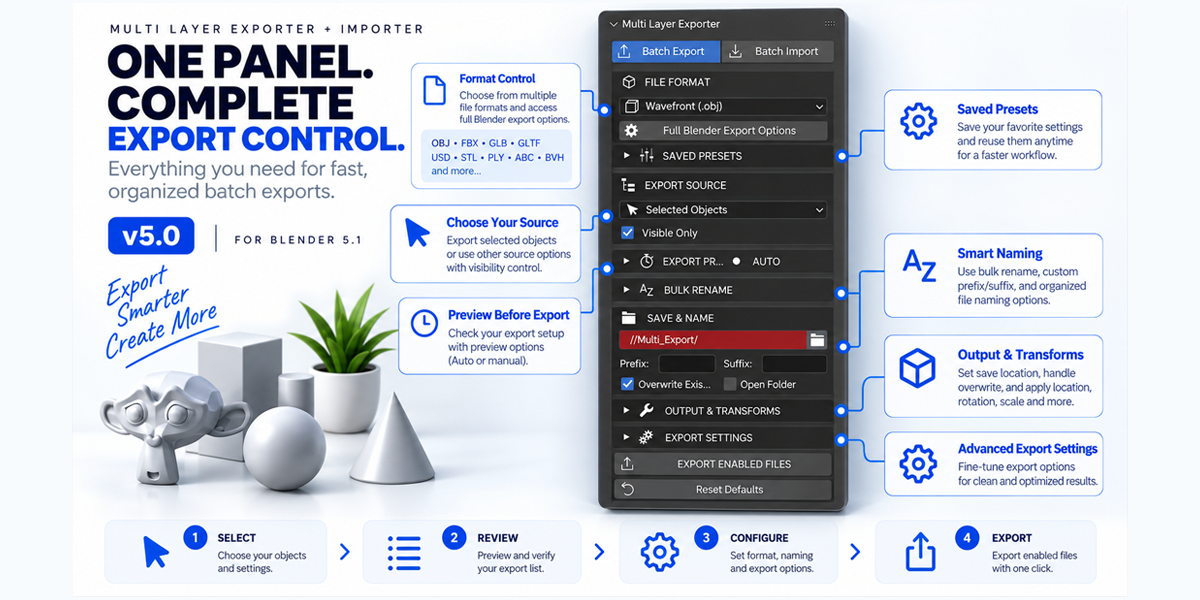
Select the Batch Export tab to export multiple assets.
1. Choose File Format
Select the format you need from the File Format menu.
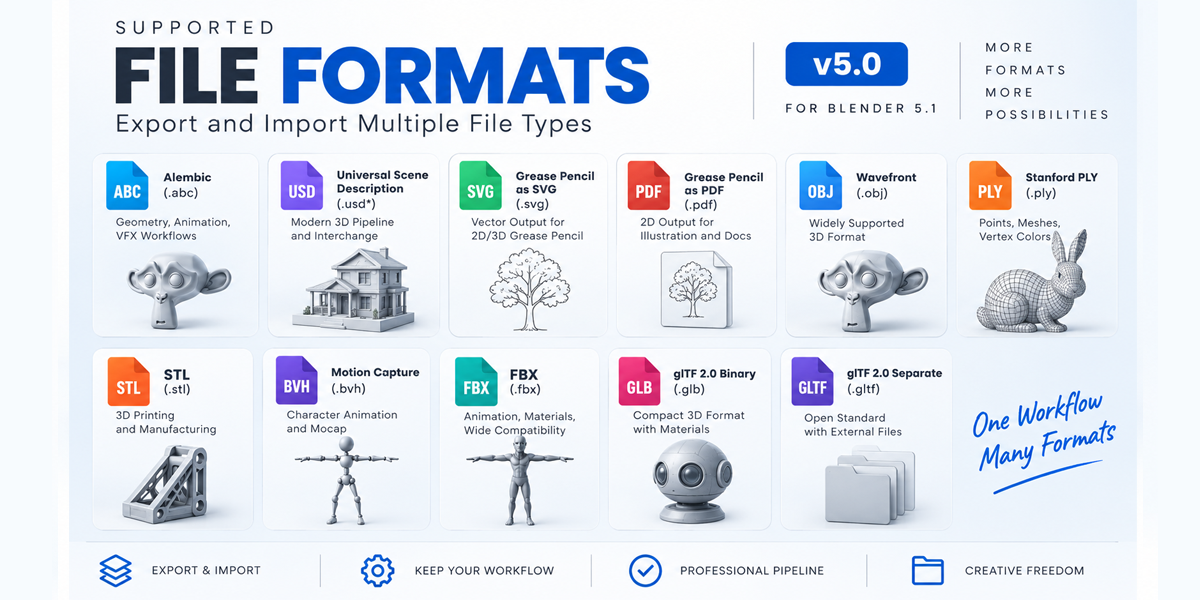
Supported formats include:
Alembic
.abcUSD
.usd / .usda / .usdc / .usdzGrease Pencil SVG
.svgGrease Pencil PDF
.pdfWavefront OBJ
.objStanford PLY
.plySTL
.stlMotion Capture
.bvhFBX
.fbxglTF Binary
.glbglTF Separate
.gltf
Availability can depend on your Blender installation and enabled extensions.
🎯 Export Source
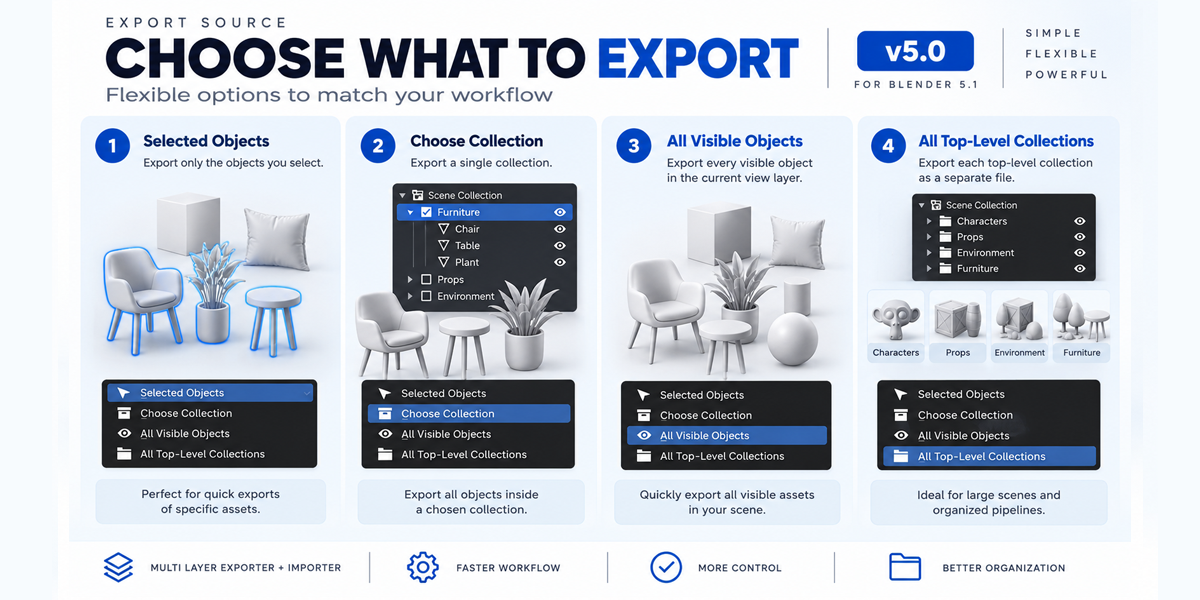
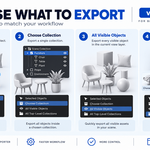
Choose what you want to export:
Selected Objects
Exports one file per selected object.
Choose Collection
Select a Collection and export its objects separately or as a Collection file.
All Visible Objects
Exports every compatible visible object in the active View Layer.
All Top-Level Collections
Exports each top-level Collection as a combined file.
👁️ Export Preview
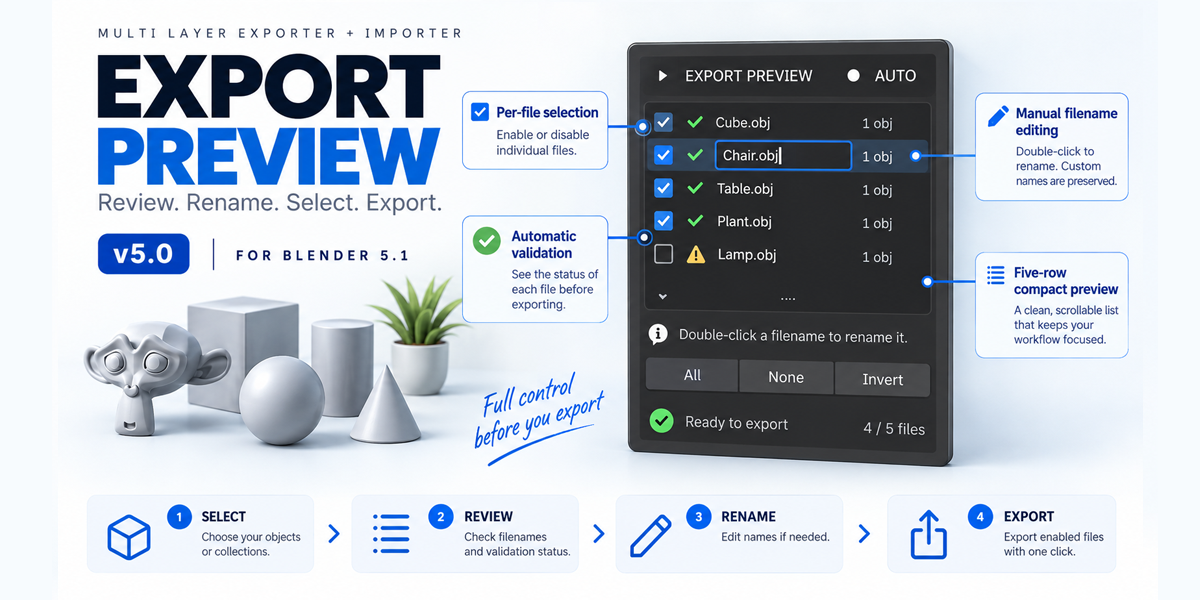
The Export Preview lets you check your files before exporting.
You can:
Enable or disable individual files
Double-click filenames to rename them
Use All / None / Invert
Review validation status
Check the destination folder
The preview automatically refreshes while preserving manually edited names.
Validation
Each file can show:
Ready — The file can be exported.
Warning — Export is allowed, but something expected may be missing, such as a UV map, material, or texture.
Error — The item is empty or incompatible and will be safely skipped.
Unchanged — Changed-only mode found no difference from the previous successful export.
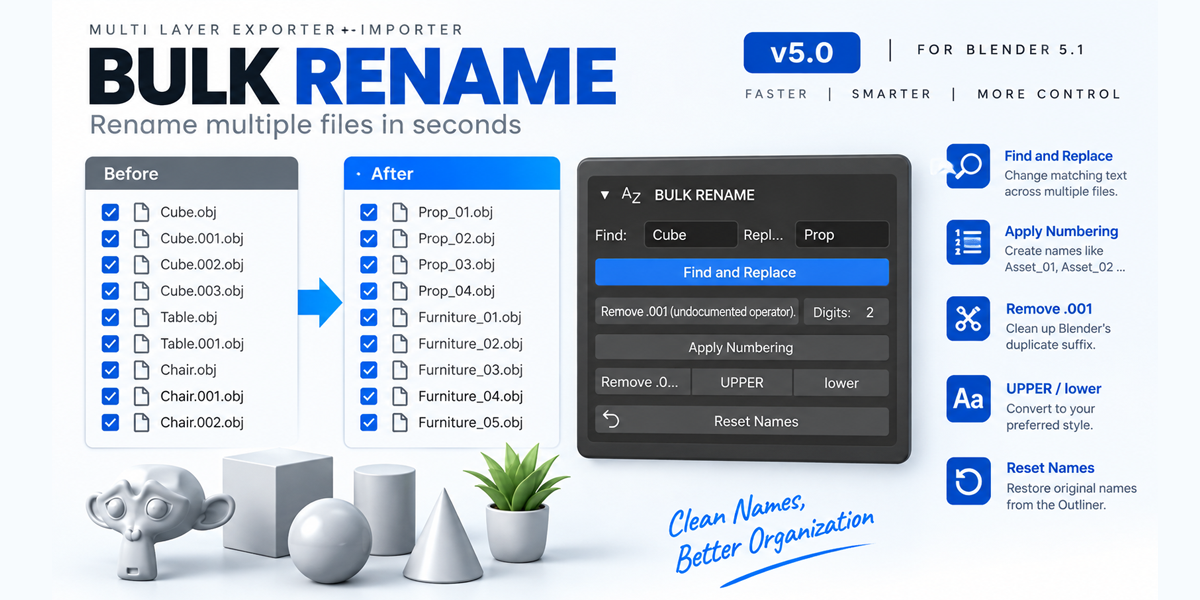
✏️ Bulk Rename
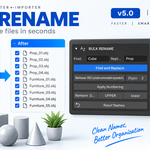
The Bulk Rename section makes large export batches easier to organize.
Available tools:
Find and Replace
Remove
.001Apply Numbering
UPPER
lower
Reset Names
For example:
Chair, Chair.001, Chair.002
can be cleaned and numbered for a consistent delivery workflow.
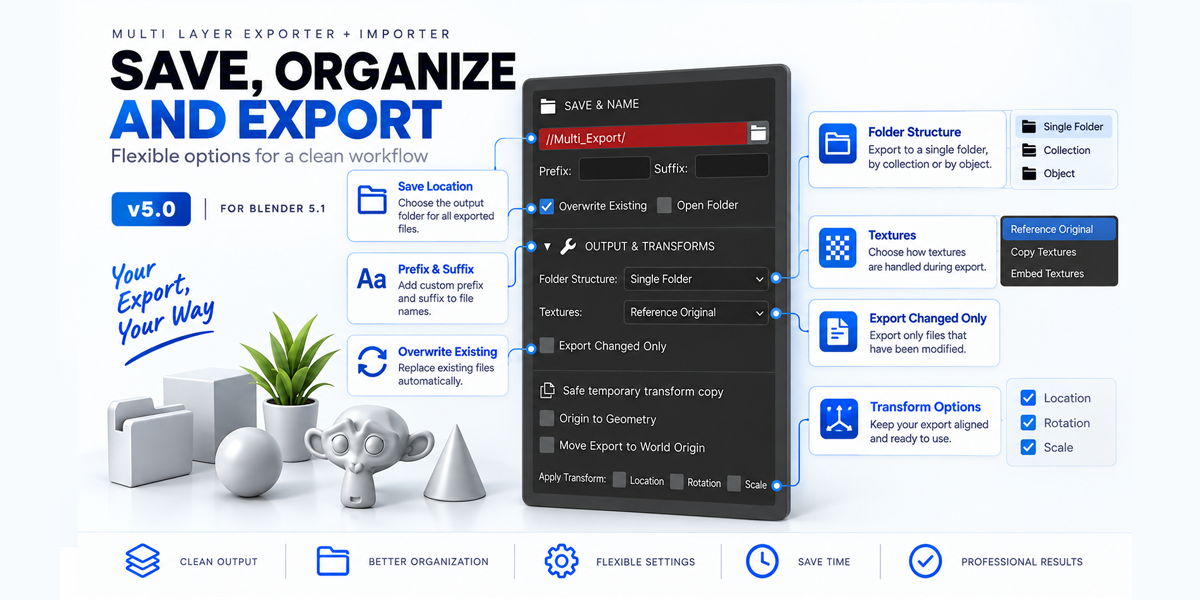
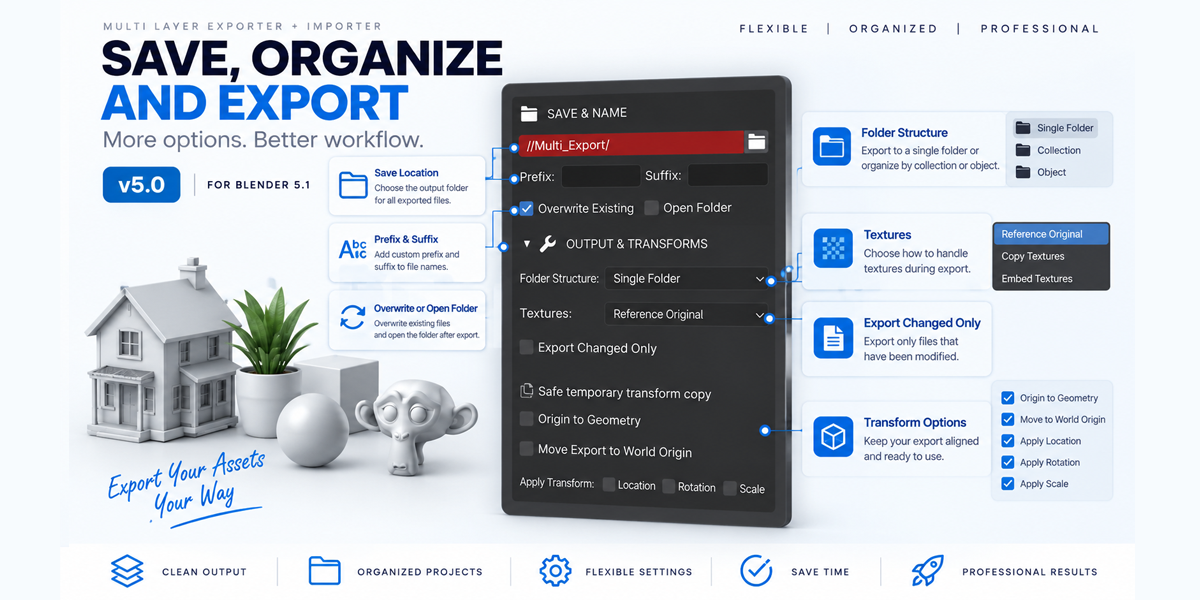
📁 Save & Name
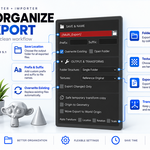
Choose where and how your exported files are saved.
Output Folder
Select the destination directory.
Prefix / Suffix
Add custom text automatically to generated filenames.
Overwrite Existing
Control whether existing output files can be overwritten.
Open Folder
Optionally open the destination folder after export.
By default, generated filenames use the exact Outliner object names.
🗂️ Folder Structure
Choose how your output should be organized:
Single Folder
All exported files are placed together.
Folder per Collection
Files are grouped according to their Collection.
Folder per Object
Each output receives its own folder.
🖼️ Texture Handling
Choose how detected image textures should be handled.
Reference Original
Keep the existing image paths.
Copy Textures
Copy detected image files alongside the export or into the specified texture folder.
Embed When Supported
Embed textures when the selected format supports it. Formats that cannot embed textures can use copied textures instead.
If an image node points to a missing file, the addon displays a warning. Packed Blender images are not reported as missing.
🔄 Safe Temporary Transforms
Transform options are designed to avoid permanently changing your original geometry.
The addon can create temporary geometry copies, apply the requested export transformations, export them, and then remove the temporary copies.
Available options include:
Origin to Geometry
Move Export to World Origin
Apply Location
Apply Rotation
Apply Scale
Your original objects remain unchanged.
This temporary transform workflow is designed for geometry objects; armatures, cameras, lights, and other scene objects do not use this process.
🧠 Export Changed Only
For large asset libraries, Export Changed Only can reduce unnecessary exports.
After a successful export, the addon stores information about the asset and export configuration. Later batches can skip assets when their fingerprint and output file have not changed.
Tracked information includes geometry, topology, transforms, modifiers, materials, format, export settings, and output path.
Recommended workflow: Complete one full successful export first, then enable Export Changed Only for subsequent updates.
⚙️ Saved Presets
Built-in presets provide useful starting points for common workflows:
CLO OBJ
OBJ with modifiers, UVs, normals, materials, scale 1.0, Forward -Z and Up Y.
Unity FBX
FBX with unit scale and no leaf bones.
Web GLB
Binary glTF with materials, UVs, normals, modifiers and +Y Up.
Custom
Save your current export settings under your own preset name.
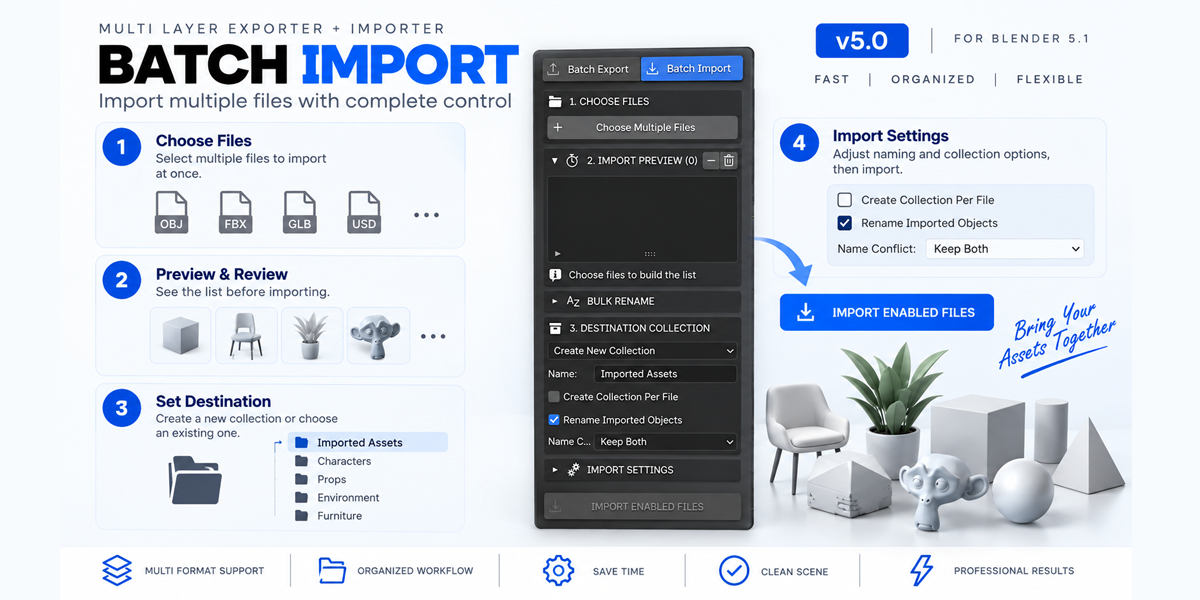
📥 Batch Import
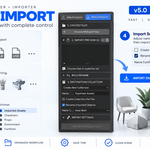
Switch to Batch Import to bring multiple files into Blender.
Workflow
Click Choose Multiple Files.
Select the files you want to import.
Review the Import Preview.
Edit imported names if required.
Disable unwanted files.
Select the destination Collection.
Adjust Import Settings if required.
Click IMPORT ENABLED FILES.
Review Last Batch Results.
🗃️ Import Destination Collections
Choose where imported assets should go.
Existing Collection
Import into an existing Blender Collection.
Create New Collection
Create a new top-level Collection for the batch.
Active Collection
Use the active Collection in the current View Layer.
Collection Per File
Create a child Collection for each imported file.
⚠️ Import Name Conflicts
When an imported asset has a name that already exists, choose how the addon should handle it.
Keep Both
Import the new asset and allow Blender to add a numeric suffix.
Skip Existing
Do not import the file if a matching target name already exists.
Replace Existing
Delete matching objects before importing the new asset.
Update Geometry
Replace compatible object data while preserving the existing object's transform and Collection.
Warning: Replace Existing deletes matching Blender objects. Save your .blend file before using this option on important projects.
📊 Last Batch Results
After a batch operation, the results panel reports:
Success — File completed normally.
Skipped — File was disabled, invalid, unchanged, or blocked by the selected policy.
Failed — Blender's importer/exporter returned an error.
Cancelled — The remaining queue stopped after the current file.
The result list remains compact and can be selected to view detailed information.
🛡️ Recommended Workflow
For reliable production use:
Save your
.blendfile before large batches.Review all warning and error indicators.
Test new presets with one asset first.
Confirm scale and axis requirements for your target application.
Check the Last Batch Results after exporting or importing.
Use Export Changed Only for repeated asset updates.
💡 Common Workflows
CLO / Garment
Use the CLO OBJ preset as a starting point.
Unity
Use Unity FBX as a starting point.
Web / Online Review
Use Web GLB with materials, UVs and normals enabled.
3D Printing
Use STL and verify model scale and watertight geometry.
Large Asset Libraries
Perform one complete export first, then use Export Changed Only for later updates.
🔧 Troubleshooting
Export Preview is empty
Check that:
Compatible objects are selected.
The selected Collection contains compatible objects.
Objects are visible when required.
The chosen format supports the object type.
Filename changes back
Double-click the filename, finish editing with Enter, and avoid renaming the source object while editing.
Export is skipped
Check the row checkbox, validation status, overwrite settings, and Export Changed Only.
Missing material or UV warning
Add the required material or UV map, or disable the corresponding export option.
Texture warning
Check the image path, pack the image, or provide a valid replacement.
Format unavailable
Enable the related Blender import/export extension or use Full Blender Export Options.
Update Geometry does not work
The existing and imported objects must have compatible object types and data.
📦 What This Add-on Gives You
Multi Layer Exporter + Importer v5.0 combines:
Batch Export & Import
Per-file selection
Smart Bulk Rename
Automatic validation
Saved presets
Texture management
Safe temporary transforms
Organized folder structures
Changed-only exporting
Import conflict handling
Progress tracking
Detailed batch results
All in one focused workflow for Blender 5.1.
Have questions about this product?
Login to message
| Published | 23 days ago |
| Blender Version | 5.0 - 5.2 |
| Extension Type | N/A |
| Render Engine Used | Cycles, Eevee |
| License | Mit |
Discover more products like this
glb 3d tools fbx asset management batch-export batch-import Obj blender 3D artist gltf blender addon 3D workflow