Multi-Vertex Snap
 Marco Capelli


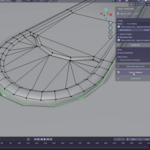
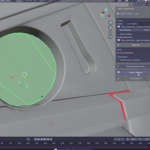
Multi-Vertex Snap (MVS) - Official Documentation
Version: 1.1.01. Installation
Download the Zip file.Open Blender.
Go to Edit > Preferences > Add-ons.
Click Install... (top right) and select the zip file.
Search for "Multi-Vertex Snap" in the list and enable the checkbox.
The addon is now ready to use.
2. Location
The tool is located in the 3D Viewport Sidebar (N-Panel).Tab: Tool
Panel: Multi-Vertex Snap
(Note: If you don't see the sidebar, press N on your keyboard while in the 3D Viewport).
3. Quick Start Guide
Select Objects: Select your Target Mesh first, then Shift-Select your Source Mesh (the one you want to edit). The Source Mesh must be the Active (lighter orange) object.
Edit Mode: Press Tab to enter Edit Mode on the Source Mesh.
Select Vertices: Select the vertices you wish to snap.
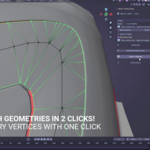
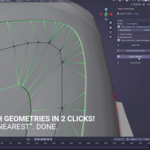
Snap: In the "Tool" sidebar, click Snap to Nearest.
4. Settings & Parameters
The panel offers several settings to control how the snapping behaves:Target Object (Optional)
Empty: If left empty, MVS automatically looks for other selected objects in the scene to use as the target.
Specified: You can manually pick an object from the list. This is useful if you want to snap to an object that isn't currently selected.
Max Distance
Default: 10.0m
This is the "safety radius." Vertices will only snap if the target is within this distance.
Use case: Prevents vertices on the far side of a model from snapping incorrectly across the mesh volume.
Target Selected Only
Off: Snaps to the entire target mesh.
On: Snaps only to vertices that are currently selected on the Target Mesh.
Note: This requires the Target Mesh to be in Edit Mode with specific geometry selected.
Snap to Edges
Off: Snaps to the nearest Vertex only.
On: Snaps to the nearest point on the nearest Edge.
Use case: Essential for sliding geometry along a seam or rail where no vertices exist.
Instructions Icon (▼)
Click the arrow icon to expand/collapse the quick-help guide directly in the viewport.
5. Advanced Workflow Tips
World Space Calculation
MVS calculates distances in World Space. This means you do not need to Apply Scale/Rotation before snapping. The addon handles the matrix math for you, ensuring the snap is accurate even if objects have different transforms.
The "Zipper" Technique
To stitch two characters or modular pieces together:
Select the border loops of both objects.
Set Max Distance to a low value (e.g., 0.1).
Click Snap.
Only the vertices that are very close to each other will merge/align, leaving the rest of the mesh untouched.
6. Troubleshooting
"No target mesh found" Error
Cause: You are in Edit Mode on the source, but no other mesh is selected, and the "Target Object" field is empty.
Fix: Tab out to Object Mode, select the target, then Shift-Select the source, and go back to Edit Mode. OR, pick the target manually in the "Target Object" box.
"No vertices selected" Error
Cause: You haven't selected any vertices on your active mesh.
Fix: Select the vertices you want to move.
Vertices aren't moving?
Check: Is your Max Distance too low? Increase it.
Check: Is Target Selected Only checked? If so, make sure your target object actually has vertices selected.
7. Changelog
v1.1.0
Added collapsible "Instructions" UI to save screen space.
Code refactored into modular structure for better stability.
v1.0.0
Initial Release.
Added KDTree optimization for high-poly performance.
Added Edge Snapping support.
Have questions about this product?
Login to message
| Blender Extension Compatible | Yes |
| Published | about 2 months ago |
| Blender Version | 4.5 - 5.0 |
| Extension Type | Add-on |
| Render Engine Used | Cycles |
| License | GPL |
