 CreateVisions



MultiBevel
Version 3.1 — New Features & Bug Fixes
MultiBevel 3.1 brings interactive layer colors, smarter edge selection, and important bug fixes — including a depth-aware selection system that prevents accidental edge picking through the mesh.
↓ Scroll to the bottom for the full list of new features, improvements, and fixes.
Anyone who has tried giving different parts of a model their own unique bevels knows how time-consuming it can be — and how tricky it gets if you need to adjust those edges later. Switching selections, adding multiple modifiers, and keeping track of settings can quickly turn into a tedious, error-prone process.
MultiBevel solves this by letting you organize bevels into named layers, each with its own settings and a live visual editing mode. You can instantly see which edges belong to which layer, adjust them directly in the viewport, and keep everything neatly under control — no matter how complex the model.
MultiBevel 3 – Save Setups, Store Parameters, Shape with Ease
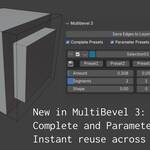
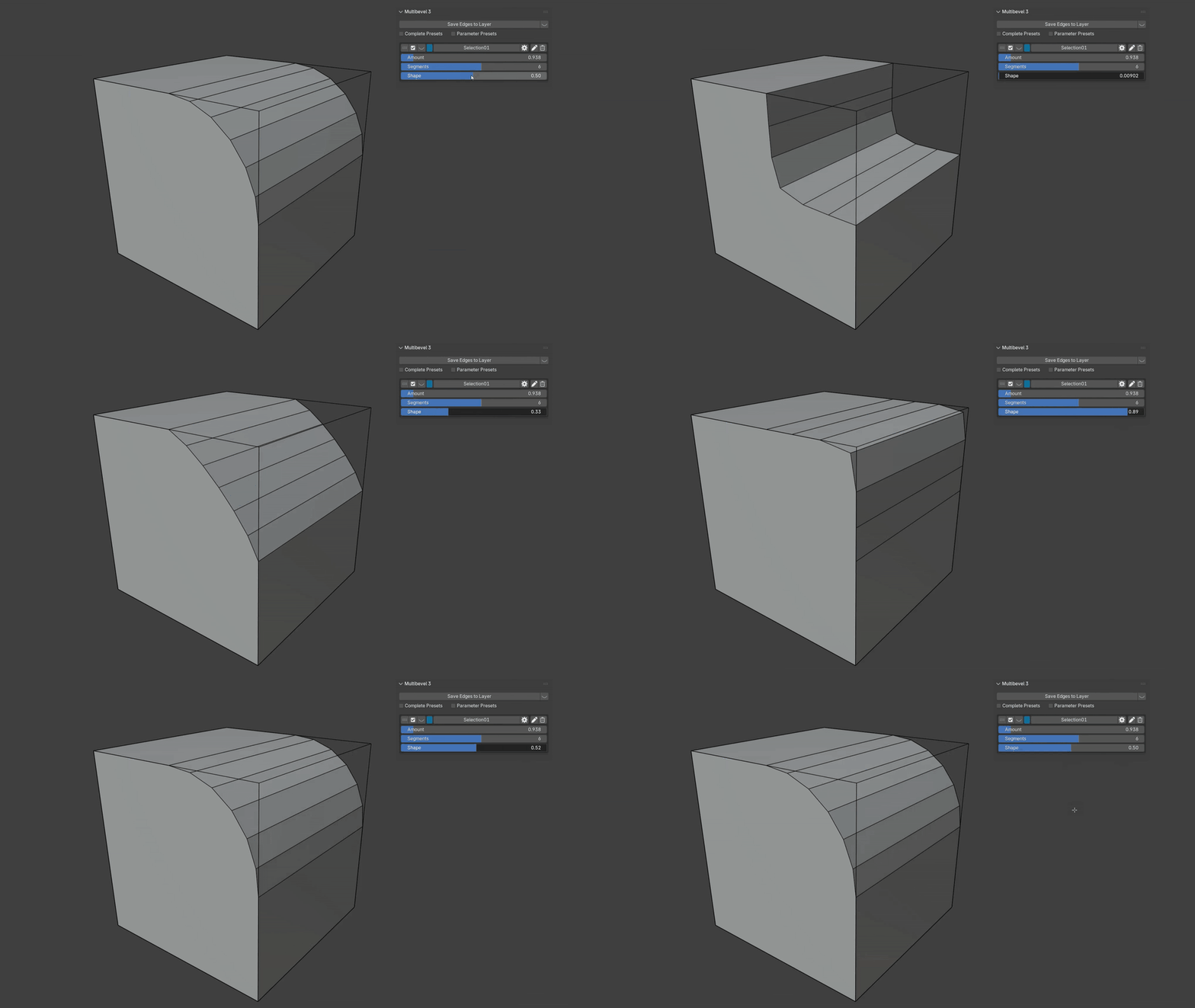
The latest update to MultiBevel takes this workflow even further. New Complete Presets let you save and reuse entire bevel setups, Parameter Presets give you quick access to multiple saved values for each control, and a per-layer Shape Slider works just like 's shape control — but is built directly into the add-on. Combined with improved layer management and global preset access.
Complete Presets – Save and Reuse Entire Bevel Setups
MultiBevel 3 introduces two powerful preset systems. The first one, Complete Presets, lets you save and reuse your entire bevel setup with a single click. A complete preset stores all settings — from bevel amount, segments, and profile shape to layer-specific parameters — so you can instantly apply the exact same configuration to new edges in a new layer.
You also now have direct access to the Profile (shape) parameter right inside the add-on, just like Blender's native bevel tool — but without leaving MultiBevel. This makes it faster and more intuitive to shape your bevels from the layer controls.
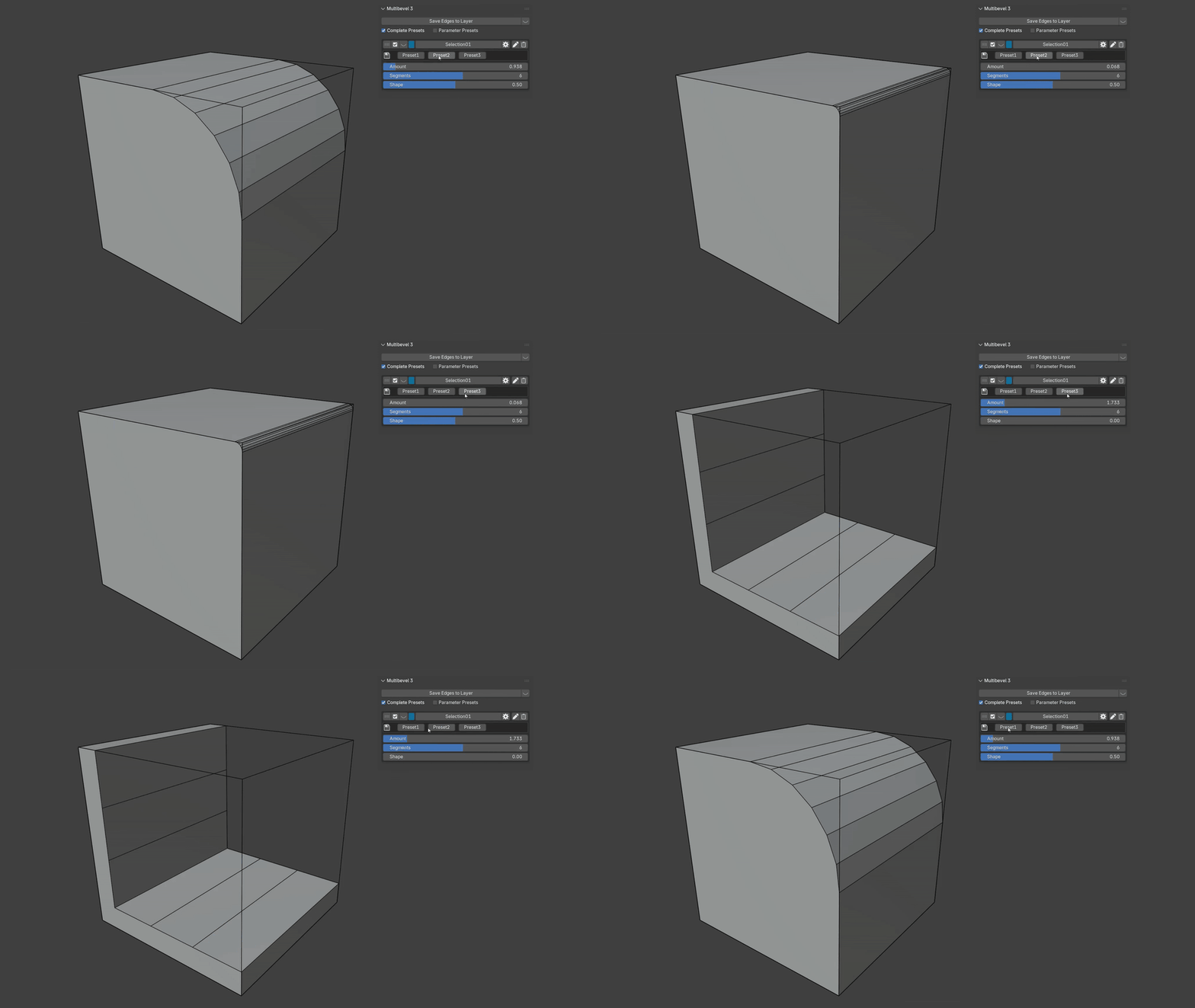
Even if you switch to a different model, your presets remain available — they're global to your scene. Presets you created for a previous model automatically appear in the add-on for the new one.
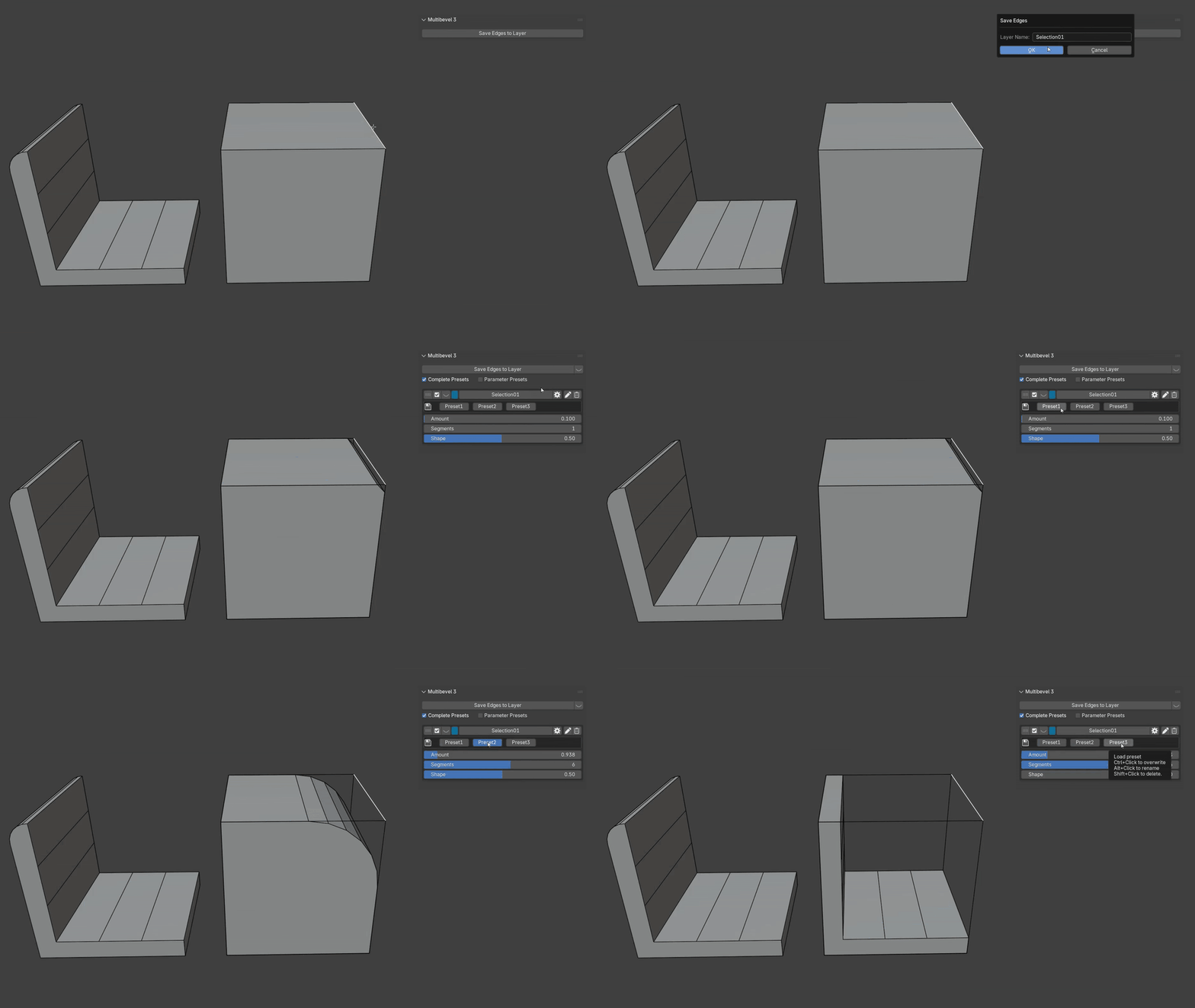
Perfect if you reuse the same bevel settings often — instead of tweaking every value each time, apply them all at once with a single click.
Parameter Presets – Quick Access to Multiple Saved Values
MultiBevel 3 also introduces Parameter Presets, which can be enabled via a simple checkbox. This feature allows you to store up to three preset values for each parameter, making it easy to experiment with different settings. You can still adjust any parameter manually, and all subsequent bevel layers will automatically use those preset values.
If you find the feature overwhelming, you can disable Parameter Presets at any time. All settings are saved per Blender file, so they remain available whenever you reopen your project.
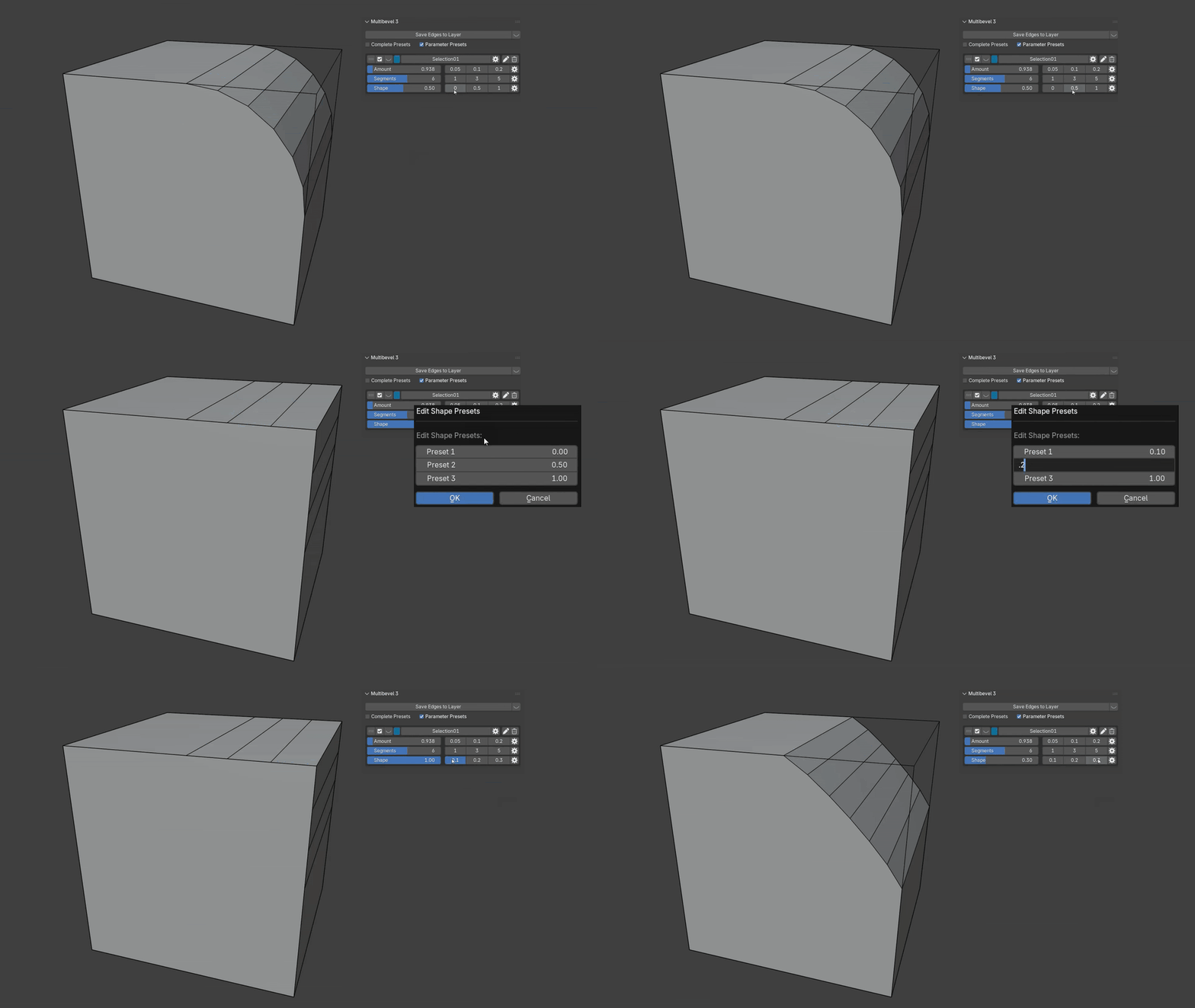
Any custom values you assign to Parameter Presets will be available for all future layers you create. Existing layers remain unaffected — this avoids confusion from sudden changes across multiple layers. You can apply a parameter's preset to other edges or use it for quick experimentation.
And if you don't need Complete Presets or Parameter Presets, simply turn them off — the interface reverts to its original, streamlined layout. Of course, you'll still have the new Shape Slider available.
Multibevel 2 – Control Your Bevels Like Never Before
I'm excited to introduce Multibevel 2.
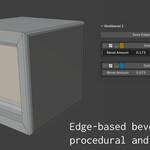
This tool makes beveling complex 3D models much easier. With just one click, you can save selected edges and apply a bevel to exactly those parts — clean, fast, and fully under control. You no longer need to manually select and manage bevels one by one. Multibevel 2 helps you organize your bevels into layers, so you can quickly make changes without affecting the rest of your model.
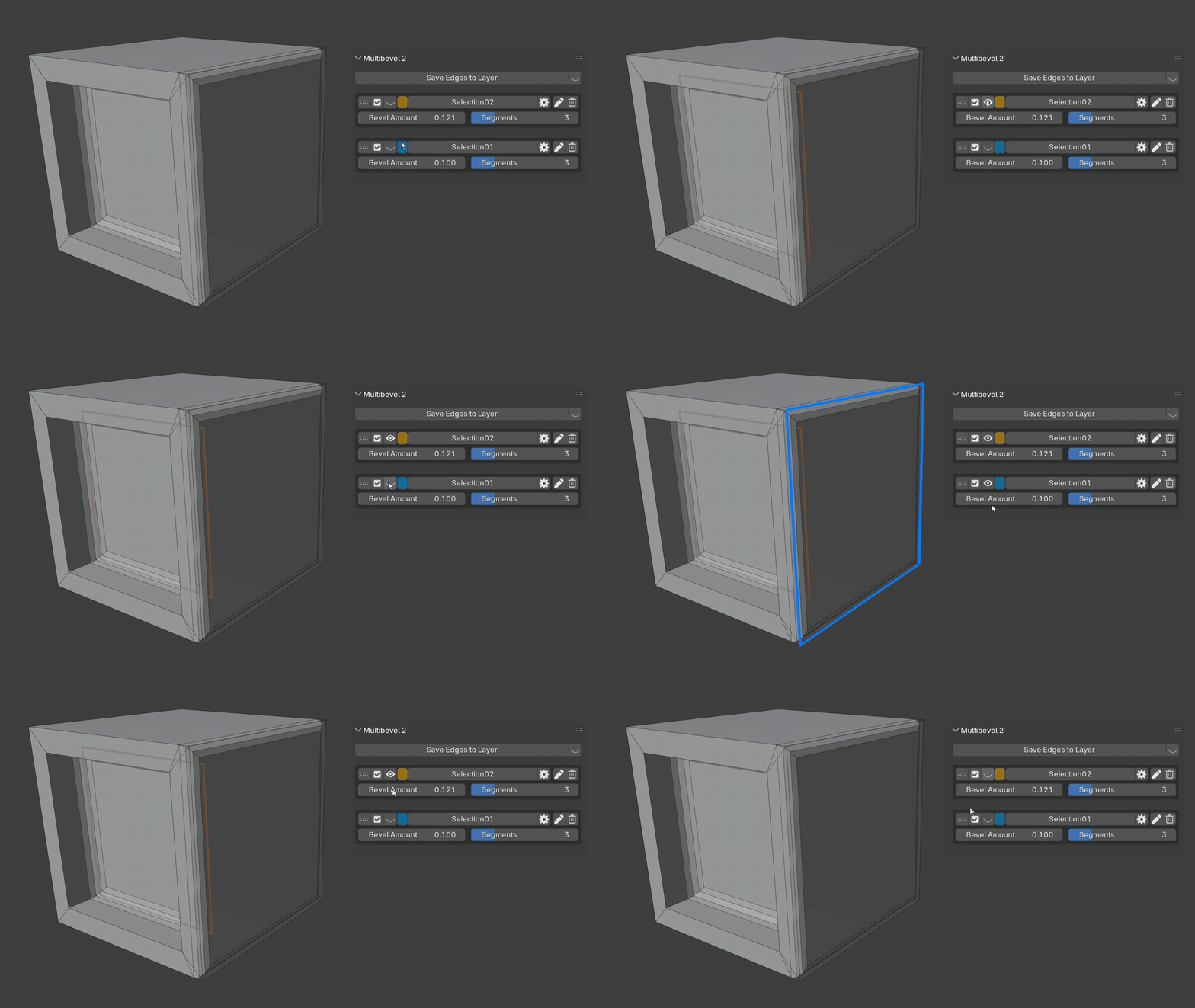
Toggle Layer Visibility & Get Instant, Color-Coded Previews
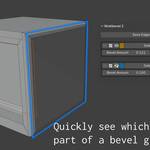
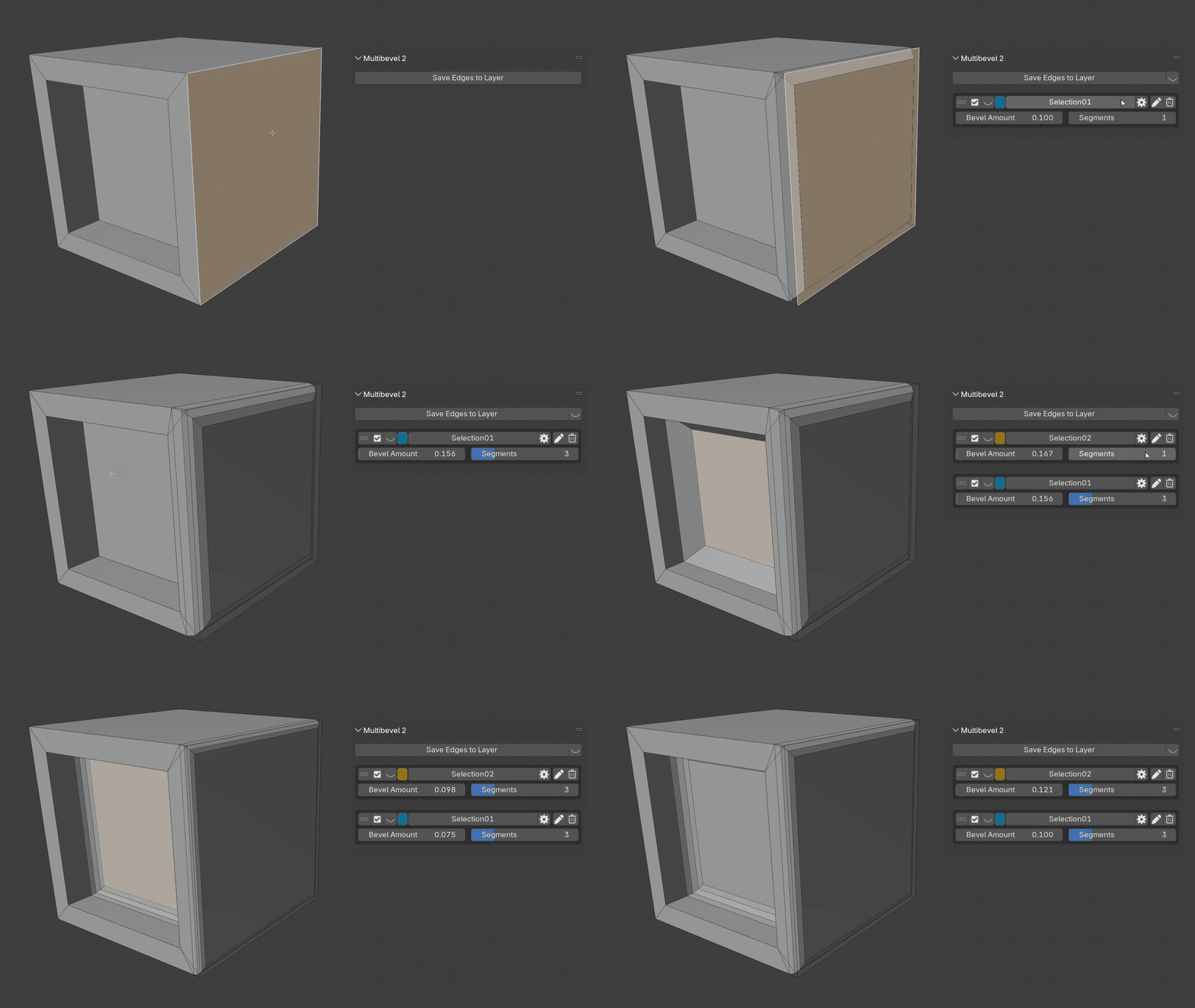
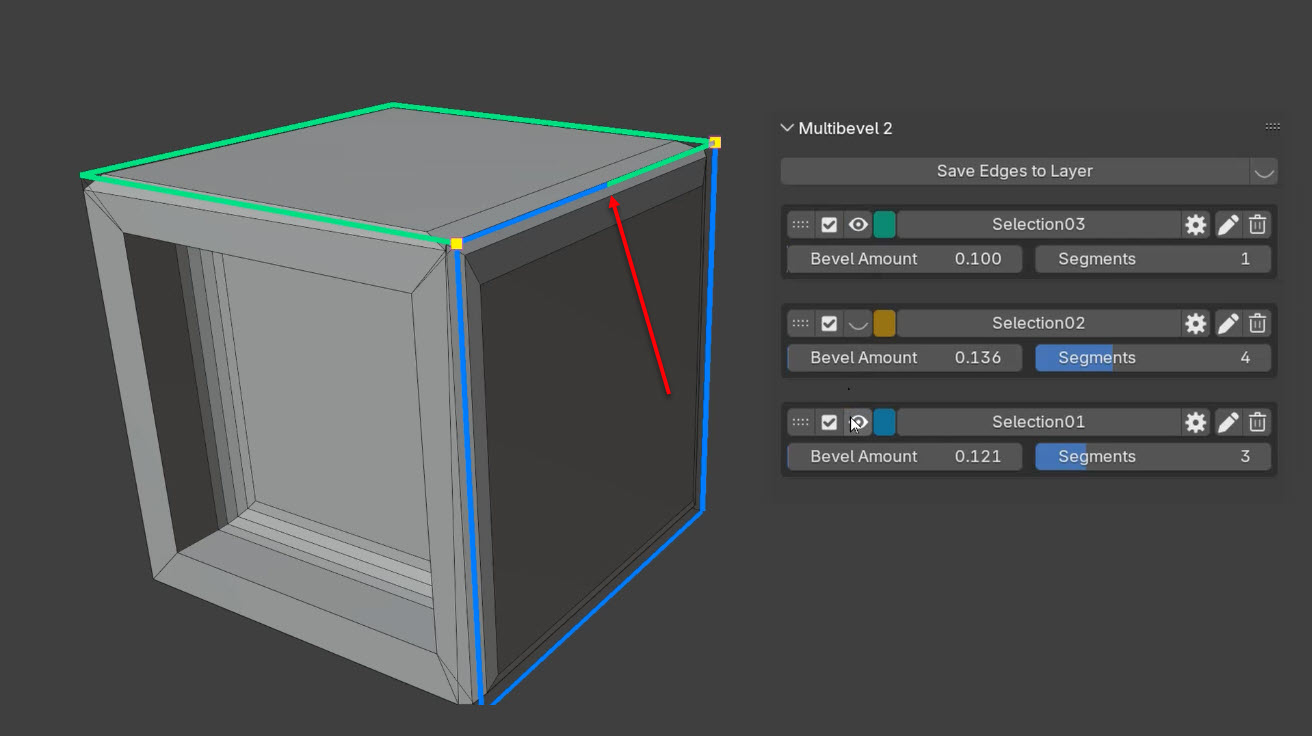
With just a click on the eye icon, you can toggle the visibility of each layer. This gives you an instant preview of which edges have beveling assigned — clean, color-coded, and easy to understand.
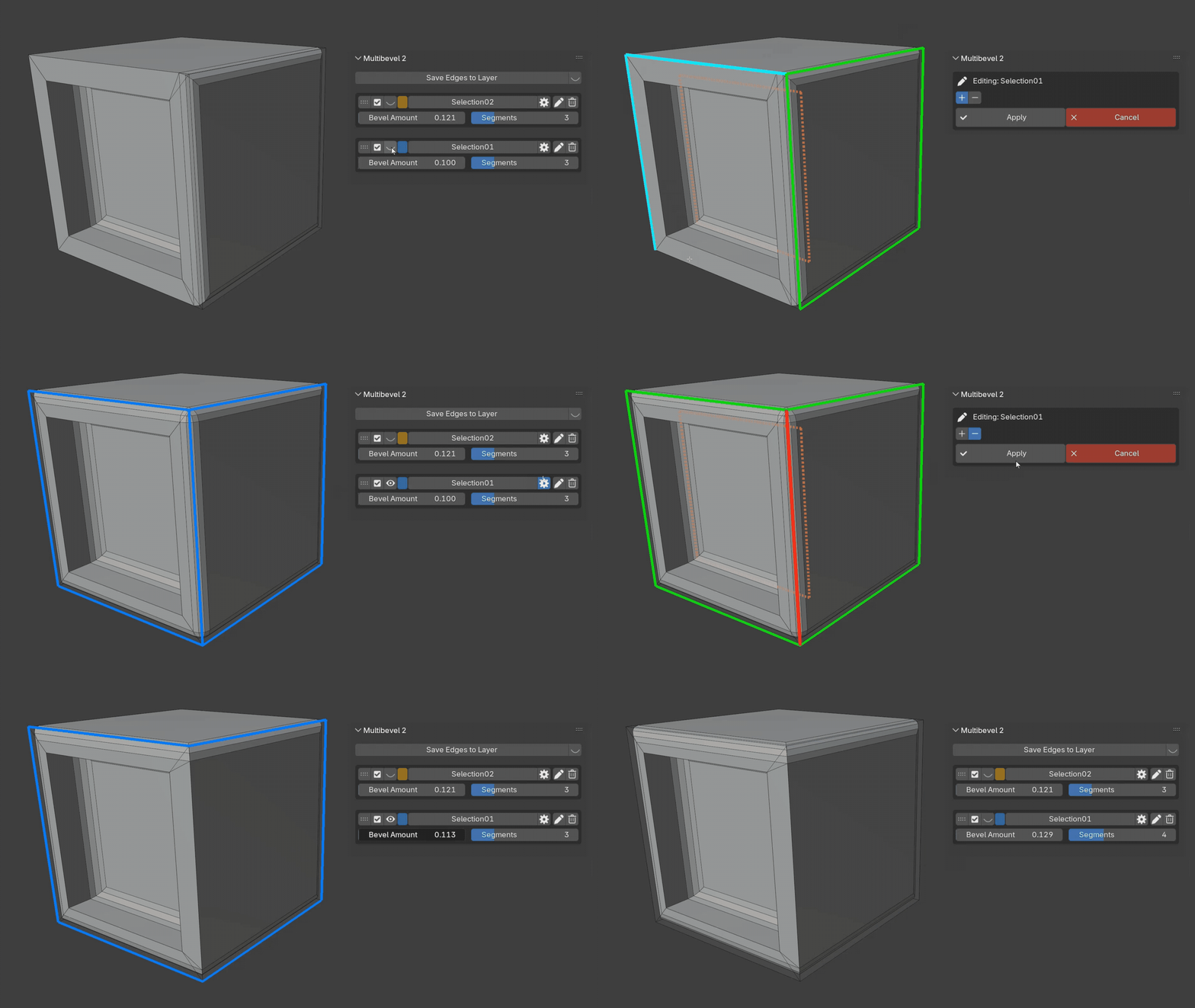
Visual Edge Editing in the 3D Viewport
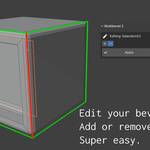
Edges from other layers are shown as dashed lines, so you always know what's already in use. Use the + button to add new edges, or the – button to remove them — all directly in the 3D viewport.
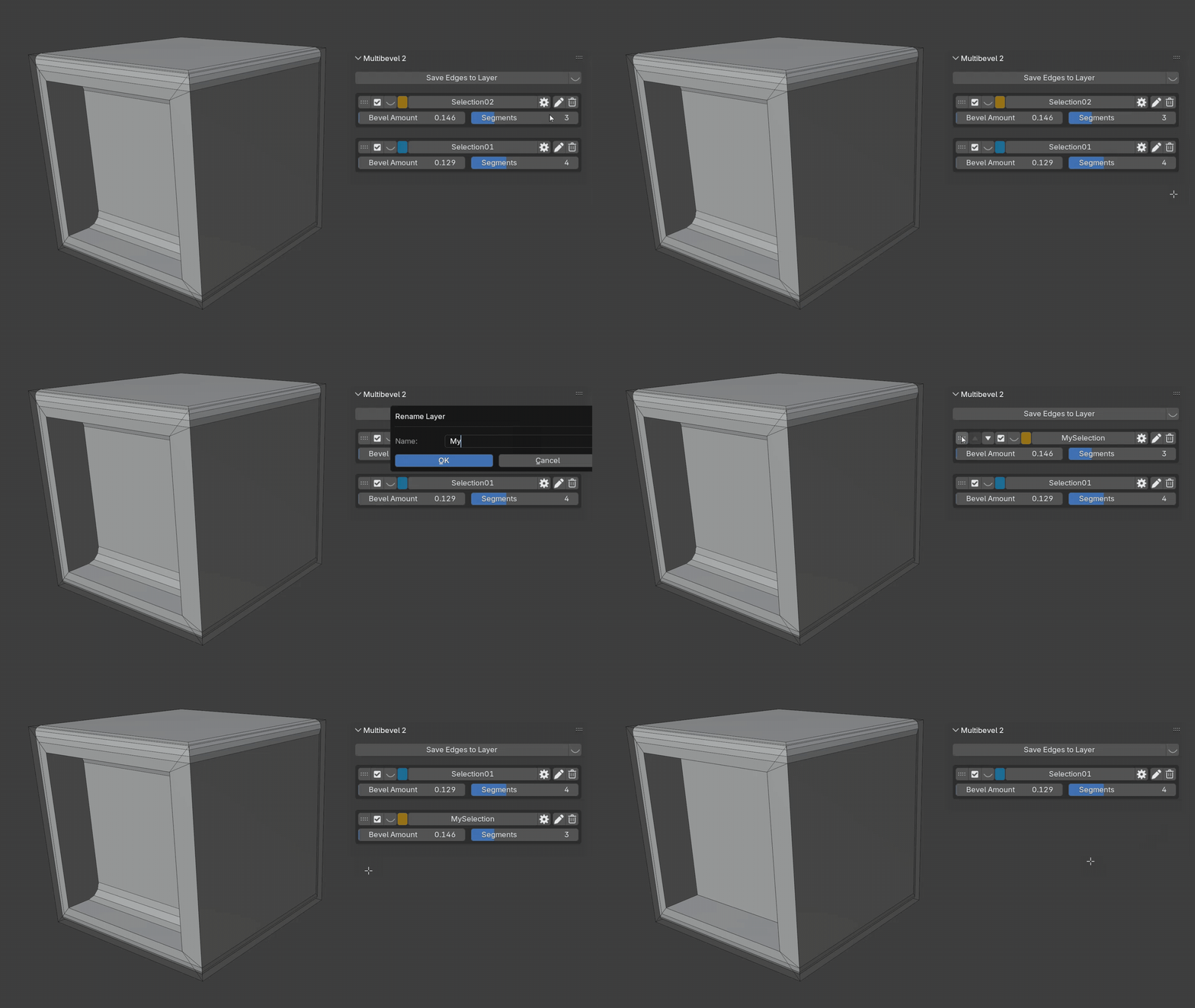
One-Click Overview & Easy Layer Management
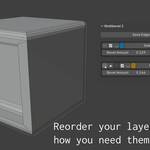
With a single click, you can show all edges used by any layer — perfect for quick overviews. Click again to return to your previous view: Multibevel remembers what was hidden before, so you won't lose track. You can also rename, reorder, or delete layers easily. Behind the scenes, all modifiers are managed automatically — no setup conflicts to worry about.
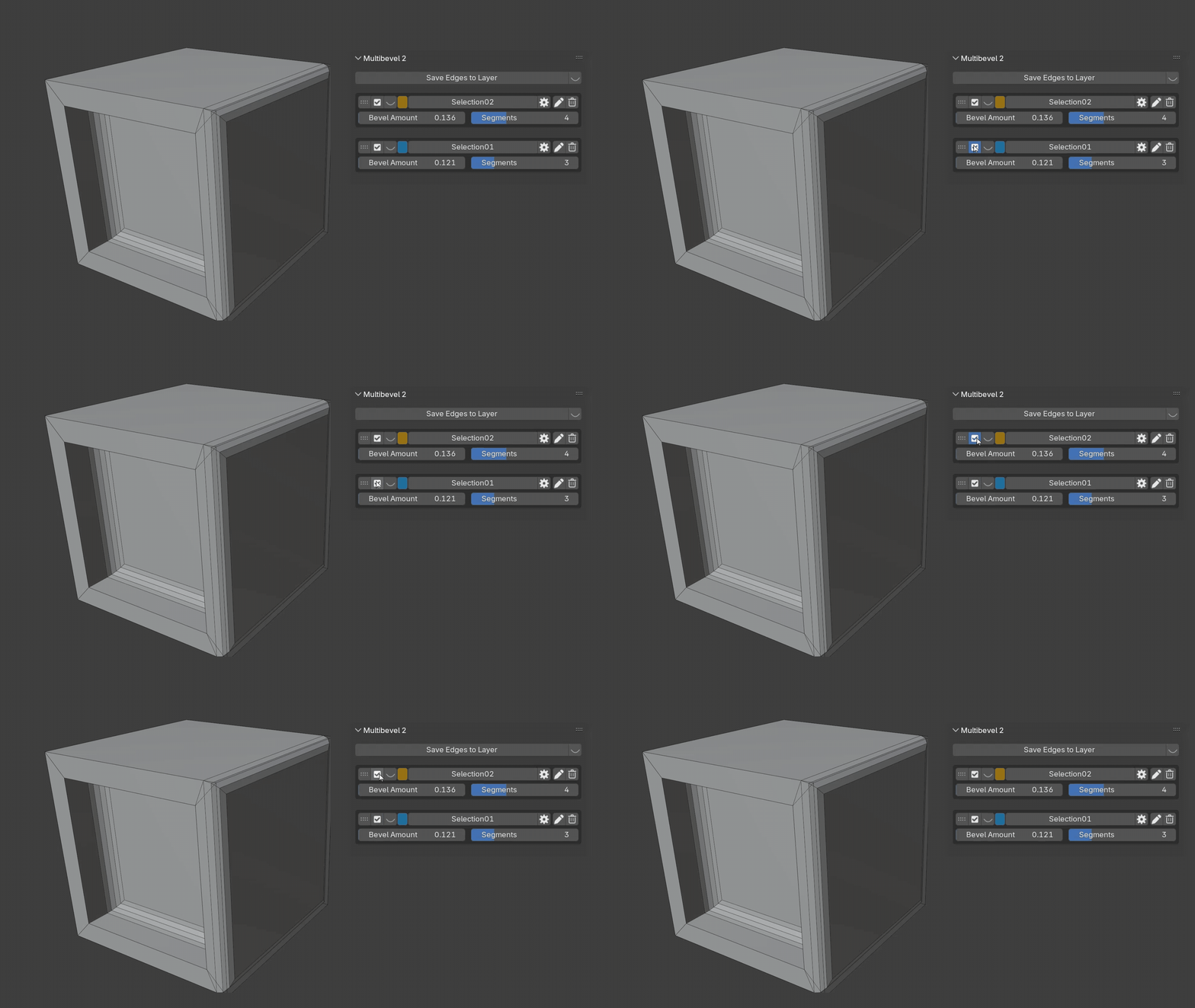
Enable/Disable Bevels Per Layer
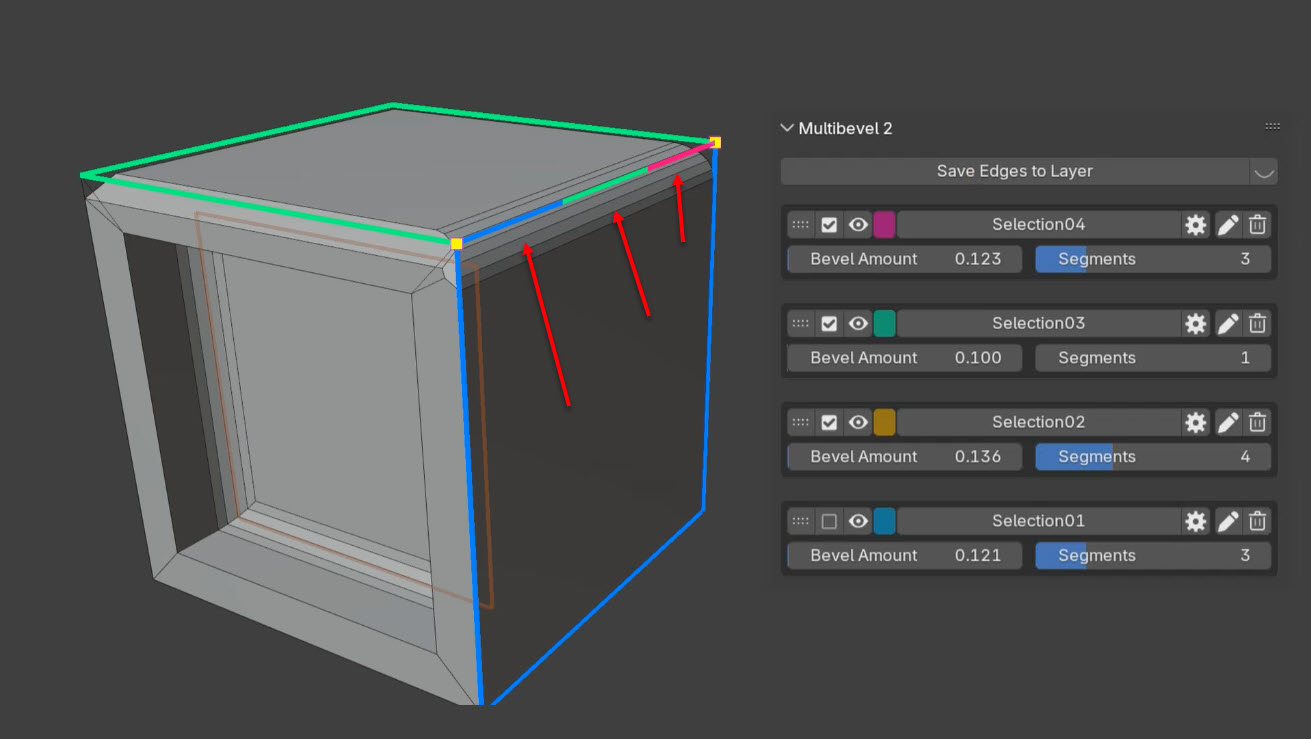
Turn the bevel effect on or off for each layer individually. This makes it easy to focus on specific parts of your model or compare results — without changing your setup. By temporarily disabling a layer, its edges become available for other bevel layers — no conflicts, no hassle.
Conflict Highlights & Overlap Colors
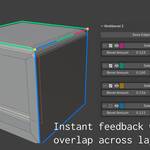
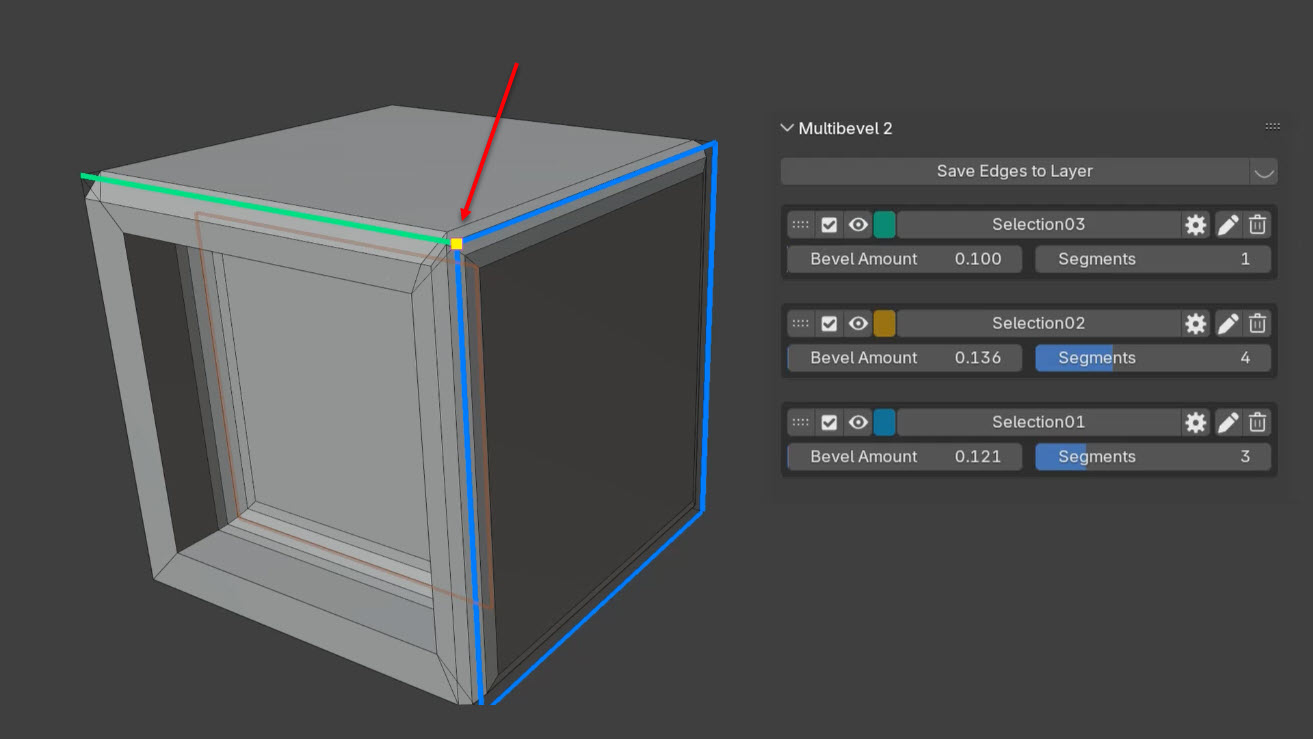
Multibevel 2 shows you exactly where potential conflicts might occur. If a vertex is shared across multiple layers, it's marked with a large yellow square — so you can quickly spot and fix problem areas. Edges that appear in more than one layer are displayed in multiple colors, making overlaps easy to identify. And thanks to per-layer toggles, managing these overlaps stays simple and non-destructive.
MultiBevel 1 – Simplify and Automate Edge Beveling
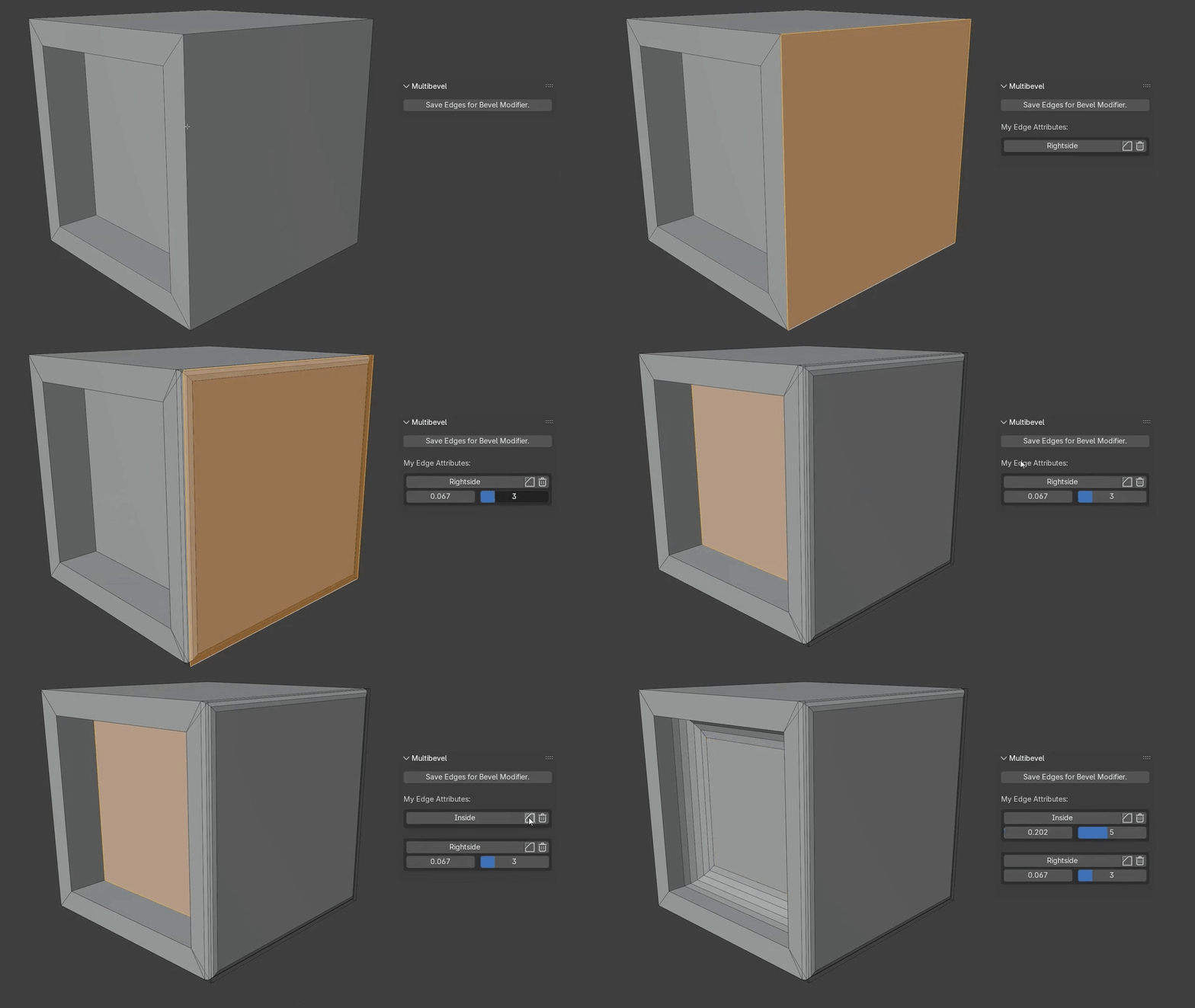
MultiBevel is a powerful add-on that takes the hassle out of managing edge beveling. With just a button click, you can save selected edges into custom attributes, making them easy to manage and reuse. Each saved attribute can then be seamlessly assigned to its own Bevel Modifier, allowing you to quickly create and manage multiple bevel modifiers across different edge selections within a single model. Forget the tedious task of manually assigning bevel weights and configuring bevel modifiers — MultiBevel does it all for you in just a few clicks.
Effortless Recall & Updates
MultiBevel lets you recall and update previously set attributes effortlessly — a feature not natively available in Blender. This makes it simple to refine and adjust your edge selections even after they've been assigned.
Key Features
- Automatically create custom edge attributes and assign them to the Bevel Modifier under Weight.
- Manage multiple bevel attributes effortlessly through a clean, intuitive interface.
- Easily tweak bevel settings, such as width and segments, directly in the panel.
- Select edges with existing attributes or remove attributes with a single click.
- Save time and enhance precision in your modeling workflow.
Work Smarter, Not Harder
Whether you're working on complex models or simple designs, MultiBevel empowers you to focus on creativity rather than repetitive tasks. It's ideal for anyone looking to streamline their workflow and work more efficiently.
For a detailed explanation of all features and usage instructions, please refer to the comprehensive documentation available under Documentation.
MultiBevel 3.1 — Changelog
New Features
- Interactive Layer Colors — Click the color swatch next to any layer to open the color picker and choose your own color. The edge visualization in the viewport updates in real time.
- Toggle Edge Selection — In the visual edge editing mode, clicking an already-added edge now removes it again. This makes it much faster to fine-tune your selections without switching between Add and Remove mode.
- Depth-Aware Edge Selection — The edge editing mode now uses a surface raycast to determine which edges are actually visible. Edges on the back side of your mesh can no longer be accidentally selected through the geometry.
- Boundary Edge Selection — Edges at the silhouette of your mesh (where no geometry is behind them) can now be reliably selected from any angle.
Bug Fixes
- Edge selection through mesh — Fixed a critical issue where clicking near an edge could accidentally select an edge on the far side of the mesh. The selection system now performs a depth test against the mesh surface, ensuring only visible edges are selectable. Thanks to Mark Playford for reporting this issue!
- Visualization lost after Apply — Previously, the layer visualization ("Show Layer") would turn off after applying changes in the edge editing mode, requiring you to manually re-enable it. The visualization now stays active and immediately reflects the updated edges.
- Parameter Presets checkbox — The "Parameter Presets" and "Complete Presets" checkboxes now work correctly. Previously, toggling them had no visible effect.
Under the Hood
- Modular codebase — The entire add-on has been refactored from a single 4,000-line file into clean, separated modules (state, helpers, drawing, operators, panel). This makes the codebase easier to maintain and paves the way for future features.
Thank You to the Community
A special thanks to Mark Playford for reporting the edge selection issue — his detailed feedback and screen recording made it possible to identify and fix the problem quickly.
If you ever run into a bug or unexpected behavior, please don't hesitate to reach out. I truly appreciate every report — it helps me improve MultiBevel for everyone. You can contact me directly through SuperhiveMarket or via [email protected].