 Pixonomic



Requirements
- Blender 4.2 LTS or newer. Verified on 4.5 and 5.1.
- Windows, macOS or Linux.
- No external dependencies, no account and no internet connection.
Installation
The add-on ships as a Blender extension. Do not unzip it.
- Download
npanel_sideorder-1.0.0.zip. - In Blender, go to Edit › Preferences › Add-ons.
- Open the dropdown at the top right (the small ▾) and choose Install from Disk…
- Pick the ZIP file.
- Enable N-Panel SideOrder in the list if it is not enabled already.
You can also drag the ZIP straight onto the Blender window.
Quick start

Open the sidebar in the 3D Viewport by pressing N, then press the ☰ button in the 3D Viewport header.
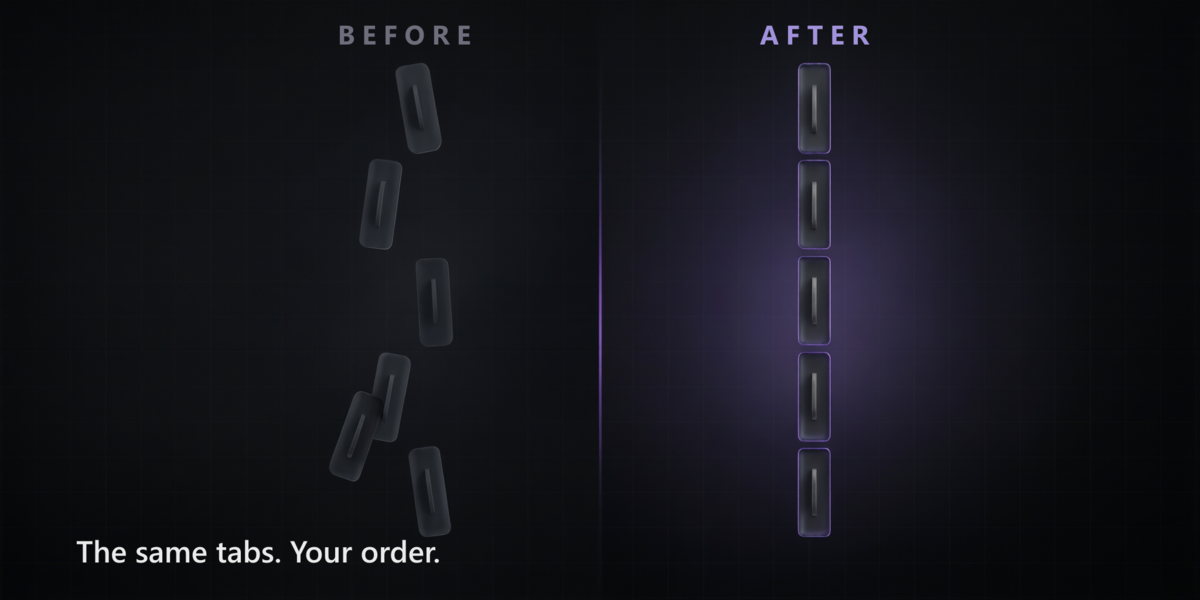
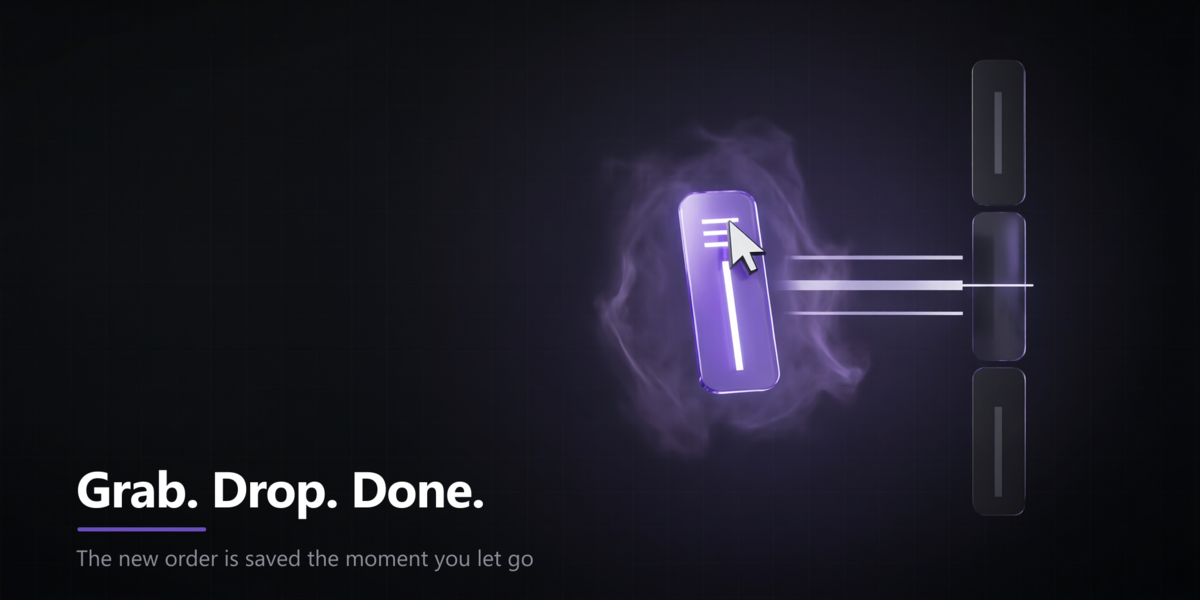
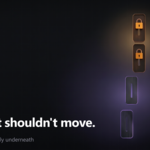
The sidebar tabs turn into draggable handles. Grab one, drop it where you want it, and the new order is applied and saved immediately. Keep rearranging as long as you like.
Press Return or click outside to leave the mode. Esc cancels the drag currently in progress.
The drag mode in detail
Blender exposes no geometry for its own tabs, so while you are dragging, the add-on paints its own strip over them. That strip disappears the moment you leave the mode.
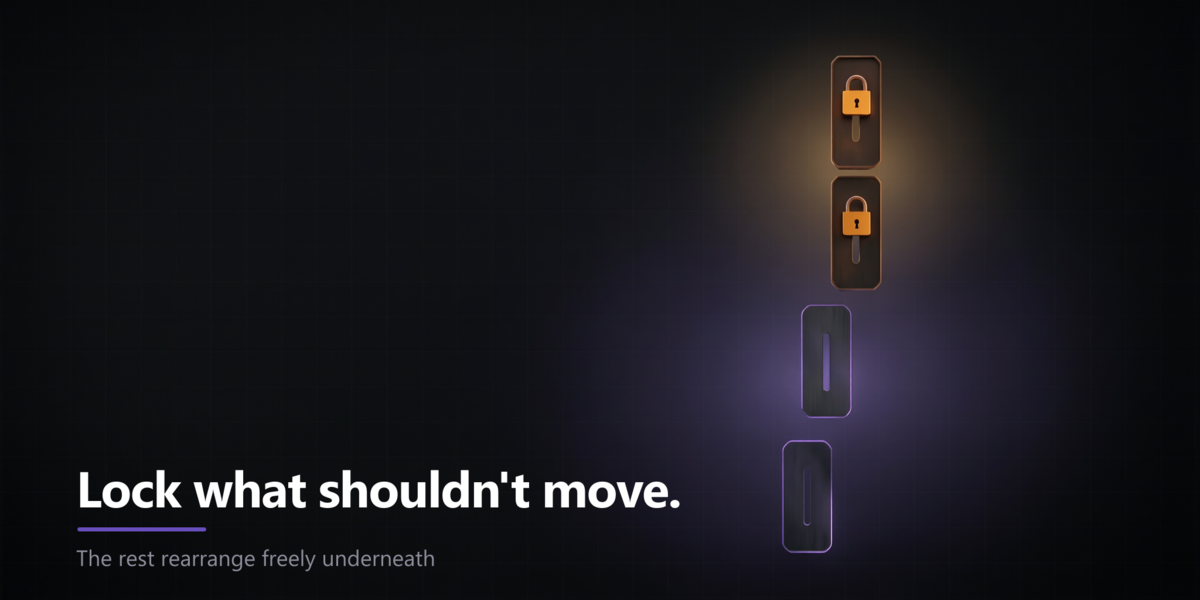
Tabs that cannot move — locked ones, and those anchored by C-defined panels — are drawn dimmed and without a handle. You can see them, but you cannot grab them.
Tab names are always shown in full. If they do not all fit on screen, the text shrinks rather than getting cut off.
The preferences panel
Everything else lives in Edit › Preferences › Add-ons › N-Panel SideOrder.
| Reorder Tabs | Turns the sidebar tabs into draggable handles |
| Refresh | Looks for tabs added or removed since the last check |
| Apply Order | Pushes the list to Blender by re-registering the panels |
| ▲ ▼ ⤒ ⤓ | Move the selected tab up, down, to the top or to the bottom |
| A→Z | Sorts alphabetically, leaving locked tabs where they are |
| Lock (per row) | Never touch this tab; it keeps the position Blender gave it |
| Pin (per row) | Marks a tab that refused to move: it is anchored by C-defined panels |
| Reset to Blender Default | Restores the order captured on first run |
| Clean Up Missing | Forgets tabs whose add-on is gone for good |
Options
|
Apply on change default: on |
Reorders the viewport as soon as the list changes |
|
Detect new tabs automatically default: on |
Polls every 5 seconds for tabs added by add-ons enabled later |
|
Only tabs that appear in the sidebar default: on |
Hides tabs whose panels are registered but never drawn |
|
Don't move Item / Tool / View default: on |
Leaves Blender's own tabs alone. The safest setting |
|
Reorder button in the 3D Viewport header default: on |
Shows the ☰ button that starts the drag mode |
|
Verbose logging default: off |
Logs every step to the system console |
With Don't move Item / Tool / View enabled, those tabs keep the position Blender gave them — in practice, the front of the bar — and every unlocked tab is placed after them in your order.
Row flags
- NEW — a tab that appeared after the last apply, from an add-on you enabled later. Place it and press Apply.
- Pin — this tab refused to move because C-defined panels anchor it. Lock it and order the rest around it.
- Lock — you asked for this tab to be left alone.
- Missing — the add-on that provided this tab is currently disabled. Its position is remembered for when it comes back.
Troubleshooting
The drag mode refuses to start.
The sidebar has to be open. Press N in the 3D Viewport first.
A tab came back with a pin after applying.
It is anchored by a panel defined in C and cannot be moved from Python. Lock it and arrange the others around it.
The order looks wrong right after starting Blender.
Reading the current order needs an open sidebar. Open it and press Refresh, then Apply Order.
A tab in the list is not one I can see.
Some add-ons register panels that never draw. Turn on Only tabs that appear in the sidebar to hide them.
Panels inside a tab changed order the first time.
The vertical order within a tab is re-imposed from class-creation order, which usually but not always matches how the add-on registered them. It is stable from then on.
One tab failed to re-register.
The failure is caught, everything is put back, and the error is listed in the preferences. Lock that tab to leave it alone. Turn on Verbose logging if you want the detail in the system console.
Known limitations
- The Item tab cannot be moved. Its Transform panel is defined in C, so no amount of re-registering touches it. This is a Blender limitation with no Python-side workaround.
- Only the 3D Viewport sidebar is exposed. Other editors are not covered.
- Tabs cannot be renamed, merged, hidden or colour-coded. The add-on orders them.
- The preferences list itself cannot be drag-reordered — Blender's
UIListexposes nothing about dragging. That is why dragging happens over the sidebar instead. - An add-on enabled after this one appends its tab at the end, flagged NEW, until you place it and apply.
Uninstalling
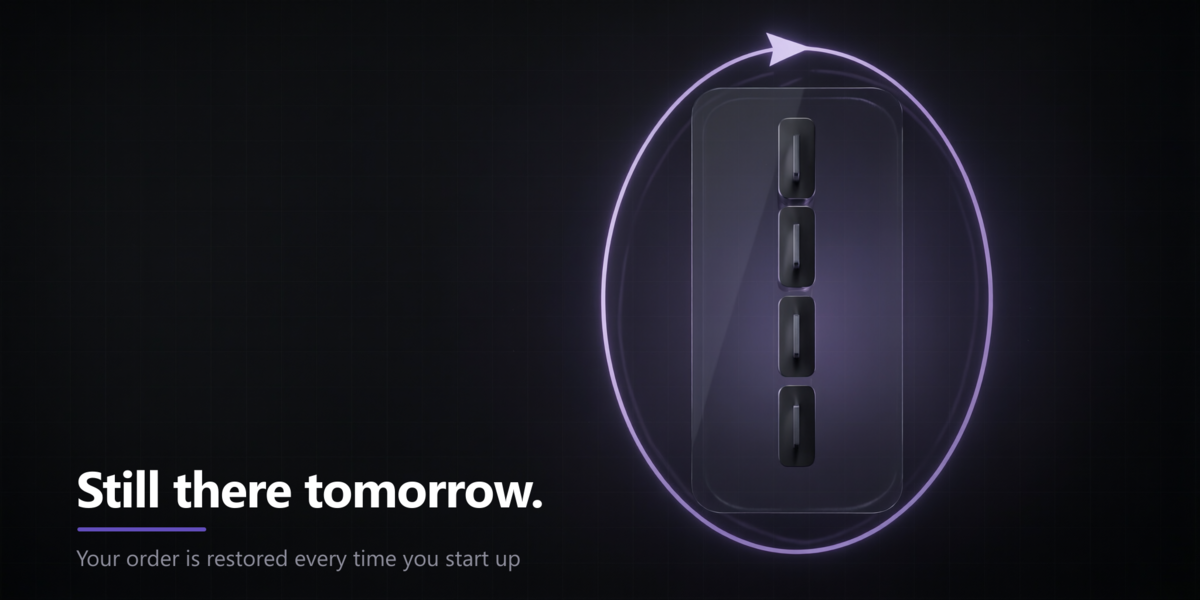
Disabling or removing the add-on does not restore the original tab order — your chosen order simply stays as it is.
If you want the order Blender gave you back, press Reset to Blender Default before removing the add-on.
License
GPL-2.0-or-later.
Have questions about this product?
Login to message
| Blender Extension Compatible | Yes |
| Published | 18 days ago |
| Blender Version | 4.2 - 5.2 |
| Extension Type | Add-on |
| Render Engine Used | Cycles |
| License | GPL |
Discover more products like this
Sidebar tabs productivity viewport user interface organization n-panel tab order reorder ui drag and drop